







How to Give Access to Outlook Calendar Across Every Client
Learn how to give access to Outlook calendar on desktop, web, and mobile with clear permission levels, troubleshooting tips, and privacy best practices.

You’re trying to hand a calendar to someone else without handing over your whole inbox, and Outlook makes that look simpler than it is. An executive needs an assistant to move meetings. A recruiter only needs availability. A teammate just needs to know when not to book over focus time. In Outlook, those are three different access problems, not one.
The trick is that calendar sharing is permission-based, not all-or-nothing. Microsoft’s current flow uses Can view when I’m busy, Can view titles and locations, Can view all details, and Can edit, plus separate delegate and folder-permission paths for deeper control. That’s why the right setup depends on who you’re sharing with, what they need to see, and whether they also need to act on your behalf. Microsoft’s own guidance shows the process starts with Calendar, then Share Calendar, then a recipient and an access level, which is the cleanest way to think about how to give access to Outlook calendar without overexposing private events or work email. Microsoft’s calendar sharing guidance makes the same point across Outlook clients.
Why Outlook Calendar Sharing Looks Simple but Isn’t
Outlook makes Share Calendar look like a quick fix, but the decision comes before that click. An executive assistant usually needs to move meetings and answer scheduling requests. A teammate may only need enough visibility to avoid conflicts. An outside contact may need a different kind of access altogether, because a shared calendar in Outlook is not the same thing as handing over a mailbox or giving someone free rein over private events.
The permission you choose changes the privacy outcome
The choice is not just about whether someone can open the calendar. It changes what that person can infer about your day, your meetings, and your priorities. A light-sharing setup protects private context while still giving enough availability for coordination. A broader setup gives the recipient more of the event picture and more room to act, which is useful in some roles and too much in others.
That trade-off matters because the same request can mean very different things in practice. An executive asking for help usually needs someone who can manage scheduling, not just view free and busy blocks. A manager asking for team visibility often wants a cleaner read on availability, not a detailed record of every meeting title. Outlook’s sharing model forces you to decide which privacy boundary fits the job before you hand over access.
Practical rule: start with the least access that solves the scheduling problem, then expand only if the recipient actually needs more than availability.
The hidden cost of oversharing shows up later. Once someone can see too much detail or make changes directly, it is harder to treat that access as temporary or limited to one task. In Outlook, the right setup matches the role, the amount of context the other person needs, and the amount of trust the workflow requires. That is the mindset behind how to give access to Outlook calendar without creating cleanup work later.
Sharing a Calendar in Outlook Desktop and on the Web
The click path changes by client, but the setup does not. Open the calendar, choose sharing, add the person, then assign a role. Microsoft documents that same flow across desktop and web, which matters because Outlook has changed labels more than it has changed the underlying permission model. Microsoft’s sharing steps for Outlook are the cleanest reference when the ribbon looks different from one machine to the next.
If you are comparing share options or trying to decide how much access to grant, the calendar visibility breakdown in this guide to Outlook calendar visibility helps map the permission choice to the privacy outcome.
New Outlook and Outlook on the web
In New Outlook and Outlook on the web, open Calendar, then select Share Calendar. Enter the person’s name or email address, choose the access level from the dropdown, and send the invite. Microsoft’s newer interface makes the recipient and permission tier visible at the same time, which helps avoid sharing too broadly and sorting it out later.
If the recipient only needs scheduling help, keep the role narrow. If the person needs to move meetings on your behalf, choose Can edit deliberately, because edit rights change the privacy outcome and give the recipient more than a read-only view.
Classic Outlook for Windows
In classic Outlook for Windows, the share path usually sits on the Home ribbon or opens from a right-click on the calendar. The labels may say Share Calendar, Permissions, or show roles like Reviewer, Editor, and Owner, depending on the mailbox and version. The decision stays the same, you assign a visibility tier, then Outlook sends an invitation or applies folder permissions.
This is also where older interfaces can mislead people who expect every client to behave the same way. The permission text may look different, but the effect is still tied to what the recipient can see and whether they can make changes.
Outlook for Mac
On Mac, the sharing flow is similar, but the final send step can feel less obvious than on Windows. Add the person, pick the permission, and confirm that the invitation was sent. That confirmation matters because some users assume the share worked when they only changed the setting locally.
If the recipient accepts, the shared calendar should appear in their calendar list. If it does not, the issue is usually on the recipient side, either the add step was missed or the client has not synced yet. When the share needs to stay visible across devices and clients, this Outlook calendar sync guide is the next practical place to check.
Outlook Permission Levels and What They Actually Mean
The permission dropdown is where Outlook calendar access usually goes wrong. The labels look simple, but the outcome depends on how much visibility the other person needs and whether they should be able to change anything. Older Outlook clients and admin tools may still show roles like Reviewer, Editor, and Owner, while newer clients use phrasing such as Can view when I’m busy, Can view titles and locations, Can view all details, and Can edit. Those labels are different names for the same practical decision, how much of the calendar the other person can see and whether they can modify it.
| Outlook Calendar Permission Levels Compared | What Recipient Sees | Best For |
|---|---|---|
| Can view when I’m busy | Only free or busy blocks, no titles or details | Scheduling around availability without exposing meeting content |
| Can view titles and locations | Event titles and locations, but not full detail | Coordinating around meetings while keeping most details private |
| Can view all details | Full event details, including complete appointment info | Trusted coworkers who need context, but not editing rights |
| Can edit | Full visibility plus the ability to make changes on the shared calendar | Assistants, schedulers, and coordinated calendar management |
The table is the cleanest way to choose a setting because each permission maps to a different privacy outcome. Can view when I’m busy keeps the calendar almost opaque, which works well when someone only needs to avoid conflicts. Can view titles and locations gives enough context for coordination without opening the full appointment details. Can view all details exposes the contents of the entry, which is useful when the other person needs to understand the schedule, but not alter it. Can edit is the point where sharing becomes operational, because the recipient can move or change items on the shared calendar.
That difference matters more than the label suggests. A front-desk coordinator, recruiter, or project lead may only need visibility into availability, while an assistant handling a calendar across a busy week usually needs editing rights. If you want a cleaner policy for what each level should reveal across a team, this visibility guide is a useful companion reference.
Classic Outlook and Exchange admin tools still surface older role names like Reviewer, Editor, and Owner. Treat them as stronger roles, not casual sharing options. The practical rule is simple, the more control the other person needs, the higher the permission should be, but only after you are comfortable with what they will see and change.
Setting Up Delegate Access for an Assistant or Manager
Delegate access is what people usually mean when they say, “give my assistant access to my calendar.” Calendar sharing alone only solves part of the job. A delegate can usually create, move, and respond to meetings on behalf of the owner, while email permissions like Send on Behalf and Send As live in a separate layer. Microsoft and other admin guidance keep those pieces distinct for a reason.
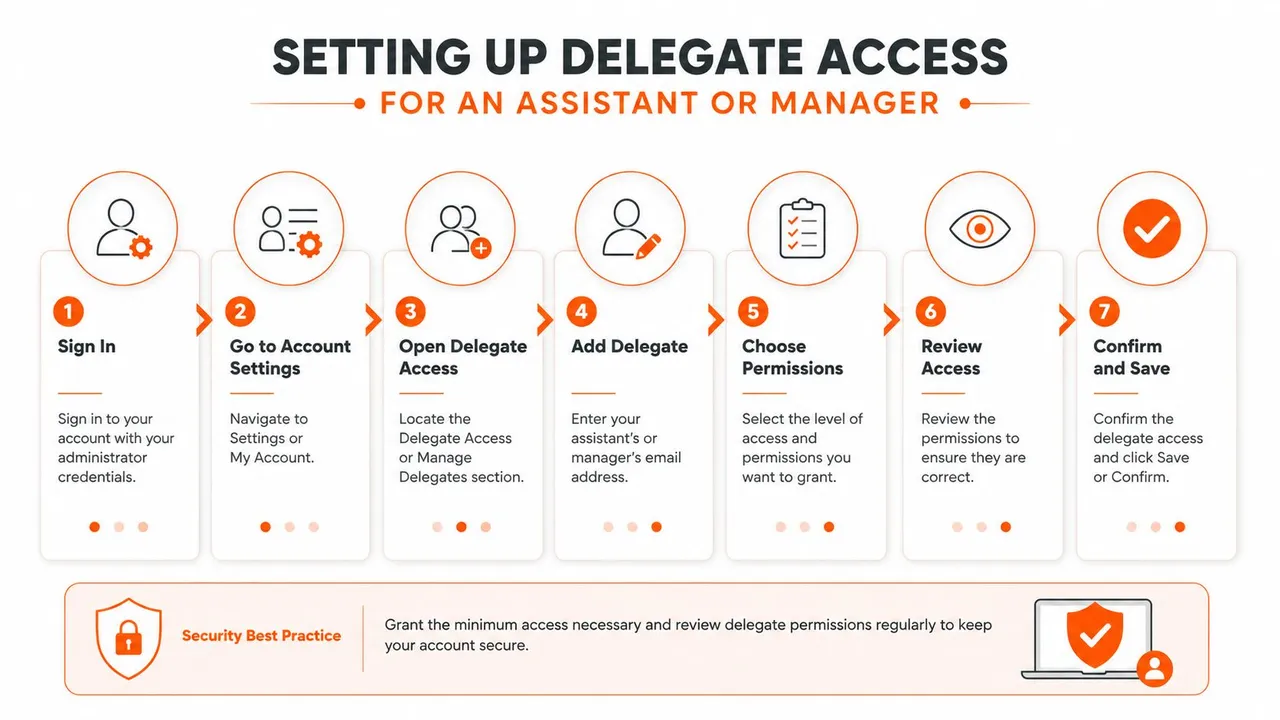
Add the person as a delegate
In Outlook desktop, the delegate path is usually under calendar or account settings rather than the basic share dialog. Add the assistant or manager, then choose which calendar folders they can touch. In Microsoft’s broader Outlook guidance, the same person can be granted calendar access separately from email access, which is the right setup when scheduling should not expose mail.
In the web experience, delegation is also available, but the naming can be a little different from one tenant to another. The practical test is simple, the person should be able to manage the calendar without automatically getting broader mailbox access. If they only need to coordinate meetings, don’t hand them the mailbox keys.
Decide what they can see and send
If the delegate must work around private appointments, check the option that controls whether private events remain hidden from them. That choice matters more than people expect, because assistants often see enough of a calendar to manage conflicts, but not enough to need every personal appointment exposed.
For teams using a shared administrative model, don’t double-configure the same person with both basic share access and full delegate privileges unless you’ve confirmed the reason. The first is for visibility. The second is for acting on your behalf. Microsoft’s support and admin guidance treat them differently, and your setup should too.
A delegate setup also does not replace calendar sharing for everyone else. One person may need delegate rights, while the rest of the team only needs availability. Keeping those roles separate keeps the calendar usable instead of turning it into a privacy leak.
Sharing Your Calendar Externally and Accepting It on Mobile
External sharing is where Outlook usually gets awkward, because inside your tenant, outside your tenant, and on mobile are three different behaviors. For read-only access, Outlook on the web can publish a calendar feed, which gives the other person an internet calendar link instead of mailbox-style access. Cross-tenant sharing is less predictable. In many setups, the recipient still has to add the calendar manually after the invite arrives, even if the share itself was granted correctly.
Mobile adds another layer of friction. On iPhone or Android, Outlook can accept a shared calendar, but the calendar often does not appear until the user taps Add or adds it from the shared calendar list. That is why sending the invite and seeing the calendar appear are two separate steps.
Publish a read-only calendar link
In Outlook on the web, open the calendar publishing or internet calendar settings and generate the ICS-style link for read-only use. Send that link only to people who need ongoing visibility, because it is meant for distribution, not for editing or delegation. If the other person only needs to check availability, this path is usually simpler than building a full shared calendar relationship.
A feed also helps when the recipient is outside Microsoft 365 and only needs visibility, not control. For teams that split scheduling across tools, it can be useful to pair that setup with a sync layer such as this Outlook calendar sync guide, especially when the problem is keeping free and busy time aligned across systems without exposing every detail.
Accept a shared calendar on mobile
On iPhone or Android, open the invitation in Outlook mobile and tap the option to add the calendar. If the invite came from another Microsoft 365 tenant, do not expect it to appear automatically in the calendar list. Manual add is often the missing step, even when the sharing permission was set correctly.
If the calendar still does not show up, check the account first. Users often have the shared item available but are looking in their primary inbox or the wrong profile, which makes the share look broken when it is only hidden in a different list view.
For teams that coordinate across Outlook and other systems, sync can reduce a lot of back-and-forth. In mixed environments, a tool that can merge Google Calendars without exposing agents can help keep availability aligned while keeping private details out of view.
The last place I look is the client itself. Outlook mobile sometimes needs the user to expand the shared calendars section manually before anything new appears, so the permission can be right while the display still looks empty.
Privacy and Scheduling Best Practices for Shared Calendars
Sharing should solve a coordination problem, not create a new privacy problem. The easiest mistake is giving every requester the same level of access because it’s faster in the moment. That works until someone sees more than they needed, or an assistant goes on leave and no one knows who can handle the calendar next.
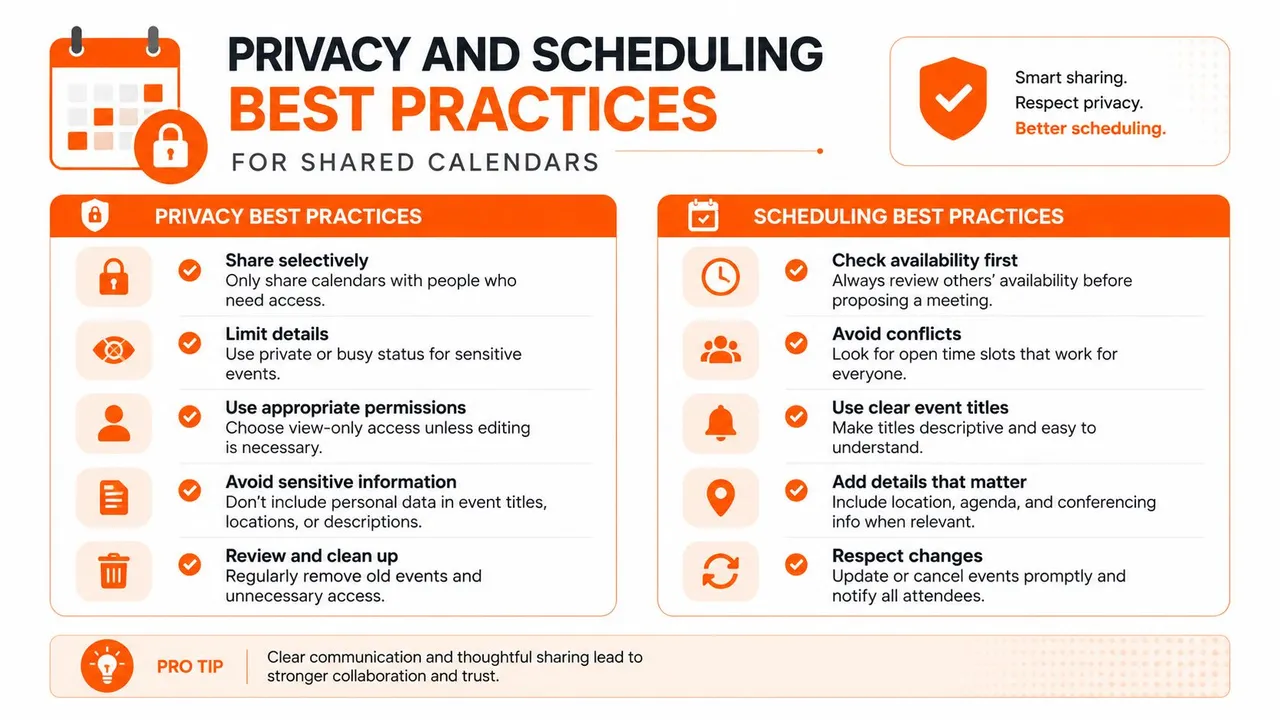
Five habits that keep shared calendars sane
- Start narrow: give Can view when I’m busy or another limited role first, then expand only when the person needs more detail.
- Use Private events: mark sensitive appointments private so even fuller calendar access doesn’t turn into unnecessary exposure.
- Separate calendars by purpose: keep client work, leadership time, and personal commitments distinct when your schedule is heavily shared.
- Review access regularly: check who has permission before a staffing change turns into a scheduling gap.
- Document the fallback path: note who steps in when the assistant, manager, or delegate is unavailable.
The best policy I’ve seen is the one people can follow during a busy week. That means a short internal rule, not a sprawling calendar governance memo.
If your team also juggles Google and Outlook, the privacy problem gets bigger fast. A useful reference is this guide to merge Google Calendars without exposing agents, because it deals with the same basic issue, reducing scheduling friction without revealing more than necessary. For teams that just need a shareable availability line, a free-busy link is often enough.
Troubleshooting When Calendar Access Still Does Not Work
The hardest Outlook calendar problems aren’t the sharing clicks. They’re the moments when the owner swears the invite went out and the recipient still can’t see anything. Microsoft Q&A and university IT guidance both point to the same pattern, permissions were granted, but the recipient still has to add the shared calendar, or the right role wasn’t applied. Washington’s Outlook calendar permission notes are a good reminder that the owner action and the recipient action are separate.
Failure mode one, no usable invitation reached the recipient
The symptom is simple, the calendar owner says access was granted, but the other person never got a clear acceptance prompt. The root cause is usually that the share was configured without the invitation being sent cleanly, or the person was added in a way their client didn’t surface. The fix is to resend from Outlook, preferably from the client that best matches the tenant, and make sure the recipient’s email address is the one tied to their Outlook account.
Failure mode two, the recipient never added the calendar
This shows up a lot in mobile and in New Outlook. The permission exists, but the shared calendar is still hidden in the list. The fix is to open the calendar list, find shared calendars, and tap Add or the equivalent option in that client. If the calendar is shared across organizations, this step is often what makes the difference between “invited” and “visible.”
Failure mode three, cross-tenant or hybrid exchange friction
Some cross-organization setups behave better when the owner sends the share from Outlook on the web instead of desktop. In hybrid Exchange environments, folder permissions may also need admin verification, especially if the GUI hides the setting. For IT teams, two quick checks save time, confirm the recipient account is licensed, and verify the folder permission in Exchange Online PowerShell if the interface doesn’t expose the role you expect.
If you’re also dealing with account-sharing risks outside the calendar itself, the broader identity theft guide for Australians is a useful reminder that permission hygiene matters across every account, not just email and calendar.
Once you’ve handled the three decisions, who gets access, what they can see, and which client they’ll use to manage it, the setup usually holds. If your team still has to keep Outlook aligned with Google Calendar or iCloud while preserving privacy, SyncThemCalendars can copy or mirror events between calendars so availability stays accurate across platforms. Visit SyncThemCalendars to see how real-time calendar sync can support shared scheduling without forcing everyone into the same client.
Ready to sync your calendars?
Keep your Google, Outlook and Apple iCloud calendars in sync automatically. 2-minute setup, no credit card required.
Get started freeKeep reading
More in Tutorials

How to Add Gmail Calendar to Outlook Without Duplicates
See how to add Gmail Calendar to Outlook by subscribing for a live view or using two-way sync, then avoid privacy leaks and duplicate events.

Export Outlook Calendar to Google: A 2026 Step-by-Step Guide
Learn how to export Outlook calendar to Google with clear steps for ICS and CSV imports, recurring-event checks, and verification tips that work in 2026.

How to Synchronize Outlook Calendar Across Platforms
Learn how to synchronize Outlook calendar events with Google and Apple iCloud. Master two-way sync, privacy controls, and real-time availability mapping.