







Calendar Sync Android: Complete Setup Guide 2026
Master calendar sync android with step-by-step instructions for native accounts and cross-platform tools in 2026.
Your phone says the calendar is synced. Then a meeting invite never shows up, or it appears on your laptop but not on Android, and the first thing you hear about it is a missed call from a client. That gap is usually not random, it’s a sign that calendar sync on Android is moving through more layers than you might realize.
Android doesn’t treat calendar sync as one simple switch. Google’s own help docs point users to account sync in Settings > Passwords, passkeys & accounts > [Google Account] > Account sync, then to the Calendar toggle, and even to a manual refresh in the app if events still don’t appear, because the system can also depend on Calendar storage being enabled on the device (Google Calendar help). That’s why one professional can think everything is fine while Android blocks updates at the account, app, or storage layer.
Why Calendar Sync Fails on Android
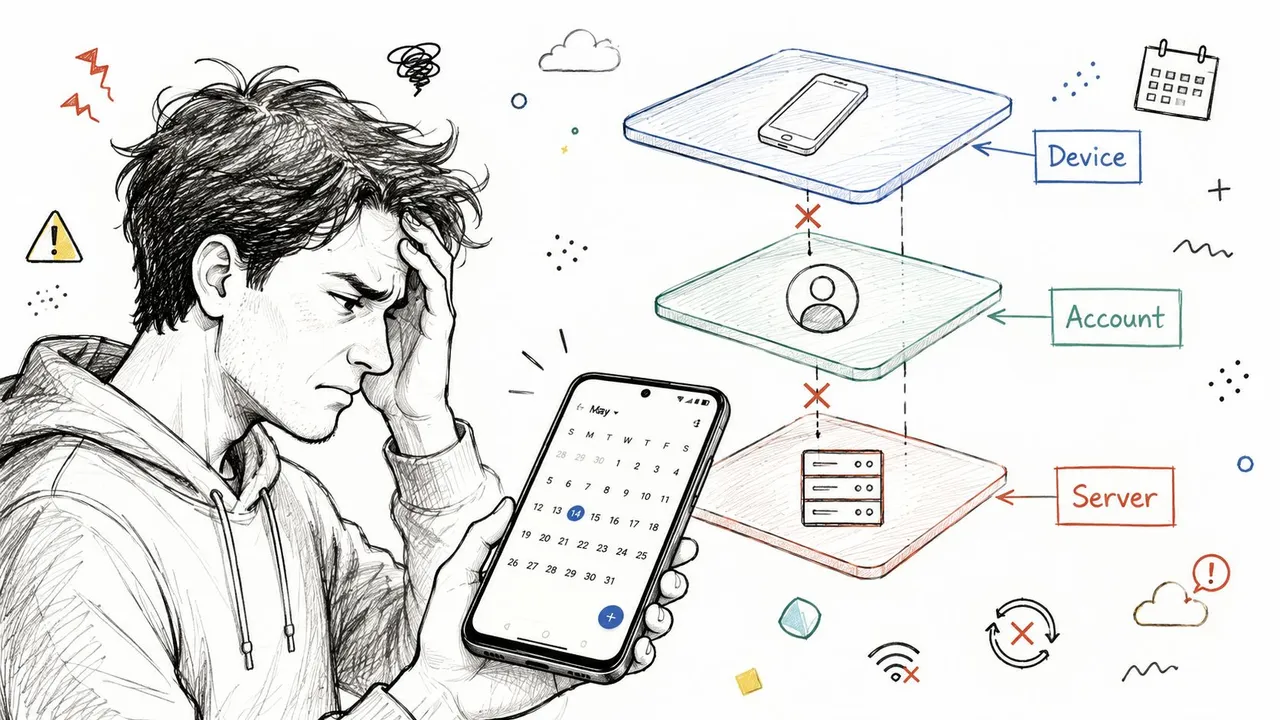
A consultant I’ve worked with once missed a client review because the meeting existed in Google Calendar on desktop, but her Android phone had stopped updating after a settings change. The app was installed, the account was signed in, and the calendar looked normal at a glance. The missing piece was a disabled layer in the device’s sync path, and Android makes that easy to miss because calendar data can be blocked in more than one place.
Three layers have to cooperate
Android calendar sync depends on three separate checks working together. First is account sync, where the Google account has to allow Calendar updates. Second is calendar visibility inside the app, because a calendar can be connected and still hidden from the list. Third is the device’s local Calendar storage, which Google says must be enabled for calendar data to work correctly on the phone, along with the account sync controls in its Android help page (Google Calendar help).
Practical rule: if an event is missing, start with the account toggle, then check the app’s visible calendars, then confirm the device storage layer.
That order matters because the failure mode is rarely obvious. The cloud copy can be intact while Android blocks the update at the account level, or the calendar can be present but not shown locally. In practice, that means a phone can look healthy and still miss new events.
Why enterprise users feel the pain first
Single-account users usually notice a missing event quickly. Teams that juggle work, personal, and shared calendars can keep moving for days before anyone notices the mismatch, especially when they rely on different devices for different parts of the day.
Android’s layered sync model creates a real trade-off. Native sync keeps data inside the system and works well once every switch is set correctly, but it also gives you more places for one small change to interrupt the flow. Cross-platform tools avoid part of that risk by keeping the synchronization logic outside Android’s local sync stack, so they are less dependent on the phone’s account toggles, Calendar Provider permissions, and storage state.
Enabling Native Account Sync on Android
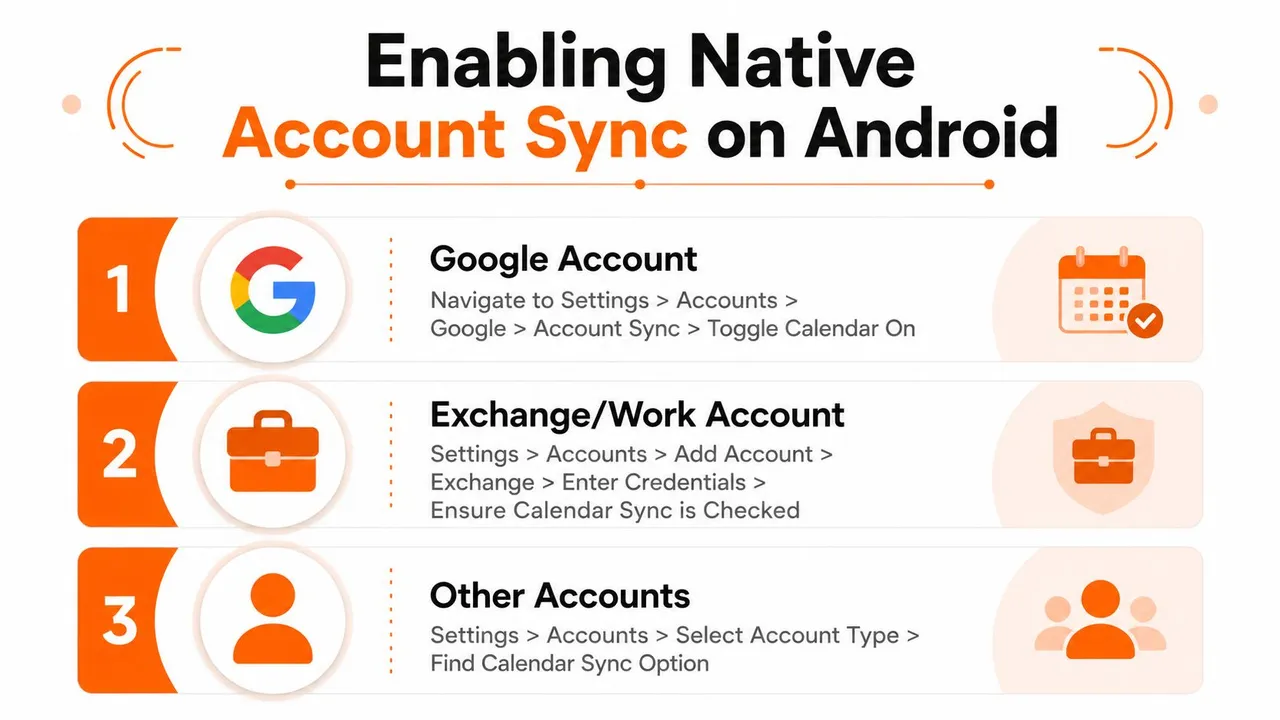
A native Android calendar setup starts in system settings, not in the calendar app itself. On most devices, the route runs through Settings > Passwords, passkeys & accounts, then into the account you want to sync. From there, open Account sync and turn Calendar on if it is disabled. Google’s help page documents that workflow for Android accounts and also points out the related refresh steps if events are not showing up yet (Google Calendar help).
Start with the account, then the app
If the account is a Google account, check the device-level sync switch first. That tells you whether Android is allowed to pull calendar data into the phone. After that, open Google Calendar and refresh manually if the event still has not appeared.
That manual refresh matters more than it sounds. I have seen plenty of first-time setups where the account was correct, the calendar existed, and the app still needed a nudge before the data surfaced, especially when users are also sharing Google Calendar on Android. The app can look healthy while the sync queue is still catching up.
For Exchange or other work accounts, use the same order even when the menu labels differ by manufacturer. Add the account at the device level, confirm that the calendar is selected for sync, then check the calendar list inside the app. The common mistake is stopping at sign-in and assuming Android has finished the job. It has not, unless the account sync switch and the visible calendar list both line up.
Don’t skip Calendar storage
Google also documents a separate Calendar storage layer on Android, and field setups often miss it (Google Calendar help). If storage is disabled, the device may not maintain local calendar data correctly even when the account itself looks fine. A valid login is not the same thing as a usable calendar.
That is why I check the storage layer whenever a phone shows the right account but still misses events, duplicates entries, or refuses to keep recent changes. Android can expose the account, yet still block the data path underneath it. The problem sits below the calendar app, so users often keep tapping refresh when the issue is in system storage or permissions.
A field checklist is more useful when it follows the actual failure points:
- Confirm the account is added: If the profile is not on the device, there is nothing for Android to sync.
- Turn on Calendar in Account sync: This is the first switch to verify after sign-in, especially on phones that manage work and personal accounts separately.
- Check calendar visibility in the app: A calendar can be connected and still hidden from the main view, which makes it look broken.
- Verify Calendar storage: If local storage is off, Android can connect to the account but fail to hold the calendar data properly.
- Use manual refresh after changes: Do this after adding a new work account, re-enabling a disabled calendar, or turning the phone back on after a settings change.
Native sync works well when one ecosystem owns the schedule and the device stays on a single account family. It becomes less forgiving when the same phone has to keep several calendars aligned, because each layer, account sync, calendar visibility, and local storage, can fail on its own.
When Native Sync Isn’t Enough
Native Android sync is fine when you live inside one account family and just need your events to show up on the device. It breaks down fast when you’re managing Google for personal life, Outlook for work, and Apple Calendar for client or family coordination. Android can show calendars, but it doesn’t naturally solve the harder problem of mirroring schedule changes across systems that don’t share the same sync rules.
Where the native model hits a wall
A native setup can’t give you the kind of cross-platform mirroring many professionals need. It also doesn’t offer a clean way to show availability without exposing event details, which matters when you’re sharing a calendar with clients or colleagues but don’t want them reading the subject line of every private appointment. For consultants, freelancers, and sales reps, that distinction is often the whole point of synchronization.
| Feature | Native Android Sync | Cross-Platform Sync Service |
|---|---|---|
| Google account calendar visibility | Yes | Yes |
| Outlook and iCloud mirroring | Limited, device-specific | Designed for it |
| Privacy masking of event details | Not built in | Available |
| Free/busy-style coordination | Basic visibility only | Can mirror availability more deliberately |
| Multi-directional calendar copying | Not a native strength | Built for it |
The difference is not cosmetic. Native sync is tied to the device and the account framework, while cross-platform sync is built to move data between calendars that were never meant to behave like one system. That matters when a double booking costs you time, or when a private personal event should block work availability without exposing the subject.
Who outgrows native sync first
People with one calendar rarely feel this pain. People with multiple clients, multiple employers, or a work-life split across different ecosystems feel it constantly. Once your phone is expected to reconcile calendars instead of merely display one account, you need a sync layer that treats those calendars as a workflow, not just a list.
Setting Up Cross-Platform Calendar Sync
A browser-based sync layer is usually the simplest answer when Android has to reflect several calendar systems at once. SyncThemCalendars is one option that connects Google Calendar, Microsoft Outlook and Office 365, and Apple Calendar through iCloud, then keeps selected calendars aligned in the background. That approach removes the need to rely on Android’s own account plumbing for every relationship between systems.
Connect the calendars, then choose the direction
The setup is straightforward. You connect the calendars you want to mirror, decide whether the relationship should be one-way, two-way, or multi-way, then choose which calendars participate. If you only want one calendar to block time on another, you can do that. If you need matching updates in both places, that works too.
The important part is that the sync logic lives outside Android. That means the phone is no longer responsible for being the source of truth. It just displays the result, which is a much cleaner model for people who move between devices all day.
Use privacy controls instead of exposing everything
A good cross-platform setup does more than copy event titles. It can mask or transform fields like title, description, and location, so other calendars only receive the details they should see. That’s a major advantage over native syncing, especially when you need availability protection without making personal notes visible to work contacts.
If your calendar is public to the wrong audience, the problem isn’t scheduling. It’s disclosure.
Free/busy mirroring matters for the same reason. It lets you protect sensitive details while still preventing double-bookings, which is exactly what busy professionals need when they coordinate across separate systems. For a deeper setup path, see the practical guide on syncing Google Calendar with a broader calendar stack.
What the workflow feels like after setup
Once the calendars are connected, the system runs in the background. Changes flow without manual exports, without repeated account checks, and without asking Android to solve a cross-platform problem it wasn’t built for. That’s the primary benefit for people who need their phone to reflect the whole schedule, not just one calendar silo.
Troubleshooting Common Sync Problems
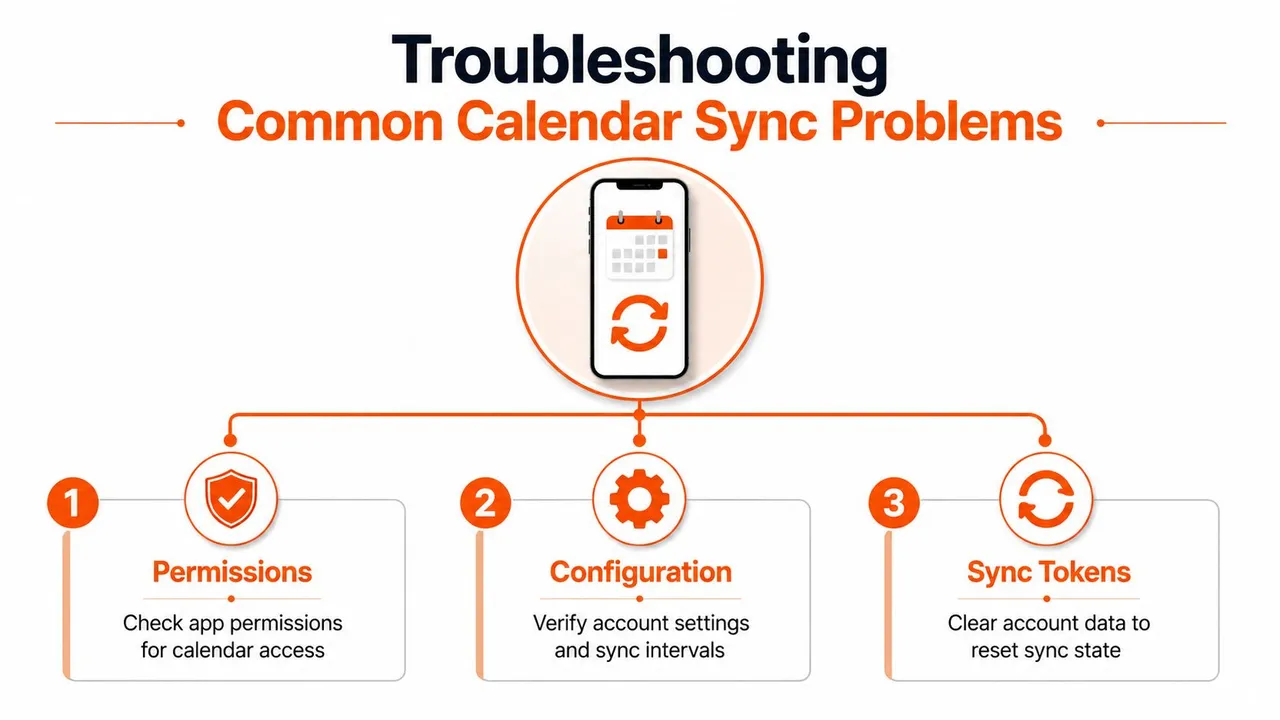
When calendar sync breaks on Android, the failure usually sits in one of three places, app permissions, calendar configuration, or sync state. Android’s calendar system is strict about access. A real integration needs READ_CALENDAR to read events and WRITE_CALENDAR to create, edit, or remove them, and the underlying calendar data is managed through the Android Calendar Provider. If the app can read but not write, or if the calendar is not marked to sync, the event will never land where you expect.
Permission and configuration failures
A common Android failure looks simple on the surface. The account is visible, but new events never appear, or changes refuse to write back to the calendar. In Android’s calendar model, writes need the right permissions, and sync-adapter writes must be flagged with CALLER_IS_SYNCADAPTER=true so the platform treats them as sync operations instead of ordinary user edits (Android Calendar Provider).
The calendar itself can also be misconfigured even when the account looks healthy. Android stores a SYNC_EVENTS flag on each calendar, and if that flag is off, the calendar will not behave like an actively synced calendar (Android Calendar Provider). That is why one calendar can update while another stays frozen on the same device. Local storage can make the picture worse, because the phone may still be showing stale data after the cloud side is already correct.
Sync token and loop problems
Cross-platform systems fail differently. The sync engine has to remember what changed last, fetch only the delta, and avoid copying its own copied events again. If that state is lost, the system may need a full resync, which is slower and more error-prone when edits, cancellations, or moved events arrive at the wrong time.
The change-driven model described in How calendar sync works shows why this gets tricky. Webhook-based systems register a watch channel, receive an HTTP POST when something changes, and then pull only updates with a sync token instead of re-downloading everything. That same model also depends on deduplication with stable metadata-based event IDs, because without that guard a two-way sync can recursively copy its own updates.
A practical fix list on Android starts with the device, then moves to the sync layer:
- Check app permissions first: No calendar permission means no useful sync.
- Verify the calendar is set to sync: The account can be healthy while a calendar stays disabled.
- Refresh or re-create sync state when tokens go stale: Bad state is often worse than a clean rebuild.
- Clear calendar storage if the device view is inconsistent: Local data can get stuck even when the cloud is fine.
- Watch for duplicate event loops in two-way setups: If copied events are not tagged properly, the sync engine can chase its own tail.
A good diagnostic flow starts with permissions, then checks calendar configuration, then inspects sync state. That order saves time because it matches where Android and cross-platform tools fail.
For a related checklist on Android-specific failures, the guide on Google calendars not syncing is worth keeping close when you are sorting out whether the problem sits in the device, the account, or the sync engine itself.
Choosing the Right Sync Strategy for Your Workflow
If your life runs on one account and one ecosystem, native Android sync is usually enough. If you’re switching between Google, Outlook, and iCloud, or you need privacy controls that hide event details while preserving availability, a cross-platform layer is the better fit. The choice comes down to how much your calendar has to do, not just whether events appear on screen.
For entrepreneurs, freelancers, sales professionals, and students balancing separate schedules, the useful question is simple. Do you need Android to display one calendar, or do you need it to reflect a coordinated schedule across several systems? If it’s the second, look at a service such as SyncThemCalendars and its calendar sync workflow, because that kind of tool is built for mirroring, not just showing.
Quick check before you decide:
- One ecosystem only: native sync is probably enough.
- Multiple platforms: you’ll likely need a dedicated sync layer.
- Private events must stay private: look for field masking.
- Double-booking keeps happening: free/busy mirroring matters.
- You keep fixing the same Android setting: the native model is too fragile for your workflow.
If Android keeps dropping events or splitting your schedule across too many systems, SyncThemCalendars gives you a way to mirror calendars continuously across Google, Outlook, and iCloud with privacy controls built in. It’s a practical fit when native sync stops being enough and you want one schedule to stay aligned without constant manual fixes. Visit SyncThemCalendars to see how it handles cross-platform calendar sync on Android and beyond.
Ready to sync your calendars?
Keep your Google, Outlook and Apple iCloud calendars in sync automatically. 2-minute setup, no credit card required.
Get started freeKeep reading
More in Guides

SyncThemCalendars Quick Setup Walkthrough
Master the SyncThemCalendars quick setup in minutes. Connect Google, Outlook, or iCloud, configure privacy masking, and verify your first sync effortlessly.

Merging Google Calendars: The Complete Guide for 2026
Merging Google Calendars. Learn the best ways to merge Google Calendars. Compare import methods, sync tools, and automation strategies

Master Your Calendar on Outlook with Sync Solutions
Learn how to use calendar on Outlook effectively, sync with Google and iCloud, avoid double-bookings, and connect SyncThemCalendars for seamless scheduling.