







Calendar Sync Google iPhone: Setup and Privacy Guide
Calendar sync google iphone - Learn how to sync your Google Calendar with iPhone for seamless event management, plus essential privacy tips for 2026
You’ve got the meeting on your phone, the client call on your laptop, and one calendar that seems to know too little or too much at the same time. That’s the usual calendar sync Google iPhone mess, a Google event appears late, a private appointment leaks into the wrong place, or a calendar you expected to see never shows up at all. Apple and Google both support adding a Google account directly in iPhone or iPad Calendar settings, and Google treats that account-based sync as the standard mobile path, which is why so many people start there before discovering the privacy trade-offs. Google’s iOS calendar sync guidance is the official starting point, but the actual story is messier.
Why Google and iPhone Calendar Sync Breaks Your Schedule
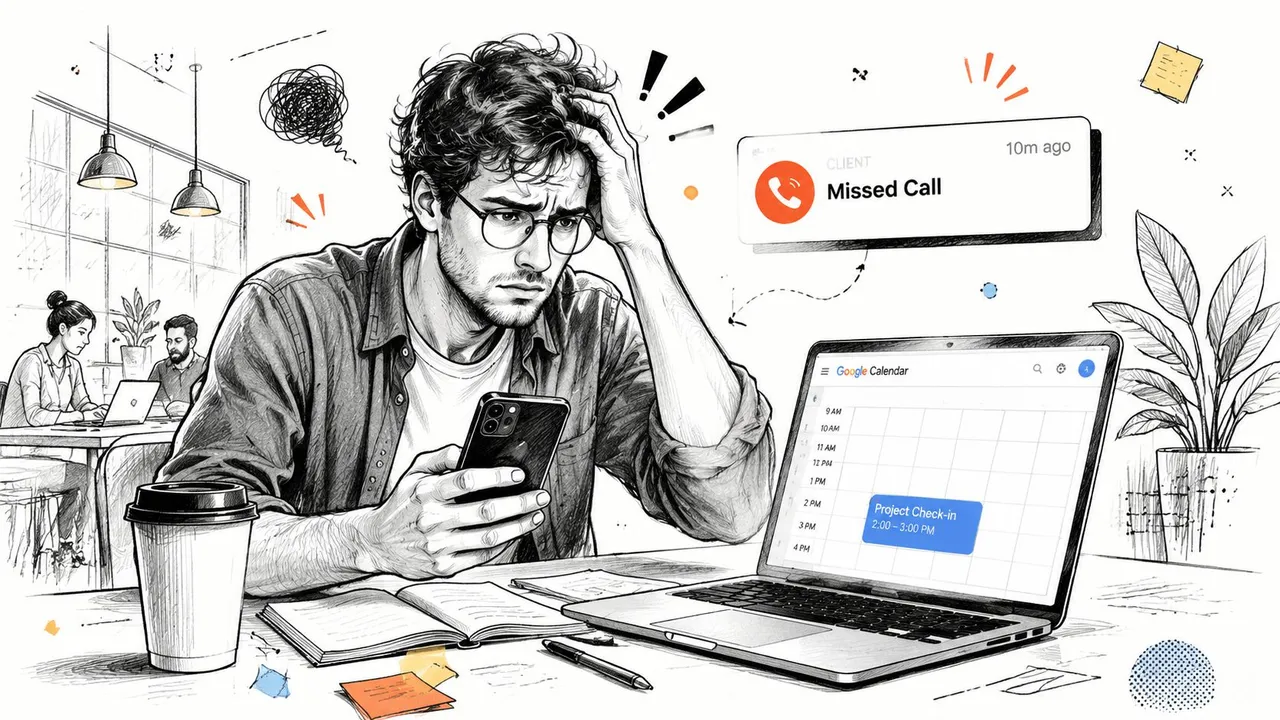
A freelancer I worked with had a simple problem that kept turning into a bigger one. A client moved a call, the change lived in Google Calendar, and the iPhone view never reflected it in time. The result was not a dramatic system failure, just a familiar chain of small misses that ended in a double-booked afternoon and an apology email.
The hidden complexity behind a simple setup
The default advice says to add the Google account, turn on calendars, and move on. That works until one person is juggling a personal Gmail calendar, a work Google Workspace calendar, a client-shared calendar, and maybe an Apple calendar for family logistics. At that point, native sync is no longer a single switch, it becomes a web of visibility rules, default calendar choices, and account settings that can hide events even when the sync itself is technically working.
That is why calendar sync matters in practice. Apple and Google both build this path into their ecosystems, so it looks routine, but routine does not mean complete. A meeting can exist in Google and still fail your day if it lands on the wrong calendar, if the wrong sub-calendar is hidden, or if the phone is checking too slowly for the way you work. Google’s iOS calendar sync guidance is the official starting point, but the actual experience is often messier, especially once work, personal, and shared calendars overlap. For a practical walkthrough of the native setup path, see how to connect Google Calendar to Apple Calendar.
Practical rule: if the event matters for your availability, verify both where it was saved and whether it is visible in Apple Calendar. Those are separate questions.
What this guide solves
The issue is not just whether events appear. It is whether your iPhone shows the right events, on time, with the right level of detail, and without exposing information you did not intend to share. That is where the difference between simple account sync and a real synchronization workflow starts to matter.
If you only need your Google events inside Apple Calendar, native sync is often enough. If you need separation between calendars, controlled visibility, or cleaner availability mirroring, the built-in method starts to show its limits.
Setting Up Native Google Calendar Sync on iPhone
Apple and Google both support adding a Google account directly in iPhone or iPad Calendar settings, and Google describes this as the standard mobile sync method on iOS. That matters because the cleanest setup is also the one people rush through, then blame later when events don’t appear. The fix is usually in the setup details, not in deleting everything and starting over.
Add the account the right way
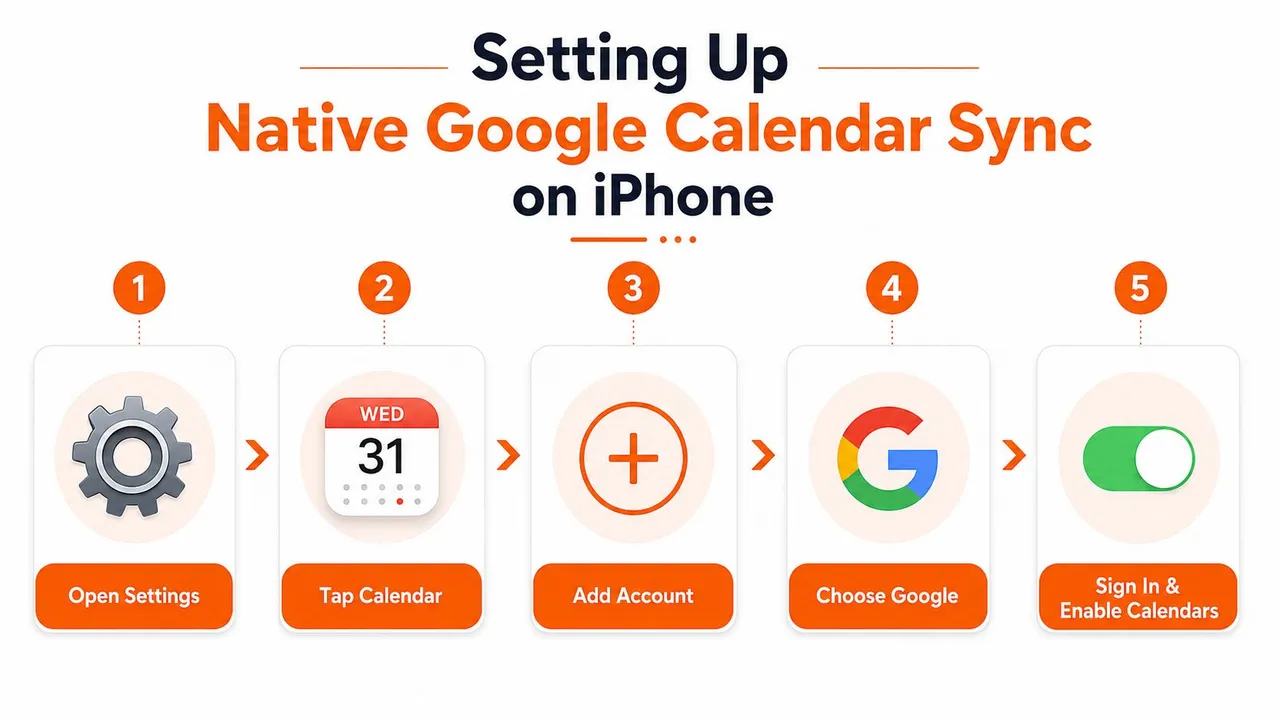
Open Settings, tap Calendar, then Calendar Accounts or Accounts, and choose Add Account. Select Google, sign in, and complete any verification prompts. Once the account is added, make sure Calendars is turned on. If you only want calendar data, you can leave Mail, Contacts, or Notes off.
That last part matters because some people add Google as if they’re setting up email, then wonder why calendar behavior feels cluttered. Calendar sync should be explicit. If the Calendars toggle is off, the account may exist on the phone while your events stay invisible.
Check the right calendar inside Apple Calendar
Open the Calendar app and tap Calendars at the bottom. Confirm that the Google calendars you need are checked. If you use multiple Google calendars under one account, don’t assume the primary one is the only relevant calendar. Hidden sub-calendars are a common reason a sync looks broken when it isn’t.
A quick test is better than guessing. Create a new event in Google Calendar, save it to the intended Google calendar, then refresh Apple Calendar and confirm it appears. If it shows up, the connection is working and the remaining issue is usually visibility or calendar selection.
Get the default calendar right
On iPhone, new events can land in the wrong place if the default calendar is set to iCloud or an on-device calendar. Set your default calendar to the Google calendar you use for work or shared scheduling. That keeps new events from disappearing into a place you rarely check.
For a more detailed walk-through of connecting the two ecosystems, see this guide to linking Google Calendar with Apple Calendar. Once the basics are working, the question becomes whether your schedule needs one-way or two-way behavior.
Choosing Between One-Way and Two-Way Sync
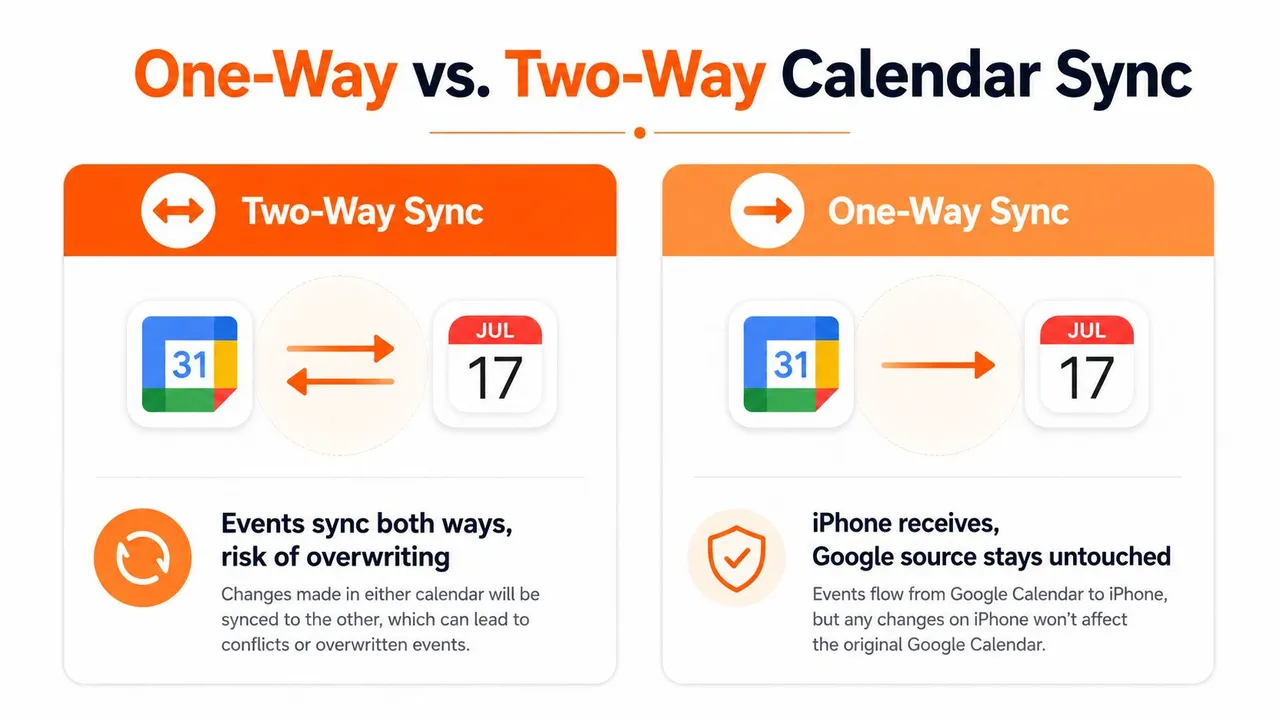
Native iPhone sync is built for two-way behavior. That’s useful when you want changes made on either device to stay aligned, but it’s not always what privacy-sensitive users need. A freelancer might want an iPhone to receive client availability blocks without letting internal notes travel back out, while a manager might want work meetings visible on a family device without making the family calendar editable from work.
Two-way sync fits collaborative calendars
Two-way sync makes sense when a single calendar is the source of truth. If you create or edit events in Apple Calendar and save them to the Google calendar, the same event can reappear on both sides. That’s convenient for one person managing one scheduling system across devices.
It breaks down when calendars represent different audiences. A personal errand doesn’t belong in a client-facing calendar. A client’s hold doesn’t belong in a family shared view. When both directions are active, the system is obedient, but not selective.
One-way sync protects separation
One-way sync is better when one calendar should inform another without being influenced by it. That’s the pattern many freelancers, sales reps, and students need. They want availability to move in one direction while keeping the source calendar untouched and private.
Native iPhone sync doesn’t give you fine-grained one-way control in the way specialized sync services do. You can subscribe to some calendar feeds, but that’s not the same as controlled event copying between accounts. If you need the source calendar to stay authoritative while another calendar mirrors only what should be visible, a dedicated sync layer is usually the cleaner fit.
Decision shortcut: if you’d be uncomfortable editing a calendar from the receiving side, you probably need one-way behavior instead of native two-way sync.
Use the direction that matches the job
Use two-way sync when one calendar owns the truth and every edit should propagate. Use one-way sync when the destination is only meant to reflect availability, block time, or present a simplified view. That difference sounds small until a private appointment, internal title, or client note appears where it shouldn’t.
Protecting Privacy with Field Masking and Free Busy Mirroring
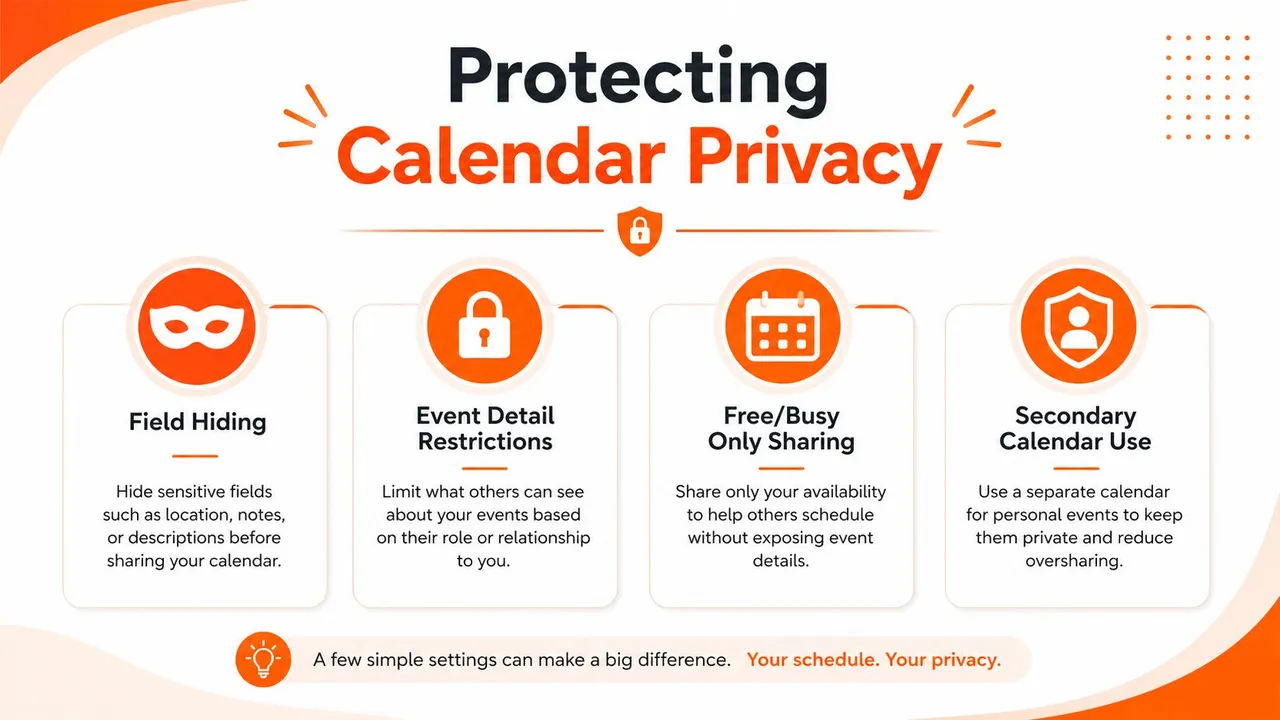
Native sync sends the whole event unless the underlying calendar permissions already hide details. That means titles, descriptions, locations, and attendee names can travel together, which is convenient for personal organization and awkward for privacy. If a shared calendar only needs to show that you’re busy, full-detail sync is often too blunt.
Full-detail sync is the default risk
People usually discover the privacy problem after the fact. A calendar intended for public availability starts showing event titles that reveal client names, medical visits, internal project labels, or location details. Once that data is synced into another ecosystem, visibility depends on permissions at both ends, not just on the originating calendar.
That’s why the simple question isn’t “Does it sync?” It’s “What exactly moves with the event?” Native account sync does not give you much room to transform the payload on the way across. If the event is copied, the event details generally come with it.
Field masking changes what gets copied
Field masking solves the problem by changing or hiding event fields during sync. Instead of copying a meeting title verbatim, a sync layer can replace it with a neutral label. Instead of exposing the full location or description, it can keep the destination calendar vague enough to protect context while still blocking the time.
That approach is useful for consultants, founders, and anyone who shares availability with people who don’t need the backstory. It also helps when you maintain a public-facing calendar and a private source calendar. You still preserve time integrity, but you stop leaking detail.
Free busy mirroring is the lighter touch
Free/busy mirroring goes one step further by showing availability without exposing what you’re doing. The destination sees that you’re occupied, but not whether you’re in a doctor’s appointment, a strategy session, or a school pickup. For many teams, that’s the right balance.
If that matches your use case, try the free busy mirroring tool as a reference point for how availability-only sharing works in practice. The core idea is simple, but native Apple and Google settings don’t give you the same level of control over event transformation.
Troubleshooting Common Calendar Sync Failures
Most sync failures are dull in the worst way. The calendar is not broken. It is hidden, delayed, saved to the wrong account, or filtered by a setting nobody remembers changing. That is frustrating, but it is fixable if you diagnose by symptom instead of deleting accounts at random.
If events appear on one device but not another
Check whether the event was saved to the right calendar first. A meeting created in iCloud or On My iPhone will not follow the same path as a Google event, even if both accounts are visible on the phone. That is one of the most common reasons people think sync failed when the event landed somewhere else.
Then open Apple Calendar, tap Calendars, and confirm the specific Google calendar is selected. Shared calendars and secondary calendars often stay hidden until you turn them on explicitly. If a teammate says the event is on the shared team calendar but you cannot see it on your phone, this is usually the first place to look.
If sync feels delayed
A delay often points to refresh behavior, not a broken connection. If the phone only checks for updates on a loose schedule, a newly added event can look missing for a while and then appear later without any account repair at all. Check fetch settings and background refresh, then create a test event and see whether it reaches the other device after a manual refresh.
If a school pickup appears on Gmail web but not on the iPhone until you open Calendar and pull down to refresh, that is a refresh problem, not a lost event. If the gap keeps showing up only on one device, focus on that device’s sync and background settings before you touch the account itself.
Do not assume a delay is permanent failure. A manual refresh or a visibility fix often solves the issue without changing the account.
If duplicates start showing up
Duplicates usually appear after the same account is added twice, or after one event is saved to more than one calendar. A consultant calendar can show the same client call twice if the event was copied into both Google and Apple views. The fix is to stop creating new copies and identify which calendar should act as the source.
Then remove the duplicate from the destination view only. Do not clear every account at once, because that can wipe the original event and make the mess harder to untangle. If you see one copy with the correct title and another with slightly different details, compare the source calendar before deleting anything.
If time zones look wrong
Time zone problems can make a correct event look broken. A flight, client call, or handoff meeting can sync cleanly and still display at the wrong local hour if the phone and calendar disagree about time interpretation. Check the device time zone behavior, the calendar display settings, and whether the event was created as a floating time or tied to a specific zone.
This matters most if you travel often or work with people in multiple regions. If a meeting lands one hour off after a trip, the account may still be healthy. The problem can be the device’s time zone handling, not the sync path itself.
For a broader setup and repair walkthrough, this calendar sync app guide helps if you are comparing workflows beyond the basic Apple settings. Once native sync starts turning into repeated cleanup, that usually points to a different tool, not another round of checkbox hunting.
When to Use a Real-Time Web Sync Service Instead
Native sync works when one Google account feeds one iPhone view and you are comfortable with everything showing up in full. It starts to fall short once you manage several calendars across Google, Microsoft Outlook, and Apple Calendar, because the built-in setup does not give you much control over sync direction, field handling, or copying events across more than one calendar. At that point, a web-based sync service stops being a convenience and starts doing real operational work.
The hidden problem is privacy. Google and iPhone calendar sync can move titles, notes, locations, and other event details more freely than many people expect, and that is a poor fit for shared schedules, client-facing calendars, or situations where you only want availability to move between systems. If you need a calendar to block time without exposing the meeting name, or you want one side to stay editable while the other side remains read-only, native settings will usually leave you stuck.
Where native sync stops being enough
The main limitation is control. iPhone calendar setup can connect accounts, but it does not behave like a policy layer for deciding which fields move, which direction they move, or how much detail survives the trip. That becomes a real issue when you need to block time across systems without revealing titles, or when you want a Google calendar to mirror into Apple Calendar without giving the reverse path permission to rewrite everything.
A service like SyncThemCalendars handles that kind of workflow directly. It syncs Google Calendar, Microsoft Outlook, and Apple Calendar in the background, supports one-way, two-way, and multi-way syncing, and adds field masking plus free/busy mirroring for schedules where privacy matters.
The practical trade-offs
The trade-off is simple. Native sync is lighter and easier to set up, but it expects you to manage visibility, direction, and cleanup yourself. A web sync service adds another layer, but that layer is what keeps a shared system from turning into a pile of duplicated events and exposed details.
It also helps when different calendars serve different audiences. One calendar may be for your team, another for clients, and another for personal planning. If those views need to stay aligned without showing the same level of detail everywhere, a real-time web sync service is the cleaner choice.
For a closer look at the product itself, see the Product details and use cases page. The point is not to replace every native setup, it is to use a managed sync layer only when the calendar system needs tighter control than Apple and Google settings can provide on their own.
The practical decision
Use native iPhone sync when you want the simplest account connection and you are fine with full event visibility moving across systems. Use a web sync service when you need controlled availability, privacy protection, and synchronized calendars that serve different audiences. That is where the extra layer earns its place, because it handles the parts native settings leave to manual discipline.
If your calendar setup keeps leaking details, missing events, or forcing you to micromanage visibility, a real-time sync layer is the better fit. SyncThemCalendars gives you a way to sync Google, Apple, and Outlook calendars with one-way, two-way, or multi-way rules, plus privacy controls that native iPhone settings cannot match.
Ready to sync your calendars?
Keep your Google, Outlook and Apple iCloud calendars in sync automatically. 2-minute setup, no credit card required.
Get started freeKeep reading
More in Guides

SyncThemCalendars Quick Setup Walkthrough
Master the SyncThemCalendars quick setup in minutes. Connect Google, Outlook, or iCloud, configure privacy masking, and verify your first sync effortlessly.

Merging Google Calendars: The Complete Guide for 2026
Merging Google Calendars. Learn the best ways to merge Google Calendars. Compare import methods, sync tools, and automation strategies

Master Your Calendar on Outlook with Sync Solutions
Learn how to use calendar on Outlook effectively, sync with Google and iCloud, avoid double-bookings, and connect SyncThemCalendars for seamless scheduling.