







Calendar Sync Issues: Real Causes and Reliable Fixes
Solve calendar sync issues across Google, Outlook, and iCloud. Learn the real causes, fixes, and best practices for reliable real-time calendar syncing.
You accept a meeting invitation on your laptop, then notice it’s missing from your phone. A client books the same 10:00 slot because one calendar still shows you as available. On another device, the call appears twice, once from Google Calendar and once from Outlook. Reconnecting the account may change nothing because the visible symptom rarely identifies the actual failure.
Calendar sync issues usually belong to one of four classes: identity, limits, fidelity, or latency. An account may no longer be authenticated, a permission may allow viewing but not editing, an API may return only part of the requested data, or two providers may translate the same event differently. Calendar synchronization also depends on iCalendar, the shared format used across Microsoft Office 365, Apple Calendar, Google Calendar, Yahoo Calendar, phones, and web applications. The standard began with RFC 2445 in 1998, was superseded by RFC 5545 in 2009, and expanded through RFC 7986 in 2016, a history that reflects how interoperability keeps requiring refinement (background on iCalendar standardization and synchronization).
The practical approach is to classify the failure before changing settings. A missing event, duplicate, or shifted appointment is evidence. It isn’t yet a diagnosis.
Why Calendar Sync Issues Happen in the First Place
A meeting can appear on one device, disappear from another, or arrive with the wrong time zone. Those symptoms come from different failures, even when the app labels each one “not syncing.” A calendar connection must identify the correct account, obtain the right permissions, retrieve changes within provider limits, and preserve event meaning during translation.
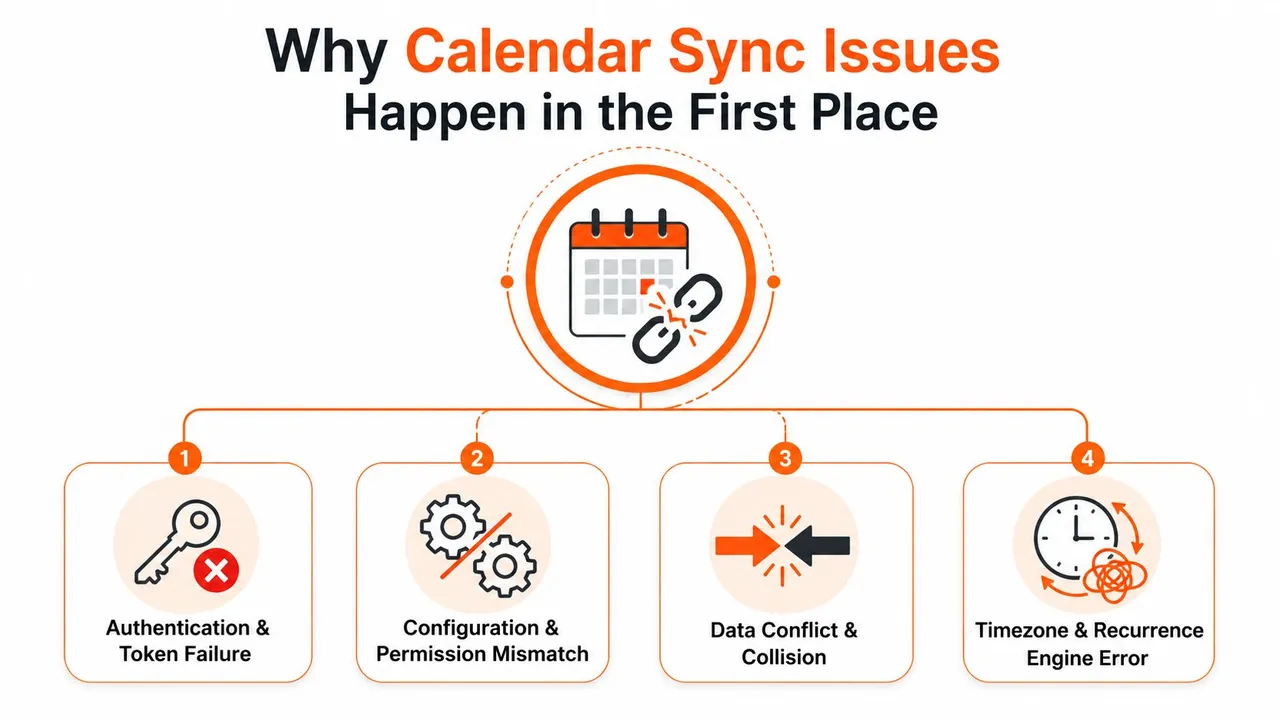
The four layers behind the symptom
Identity verification establishes which account the connector may use. OAuth access can expire, be revoked, or become invalid after an account or security-policy change. An iCloud connection may also stop working when credentials stored by a third-party client no longer match the Apple account.
Permission grants define what that authenticated connection can do. A connector may retain read access while losing permission to create, update, or delete events. The result is easy to misread: incoming changes appear, while edits made in the other direction never arrive.
Provider limits and change retrieval affect both completeness and delay. A notification that something changed does not include the event itself. Google’s synchronization model uses a stored sync token and incremental requests for changes since the last successful sync. If that token becomes invalid, the client must discard its local state and perform a full resynchronization, following Google’s incremental synchronization guidance.
Field translation determines whether the transferred event still has the same meaning. The request can succeed while a recurrence exception, time-zone offset, private description, or attendee response is altered or omitted. This is a fidelity failure, not necessarily a connection failure.
Practical rule: Treat “sync failed” as a symptom category. Identify whether the connection is unauthorized, incomplete, delayed, or semantically wrong.
The fix follows the class of failure. Re-authentication cannot repair an invalid recurrence rule, and testing recurring events cannot restore a revoked permission. Start with the layer that matches the observable behavior, then verify the result with a controlled event rather than assuming a successful connection means accurate synchronization.
The Four Root Causes Behind Calendar Sync Issues
A calendar can appear connected and still fail in four different ways: the wrong identity is authorized, the provider limits change retrieval, event details lose meaning during translation, or updates arrive too late. Those classes require different fixes, so reconnecting an account is only a valid response to one of them.
| Root Cause | Google Example | Microsoft or Office 365 Example | iCloud Example | Typical Symptom |
|---|---|---|---|---|
| Identity and consent | A revoked or expired OAuth connection blocks access to the calendar. | An account or administrator policy change invalidates the connection. | A third-party client stops authenticating after an app-specific credential is rejected. | Nothing updates, or authorization prompts repeat. |
| Permission and configuration | The integration can see the wrong calendar or lacks write access. | A shared calendar is visible but its sharing role does not allow edits. | The connected account or selected calendar differs from the one shown by the client. | One direction works while the other fails. |
| Limits and latency | Polling can trigger throttling, leaving the local copy behind. | Bursts of requests can delay updates across a tenant. | Refresh timing can differ between Apple clients and third-party connectors. | Changes arrive late, or only part of the calendar updates. |
| Data fidelity | Recurrence, time zones, privacy, or attendee fields may not map cleanly. | Outlook and Exchange can represent the same event differently from the source format. | An iCalendar import may preserve a basic event while losing advanced properties. | Events shift, duplicate, lose details, or arrive incomplete. |
Identity and permission failures
A connector that worked once is not proof that its authorization still works. Providers can revoke access, administrators can narrow approved scopes, and users can reconnect the wrong account. Microsoft shared calendars add another failure mode: the calendar displays correctly, but the assigned role blocks create or edit operations.
Test each direction with a harmless event. Create it in the source calendar, confirm that it appears at the destination, then edit it and check the return path. Read-only behavior points to consent, account selection, or permissions before it points to a faulty calendar application.
Limits and latency failures
Reliable connectors usually perform an initial backfill, then request only changes since the last successful retrieval. They store a cursor or token for that position and must rebuild local state when the provider invalidates it. A webhook can signal that activity occurred, but it does not necessarily contain the event payload, so the connector still needs a follow-up request.
Scheduled reconciliation catches failures that notifications miss. Temporary outages, a token saved before processing finishes, or retry logic that stops after one error can leave duplicate events or lost updates. For accommodation and booking workflows, teams can also use Samba for seamless booking sync when availability must stay aligned across connected systems.
Data fidelity failures
Transport success does not guarantee a correct event. Recurrence rules, exception dates, floating times, time-zone identifiers, private fields, and attendee metadata can each break during conversion. A basic meeting may look correct while a recurring series or one altered occurrence does not.
Interoperability testing has documented cases where time zones imported correctly but recurrence handling still failed for some clients. That distinction matters when validating Google, Microsoft, and iCloud connections: compare the event’s behavior and fields, not just whether it appears. CalConnect’s interoperability test report provides background on these cross-client compatibility problems.
How to Diagnose What Kind of Sync Problem You Have
Start with the symptom, not the remedy. A useful diagnostic process narrows the failure before you reconnect accounts, delete local data, or create another duplicate calendar.
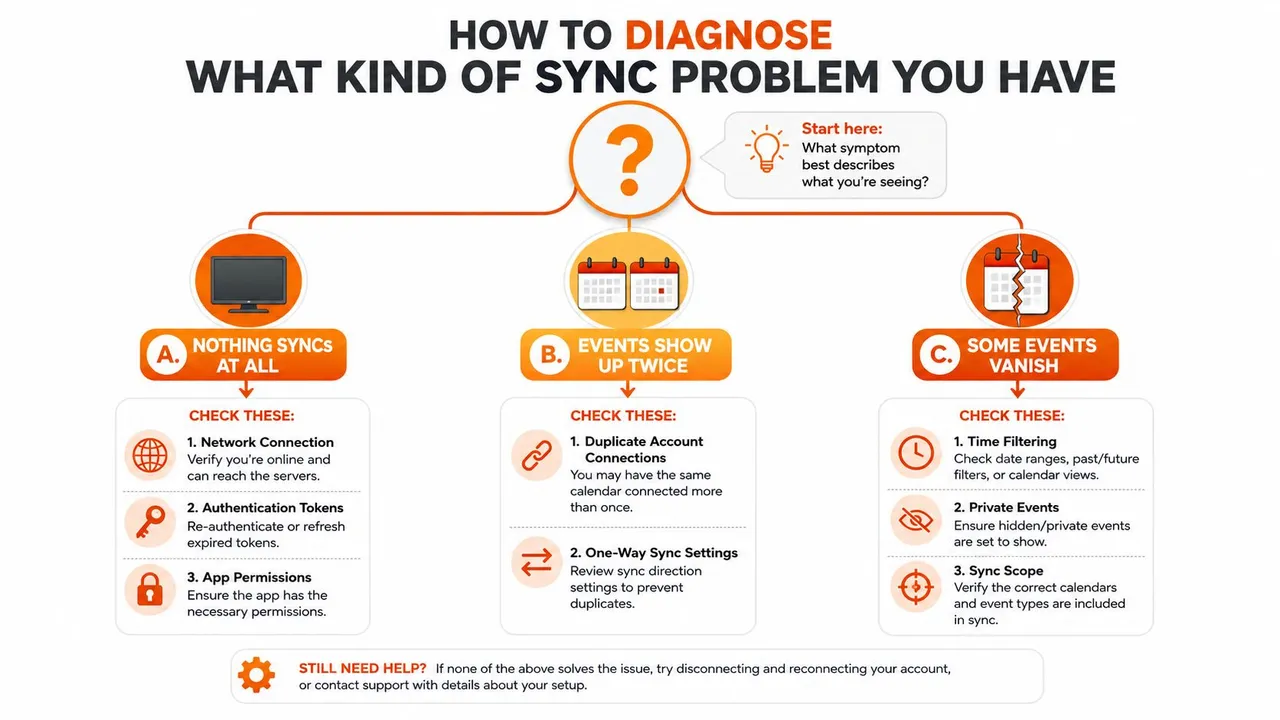
When nothing syncs at all
If no new event appears in either direction, check identity first.
- Inspect the connected account. Open the provider’s account or connected-app settings and confirm that the integration is authorized for the intended Google, Microsoft, or Apple account. If the account was changed recently, reauthorize that specific connection instead of toggling every calendar setting.
- Verify the calendar scope. Confirm that the connector has access to the calendar you’re viewing. A successful login can still point to a different calendar, account, or shared resource.
If the connection is authenticated and the calendar is correct, check the connector log for rejected requests or permission errors. Don’t assume a blank view means the provider has no events.
When only some events appear
Partial sync usually points to retrieval limits, filtering, or event-level incompatibility.
- Check the sync horizon and filters. Older events may be hidden by device or account settings rather than absent from the server. Microsoft support discussions describe cases where Outlook or phone synchronization is limited to a historical window unless the setting is changed to include all available data (Microsoft calendar synchronization discussion).
- Inspect recurrence and privacy behavior. Export the source event as an
.icsfile and compare itsVEVENTblock with the destination display. Look forRRULE,EXDATE,DTSTART,DTEND, and time-zone information. If the raw event contains a field that the target omits, the problem is mapping or policy, not transport.
When events appear but are wrong
A shifted time suggests time-zone translation. A duplicated appointment suggests multiple connections, collision handling, or an improperly rebuilt local state. Missing attendees, descriptions, or locations suggest field filtering or privacy rules.
Record one affected event’s source ID, destination ID, creation time, recurrence status, and last-modified state. That small evidence set gives support teams something more useful than “it disappeared.”
For a visual walkthrough of symptom-based troubleshooting, use this short guide:
Platform-Specific Fixes for Google, Microsoft, and iCloud
A calendar that appears healthy on one service can still fail when another service handles its identity, permissions, limits, or cached state differently. Apply the fix to the failure class first, then to the platform.
Google Calendar
Google failures often start with account authorization. Open the Google Account connected-app list and verify that the integration still has access to the intended calendar. Reauthenticate the integration itself instead of repeatedly changing device sync settings, especially after an account change or connector update.
Check the selected calendar and sync direction next. If Google events reach Outlook but Outlook edits never return, the connection may have read permission without the write permission the workflow requires. For technical integrations, inspect the sync token and retry behavior. Google uses incremental synchronization, and an invalid token requires a full resync rather than repeated retries. For a practical setup reference, follow this guide on how to sync Google Calendar.
The trade-off is clear: a full resync takes longer and may temporarily recreate local records, but it restores a trustworthy baseline when incremental state is no longer valid.
Microsoft Outlook and Office 365
Microsoft calendars use granular sharing permissions. A shared calendar can be visible while remaining read-only, so check whether the connected account has an editing role that matches the intended workflow. If users can view events but cannot create or modify them, permissions usually deserve attention before display settings.
Cached Exchange Mode can preserve stale local state. Compare Outlook on the web with the desktop client. If the web calendar contains the change but the desktop view does not, use the client’s folder synchronization controls and investigate the local cache instead of deleting the server event.
Microsoft Graph connections can also encounter throttling or policy-related authorization changes. Logs should separate a rejected request from a delayed request. The response code, retry timing, and affected mailbox usually identify whether the issue is a limit, identity change, or client state problem.
Apple Calendar and iCloud
Third-party iCloud connections commonly use app-specific credentials rather than the password used in Apple’s own applications. If the Apple ID password or security configuration changed, generate the appropriate app-specific password and replace the stored credential in the external sync tool.
Before rebuilding the account, verify that the device displays the intended iCloud calendar and that calendar synchronization is enabled for that Apple account. If Apple Calendar works but a third-party service does not, inspect the external credential and connector path first.
If an event exists in iCloud web access but is absent on the device, focus on account refresh, calendar visibility, and local state. If it appears nowhere in iCloud, investigate the source account or permissions instead. These checks distinguish an identity failure from a device cache problem without erasing server data.
Field Mapping, Timezones, and Recurring Events
A successful API response confirms that data moved, not that the destination preserved the event’s meaning. The costly failures appear after transport succeeds, when a recurring series loses an exception or a meeting shifts because the two systems interpret time zones differently.
Validate recurrence at the instance level
Test more than the parent event. Create a recurring series, modify one occurrence, cancel another, and move an instance to a different time. Inspect the destination series and confirm that each change remains attached to the correct occurrence. A connector may map the base recurrence rule while ignoring exception data, leaving the series apparently intact but restoring the wrong schedule.
The raw .ics representation helps isolate the fault. Check the recurrence rule and exception dates, then compare them with the provider’s rendered instances. Time-zone support and recurrence behavior can diverge between clients, so test the same series across every connected platform.
Make time zones explicit
Set the primary time zone in both source and destination accounts. Do not rely on the device’s current location. A laptop, phone, and web client can apply different display assumptions.
For a cross-time-zone meeting, compare the stored start and end values, the time-zone identifier, and the displayed local time on each platform. A one-hour shift may come from display, conversion, or malformed event data. The raw event separates these causes. If the source contains an explicit zone but the destination stores another offset, inspect the conversion rule. If the source is floating or time-zone-naive, define a normalization rule instead of allowing each provider to guess.
Preserve what matters, transform what does not
Private descriptions, locations, attendee responses, categories, and color labels may have no direct equivalent. Decide whether the target receives full details, free/busy status, or a masked event. If visual categories cannot transfer, document a fallback, such as assigning a target color from the source category.
Field mapping also affects privacy. A connector that copies an internal meeting description into a shared calendar can create a disclosure even though the event time is correct. Test representative events before using the connection for client or team scheduling.
For a concise reference on the format behind these transfers, review this guide to the ICS file type. Validate recurrence, time-zone, and field behavior in both directions where bidirectional sync is enabled.
Best Practices for Reliable Real-Time Calendar Syncing
Reliable synchronization is a configuration discipline, not a repeated exercise in reconnecting accounts. The first design decision should be ownership. Assign one calendar as the source of truth for each scheduling domain, then make other copies read-only or unidirectional wherever possible. Two-way editing across every connected calendar creates conflict loops, especially when the same change returns with a new identifier.
Build for recovery
Store synchronization state atomically, process incremental changes, and keep a full-resync path available when provider state diverges. Pair change notifications with scheduled reconciliation because notifications can be missed and don’t contain the event payload. This architecture uses the provider efficiently without treating an alert as proof that the local copy is correct.
Audit authentication and permissions on a recurring operational schedule. Confirm that refresh failures generate an actionable alert, and make reauthorization easy for the account owner. A connector that waits for a user to discover a stale calendar turns a recoverable credential problem into a scheduling incident.
Test the events that break
After setup, test a recurring series with an exception, a meeting viewed in another time zone, and an event containing privacy-sensitive details. Verify both directions if bidirectional sync is enabled. Confirm that the destination preserves start and end times, recurrence instances, attendees, location, description, privacy state, and deletion behavior.
Operational standard: Monitor semantic changes, not just connection status. “Connected” can coexist with missing fields, delayed updates, or incorrect recurrence.
Keep logs that show which events were created, updated, deleted, skipped, or transformed. A dedicated service such as SyncThemCalendars can copy events between Google Calendar, Microsoft Outlook or Office 365, and Apple Calendar, with configurable one-way, two-way, or multi-way directions and privacy controls. Teams comparing automation options can also browse this integrations directory to assess how other connectors handle provider differences.
For a broader implementation view, see this guide to real-time calendar sync. The right tool matters, but the operating model matters more. A clear source of truth, explicit permissions, tested mappings, and observable recovery paths prevent most repeat failures.
Quick Checklist and FAQ for Calendar Sync Issues
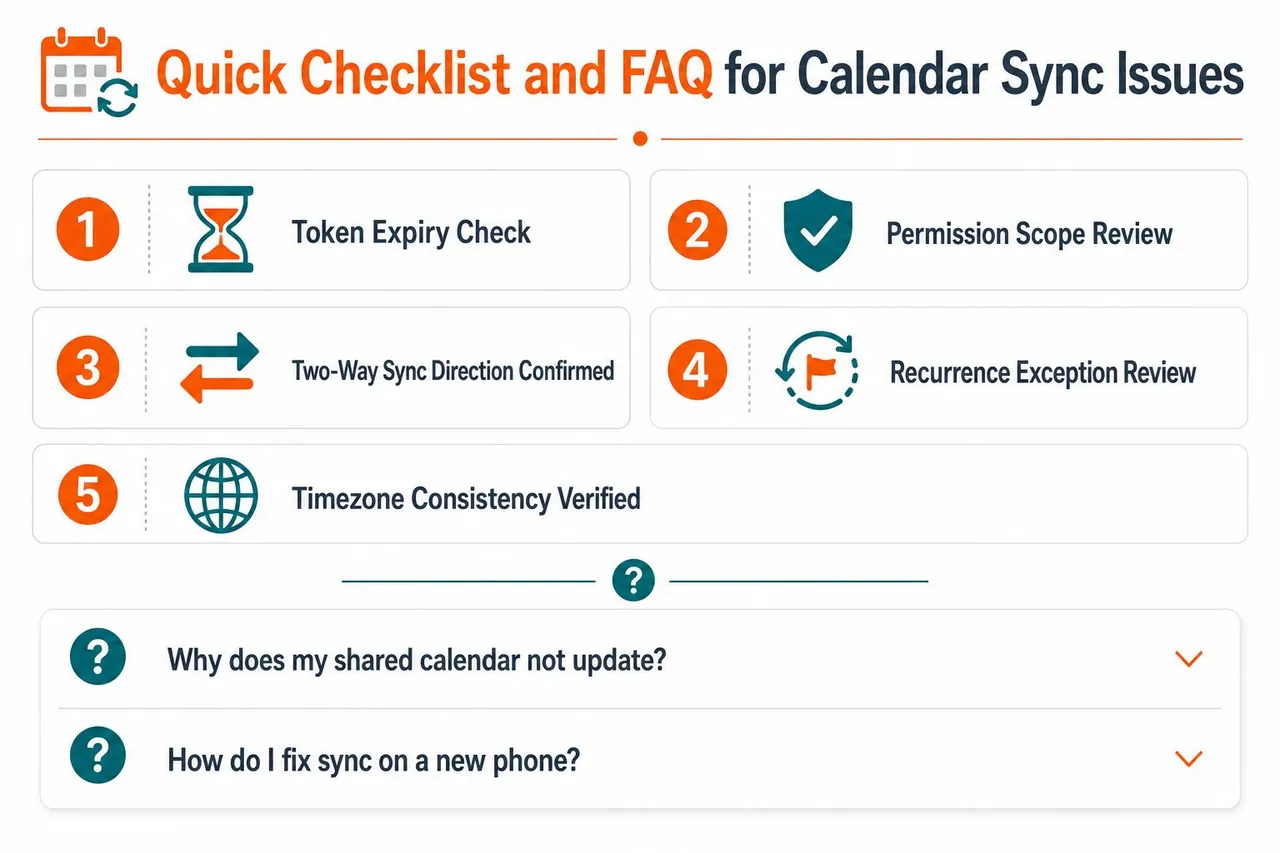
Run this checklist before changing accounts or deleting local calendar data.
- Check token status. Confirm that the intended Google, Microsoft, or Apple account is still authorized.
- Review permission scope. Verify that the connection can perform the required read and write actions.
- Confirm direction. Check whether the workflow is one-way, two-way, or multi-way, and look for duplicate account connections.
- Review recurrence exceptions. Test moved, canceled, and edited instances instead of checking only the first event.
- Verify time-zone consistency. Compare account settings and the stored event values, not only the on-screen time.
FAQ
How much sync delay is reasonable? Native clients and connectors don’t all provide immediate updates. If timing affects bookings, monitor observed latency and use reconciliation rather than assuming a notification means the event is already available.
When should I escalate instead of troubleshooting? Escalate when the provider rejects valid credentials, a shared-calendar administrator controls the permission, or a reproducible event fails after a clean test. Don’t keep rebuilding a connection when the limitation is server-side or policy-driven.
How can I tell whether the tool or provider is responsible? Compare the provider’s web calendar, the client application, and the connector log. If the event is absent from the provider’s own web view, the connector isn’t the first suspect.
Do duplicates always mean authentication drift? No. Duplicates can result from multiple account connections, two-way loops, repeated full imports, or poor local-state recovery. Check connection topology and event identifiers before revoking access.
What does reliable synchronization look like? It means accepted changes are copied consistently, failures are visible, recovery is supported, and important fields remain accurate. No connector should be treated as infallible, so keep a clear source of truth and a way to reconcile.
How do I confirm semantic fidelity? Compare recurring instances, time-zone offsets, attendee data, privacy fields, descriptions, locations, and deletions between source and destination. A visible event alone isn’t enough.
SyncThemCalendars provides configurable one-way, two-way, and multi-way event synchronization across Google Calendar, Microsoft Outlook or Office 365, and Apple Calendar, with privacy controls for copied details. If recurring events, time zones, or cross-provider availability keep causing calendar sync issues, visit SyncThemCalendars to review the setup options and start a focused test connection.
Ready to sync your calendars?
Keep your Google, Outlook and Apple iCloud calendars in sync automatically. 2-minute setup, no credit card required.
Get started freeKeep reading
More in Guides

Synchronize Apple Calendar with Outlook: A 2026 Guide
Step-by-step guide: Synchronize Apple Calendar with Outlook on Windows, iPhone and Mac, with two-way options, privacy trade-offs and fixes.

SyncThemCalendars Quick Setup Walkthrough
Master the SyncThemCalendars quick setup in minutes. Connect Google, Outlook, or iCloud, configure privacy masking, and verify your first sync effortlessly.

Merging Google Calendars: The Complete Guide for 2026
Merging Google Calendars. Learn the best ways to merge Google Calendars. Compare import methods, sync tools, and automation strategies