







How to Combine Google Calendars the Right Way
Learn four practical ways to combine Google Calendars: overlay views, export and import merges, sharing, and real-time sync tools with privacy controls.
You’ve got your work calendar on one Google account, personal appointments on another, and a client who insists on using a third. You check one view before booking a call, but the conflict lives somewhere else. The result is a double-booking that should never have happened, followed by a frantic round of rescheduling.
People searching for how to combine Google Calendars often mean different things. They may want one screen for visibility, one account containing all historical events, controlled access for colleagues, or continuous synchronization between separate systems. Those are four different jobs, and Google Calendar’s native features handle each one differently.
Why Combining Google Calendars Feels Harder Than It Should
The challenge is choosing the right outcome before changing settings. A calendar overlay shows several schedules together, but leaves events in their original accounts. Export and import can create one historical calendar, but the copy stops updating afterward. Sharing gives other people access, while synchronization keeps separate calendars aligned over time.
Those differences matter because fragmented calendars affect more than visual clarity. A 2026 summary of workplace research reports that knowledge workers average 2 hours and 53 minutes of actual productive work per day, with context switching consuming up to 40% of productive time. The same source says workers focus on one task for 11 minutes before switching, and returning fully to the original task can take about 25 minutes after an interruption. Separate schedules make genuine availability harder to assess and uninterrupted work easier to disrupt.
Privacy adds another layer. A shared availability view may be enough for booking meetings, while exposing event names, guests, or locations can reveal information that colleagues and clients do not need. Check each calendar’s sharing level before choosing a method, especially when personal and business accounts overlap.
Google Calendar’s reach makes this a common scheduling problem. It has an estimated 500 million-plus monthly active users, and third-party web usage data identifies more than 1.46 million websites associated with Google Calendar integrations, including live and historical sites tracked in mid-2026, according to BuiltWith’s Google Calendar usage data. People in North America, Europe, Brazil, and other regions encounter different versions of the same problem.
Treat “combine” as four separate jobs: view, merge, share, or sync. Choose an overlay for awareness. Use export and import when retiring accounts and preserving history. Set sharing permissions when colleagues need access. Choose ongoing synchronization when Google, Outlook, Apple, or client calendars must remain aligned. Each option solves a different problem, and selecting the wrong one can create maintenance work or expose private details.
Viewing Multiple Google Calendars in One Place
The quickest way to combine Google Calendars is to leave them where they are, then view them together. Add relevant calendars to one Google Calendar view and toggle them on or off as decisions change. Events remain in their original accounts, so you can inspect the full schedule before accepting an invitation or booking a meeting.
On desktop, open Google Calendar and find Other calendars. Add a person’s calendar by email after they grant access, or subscribe to a calendar already available to you. Give each calendar a distinct color and apply the system consistently, such as personal commitments, work meetings, and client obligations. This makes an overlay useful for both quick checks and daily planning.
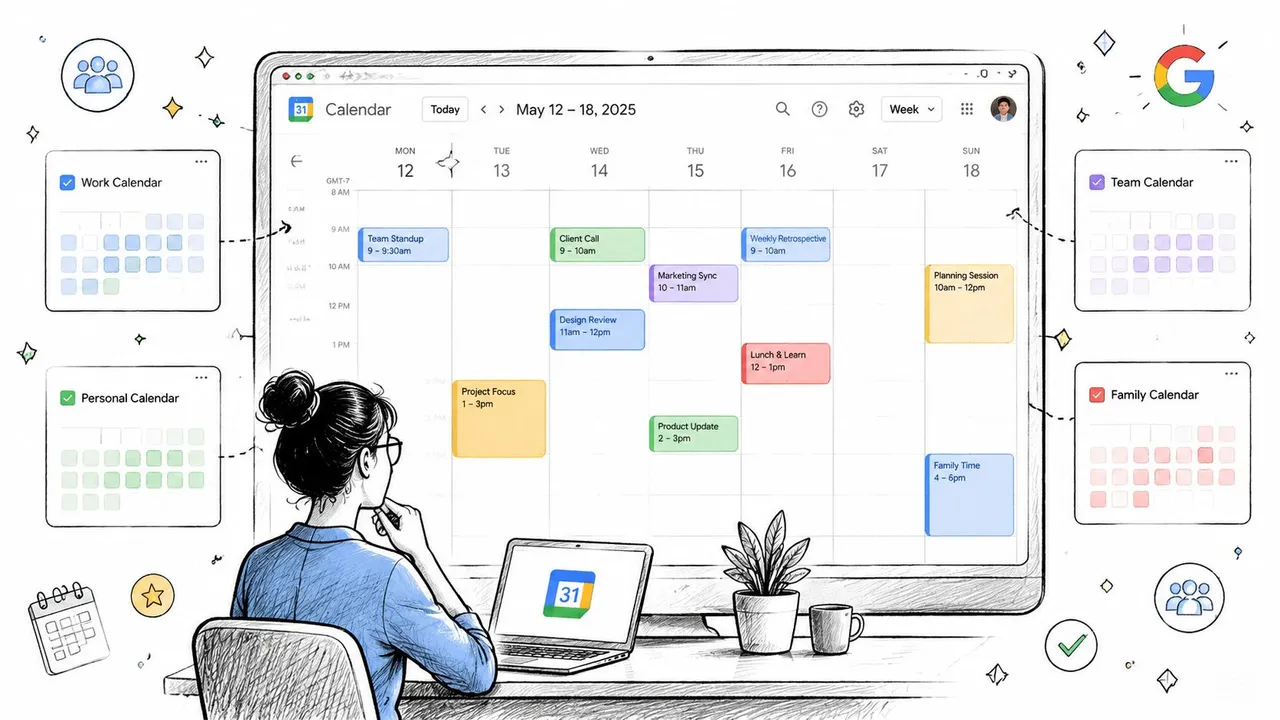
Make the overlay readable
Hide calendars that do not affect the current decision. If weekend appointments add noise, use a workweek-focused view or temporarily turn off the personal calendar. With more than three calendars, Day view usually makes overlaps easier to inspect than Month view, where colored events can become dense.
An overlay suits a freelancer with separate work and personal accounts, or a manager who needs schedule awareness without taking ownership of another person’s events. It is also a low-risk first step because it does not copy, delete, or relocate anything.
For practical routines involving colors, views, notifications, and upkeep, manage your calendar like a pro offers useful guidance. If several calendars are part of your regular workflow, this guide to managing multiple calendars can help you establish repeatable viewing habits.
Check sharing permissions before adding another account. Availability may be enough for coordination, while event titles, guests, and locations may expose private information.
The limitation is straightforward: an overlay provides a combined view. Events still belong to separate calendars, and tools checking one account may miss other commitments. This approach solves awareness; it does not consolidate events or enable continuous availability sharing.
Permanently Merging Calendars With Export and Import
When you want one true calendar inside one destination account, use the ICS export and import workflow. It fits account retirement, duplicate-calendar cleanup, and moving historical events out of separate accounts. The result is a single-account archive of the events you choose to transfer.
Open Google Calendar settings in the source account, select Import & Export, and choose the export option. Google downloads the calendar data as a ZIP file. Extract the archive to access the individual ICS files for the calendars included in the export.
A careful one-time merge
Prepare the destination account before importing. Choose the calendar that will receive the events. A dedicated destination calendar can keep imported history separate from the primary calendar and make later organization easier. In the destination account, open Import & Export, select the relevant ICS file, choose the destination calendar, and start the import.
Repeat those steps for every source calendar you want to consolidate. This Google Calendar merge guide covers the operational sequence, including exporting each calendar, extracting the files, importing them into the target account, and checking the result in the main calendar view. For file-format background, see how to create an ICS file.
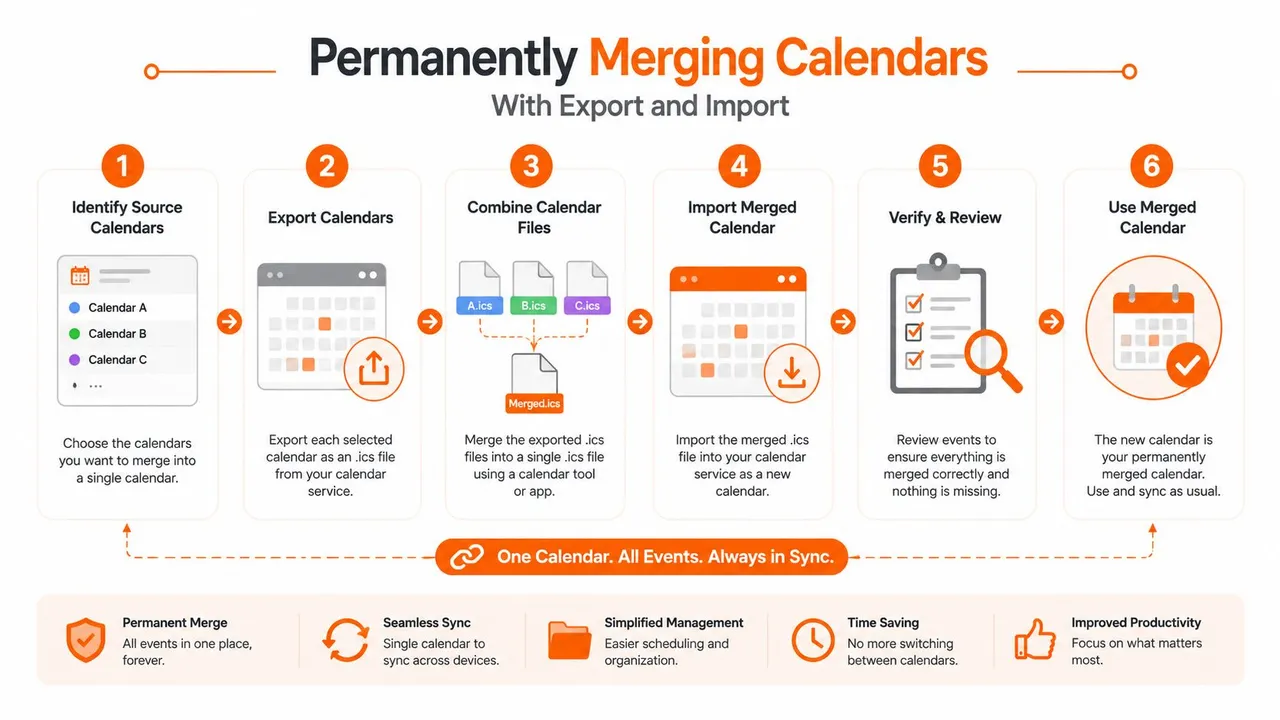
Verify before retiring anything
Inspect the destination after each import in several calendar views. Check recurring and all-day events, time zones, guest information, attachments, and reminders that your workflow depends on. A successful upload does not guarantee that every event detail matches the source.
Export and import produces a static, single-account state. Events added later to an old calendar stay there unless you transfer them again. That makes this workflow a poor fit for work and personal calendars that will continue operating separately, but it works well for a deliberate one-time consolidation.
Keep the old calendars archived instead of deleting them immediately. Confirm that the destination contains the required events and give contacts time to move to the new account. After the old calendars leave the scheduling flow, decide whether to retain or remove them.
Sharing and Subscribing Across Google Accounts
Sharing connects separate accounts while each owner keeps events in the original calendar. It suits teams, households, and departments that need a shared view without creating a new calendar structure.
Google Calendar sharing usually starts with an invitation to a specific person. The owner selects a permission level, from seeing free or busy status to viewing event details, editing events, or managing sharing. Choose the narrowest access that supports the relationship. A coworker who only needs scheduling visibility does not need permission to change appointments.
Subscribing follows a different model. With a calendar’s secret ICS address, another calendar system can subscribe to its feed. The receiving account generally treats that feed as read-only, which works for viewing a calendar without giving the recipient editing access.
Match access to the relationship
Use direct sharing when collaborators need a controlled connection inside an organization. Person-by-person permissions are easier to review, change, or revoke. Use an ICS subscription when the recipient needs a read-only feed and should not modify the source calendar.
Privacy requires a deliberate check. Standard sharing can expose titles, locations, descriptions, personal appointments, internal meetings, or client information that the recipient does not need. A client account may only need to know that you are unavailable, while a household member may need more context to coordinate plans.
Share only what the recipient needs to know, usually availability rather than event details.
A calendar can look harmless within a personal account and reveal sensitive information once connected to an employer or client account. Review existing events, calendar permissions, and the intended audience before sending an invitation or publishing an ICS address. Secret ICS links should also be handled carefully, because anyone who obtains the address may be able to read the feed.
Google Calendar support discussions reflect this recurring need: people often want calendars aligned while keeping event content private, as shown in this Google Calendar merge discussion. Choose sharing for controlled collaboration, subscribing for read-only visibility, and a privacy-limited view when availability is the only information another account requires.
Keeping Calendars in Sync Automatically
Manual overlays and one-time imports fail when the source calendars remain active. If a personal appointment should block a work calendar, or a client meeting should appear in a private planning account, the system needs to copy changes continuously rather than relying on memory.
SyncThemCalendars is one web-based option for connecting Google Calendar, Microsoft Outlook or Office 365, and Apple Calendar through configurable one-way, two-way, or multi-way syncs. Its stated setup takes roughly two minutes, and it offers a 14-day free trial without a credit card. The service is designed to run in the background after configuration, so a user doesn’t need to repeat exports whenever an event changes.
Use synchronization for availability, not just duplication
The privacy advantage comes from separating availability from event content. Free/busy mirroring can place a blocking event on another calendar without exposing the original title, description, or location. Privacy controls can also mask or transform those fields when a copied event needs to carry more information than a simple busy block.
That architecture fits a consultant with client-mandated calendars, a business owner separating personal and company scheduling, or a professional working across Google, Outlook, and iCloud. It also avoids treating raw event copies as editable source records. Google’s free/busy endpoint can query up to 50 calendars in one request and returns busy ranges rather than available blocks, as described in Google Calendar API comparison guidance. That distinction matters when designing a system that needs to infer availability without exposing or editing the original event.
A useful sync setup begins with a direction map. One-way sync is appropriate when one calendar is authoritative. Two-way sync is more suitable when users create and modify events in both places. Multi-way sync can connect several active calendars, but it requires clear rules to prevent copies from being copied back into their origin.
Review the available plan size before configuring a network of calendars. SyncThemCalendars lists Basic with up to 5 syncs, Premium with up to 16, and Professional with up to 36, with unlimited events on each plan. Choose based on the number of active synchronization relationships, not merely the number of calendars you own.
Watch the setup walkthrough before connecting accounts so you can define the source, target, direction, and privacy behavior before events begin moving.
For a deeper look at the mechanics and use cases, see this explanation of real-time calendar sync. The right configuration should make availability dependable while revealing only the fields each audience needs.
Troubleshooting and Best Practices for Combined Calendars
Most calendar failures come from a small set of configuration mistakes. Diagnose the symptom before rebuilding the entire setup.
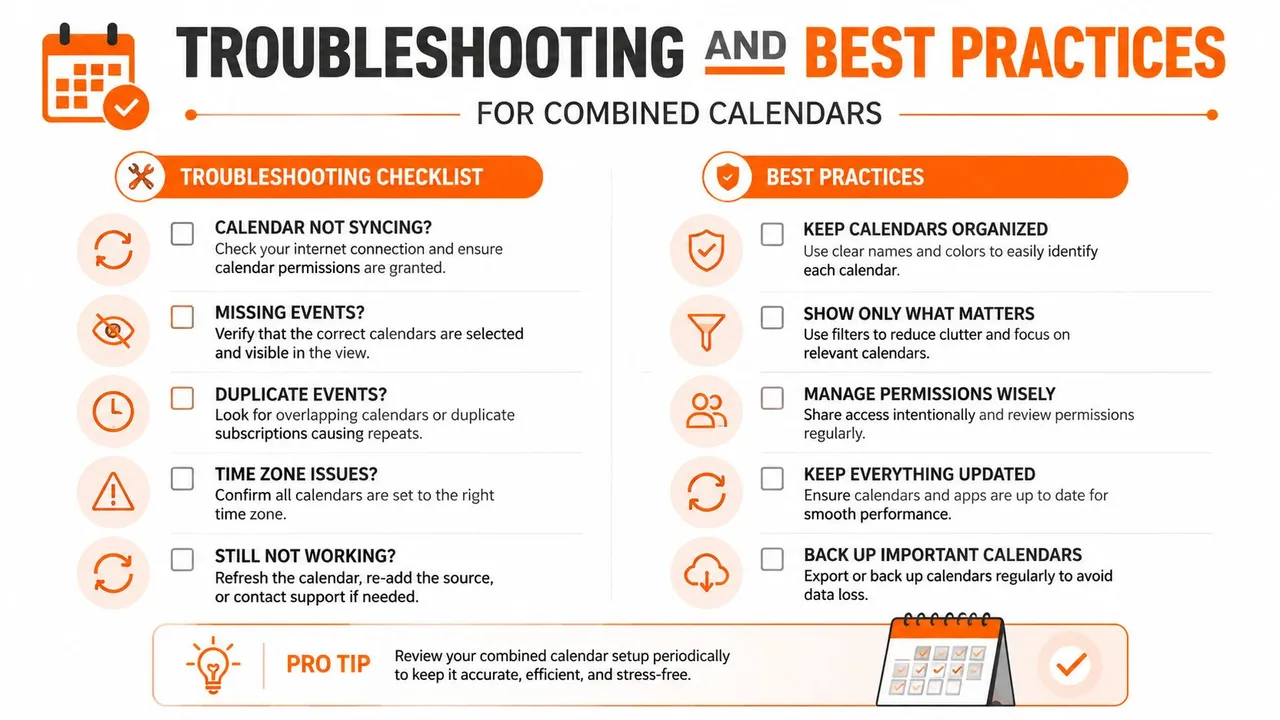
Check the source before blaming the destination
- Imported events are missing: Confirm that you extracted the ZIP archive and selected the correct ICS file. During import, verify that you chose the intended destination calendar rather than leaving events in an unexpected calendar.
- Events appear twice: You may be using an overlay, a subscription, and a sync for the same source. Pick one mechanism for that relationship, then remove or hide the redundant connection.
- Updates aren’t arriving: Check the sync direction. A one-way relationship won’t carry edits back to the source, and a calendar that isn’t included in the configured flow won’t update another account.
- Private details are visible: Review sharing permissions and copied-field settings. Replace full-detail sharing with free/busy visibility or masked event fields when the recipient only needs availability.
Keep the setup maintainable
Name each sync descriptively, such as “Personal to Work, Busy Only,” so you can understand its purpose later. Archive source calendars before deleting them, especially after an import, and re-audit permissions whenever a team member changes roles.
A short monthly review can catch accidental duplicates, stale subscriptions, and permissions that no longer fit. Calendar systems stay reliable when every connection has one clear owner, one defined direction, and one documented privacy rule.
Choosing the Right Method for Your Situation
Before choosing a method, ask what the combined calendar must do next week. A freelancer who needs awareness can use an overlay. Someone retiring accounts and preserving history should export and import an ICS file. An internal team may need direct sharing, while work across Google, Outlook, or Apple calendars calls for automated synchronization with privacy controls.
List each calendar, its owner, and the access level others need. View first, share when collaboration is required, sync when updates must continue, and merge only after the calendars no longer need independent operation. For a practical model of consolidating events into one dependable representation, review this canonical event rollup methodology.
SyncThemCalendars supports one-way, two-way, and multi-way synchronization across Google, Outlook, and Apple calendars, including free/busy mirroring and masked event details. Visit SyncThemCalendars to test a privacy-conscious setup during the 14-day trial.
Ready to sync your calendars?
Keep your Google, Outlook and Apple iCloud calendars in sync automatically. 2-minute setup, no credit card required.
Get started freeKeep reading
More in Tutorials
How to Sync Google and Apple Calendar: Step-by-Step Setup
Sync Google and Apple Calendar with native accounts or a managed tool. Compare one-way and two-way options, follow the steps, and fix common problems.

How to Add Gmail Calendar to Outlook Without Duplicates
See how to add Gmail Calendar to Outlook by subscribing for a live view or using two-way sync, then avoid privacy leaks and duplicate events.

Export Outlook Calendar to Google: A 2026 Step-by-Step Guide
Learn how to export Outlook calendar to Google with clear steps for ICS and CSV imports, recurring-event checks, and verification tips that work in 2026.