







How to Connect Outlook Calendar to Google Calendar
Learn how to connect Outlook Calendar to Google Calendar with simple steps, sync options, and privacy tips that actually work in 2026.
You’ve got a Teams meeting at 10 a.m. in Outlook, but it isn’t on the Google Calendar you check on your phone. You book the dentist over it, discover the clash too late, and spend the next few minutes apologizing and moving appointments. The same problem hits recruiters, founders, consultants, and administrators whenever work and personal schedules live in different ecosystems.
The phrase “sync my calendars” hides an important distinction. A Google Calendar subscription in Outlook can show events without accepting edits. An ICS import creates a one-time snapshot. A genuine two-way connector copies changes in both directions, but it introduces permissions, privacy, recurrence, and duplicate-event decisions. This guide separates what works from what only looks synchronized, so you can choose the right setup instead of cycling through conflicting advice.
Why Your Calendars Keep Missing Each Other
Outlook and Google Calendar don’t share one universal working calendar. Microsoft 365 and Google Workspace each treat calendars as part of a wider account, identity, meeting, and permission system. Their products can exchange calendar data, but that doesn’t mean an event created in one account becomes a fully editable event in the other.
The practical result is familiar. A client books a meeting through Google, your employer manages meetings in Outlook, and your phone displays only one side. You see an apparently open slot, accept a second invitation, and later discover that the original event was hidden in another calendar. Microsoft’s own guidance distinguishes between viewing a Google calendar in Outlook and maintaining live synchronization, while also warning that an exported calendar is only a snapshot that won’t continue updating. Microsoft’s Outlook guidance documents that difference directly.
The two real paths
There are two workable approaches:
- One-way ICS subscription: Outlook periodically reads a Google Calendar feed. You can view the source events, but changes made in Outlook don’t write back to Google.
- Two-way connector: A service authenticates with both accounts and creates or updates corresponding events on each side. This is the route for people who need edits, moves, cancellations, and availability to travel in both directions.
The path that repeatedly causes trouble is manual export and import. Downloading an .ics file and importing it into the other account can help with a historical snapshot, but it won’t keep future changes aligned. A meeting moved after the import remains in its old position, and a cancellation won’t reliably remove the copied event.
Practical rule: If you need the destination calendar to change after the original event changes, don’t use an imported
.icsfile.
The operational cost is easy to underestimate. People who coordinate recruiting interviews, customer calls, or multiple ventures often spend part of each week comparing calendars and resolving clashes that a properly designed workflow would have exposed earlier. The fix isn’t always a paid connector. It starts with deciding whether you need a read-only view or a writable copy.
What Native Outlook and Google Calendar Can Actually Do
Native tools are useful, but they solve narrower problems than the word “sync” suggests. In classic Outlook, the standard Google connection is an Internet Calendar subscription. Outlook reads an iCal feed and displays the source calendar, but Microsoft distinguishes that live-looking view from an exported calendar snapshot, which won’t keep updating. Microsoft’s support documentation is clear that seeing a calendar isn’t the same as synchronizing edits.
Google has continued working on interoperability around Microsoft-related meeting behavior. Its product updates in 2023 and 2025 addressed Outlook guest reminders and Microsoft-specific calendar email processing, showing sustained attention to cross-platform exchange without creating a universal native bridge. That work improves how invitations and messages are interpreted. It doesn’t turn every Outlook and Google calendar view into a bidirectional event database.
The new Outlook app can also present connected Google accounts, but the result should be treated as an integrated view until you confirm the exact behavior available in your tenant and build. Changes, responses, deletions, and complex recurring-series edits may not round-trip as you expect. CalDAV has also appeared in limited interoperability contexts, but it isn’t a dependable general-purpose answer for every Microsoft 365 and Google Workspace environment.
Native Outlook and Google Calendar capabilities at a glance
| Capability | ICS Subscription in Outlook | New Outlook Google Integration | CalDAV, limited |
|---|---|---|---|
| View Google events in Outlook | Yes | Usually available as a connected view | Depends on account and client |
| Edit Google events from Outlook | No dependable write-back | Not a guaranteed round trip | Varies by implementation |
| Changes from Outlook appear in Google | No | Not reliably | Depends on support |
| Meeting responses and cancellations | Often remain tied to the source account | May behave differently by event type | Inconsistent across platforms |
| Recurring event handling | Vulnerable to interpretation differences | Test before relying on it | Client and server dependent |
| Best use | Read-only visibility | Account overlay and occasional access | Specific supported environments |
For teams managing a workspace calendar for nonprofits, the decision often depends on whether staff need shared visibility or actual write-back across accounts. A read-only overlay may be sufficient for planning. A connector becomes more appropriate when several people schedule from different systems and a stale view creates conflicts. For a broader product-level comparison, see this guide to Google Calendar versus Outlook Calendar.
The litmus test is simple: if edits, RSVPs, cancellations, or recurring-rule changes must round-trip, a native subscription isn’t enough. You need a connector that supports the direction and fields your workflow requires.
Subscribing to a Google Calendar in Classic Outlook
Classic Outlook remains the practical choice when you want a read-only Google calendar beside your Microsoft calendar. This method works well for visibility. It doesn’t create a writable copy, so set it up only when that limitation matches your workflow.
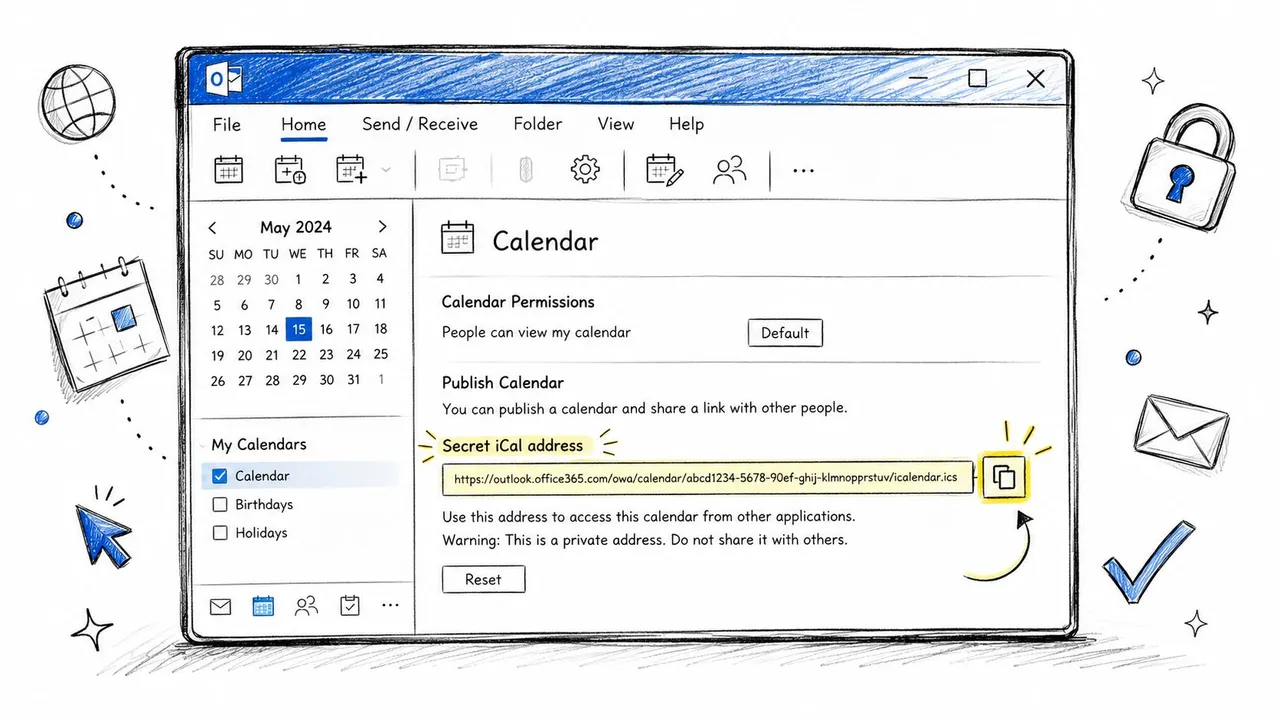
Copy the Google iCal address
- Open Google Calendar in a browser.
- Select the settings menu and open the calendar you want to share.
- Find Integrate calendar.
- Copy the Secret address in iCal format.
Treat the secret iCal address like a credential. Anyone who obtains it may be able to read the calendar feed, depending on the calendar’s permissions and provider behavior. Don’t paste it into a public document or send it through an unsecured channel.
Subscribe from classic Outlook
In many classic Outlook builds, use the calendar view and select Home → Add Calendar → From Internet. Paste the Google iCal address, confirm the prompt, and give the subscribed calendar a recognizable name. Outlook will then poll the feed and display it alongside your other calendars.
Some builds expose a related route through File → Account Settings → Account Settings, followed by the Internet Calendars tab. If your version doesn’t show the Home ribbon option, use that account-settings path and add the feed there.
Know what the subscription cannot do
A subscribed calendar is one-way and effectively read-only. If you delete a displayed Google meeting in Outlook, you haven’t deleted it in Google. If you accept an invitation from the Google side, handle that invitation in Google Calendar or the account that owns the event. Outlook’s copy is a view of the source, not the source itself.
Refresh timing is another operational limitation. Microsoft community guidance says Google changes may take up to 24 hours to appear in Outlook, and subscription refreshes can take several hours or longer. Microsoft community guidance on Outlook calendar syncing also warns that Outlook’s Scheduling Assistant may not include subscribed Google events when calculating free and busy time.
Use this method when: You need a convenient read-only view and can tolerate delayed updates. If you need edits or dependable availability blocking, skip to the two-way approach.
Using Outlook on the Web and the New Outlook App
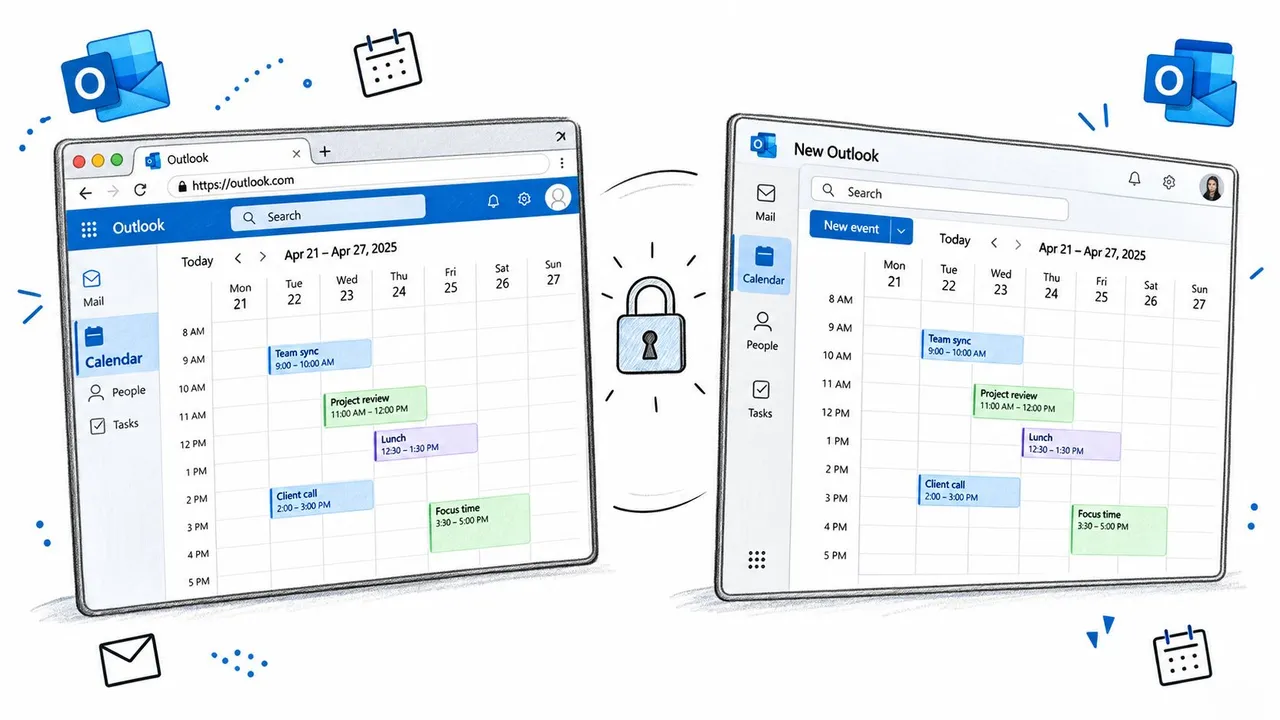
Outlook on the Web offers a straightforward subscription route, but it still doesn’t convert Google events into editable Outlook-owned appointments. Open the calendar, choose Add calendar, select Subscribe from web, paste Google’s Secret address in iCal format, and import it. Give the calendar a clear label, then enable it in the left-hand calendar list.
That view is useful when your main goal is seeing personal or client commitments beside work events. For privacy, keep the source calendar’s sharing configuration conservative. If colleagues only need to know whether you’re occupied, share free/busy rather than titles, locations, descriptions, or attendee information. The subscription itself doesn’t automatically transform detailed events into safe free/busy blocks, so privacy must be designed at the source and destination levels.
The New Outlook app can offer a connected accounts experience for adding Google accounts. Use Settings, open the account or connected-accounts area, add Google, and complete the authorization prompts. After the account appears, check whether you’re viewing the Google calendar in an overlay or creating events owned by the Google account. Those are different operations, even if they appear in the same Outlook window.
Recurring events deserve a deliberate test. An imported or subscribed series can display differently when Google and Outlook interpret recurrence rules, exceptions, or skipped instances. A series may appear to lose its rule or show incomplete exceptions, so don’t roll out a workflow based only on a simple single event.
If you need only a consolidated screen, Outlook on the Web or New Outlook may be sufficient. If you need reliable write-back, recurring-event preservation, or free/busy copies on another account, classic Outlook’s subscription is still only a workaround. Use a connector rather than treating the overlay as a two-way bridge.
Comparing Third-Party Sync Tools That Move Events Both Ways
Third-party tools fill the gap left by native subscriptions, but they aren’t interchangeable. Before authorizing access, decide whether you want full event details, private busy blocks, attendee handling, or simple event creation. The more information a service copies, the more carefully you should review permissions, retention, and deletion behavior.
The comparison below uses qualitative differences rather than invented performance or pricing claims. Refresh behavior depends on the provider, plan, account permissions, and the specific calendar APIs involved, so verify current terms before committing.
Side-by-side comparison of third-party Outlook-to-Google sync tools
| Tool | Sync Direction | Refresh Speed | Free/Busy Masking | Pricing |
|---|---|---|---|---|
| SyncThemCalendars | One-way, two-way, or multi-way between selected calendars | Background synchronization, subject to account and service behavior | Supports masking or transforming event fields, including privacy-focused copies | Subscription plans with plan limits based on active syncs |
| CloudHQ | Broad cross-application synchronization, with supported calendar workflows varying by setup | Batch-oriented behavior may be less suitable for urgent changes | Review configuration carefully because broader metadata handling may be enabled by default | Paid plans and account-specific limits |
| Zapier workflows | Usually one-way triggers and actions, with multi-step designs possible | Trigger and action timing varies by workflow | Requires deliberate field mapping and filtering | Task and plan limits vary by account |
Zapier can work well for straightforward automation, such as creating an entry in another calendar when a form or event trigger fires. It becomes fragile when the workflow must preserve recurrence rules, process cancellations, or update an event after its title and time change. A trigger that creates an event isn’t automatically a synchronization engine.
CloudHQ is worth considering when calendar movement is part of a wider application workflow, but broader coverage can mean more configuration and more metadata decisions. Test attendee invitations, cancellations, and private events before connecting a production calendar.
SyncThemCalendars supports selected Outlook and Google calendars with configurable one-way or two-way directions, field controls, and free/busy masking. It belongs on the shortlist when the requirement is a calendar-specific bridge rather than a general automation recipe. Regardless of the tool, begin with a test calendar or a small mapping, document which account owns each event, and confirm how deletions are handled before expanding.
Setting Up Two-Way Sync with SyncThemCalendars
A two-way setup starts with permissions, not with the calendar list. You need authorization for both the Microsoft account and the Google account, and an administrator may need to approve access in a managed organization. Once those permissions are available, the workflow is usually a sequence of focused choices.
Connect the accounts and choose ownership
Sign in to SyncThemCalendars and authorize the Microsoft 365 or Exchange account first. Add the Google Workspace or personal Gmail account next, then select the Outlook calendar that contains the source events and the Google calendar that should receive them.
For a one-way arrangement, map Outlook to Google or Google to Outlook. For true two-way behavior, create mappings in both directions. Don’t assume that selecting both calendars in one screen automatically defines ownership, conflict rules, or deletion behavior. Read the mapping summary before saving. The two-way calendar sync feature details describe the type of direction control to look for.
Decide what crosses the boundary
Select the fields that should travel between accounts:
- Title and time: Copy them when the destination needs recognizable appointments.
- Location and description: Include them only when the receiving account is allowed to see those details.
- Attendees and reminders: Test these separately because invitation ownership and notifications can differ between providers.
- Private events: Prefer a busy block or masked placeholder when the destination should reveal availability without personal or client information.
Privacy is not an afterthought. A personal event copied with its title, location, notes, and guest list can disclose more than a colleague needs to schedule a meeting. A safer mapping can show only that the time is occupied while leaving sensitive content on the source calendar.
After saving, trigger an initial synchronization and verify the result in both accounts. Create a test event in Outlook, check that it appears in Google, edit the time or title, and confirm the change returns to Outlook. Then test a cancellation and a recurring event before connecting additional calendars.
Use this walkthrough as a visual reference for the account and source-target sequence:
Don’t skip the verification step. A calendar can look connected while invitations, private events, or recurring exceptions follow different rules. Confirm the behavior with events that resemble your real schedule, not only a disposable one-hour appointment.
Fixing the Sync Problems That Show Up Later
Most failures fall into a small set of patterns. Diagnose the behavior before changing several settings at once, or you won’t know which adjustment fixed the problem.
Events arrive late
An ICS feed can be stale because the subscriber controls refresh timing. Microsoft community guidance says Google changes may take up to 24 hours to appear in Outlook, so a subscribed calendar isn’t a dependable real-time availability source. Shorten the connector’s refresh interval if available, or replace the subscription with a push-capable two-way service. Check Outlook → Send/Receive → Send/Receive Groups → Define Send/Receive Groups only when your build exposes calendar-feed refresh controls. If the delay persists, the limitation is probably the subscription model rather than a local Outlook setting.
Outlook won’t accept another shared calendar
Microsoft support materials and community answers identify a 20-calendar limit for shared Google calendars surfaced in Outlook. Microsoft’s integration discussion explains why a setup can stop accepting additional calendars even though existing feeds still appear. Remove abandoned subscriptions through File → Account Settings → Account Settings → Internet Calendars, or unsubscribe unused calendars from the calendar list. If the workflow has outgrown Outlook’s slots, move the aggregation into a connector that maps calendars without consuming the same Outlook view capacity.
Recurring meetings split or lose exceptions
Google and Outlook don’t always interpret recurring rules identically. Delete the damaged destination copy, correct the series in its source account, and run a clean synchronization. For important schedules, use a connector that preserves recurrence rules and test exceptions before broad deployment.
Invitees receive duplicate meetings
Duplicate invitations often indicate overlapping mechanisms, such as an ICS view plus a two-way write, or two connectors copying the same source. Disable one mapping, remove the duplicate subscription, and check whether the destination event has a stable identifier or filtering rule. If the issue continues, review the service’s attendee and cancellation settings before re-enabling the connection. A focused troubleshooting guide such as calendar sync issue diagnosis can help you trace the duplicate path.
The safest rollout is incremental. Start with one calendar, one direction, and a private test event. Add free/busy masking and more calendars only after you know how your chosen setup handles edits, cancellations, invitations, and recurring exceptions.
SyncThemCalendars can connect Outlook and Google calendars with one-way, two-way, or multi-way mappings, while letting you control which event details cross the boundary and whether private events become masked busy blocks. If your current ICS subscription is too slow or too limited, visit SyncThemCalendars and test the workflow with a small calendar mapping before moving your full schedule.
Ready to sync your calendars?
Keep your Google, Outlook and Apple iCloud calendars in sync automatically. 2-minute setup, no credit card required.
Get started freeKeep reading
More in Tutorials

How to Add Gmail Calendar to Outlook Without Duplicates
See how to add Gmail Calendar to Outlook by subscribing for a live view or using two-way sync, then avoid privacy leaks and duplicate events.

Export Outlook Calendar to Google: A 2026 Step-by-Step Guide
Learn how to export Outlook calendar to Google with clear steps for ICS and CSV imports, recurring-event checks, and verification tips that work in 2026.

How to Synchronize Outlook Calendar Across Platforms
Learn how to synchronize Outlook calendar events with Google and Apple iCloud. Master two-way sync, privacy controls, and real-time availability mapping.