







How to Add Gmail Calendar to Outlook Without Duplicates
See how to add Gmail Calendar to Outlook by subscribing for a live view or using two-way sync, then avoid privacy leaks and duplicate events.

A freelancer adds a client’s Gmail calendar to Outlook, sees the client’s meetings, and assumes the calendars are connected. Then a new appointment lands on the Google calendar but not in Outlook soon enough to prevent a conflict. Seeing a calendar in Outlook is useful, but it doesn’t automatically make the two accounts one synchronized system.
The right method depends on what you need: a fixed copy of events, a continuing view of Google events in Outlook, or updates that move between calendars. Those are different jobs, with different trade-offs for freshness, editing, and privacy.
Why Adding a Calendar Is Not Syncing
The usual Google-to-Outlook method is an iCalendar subscription, using a calendar feed commonly identified by the .ics format. It lets Outlook display events from Google Calendar without merging the two accounts or changing which calendar owns each event. Microsoft’s documented setup uses Google’s secret iCal address and Outlook’s Subscribe from web option (Microsoft’s instructions for viewing Google Calendar in Outlook).
That distinction matters when you need to do more than look at events. A subscription is primarily a one-way view from Google into Outlook. Google remains the source for those events, and an edit you make to the displayed event in Outlook shouldn’t be treated as an edit that will reliably update Google Calendar.
Practical rule: A calendar appearing in Outlook means you can see its feed. It doesn’t prove that Outlook can write changes back to the original calendar.
The confusion usually comes from treating four different actions as interchangeable:
- Add can mean making a calendar visible in the app. It doesn’t tell you whether the calendar is a static copy, a subscription, or an account connection.
- Import brings events into Outlook as a copy. It’s suitable for reference, not ongoing updates.
- Subscribe lets Outlook retrieve a calendar feed over time, but updates can lag.
- Sync means changes are copied between calendars according to a separate integration’s rules, such as its direction and which event details it includes.
For freelancers, consultants, sales teams, entrepreneurs, and students, the actual need is often not just a combined view. It’s accurate availability across accounts, without creating duplicate meetings or exposing private event details. A feed may help you see a client appointment, but it won’t necessarily make your work calendar appear busy to someone scheduling against that account.
The choice is between a snapshot, a delayed read-only view, and a separate synchronization method. Pick based on whether you need to preserve a fixed set of dates, view changes from Google in Outlook, or have events and availability copied across accounts.
Choose Import Subscribe or Two-Way Sync
| Method | What you get | Update behavior | Direction | Best when |
|---|---|---|---|---|
One-time .ics import | A static calendar copy | Later changes don’t follow | Copy into Outlook | You need a historical or reference calendar |
| Secret iCal subscription | Google events displayed in Outlook | Outlook retrieves updates, which may be delayed | Google to Outlook view | You want a continuing view and can accept lag |
| Dedicated sync service | Events copied according to chosen settings | Can support ongoing, near-real-time copying | One-way, two-way, or multi-way | You need edits, availability mirroring, or privacy controls |
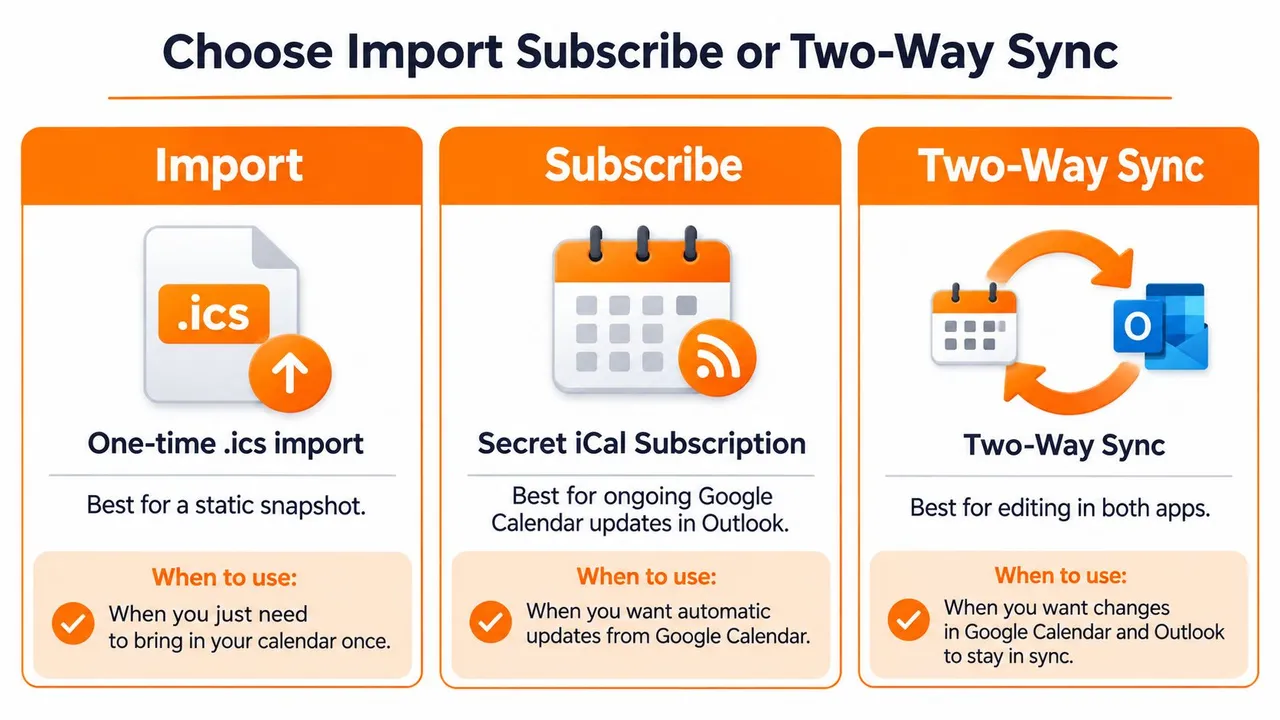
Import is for a calendar you want to keep as a fixed reference. For example, a student might import dates from a completed term to check an old exam schedule. That copy won’t track later changes to the original Google calendar.
Subscribe is the native choice when you want Google events visible in Outlook on an ongoing basis. Microsoft warns that subscribing to or importing a calendar in Outlook.com or Outlook on the web can take more than 24 hours to reflect changes (Microsoft’s guidance on importing or subscribing to a calendar). So, a subscription can be appropriate for reference and general planning, but it isn’t a guarantee of current free/busy information for urgent scheduling.
A dedicated sync service is for a different requirement: ongoing alignment between calendars, with control over direction and which event details get copied. SyncThemCalendars connects Google Calendar, Outlook or Microsoft 365, and Apple Calendar, and supports one-way, two-way, or multi-way sync, free/busy mirroring, and masking event fields. Its setup is aimed at roughly two minutes; plans include unlimited events and cap active syncs at 5, 16, or 36, with a 14-day trial without a credit card.
A useful way to think about this is the same way teams consider table management software connections: choose an integration based on what needs to pass between systems, not just whether both systems can display information. If you need event changes to move between calendars, review the details of two-way calendar sync before setting up a read-only feed.
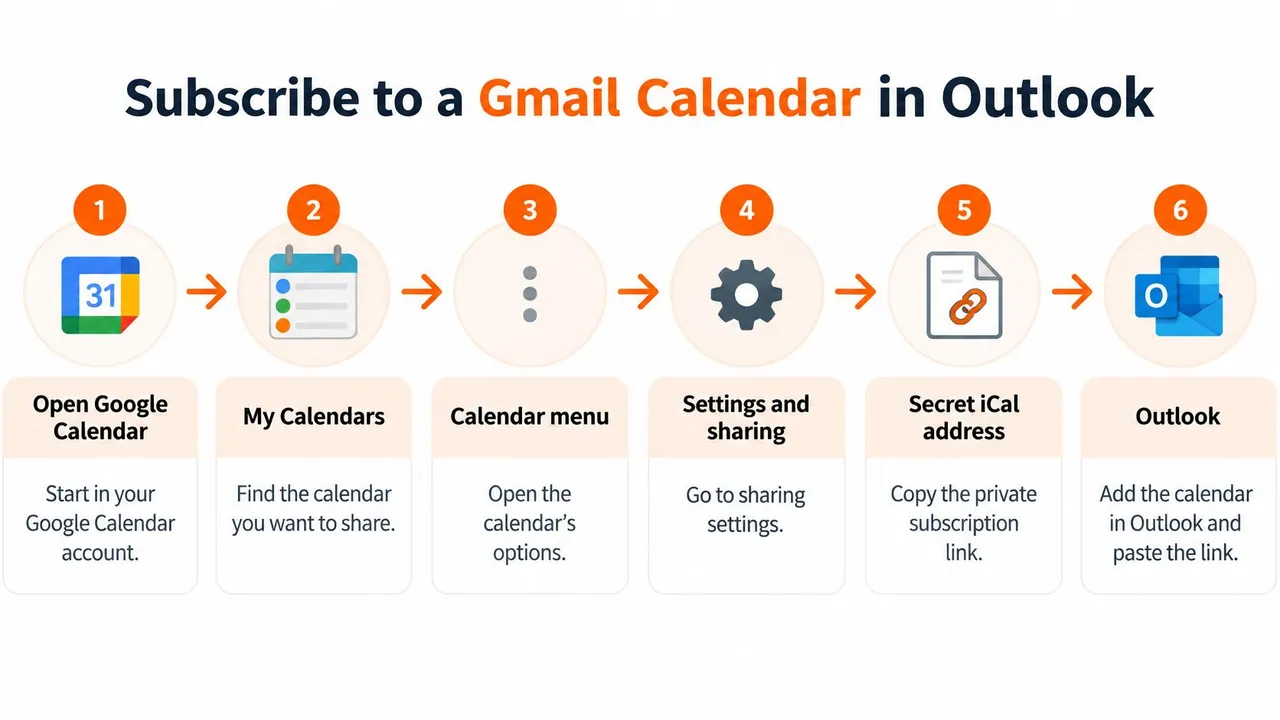
Subscribe to a Gmail Calendar in Outlook
Use a subscription when your goal is to see Google Calendar events in Outlook over time. The link you copy is a private feed address, so handle it like a credential: anyone who obtains it may be able to access the calendar feed. If it’s exposed, regenerate or revoke it.
Copy the Google Calendar address
- Open Google Calendar and find My Calendars.
- Open the three-dot menu beside the calendar you want in Outlook.
- Choose Settings and sharing.
- Scroll to Integrate calendar.
- Copy Secret address in iCal format.
Choose the specific calendar you mean to add. If you have separate personal, client, or project calendars, each calendar’s address corresponds to its own feed.
Add the feed in Outlook
In new Outlook, open Calendar, select Add calendar, choose Subscribe from web, paste the iCal address, and select Import. This is the subscription path, not a one-time upload of an exported calendar file.
In classic Outlook, go to File → Account Settings → Account Settings → Internet Calendars → New. Paste the same address, then give the calendar folder a recognizable name.
The Google feed can be used in consumer and organizational setups, including Gmail with Microsoft 365 or Google Workspace with Outlook. The account types don’t change what the subscription does: Outlook displays a Google calendar, but this route isn’t a promise of two-way editing.
To check that you added the intended feed, create a clearly named test event in Google Calendar and note its time. Then look for it in Outlook, but don’t assume it’ll appear immediately. If your actual requirement is changes moving between accounts, a guide to setting up real-time calendar syncing can help you compare that separate job with a subscription.
Here’s a walkthrough of the subscription process:
Import a One-Time Snapshot When You Need It
A one-time import makes sense when the calendar is reference material, not a schedule you expect to keep current. You might want to retain a past semester’s dates or provide a colleague with a fixed set of appointments. Microsoft also documents an export-and-import path for Mac users who need a copy in Outlook rather than a live connection (Microsoft’s Google Calendar setup instructions for Outlook).
The process starts in Google Calendar. Export the calendar, then locate the downloaded .zip archive and extract it. The archive contains .ics calendar files. Choose the file for the calendar you need, then import it into Outlook using the available calendar import option.
The key consequence is easy to miss: a snapshot doesn’t track new, moved, or canceled Google events. If a student imports last term’s exam dates into Outlook, that can be useful as a record. If a consultant imports a client calendar and relies on it for next week’s availability, the static file can become misleading as soon as the client changes an appointment.
Keep copies distinct from live feeds
Duplicates often appear when someone imports a calendar file and later subscribes to the same calendar, or imports the same file more than once. Outlook may then show the same meeting from multiple calendar sources. Give an archive a clear name, such as “Past term reference,” so it isn’t mistaken for a current schedule.
Use the simple distinction: import a snapshot for reference; subscribe for a continuing view. Don’t keep both versions of the same calendar in Outlook unless the imported one is intentionally preserved as a clearly labeled archive.
Protect Privacy Before Events Leave Google
A calendar can display correctly and still reveal information you didn’t intend to share. A client’s name in an appointment title, a medical visit in a location field, or a guest list can disclose more than the fact that you’re unavailable.
Microsoft warns that events created in Outlook while connected to Google can default to Public, regardless of Google Calendar’s visibility settings. Sensitive events should be explicitly marked Private. Google also documents limitations in Outlook support: attachments may not reach other attendees, some availability states may be reduced to Free/Busy, and changing a meeting in Outlook may reveal a guest list that was hidden in Google (Microsoft’s known issues when syncing Google accounts to the Microsoft cloud).
Before relying on a connection, test it with a dummy event. Check the event’s visibility and compare what appears when sharing free/busy availability with what appears when sharing full details. Review who can see the guest list, and ask whether coworkers need the event title or only need to know that the time is occupied.
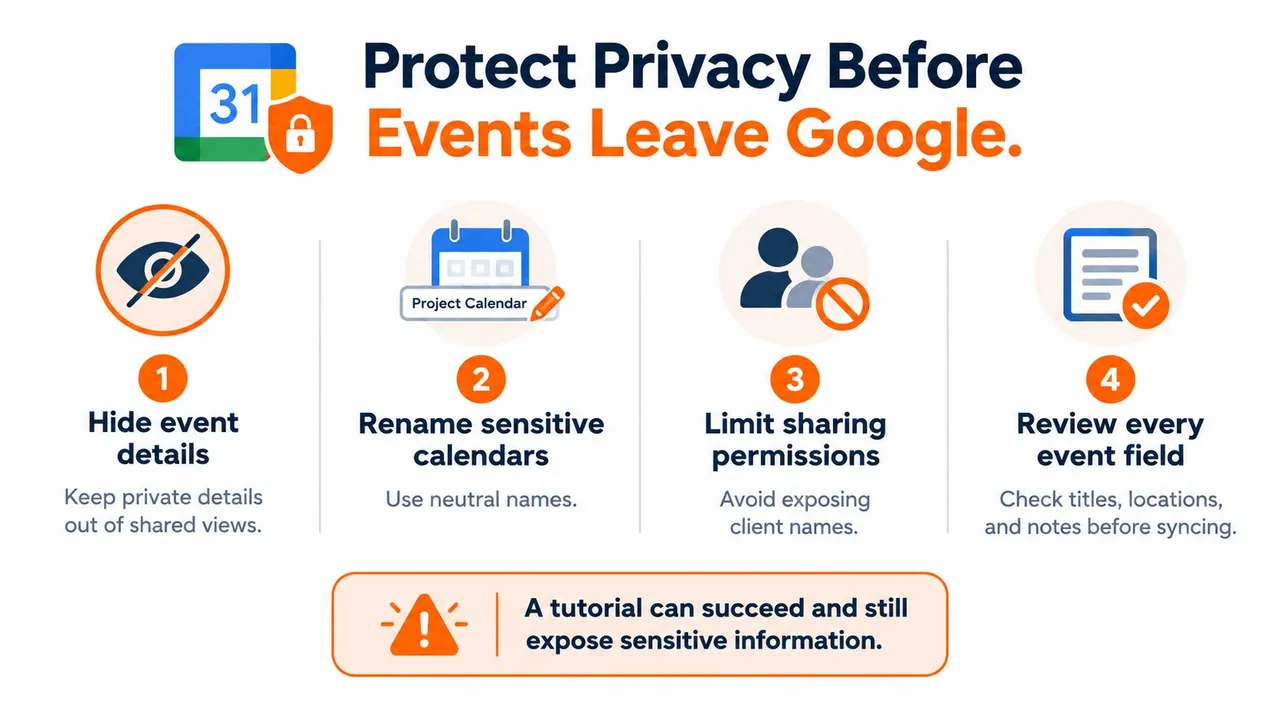
Use this preflight before copying events between accounts:
- Check default visibility. Confirm whether new events appear as Public or Private in the destination calendar.
- Compare sharing levels. Decide whether people need full event details or only a busy block.
- Inspect guest permissions. Check who can see invitees and whether changes in Outlook alter what guests can view.
- Review each event field. Titles, locations, descriptions, and notes can all reveal context.
For an entrepreneur, salesperson, or academic, availability mirroring without detail replication may be safer than copying every field. SyncThemCalendars can mirror free/busy time and mask or transform copied titles, descriptions, and locations; its stated data handling says events are processed to perform the synchronization. For additional guidance on controlling what Google Calendar reveals, see these Google Calendar privacy settings.
Fix Slow Updates Missing Calendars and Duplicates
A subscription can be configured correctly and still show an incomplete view. Microsoft says changes to calendars subscribed to or imported in Outlook.com or Outlook on the web can take more than 24 hours to appear. If you’re booking something urgent or managing same-day availability, check the appointment directly in Google rather than assuming a fresh Outlook view contains the latest changes.
Missing calendars can also result from the difference between calendar visibility and account synchronization. Outlook can surface up to 20 shared Google calendars; if an account has more, some may not appear. Invitation responses have their own condition: Google’s Automatically add invitations to my calendar setting must be set to Yes, and the invitation must appear on the calendar.
Test the behavior, not just the setup
After connecting a calendar, check these three cases:
- Create a Google event and confirm whether it appears in Outlook.
- Change the event’s time, then check again after the feed has had time to refresh.
- Send or accept an invitation and confirm what happens to the event and attendee behavior.
If events appear twice, look for overlapping sources. You may have subscribed in both directions, imported a snapshot as well as subscribing, or added the same calendar feed more than once. A cancellation can also take time to show in the viewing calendar, leaving an event visible after it has changed at the source.
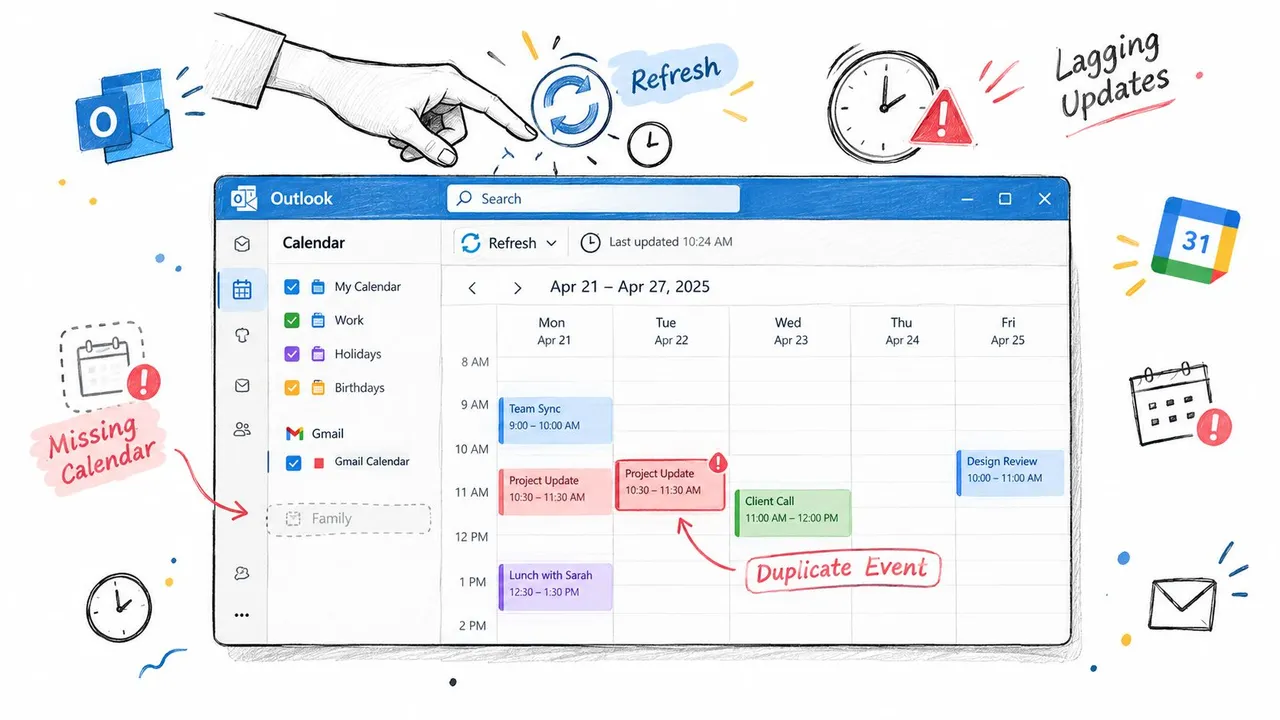
When troubleshooting, first identify which calendar owns the event and which connection is displaying it. That usually reveals whether you’re looking at a static import, a delayed subscription, or duplicate feeds. For more troubleshooting checks, use this guide to Google Calendar not updating in Outlook.
If your requirement is that an edit in Outlook must update the original Google event, changing the subscription won’t solve it. The feed is the wrong mechanism for cross-account writes.
Decide Your Next Move and Start Syncing
Choose the method that matches the job, rather than adding every possible connection:
- Need a fixed archive? Import an
.icssnapshot and give it a name that makes clear it isn’t live. - Need to view Google events in Outlook? Subscribe with the secret iCal address, then test a new event, an edit, and an invitation.
- Need updates to move between accounts? Use a synchronization method designed for the direction and privacy controls you require.
If the requirement includes changes in either direction, free/busy information that helps prevent double-booking, or event titles that must stay private across client and personal calendars, don’t stack subscriptions and hope they behave like a sync. A dedicated service can copy events between Google Calendar and Outlook, with Apple Calendar available when it’s part of your schedule. You can choose one-way, two-way, or multi-way direction and decide whether to mirror availability without copying every detail.
For SyncThemCalendars, setup is aimed at roughly two minutes. Its plans include unlimited events, with active-sync limits of 5, 16, or 36, and a 14-day trial without a credit card. Start with one busy calendar and a masked personal event. Confirm that the destination blocks the time without exposing the event’s details. That small test will tell you whether a read-only view is enough or whether ongoing synchronization better fits the way you schedule.
SyncThemCalendars connects Google Calendar, Outlook, and Apple Calendar with configurable one-way, two-way, or multi-way event copying, along with free/busy mirroring and controls for event details. If a visible feed isn’t enough to keep your calendars aligned, visit SyncThemCalendars and try a small, privacy-conscious sync first.
Ready to sync your calendars?
Keep your Google, Outlook and Apple iCloud calendars in sync automatically. 2-minute setup, no credit card required.
Get started freeKeep reading
More in Tutorials

Export Outlook Calendar to Google: A 2026 Step-by-Step Guide
Learn how to export Outlook calendar to Google with clear steps for ICS and CSV imports, recurring-event checks, and verification tips that work in 2026.

How to Synchronize Outlook Calendar Across Platforms
Learn how to synchronize Outlook calendar events with Google and Apple iCloud. Master two-way sync, privacy controls, and real-time availability mapping.
How to Sync Office 365 Calendar with Apple Calendar
Learn how to sync Office 365 calendar with Apple Calendar. Compare native methods, third-party tools, privacy controls, and troubleshooting tips.