







Does Apple Calendar Sync with Google Calendar? Real Answers
Does Apple Calendar sync with Google Calendar? Learn the limits of native integration, common workarounds, privacy risks, and the best setup for your workflow.
No, Apple Calendar and Google Calendar don’t offer a native two-way sync between their separate calendar ecosystems. You can display Google events in Apple Calendar through account settings or CalDAV, but true bidirectional synchronization between Apple and iCloud calendars requires a third-party sync layer.
You may be looking at a Google work calendar on your iPhone, an iCloud personal calendar on your Mac, and a shared schedule somewhere else, all showing different versions of your day. An event appears in one place, an edit fails to reach another, and your availability looks open when you’re already committed. The problem isn’t that Apple Calendar can’t show Google events. The problem is confusing displaying a calendar with replicating and updating events across accounts.
The Short Answer to Apple and Google Calendar Sync
The direct answer to “does Apple Calendar sync with Google Calendar?” depends on what you mean by sync.
If you add a Google account to Apple Calendar on a Mac, iPhone, or iPad, Google events can appear inside Apple’s app. Google documents this as a supported cross-platform setup, and its guidance says Mac users can choose how frequently calendars refresh from the Accounts tab (Google’s Apple Calendar instructions). On iPhone and iPad, turning on the Calendar option for the Google account makes those events visible in Apple Calendar.
That setup is useful, but it doesn’t create a native Apple-to-Google bridge for every calendar you own. The account you add is a Google account, and events saved to that Google calendar can generally be managed through the connected Apple interface. An iCloud calendar remains an Apple calendar, with a different account and synchronization path.
Google’s support forum gives the blunt version: there isn’t an officially supported way to synchronize an Apple Calendar with a Google Calendar (Google’s support discussion on Apple and Google synchronization). The familiar workaround, publishing an iCloud calendar and subscribing to it in Google Calendar, only lets Google view updates. It doesn’t let Google edit the source Apple calendar.
Practical rule: If you only need one app to display Google events, native account integration is usually enough. If you need events copied between Apple and Google calendars in both directions, treat that as a separate synchronization job.
This distinction matters for work and personal schedules. A visual overlay may help you plan, but it won’t necessarily place a busy block on the other account, preserve every event field, or protect private details. Choose the setup based on whether your priority is convenient viewing, editing, accurate availability, or selective data sharing.
How Native Integration Actually Works
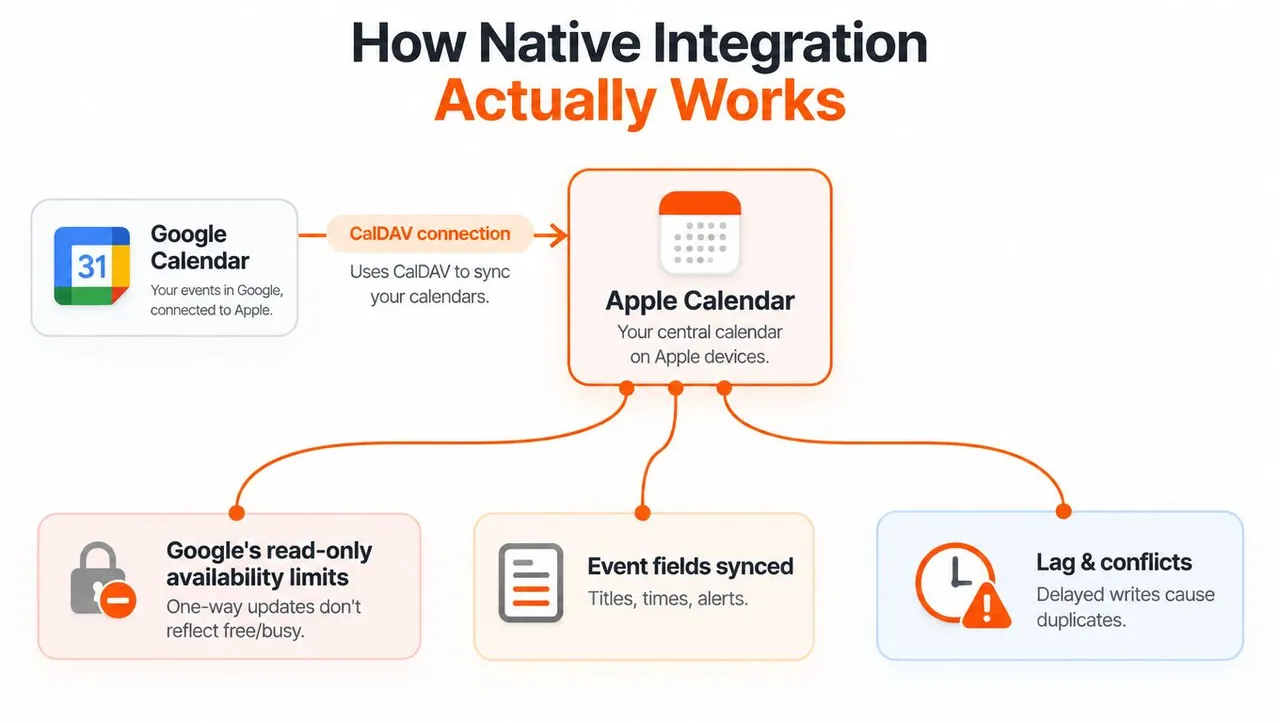
Apple Calendar and Google Calendar can communicate through CalDAV, a calendar access protocol. Google documents a dedicated CalDAV endpoint for Apple Calendar clients, which allows a supported Google account connection to expose calendars within Apple’s app (Google’s CalDAV guide).
The important distinction is between two integration paths.
Account connection versus subscription
When you add Google as an account in Apple Calendar, Apple connects to the Google account rather than importing a static copy. That account-level route can support event creation and updates on the connected Google calendars, subject to the capabilities of the Apple Calendar workflow. It gives you a working way to manage Google events from an Apple device without installing the Google Calendar app.
An iCal or webcal subscription works differently. Google describes subscriptions as a fallback when a calendar application doesn’t support full synchronization, or when a user wants a read-only view (Google’s calendar sync options). A subscription reads a feed. It doesn’t provide a destination where edits can be written back.
Why the setup feels unreliable
People often add a Google account successfully, see events in Apple Calendar, and assume that every Apple or iCloud event will now reach Google. That assumption creates the familiar double-entry problem. An event created on an iCloud calendar doesn’t automatically become a Google event just because both calendars appear in the same Apple interface.
The same split explains stale mirrors. A subscribed feed may update only when the receiving service checks it, while an account connection has a deeper exchange with the calendar provider. If you need edits, availability, and event ownership to travel between separate accounts, an overlay isn’t enough.
A practical walkthrough of the account setup is available in this guide to connecting Google Calendar to Apple Calendar. Use native account integration when the goal is to access Google calendars inside Apple Calendar. Don’t mistake that convenience for universal two-way synchronization between Google and iCloud.
One-Way Workarounds and Their Hidden Limits
The most common workaround starts in iCloud. You make an Apple calendar public, copy its calendar link, and subscribe to that feed in Google Calendar. Google can then read the Apple calendar’s updates, but it can’t edit the source calendar. Anyone who obtains a public calendar link may also be able to view its contents, so publishing a calendar with sensitive meeting details introduces a privacy concern.
A second option adds the Google account directly to Apple Calendar. This is the better native choice when Google is the system of record. You can view Google events and create or update events on Google calendars from Apple’s interface, but that doesn’t turn iCloud into an editable Google calendar. Some Google-specific functions, including certain notification, room scheduling, or calendar-creation workflows, may not carry across the Apple interface consistently.
| Method | Direction | Editable | Free/Busy | Privacy Control |
|---|---|---|---|---|
| Add Google account to Apple Calendar | Google account into Apple Calendar | Google events can be created or updated through the connected account | Depends on how the receiving calendar handles the connected account | Limited field-level transformation |
| Subscribe to an iCloud calendar in Google Calendar | Apple to Google | Read-only on the Google side | Not a dependable native busy-block copy | Public sharing can expose event details |
| Subscribe to a Google iCal feed in Apple Calendar | Google to Apple | Read-only in Apple Calendar | Displays events, but doesn’t create a native Apple event | Feed access depends on the shared link |
| Use a dedicated sync service | Configurable one-way, two-way, or multi-way | Yes, according to the selected direction and rules | Can mirror availability selectively | Supports field masking or transformation |
The table exposes the key trade-off. Native methods are convenient when one provider owns the calendar and the other app is only a viewing or editing interface. They become inadequate when two independent calendars must remain operationally aligned.
Watch the destination: An event visible under “Subscribed Calendars” is a feed, not a writable calendar. If you need edits to travel back, you need an authenticated account connection or a synchronization service.
Before choosing a workaround, decide which calendar owns each event. If Apple owns the event and Google only needs awareness, a subscription may be acceptable. If both sides need to create, modify, and block time, a one-way feed will leave gaps that aren’t obvious until a conflict occurs.
Why Privacy and Availability Gaps Matter
Calendar syncing isn’t only a technical question. It also determines which details cross the boundary between personal, work, client, and institutional accounts.
A copied event may expose its title, description, location, color, reminder behavior, or notification settings differently depending on the integration. A private appointment called “medical consultation” carries more information than a simple busy block. A client calendar may reveal a company name or meeting location that your personal account shouldn’t store. Native calendar views rarely give you a precise rule for transforming every field before it appears elsewhere.
Free time isn’t the same as free visibility
A subscribed calendar can show an event without changing how availability is calculated in the destination system. That creates a dangerous mismatch. A scheduling tool may inspect the Google calendar and see open time even though the iCloud calendar displayed in your app contains a conflicting appointment.
The reverse can also happen. You may block time broadly to avoid a double-booking, but expose a title or location that reveals more than colleagues need to know. Independent guidance on Google Calendar privacy settings highlights why sharing a calendar view and sharing useful availability aren’t always the same operation.
Selective sharing is the practical standard
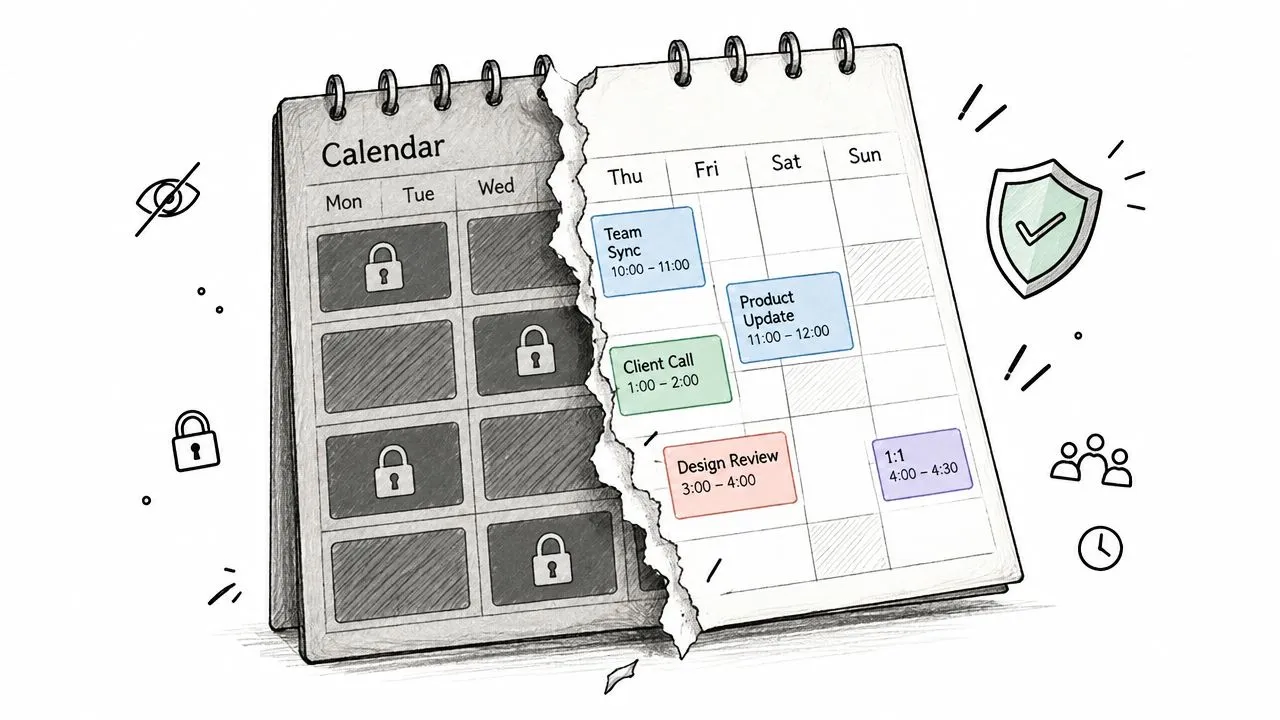
For many professionals, the right result isn’t full event replication. It’s a private busy block with no description, guest list, or location. That preserves scheduling accuracy while limiting the metadata stored in another ecosystem.
The native tools don’t consistently offer that level of control across Apple and Google. They also don’t make every provider-specific feature portable. Email notifications, room scheduling, and creating new Google calendars can behave differently in an Apple Calendar workflow, so a visible event may not reproduce the operational behavior attached to its original calendar.
The question to ask is simple: What must the other account know? If the answer is only “I’m unavailable,” copying the entire event is excessive. If the answer includes full editing, attendee management, reminders, and locations, you need a deeper integration and should test those fields before relying on it for work.
Third-Party Sync Services That Work
When two separate calendars need to stay aligned, a third-party service fills the synchronization gap. It connects to the relevant providers, watches the selected calendars, and applies rules for copying or transforming events.
Start with the workflow, not the product screen.
Build the sync around ownership
First, decide which calendar owns each event type. A Google work calendar might own client meetings, while iCloud owns personal commitments. Then decide whether the destination needs full details or only availability.
The direction comes next.
- One-way sync: Copy events from a source into a destination without letting destination edits overwrite the original.
- Two-way sync: Keep matching events aligned when authorized users change them on either side.
- Multi-way sync: Coordinate calendars across Google, Apple, and Microsoft accounts when one schedule spans several systems.
SyncThemCalendars provides real-time event synchronization across Google Calendar, Microsoft Outlook/Office 365, and Apple Calendar through iCloud. Its documented controls include one-way, two-way, and multi-way directions, free/busy mirroring, and privacy settings that can mask or transform copied fields such as the title, description, and location (SyncThemCalendars calendar synchronization).
After connecting accounts, select the calendars to include, define the direction, and decide how copied fields should behave. Test with a non-sensitive event before connecting a production calendar. Check both the destination event and the availability shown to a scheduler.
Privacy-first setup: Start by copying only availability. Add titles, descriptions, or locations only when the workflow requires them.
The service’s two-way calendar sync guidance is useful when both calendars need to accept changes. The same field-masking principle applies outside calendar tools. Teams coordinating appointments with tradespeople often need cleaning quote integrations, where booking data and availability stay consistent without copying customer details into the calendar.
A visual walkthrough can help clarify the connection and rule configuration:
Before relying on any automated sync, test cancellations, rescheduling, recurring events, time zones, reminders, and conflicts. A service can cover the account-to-account gap, but the result still depends on clear ownership rules and conservative privacy settings.
Recommended Setups for Common User Scenarios
The right setup changes with the people involved and the sensitivity of the schedule. A student who only needs a class timetable visible on an iPhone has a different requirement from a consultant who must protect client names while showing availability.
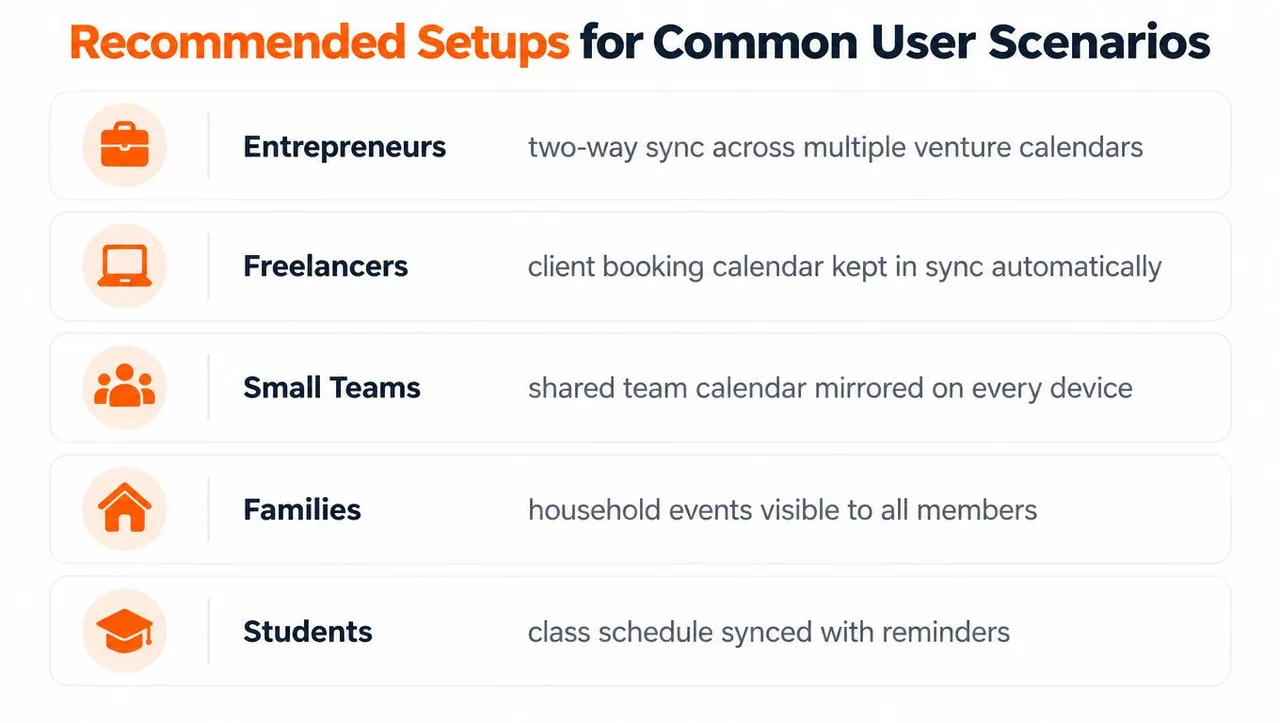
Entrepreneurs
Someone managing several ventures may need multiple Google calendars visible in Apple Calendar, while also blocking personal commitments from every work account. Use account-level Google access for simple viewing, then use controlled two-way or multi-way synchronization when each venture must receive schedule changes. Keep copied personal events to free/busy blocks so business contacts don’t see private titles.
Freelancers
A freelancer often has a personal iCloud calendar and client calendars managed in Google Workspace. If clients only need booking availability, mirror busy periods without descriptions or locations. If the freelancer edits appointments from both ecosystems, choose two-way rules and define one calendar as the source for client-facing event details.
Small teams
Teams should avoid asking every member to publish personal calendars. A shared work calendar can remain the operational source, while each employee receives availability blocks in their private system. This setup reduces exposure and gives scheduling tools a more accurate view than a simple visual overlay.
Families
Families may prefer a shared Google calendar or shared iCloud calendar, depending on the devices everyone uses. If one household member works primarily in the other ecosystem, a read-only view may be enough. Don’t publish a calendar containing school, medical, travel, or home-access details unless everyone understands who can access the feed.
Students
Students commonly combine an institutional Google calendar with a personal Apple calendar. Add the Google account to Apple Calendar for straightforward visibility, then use selective mirroring if personal commitments must block time in the institutional scheduling environment. Keep class reminders and assignment details in the system that owns them unless the other account needs those fields.
The recurring decision is whether the destination needs events, availability, or control. Native integration handles visibility well. Selective synchronization handles privacy and cross-account scheduling. Full two-way rules make sense only when both calendars need to accept edits.
Making Your Final Calendar Sync Decision
Apple Calendar can work with Google Calendar, but the answer depends on the direction and depth of the connection. Add a Google account when you want Google events available in Apple’s app and the Google account remains the source of truth. Use a subscription only when a read-only view is acceptable.
If your real requirement is two independent calendars that create, update, and block time for one another, native Apple and Google tools don’t provide that universally. Choose a sync layer that lets you set direction, control copied fields, and mirror availability without exposing complete event details.
The best setup is the smallest one that prevents scheduling conflicts. Start with visibility, add free/busy mirroring when needed, and enable full event copying only for calendars whose owners trust the destination.
SyncThemCalendars can synchronize selected events between Google Calendar, Apple Calendar through iCloud, and Microsoft Outlook/Office 365 with configurable one-way, two-way, or multi-way directions. Visit SyncThemCalendars to compare the available controls and set up a privacy-conscious bridge between your Apple and Google calendars.
Ready to sync your calendars?
Keep your Google, Outlook and Apple iCloud calendars in sync automatically. 2-minute setup, no credit card required.
Get started freeKeep reading
More in Guides

SyncThemCalendars Quick Setup Walkthrough
Master the SyncThemCalendars quick setup in minutes. Connect Google, Outlook, or iCloud, configure privacy masking, and verify your first sync effortlessly.

Merging Google Calendars: The Complete Guide for 2026
Merging Google Calendars. Learn the best ways to merge Google Calendars. Compare import methods, sync tools, and automation strategies

Master Your Calendar on Outlook with Sync Solutions
Learn how to use calendar on Outlook effectively, sync with Google and iCloud, avoid double-bookings, and connect SyncThemCalendars for seamless scheduling.