







Google Calendar Not Syncing with Apple Calendar Fixes
Google Calendar not syncing with Apple Calendar? Fix permissions, refresh and privacy issues fast, plus set up reliable real-time sync that just works.
You add a meeting to Google Calendar, glance at Apple Calendar before leaving, and it isn’t there. Later, a client arrives for a call you never saw, or an appointment you created on your iPhone fails to block time in Google Calendar. When Google Calendar isn’t syncing with Apple Calendar, the problem usually isn’t solved by refreshing repeatedly. You need to identify which sync route you’re using, whether the calendar is visible, and whether that route can provide the two-way behavior you expect.
The practical fix is to separate three problems: an account or permission failure, a hidden or delayed calendar, and a protocol limitation. Once those are distinct, you can stop changing unrelated settings and focus on the check most likely to restore reliable availability.
Why Your Google Calendar Is Not Showing Up in Apple Calendar
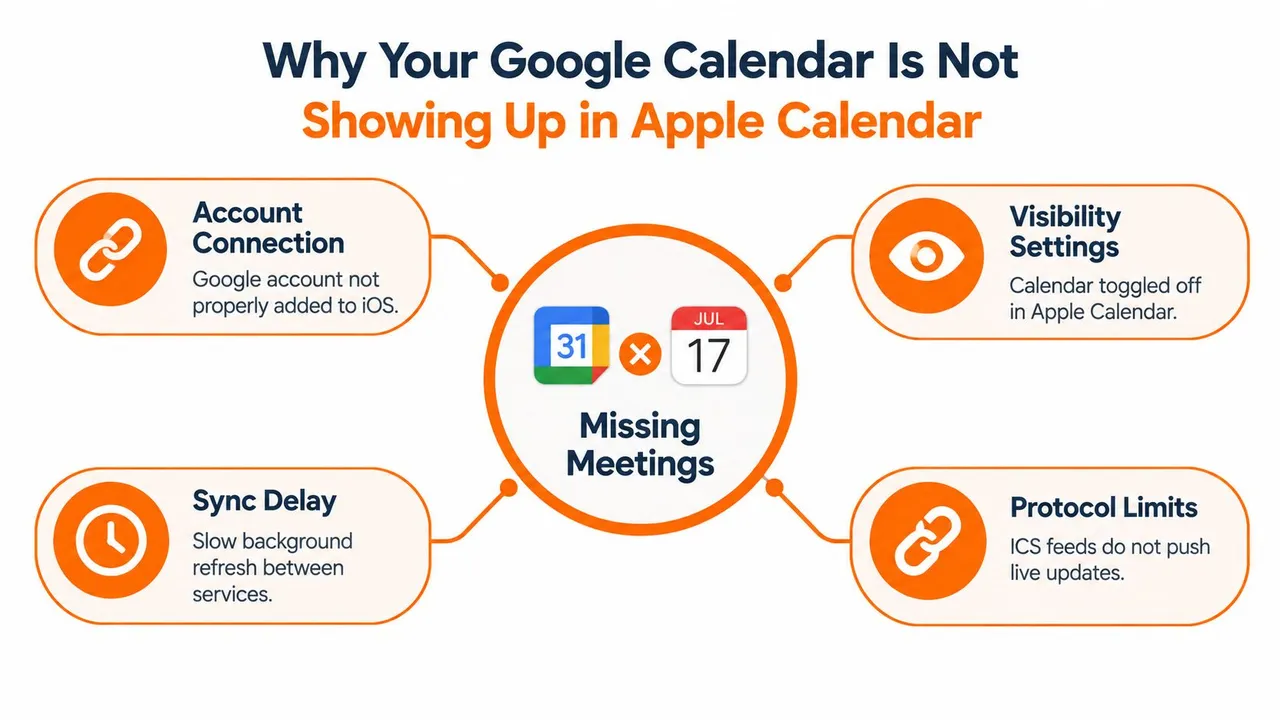
A missed meeting often starts with a harmless-looking setup. The Google account appears under iPhone calendar accounts, Apple Calendar opens normally, and the user assumes every Google calendar is now available. In practice, the account may be connected while the specific calendar remains hidden, disabled, or outside the synchronization route being used.
Google’s official iPhone and iPad calendar setup guidance describes adding a Google account through Apple’s Calendar settings. Google also documents a separate CalDAV route for accessing calendars through Apple Calendar. Those are different connection paths, with different settings and different ways to fail. A user troubleshooting “sync” may be switching between direct account integration and a subscription-style calendar feed without realizing it.
Start by identifying the sync model
Direct account sync is the route to try when you want to view and manage Google events inside Apple Calendar. It depends on the Google account being authorized, Calendars being enabled, and the relevant calendar being selected in the Apple Calendar view.
An ICS or webcal subscription works differently. It gives Apple Calendar a feed to read, but it isn’t a live, bidirectional connection. Google’s public ICS sharing is a static snapshot, and an independent technical guide explains that the export URL may update roughly every 12 hours. That means a newly moved meeting can remain stale even though the subscription itself is functioning.
Practical rule: If your real concern is double-booking, don’t assume identical copies of every event are necessary. Reliable free and busy availability may solve the scheduling risk with less privacy exposure.
Apple and Google also rely on device behavior. Background refresh, fetch timing, connectivity, operating-system compatibility, and account permission state can all affect when an event becomes visible. A manual refresh may help, but it won’t turn a static feed into real-time mirroring.
Before changing settings, ask what you expect to happen. Do you need Google events visible in Apple Calendar, edits to travel back to Google, or only a private block showing that you aren’t available? A detailed guide to two-way calendar sync can help clarify that distinction before you choose another integration.
Quick Checks That Fix Most Sync Failures
Start with checks that separate a hidden calendar from a failed connection. They take less time than account changes and produce a useful pass or fail result.
Confirm visibility in Apple Calendar
Open Apple Calendar and select Calendars. Under the Google account, confirm that the specific work, personal, or shared calendar is checked. A working connection can appear broken when the app hides the calendar.
Create one temporary event in the Google Calendar you expect to see, then refresh Apple Calendar. A new test event is more useful than an old meeting because it confirms the current connection. If it appears, the account and visibility settings are probably working. Delete the test event afterward.
Check the account identity
Multiple Google accounts create a common trap. Apple Calendar may be displaying a personal Gmail account while the missing event belongs to a work or Google Workspace account. Compare the account shown in Apple Calendar with the account that owns the calendar where you created the test event.
This check also catches shared-calendar confusion. Confirm that the calendar is available under the same Google account, rather than assuming every calendar associated with that Google login is selected automatically.
Check the connection and refresh
Calendar data cannot update while the device is offline or unable to reach Google’s account service. Open a webpage or another connected app to confirm the network, then return to Apple Calendar and pull down to refresh.
Close and reopen Apple Calendar if the event remains absent. Restarting the device can clear temporary app state, but it will not repair a missing calendar selection or an authorization problem. Install available Apple Calendar and operating-system updates before deeper troubleshooting, since outdated software can preserve sync defects addressed by a later release.
A useful stopping rule prevents wasted effort: perform one manual refresh, one app restart, and one device restart. Repeating the same actions rarely changes the sync model or fixes account permissions.
If the test event still does not appear, the problem is usually the account’s authorization state or a device-level setting. The next section covers those checks, including reauthorization, instead of repeating them here.
Hidden iPhone Settings That Block Calendar Sync
Fetch settings and background restrictions often explain why an event appears only after Apple Calendar is opened. iOS may use push updates when an account supports them, or retrieve data on a schedule when it does not. Open the calendar account’s fetch settings and check whether retrieval is set to manual. With that setting, Apple Calendar can wait for an explicit refresh.
Background App Refresh also affects updates made while the app is closed. Confirm that Calendar has background access, then check whether Low Power Mode or another restricted operating mode is limiting routine activity. These settings cannot restore invalid authorization, but they can account for delayed updates.
A short test separates delayed retrieval from a permission failure. Create or move a test event in Google Calendar, wait through the configured fetch interval, then open Apple Calendar. If the event appears only after opening the app, the refresh model is the likely cause. If it remains absent, inspect authorization and account settings instead of repeating refreshes.
Reauthorize Google access carefully
A Google account can remain listed on the device after its permission state expires or becomes invalid. Password changes, administrator policy changes, and security challenges can trigger this condition. Sign in again when prompted, and review the permissions screen rather than dismissing it automatically.
Google notes that users with an older operating system who use 2-Step Verification may need an app password instead of their regular password for Apple Calendar access. That compatibility issue can look like a calendar visibility problem. If the operating system is not current and a normal password repeatedly fails, check Google’s account-security requirements before trying the same password again.
Authorization check: A Google account shown in Settings does not prove that Apple Calendar still has permission to read and update its events.
If reauthorization fails, remove the Google account from the iPhone, restart the device, and add the account again. This resets the account connection rather than deleting events from Google Calendar, so do not manually remove those events during the process. After reconnecting, test one calendar before restoring a more complex setup.
For a device-focused walkthrough of account settings, fetch behavior, and permissions, consult this iPhone calendar synchronization guide. If your actual goal is avoiding double-booking across separate calendars, privacy-preserving free/busy synchronization may be a better fit than forcing every event into a single bidirectional mirror.
Why ICS Feeds and Subscriptions Keep Falling Behind
An ICS subscription looks simple: copy a calendar URL, add it to Apple Calendar, and wait for events to appear. The limitation is built into the model. An ICS feed is a read-oriented snapshot, not a connected account that mirrors edits in both directions.
The standards explain the distinction. CalDAV was standardized in RFC 4791 in 2007, while iCalendar is defined in RFC 5545 from 2009. Both remain useful, but a calendar feed does not promise instant updates. The receiving app polls the feed, and the source decides when a newer snapshot becomes available.
What a feed can and can’t do
An ICS feed works for a read-only view, such as a public schedule or a calendar you do not need to edit from Apple Calendar. It is a poor fit when a moved meeting must block availability quickly, or when an edit made in Apple Calendar needs to update Google Calendar.
Google’s public calendar sharing through ICS is a static snapshot rather than live bidirectional sync. Because the source publishes snapshots on its own schedule, a polling integration can miss changes for up to half a day. Refreshing Apple Calendar more often cannot force Google to publish a newer snapshot.
| Sync method | What it provides | Where it breaks down |
|---|---|---|
| Direct Google account | A connected account inside Apple Calendar | Depends on authorization, visibility, and device refresh behavior |
| CalDAV access | A standards-based account route | Requires the right account configuration and permissions |
| ICS subscription | Read-only calendar feed | Doesn’t provide live two-way editing or immediate updates |
Choose the route based on the risk
For occasional visibility, a subscription can be adequate. For preventing double-bookings across work and personal calendars, delayed data can show false availability at the moment you need an accurate schedule.
Check the design before changing settings. If the feed is delayed, changing Apple Calendar’s fetch frequency only controls how often it asks for data. It cannot make the source publish a newer snapshot sooner.
Read this explanation of the ICS format in Google Calendar before deciding whether the subscription meets your needs. If privacy and availability matter more than copying every event, free/busy synchronization can solve the scheduling risk without pursuing a perfect bidirectional mirror.
A Reliable Way to Keep Google and Apple Calendars in Sync
Native account integration is usually the right first choice, but it doesn’t satisfy every workflow. Professionals often separate calendars intentionally, use several Google accounts, or need Apple iCloud availability to block time in Google without revealing the title, location, or description of a private event.
That is where an external synchronization service can be more appropriate than another subscription feed. SyncThemCalendars connects Google Calendar, Microsoft Outlook or Office 365, and Apple Calendar through iCloud, with configurable one-way, two-way, or multi-way synchronization. It can also mirror free and busy status while masking event details, which targets the double-booking problem without copying sensitive information into every calendar.
Match the sync direction to the job
Don’t start by enabling every possible connection. Decide which calendar is authoritative for each type of event.
A one-way flow works when one calendar should publish availability or copies to another without accepting changes back. Two-way sync fits situations where edits may originate in either calendar. Multi-way sync is for schedules distributed across several accounts, but it requires more care because overlapping copies can become difficult to interpret.
The setup happens in the web application. You connect the relevant accounts, select the source and target calendars, choose the direction, and define which event fields should be copied or concealed. The service then operates in the background, so you don’t have to manually export a calendar or wait for a subscription URL to refresh.
Prefer availability over unnecessary duplication
A consultant may keep client meetings in Google Calendar and personal commitments in iCloud. Full event duplication could expose details that clients or colleagues don’t need. A free and busy mirror can instead create a private blocking event or availability signal, keeping the receiving calendar accurate while masking the original title and description.
The practical decision is simple:
- Use native account sync when you only need Google events inside Apple Calendar and the account route behaves reliably.
- Use an ICS feed when read-only visibility is acceptable and delayed updates won’t create scheduling risk.
- Use a dedicated synchronizer when several providers must exchange availability, edits need controlled directions, or event privacy matters.
SyncThemCalendars includes unlimited events on its plans and offers a 14-day free trial without a credit card, according to the publisher’s provided product information. Its plan structure limits active syncs rather than the number of events, so the relevant question is how many separate calendar relationships you need to maintain.
For the design principles behind continuous updates and cross-provider workflows, see this overview of real-time calendar synchronization.
Verify Your Fix and Prevent Future Sync Issues
A calendar isn’t fixed because one missing event finally appeared. A dependable repair should prove both the connection and the behavior you need. Test the workflow from the calendar where you normally create events, then test the reverse direction only if you expect edits to travel back.
Create a temporary event in Google Calendar with a recognizable title and a short duration. Confirm that Apple Calendar displays it under the correct Google account and calendar, not merely in an unrelated combined view. Edit the time or title in Google Calendar, refresh Apple Calendar, and verify that the change is reflected.
If you rely on two-way native account access, create a separate test event in Apple Calendar and deliberately save it to the Google calendar. Saving to an iCloud or local calendar won’t test Google synchronization. Open Google Calendar afterward and confirm that the event belongs to the intended account.
Test availability without exposing private details
A visual copy of an event isn’t always the right success criterion. If your goal is preventing double-bookings, check whether a private appointment blocks the corresponding time in the calendar used for scheduling. The receiving calendar should show that you’re unavailable, while sensitive fields remain masked when privacy is part of the workflow.
Verification habit: Test one new event, one edit, and one availability block. Those three checks reveal more than repeatedly refreshing an old meeting.
After an iOS update, password change, or account-security prompt, revisit the account toggle and calendar visibility list. If events disappear, check authorization before rebuilding every calendar connection. Keep a clear source of truth for new events so you don’t accidentally create an appointment in iCloud when your team relies on Google Calendar.
Use this maintenance checklist when a previously stable setup changes:
- Account state: Confirm the Google account still has calendar permission.
- Calendar visibility: Make sure the required calendars remain selected in Apple Calendar.
- Refresh behavior: Review fetch or background-refresh settings when updates arrive late.
- Protocol choice: Replace an ICS subscription if its delay conflicts with scheduling needs.
- Privacy scope: Mirror free and busy status instead of full event details when availability is the only requirement.
The most reliable fix isn’t always perfect event mirroring. It is a synchronization model that matches the way you schedule, the providers you use, and the information you’re willing to share.
SyncThemCalendars can connect Google Calendar and Apple Calendar through one-way, two-way, or multi-way event synchronization, with free and busy mirroring and controls for masking event details. Visit SyncThemCalendars to configure the calendar relationships that keep availability accurate without relying on delayed ICS feeds.
Ready to sync your calendars?
Keep your Google, Outlook and Apple iCloud calendars in sync automatically. 2-minute setup, no credit card required.
Get started freeKeep reading
More in Guides

SyncThemCalendars Quick Setup Walkthrough
Master the SyncThemCalendars quick setup in minutes. Connect Google, Outlook, or iCloud, configure privacy masking, and verify your first sync effortlessly.

Merging Google Calendars: The Complete Guide for 2026
Merging Google Calendars. Learn the best ways to merge Google Calendars. Compare import methods, sync tools, and automation strategies

Master Your Calendar on Outlook with Sync Solutions
Learn how to use calendar on Outlook effectively, sync with Google and iCloud, avoid double-bookings, and connect SyncThemCalendars for seamless scheduling.