







Calendar Sync with iPhone: A Complete 2026 Guide
Complete calendar sync with iPhone guide for Google, Outlook, and iCloud, plus native setup, syncing options, and fixes for common issues.
Your iPhone says the meeting is at 3:00, your laptop shows nothing, and your spouse can see a private appointment you thought was hidden. That’s the kind of mess people mean when they ask about calendar sync with iPhone, and the fix usually isn’t one setting, it’s figuring out which sync layer is broken.
The mistake I see most often is treating every calendar like it lives in the same place. It doesn’t. On iPhone, Apple’s iCloud layer, third-party account sync, and a cross-account sync service are separate systems, and each one behaves differently when events go missing or duplicate.
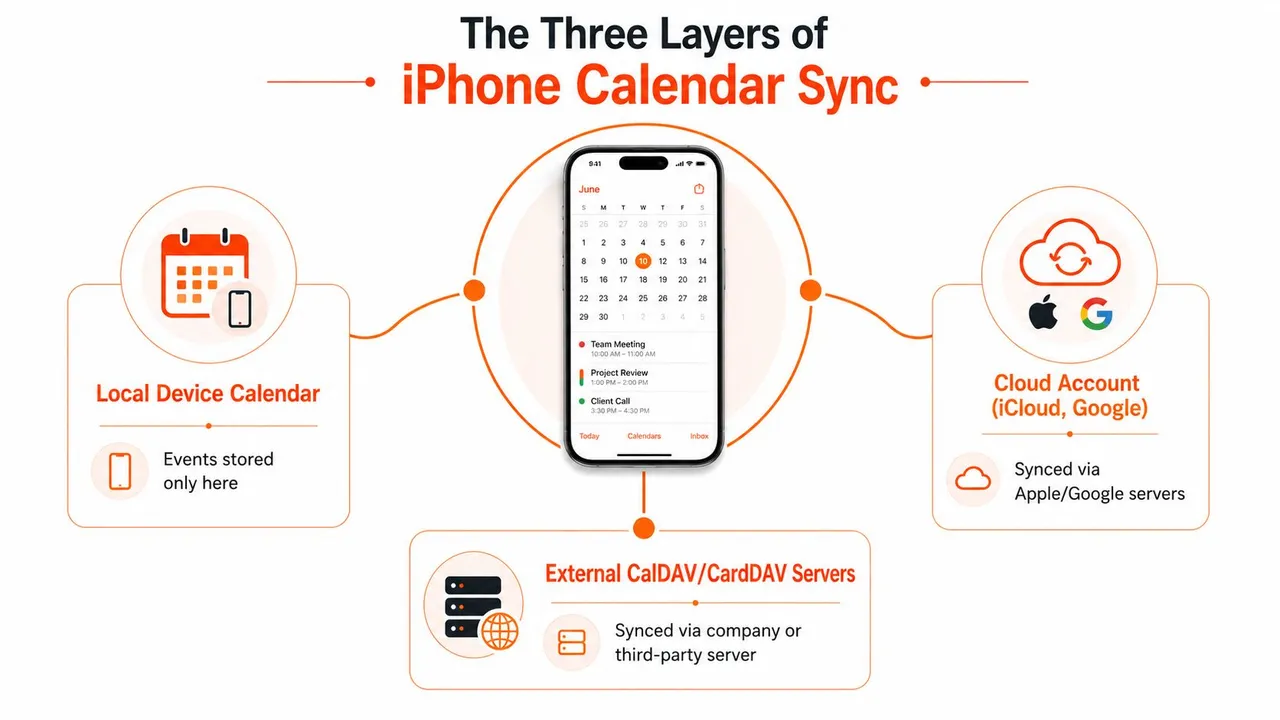
The Three Layers of iPhone Calendar Sync
A lot of frustration starts with the wrong mental model. Someone sees a Google event on their phone, assumes it should show up everywhere, and then wastes an hour flipping random switches because the laptop, the iPhone, and the web app are all behaving differently. This is simpler, but only if you split the problem into layers.
The iCloud layer
Apple’s native path is tied to Apple ID and iCloud Calendar. On iOS 17 and later, Apple’s setup flow goes through Settings > [your name] > iCloud > See All > iCloud Calendar > Use on this iPhone. That’s not a file transfer, it’s account-based sync, so the iPhone mirrors what iCloud says should exist rather than keeping a separate calendar database locally. Apple also lets you choose which iCloud calendars are visible from the Calendars screen, which is why a calendar can be “there” and still not appear on the phone.
If a calendar exists in iCloud but doesn’t show on iPhone, visibility is often the issue, not the event data itself.
The third-party account layer
Google, Outlook, Yahoo, and other providers sit in a different lane. The iPhone Calendar app pulls those calendars in after you add the account and authorize access, then the device updates them according to that provider’s sync behavior. Apple’s own troubleshooting path makes it clear that the calendar history kept on-device can be limited by the sync window, so the phone may intentionally show only part of the timeline.
That’s why one person’s Google calendar feels instant while another’s Outlook account seems sluggish on the same iPhone. The app is only the window. The provider decides how the data arrives.
The bridge layer
When calendars live in different ecosystems and need to stay aligned, account sync alone usually isn’t enough. A bridge service sits between them and copies events across accounts so the iPhone can display a consistent view without forcing every calendar into one platform. That’s the layer to think about when someone needs Apple, Google, and Microsoft calendars to agree with each other, not just appear on one handset.
A clean way to think about it is this, the iPhone can view multiple calendars, but it doesn’t automatically reconcile them. If you need reconciliation, you need a bridge. For a practical walkthrough on sharing an iCloud calendar, see this guide on iCloud calendar sharing.
Setting Up iCloud Calendar Sync on iPhone
Apple’s native setup is the easiest place to start because it’s built into the phone. If your calendar lives in iCloud, the iPhone doesn’t need a plugin or a separate app, it just needs the right account and the right toggle. The catch is that people often sign in to the right Apple ID and still leave iCloud Calendar disabled.
The exact path that matters
On iPhone, open Settings, tap your name, then iCloud, then See All, then iCloud Calendar, and switch on Use on this iPhone. Apple documents this path for iOS 17 and later, and the older setup flow is still the same idea with a slightly different UI. The point of that switch is not cosmetic, it tells the device to participate in Apple’s calendar sync for that account, and if you want a broader walkthrough, this full iPhone calendar sync guide covers the bigger picture.
If you’re comparing two devices, the first check is whether they’re signed into the same Apple ID and whether iCloud Calendar is enabled on both. Without that pairing, events won’t propagate correctly, even if the Calendar app itself is open and working.
Practical rule: Apple ID match plus iCloud Calendar enabled is the minimum checkpoint before you blame the app.
Why calendars can still be missing
Even when the account is correct, Apple gives you another layer of control on the Calendar screen. You can choose which iCloud calendars to view, so a calendar can be synced and still be hidden from view. That’s useful when you want to declutter your schedule, but it’s also a common reason people think sync failed when the data is present.
The other trap is assuming “enabled” means “visible everywhere.” It doesn’t. The phone can be connected to iCloud properly and still show only the calendars you’ve checked in the list. If the event is on the account but not on the screen, check the visibility settings before you restart anything.
For people who only live inside Apple’s ecosystem, this native path is usually enough. For everyone else, it’s only part of the stack. If your setup also needs Google or Microsoft calendars, this Google-to-Apple guide is the right companion read.
Adding Google and Outlook Accounts to the iPhone Calendar App
Once you move outside iCloud, the iPhone becomes a multi-account viewer. That’s a strength, but it also means you have to manage account permissions, display choices, and update behavior separately. Adding the account is only the first half of the job.
What the native account flow actually does
Open Settings > Calendar > Accounts, then add your Google or Microsoft account and complete the sign-in flow. After authentication, turn on Calendars so iPhone can pull the events into the Calendar app. Microsoft’s guidance for Outlook on iPhone is straightforward, if you add the account directly and keep Calendars on, the Outlook calendar stays synced automatically.
The Calendar app then lets you choose which sub-calendars are visible. That matters for people with work, personal, shared, and project-specific calendars living under one account. If the wrong calendar is hidden, you’ll think the sync failed when the actual issue is just visibility.
Why update timing feels different across providers
The sync schedule isn’t identical for every account. iPhone supports Push, Fetch, and Manual retrieval behavior, and if the provider doesn’t support true push delivery, Fetch can be scheduled as often as every 15 minutes. That means two accounts added the same way can behave very differently in practice.
- Push: Best when the provider supports it and you need timely updates.
- Fetch: Good when push isn’t available, but it introduces delay by design.
- Manual: Fine for low-stakes calendars, bad for anything time-sensitive.
That’s why a work calendar from one provider may look current while another lags behind. The app isn’t broken, it’s obeying the update mode and the provider’s own delivery model. The fastest fix is often to check Fetch New Data before blaming the account itself.
Native account sync works well when one calendar is the source of truth. It gets messy when you need one Apple calendar to reflect Google and Outlook events at the same time, especially if each account has different visibility rules. For a deeper setup example, this Google Calendar connection guide is useful.
When Native Sync Is Not Enough and a Syncing Service Helps
Native sync shows calendars on your iPhone. It does not always make those calendars agree with each other. That difference matters when work lives in one account, family time lives in another, and client bookings sit in a third place entirely.
One-way, two-way, and multi-way sync
A one-way sync is a mirror. Use it when one calendar is the master and another calendar only needs to display those events. A two-way sync keeps both calendars updated in both directions, which fits setups where people edit from either side and still need the same result. A multi-way sync extends that pattern across three or more calendars, which is what messy real-world setups usually require.
That is also the point where a cross-account service starts to matter. SyncThemCalendars is a web-based service that performs one-way, two-way, and multi-way sync across Google Calendar, Microsoft Outlook/Office 365, and Apple Calendar (iCloud), so the iPhone stays connected to a larger calendar network instead of only reflecting one account. It bridges the gap between the calendar account on the phone and the accounts that need to stay aligned.
For a comparison of the best calendar sync apps, see this guide.
A simple comparison
| Plan | Max active syncs | Unlimited events | Access |
|---|---|---|---|
| Basic | Up to 5 syncs | Yes | Single user |
| Premium | Up to 16 syncs | Yes | Single user |
| Professional | Up to 36 syncs | Yes | Single user |
The key decision is not just how many calendars you own, it is how they need to behave. If one calendar is informational only, mirror it. If two calendars both get edited, keep them in lockstep. If you are juggling several independent systems, the bridge layer is what keeps the setup from drifting apart.
The key question is not “Can my iPhone show this calendar?” It is “Which calendar is allowed to write back, and where should the source of truth live?”
Privacy Controls and Data Masking During Sync
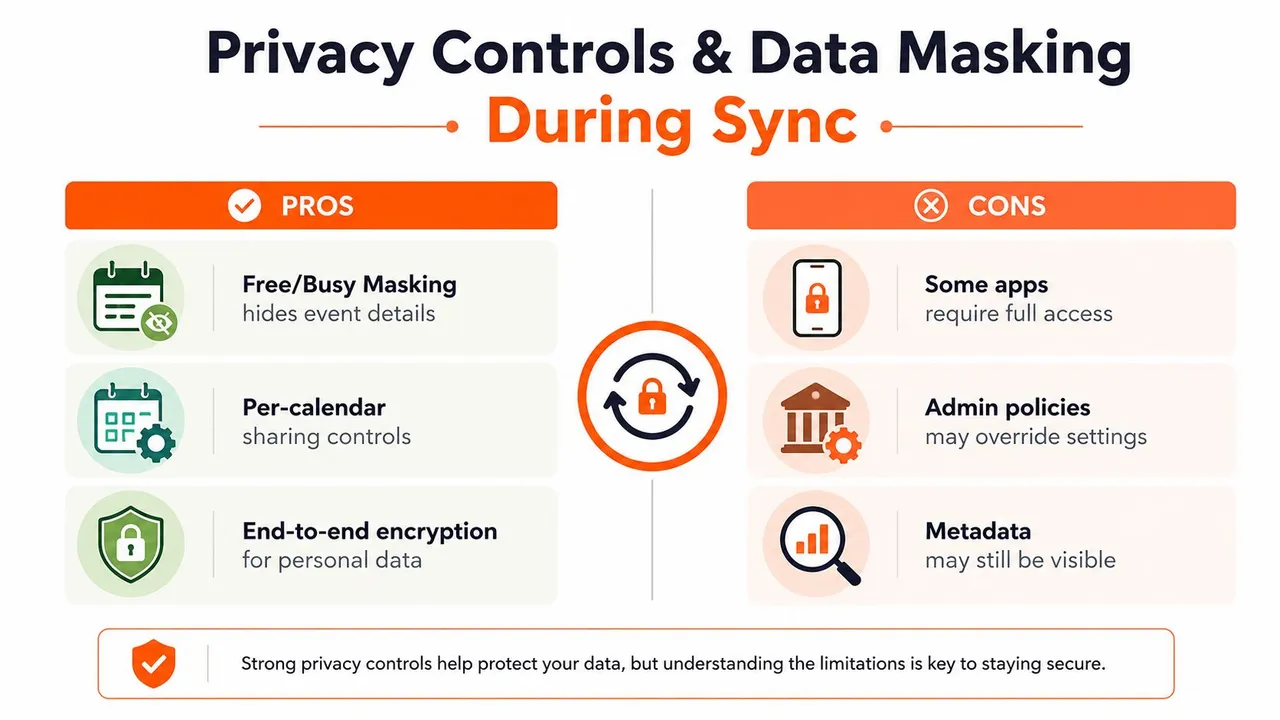
Privacy is often treated as an afterthought until someone shares a calendar with the wrong level of detail. A consultant may need a client calendar to expose open blocks, but not the client names, project notes, or locations behind those blocks. That setup is reasonable, and the sync layer should be able to support it without forcing every field into every destination.
Share availability without exposing everything
Free/busy mirroring is the cleanest starting point when you only need scheduling visibility. It shows that time is occupied without handing over the title or description of the event. That is useful for internal teams, contractors, and anyone balancing private and professional calendars on the same device.
SyncThemCalendars says it can mask or transform copied fields such as title, description, and location during sync, which is the kind of control multi-calendar users need when they do not want every destination to receive the full event payload. Its privacy policy also states that events are processed solely to perform synchronization.
What to hide, and when
- Event titles: Hide these when the title alone reveals a client, medical visit, or internal project.
- Descriptions: Mask these when notes include names, call agendas, or details you would never want mirrored elsewhere.
- Locations: Remove these when a synced calendar should show availability without exposing where the meeting happens.
If you would be uncomfortable seeing a calendar entry in front of a colleague, do not let that field sync in clear text. That rule holds up better than any generic privacy promise. For the policy language and service details, see SyncThemCalendars.
Why iPhone Calendar Sync Still Fails and How to Fix It
The usual advice is to toggle iCloud off and on. That’s lazy troubleshooting. Most failures are caused by a narrower setting, a network restriction, or a visibility choice that blocks updates before they ever reach the Calendar app.
When events stop showing up
Apple’s own troubleshooting flow says the sync window can be the problem. Under Settings > Calendar > Sync, you can choose All Events or a shorter history like Events 1 Month Back. If your device is only keeping a rolling window, older entries may never appear even though the account is working normally.
That’s especially confusing after a switch or re-sync, because the phone can look like it lost data when it just stopped retaining the full history locally. If the missing event is old, check the sync window before you rebuild the account.
When the account is there but updates still lag
A few settings can prevent calendar updates across Gmail, Outlook, Yahoo, and iCloud:
- Default Calendar selection: New events may be saving to the wrong account.
- Fetch New Data or Push: The account may be set to Manual or a slower retrieval mode.
- Date & Time auto-sync: A wrong clock can interfere with timely updates.
- Low Power Mode: Battery-saving behavior can delay background activity.
- Low Data Mode: Network saving can interfere with refreshes.
These are the settings I check before I remove an account. The failure is often not “sync is broken,” it’s “sync is being restricted.” A calendar that looks dead on the surface may just be delayed, hidden, or pointed at the wrong default destination.
When you need to recover or remerge data
Switching accounts can create another headache, event duplication or silent overwrites. The choice between Keep on My iPhone and Merge matters because it changes what happens to stored items when you reconnect or replace an account. If you’re worried about loss, that decision deserves more attention than the usual “just re-add it” advice.
For a deeper troubleshooting walkthrough, the embedded video is worth watching if you want a visual run-through of the common failure points.
Choosing the Right Plan and Verifying Your Setup
If you only need iCloud on one or two devices, keep it simple and stay native. If you’re juggling different ecosystems, pick the sync model that matches how you work, not how you wish the calendars behaved.
Which setup fits which person
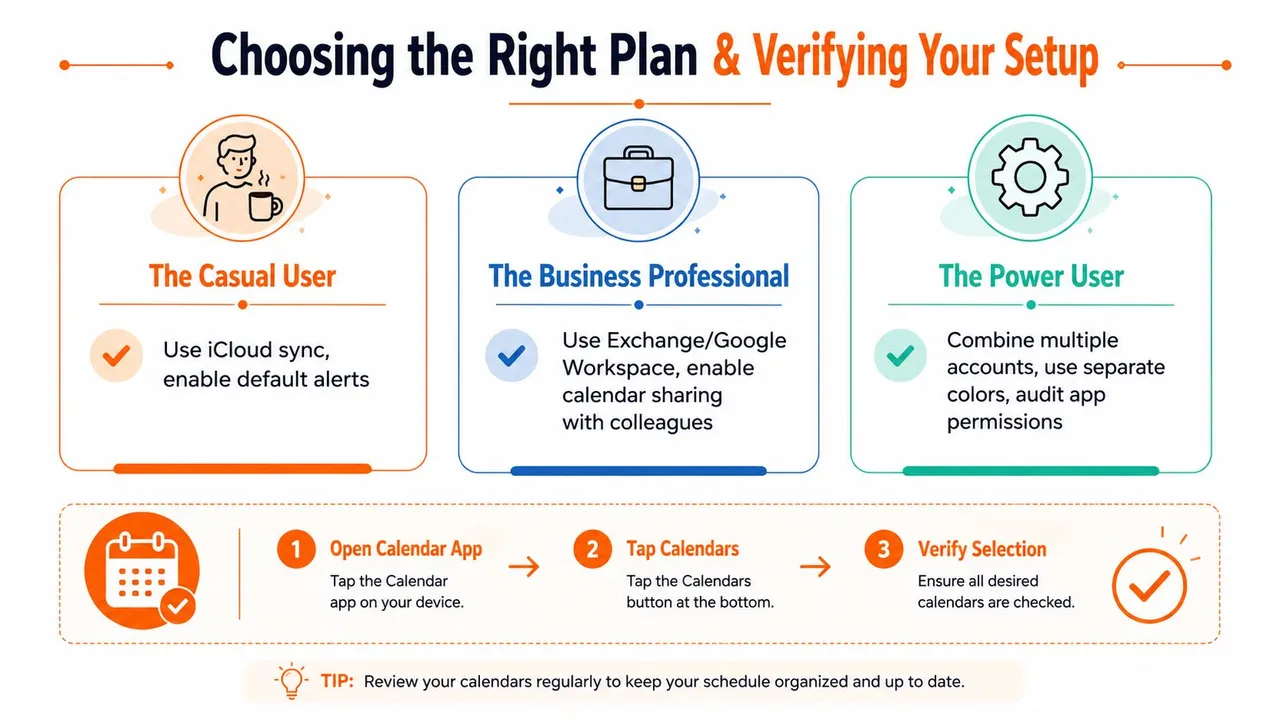
- Freelancer or solo entrepreneur: Basic is a reasonable fit when you’re handling a small number of active sync relationships and don’t want event quotas to become a concern.
- Power user with client calendars: Premium makes more sense when the calendar web gets wider and you need more active syncs without micromanaging each connection.
- Sales professional or small team coordinator: Professional is the natural fit when several accounts need to stay aligned and the setup has to hold up day after day.
Every plan includes unlimited events and single-user access, so the limit is about active syncs, not how many meetings you can hold. That’s important because calendar setups usually fail from complexity, not from event volume.
The verification habit that catches mistakes early
- Confirm the source calendar. Make sure you know which calendar is feeding the sync.
- Confirm the target calendar. Check that the destination is the one you open on iPhone.
- Confirm the sync direction. One-way and two-way behave very differently.
- Confirm privacy masking. If you turned on field masking, verify it before going live.
- Open the Calendar app and tap Calendars. Make sure every desired calendar is checked and visible.
That last step catches more “missing” calendars than people expect. The data often exists already, it just isn’t selected in the view. For readers who want a browser-based bridge between Google, Outlook, and iCloud, SyncThemCalendars is the option worth testing next.
If your calendar setup is still splitting work, personal, and client events across different apps, start by checking which layer is failing, then choose the sync direction that matches the way you schedule. Try SyncThemCalendars if you need Apple, Google, and Outlook calendars to stay aligned without manually copying events, and verify the first test event before you trust it with a busy week.
Ready to sync your calendars?
Keep your Google, Outlook and Apple iCloud calendars in sync automatically. 2-minute setup, no credit card required.
Get started freeKeep reading
More in Guides

Synchronize Apple Calendar with Outlook: A 2026 Guide
Step-by-step guide: Synchronize Apple Calendar with Outlook on Windows, iPhone and Mac, with two-way options, privacy trade-offs and fixes.

SyncThemCalendars Quick Setup Walkthrough
Master the SyncThemCalendars quick setup in minutes. Connect Google, Outlook, or iCloud, configure privacy masking, and verify your first sync effortlessly.

Merging Google Calendars: The Complete Guide for 2026
Merging Google Calendars. Learn the best ways to merge Google Calendars. Compare import methods, sync tools, and automation strategies