







Google Calendar Not Updating in Outlook: Real Fixes
Google Calendar not updating in Outlook? Walk through real fixes for sync delays, ICS subscription issues, account limits, and reliable alternatives.
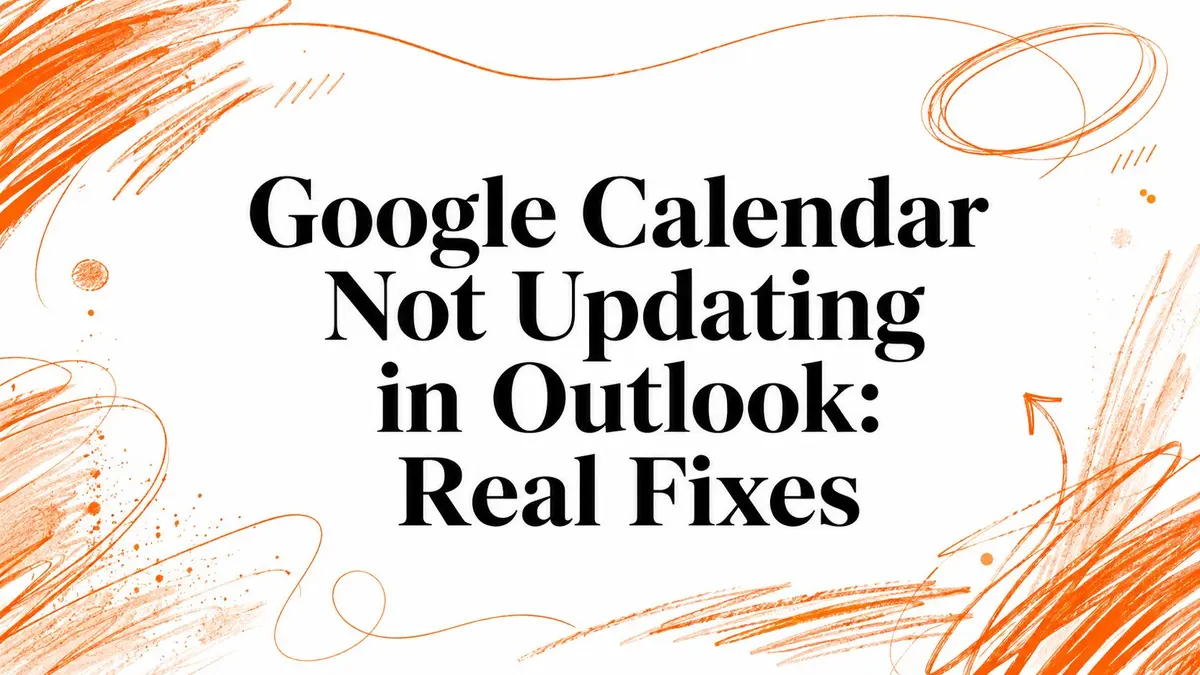
Your Outlook calendar is open. Your phone shows the event in Google Calendar. Outlook doesn’t. Or worse, Outlook shows an old version, drops a recurring series, or sits there acting like nothing changed. That’s the moment people assume “Google Calendar sync is broken.”
Usually, it isn’t one problem. It’s the wrong sync method for the expectation.
That’s the half-truth most help articles skip. They talk about “sync” like Outlook and Google Calendar use one clean connection. They don’t. You’re usually dealing with one of several connection types, each with its own limits, failure points, and fixes. If you troubleshoot the wrong one, you waste an hour reconnecting accounts that were never doing the actual syncing in the first place.
Another thing the official docs rarely say plainly: Google Calendar and Outlook sit on top of different calendar stacks, and calendar interoperability has been messy for a long time. Standards work around iCalendar, iTIP, iMIP, CalDAV, and related scheduling protocols goes back decades, including CalConnect’s overview of the standards history and the IETF work that ran from October 1996 through September 2004, with CalDAV later becoming RFC 4791 in March 2007 in that same standards lineage (CalConnect calendaring interoperability overview). So when Google Calendar isn’t updating in Outlook, don’t assume one app is “glitching.” A lot of these failures come from how the connection was set up and how each side interprets calendar data.
The Three Ways Outlook Connects to Google Calendar
You change a meeting in Google Calendar, open Outlook, and nothing matches. Before you reconnect accounts or start deleting profiles, identify the connection type. Outlook reaches Google in three common ways, and each one has different limits, refresh behavior, and failure points.

Native account connection
This is Outlook’s built-in Google account setup. You sign in with Google, approve access, and Outlook pulls calendar data through the native connector.
People assume this method gives full, reliable syncing because it is the official path. Sometimes it does. Sometimes it falls apart under account restrictions, permission problems, or shared-calendar clutter. The key point here is simple: if you used the native connector, troubleshoot it like an account integration, not like a feed or a mirror tool.
ICS subscription
This is the one that causes the most confusion. You add a Google Calendar using an iCal or ICS link, and Outlook subscribes to a published calendar feed.
That setup is for viewing, not true back-and-forth syncing.
Edits made in Outlook do not write back to Google. Updates from Google can also appear late because Outlook refreshes subscriptions on its own schedule. A delayed subscription gets mistaken for a broken sync ticket every day. If you want to compare setup paths side by side, this overview of Outlook calendar sync methods gives a clear breakdown.
Third-party bridge
A third-party bridge sits between Google Calendar and Outlook and syncs events based on rules. That usually means copying new events, pushing edits both ways, handling multiple calendars, or filtering what should sync.
This is not a hacky fallback. It is often the only setup that matches how people work, especially if they need two-way syncing across personal and work calendars or want tighter control over what moves between systems.
Practical rule: If you do not know which method you used, find that out first. A large share of “Google Calendar not updating in Outlook” cases come from an ICS subscription that was never designed to behave like two-way sync.
Match the fix to the method. That is how you solve this without wasting an hour on the wrong repair.
Why Google Calendar Stops Updating in Outlook
A frozen calendar in Outlook usually is not one bug. It is the wrong fix applied to the wrong sync method.
Start by matching the failure to the connection type you used. Native Google account connections break for different reasons than an ICS subscription. A third party sync bridge has its own failure points. If you skip that distinction, you waste time removing accounts, creating duplicates, and still end up with stale events.
Native connector failures
Native connections usually fail at the account and event-handling layer. The account may still look connected, but Outlook stops pulling new changes because Google permissions expired, the password changed, or Google invitation handling blocks the event data Outlook expects to ingest. That last one gets missed all the time. If meeting invites are handled in a restrictive way on the Google side, Outlook can appear half-connected. Some events show up, others do not, and edits stop looking consistent.
Shared-calendar limits can also be part of the problem, as noted earlier, but that is usually not the first thing I check unless calendars have disappeared outright.
ICS subscription failures
ICS breaks expectations more than it breaks technology.
If you added Google Calendar with a public or private ICS link, Outlook is reading a published feed. It is not maintaining a live two-way relationship with Google. That means three common complaints are normal behavior: updates arrive late, deleted events linger, and anything you change in Outlook stays in Outlook.
Caching makes it worse. Outlook can hold an older copy of the feed long enough that people assume sync is dead when the subscription has not refreshed yet. If the calendar is view-only and laggy, suspect the subscription method first, not your Google account.
The practical test is simple. Edit one event in Google, wait for a normal subscription refresh window, and check whether the change eventually appears in Outlook. If it does, the feed is delayed, not broken.
Recurring event and standards mismatches
This is the messier category. The account is connected. Single events may sync. Then recurring meetings duplicate, birthdays shift, exceptions vanish, or one edited occurrence snaps back later.
That points to interpretation problems, not authentication.
Outlook and Google do not always handle recurring patterns, exceptions, and time ranges the same way. CalDAV Synchronizer documentation calls this out directly. Different systems can calculate recurring event intersections differently, which is why long-running series and birthdays are common trouble spots. Their documentation recommends a wider sync range for long recurrences to reduce duplicate or missing entries (CalDAV Synchronizer documentation).
Third-party bridge failures
A sync bridge usually fails in more obvious ways. The service pauses, authentication expires, calendar mapping breaks, or timezone rules get applied inconsistently between source and destination calendars.
The clue is partial sync. One calendar keeps updating while another stops. New events copy over, but edits do not. Or timestamps look wrong even though the event exists on both sides. That is not how an ICS delay looks, and it is not how a native permission failure usually looks. It is a bridge configuration problem until proven otherwise.
| Sync Method | Most Common Breakages | Typical Symptom |
|---|---|---|
| Native Outlook connection | Expired Google auth, revoked permissions, invitation handling conflicts | Account still appears connected, but new events or updates stop appearing reliably |
| ICS subscription | Slow refresh cycle, stale cached feed, one-way design | Changes show up late, deletions lag, Outlook edits never write back |
| Third-party bridge | Expired auth, paused service, broken calendar mapping, timezone mismatch | Some calendars sync while others fail, or copied events look wrong |
One more pattern matters. Outlook on the web and Outlook desktop do not always fail in the same way, and official guidance often glosses over that. Support threads keep repeating the same complaints because users are treating three different connection models like one product feature. That is why the right diagnosis starts with the sync method, not with Outlook’s generic “connected” status.
Fixes to Try Before Reconnecting Anything
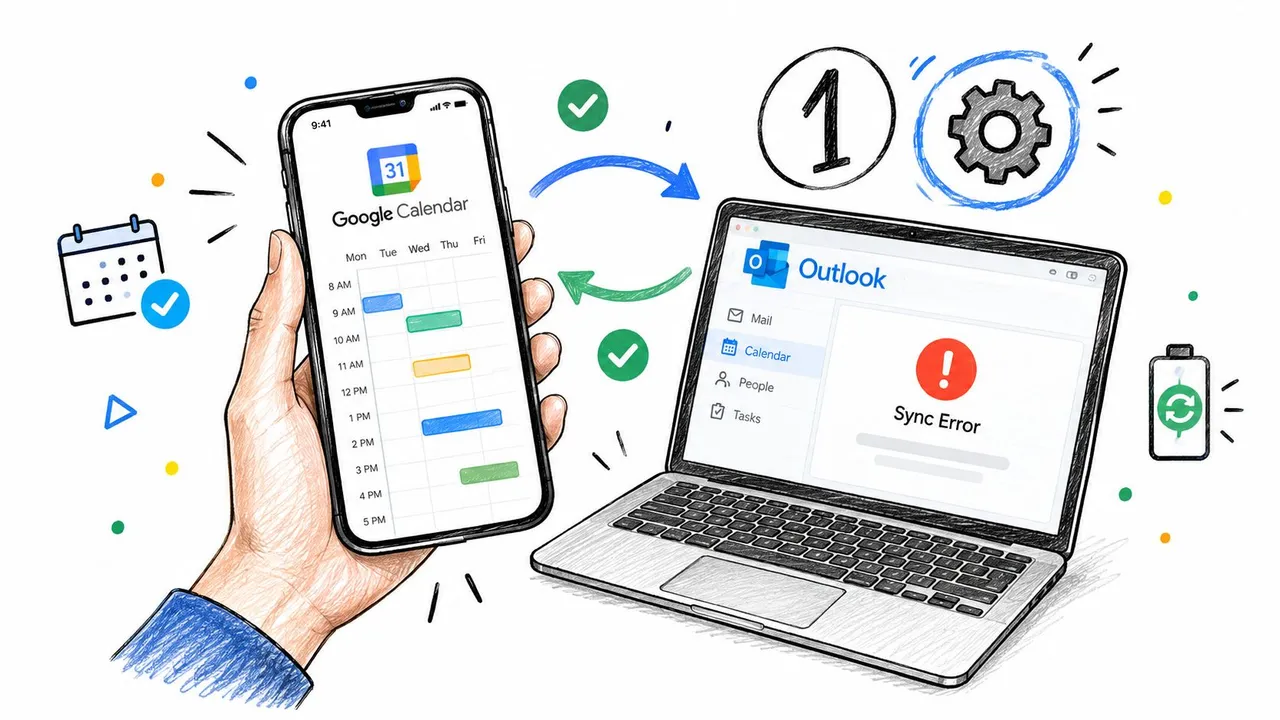
Reconnecting is not the first move. It is the cleanup step after you rule out the common failures for the sync method you use. Remove an account too early and you can create duplicate calendars, lose a working subscription, or waste time fixing the wrong layer.
Start with one question: are you dealing with a native account connection, an ICS subscription, or a third-party bridge? The right quick fix depends on that answer.
Refresh once, then test with intent
Do one controlled test. Create a new event in Google Calendar with a clear title and a start time a few minutes ahead. Then check Outlook using the same calendar view each time.
Use this rule set:
- Native connection: refresh Outlook, then check whether the new event appears within a reasonable short window.
- ICS subscription: refresh if your Outlook version allows it, then wait based on subscription behavior. This method is delayed by design.
- Third-party bridge: check the bridge dashboard, sync history, or last-run status before changing anything in Outlook.
If you want a broader troubleshooting list, bookmark this guide to calendar sync issues.
For Outlook desktop, a stale local cache can make one profile look broken when the calendar data upstream is fine. Close Outlook fully and clear the local cache tied to that profile only if the problem looks local to that machine. For ICS subscriptions, this is one of the few quick fixes that works.
Check Google settings that hide events in plain sight
A lot of “sync failures” are filtering problems.
Check Google Calendar settings for invitations, event visibility, and declined events. If Google is not automatically adding certain invites to the calendar, Outlook cannot show events that never made it into the source calendar in the first place. If declined events are hidden in your current view, they can look missing even though sync is working.
Support lead rule: do not trust visual absence until you confirm the event is not hidden by invitation or display settings.
Reduce calendar clutter if you use a native connection
Native Microsoft-to-Google connections can get unstable when too many shared calendars are attached. If your account is loaded with calendars you barely use, trim the list first. Keep the calendars you need for current work and remove the rest from the connected view.
Then wait and retest with the same event. Do not change five other settings while the service catches up.
Reissue the ICS link if you subscribed by URL
If you added Google Calendar to Outlook with an ICS or iCal URL, replace that subscription before you reconnect an entire account. Remove the subscribed calendar in Outlook, copy the current ICS address from Google Calendar settings, and add it again.
That resets the feed that likely went stale. It does not blow up the rest of your setup.
A quick walkthrough helps if you want to see the process in motion.
Stop after the fix works
After each change, run the same test again. One event. One title. One calendar.
If the event appears in Outlook, stop there. Extra cleanup after the issue is fixed is how people turn a minor sync problem into a full reconnection job.
Reconnecting Your Account the Right Way
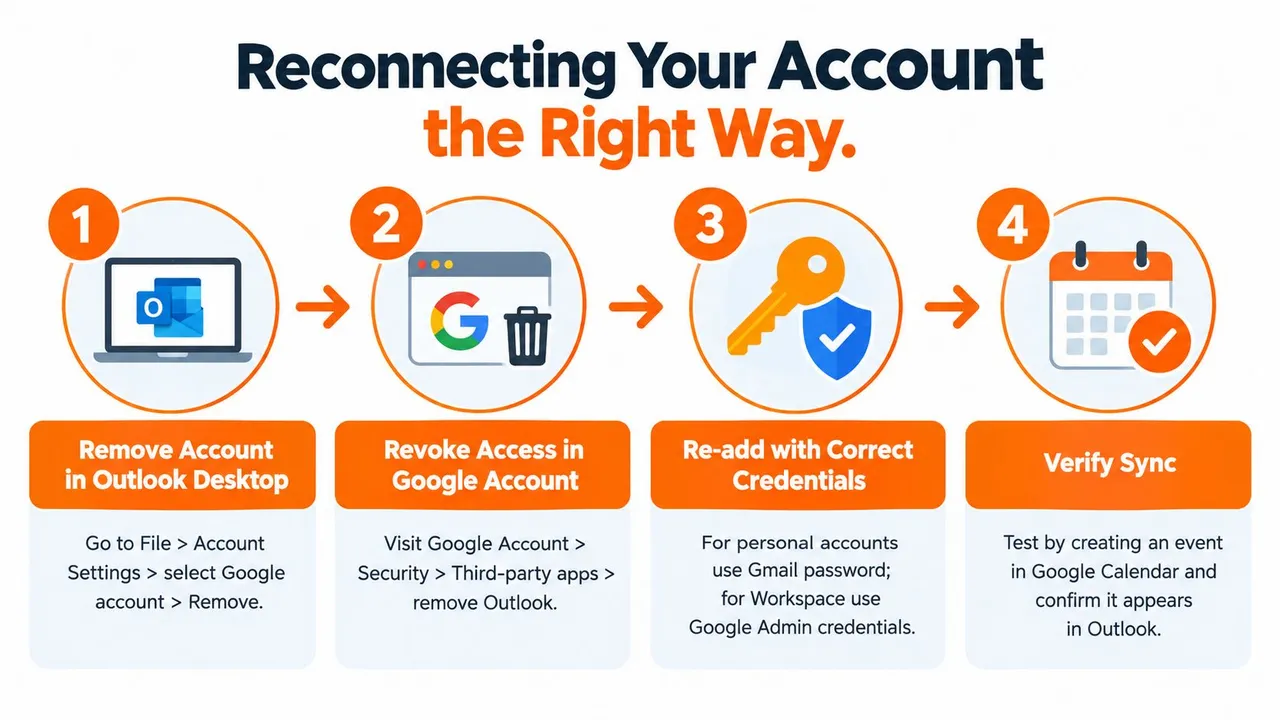
If the basic fixes failed, then reconnect. Do it properly. “Update Folder” is not a reconnection. It’s a refresh request. Those are different things.
What a real reconnection looks like
In Outlook desktop, remove the connected Google account or the affected internet calendar from the account or calendar settings. Then close Outlook completely so it releases the local session and cache state tied to that profile.
Next, revoke Outlook’s access on the Google side if you’re dealing with a native account connection that looks stuck at the permission layer. Then sign back in through Google’s consent flow so Outlook gets a fresh authorization token and current calendar list.
For Outlook on the web, remove the connected Google calendar or account entry, sign out fully, clear the browser session, and reconnect from scratch. If the account option is greyed out, the problem is usually policy, stale auth, or a connection that lives at a different layer than the one you’re editing.
Personal Gmail and Google Workspace are not the same
A personal Gmail account and a Google Workspace account can look similar in the sign-in window, but they don’t always behave the same once connected. Workspace environments often have admin-level policies, shared resources, and permission structures that don’t exist on personal accounts.
That’s why a reconnect that works cleanly for personal Gmail can still fail in Workspace. If your admin controls third-party app access or sharing behavior, Outlook won’t win that argument.
Patch it again or switch methods
At this point, you have two options. Keep patching the existing method, or change methods.
- Stick with native if you only need a simple account connection and your calendar setup is modest.
- Stick with ICS if read-only visibility is enough and delayed updates won’t hurt you.
- Change methods if your business depends on quick bidirectional updates.
Reconnection is only worth it when the connection method still fits the job. If the method is wrong, a clean reconnect just gives you a cleaner version of the same limitation.
After reconnecting, check three things: a new test event appears on both sides, recurring events still follow the expected rule, and secondary calendars appear where you expect them. If any of those fail, stop pretending the reconnect solved the root issue.
When a Dedicated Sync Service Is the Better Answer
A freelancer I’ve helped had the classic setup mess. Client meetings landed in Outlook. Personal commitments lived in Google Calendar. Some events appeared, some lagged, some never copied back. The native route kept sort-of working, which is the worst state because it tempts you to keep babysitting it.
She switched methods. The problem stopped being “why isn’t Google Calendar updating in Outlook” and became “which calendars should copy in which direction.”
That’s the value of a dedicated bridge. It treats syncing as the job, not as a side effect of a subscription or account link.
What changes with a dedicated bridge
A dedicated service typically lets you connect Google and Outlook, choose specific calendars, decide one-way or two-way flow, and keep that running in the background. That’s a better match for people whose schedule changes all day.
Here’s the practical comparison:
| Factor | Native Outlook Connection | Dedicated Sync Service |
|---|---|---|
| Setup goal | Connect one ecosystem to another using built-in options | Mirror or copy calendars using explicit sync rules |
| Update behavior | Depends on account type, limits, and platform behavior | Designed for ongoing cross-platform syncing |
| Calendar scope | Can run into account constraints and edge cases | Better for multiple calendars and mixed directions |
| Maintenance | More manual checking when behavior changes | More predictable once configured |
| Trade-off | Lower friction at first | Added service layer and subscription cost |
Who should stop tinkering
If you run bookings, client calls, interviews, or any schedule where delays hurt, the DIY route usually stops making sense faster than people want to admit. You save money upfront, then spend that savings chasing missing events.
That’s also true in small business setups beyond calendars. If you manage several lightweight tools at once, this guide on systems for your one page store is useful because it shows the broader integration problem clearly. Calendars are just one version of it.
There are several tools in this category. Options include CalendarBridge, CompanionLink, and real-time calendar sync services. SyncThemCalendars is another web-based option that supports Google Calendar and Microsoft Outlook with one-way, two-way, or multi-way syncing, plus privacy controls for copied event details.
The trade-offs are real
You are adding another service. That means subscription cost, another vendor to trust with calendar access, and another dependency during outages. Don’t ignore that.
But if your alternative is manually checking two calendars and explaining missed meetings, the bridge isn’t a luxury. It’s infrastructure.
Choosing the Path That Fits Your Situation
The right fix depends less on the bug and more on how much reliability you need.
One personal calendar and light usage
If you have a simple personal setup and only need occasional visibility in Outlook, try the native fix path first. Check the invitation setting, trim extra shared calendars if needed, and reconnect only if the account auth clearly broke.
If your setup is an ICS subscription, accept what it is. It’s for display, not active two-way scheduling.
Several calendars and mixed permissions
People outgrow the built-in path. You may start fine, then shared calendars, recurring events, and permission differences pile up. That’s when troubleshooting turns into maintenance.
Use native only if you’re comfortable checking it periodically and you can tolerate the occasional surprise. If not, stop pretending a consumer-grade setup is enough for a professional workflow.
Revenue depends on up-to-date scheduling
If you’re a freelancer, consultant, recruiter, or part of a team where calendar lag breaks bookings, use a dedicated sync method and move on. Time spent babysitting sync is still time spent.
The tipping point is simple. If you’ve already lost confidence in whether Outlook reflects Google accurately, the system has already failed its job.
Your next action should match the method you identified at the start:
- Native connection: check Google invitation settings and shared-calendar count first.
- ICS subscription: refresh, clear the stale copy, then re-add the feed with a current URL.
- Third-party bridge: inspect auth, mapping, and service status before touching Outlook itself.
Solve the right problem, not the loudest symptom.
If you’re done guessing and want your Google and Outlook calendars to stay aligned without constant manual checks, SyncThemCalendars gives you a web-based way to sync them in one-way, two-way, or multi-way flows with privacy controls around copied details. That’s useful when the built-in Outlook or ICS path no longer matches how you schedule. Visit SyncThemCalendars if you want a cleaner fix than reconnecting the same fragile setup again.
Ready to sync your calendars?
Keep your Google, Outlook and Apple iCloud calendars in sync automatically. 2-minute setup, no credit card required.
Get started freeKeep reading
More in Guides

Synchronize Apple Calendar with Outlook: A 2026 Guide
Step-by-step guide: Synchronize Apple Calendar with Outlook on Windows, iPhone and Mac, with two-way options, privacy trade-offs and fixes.

SyncThemCalendars Quick Setup Walkthrough
Master the SyncThemCalendars quick setup in minutes. Connect Google, Outlook, or iCloud, configure privacy masking, and verify your first sync effortlessly.

Merging Google Calendars: The Complete Guide for 2026
Merging Google Calendars. Learn the best ways to merge Google Calendars. Compare import methods, sync tools, and automation strategies