







Export Outlook Calendar to Google: A 2026 Step-by-Step Guide
Learn how to export Outlook calendar to Google with clear steps for ICS and CSV imports, recurring-event checks, and verification tips that work in 2026.

You’ve got a client meeting in Outlook, a personal appointment in Google Calendar, and someone just asked if you’re free Thursday. You check one calendar, say yes, then find the clash in the other. That’s usually the moment people decide to Export Outlook Calendar to Google and get everything into one view. The clicks aren’t hard. Picking a method that still works next month is the part most guides skip.
Choosing the Right Outlook-to-Google Workflow
Search for this migration rarely signal a permanent move. They start a contract on Microsoft 365, leave an employer, juggle a school account, or try to stop double-booking across work and personal accounts. Those are different problems, and they don’t need the same fix.
Three paths with different jobs
- One-time export: You download a file from Outlook and import it into Google. It’s right for a clean break, an archive, or a fixed block of events that won’t change.
- URL subscription: Google periodically checks a published Outlook feed. You get ongoing, read-only visibility without repeated downloads, but you can’t edit those events in Google.
- Continuous sync: A service copies creations, edits, and cancellations between accounts on an ongoing basis, in one direction or both. This fits people who actively live in both ecosystems.
The trap is treating the first option as if it were the third. Microsoft is explicit that changes made in Outlook after an export don’t automatically appear in Google Calendar. Your import can succeed perfectly and still leave you with a stale copy that shows you as free when you’re not.
Practical rule: If the source calendar will change after today, a file export alone isn’t finished work. It’s a snapshot with an expiry date.
Ask three questions before you click anything. Will this calendar keep changing? Do updates need to flow one way or both? Should the other side see full event details or just busy blocks? Your answers point to the workflow. Everything after that is mechanics.
Exporting Your Outlook Calendar as ICS or CSV
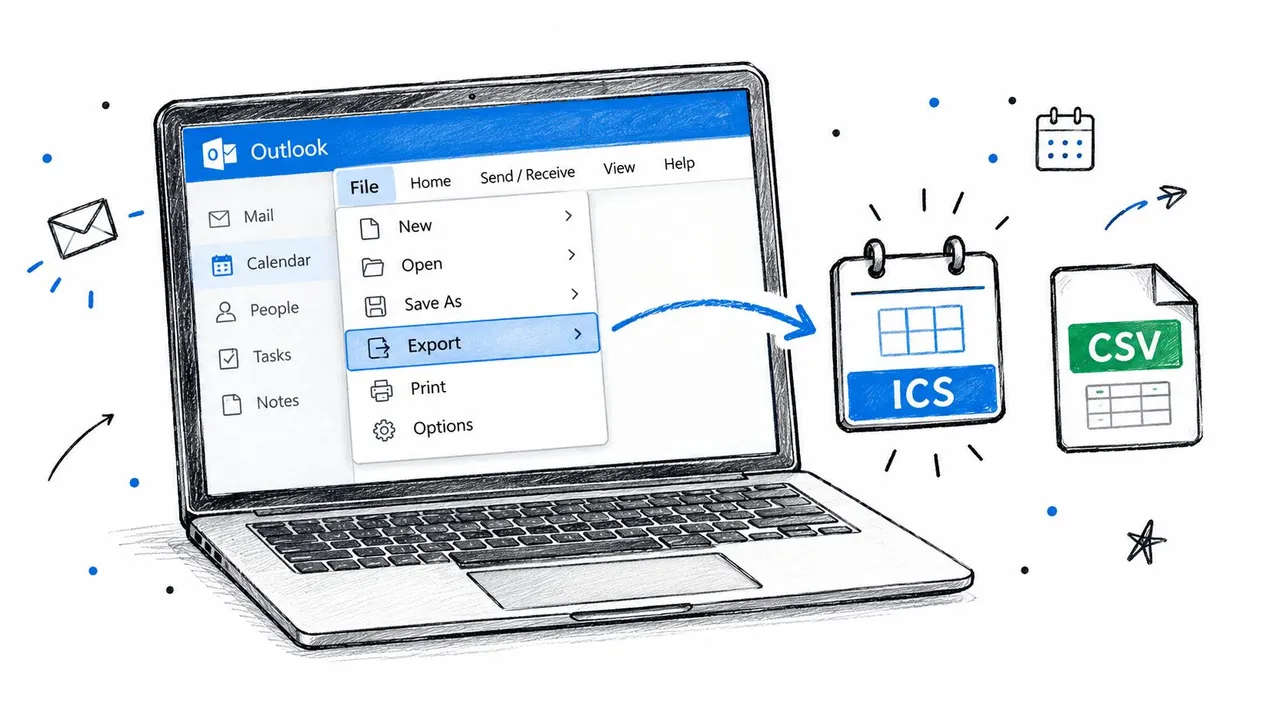
Start with the file. The illustration below shows the two formats you’ll choose between.
Classic Outlook on desktop
Open Calendar, select the specific calendar in the left pane, then use File and Save Calendar. Before saving, open More Options and set the date range deliberately. Choose Whole calendar for a full migration or a defined range if you only need upcoming work. Set detail to Full details unless you intentionally want availability only. Save the file and note the name and location.
That produces an .ics file, which is the iCalendar standard both platforms understand. If you want the background on why that format travels well, this guide to how the ICS format works with Google Calendar covers the structure without the jargon.
Outlook on the web
In Outlook on the web, open Settings, go to Calendar and Shared calendars, and find Publish a calendar. Pick the calendar, set permissions to view all details, and publish. Outlook gives you an ICS link. Save that linked file if you want a one-time download, or keep the URL itself if you’re setting up a subscription later.
The short video below walks through the export screens if your menus look slightly different.
ICS or CSV
Use ICS for a real calendar migration. It carries recurrence, locations, and richer event data. Use CSV only for flat lists, such as milestones from a spreadsheet, where each row is a simple event. Also check whether you have multiple calendars in one Outlook account. Export each one separately and name files clearly, such as by calendar and date range. Google imports files one at a time, and vague names cause the wrong file to land in the wrong place.
Importing the File into Google Calendar
Google’s side is a desktop-only job. You can’t import a file from the mobile app, so open Google Calendar on a computer, click the gear for Settings, and choose Import & Export in the left panel. Google’s own instructions confirm you can import an .ics or .csv file exported from Outlook through Settings and Import & Export.
The import steps
- Select file from your computer: Pick the .ics or .csv file you saved.
- Choose the destination calendar: Use the dropdown carefully. This choice decides where every event in the file lands.
- Click Import: Wait for confirmation before closing the tab or starting another file.
Create a fresh destination calendar first if you’re importing a large or messy history. That one decision makes cleanup far easier. If the import goes wrong, you can delete that calendar and start again instead of hunting hundreds of events inside your main calendar.
The screenshot below shows the kind of destination choice you need to get right before uploading.
Watch for ZIP files. If your download arrived as a ZIP archive, extract it first and import each .ics file inside individually. Google flags this in its troubleshooting guidance because people repeatedly try to upload the archive itself and assume the calendar is empty.
Import into a test calendar first, not your primary one. Deleting a bad test takes seconds. Untangling a bad import from live events doesn’t.
When it finishes, don’t trust the success message alone. Open the destination calendar, jump to a busy week you know well, and check a few events by title, time, and location. If times look shifted, suspect a missing or mismatched time zone in the source file and fix that before importing more calendars.
Subscribing via an Outlook iCalendar URL
A subscription suits calendars you need to watch but not edit. Think a client Outlook calendar you reference while planning in Google, or a work schedule you want visible next to personal events.
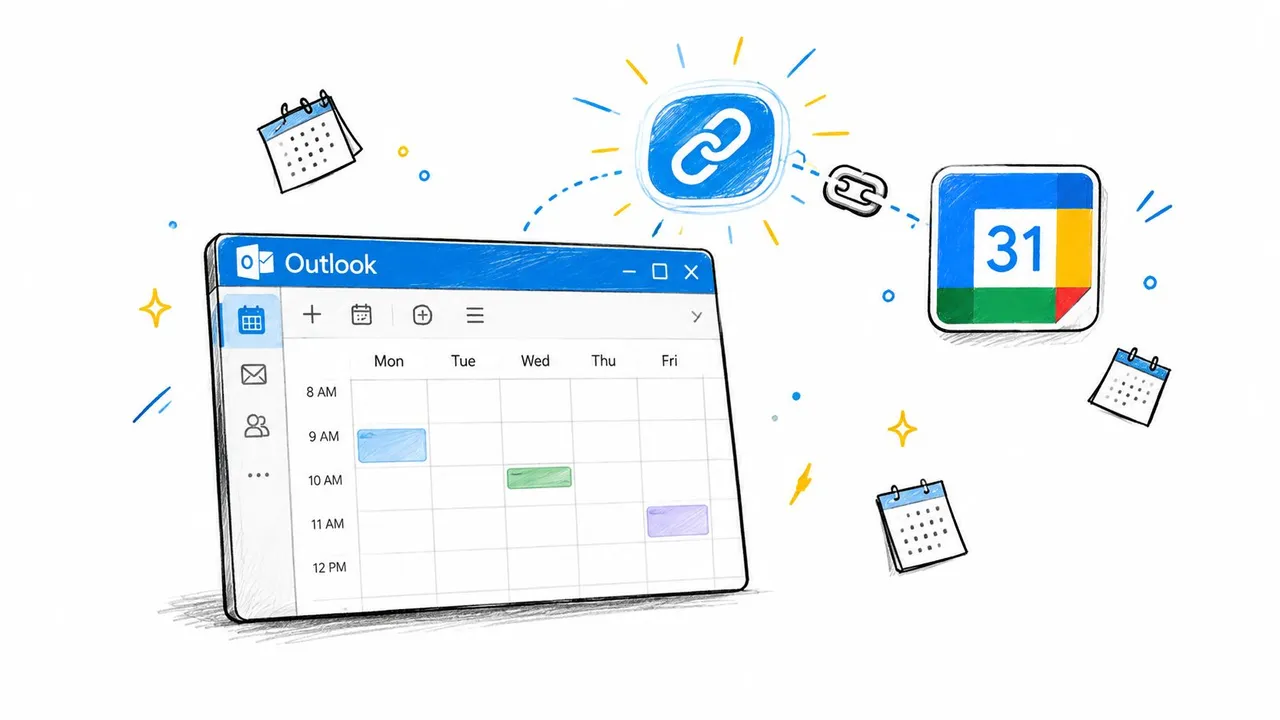
Publish the calendar in Outlook on the web under Shared calendars, copy the ICS URL, then in Google Calendar go to Other calendars, click the plus sign, and choose From URL. Paste the link and add the calendar. Microsoft separates this from file import in its guidance on uploading an .ics file to Outlook.com or subscribing to an online iCalendar feed, and that distinction matters.
What you gain and what you give up
- Ongoing updates: Google refreshes from the feed over time, so new Outlook events eventually appear without another export.
- Read-only in Google: You can’t create, edit, or delete those events from Google Calendar. Changes belong in Outlook.
- No guaranteed instant refresh: Timing is controlled by the clients. A meeting added minutes ago may not show yet.
- Public link risk: The published URL works like a bearer credential. Anyone who obtains it may be able to read the calendar data behind it.
That last point rules this method out for confidential schedules unless your organization provides a protected feed. Don’t paste the URL into shared documents, tickets, or chat threads.
Revoking a published URL
Test revocation before you rely on it. Disable publishing or generate a replacement link in Outlook, confirm the old feed stops working, then update Google with the new URL if you still need it. Document who owns the feed and which direction data flows. When someone leaves a project, rotating that link should be on the offboarding list.
What Survives the Transfer and What Breaks
ICS compatibility doesn’t mean identical behavior. Titles, times, locations, and descriptions usually make the trip in usable form. The trouble lives in metadata and in rules that Outlook and Google interpret differently.
Google’s administrator guidance gives a clean example. Outlook displays a recurring event set for the 31st day on the last day of every month, while Google displays that recurrence only in months that actually contain a 31st day. Same file, different future schedule. Nobody notices until a monthly deadline vanishes in February or April.
Event Data Survival After Outlook to Google Import
| Event Field | Survives Import | Common Issue |
|---|---|---|
| Title and location | Usually yes | Formatting may simplify |
| Start and end times | Usually yes | Time zone can shift if unspecified |
| Description | Usually yes | Rich formatting and links may flatten |
| Recurring series | Partially | Rules and exceptions can diverge |
| Attendees | Partially | Organizer status and responses may not carry cleanly |
| Reminders | Partially | Timing or type may change |
| Attachments | Often no | Files linked to the Outlook event may be missing |
| Conferencing links | Partially | Teams details may arrive as plain text |
| Categories and colors | Often no | Outlook categories don’t map neatly |
| Private flag | Check manually | Visibility may not match your expectation |
Two fields deserve extra suspicion. Time zones bite remote teams when an event was created while traveling or near a daylight saving change. All-day events can slide if the source and destination treat the day boundary differently.
Run a controlled test before moving everything. Export a small file containing one single event, one recurring series, one exception to that series, one all-day event, one meeting with guests, and one event in another time zone. Import it into a test calendar and compare each result side by side. Ten minutes of testing beats repairing a year of meetings.
Verifying the Migration and Fixing Common Issues
Verification isn’t scrolling and thinking it looks busy. Work through known events and deliberately look for the failures that cause double-bookings later.
A five step check
- Spot-check single events: Confirm titles, times, and locations for a busy recent week.
- Confirm recurring series: Look several months ahead, not just at the first occurrence.
- Check time zones: Inspect travel events and anything near a daylight saving boundary.
- Verify attendees: Open guest meetings and confirm who is listed and whether you’re still organizer.
- Test an edit: Change something in the source and confirm whether your chosen workflow reflects it. For a file import, it won’t. For later sync faults, this guide on fixing Outlook and Google Calendar when they stop syncing is a useful next step.
Fixes for the usual problems
Duplicates everywhere almost always mean someone imported the same file twice. Google doesn’t merge or deduplicate on import. Delete the destination calendar if you used a separate one, then import once.
Nothing imported often means the .ics file was still inside an unextracted ZIP, or you picked the wrong file among several similarly named exports.
Only the first recurring event appears points to a recurrence rule Google interpreted differently. Recreate that series natively in Google rather than re-importing repeatedly.
A private event looks exposed means you should check its visibility setting in Google and correct it before sharing that calendar with anyone.
When to Step Up to Continuous Calendar Sync
Step up when the calendar keeps moving. If you’re re-exporting every week, manually copying cancellations, or checking two apps before answering a simple availability question, the manual workflow has already failed you. It just fails.
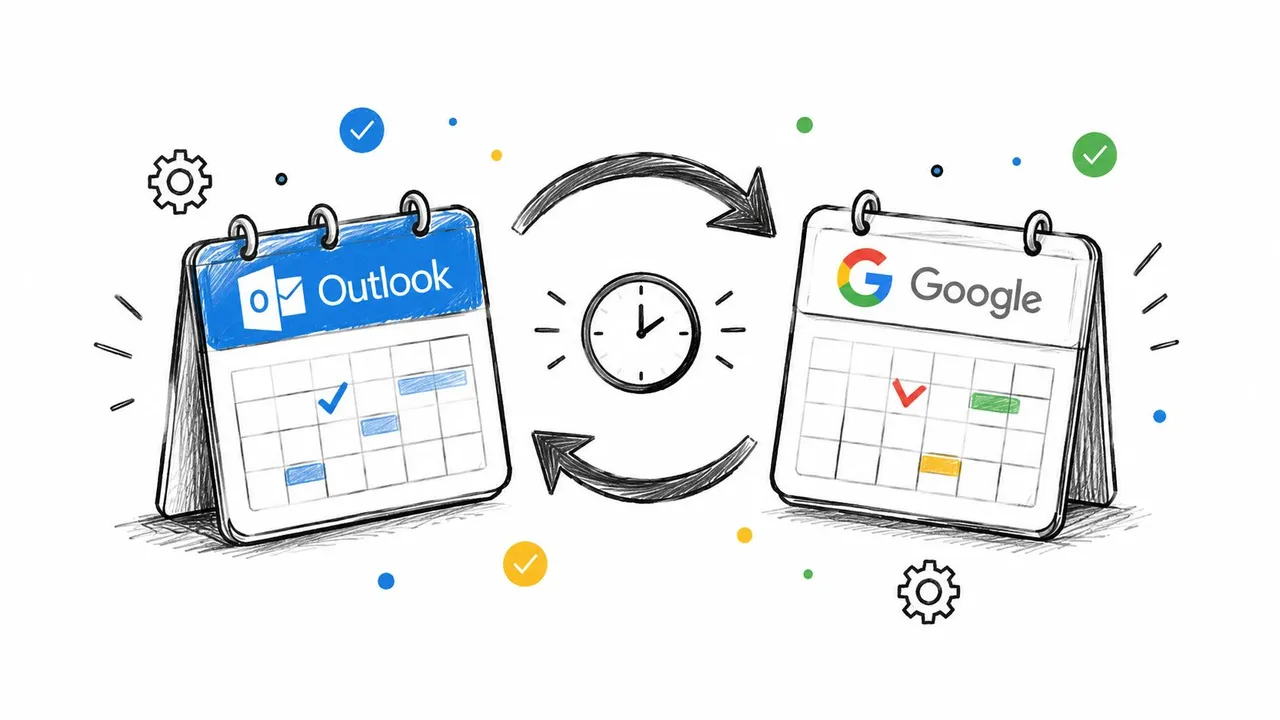
Use this quick test. Events change rarely and you are leaving Outlook for good? A one-time export is enough. You only need to view an Outlook calendar inside Google and can accept read-only access and delayed refreshes? A subscription works, provided the public URL risk is acceptable. You create and edit events on both sides, coordinate several accounts, or need busy time blocked without exposing private details? You need continuous sync, which is covered in more depth in this overview of real-time calendar sync between platforms.
SyncThemCalendars is one option in that category. It synchronizes Google Calendar, Microsoft Outlook and Office 365, and Apple Calendar with configurable one-way, two-way, or multi-way directions, and it can mask fields such as title, description, and location on copied events. Plans differ by number of active syncs and include unlimited events.
Pick based on direction, privacy, and how much manual repair you’re willing to do. The cheapest workflow on day one often becomes the most expensive once missed updates turn into rescheduled meetings.
Stop re-exporting files every time a meeting moves and let SyncThemCalendars keep your Outlook and Google calendars aligned in the background, with the sync direction and privacy masking set the way you want. Set up your first sync, check that a test edit travels correctly, and retire the manual export routine for good.
Ready to sync your calendars?
Keep your Google, Outlook and Apple iCloud calendars in sync automatically. 2-minute setup, no credit card required.
Get started freeKeep reading
More in Tutorials

How to Synchronize Outlook Calendar Across Platforms
Learn how to synchronize Outlook calendar events with Google and Apple iCloud. Master two-way sync, privacy controls, and real-time availability mapping.
How to Sync Office 365 Calendar with Apple Calendar
Learn how to sync Office 365 calendar with Apple Calendar. Compare native methods, third-party tools, privacy controls, and troubleshooting tips.
Outlook Not Syncing: Step-by-Step Fixes for Calendars
Fix outlook not syncing across Google, iCloud, and Office 365 with this complete troubleshooting guide. Clear steps, platform-specific tips, and expert