







How to Sync Contacts in iCloud Across All Your Devices
Learn how to sync contacts in iCloud across iPhone, iPad, Mac, Windows, and Android. Step-by-step setup, merge tips, troubleshooting, and privacy controls.
You open a new iPhone, expect your address book to appear, and instead you’re staring at a handful of old numbers, a work contact list, and a few names that never made it over. That moment is usually when people realize they don’t just need their contacts on one device, they need them synchronized everywhere they sign in. How to sync contacts in iCloud sounds simple until third-party accounts, old devices, and merge prompts get involved.
The safest way to think about iCloud Contacts is as a cloud-backed sync layer tied to your Apple Account, not a separate app you open and manage manually. Apple’s support instructions make that clear by routing setup through device settings on iPhone, iPad, and Mac, and by noting that if you only need a one-time transfer, Finder or iTunes can handle that instead of ongoing sync (Apple support on iCloud Contacts setup). That distinction matters because continuous sync is for people who want every change to flow across devices, while a manual transfer is better when you’re moving contacts once and then leaving them alone.
If you’re trying to avoid losing contacts during a phone switch, a good companion read is avoid losing contacts when switching phones, because the actual failure mode is usually not the button people tap, it’s the account they forgot was holding half their address book. For a broader Apple setup mindset, the same account-first logic also shows up in calendar syncing, which is why I keep a separate guide handy on calendar sync with iPhone when someone is cleaning up an entire Apple account, not just contacts.
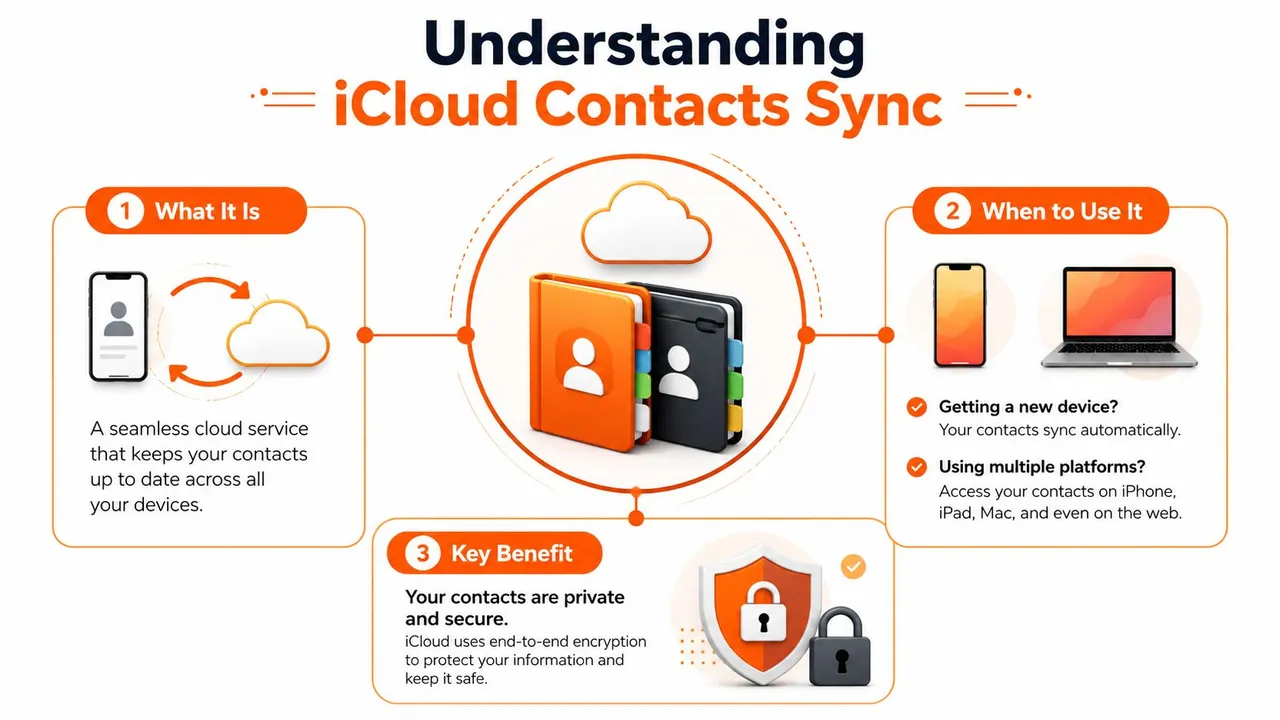
Practical rule: use iCloud sync when you want one contact list to stay current across signed-in devices, and use a manual transfer when you only need to move data once.
Understanding iCloud Contacts Sync and When to Use It
A lot of contact headaches start with a false assumption, that contacts live inside the phone itself. In Apple’s setup, they live in an account-backed system that updates across devices once Contacts is enabled in iCloud settings and the same Apple Account is used everywhere (Apple support on iCloud Contacts setup, Apple iCloud Contacts guide). That means the value of iCloud sync isn’t just backup, it’s consistency. If you add a colleague on your iPhone, you want that contact to show up on your Mac without having to think about exports, imports, or cable-based syncing.
Continuous sync versus one-time transfer
Apple still supports manual transfer paths through Finder or iTunes when you don’t want an ongoing cloud sync model. That’s the right move when you’re migrating a finite set of contacts into another environment and you don’t want every later edit mirrored everywhere. It’s also the safer mental model for people who manage separate personal and work books and don’t want one change to ripple across both.
If you’ve ever had contacts scattered across a phone, an old laptop, and a web account, iCloud sync is about reducing the number of places you have to trust.
When iCloud sync fits, and when it doesn’t
iCloud sync is the right fit if you live inside Apple devices, sign into the same Apple Account on all of them, and want the address book to behave like a shared source of truth. It’s less helpful if your main contact workflow is anchored in another ecosystem or if you only need to rescue a list from an old device. In those cases, the manual route is cleaner because it creates a single transfer event instead of an always-on relationship.
The key trade-off is control versus convenience. Sync gives you convenience, but you have to be disciplined about which account owns each contact source. Manual transfer gives you control, but you’re responsible for keeping the list current afterward.
A practical warning from support calls. If the same person appears in iCloud, Gmail, Outlook, or Exchange, the issue is often account sprawl, not a broken iPhone. That is why I keep an account-first checklist handy, and why a separate guide on calendar sync with iPhone can be useful when someone is cleaning up more than contacts.
If you’re trying to avoid losing contacts during a phone switch, start with avoid losing contacts when switching phones. The difference between a smooth move and a messy one is usually whether you know which account owns the address book before you turn sync on.
Enabling Contact Sync on iPhone and iPad
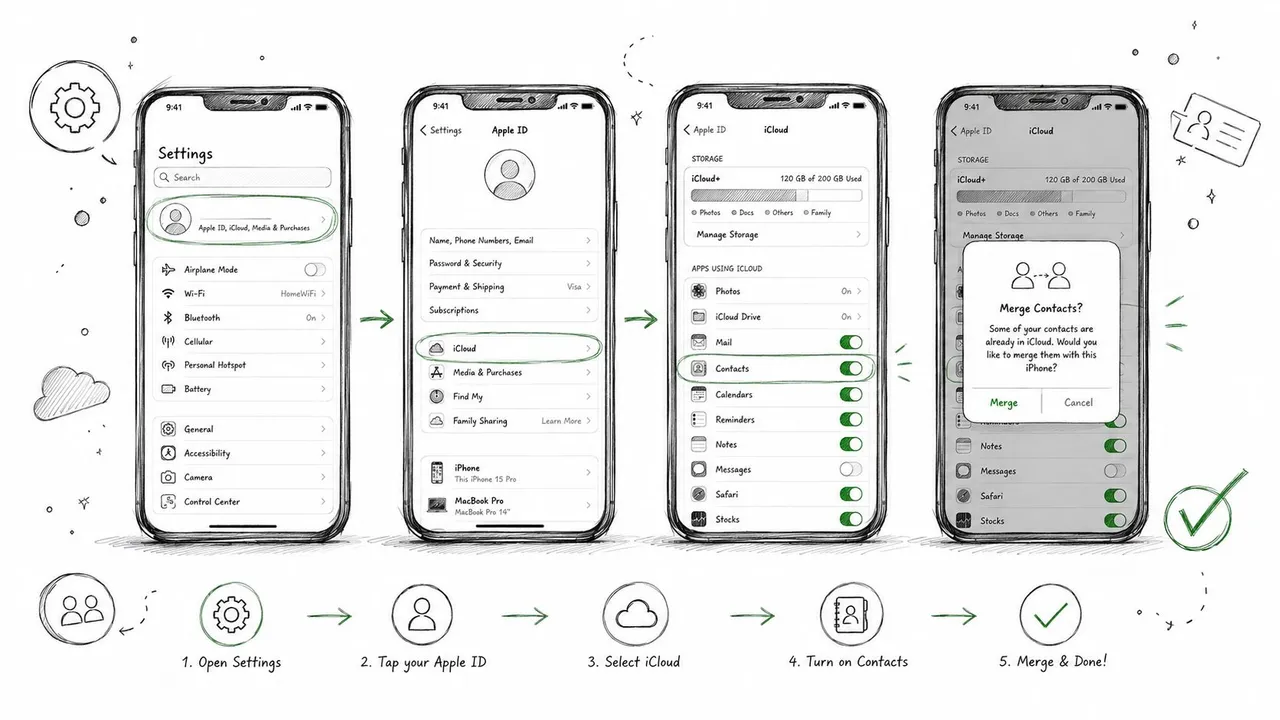
On iPhone and iPad, the setup path is short, but the choice at the end matters more than the taps themselves. Go to Settings > [your name] > iCloud, then turn on Contacts. Apple’s guide shows the same control under Settings > [your name] > iCloud > See All or Show All > Contacts, depending on how the menu appears on your device.
If iOS or iPadOS asks whether to Merge, choose that unless you are deliberately replacing the local list. Merge uploads the contacts already stored on the device into iCloud, which is usually the right move when you are turning on sync for the first time. Replace does the opposite, and that is where people lose local contacts they meant to keep.
Don’t ignore third-party accounts
The most common hidden problem is that your contacts may not all live in iCloud. Apple tells users to check Settings > Contacts > Accounts because Gmail, Outlook, Exchange, and other services can keep separate contact lists on the device, and those accounts need contact sync enabled as well if you want one unified address book. If the list still looks incomplete after you turn on iCloud Contacts, start there.
Rule of thumb: if a contact was originally saved under Gmail or Outlook, iCloud will not absorb it unless that account is also allowed to sync contacts.
Check where new contacts are being saved
A clean setup also depends on the default account for new contacts. If your phone keeps saving new entries to a non-iCloud account, your address book will continue splitting itself even after iCloud sync is on. After enabling sync, open the Contacts app and confirm the list looks right, then visit iCloud.com/contacts in a browser to verify that the cloud copy is there.
If you are also sorting out Google contact imports on Apple devices, this companion walkthrough is useful: how to sync Google contacts on iPhone. It helps when the problem is account overlap, not the iCloud toggle itself.
Setting Up Contact Sync on Mac and Windows
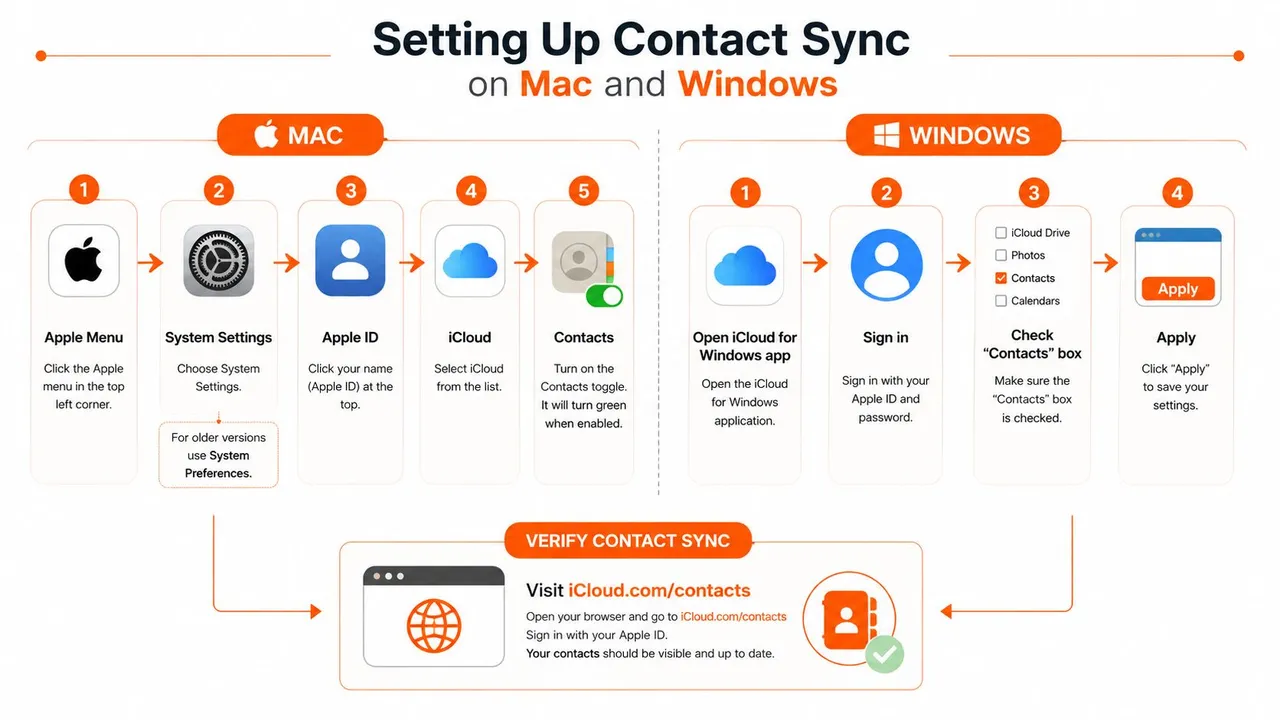
On Mac, the path is the same idea with a different interface. Open Apple menu > System Settings on newer macOS versions, or System Preferences on older ones, then go to Apple ID > iCloud and turn on Contacts. Apple’s support materials also point users to System Settings > your name > iCloud > See All/Show All Apps > Contacts, which tells you the control lives inside account settings rather than inside the Contacts app itself (Apple support on iCloud Contacts setup, Apple iCloud Contacts guide).
Use iCloud.com as the source of truth
Once Mac sync is enabled, check iCloud.com/contacts to confirm that the cloud copy exists and looks complete (Apple iCloud Contacts guide). That browser view is the cleanest place to separate an upload problem from a device display problem. If the contact is on iCloud.com but not on the Mac, the issue is local. If it’s missing there too, the problem happened before the sync finished.
Windows users need the iCloud for Windows path
Apple also supports iCloud for Windows, which is the bridge for people who work inside Outlook or other Windows environments. The setup Apple documents is straightforward, sign in, turn on Contacts and Calendars, then click Apply to push the change through (Apple support on iCloud sync troubleshooting). That workflow matters because it’s the main Apple-supported route for keeping contacts current outside Apple hardware.
Practical rule: if Outlook on Windows isn’t reflecting changes, don’t guess. Recheck the iCloud for Windows checkbox and the Apply step before you start rebuilding your address book.
For readers who care about the calendar side of the same Apple and Windows relationship, this guide on calendar sync with iCloud is the natural companion, because the account behavior is very similar.
Android needs a workaround, not a native iCloud switch
Android doesn’t offer the same built-in iCloud Contacts path, so the practical options are different. The usual workaround is to export contacts from iCloud.com and import them into Google Contacts, or use a third-party sync app if you need ongoing movement between ecosystems. That’s not as elegant as Apple-to-Apple sync, but it keeps Android users from getting stranded when they have to move an iCloud address book into a Google-centered phone.
Managing Duplicates and Exporting Your Contacts
Once you merge contact sources, duplicates show up. That’s normal, because one person might already exist in iCloud, Gmail, Outlook, and an old phone backup. The trick is not to panic and delete blindly. Start by reviewing the merged results inside the Contacts app on Mac or iPhone, then clean up only the entries that are obviously redundant, especially if multiple cards hold different notes, phone numbers, or labels.
Export before you clean
A backup copy gives you room to be careful. Apple lets you access your iCloud contacts through iCloud.com, where you can export your address book as a vCard file for safekeeping, and the same cloud source is where you verify what’s synced (Apple iCloud Contacts guide). If you’re about to do any large-scale cleanup, save that export first. You’ll be glad you did if a merge removes a detail you meant to keep.
Import only after you know the source
If you’re bringing contacts back in from a file, iCloud’s contact workflow supports bringing them in through the web interface as long as you’re working from a compatible contact file such as vCard. That’s useful for migrations, but it’s also a reason to stay disciplined about source accounts. An imported file can be clean at the moment you upload it and still become messy later if Gmail, Outlook, or another service keeps adding its own version of the same person.
Privacy reality: if your full address book lives in iCloud, treat it like any other cloud-stored personal dataset. Syncing makes access easier, but it also means you should be intentional about which contacts belong there.
Decide what should stay out of sync
Not every contact needs to live in the same cloud bucket. For sensitive entries, separate work from personal accounts before you sync, and keep an eye on which account is set as the default for new contact creation. That way, you’re not constantly untangling personal names from shared ones after the fact.
If your workflow is more complex than one personal list and one work list, contact sync may be the wrong hammer for the job. In those cases, a dedicated contact management service or a more structured multi-account system can be cleaner than forcing everything into one address book.
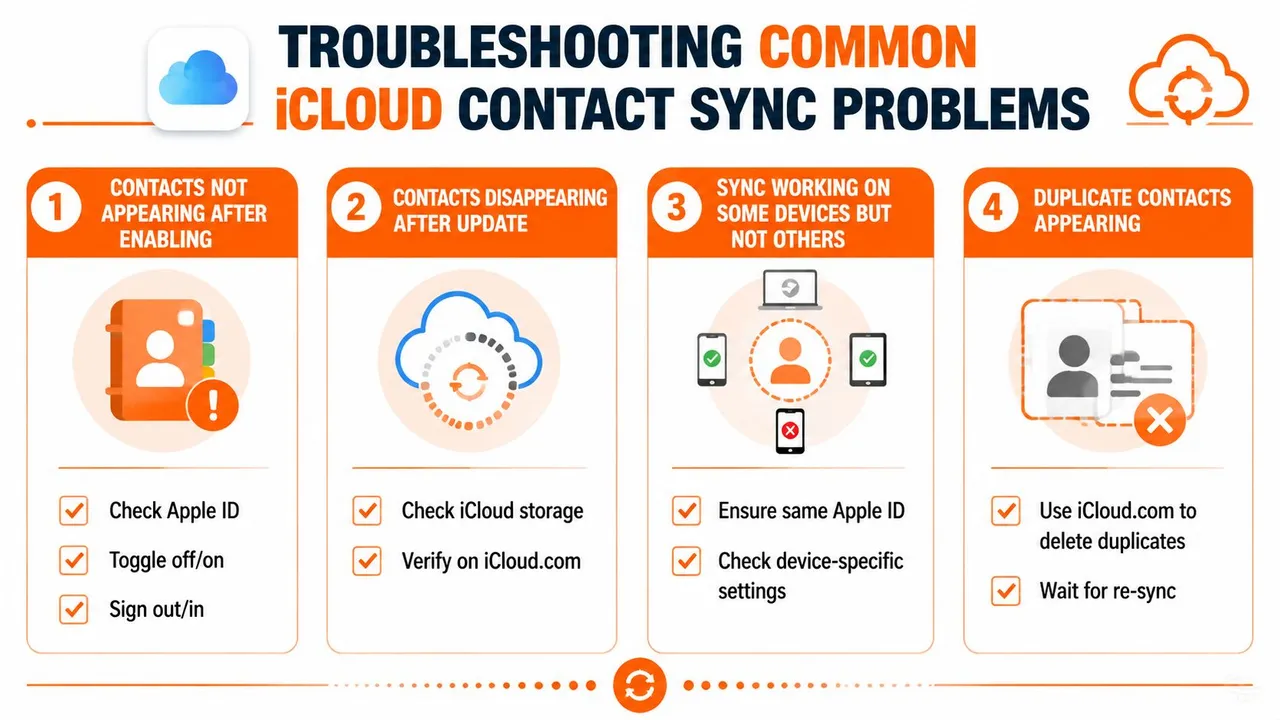
Troubleshooting Common iCloud Contact Sync Problems
When contacts stop syncing, start with the setup that is most likely to be wrong rather than flipping settings at random. Apple’s troubleshooting guidance points to the usual failure points, including mismatched Apple Accounts, Contacts syncing turned off, an incorrect date and time, and software that is out of date on iPhone, iPad, Mac, or Windows (Apple support on iCloud sync troubleshooting). That gives you a practical order of checks, especially when third-party accounts are also pulling in their own copies of the same people.
Contacts are missing after you enable sync
If the list is still empty, confirm that every device is signed in with the same Apple Account and that Contacts is switched on in iCloud settings. Check the device’s date and time too, since Apple calls that out as part of getting sync to work properly. If the setup looks right, open Contacts and swipe down to force a refresh.
Contacts vanished after an update
If contacts disappear after an OS update, the problem is often a stale sync state rather than deleted data. Apple recommends updating to the latest supported version of iOS, iPadOS, macOS, or Windows when sync stops behaving, because older builds can leave the service stuck in a bad state. Then check iCloud.com/contacts in a browser. If the entries are still there, the device needs to pull the cloud copy back down.
One device works, another doesn’t
This usually means the devices are not aligned at the account or settings level. Check the Apple Account on the device that is failing, then confirm that Contacts sync is enabled there too. On Windows, open iCloud for Windows and make sure Contacts and Calendars is still selected, then click Apply again, since that is the control point Apple uses there (Apple support on iCloud sync troubleshooting).
Outlook isn’t updating on Windows
Windows and Outlook are where contact sync problems often show up first. If Outlook is stale, do not reimport contacts right away, since that can create duplicates and make a cleanup harder later. Check the iCloud for Windows connector first, then refresh the Contacts app or the Outlook view. If the list still does not change, turn iCloud Contacts off and back on, then read the prompt carefully so you choose Merge when you need to keep local entries and avoid wiping out data you still want.
Maintaining Healthy Contact Sync Long-Term
The easiest contact system is the one you barely touch. Once iCloud Contacts is configured correctly, your main job is to keep the source accounts clean and check the cloud copy once in a while. A quick visit to iCloud.com/contacts tells you whether the shared address book still matches what you expect, and a glance at Settings > Contacts > Accounts tells you whether Gmail, Outlook, or another service is reintroducing split lists (Apple iCloud Contacts guide).
A simple maintenance checklist helps:
- Check the cloud copy first. Use iCloud.com/contacts as the source of truth before troubleshooting the device.
- Review account ownership. Make sure new contacts save where you expect them to save.
- Keep devices current. Apply Apple and Windows updates when sync starts acting up.
- Audit third-party accounts. Gmail and Outlook can keep contributing contacts even after iCloud is turned on.
- Use merge carefully. When re-enabling sync, read the prompt instead of tapping through it.
If your life is mostly Apple devices, this setup can stay close to set-and-forget. If your work crosses Apple, Google, Outlook, and Android, you may eventually outgrow simple contact sync and need a more structured system for keeping separate books aligned.
For readers managing more than contacts, SyncThemCalendars is one tool that synchronizes calendars across Google Calendar, Microsoft Outlook, and Apple Calendar. That kind of cross-platform event sync is useful when your calendar life is more complicated than your address book.
If you’re cleaning up contacts, calendars, and account conflicts at the same time, visit SyncThemCalendars and see whether a cross-platform calendar sync workflow fits the rest of your setup. It’s a practical next step if you want fewer manual fixes and less account juggling across Apple, Google, and Outlook.
Ready to sync your calendars?
Keep your Google, Outlook and Apple iCloud calendars in sync automatically. 2-minute setup, no credit card required.
Get started freeKeep reading
More in Tutorials

How to Add Gmail Calendar to Outlook Without Duplicates
See how to add Gmail Calendar to Outlook by subscribing for a live view or using two-way sync, then avoid privacy leaks and duplicate events.

Export Outlook Calendar to Google: A 2026 Step-by-Step Guide
Learn how to export Outlook calendar to Google with clear steps for ICS and CSV imports, recurring-event checks, and verification tips that work in 2026.

How to Synchronize Outlook Calendar Across Platforms
Learn how to synchronize Outlook calendar events with Google and Apple iCloud. Master two-way sync, privacy controls, and real-time availability mapping.