







How to Sync Google Contacts on iPhone: 2026 Guide
Learn how to sync google contacts on iphone with our clear, step-by-step 2026 guide. Covers all methods, troubleshooting, and managing duplicates efficiently.
You add a new client’s number in Google Contacts on your laptop, grab your iPhone a minute later, and the person isn’t there. Then you search, refresh, force-close Contacts, and start wondering whether the number went into the wrong account, vanished into iCloud, or never synced at all.
That kind of contact drift happens when work, personal life, and multiple platforms all collide. One account lives in Google, another in iCloud, maybe a third in a work profile, and your phone defaults to saving new entries in one place while your browser shows another. The result is a contact list that looks complete until the moment you need it.
The fix is usually simple. The confusing part is knowing which sync method fits your setup, and which setting is sabotaging everything. If you want a reliable answer to how to sync Google Contacts on iPhone, the built-in iPhone method is usually the right one. But it helps to understand the trade-offs before you flip the switch.
Unifying Your Contacts Across Devices
The challenge isn’t typically a “contacts problem,” but rather a fragmentation problem.
A freelancer might keep personal contacts in iCloud because that’s what the iPhone offered on day one, business contacts in Google because Gmail is where client communication happens, and a few stray numbers in a work account added later. A parent might save contacts on the phone, edit them on a laptop, and assume everything talks to everything automatically. Sometimes it does. Sometimes it absolutely doesn’t.
That’s why contact syncing feels random when it breaks. The phone isn’t necessarily failing. It’s often following the rules of the wrong default account.
Practical rule: If you don’t decide where new contacts should live, your iPhone will decide for you.
The good news is that Apple and Google have supported a direct path for contact syncing for years. You don’t need a workaround for most setups. You need one consistent source of truth, one properly connected account, and a quick check of where new contacts are being saved.
If you’ve ever felt like calendars, contacts, reminders, and work apps each have their own half-correct version of your life, that’s the broader issue. This is one part of the same synchronization puzzle described in this guide to understanding synchronization. Once you fix contacts properly, daily communication gets much less chaotic.
The Official Method Using iPhone Settings
The best method is the one already built into iOS. Google Contacts has been natively supported on iOS through the Contacts settings panel since iOS 4 in 2010, and Google’s own iPhone instructions still point users to the built-in account setup flow, where you turn on the Contacts switch for your Google account on the device. The same support page notes this remains the standard approach as of 2025 for over 1 billion active iOS users worldwide (Google Contacts help for iPhone).
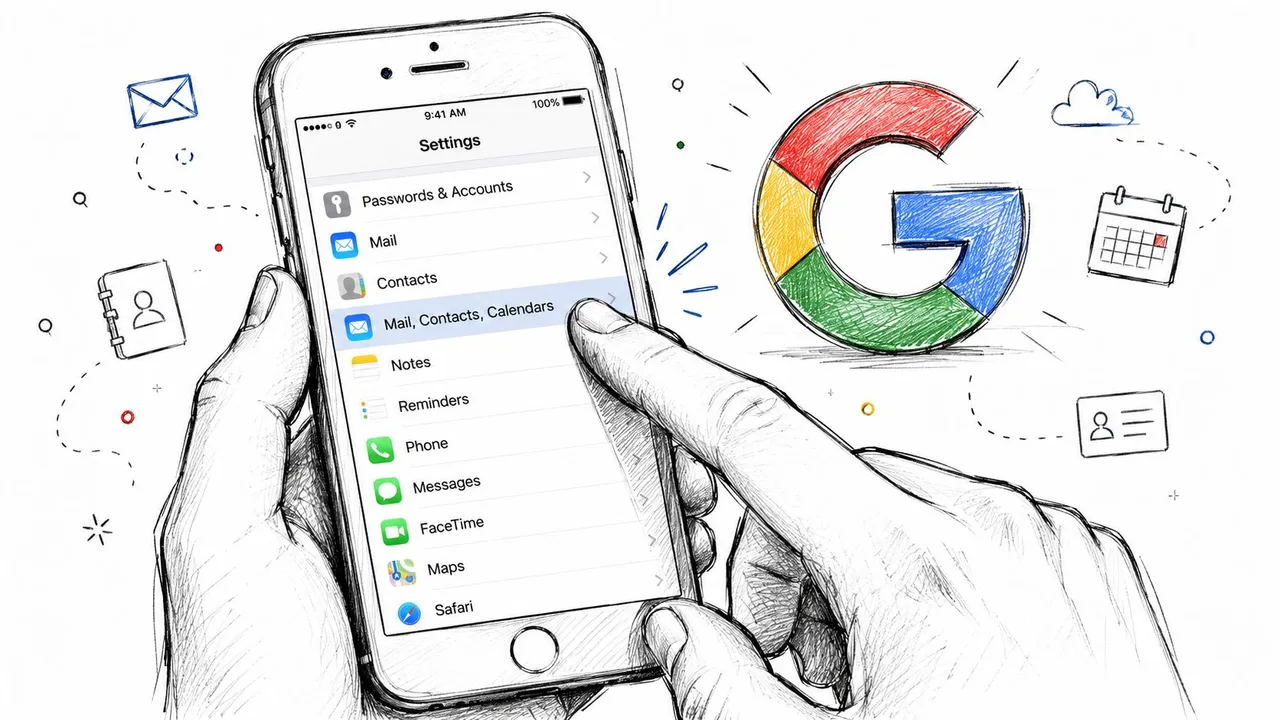
Where to tap
On your iPhone, open Settings. Then go to Contacts, tap Accounts, and choose Add Account if your Google account isn’t already listed. If it is listed, tap it and check whether Contacts is turned on.
After you sign in to Google, iOS shows separate toggles for different data types. You want Contacts on. If you only care about contacts, you can leave Mail or Calendars off.
That one switch matters because it tells the iPhone to include Google’s contact database in the native Contacts app. Once enabled, the sync works through Apple’s own account framework, not through a random helper app.
What should happen next
The first sync may take a moment, especially if your Google account has a large address book. On a healthy setup, your iPhone begins pulling your Google entries into the Contacts app, and from that point forward, changes should keep moving between devices without manual export or import.
You’ll know it’s working when:
- Existing Google contacts appear in the iPhone Contacts app
- Edits made on one device show up on the other after a short delay
- Search inside the Phone or Contacts app finds Google entries
- No extra app is required just to view synced contacts
If the Google account is connected but the Contacts switch is off, the account exists on the phone without actually contributing to your address book.
Why this method works best for most people
The native iPhone route has three big advantages.
- It uses the built-in Contacts app. You don’t have to train yourself to use a separate interface.
- It’s low-maintenance. Once it’s configured correctly, it usually stays out of your way.
- It supports ongoing sync. This isn’t a one-time transfer. It’s an active connection.
That makes it the best fit if you use Gmail, Google Contacts on the web, or Android and iPhone side by side. It’s also the least confusing setup for families and small teams where one missed number can turn into a missed call, a missed pickup, or a missed client reply.
One setting most guides gloss over
After you connect Google, check Settings > Contacts > Default Account.
If you want new contacts created on the iPhone to go into Google, select your Google account there. If you leave iCloud as the default, your phone may display Google contacts correctly while saving every new contact somewhere else. That’s the kind of partial success that fools people into thinking sync is broken when the underlying problem is storage location.
A clean setup usually looks like this:
- Google account added under Contacts accounts
- Contacts toggle enabled
- Default account set intentionally
- Contacts app opened once so the list can refresh
When someone asks me how to sync Google Contacts on iPhone without headaches, this is the method I recommend first because it’s the official, direct, and least fragile path.
Exploring Alternative Syncing Methods
The native iPhone method is the default recommendation, but it isn’t the only option. Some people want manual control. Some prefer Google’s own interface. Some only need a one-time migration.
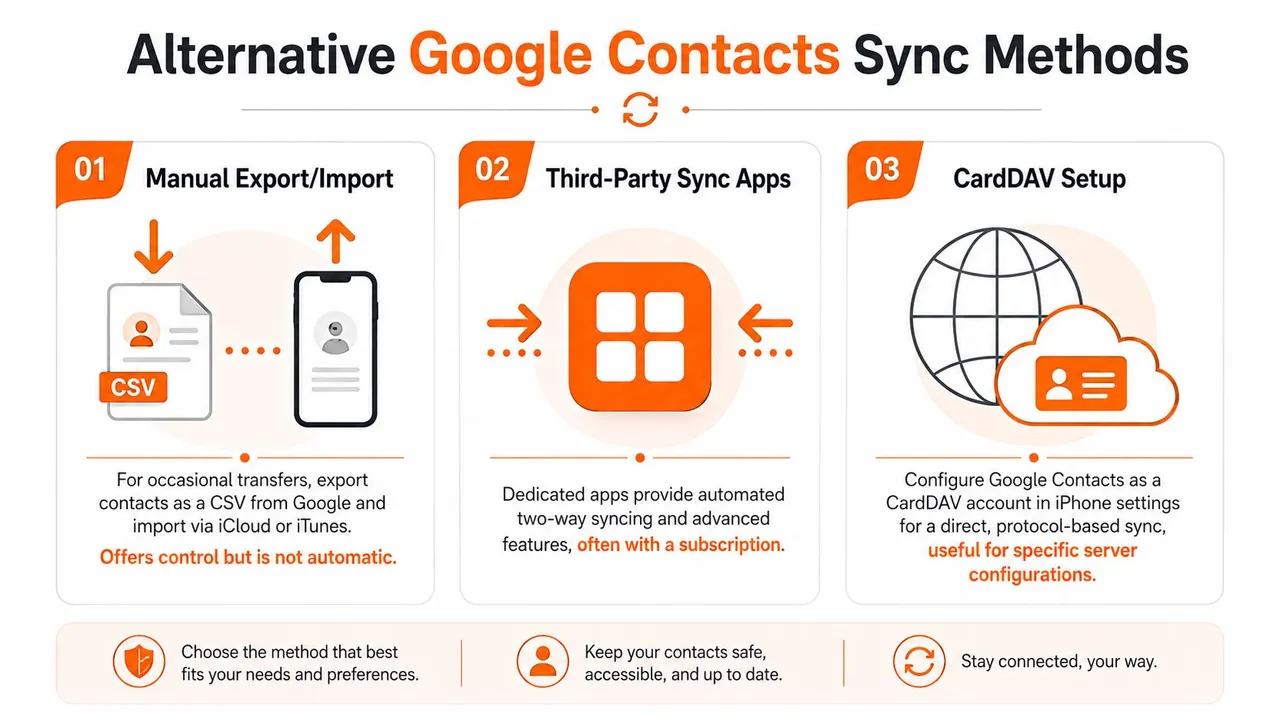
Four realistic choices
Native iPhone account sync is best when you want contact syncing to disappear into the background. Setup is simple, and your contacts show up in Apple’s Contacts app where most iPhone users already manage them.
CardDAV setup appeals to users who want a more protocol-oriented approach or who are troubleshooting a specific account configuration. It’s more technical and less friendly than the default route, but some advanced users like the control.
Google Contacts app on iPhone can make sense if you strongly prefer Google’s interface and organize your contacts there first. It can be useful for browsing and editing inside Google’s ecosystem, though it doesn’t replace the need to think about where iPhone-created contacts are saved.
Manual export and import is for migration, not sync. Export a contacts file from Google, import it into another service, and you’ve moved data once, which is different from syncing contacts in iCloud. That doesn’t create a live connection. If anything changes later, you repeat the process.
The wrong method usually “works” once and then fails the first time your contacts change again.
Google Contacts sync methods compared
| Method | Best For | Setup Time | Sync Type |
|---|---|---|---|
| Native iPhone Settings | Most iPhone users who want ongoing sync in the Contacts app | Short | Automatic ongoing sync |
| CardDAV Setup | Technical users who need manual account configuration | Moderate | Automatic ongoing sync |
| Google Contacts app | Users who prefer Google’s interface for viewing and editing | Short | App-centered access, depends on account setup |
| Manual Export and Import | One-time moves or cleanup projects | Moderate | One-time transfer |
Which one should you choose
Use the native method if your main goal is simple: save a contact on one device and trust it to appear elsewhere.
Use CardDAV if you already know why you need it. If you don’t have a clear reason, it’s probably not your best path.
Use the Google Contacts app if interface preference matters to you more than deep integration with Apple’s Contacts workflow.
Use export and import only when you’re moving a list, archiving contacts, or cleaning up before starting fresh.
If your broader issue isn’t just contacts but fragmented schedules across platforms, it helps to look at tools built specifically for cross-platform sync. This roundup of the best calendar sync app is useful when your contact mess is part of a bigger work-personal coordination problem.
Troubleshooting Common Sync Problems
Sometimes setup looks correct and the contact list still won’t behave. That usually means one setting is off, the account needs to refresh, or the phone is saving new contacts to the wrong place.
Contacts aren’t showing up after setup
Start with the obvious check. Go back to Settings > Contacts > Accounts > Google and make sure Contacts is enabled. If it’s already on, open the Contacts app and give the phone a moment to refresh.
If the list is still empty, sign out of the Google account in iPhone settings and add it again. That often clears stale authorization problems that survive a simple toggle.
Also make sure the device is up to date. Older iOS builds can run into compatibility issues that show up as a connected account with no visible contacts.
New contacts from iPhone aren’t reaching Google
This is the classic trap. The Google account syncs fine, but new contacts created on the iPhone go to iCloud instead.
A video-based troubleshooting guide highlights this as a major pitfall: if you don’t set Google as the Default Account in Settings > Contacts, new entries may default to iCloud, which leaves part of your contact list outside Google’s sync path (YouTube walkthrough on the default account issue).
Fix it like this:
- Open Default Account: Go to Settings > Contacts > Default Account
- Choose Google: Select the Google account you want new contacts saved into
- Test with one contact: Create a fresh entry on the iPhone, then check whether it appears in Google Contacts on the web
- Clean up split entries: If recent contacts were saved to iCloud by mistake, move or recreate them in Google
A sync problem is often a save-location problem.
Sync is slow or seems stuck
Large contact libraries can take time on the first pass. If your network is weak, the phone may look idle when it’s waiting on data transfer or authentication.
Check whether Wi-Fi or cellular data is behaving normally. If mobile data is the weak link, this practical guide to cellular data troubleshooting from Simsima is worth keeping handy because poor connectivity can interrupt more than browsing. It can also stall account sync.
For a visual walkthrough of common fixes, this video is a useful companion:
The account is connected, but results are inconsistent
When sync feels half-broken, check these in order:
- Account visibility: In the Contacts app, confirm you’re viewing all relevant account groups, not a filtered list.
- Duplicate accounts: Remove old or unused Google account entries from iPhone settings if you no longer use them.
- Recent password changes: If you changed your Google password recently, re-authentication may be needed.
- App refresh behavior: Close and reopen the Contacts app after major changes in account settings.
If you work through those checks methodically, most stubborn cases become straightforward. The hard part isn’t usually the fix. It’s identifying which layer is failing.
How to Manage Duplicates and Multiple Accounts
Once sync starts working, a new issue often appears. Your contacts finally come together, but the list gets messy.
That’s normal. When iPhone combines account data, merged lists can include repeated entries, slightly different versions of the same person, or old records saved in multiple places. One walkthrough notes that the device can merge Google contacts with the local iCloud database, and a user with 5,000 Google contacts may see a full sync complete in 2 to 5 minutes on modern devices. The same source also says the native method supports unlimited contact storage compared with older third-party tools (video reference on large contact sync behavior).
Cleaning up duplicates
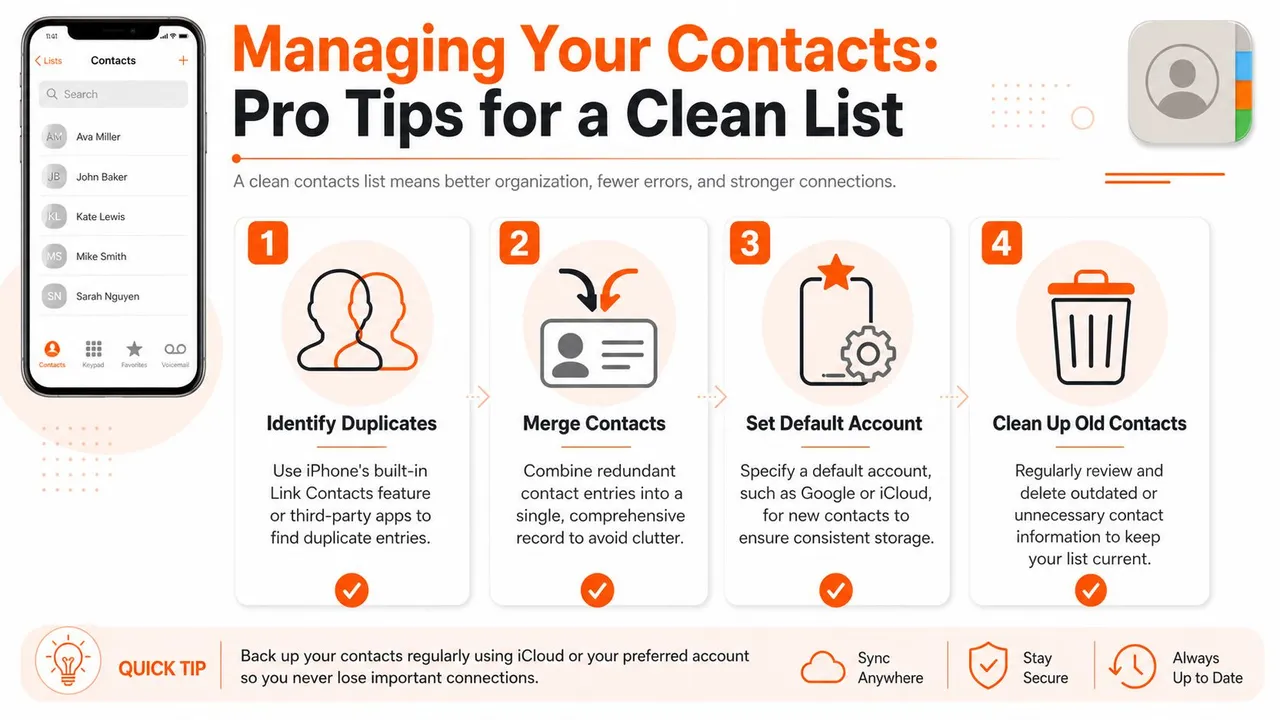
Start on the platform where you do most of your editing. If that’s Google Contacts on the web, use Google’s merge tools there first. If your duplicates mainly appeared on the iPhone, review whether entries are linked correctly inside Apple’s Contacts app.
A practical cleanup routine looks like this:
- Merge obvious repeats first: Same name, same phone, same email
- Check linked cards carefully: One person can have one card pulling data from more than one account
- Delete old shells: Empty records from past imports often clutter search results
- Pick one editing home: If you mostly live in Google, do your cleanup there and let the phone catch up
If your duplicates are severe, this guide on strategies for contact deduplication gives a solid framework for deciding what to merge and what to keep separate.
Handling personal and work accounts without chaos
Running two Google accounts on one iPhone is common. So is mixing Google for work and iCloud for personal use. The trick is to decide whether you want one combined address book or separation by purpose.
If you want a unified list, keep both accounts connected but be strict about where new contacts get saved by setting the right default account.
If you want cleaner boundaries, disable Contacts for the account you don’t want visible on the phone all the time, or use account groups selectively when searching and browsing. That matters for anyone juggling client work, family life, and side projects.
A similar mindset helps with calendars too. If you’re balancing several systems at once, this guide on how to manage multiple calendars maps out the same core challenge from the scheduling side.
Keep one source of truth for each kind of data. Confusion starts when every app is allowed to become the master.
Keeping Your Digital Life in Sync
The cleanest answer to how to sync Google Contacts on iPhone is usually the built-in iPhone account method. It’s direct, supported, and easier to maintain than patchwork alternatives. Most contact issues don’t come from the sync engine itself. They come from fragmented accounts, the wrong default save location, or duplicate data left behind from older setups.
That’s why solving contact sync feels bigger than contacts. You’re really deciding how your digital life should behave when Google, Apple, and work accounts all overlap. A tidy address book means fewer missed calls, fewer “wrong number” moments, and less time hunting for the right version of a person’s details.
Get your contacts right once, and a lot of everyday friction disappears.
If your next problem is calendar fragmentation instead of contacts, SyncThemCalendars helps keep Google Calendar, Outlook, and Apple Calendar aligned in real time. It’s a practical fit when your schedule lives across multiple accounts and you want availability to stay accurate without constant manual updates.
Ready to sync your calendars?
Keep your Google, Outlook and Apple iCloud calendars in sync automatically. 2-minute setup, no credit card required.
Get started freeKeep reading
More in Tutorials

How to Add Gmail Calendar to Outlook Without Duplicates
See how to add Gmail Calendar to Outlook by subscribing for a live view or using two-way sync, then avoid privacy leaks and duplicate events.

Export Outlook Calendar to Google: A 2026 Step-by-Step Guide
Learn how to export Outlook calendar to Google with clear steps for ICS and CSV imports, recurring-event checks, and verification tips that work in 2026.

How to Synchronize Outlook Calendar Across Platforms
Learn how to synchronize Outlook calendar events with Google and Apple iCloud. Master two-way sync, privacy controls, and real-time availability mapping.