




How to Sync Google Calendar with Apple Calendar (2026)
How to sync Google Calendar with Apple Calendar in minutes. Step-by-step guide, fixes for sync issues, and pro tips to avoid double bookings.
Monday morning. You add a meeting to Google Calendar for work.
Later in the day, you schedule dinner with friends in Apple Calendar on your iPhone.
Then the doubt kicks in: do I already have something planned at that time in my other calendar? 🤔
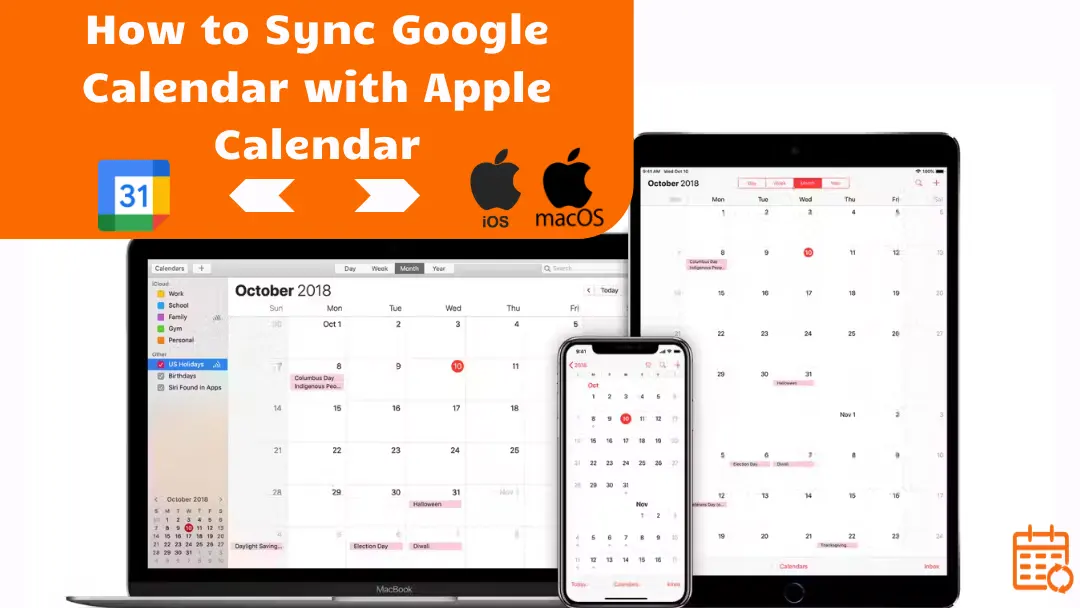
When you use multiple calendars, it quickly becomes hard to keep a clear overview of your schedule. Fortunately, you can sync Google Calendar with Apple Calendar so all your events appear in one place.
In this guide, you’ll learn how to connect Google Calendar and Apple Calendar on iPhone, iPad, and Mac, as well as the different options to keep your calendars automatically synchronized.
How to Sync Google Calendar with Apple Calendar on iPhone or iPad
Step-By-Step Guide
The easiest way to sync Google Calendar with Apple Calendar is to add your Google account directly to your iPhone or iPad calendar settings.
Once connected, your Google events will automatically appear in the Apple Calendar app. For an iPhone-focused walkthrough with more troubleshooting, see how to sync Google Calendar with your iPhone.
Steps:
- Open Settings on your iPhone or iPad.
- Tap Calendar.
- Tap Accounts.
- Tap Add Account.
- Select Google.
- Sign in with your Google account.
- Enable Calendar syncing.
Once your Google account is connected:
- Events from your Google Calendar will automatically appear in the Apple Calendar app.
- Any updates made in Google Calendar will also sync to your iPhone, so you can view all your events in one place.
💡 Tip: Syncing usually happens automatically, but it may take a few seconds for new events to appear.
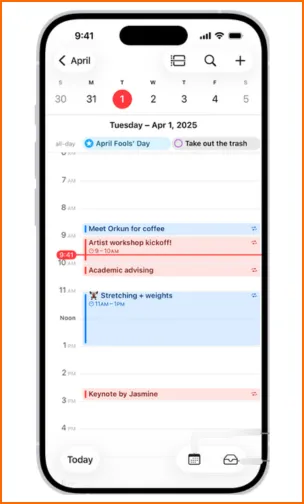
How To Choose Which Calendars To Display
If you use multiple Google calendars, they may not all appear automatically in Apple Calendar. Fortunately, you can easily fix it :
- Open the Calendar app.
- Tap Calendars at the bottom of the screen.
- Look for the section linked to your Google account.
- Check the calendars you want to display.
- Tap OK or Done.
The selected calendars will then appear in your main calendar view, and all their events will be visible in the Apple Calendar app.
💡 Tip: If some Google calendars do not appear in the list, they may not be enabled in your Google Calendar sync settings. In that case, you will need to enable them first in your Google Calendar settings.
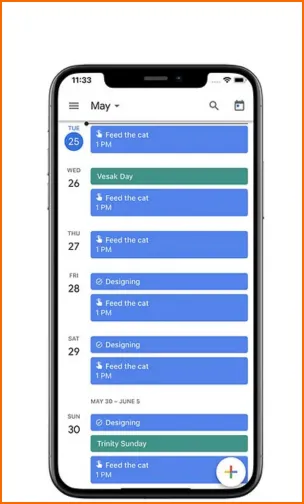
How to Sync Google Calendar with Apple Calendar on Mac
Step 1: Add your Google account on macOS
Here’s how to add your Google account on Mac:
- Click the Apple menu in the top-left corner of your screen.
- Open System Settings (or System Preferences, depending on your macOS version).
- Select Internet Accounts.
- Click Add Account.
- Choose Google from the list of services.
- Sign in with your Google account.
- Allow macOS to access your account.
Once the account is added, macOS can use your Google data across several Apple apps, including Mail, Contacts, and Calendar.
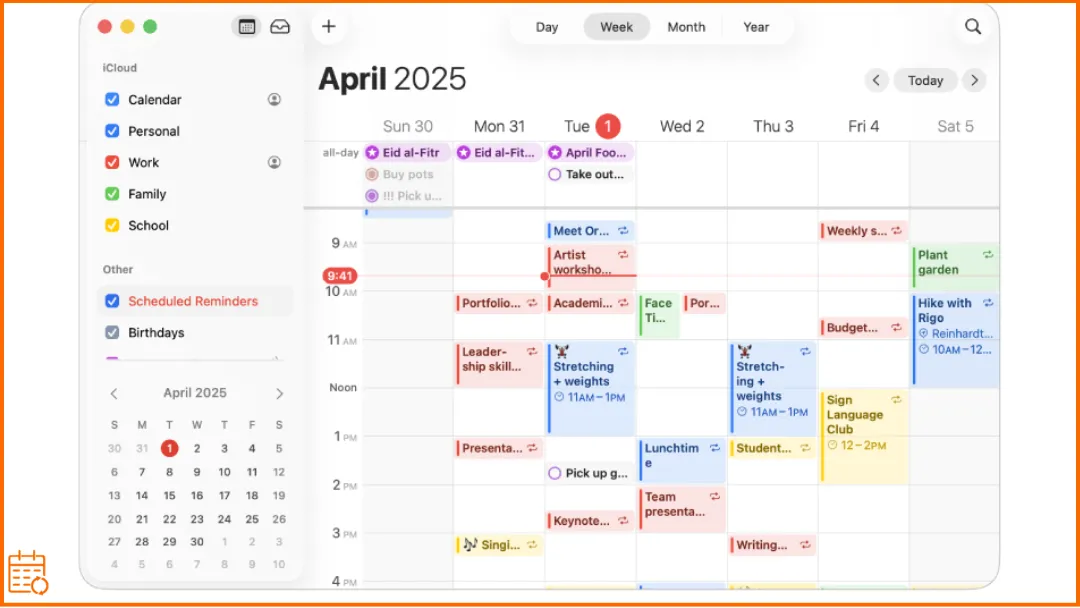
Step 2: Enable calendar syncing
Here’s how to enable calendar syncing:
- Open System Settings (or System Preferences, depending on your macOS version).
- Click Internet Accounts.
- Select your Google account from the list.
- Make sure the Calendars option is enabled.
Once this option is enabled, your Google Calendar events will automatically appear in the Calendar app on your Mac.
If you use multiple Google calendars, they will also be available in Apple Calendar, and you can choose which ones to display from the list of calendars in the app.
💡 Tip: If you’re looking for how to sync a calendar on iPhone, this article might help you.
Can You Sync Google Calendar with Apple Calendar Both Ways?
Yes. When you add your Google account to your iPhone, iPad, or Mac, the sync between Google Calendar and Apple Calendar works both ways.
This means that:
- An event created in Google Calendar appears in Apple Calendar.
- An event created or modified in Apple Calendar is also synced with Google Calendar.
- Both apps therefore stay automatically updated, as long as your Google account is connected and calendar syncing is enabled.
Why Your Google Calendar Is Not Syncing with Apple Calendar
Your Google account is not enabled
This may sound obvious, but it’s actually a very common cause: the Google account simply isn’t connected to the device.
- To check on iPhone or iPad : Go to Settings → Calendar → Accounts.
Make sure your Google account appears in the list and that Calendars is enabled.
- To check on Mac: Go to System Settings → Internet Accounts.
Check that your Google account is added and that Calendars is enabled.
💡 If your Google account does not appear at all, you’ll simply need to add it to your device (see the sections above).
The calendar is not selected in Apple Calendar
The app may hide some calendars by default (for example a secondary or shared calendar). In that case, the events still exist, they’re just not visible in your calendar view.
To check, open the Calendar app and look at the list of available calendars.
Make sure the calendars associated with your Google account are checked or enabled.
Once the calendar is selected, its events will immediately appear in your calendar view.
Shared calendars are not appearing
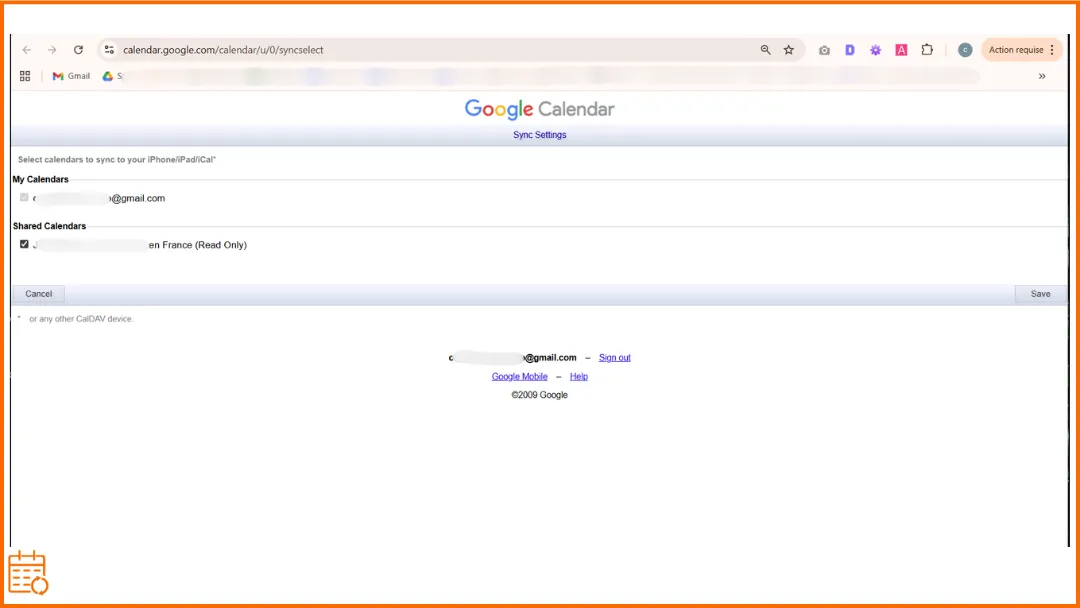
Sometimes a shared Google Calendar may appear in Google Calendar on the web but not in Apple Calendar on your iPhone or iPad. This often happens because the shared calendar is not enabled for mobile syncing.
To fix this,
- open the Google Calendar mobile sync settings page: https://calendar.google.com/calendar/u/0/syncselect
- Make sure the shared calendars you want to see on your device are checked.
Once enabled, the calendar should appear in Apple Calendar on your iPhone.
Events are missing or not updating
In most cases, this is not a synchronization problem but simply a short delay between the two services.
To check:
- Make sure your internet connection is working properly.
- Close and reopen the Calendar app.
- Wait a few moments for the sync to complete.
If the issue continues, you can also try turning calendar syncing off and back on again in your Google account settings on the device.
Authentication problems
Sometimes Google Calendar stops syncing because your Google account needs to be re-authenticated.
This can happen if your Google password has changed or if the connection between your device and your Google account has expired.
When this happens, Apple Calendar may stop updating your events.
To fix it:
- Open your account settings on your device.
- Check your Google account.
- If requested, sign in again to restore the connection.
Expert Tip: Managing Multiple Calendars More Easily
For most users, the native sync between Google Calendar and Apple Calendar works very well.
However, if you use multiple calendars (for example a work calendar, a personal calendar, or a shared calendar), it can become harder to keep a clear overview of your availability and avoid scheduling conflicts.
That’s why we created SyncThemCalendars, a tool that helps you:
- avoid double bookings,
- keep multiple calendars automatically up to date,
- simplify the management of your schedule.
SyncThemCalendars works with the major calendar services:
- Google Calendar,
- Microsoft Outlook / Office 365,
- iCloud Calendar (Apple).
FAQ: Google Calendar and Apple Calendar Sync
Is there a way to sync Google Calendar with Apple Calendar?
Yes. You simply need to add your Google account to your Apple device’s settings.
On iPhone or iPad: Settings → Calendar → Accounts → Add Account → Google.
On Mac: System Settings → Internet Accounts → Add Account → Google.
Why is my iPhone not syncing with Google Calendar?
If your iPhone is not syncing with Google Calendar, the issue is usually caused by one of these common problems:
- Your Google account is not connected to your iPhone.
- Calendar syncing is disabled for your Google account.
- The Google calendar is not selected in the Apple Calendar app.
- Your device has a temporary sync delay or connection issue.
To fix it, open Settings → Calendar → Accounts, select your Google account, and make sure Calendars is enabled.
If the problem continues, try closing and reopening the Calendar app or checking your internet connection.
Can I merge Apple Calendar and Google Calendar?
Not exactly. Apple Calendar and Google Calendar cannot be merged into a single native calendar. In practice, Apple Calendar can display events from Google Calendar, but each calendar remains technically separate.
If you want to keep multiple calendars fully synchronized, some tools allow you to create automatic synchronization between different calendars. For example, tools like SyncThemCalendars let you sync multiple calendars together, ensuring that events stay updated across all platforms.
How often do calendars sync?
In most cases, new events or updates appear within a few seconds or minutes, depending on your internet connection and device.
If an event does not appear immediately, simply waiting a moment or reopening the Calendar app is often enough for the sync to update.
☄️ Try SyncThemCalendars for free and keep all your calendars synchronized. Google, Apple, Microsoft, it supports them all!
Ready to sync your calendars?
Keep your Google, Outlook and Apple iCloud calendars in sync automatically. 2-minute setup, no credit card required.
Get started freeKeep reading
More in Tutorials
Export Outlook Calendar to Google: A 2026 Step-by-Step Guide
Learn how to export Outlook calendar to Google with clear steps for ICS and CSV imports, recurring-event checks, and verification tips that work in 2026.
How to Synchronize Outlook Calendar Across Platforms
Learn how to synchronize Outlook calendar events with Google and Apple iCloud. Master two-way sync, privacy controls, and real-time availability mapping.
How to Sync Office 365 Calendar with Apple Calendar
Learn how to sync Office 365 calendar with Apple Calendar. Compare native methods, third-party tools, privacy controls, and troubleshooting tips.