







How to Share a Calendar on iPhone: Step-by-Step Guide for iCloud, Family & Google (2026)
Learn how to share a calendar on iPhone step by step (2026 update). Fix common sharing issues, sync with Google or Android, and discover how SyncThemCalendars keeps all your calendars perfectly in sync.
Are you trying to share a calendar on iPhone, but the option doesn’t appear?
Or did the person you invited never receive the invitation?
Between iCloud settings, sharing permissions, Family Sharing, and the differences between Google Calendar and Outlook, it’s easy to get confused.
The good news: learning how to share a calendar on iPhone is simple — as long as you follow the right steps and make sure you’re using an iCloud calendar.
How to Share a Calendar on iPhone Step by Step
Quick Version
- Open the Calendar app on your iPhone.
- Tap Calendars at the bottom of the screen.
- Tap the ⓘ icon next to the iCloud calendar you want to share.
- Tap Add Person.
- Enter the person’s email address.
- Choose the sharing permissions (View Only or Edit).
- Tap Add to send the invitation.
💡If you’d like a broader overview beyond iPhone, we also cover general calendar collaboration strategies in our guide on sharing calendars across different platforms.
Detailed Instructions
When you tap Calendars, you’ll see all calendars linked to your device. These are organized by account, such as iCloud, Google, or Outlook.
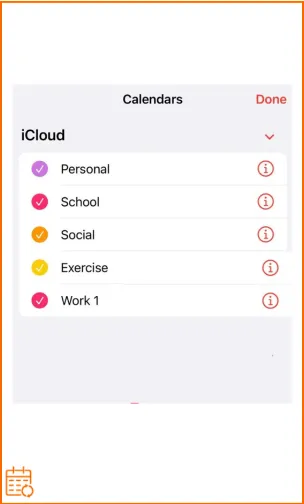
💡Only iCloud calendars can be shared directly from an iPhone! If the calendar belongs to a Google or Outlook account, sharing must be done from their respective platforms.
After you send the invitation, the person’s name will appear with a “Pending” status until they accept it. Once accepted, you can change their permissions or remove access at any time from the calendar settings.
You can also share the same calendar with multiple people by repeating the Add Person step.
How to Share a Calendar on iPhone with Another iPhone User
If the person you want to share your calendar with also uses an iPhone, the process is seamless.
Both users must have an active Apple ID and make sure iCloud is enabled for the Calendar app. Direct sharing from an iPhone only works with iCloud calendars.
Once the invitation is sent:
- The other user receives a notification on their iPhone.
- They must accept the invitation to access the shared calendar.
- The calendar will then automatically appear in their Calendar app.
Events are synchronized in real time between both devices. Any changes made by either person are instantly visible to the other. (For everything sync-related on iOS, our iPhone calendar sync guide covers the full picture.)
👉To share your calendar with another iPhone user, simply follow the steps explained above. We go deeper into the invitation flow in our guide on how to invite people to a calendar on iPhone — and if you only need to send one appointment rather than a whole calendar, see how to share a single calendar event on iPhone.
How to Share an iPhone Calendar with Google Calendar and Outlook
The way you share an iPhone calendar depends on which account it belongs to (iCloud, Google, or Outlook).
In short:
- iCloud calendars can only be shared directly with other Apple users.
- If your calendar belongs to Google or Outlook, sharing must be managed from those respective platforms.
| Calendar Type | Where You Manage Sharing | Collaborative Editing | Can You Share Directly from iPhone? |
|---|---|---|---|
| iCloud | iPhone or iCloud.com | ✅ with Apple users | ✅ |
| iCloud (Public Link) | iCloud.com | ❌ | ❌ |
| Google Calendar (web) | ✅ | ❌ | |
| Outlook | Outlook on the web | ✅ | ❌ |
If You’re Sharing an iCloud Calendar
iCloud calendars cannot be edited directly from Google or Outlook. To make them visible on those platforms, you need to create a public calendar link (also known as a Webcal link) from iCloud.
Here’s how to do it:
- Sign in to iCloud.com from a web browser.
- Open the Calendar app.
- Click the share icon next to the calendar you want to share.
- Enable the Public Calendar option.
- Copy the generated Webcal link.
- Add this link to Google Calendar or Outlook as a subscription calendar (Add by URL).
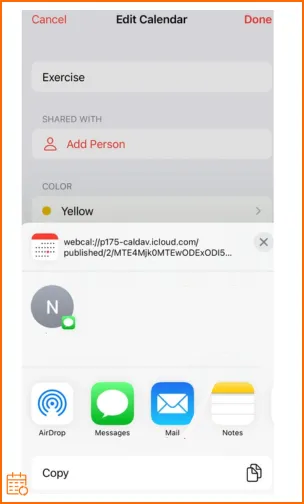
⚠️ Important:
- This type of sharing is view-only. Users will be able to see the events, but they will not be able to edit them from Google Calendar or Outlook.
- This option is not available in the Google Calendar mobile app, you must use the web version.
If Your Calendar Belongs to a Google Account
While your iPhone displays synced Google calendars, it does not allow you to manage their advanced sharing settings directly from the device.
To share a Google Calendar, you need to:
- Open Google Calendar in a web browser (calendar.google.com).
- Click the three dots next to the calendar you want to share.
- Select Settings and sharing.
- Add a person under Add people and groups.
- Choose the appropriate permissions (view only, edit, or manage).
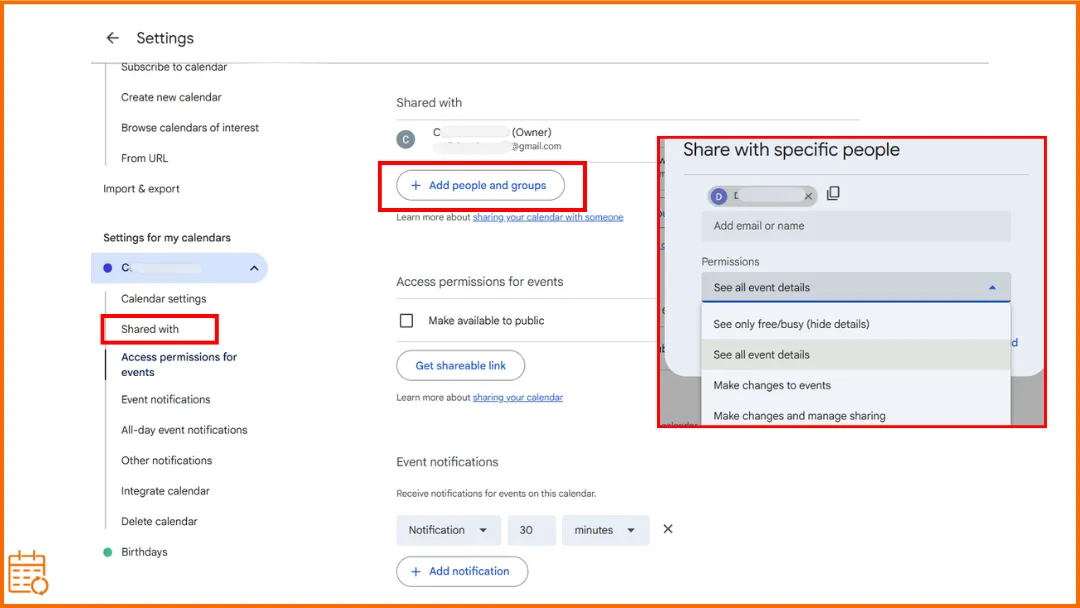
💡Unlike an iCloud public link, sharing through Google Calendar can be fully collaborative. Invited users can edit events depending on the permissions you assign.
If Your Calendar Belongs to an Outlook Account
Just like with Google, your iPhone syncs and displays Outlook calendars, but sharing settings must be managed from Microsoft’s platform.
To share an Outlook calendar:
- Sign in to Outlook on the web (outlook.office.com).
- Open the Calendar section.
- Click Share at the top of the screen.
- Enter the email address of the person you want to invite.
- Choose the permission level (view only or edit).
- Send the invitation.
Sharing through Outlook can be collaborative, meaning invited users can modify events depending on the permissions you assign.
💡If you’re trying to keep events aligned across platforms, you may also want to read our guide on how to sync Google Calendar with Outlook, which explains the different synchronization methods in detail. Managing multiple accounts can quickly become confusing — especially if you use iCloud, Google, and Outlook at the same time. In that case, our article on how to sync multiple calendars breaks down the best approaches.
How to Share Your iPhone Calendar with Family
There are two main ways to share a calendar with your family on iPhone: manually sharing an iCloud calendar or using Apple’s built-in Family Sharing feature.
Share an iCloud Calendar with a Family Member
You can follow the steps explained earlier to add a family member to a specific iCloud calendar. This method allows you to choose exactly which calendar to share and to set permissions (view only or edit).
Use the Apple Family Calendar: Family Sharing
If you have Family Sharing enabled on your iPhone, Apple automatically creates a calendar called “Family.”
All members of your Family Sharing group can view and add events to this calendar without additional setup. It’s especially useful for organizing shared activities such as school events, vacations, appointments, or family gatherings.
To check if Family Sharing is enabled:
- Open Settings.
- Tap your name (Apple ID).
- Tap Family.
- Tap Continue.
- Follow the onscreen instructions to set up your family and invite your family members.
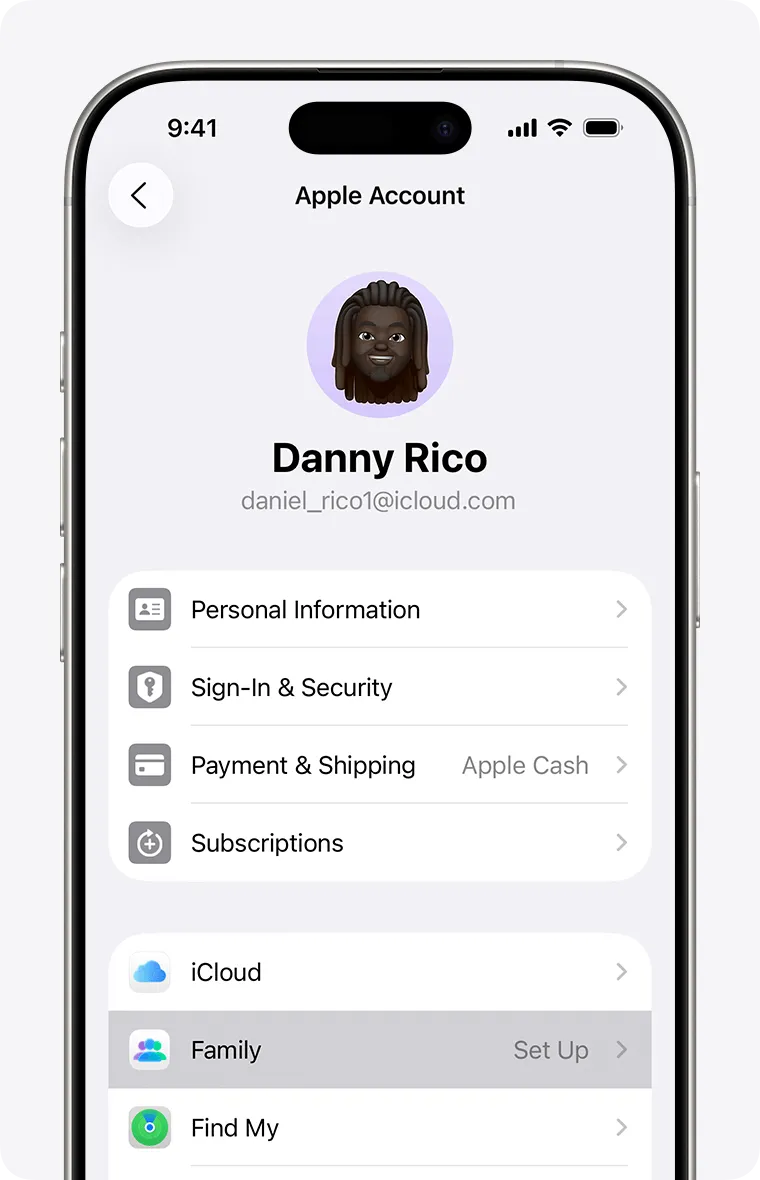
💡To avoid overlaps and missed meetings when sharing across teams or platforms, we explain practical solutions in our guide on calendar synchronization and avoiding double bookings. If you’re specifically looking for the best setup for shared household planning, my article on the best calendar app for family sharing is available here, where I compare different options and use cases.
iPhone Calendar Sharing Permissions Explained
View Only (Read-Only Access)
With View Only access, the invited person can see all events in the calendar but cannot make changes.
They cannot:
- Add new events.
- Edit existing events.
- Delete events.
This option is ideal if you want someone to stay informed without modifying your schedule.
Edit Access
The invited person can:
- Add new events.
- Modify existing events.
- Delete events.
Changes are synchronized in real time across all devices connected to that iCloud calendar.
This option is recommended for close collaborators, family members, or team members who need to actively manage shared events.
Public vs Private Calendar Sharing
Public calendars are useful for broad distribution, while private sharing is better for collaboration.
Private sharing:
- Requires an invitation.
- Works through iCloud.
- Can be collaborative (view or edit).
Public sharing (Webcal link):
- Generates a public subscription link.
- Does not require an Apple ID.
- Is always view-only.
- Cannot be used for collaborative editing.
Why Can’t I Share My Calendar on iPhone?
The Calendar Is Not an iCloud Calendar
You can only share iCloud calendars directly from your iPhone.
If the calendar belongs to a Google or Outlook account, the “Add Person” option will not appear.
How to fix it:
- Go to Settings.
- Tap your name.
- Select iCloud.
- Make sure Calendars is enabled.
If needed, create a new iCloud calendar and move your events there.
iCloud Is Not Enabled
If iCloud is disabled for the Calendar app, sharing will not work. How to fix it:
- Open Settings.
- Tap your Apple ID.
- Select iCloud.
- Turn on Calendars.
- After enabling it, reopen the Calendar app and try again.
The Person Didn’t Receive the Invitation
Sometimes the invitation is sent but not accepted. Common reasons:
- The email address is incorrect
- The person is not signed in with the correct Apple ID
- The invitation is still pending
💡You can check the status by opening the calendar settings and reviewing the list of invited people.
iPhone Calendar Not Sharing with Family
If you’re using Family Sharing, make sure:
- Family Sharing is properly set up.
- The person is part of your family group.
- You are adding events to the correct “Family” calendar.
You can verify this in: Settings → Apple ID → Family Sharing.
FAQ About Sharing Calendars on iPhone
Does iPhone Have a Shareable Calendar?
Yes. You can share an iCloud calendar directly from the Calendar app with other Apple users.
However, collaborative sharing only works with iCloud calendars. If your calendar belongs to a Google or Outlook account, sharing must be managed from those platforms instead.
If you use multiple accounts (iCloud, Google, Outlook) and want to keep your calendars synchronized across them, tools like SyncThemCalendars allow you to create automatic two-way syncs between different calendars, helping you avoid duplicates or missed events.
💡If you regularly juggle several projects or companies, you might also find useful insights in our guide on how to manage multiple calendars effectively.
How Do I Give Someone Full Access to My Calendar?
Share an iCloud calendar and select “Can Edit” when adding the person.
With edit access, they can add, modify, and delete events.
Full editing permissions are only available for iCloud calendars. If your calendar belongs to Google or Outlook, permissions must be managed from those platforms.
For detailed steps, see the section above on iPhone Calendar Sharing Permissions.
Can I Share My iPhone Calendar with Android Users?
Yes, but only in view-only mode using a public iCloud (Webcal) link. Android users can subscribe to your calendar, but they won’t be able to edit events.
If you need real two-way sync between iPhone and Android, SyncThemCalendars lets you automatically sync iCloud, Google, and Outlook calendars bidirectionally — so changes made on either side are instantly reflected everywhere.
Why can’t I see the Add Person button?
If you don’t see the “Add Person” option, the calendar you’re trying to share is most likely not an iCloud calendar.
The “Add Person” button only appears for iCloud calendars. It will not be available for calendars linked to Google, Outlook, or other accounts.
How to fix it:
- Open the Calendar app.
- Tap Calendars at the bottom.
- Check which account the calendar belongs to (iCloud, Google, Outlook).
If it’s not under iCloud, you won’t be able to share it directly from your iPhone.
Why is my iPhone calendar not syncing?
Common causes include:
- iCloud Calendar is turned off.
- You are signed into the wrong Apple ID.
- The calendar belongs to Google or Outlook and sync is disabled.
- Your device is not connected to the internet.
To fix it, check: Settings → Apple ID → iCloud → Calendars and make sure it’s enabled.
Can you share an iPhone calendar without iCloud?
No, you cannot share a native iPhone calendar without iCloud. Calendar sharing on iPhone relies on iCloud. If your calendar belongs to a Google or Outlook account, sharing must be managed from those platforms instead.
Does calendar sharing work the same on iOS 17 and iOS 18?
Yes. The steps to share a calendar on iPhone are the same on iOS 17, iOS 18, and newer versions. Apple has not significantly changed the sharing process in recent updates, so you can follow the same instructions regardless of your iPhone model. For detailed instructions from Apple, you can also refer to the official Apple Support guide here.
Ready to Try SyncThemCalendars? Try SyncThemCalendars for free and keep all your calendars synchronized. Google, Apple, Microsoft, it supports them all!
Ready to sync your calendars?
Keep your Google, Outlook and Apple iCloud calendars in sync automatically. 2-minute setup, no credit card required.
Get started freeKeep reading
More in Tutorials
Export Outlook Calendar to Google: A 2026 Step-by-Step Guide
Learn how to export Outlook calendar to Google with clear steps for ICS and CSV imports, recurring-event checks, and verification tips that work in 2026.
How to Synchronize Outlook Calendar Across Platforms
Learn how to synchronize Outlook calendar events with Google and Apple iCloud. Master two-way sync, privacy controls, and real-time availability mapping.
How to Sync Office 365 Calendar with Apple Calendar
Learn how to sync Office 365 calendar with Apple Calendar. Compare native methods, third-party tools, privacy controls, and troubleshooting tips.