







Outlook Calendar Not Syncing How to Fix It Fast
Outlook calendar not syncing? Fix it fast with proven checks for account, permissions, cache and connectivity plus verification steps.
You open Outlook on your phone before a client meeting and find an empty time slot. On your laptop, the meeting is there. In Outlook on the web, a colleague’s change still hasn’t appeared. By the time you discover the mismatch, someone has booked over the same window.
When Outlook calendar not syncing appears, the instinct is usually to restart Outlook, clear the cache, or search for a missing sync button. Those actions can help, but they often miss the problem. Calendar synchronization depends on the account type, sharing relationship, tenant arrangement, authentication state, device, and protocol involved.
Why Your Outlook Calendar Stops Syncing
Outlook calendars don’t all synchronize in the same way. An Exchange calendar connected to a Microsoft 365 account can synchronize continually with the Exchange server, while some shared-calendar relationships use periodic updates instead of a continuously connected exchange. Microsoft notes that sharing updates may arrive within three hours in most cases, which is a useful reminder that a delay isn’t always a broken application. Microsoft’s calendar-sharing guidance also distinguishes between Microsoft 365, Outlook.com, and hybrid modern-authentication setups, because the supported behavior changes with the account and configuration.
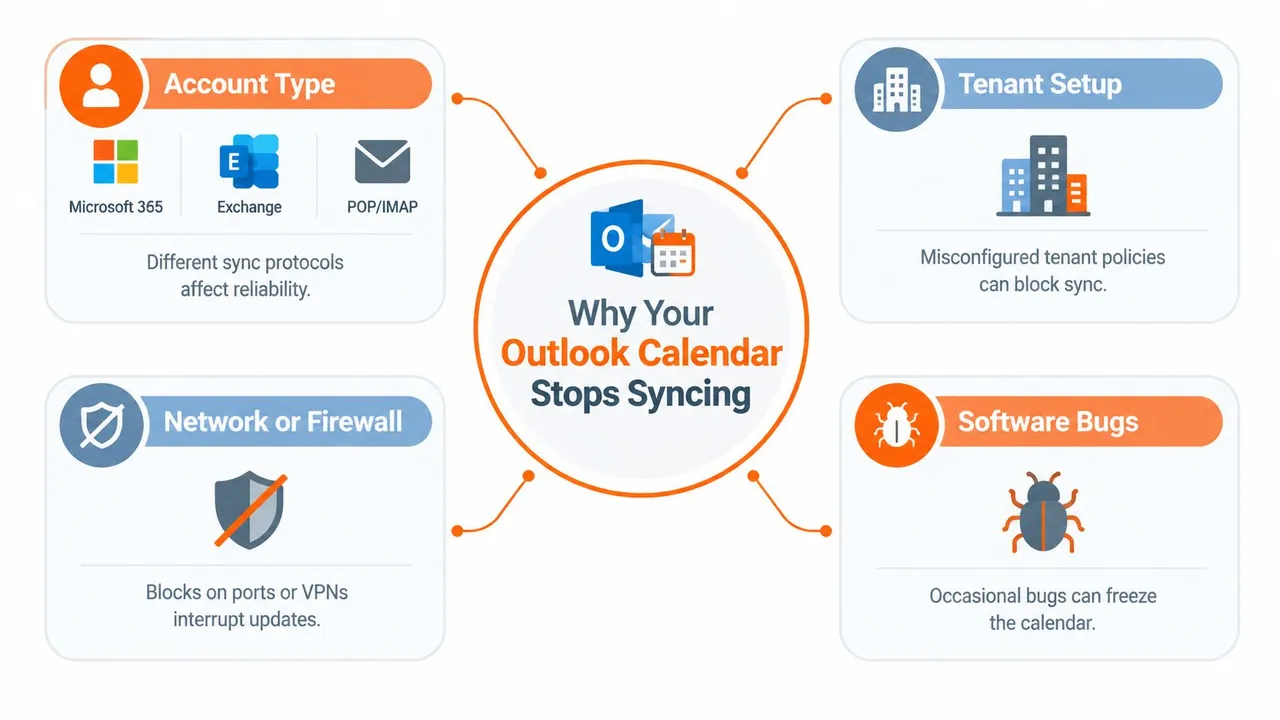
Consider a typical mixed workplace. One employee uses a Microsoft 365 mailbox, another shares an Outlook.com calendar, and a third checks availability through a mobile device or a non-Microsoft calendar service. Each person may see a different copy, refresh schedule, or permission boundary. A calendar that updates correctly in Outlook on the web can still look stale in classic Outlook because the desktop client is displaying cached data.
Account type changes the rules
A POP or IMAP account is a hard limit, not a temporary sync fault. Microsoft support guidance states that IMAP and POP don’t synchronize calendar data, so changing refresh settings won’t turn those accounts into Exchange calendars. If Outlook is connected through a non-Microsoft ecosystem that relies on CalDAV, native two-way interoperability also isn’t available without an add-in or connector.
Tenant boundaries create another common trap. Microsoft says instant shared-calendar synchronization works when both users are in the same Microsoft 365 tenant, or when the calendar is shared by an Outlook.com user. Cross-tenant teams may therefore experience delayed updates by design, even when every device is configured correctly.
For broader Microsoft 365 account and support planning, Networking2000’s advice on Microsoft 365 provides useful context around the administration layer. The practical lesson is simple: identify the relationship between the calendars before repairing the client.
Practical rule: Treat synchronization as an account relationship first and a desktop application problem second.
Quick Diagnosis to Isolate the Real Cause
Start with comparison, not repair. Open the affected calendar in Outlook on the web, then check the same event in desktop Outlook and the Outlook mobile app. The web client gives you the cleanest reference because it reads the cloud-backed calendar without relying on the local desktop cache.
Use this sequence:
- Test Outlook on the web. Create or locate a recent event and confirm whether the server-side calendar contains the expected item.
- Compare desktop Outlook. If the browser shows the event but desktop Outlook doesn’t, focus on the local profile, cache, add-ins, or desktop build.
- Check mobile Outlook. If web and desktop agree but mobile doesn’t, inspect the mobile account connection, calendar toggle, permissions, and background access.
- Compare the pattern. If all clients show the same stale or incomplete calendar, stop rebuilding local profiles. The issue is more likely account-level, permission-related, tenant-side, or server-side.
Microsoft troubleshooting guidance repeatedly recommends checking calendar toggles, permissions, and the correct Exchange or Outlook account type before removing and re-adding the account. That order matters. Rebuilding a profile too early can erase useful evidence and create extra work without fixing a backend relationship.
Confirm the account behind the calendar
Look at the account address and account type on every device. A user may believe they’re viewing a Microsoft 365 calendar while Outlook is showing a local calendar, an IMAP account, an Outlook.com account, or a subscribed external feed. Compare the calendar name, owner, and sharing relationship, not just the visible event title.
If only one endpoint fails, follow the client path. If every endpoint fails, ask an administrator to check the tenant and Exchange relationship before making destructive local changes. For a more focused checklist covering recurring calendar mismatches, use this guide to troubleshoot calendar sync issues.
Fix Account Authentication and Permission Issues
A broken sign-in relationship can leave Outlook displaying old events while new server changes fail to arrive. Microsoft’s troubleshooting material points users toward account configuration, calendar permissions, enabled calendar toggles, and removing and re-adding the affected account. Those checks should come before an OST rebuild or a full profile recreation.

Re-establish the account connection
First, open account settings and confirm that the calendar belongs to the intended Exchange, Microsoft 365, or Outlook.com account. Look for sign-in prompts, authentication errors, or an account that appears connected for email but not for calendar data. Re-authenticate through the normal Microsoft sign-in flow, including any required multifactor authentication. Guidance on how multifactor authentication protects account access is available from Nerds 2 You Edmonton’s security resource.
After signing in, verify the calendar toggle on the device. On mobile, Outlook can have access to email while calendar synchronization is disabled. On shared calendars, confirm that the owner still grants the permission level you need and that the calendar remains attached to your account.
Use a small verification after each change:
- After re-authentication: Refresh Outlook on the web and confirm a recent event appears.
- After enabling calendar access: Create a test event in the authoritative calendar and check whether the affected device receives it.
- After correcting permissions: Ask the owner to make a controlled change, then verify that you can see it or edit it according to your assigned access.
- After re-adding the account: Wait for the initial data load to finish before judging the result.
Know the protocol boundaries
If the account is POP or IMAP, stop troubleshooting calendar synchronization. Microsoft states that those protocols cannot sync calendar data, so the durable solution is to move calendar management to an Exchange, Microsoft 365, Outlook.com, or compatible connected service.
CalDAV creates a different limitation. Outlook doesn’t natively support CalDAV, so a CalDAV-based service needs a connector or add-in for two-way synchronization. That isn’t the same as a damaged Outlook cache. It’s a compatibility gap, and repeated reinstallations won’t remove it.
For shared-calendar setup, use the instructions in how to give access to an Outlook calendar. If the sharing model crosses organizations or providers, decide whether the relationship supports the update behavior you expect before spending more time repairing individual devices.
Resolve Cache Connectivity and Add In Conflicts
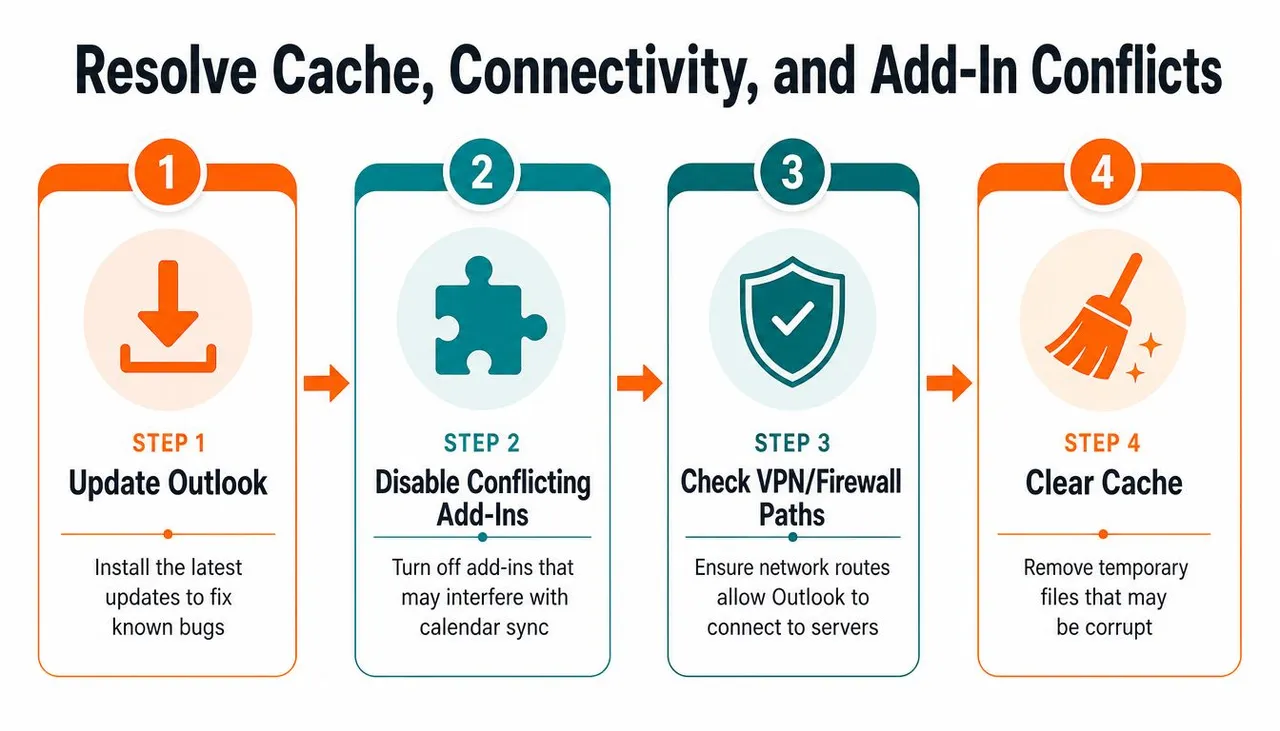
Once the web comparison shows that the server calendar is correct, investigate the local client. A cached copy can continue showing stale events after the server has accepted a change. Outlook add-ins, outdated builds, VPN paths, firewalls, and corrupted local data can all interfere with the client’s ability to retrieve current information.
Work from least invasive to most invasive
Update Outlook first. New Outlook for Windows has its own known-issue process, and Microsoft’s current guidance directs users to verify Outlook on the web, reset the account, clear offline items, or rebuild the cache depending on the symptom. A blank preview in new Outlook isn’t automatically evidence that the Exchange calendar is missing.
Next, disable calendar-related add-ins temporarily. In classic Outlook, a third-party meeting, conferencing, CRM, or synchronization add-in can affect how items are created or displayed. Test again after disabling the suspect extension, then re-enable add-ins individually if the calendar resumes normal behavior.
Network restrictions deserve a controlled test. Disconnect from the corporate VPN or try an approved alternate connection, then compare Outlook on the web and desktop again. If the browser works but desktop Outlook fails only on the VPN, involve your IT or network team rather than repeatedly deleting local data.
Don’t rebuild the profile while every Outlook client shows the same bad data. That pattern points away from a single-device cache.
Rebuild local data safely
For classic Outlook, close the application fully before rebuilding the OST cache. Rename the OST rather than deleting it, then reopen Outlook and allow the account to download a fresh local copy. Keep the original until the new profile has been tested and important data has been verified.
If the problem involves corrupted calendar items, Microsoft support guidance points administrators toward CalCheck, the Outlook Calendar Checking Tool, or a navigation-pane reset. These tools are more targeted than deleting everything immediately. Use them when a particular item, folder, or calendar view triggers the failure.
Create a new Outlook profile only after the web calendar is correct, authentication is valid, add-ins are excluded, and connectivity is stable. Verify the new profile in Outlook on the web after making a test change. If the server is wrong across clients, stop local repairs and escalate to the Microsoft 365 administrator or Microsoft support.
When Native Sync Is Not Enough and How SyncThemCalendars Helps
Native Outlook sharing works well when the calendar relationship fits Microsoft’s supported architecture. It becomes less predictable when freelancers, clients, and teams work across Microsoft 365 tenants, Outlook.com, Google Calendar, and Apple Calendar. In those cases, the problem may not be a broken client. The selected sharing model may not provide the real-time, two-way behavior people expect.
| Situation | Native Outlook approach | More suitable operating model |
|---|---|---|
| Same Microsoft 365 tenant | Use Exchange sharing and permissions | Keep one authoritative calendar |
| Cross-tenant collaboration | Expect sharing behavior to depend on the relationship | Use a controlled mirroring or connector layer |
| Outlook and Google Calendar | Use an available feed or connector | Choose one-way or two-way synchronization deliberately |
| Work and personal privacy | Share only necessary details | Mirror free/busy while masking event fields |
| Several provider calendars | Manage separate calendars manually | Use a dedicated cross-platform sync service |
Microsoft’s sharing guidance is especially important here. Instant synchronization is supported for users in the same Microsoft 365 tenant, or for calendars shared by an Outlook.com user. Cross-tenant users shouldn’t assume that clearing a cache will create instant updates where the sharing architecture doesn’t provide them.
A persistent sync layer makes sense when the business need is availability alignment rather than a perfect replica of every calendar field. Choose the direction carefully, decide which calendar is authoritative, and control whether titles, descriptions, and locations are copied or masked.
SyncThemCalendars’ Outlook calendar sync feature supports connecting Outlook calendars as sources or destinations and configuring one-way or two-way event synchronization with Google and Apple calendars. It’s an option for people who need ongoing cross-provider mirroring instead of repeated repairs to separate Outlook clients.
Verify Your Fix and Prevent Future Sync Problems
A calendar isn’t fixed because one missing meeting reappears. Test the complete path. Create a controlled event in the authoritative calendar, edit it, and remove it while checking Outlook on the web, desktop Outlook, mobile Outlook, and any shared-calendar view involved.
Use this final checklist:
- Create: Confirm the new event reaches each required endpoint.
- Edit: Change the time or title and verify that the permitted recipients see the update.
- Delete: Remove the test event and confirm it disappears where expected.
- Share: Check that delegates and shared-calendar users see changes according to their permissions.
- Observe: Allow for the documented sharing delay. Microsoft says periodic updates may arrive within three hours in most cases, so not every pause indicates a failure. Microsoft’s calendar-sharing documentation explains why sharing behavior varies by relationship.
Keep Outlook and mobile applications updated, review add-ins when a problem begins, and document which account owns each calendar. Write down whether the connection is Exchange, Outlook.com, IMAP, POP, CalDAV, or a third-party feed. That record prevents the next support person from treating a protocol limitation as a cache defect.
Escalate when the web, desktop, and mobile clients reproduce the same failure, when several users lose access at once, or when permissions and authentication appear correct. Choose automation instead when the calendars are structurally separate and your real requirement is dependable availability across providers.
If Outlook calendar not syncing is a recurring cross-platform problem, SyncThemCalendars can mirror events between Microsoft Outlook, Google Calendar, and Apple Calendar with one-way, two-way, or multi-way directions and privacy controls for copied details. Visit SyncThemCalendars to review the available calendar-sync approach and decide whether persistent mirroring fits your workflow.
Ready to sync your calendars?
Keep your Google, Outlook and Apple iCloud calendars in sync automatically. 2-minute setup, no credit card required.
Get started freeKeep reading
More in Tutorials

How to Synchronize Outlook Calendar Across Platforms
Learn how to synchronize Outlook calendar events with Google and Apple iCloud. Master two-way sync, privacy controls, and real-time availability mapping.
How to Sync Office 365 Calendar with Apple Calendar
Learn how to sync Office 365 calendar with Apple Calendar. Compare native methods, third-party tools, privacy controls, and troubleshooting tips.
Outlook Not Syncing: Step-by-Step Fixes for Calendars
Fix outlook not syncing across Google, iCloud, and Office 365 with this complete troubleshooting guide. Clear steps, platform-specific tips, and expert