







How to Sync iCloud with Google Calendar the Easy Way
Learn how to sync iCloud with Google Calendar using SyncThemCalendars for real-time, two-way sync. Step-by-step guide to connect and automate your calendars.
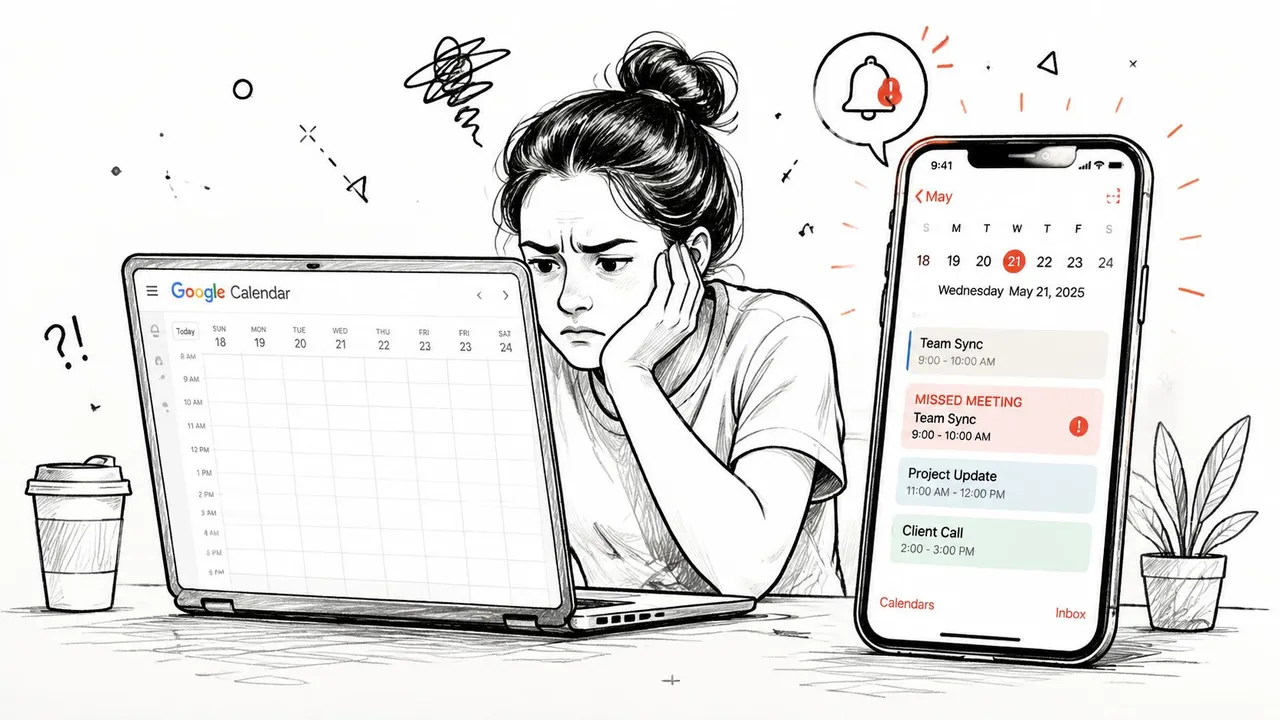
You’ve accepted a meeting on your iPhone, then opened Google Calendar to schedule another call and found the time completely clear. A few minutes later, two people expect you to be in two places. The problem isn’t that you forgot to check your calendar. The problem is that iCloud and Google Calendar don’t natively maintain a dependable, two-way relationship.
You can make one calendar visible in the other, but visibility isn’t synchronization. A public iCloud feed can be read by Google Calendar, yet it remains read-only and may refresh long after an event changes. If you need dependable availability, editable events, and privacy controls, a dedicated synchronization layer is the practical answer.
Why Native Syncing Falls Short
The most common setup looks simple. You publish an iCloud calendar, copy its public iCal address, and add that feed to Google Calendar under Other calendars. Your Apple events eventually appear in Google, so it feels as if the calendars are connected.
Then you move a meeting, add a personal appointment, or block time for travel. Google Calendar continues showing the old schedule. You book over the stale slot, and the conflict appears only when one of the attendees receives the invitation.
The native options are not equivalent
Google’s own documentation supports adding a Google account to Apple Calendar on an iPhone, iPad, or Mac. That route lets you view and manage Google events inside Apple’s calendar app, but it doesn’t create a complete bridge for events stored in iCloud and displayed in Google Calendar. The reverse route usually depends on a published iCloud calendar feed, as described in Google Calendar’s calendar-addition guidance.
That distinction matters. A subscribed iCloud calendar in Google is read-only on the Google side. You can inspect the events, but edits made there don’t travel back to iCloud. Apple users also report that the subscribed calendar can behave as a secondary calendar, which may not contribute to Google’s free and busy calculations, as documented in this Apple Support Community discussion.
Practical rule: If your purpose is only to glance at another calendar, a subscription can be acceptable. If your purpose is to protect availability, it’s the wrong tool.
Latency creates the real scheduling risk
The larger failure is timing. Google controls when it refreshes a subscribed iCloud feed. The delay can range from several minutes to as long as 24 hours, according to guidance on iCloud-to-Google calendar delays. Independent explanations also describe updates arriving after a couple of hours or after shorter intervals, even when the setup is correct.
That makes a public feed unsuitable for a high-change schedule. It can show that an event exists while still hiding the fact that the event moved. It can also expose a shareable calendar feed, creating a privacy trade-off that basic setup instructions often skip, as discussed in this privacy-focused calendar synchronization guide.
Publishing an iCloud calendar is therefore a one-way display workaround, not true synchronization. It’s useful for low-risk reference viewing, but professionals who schedule across personal and work accounts should use an automated service that can copy changes in the required direction and protect sensitive fields.
Setting Up SyncThemCalendars
A browser-based synchronization service avoids the repeated export, subscription, and refresh cycle. You connect the accounts once, select the calendars, define the direction of travel, and let the service maintain the relationship in the background.
The setup is designed to be completed without installing software on your computer. Use the following sequence on the Apple iCloud calendar sync page, then test the connection before relying on it for important scheduling.
Connect the accounts
-
Create your account. Open the SyncThemCalendars website and register with an email address you control. Confirm the account if prompted, then enter the dashboard.
-
Add Google Calendar. Choose the option to connect a Google account and complete Google’s authorization screen. Review the requested calendar permissions before approving access. Select the Google profile that receives your work or client invitations.
-
Add Apple iCloud. Start the Apple connection from the dashboard and follow the requested authentication process. Keep your Apple credentials separate from any service-specific credential the setup requests, and use the account associated with the calendars you want to synchronize.
-
Choose individual calendars. Don’t connect every calendar automatically unless you need all of them. Select the relevant iCloud calendar and its Google counterpart, such as Personal iCloud and Work Google Calendar.
Define the first sync relationship
After both accounts are authorized, create a sync relationship rather than assuming the connection alone will copy events. Select the source calendar, select the destination calendar, and choose whether the flow should run in one direction or both.
Pay attention to calendar identity. A personal iCloud calendar copied into a business Google account may need privacy masking, while a shared project calendar may require visible titles and locations. The correct pairing is more important than connecting every available calendar.
Before you finish, review the treatment of existing events and any duplicate-handling controls shown in the dashboard. Then create a test event with an unmistakable title, wait for it to appear on the other side, and edit or remove it according to the service’s instructions. This confirms that the selected calendars, account permissions, and sync direction are correct.
Setup advice: Test with a disposable event first. A successful account connection doesn’t prove that you selected the right calendar or configured the right direction.
One-Way Versus Two-Way Sync Options
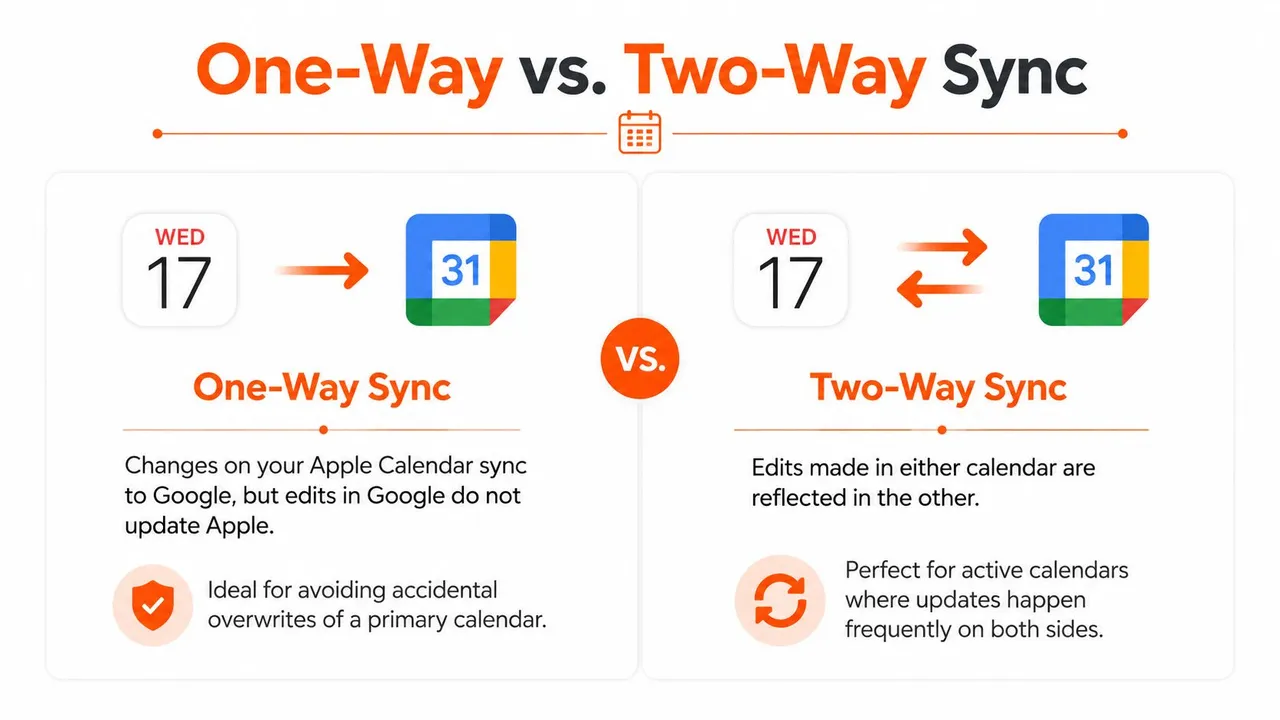
The right synchronization mode depends on who owns the schedule. One-way sync protects a primary calendar from edits coming from another system. Two-way sync treats both calendars as active sources, so a change made in either one can reach the other.
| Mode | How it works | Best fit |
|---|---|---|
| One-way | Events copy from a selected source to a destination. Changes in the destination don’t update the source. | A read-only mirror, controlled publishing, or a primary calendar that should remain authoritative |
| Two-way | Events and changes travel between both connected calendars. | A schedule managed across Apple Calendar and Google Calendar |
| Multi-way | Events can be distributed across several connected calendar systems. | People coordinating multiple workspaces, clients, or businesses |
Choose one-way when control matters most
Suppose Google Calendar is your official work schedule, while Apple Calendar is where you want to see work commitments on your iPhone. One-way Google-to-iCloud copying keeps the work calendar authoritative. You can view the events in Apple Calendar without creating a second editing surface that might overwrite the original.
The same model works when you publish availability from a private calendar into a shared calendar. The source remains under your control, and recipients see the copied information without becoming editors of the original.
One-way sync also reduces ambiguity when two calendars contain similar events. You decide which system owns the event, then treat the other as a display or availability layer.
Choose two-way for active scheduling
Two-way synchronization makes sense when you regularly create or edit events in both apps. A consultant might receive a client invitation in Google Calendar, add travel time in Apple Calendar, and then move the appointment from whichever device is nearby. Without two-way behavior, one of those changes can remain invisible to the other platform.
Use two-way calendar synchronization when both accounts represent active parts of your schedule. Before enabling it, decide how the service should handle matching events, titles, reminders, and deletions. Two-way sync is powerful, but it needs clear ownership rules to prevent duplicate copies or accidental changes.
Decision test: If you ask, “Where should I edit this event?” and the answer is “either calendar,” configure two-way sync. If the answer is one specific system, choose one-way sync.
Protecting Your Privacy While Syncing
Calendar synchronization doesn’t require you to expose every detail. Your colleagues may need to know that you’re unavailable, but they don’t need to see a medical appointment, a family event, or the location of a private meeting.
The public iCloud subscription method creates a shareable feed and offers no equivalent field-level privacy control. That’s the central weakness of the manual route. You gain visibility, but you give up control over what the feed reveals to anyone who obtains its address.
Separate availability from event detail
A useful privacy policy starts with the question, What does the receiving calendar need?
For many work scenarios, the answer is only a busy block. The destination calendar can show that you’re unavailable while hiding the title, description, attendees, and location. This preserves scheduling accuracy without copying personal context into a workplace account.
A dedicated service can support controls such as:
- Title masking: Replace the original event name with a neutral label such as Busy.
- Description removal: Prevent notes, links, and private instructions from crossing accounts.
- Location hiding: Keep addresses, meeting rooms, or travel destinations out of the destination calendar.
- Availability preservation: Continue showing the correct occupied period even when event details are hidden.
- Selective calendar pairing: Sync a personal calendar into a work account without exposing unrelated calendars.
These controls are more useful than making an entire iCloud calendar public. They let you choose what transfers at the relationship level instead of publishing everything through one feed.
Apply privacy rules before connecting real events
Set the privacy behavior before you begin production use. If you’re connecting a personal iCloud calendar to a business Google Calendar, start with masked titles and removed descriptions. Create a test appointment containing deliberately sensitive-looking information, then check what appears in Google.
Also review who can view the destination calendar. Privacy doesn’t stop at the synchronization service. A masked event can still reveal your availability pattern to people who have access to the receiving calendar, so use Google Calendar’s sharing permissions alongside the sync settings.
For a broader comparison of privacy-oriented approaches, consult this calendar sync app overview. The important principle is simple: accurate free and busy information and private event content are separate requirements. Configure them separately.
Troubleshooting and Choosing a Plan
When a calendar appears stuck, start with configuration rather than repeatedly refreshing the page. Check that the correct Google account is connected, the intended iCloud calendar is selected, and the destination calendar is visible. Account toggles, authentication settings, and organizational restrictions can prevent updates even when the calendar names look correct, as noted in this Apple account and calendar troubleshooting discussion.
Use this short diagnostic sequence:
- Confirm visibility. Make sure both calendars are enabled in their respective apps.
- Inspect the sync relationship. Verify the source, destination, and direction.
- Check authentication. Reauthorize the affected account if credentials or security settings changed.
- Test with a new event. Use a simple event to distinguish a delayed update from a configuration error.
- Review privacy rules. A masked event may look incomplete by design, not because synchronization failed.
Manual iCloud subscriptions can take several minutes or up to 24 hours to refresh, and that timing is outside the user’s control, according to documented iCloud-to-Google feed behavior. A background service removes the need to rely on that unpredictable public-feed schedule, but it still deserves a test event and periodic permission review.
Plan selection should follow the number of active sync relationships, not the number of events. SyncThemCalendars offers Basic with up to 5 syncs, Premium with up to 16, and Professional with up to 36 syncs, while all plans include unlimited events, according to the publisher’s plan information. A single personal-to-work connection needs less capacity than a consultant managing several client calendars or a business coordinating multiple platforms.
SyncThemCalendars connects Apple iCloud, Google Calendar, and other supported calendar systems with configurable one-way, two-way, and multi-way synchronization, plus controls for masking sensitive event details. Visit SyncThemCalendars to connect your calendars, test the correct sync direction, and replace stale public-feed workarounds with a managed background connection.
Ready to sync your calendars?
Keep your Google, Outlook and Apple iCloud calendars in sync automatically. 2-minute setup, no credit card required.
Get started freeKeep reading
More in Tutorials

Export Outlook Calendar to Google: A 2026 Step-by-Step Guide
Learn how to export Outlook calendar to Google with clear steps for ICS and CSV imports, recurring-event checks, and verification tips that work in 2026.

How to Synchronize Outlook Calendar Across Platforms
Learn how to synchronize Outlook calendar events with Google and Apple iCloud. Master two-way sync, privacy controls, and real-time availability mapping.
How to Sync Office 365 Calendar with Apple Calendar
Learn how to sync Office 365 calendar with Apple Calendar. Compare native methods, third-party tools, privacy controls, and troubleshooting tips.