





How to Sync iCloud Calendar with Google Calendar (2026)
Sync iCloud Calendar with Google Calendar fast. Discover the easiest method or use SyncThemCalendars for real-time two-way sync—no setup hassle.
Syncing an iCloud calendar with Google Calendar is entirely possible, as long as you use the right method.
Whether you simply want to view your events, transfer them, or keep your calendars perfectly synced, there are now several solutions available to suit every need.
Quick Answer: How to Sync iCloud Calendar with Google Calendar ? The easiest way to sync an iCloud calendar with Google Calendar is to share your iCloud calendar publicly and add its URL to Google Calendar.
This creates a one-way sync, meaning events from iCloud appear in Google Calendar but cannot be edited there.
Updates usually take 10 minutes to 24 hours to appear.
⚠️ Privacy first: sharing an iCloud calendar publicly makes it read-only but accessible to anyone who has the link — it is not password-protected. Don’t use this method for calendars that contain private or sensitive events. If privacy matters, prefer a private, API-based two-way sync tool (Method 3) instead.
Can You Sync iCloud Calendar with Google Calendar?
Yes, it is possible to sync an iCloud calendar with Google Calendar.
Native Sync Limitations
The native integration between Apple and Google only supports one-way synchronization. Events created in iCloud can appear in Google Calendar, but they cannot be edited from Google Calendar.
In summary:
- Apple and Google use different calendar systems.
- Google Calendar can subscribe to a public iCloud calendar using an iCal URL.
- This method only creates a one-way sync.
- Automatic two-way synchronization typically requires a third-party tool. I recommend SyncThemCalendars.
One-Way Vs Two-Way Sync
➡️One-way sync: Events are copied from one calendar to the other in only one direction. Events created in Calendar A appear in Calendar B. But if you create or modify an event in Calendar B, it may not sync back to Calendar A.
↔️Two-way sync: Both calendars update in both directions. If you add or modify an event in one calendar, the change automatically appears in the other.
To understand the difference, here is a quick comparison:
| Feature | ➡️ One-way sync | ↔️ Two-way sync |
|---|---|---|
| Direction | One direction | Both directions |
| Event updates | Events appear in the second calendar but cannot be edited there | Events stay synchronized in both calendars |
| Best for | Viewing events in another calendar | Keeping calendars fully synchronized |
Compare the Ways to Sync iCloud Calendar with Google Calendar
Why are there three methods? Because iCloud Calendar and Google Calendar are not designed to work together! There is no official “Connect iCloud to Google Calendar” button.
So users resort to workarounds. The three methods actually correspond to three different needs.
- Method 1 = default solution (simple).
- Method 2 = edge case (copy).
- Method 3 = advanced solution (real sync).
| What you want to do | Recommended method | Sync type | Can edit from Google Calendar | Ease of use |
|---|---|---|---|---|
| View your iCloud events in Google Calendar | Public iCal URL | One-way sync | 🔴 | 🟢 |
| Copy your iCloud events to Google Calendar once | Import an ICS file | No sync (one-time import) | 🔴 | 🟠 |
| Keep iCloud and Google calendars synchronized | Two-way sync tool ⭐ SyncThemCalendars | Two-way sync | 🟢 | 🟢 |
If you want to add your Outlook calendar to your Google Calendar, I’ve written a detailed article on this topic here.
Method 1: Sync iCloud Calendar with Google Calendar Using a Public URL
This method creates a one-way sync. It is the only native solution that requires neither third-party tools nor file exports or imports.
⚠️ Before you enable this: turning on Public Calendar makes that calendar readable by anyone who obtains the link. The link is read-only, but it is not password-protected, so treat it as public. Avoid this method for calendars containing private or sensitive events — for those, use a private two-way sync tool (Method 3) instead.
My unbiased opinion:
👍This method is perfect if you just want to view an iCloud calendar in Google Calendar.
👎But it won’t work if you need to edit your iCloud calendar from Google Calendar. In that case, you’ll need to move on to Method 3.
On Mac or PC (using iCloud.com)
Follow these steps to add your iCloud calendar to Google Calendar.
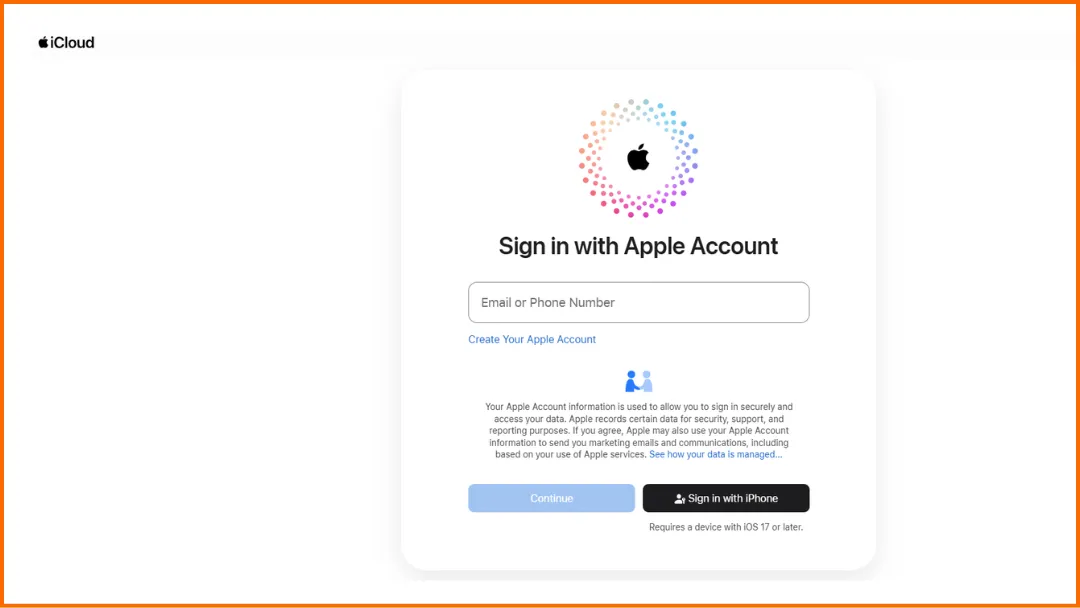
- Step 1: Go to icloud.com, sign in with your Apple ID, then click Calendar.
- Step 2: In the left sidebar, hover over the calendar you want to sync and click the broadcast icon (share icon). Enable Public Calendar.
- Step 3: Copy the calendar URL (iCal link) that appears.
- Step 4: Open Google Calendar in your browser. Next to Other calendars, click the + icon, select From URL, and paste the iCloud calendar link.
- Step 5: Wait for the events to appear. It may take some time for Google Calendar to display your events. Updates can appear within a few minutes, but in some cases it may take several hours.
📍Important:
- If you disable Public Calendar and enable it again later, Apple will generate a new iCal link. If Google Calendar is still using the old link, the calendar will stop updating.
- Events must be edited in iCloud. Edits made in Google Calendar will not sync back to iCloud.
💡If you need calendars to stay fully synchronized in both directions, you will need to use a third-party calendar sync tool such SyncThemCalendars.
On iPhone or iPad
You can also create the public calendar link directly from your iPhone or iPad.
- Step 1: Open the Calendar app on your iPhone or iPad.
- Step 2: Tap Calendars at the bottom of the screen to display all your calendars.
- Step 3: Find the iCloud calendar you want to sync and tap the ⓘ (info) icon next to it.
- Step 4: Enable Public Calendar. Turn on Public Calendar, a sharing link will appear.
- Step 5: Tap Share Link and copy the iCloud calendar URL (iCal link).
- Step 6: Open Google Calendar in a web browser, click the + next to Other calendars, choose From URL, and paste the iCloud calendar link.
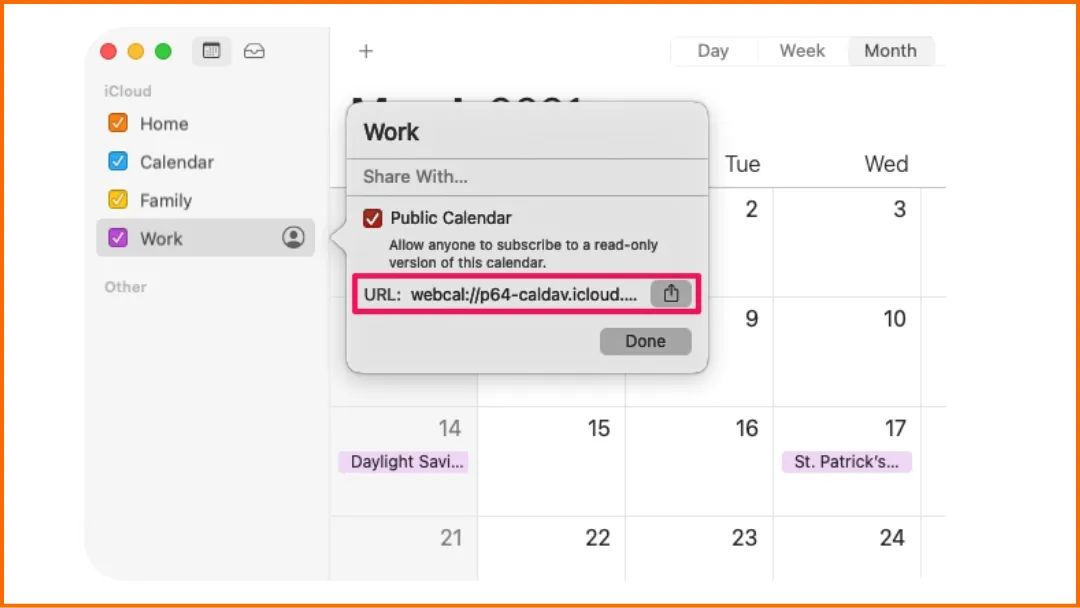
📍 Important: The Public Calendar option described here is specific to iCloud calendars. Google, Outlook, and Exchange have their own calendar-sharing tools (for example, Outlook lets you publish a calendar as an ICS link), so you won’t find this exact iCloud setting in those services.
👉 Prefer an interactive version of these steps? Our free add one calendar to another tool walks you through this exact iCloud → Google setup (and every other provider pair).
💡If you’d like to share a calendar on your iPhone, I also have a guide designed just for you. And if you live in the Apple ecosystem, here is how to keep your MacBook and iPhone calendars in sync.
Method 2: Import an iCloud Calendar into Google Calendar Using an ICS File
This method does NOT create a sync. It only imports a snapshot of the calendar events at the time of import.
This method is only useful in specific situations:
- Case 1 — Migration: “I’m switching from iCloud → I want to move everything to Google.”
- Case 2 — Backup: “I want to back up my calendar.”
- Case 3 — One-time use: “I want to copy events just once.”
Export the calendar as an ICS file
- Step 1: Go to iCloud.com, sign in with your Apple ID, then open Calendar.
- Step 2: Find the calendar you want to export,click the share (broadcast) icon, and enable Public Calendar.
- Step 3: Once the calendar is public, copy the iCal link provided by iCloud.
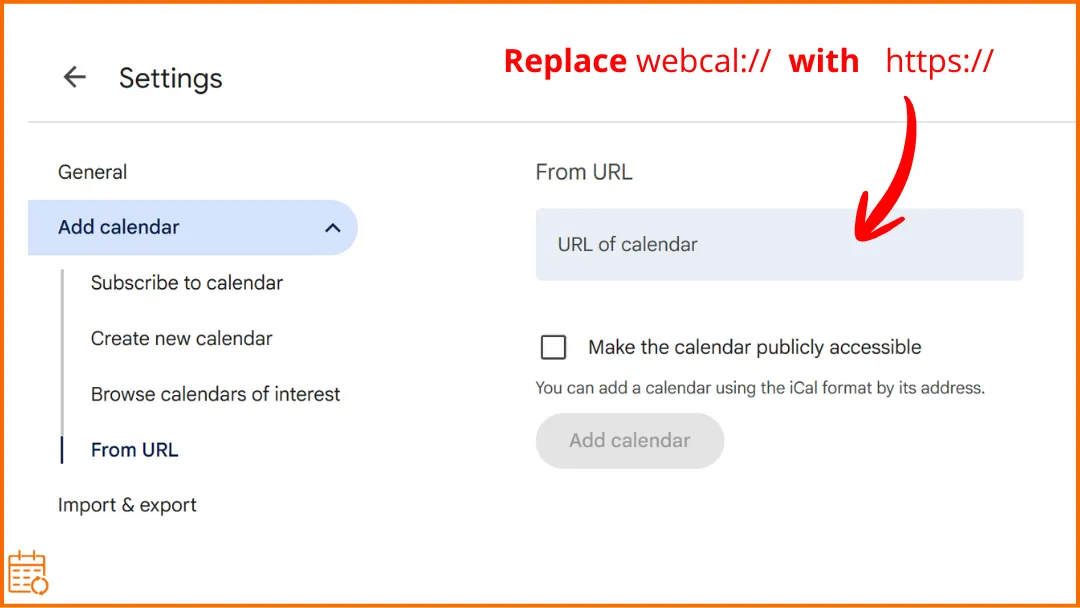
- Step 4: Paste the link into your browser’s address bar. If the link starts with webcal://, replace it with https:// first.
- Step 5: Open the link in your browser to download the calendar as an .ics file.
📍Important:
- The calendar must be public. If the calendar is private, iCloud will not generate a downloadable iCal link.
- Some browsers cannot open webcal links. If the link starts with webcal://, replace it with https:// in your browser.
- This method starts similarly to the previous one because you first need to generate the iCal link from iCloud. However, instead of subscribing to the calendar, you will download the ICS file and import it into Google Calendar.
Import the ICS file into Google Calendar
Once you have downloaded the ICS file, you can import it into Google Calendar.
- Step 1: Go to Google Calendar in your web browser.
- Step 2: Click the gear icon in the top right corner, then select Settings.
- Step 3: In the left menu, click Import & export.
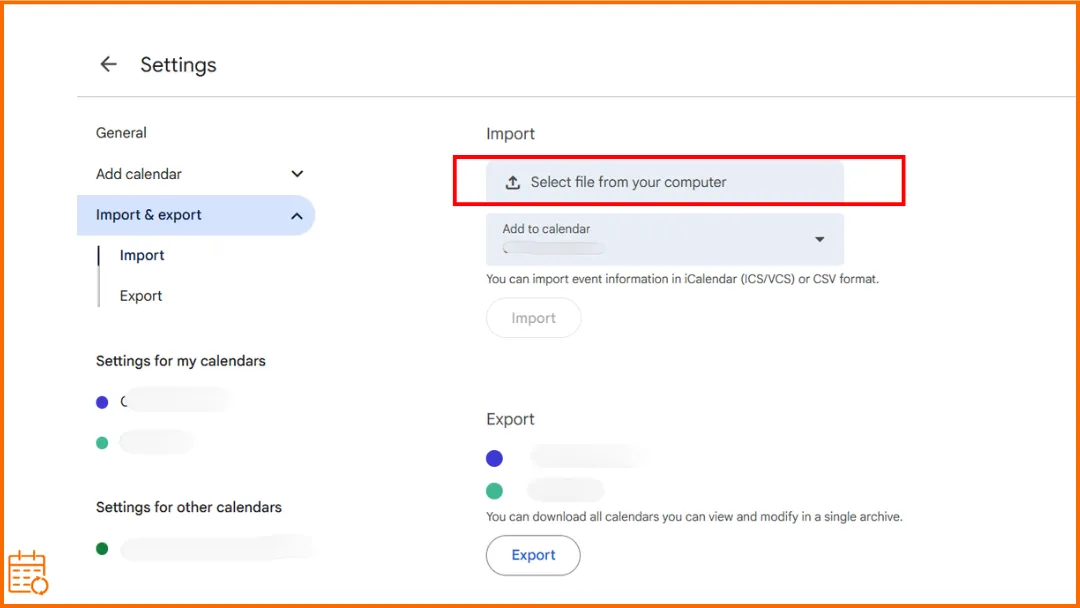
- Step 4: Under Import, click Select file from your computer and choose the ICS file you downloaded.
- Step 5: Select the Google Calendar where you want to import the events.
- Step 6: Click Import to add the events to your Google Calendar.
After the import, your iCloud events will appear in Google Calendar. However, any new events added later in iCloud will not be updated automatically.
📍Note:
- The link provided by iCloud is an iCal calendar link, which may start with webcal://.
- Importing an ICS file does not update existing events. If events change later in iCloud, you would need to export and import the calendar again.
Method 3: Use Tools for Two-Way Sync
The previous methods allow you to view or copy events, but they do not keep your calendars fully synchronized.
If you regularly use both iCloud Calendar and Google Calendar, you may need a solution that keeps events automatically updated in both directions.
👉A two-way sync tool keeps the calendars continuously synchronized, so changes made in either calendar are reflected in the other.
Example: Sync iCloud and Google Calendar with SyncThemCalendars
SyncThemCalendars is a tool designed to automatically synchronize calendars between platforms such as iCloud and Google Calendar.
Plus, it’s super easy to use.
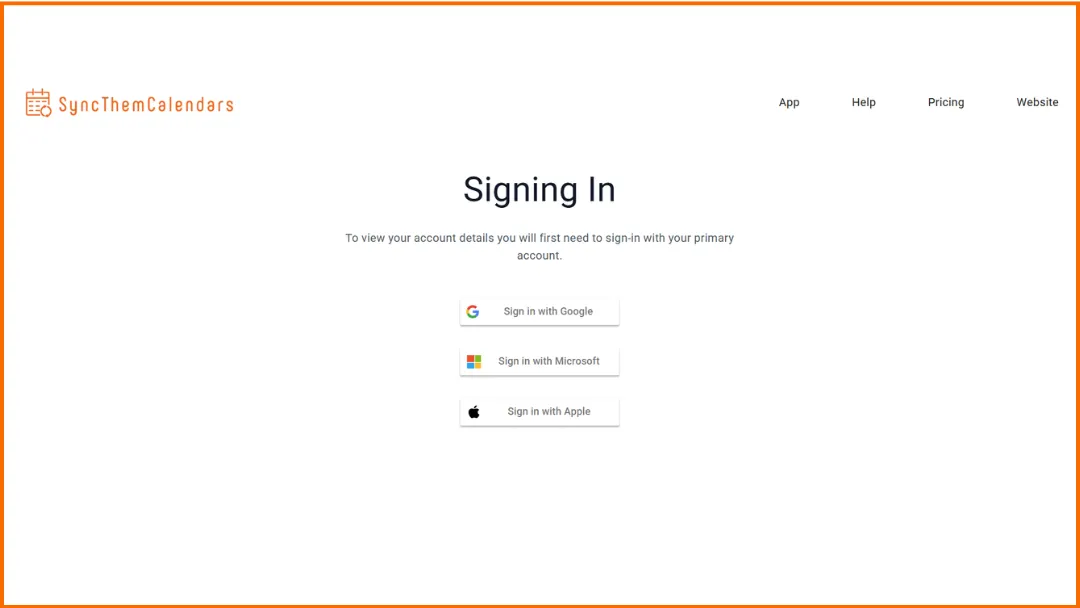
Step 1: Sign in with Google, Microsoft or Apple.
Step 2: Add your iCloud calendar.
Step 3: Choose the calendars to sync. Select the source calendar and the target calendar.
Step 4: Choose the sync type.
- One-way sync → copy events from one calendar to another.
- Two-way sync → keep both calendars automatically updated.
Step 5: Customize privacy settings. You can:
- show only free/busy availability.
- hide event details (title, description, etc.).
It’s already over!
Advantages of using SyncThemCalendars
Using a dedicated sync tool offers several advantages:
- Extremely easy to use.
- No need to export or import calendars.
- No public calendar links required.
- Near real-time updates.
- No credit card required for the 14-day free trial.
- Highly competitive pricing without compromising on quality.
Why Your iCloud Calendar Is Not Syncing with Google Calendar
Your iCloud calendar events are not showing in Google Calendar
Several issues may be causing this.
- Most common cause: the calendar is not public. Make sure the Public Calendar option is enabled in iCloud. Without it, Google cannot access your events.
- Another cause: the calendar is not enabled in Google Calendar. Check the Other calendars section and make sure your iCloud calendar is selected.
- Finally, there may be a sync delay. Google refreshes subscribed calendars periodically, so it may take a few minutes to several hours for events to appear.
If the issue persists, try removing and re-adding the iCal link in Google Calendar.
Google Calendar shows the calendar but no events
The issue is usually related to synchronization or the link used.
- Common cause: the calendar has not synced yet. After adding the iCal link, Google may take several hours to fetch and display the events.
- Make sure the correct link was used. Check that you copied the full iCal link and that it corresponds to the correct calendar.
- The calendar may be empty or not properly enabled. Make sure the iCloud calendar actually contains events and is enabled in Google Calendar.
If no events appear after several hours, try removing and re-adding the calendar using the iCal link.
New events take hours to appear
This is often normal.
The main reason is Google’s synchronization delay: Google Calendar does not update subscribed calendars in real time. It refreshes them periodically:
- within a few minutes,
- but sometimes after several hours, or even up to 24 hours.
💡If you need an almost instantaneous update, you should use a two-way synchronization solution (method 3).
You can’t edit events in Google Calendar
This is the number one question on Apple and Google forums. The answer is super simple: when you add an iCloud calendar to Google Calendar using a public URL, the synchronization works in one direction only. This means:
- Events from iCloud appear in Google Calendar.
- But events created or edited in Google Calendar will not sync back to iCloud.
Frequently Asked Questions
How Long Does iCloud Take to Sync with Google Calendar?
Google Calendar does not update subscribed calendars in real time. Instead, it refreshes them periodically, which can take from a few minutes to several hours, and sometimes up to 24 hours.
The time it takes for iCloud to sync with Google Calendar depends on how the calendar is connected.
- With the public iCal URL method (Method 1): Google Calendar refreshes subscribed calendars periodically, not in real time.
- With the ICS import method (Method 2): There is no synchronization at all. Events are imported once and will not update.
- With a two-way sync tool (Method 3): Updates are usually near real-time, depending on the tool used.
How do I merge iCloud and Google calendars?
Merging an iCloud calendar with Google Calendar depends on what you mean by “merge.” There is no native way to merge iCloud and Google Calendar.
You can view both calendars together (using an iCal link) or import events once (using an ICS file).
However, these methods do not create a true merge.
👉 For a real “merge,” you need two-way synchronization, which keeps both calendars automatically updated, using a tool like SyncThemCalendars.
Can Apple Calendar automatically sync with Google?
No, Apple Calendar does not automatically sync with Google Calendar by default.
Apple and Google use different systems, and there is no built-in feature to keep both calendars fully synchronized.
You can add an iCloud calendar to Google Calendar using an iCal link, but this only creates a one-way sync.
You can also import events manually, but this does not update automatically.
☄️ Try SyncThemCalendars for free and keep all your calendars synchronized. Google, Apple, Microsoft, it supports them all!
Ready to sync your calendars?
Keep your Google, Outlook and Apple iCloud calendars in sync automatically. 2-minute setup, no credit card required.
Get started freeKeep reading
More in Tutorials
How to Add Gmail Calendar to Outlook Without Duplicates
See how to add Gmail Calendar to Outlook by subscribing for a live view or using two-way sync, then avoid privacy leaks and duplicate events.
Export Outlook Calendar to Google: A 2026 Step-by-Step Guide
Learn how to export Outlook calendar to Google with clear steps for ICS and CSV imports, recurring-event checks, and verification tips that work in 2026.
How to Synchronize Outlook Calendar Across Platforms
Learn how to synchronize Outlook calendar events with Google and Apple iCloud. Master two-way sync, privacy controls, and real-time availability mapping.