







Import Google Calendar to Outlook: All Methods Explained
Learn every reliable way to import Google Calendar to Outlook, from .ics exports to live sync, plus fixes for recurring events and time zone issues.
You open Outlook before a client call and see a clear afternoon. Then Google Calendar reminds you about the internal review you scheduled from your personal account. Now you’re checking two windows, asking colleagues which calendar is current, and wondering whether a copied meeting is still accurate.
That’s the problem behind import Google Calendar to Outlook. The file transfer itself is straightforward. Choosing a method that preserves recurring meetings, respects time zones, and keeps availability current is harder. A one-time import gives you a snapshot. A subscription gives you read-only visibility. Workspace and Microsoft 365 interop gives administrators controlled, one-way access. A continuous sync service is the only practical fit when people must edit events on both sides.
Why You Might Be Living in Two Calendars
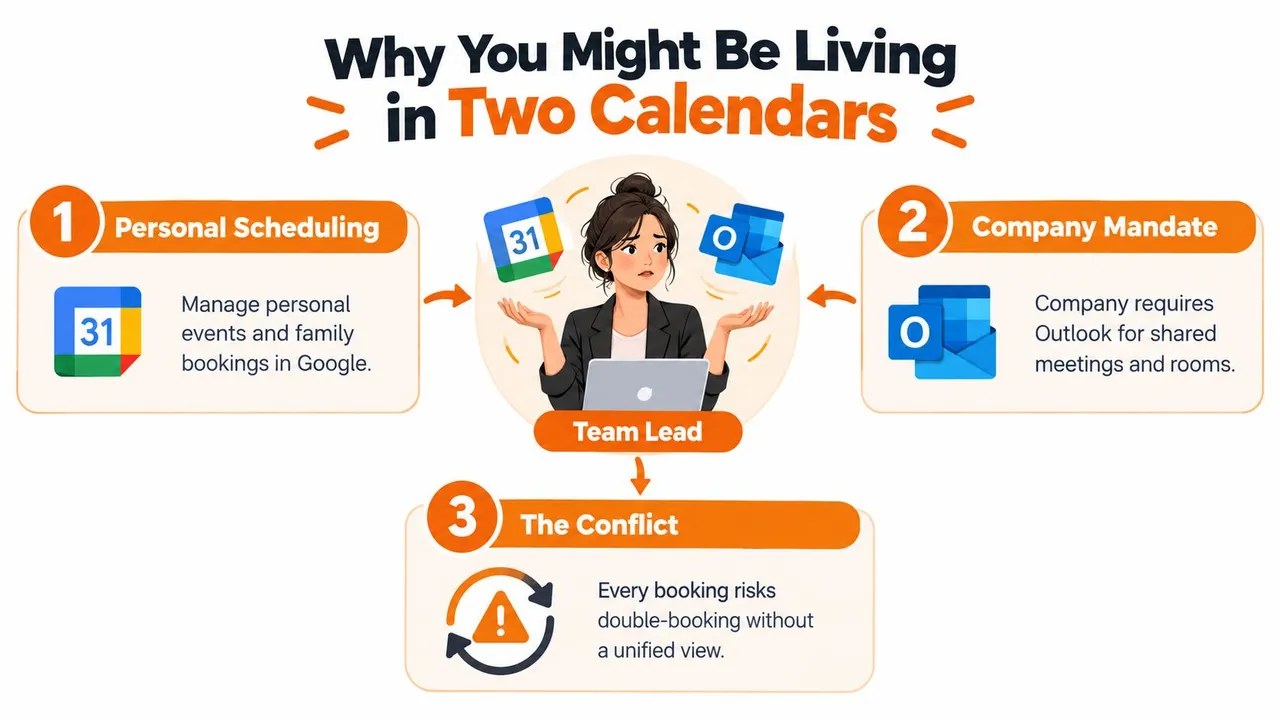
A team lead might manage personal appointments, family commitments, and freelance calls in Google Calendar while the employer requires Microsoft Outlook for shared meetings, rooms, and scheduling. Each calendar works well on its own. The trouble starts when the lead accepts an Outlook invitation without checking Google, or blocks personal time in Google without making that constraint visible to coworkers.
The right question isn’t “How do I connect these calendars?” It’s “What must happen after they’re connected?” The answer usually falls into one of four paths:
- One-time ICS import: Creates a fixed snapshot for migration, archiving, or historical reference.
- Outlook subscription: Displays a Google calendar feed as a read-only view.
- Workspace and Microsoft 365 interop: Provides administrator-controlled, generally one-way visibility between managed environments.
- Continuous sync tool: Copies changes between selected calendars and can support one-way, two-way, or multi-way workflows, depending on the product and configuration.
The traps hidden behind a successful connection
A calendar can appear connected while still failing operationally. Recurring meetings may lose exceptions or stop expanding after a limit. Events can display at the wrong local time when the source and destination interpret time-zone data differently. Free/busy information may appear in Outlook without giving Google users the same visibility.
Practical rule: Choose the method according to the action you need, viewing, copying, or editing. Those are different requirements.
This decision matters especially in mixed Outlook environments. Classic Outlook, Outlook on the web, new Outlook, Android, and iOS don’t always expose the same controls or behave identically. A setup that works for a personal account can still disappoint a managed business tenant.
Import an ICS Export From Google Calendar
Use an ICS export when you need a point-in-time copy, not an active connection. Microsoft’s documented Google Calendar and Outlook process supports exporting an iCalendar file from Google Calendar and opening or importing it in classic Outlook. The iCalendar format became the practical exchange layer between calendar ecosystems, which is why this old-looking workflow remains useful.
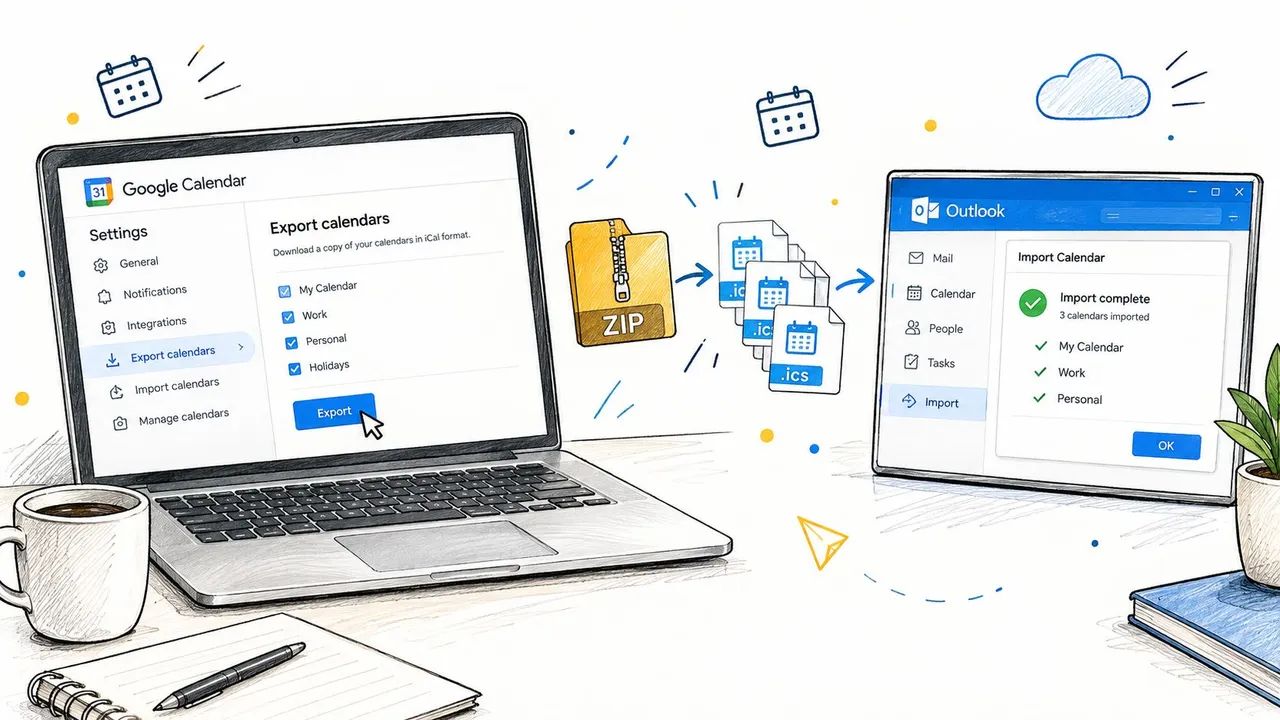
Export the Google calendar
On Google Calendar for the web:
- Open Settings and sharing.
- Select Import & export or the calendar export area, depending on the current interface.
- Choose Export calendars and select Export.
- Save the downloaded compressed ZIP file.
- Unzip it and identify the relevant
.icsfile.
Google exports each calendar as its own ICS file inside the compressed download. If you use a personal calendar, a work calendar, and a shared project calendar, you’ll need to inspect and process the files separately.
Import the file into Outlook
In classic Outlook, use:
File → Open & Export → Import/Export → Import an iCalendar (.ics) or vCalendar file (.vcs)
Choose the file, then select Open as New or Import, depending on the Outlook build and whether you want a separate calendar or merged events. Importing into a separate calendar first makes validation easier and reduces the risk of mixing an unverified copy with your primary schedule.
In Outlook on the web, use Add calendar → Upload from file, choose the .ics file, and select the destination calendar if Outlook presents that option. Microsoft’s Outlook import guidance covers file uploads and distinguishes them from subscriptions.
For a closer look at the file format before you migrate, see this guide to the ICS format in Google Calendar.
The critical limitation is easy to miss. An import is a static snapshot. New Google events, edits, cancellations, and recurring-event exceptions won’t appear in Outlook. Importing the same file again can also create duplicates, so repeated changes require a controlled replacement process, such as removing the old imported calendar before loading a fresh export.
The workflow is also vulnerable to recurrence loss. Google documents interoperability cases where Outlook or Exchange can drop or truncate recurrence data, including a maximum of 365 recurrences in Google Workspace and an example of a daily series beginning January 1, 2018, stopping on January 1, 2019, in the interoperability guidance. Long-running daily meetings and resource bookings deserve manual review after migration.
Subscribe to Google Calendar in Outlook
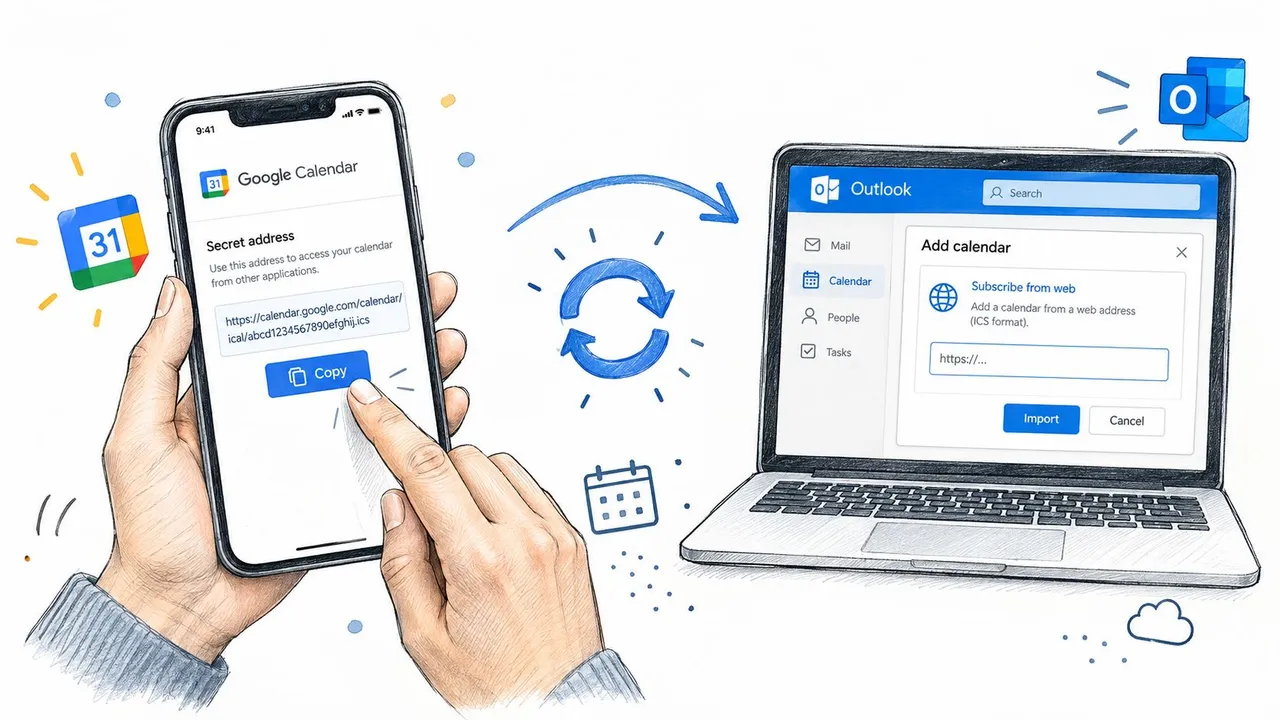
A subscription is better than an import when Outlook needs to show Google events over time without becoming the place where those events are managed. Google provides a calendar feed through Settings and sharing → Integrate calendar, where you can find a Secret address in iCal format or a public URL, depending on the calendar’s sharing configuration.
Treat the secret iCal address like a credential. Anyone who obtains it may be able to view the calendar feed, so don’t post it in a ticket, shared document, or public channel.
Add the feed in Outlook
In Outlook on the web:
- Open Calendar.
- Select Add calendar.
- Choose Subscribe from web.
- Paste the Google iCal URL.
- Name the calendar and save it.
In classic Outlook:
- Open File → Account Settings → Account Settings.
- Select the Internet Calendars tab.
- Choose New.
- Paste the iCal address and confirm the subscription.
Microsoft’s Outlook guidance distinguishes a subscription from a one-time import. The subscription is intended for ongoing visibility, while the uploaded ICS file is a migration snapshot.
What the feed does and doesn’t do
The feed is read-only from Outlook. If someone changes an event in Outlook, that edit won’t write back to Google. The feed can also feel delayed because Outlook polls for updates rather than receiving every change as an immediate push. Outlook on the web generally refreshes the subscription roughly every 24 hours, while classic Outlook commonly checks about every 60 minutes by default. Those refresh behaviors are described in Microsoft’s support material and can vary by client or service conditions.
You can usually request a refresh from the calendar’s context menu, but that doesn’t turn the subscription into real-time synchronization. If Google rotates or revokes the secret URL, the Outlook feed can stop updating until you replace it with the new address.
Use this method for a read-only personal agenda, a shared Google schedule, or a reference calendar that Outlook users need to consult without duplicating its events. Don’t use it when Outlook users need to edit the source, send changes back, or depend on instant availability.
Connect Google Workspace With Microsoft 365
Enterprise calendar interop is an administrator project, not a user-level import. Google Workspace and Microsoft 365 can be configured to expose calendar availability across systems, but the result depends on tenant settings, routing, licensing, and the fields each platform can interpret.
Google Workspace Calendar Interop requires the appropriate Google Workspace Calendar Interop license and configuration on both sides. Microsoft 365 administrators need to configure Exchange Online so the two environments can route calendar requests correctly. Google Workspace administrators also need to establish the interop connection and define which users or domains participate.
What administrators should validate
The exact administrative screens can change, but the design questions stay consistent:
- Identity matching: Confirm that Google and Microsoft identities map to the intended users.
- Tenant routing: Verify that Exchange Online and Google Workspace can route interop requests to the correct organization.
- Scope: Decide whether access covers selected users, groups, or the broader tenant.
- Visibility policy: Define whether users see free/busy information or broader event details.
- Authentication and permissions: Check whether organizational policies permit the required calendar access.
Interop is generally a one-way read from Google into Exchange in the scenario covered here. Outlook users may see Google-derived information, but edits made in Outlook don’t become Google events through this route. The enterprise framing can make it sound like a full synchronization bridge. It isn’t.
Event fidelity and privacy
Basic fields often map more cleanly than platform-specific features. Titles, times, and organizers are usually the most portable elements. Google Rooms, custom recurrence rules, conference attachments, working-location data, and other provider-specific metadata may not survive with the same meaning.
| Event Element | Maps Correctly? | Notes |
|---|---|---|
| Event title | Usually | The basic subject generally transfers as a recognizable event name. |
| Start and end time | Usually, if zones align | Incorrect or inconsistent time-zone settings can change how the event displays. |
| Organizer | Often | Identity mapping must be configured correctly across tenants. |
| Google Rooms | Not reliably | Resource identities may not have an equivalent Exchange object. |
| Custom recurring rules | Not always | Recurrence expansion and exceptions are common interoperability failure points. |
| Conference attachments | Not reliably | Provider-specific meeting links and attachments may not map cleanly. |
| Working location | Not reliably | Platform-specific location metadata may be omitted or simplified. |
Privacy deserves equal attention. Events from Google can become visible to Exchange users according to the interop policy, which may reveal more than a user expected. Administrators should test the policy with representative private, internal, and shared events before enabling it broadly.
Mobile account connections
Outlook mobile can also surface a Google account for individual users. In the Outlook mobile app, tap the calendar icon, tap the plus sign, choose Add an account, select Google, and complete the sign-in flow through the browser or Microsoft Authenticator when prompted. Grant the requested access so Outlook can read the calendar.
The mobile behavior has important caveats:
- Primary calendar first: Outlook mobile shows the primary Google calendar by default. Secondary calendars may need to be enabled through Google’s web interface.
- Android display: Google account events can appear in a separate color block, which helps distinguish their source but can make the view feel less unified.
- iOS data path: On iOS, the system calendar can act as the data source, so the result isn’t always controlled solely by the Outlook app.
- Write-back limitation: This account-addition path should be treated as a one-way read of Google data unless your specific environment documents broader support.
For teams that need reliable editing, attendee updates, and recurring exceptions across both platforms, native interop is usually a visibility layer rather than a complete operating model.
One-Time Import vs Real-Time Sync Compared
Feature checklists often blur four very different outcomes. An ICS export moves history. An iCal subscription displays a changing source. Workspace interop gives administrators a managed visibility path. A third-party continuous sync tool is designed for workflows where changes need to cross the platform boundary.
| Method | Direction | Recurring Events | Edits Propagate | Setup Effort |
|---|---|---|---|---|
| One-time ICS import | Google to Outlook, once | Requires validation, and some recurrence data can truncate | No | Low |
| Outlook ICS subscription | Google to Outlook, read-only feed | Depends on feed and client interpretation | Google changes may appear after refresh, Outlook edits do not return | Low |
| Workspace and Microsoft 365 interop | Generally Google to Exchange visibility | Platform-specific rules and exceptions may not map fully | Outlook edits don’t flow to Google | High, admin-led |
| Continuous two-way sync | Configurable between connected calendars | Depends on the selected tool, but should support exceptions explicitly | Yes, subject to conflict rules | Medium to high |
The best method depends on the operational consequence of being wrong:
- Historical migration: Use the ICS export. It’s the cleanest choice for a fixed archive or a platform move.
- Read-only display: Use an iCal subscription when users only need to see Google commitments in Outlook.
- Managed enterprise visibility: Use Workspace and Microsoft 365 interop when administrators control both environments and one-way access is acceptable.
- Cross-platform editing: Use continuous sync when people create, change, cancel, or reschedule events on both sides.
A useful resource for teams reviewing broader workflow tools is this guide to business software for saving time from Blu Dragonfly LLC. It’s relevant because calendar integration often sits inside a larger operations stack, rather than operating as an isolated technical task.
For the specific mechanics of keeping changes aligned, review this explanation of real-time calendar sync. The decision rule is simple: copy once, import; view continuously, subscribe; govern visibility, use interop; edit everywhere, choose continuous two-way sync.
Fixes for Recurring Events and Time Zone Issues
Calendar failures become easier to diagnose when you group them by symptom. Don’t begin by reinstalling Outlook. First identify whether the source file, recurrence rule, time-zone definition, refresh process, or mobile account is responsible.
Recurring series stop early
Google’s interoperability guidance documents cases where Outlook or Exchange drops or truncates recurrence data. Check the original Google event’s End repeat setting before exporting. If the series has a hard end and you need future instances, revise the source event and export it again.
If one instance was excluded or changed and the imported series no longer represents the schedule, recreate the series in Outlook rather than repeatedly importing the same file. That gives Outlook a native recurrence rule and lets you rebuild exceptions deliberately.
Events move to the wrong time
Google’s Calendar API documentation explains that recurring events require an explicit time zone because recurrence expansion depends on it. Inspect the ICS file for a DTSTART entry carrying a TZID, then verify Outlook’s calendar zone under File → Options → Calendar.
All-day events deserve a separate check. Google may represent them in UTC, while Outlook can reinterpret the boundaries according to the user’s local zone. Compare an affected all-day event across the Google web interface, the Outlook web interface, and desktop Outlook before changing the event itself. For teams working across regions, this guide to scheduling across time zones provides useful operational context.
Subscribed events don’t appear
Confirm that the iCal URL still resolves and that Google hasn’t rotated the secret address. Then force a refresh from Outlook’s calendar context menu. If classic Outlook is the client, administrators can review its refresh configuration, including the relevant registry-controlled interval, rather than assuming the feed is broken.
Mobile events vanish
Re-authenticate the Google account inside Outlook mobile and confirm that background refresh is allowed by the device and organizational policy. Also check whether the missing calendar is secondary, because Outlook mobile may show only the primary Google calendar until additional calendars are enabled.
When Continuous Two-Way Sync Is the Real Answer
A one-way view stops being enough when people edit events on both sides. The same is true when invitations must round-trip, or when rooms, vehicles, on-call schedules, and other shared resources cross Google and Microsoft environments.
Three signals usually justify evaluating a continuous sync service:
- Repeated reconciliation: Staff regularly compare calendars and repair recurring conflicts.
- Meaningful manual overhead: Someone spends more than an hour each week checking or correcting cross-platform scheduling.
- Scheduling Assistant dependence: Outlook users rely on availability that originates in Google and need that information to remain current.
Continuous sync isn’t automatically safe. Evaluate the mechanics behind it, not just the presence of a “two-way” label.
| Criterion | What to Look For |
|---|---|
| Authentication | Native OAuth rather than password scraping or shared credentials |
| Recurrence handling | Support for recurring events, modified instances, cancellations, and exceptions |
| Conflict resolution | Explicit rules for simultaneous edits, deletions, and source priority |
| Auditability | Logs showing what changed, when it changed, and which side initiated it |
| Security assurance | SOC 2 or an equivalent independently documented control framework |
| Privacy controls | Field masking for titles, descriptions, locations, and sensitive details |
| Commercial terms | Pricing per calendar, service-level commitments, data residency, and cancellation terms |
| Trial quality | A trial long enough to test real recurring schedules and a complete business cycle |
SyncThemCalendars is one representative option. According to its publisher information, it supports Google Calendar, Microsoft Outlook or Office 365, and Apple Calendar, with configurable one-way, two-way, or multi-way copies, free/busy mirroring, and controls that can mask copied event fields. Teams comparing products can also use IndieTool’s startup directory as one discovery source, then validate security and behavior directly with the vendor.
The honest buying test is practical. Connect a noncritical calendar, create a recurring event, modify one instance, change the time zone, cancel an occurrence, and edit the event from both clients. If the tool can’t preserve that sequence predictably, it isn’t ready for a production calendar.
SyncThemCalendars offers configurable synchronization between Google Calendar and Outlook, including one-way or two-way event copying, free/busy mirroring, and privacy controls for copied details. Visit SyncThemCalendars to test whether its continuous sync model fits your recurring-event, time-zone, and cross-platform editing requirements before you commit to a permanent setup.
Ready to sync your calendars?
Keep your Google, Outlook and Apple iCloud calendars in sync automatically. 2-minute setup, no credit card required.
Get started freeKeep reading
More in Guides

SyncThemCalendars Quick Setup Walkthrough
Master the SyncThemCalendars quick setup in minutes. Connect Google, Outlook, or iCloud, configure privacy masking, and verify your first sync effortlessly.

Merging Google Calendars: The Complete Guide for 2026
Merging Google Calendars. Learn the best ways to merge Google Calendars. Compare import methods, sync tools, and automation strategies

Master Your Calendar on Outlook with Sync Solutions
Learn how to use calendar on Outlook effectively, sync with Google and iCloud, avoid double-bookings, and connect SyncThemCalendars for seamless scheduling.