







Microsoft Outlook Calendar Sync: A Practical 2026 Guide
Master Microsoft Outlook calendar sync across Google, Apple, and mobile in 2026. Step-by-step setup, privacy controls, and fixes for common sync failures.
You open Outlook in the morning and the calendar is already lying to you. A client meeting you confirmed yesterday is missing on your iPhone, a personal appointment from Google is blocking the wrong slot in Outlook, and a coworker swears the shared calendar updated hours ago even though your desktop still shows the old time. That’s the shape of Microsoft Outlook calendar sync in 2026, not a clean “on” or “off” setting, but a stack of different systems that can agree, drift, or fail independently.
The fastest way to stop chasing ghosts is to separate the layers. Outlook on the desktop, Outlook on the web, mobile apps, Exchange or Microsoft 365 on the server, and any bridge to Google or Apple Calendar don’t all sync the same way, and they don’t fail the same way either. Microsoft’s own sync guidance makes that clear, because calendar behavior changes by account type, sharing relationship, and admin policy rather than by one universal sync engine. For a distributed team, that distinction matters more than any generic troubleshooting tip.
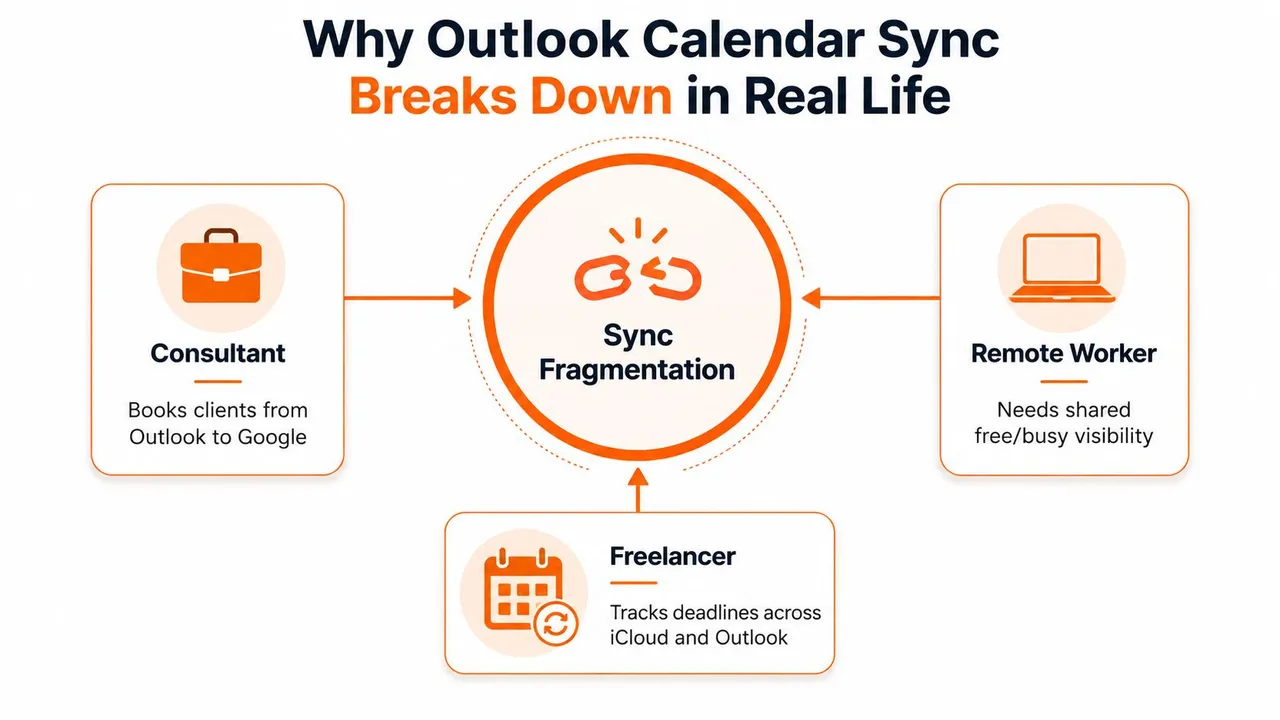
A consultant who books clients in Outlook, keeps personal events in Google, and checks the day on an iPhone is usually dealing with three different sync problems at once. A founder split across two Microsoft 365 tenants has a different issue again, because tenant-to-tenant sharing can update on a different cadence than same-tenant sharing. Microsoft documents instant updates for calendars shared inside the same Microsoft 365 tenant or from Outlook.com, and periodic updates within three hours in most cases for cross-tenant sharing when external sharing is enabled, so “late” can be normal depending on the topology. Microsoft’s sync basics guidance
The practical choice is simple. If you need basic Microsoft-to-Microsoft behavior, use native Outlook and Exchange. If you need phones to behave, fix the mobile account relationship. If you need Outlook, Google, and Apple to mirror each other with privacy controls, a bridge is the right category, not another reinstall.
Why Outlook Calendar Sync Breaks Down in Real Life
A freelancer sends a calendar link from Outlook, confirms the slot in Google, then checks the iPhone calendar and sees nothing. A sales rep in a managed corporate phone sees meetings on the Outlook app, but the native iPhone Calendar app stays blank. A founder with two companies in separate Microsoft 365 tenants gets different availability views depending on which mailbox they opened first. The pattern is always the same, the calendar is “fine” somewhere, but not everywhere at once.
Outlook is not one thing
The mistake is treating Outlook like a single product. In practice, you’re dealing with the server copy in Exchange or Microsoft 365, the desktop client cache, the web app, the mobile app, and sometimes a third-party bridge that copies data between platforms. Microsoft’s sync documentation for calendars makes this split explicit, because some sharing relationships update immediately while others update periodically, and account configuration changes the result. Microsoft’s sync basics guidance
That’s why “calendar not syncing” is usually the wrong diagnosis. A meeting can exist on the server and still be invisible in a local Outlook profile, or visible in Outlook but hidden from a phone because the phone is attached to the wrong account relationship. The visible symptom isn’t the failed layer.
Practical rule: always ask where the source of truth lives before changing anything. If the server copy is correct, the fix is usually local. If the server copy is wrong, the problem sits higher up in the write path.
The real-life scenarios are messy for a reason
Microsoft’s own troubleshooting split for phone and tablet issues points to different failure points, including server-side sync, ActiveSync relationships, add-ins, cached mode, and corrupted items. That’s useful because it matches how people work, with one calendar living in Outlook, another in Google, and another in Apple Calendar. Microsoft’s phone and tablet sync guidance
A better way to read the problem is by topology. Same-tenant Microsoft 365 sharing behaves differently from cross-tenant sharing. Desktop cache behaves differently from mobile push. A bridge between Outlook and Google behaves differently from a phone that’s just signed into the wrong profile. Once you accept that, the fix list gets shorter, not longer.
This guide follows that model. Native Microsoft tools come first, because they’re enough for a lot of internal enterprise use. Mobile setup comes next, because that’s where the most visible failures happen. Then come third-party bridges for people who need cross-platform coverage or privacy-aware availability mirroring that Microsoft’s native sharing doesn’t really solve.
Syncing Outlook With Google and Apple Calendar
If your goal is visibility first, native calendar routes can cover part of the job. Outlook can publish a calendar, Google can subscribe to a calendar feed, and Apple Calendar can subscribe to internet calendars as well. The limitation shows up fast, because these paths are usually one-way subscriptions, which makes them useful for display and coordination, but not for full two-way cooperation.
Start with what each platform can actually do
For Outlook to Google, the clean native path is usually an ICS subscription. You publish or obtain the calendar feed from Outlook on the web, then subscribe to that feed in Google Calendar. That gives you a read-only view in Google, which works well if you want work meetings visible while keeping personal scheduling in Google. The same logic works in reverse if you want a Google calendar to appear inside Outlook.
Apple Calendar works in a similar way. It can subscribe to internet calendar feeds, and it can also work with calendar accounts that support native sync protocols. The practical limit is the same one you will hit elsewhere, subscriptions refresh on their own schedule, not in real time, and they usually do not carry the full event-editing experience with them. If you need full collaboration, this path falls short.
| Method | Direction | Refresh Speed | Best For |
|---|---|---|---|
| Outlook calendar subscription to Google Calendar | One-way | Delayed by subscription refresh | Visibility into work meetings |
| Google calendar subscription into Outlook | One-way | Delayed by subscription refresh | Seeing personal time inside Outlook |
| Apple Calendar internet subscription | One-way | Delayed by subscription refresh | Read-only calendar display |
| Native account integration | Depends on provider support | Better than subscriptions, but not universal | Users who want calendars in the built-in app |
If you want a deeper comparison of native and bridge-based options, the calendar sync with Google guide is a useful companion when Google sits in your stack, and if you need a setup walkthrough, see synchronize Google Calendar and Outlook step by step.
Use Outlook on the web when you need the feed
The source feed usually starts in Outlook on the web, not the desktop client. That matters because calendar publishing and sharing settings are often easier to find there, and the server copy is the one other apps subscribe to. If the calendar feed is stale, broken, or private when it should not be, fix the published source before touching Google or Apple.
Permissions are the hard limit. If you expect attendee status, meeting notes, or private details to travel through a subscription, it will not behave like a true sync relationship. Subscriptions are for showing time, not recreating every calendar action across systems.
Rule of thumb: if the other calendar only needs to know you are busy, native subscriptions are often enough. If the other calendar needs to edit, respond, or preserve details accurately, you are past native subscription territory.
Getting Outlook Calendar on iPhone and Android
Mobile is where sync complaints turn urgent, because people treat the phone as the source of truth for the day. The first decision is whether the calendar should live in the Outlook mobile app or in the phone’s native calendar app after the account is added directly.
Start with what each platform can do
If you install the Outlook mobile app, you are choosing Microsoft’s client as the front end. It shows the Microsoft 365 or Exchange server view and keeps Outlook in control of how the calendar appears. If you add the account natively on iPhone or Android, the operating system’s calendar app becomes the front end, and ActiveSync or Exchange-based push behavior decides how quickly items appear.
That choice changes the diagnosis. A person who says “my calendar isn’t syncing on iPhone” may have an Outlook app that is working normally while the Apple Calendar app stays empty because the account was never added correctly in iOS. Another user may have the native calendar working fine, while Outlook mobile is signed into a different mailbox.
On a managed phone, that isn’t a calendar bug, it’s a policy decision wearing a calendar mask, and the fix lives in MDM settings, not calendar apps.
Watch for the common mobile failure points
The failures are usually ordinary, but they still break trust fast. Duplicate calendars show up after someone adds the same account twice. Events disappear after a phone restore because the account never fully reattached. Battery-saving settings slow push delivery, so the phone stops checking often enough to feel current. On Android, the difference between a work profile and a personal profile can decide whether corporate calendar data is allowed to appear in the native app.
Corporate device management can make the picture harder to read. Mobile device management policies sometimes block sync behavior without making the cause obvious to the user, which is why a calendar can look broken on a managed phone while working normally on web or desktop. In practice, the fault sits in policy, enrollment, or profile separation, not in the calendar layer itself.
If you are replacing aging hardware, the device still matters. A clean setup on a reliable phone is easier to trust than an old handset that has been restored multiple times and is carrying stale account state. If you are comparing options, best refurbished iPhones can be a practical starting point when you want a stable device without paying for the newest model.
For iPhone-specific setup details, the calendar sync with iPhone guide covers the account-side decisions in more depth.
One-Way, Two-Way, and Free/Busy Sync Explained
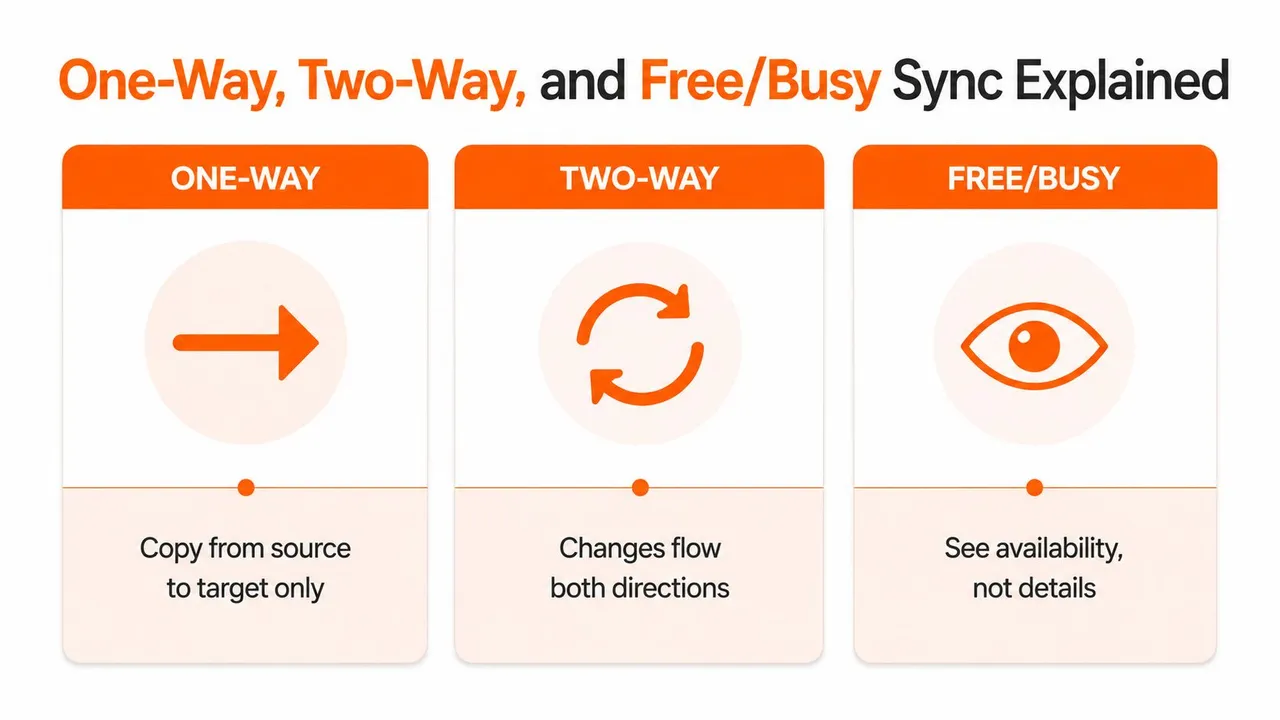
The biggest mistake people make is asking for “sync” when they really want one of three different behaviors. Those behaviors are one-way copy, two-way synchronization, and free/busy mirroring. They solve different problems, and using the wrong one is how teams create duplicate events and confusing calendars.
One-way copy is for visibility and control
One-way sync is the simplest model. You pick a source calendar and copy events into a target calendar, but changes made on the target side don’t flow back. That’s useful when you want one calendar to stay authoritative, such as a work Outlook calendar feeding a personal Google calendar or a personal calendar blocking time on a work calendar without becoming editable from both sides.
This model fits people who want separation. A founder can keep personal appointments in Google and let them block Outlook time without letting work edits alter the personal record. A student can do the same between school and personal calendars. The point is not collaboration, it’s controlled visibility.
Two-way sync is powerful and dangerous
Two-way sync makes both calendars writable. That sounds ideal until both sides start trying to manage the same event. Then you get duplicate meetings, loops, or ghost updates that appear and disappear depending on which app last won the conflict.
A two-way setup is only sensible when both systems need to remain active sources, and both users understand the rule set. That usually means a small team, a couple of tightly controlled calendars, or a deliberate bridge between two organizations that accept the operational complexity. Outside those cases, two-way sync creates more cleanup than value.
Free/busy is the privacy-first option
Free/busy mirroring sits in the middle. It exposes availability without exposing the event title, description, or location. That’s the right model for consultants, sales teams, entrepreneurs, and students who want to stop double-booking without handing over sensitive context. A client sees open time. They don’t see that you’ve reserved it for “doctor appointment” or “board prep.”
For teams that need scheduling tied to business operations, the same logic shows up in adjacent tools too. A platform with scheduling that syncs with billing solves a related problem by keeping availability aligned with downstream workflow, but the privacy question still decides whether you need full copy, two-way, or only free/busy.
Practical warning: if you don’t need the event body to move, don’t sync the event body. Most calendar failures get uglier, not simpler, when people overshare fields they never meant to duplicate.
When a Third-Party Sync Service Makes Sense
Native Microsoft tools are fine when you stay inside Microsoft. They get awkward the moment Outlook has to behave like a bridge between Google and Apple, or when you want to show availability without exposing the substance of the event. That’s where a dedicated sync service fits, because the job is no longer “view this calendar,” it’s “keep several calendars aligned under different privacy rules.”
The ceiling of native tools
Microsoft’s own sync behavior is designed around Exchange, tenant relationships, and account-level sharing rules. That works well for internal collaboration, but it’s not the same thing as full cross-platform mirroring. Once one side is Google and the other is Apple Calendar, the native paths turn into subscriptions, partial sharing, or client-specific account setup.
A bridge is useful when you need the calendars themselves to stay in step. SyncThemCalendars is one example. It connects Google Calendar, Microsoft Outlook or Office 365, and Apple Calendar iCloud in real time, and it supports one-way, two-way, or multi-way sync directions. It also offers field masking, so you can copy availability without exposing titles, descriptions, or locations. That’s the difference between “I’m busy” and “here’s everything on my day.”
Privacy is the real use case
The advanced use case isn’t just convenience. It’s privacy-preserving availability mirroring. Consultants, founders, and sales teams often need outside calendars to respect their time without revealing the content of the appointment. Microsoft support material is mainly about making calendars sync at all, not about selective field masking, which is why bridge tools fill a real gap.
Setup also matters. If a tool needs constant babysitting, users won’t keep using it. A web-based bridge with background operation and a short initial setup has a real advantage because it reduces the maintenance burden after the first connection. For people comparing options in the category, the best calendar sync app discussion helps frame what to look for beyond marketing language.
The right test is simple. If your calendars live in one Microsoft tenant and you only need basic sharing, native tools are enough. If your schedule spans Outlook, Google, and Apple, and you need the same availability picture everywhere without leaking sensitive event details, a third-party bridge is the category to look at.
Troubleshooting by Sync Layer Instead of Guessing
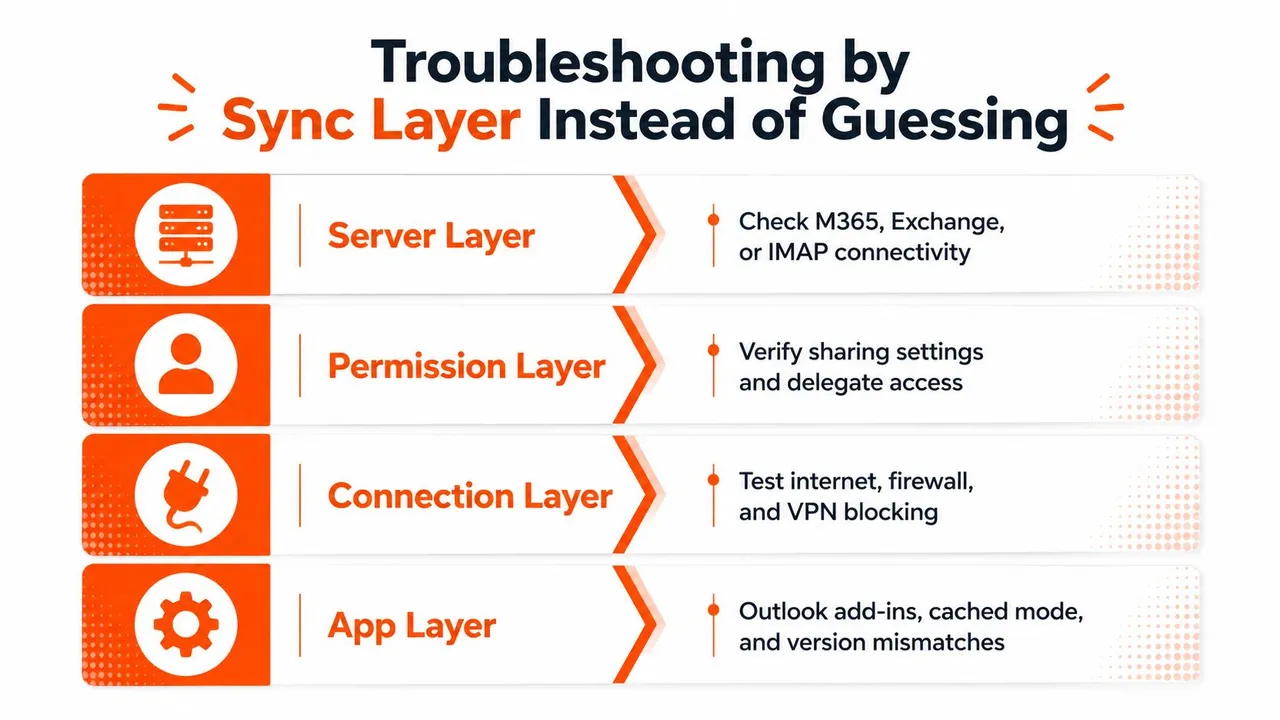
Broken calendars usually get debugged with the same unhelpful advice. Restart the app, reinstall the app, clear the cache, try again. That wastes time because it never identifies which layer is failing. The practical way to diagnose Microsoft Outlook calendar sync is to isolate the server, desktop client, mobile client, and bridge separately.
Server layer first
If Outlook on the web shows the right calendar and the desktop app does not, the server is probably fine. If the server copy is wrong too, fix the account relationship, sharing permission, or mailbox-side configuration before anything else. Microsoft’s account sync guidance points to using the right account type, especially Microsoft 365 or Exchange instead of IMAP or POP, because the wrong account type changes what can sync at all. Microsoft’s Outlook account sync guidance
Microsoft also explains why cache settings mislead users. In Cached Exchange Mode, the calendar sync window can be set to 1, 3, 6, or 12 months, with 6 months as the default if nothing is configured. An event can exist on the server and still disappear locally because it falls outside the cache window. Microsoft also documents recurring items within or after a one-year threshold as part of shared-calendar sync behavior in Outlook for Windows, which shows that longer-horizon calendar continuity is part of the newer sync model. Microsoft’s cached mode and calendar window guidance
Desktop client next
If the server copy is correct but Outlook desktop is stale, check the profile and the OST cache. Cached mode can hide items outside the local range, and a corrupted cache can make one folder look damaged while the mailbox itself is healthy. Rebuilding the OST is tedious, but it is still faster than chasing a phantom server issue when the mailbox is fine.
Add-ins can complicate this too. A calendar-related add-in that hijacks meeting creation or modifies items after save can make sync look inconsistent even when the core connection is stable. If disabling an add-in makes the problem disappear, the issue lived in that specific extension.
Mobile and bridge layers last
On mobile, the usual culprits are duplicate accounts, push throttling, and managed-device policy. If Outlook mobile is current but the built-in calendar app is not, the native OS account connection is the problem. If both are wrong, check the mailbox relationship and policy state.
Bridge failures look different. A third-party sync service can fail because an authorization token expired, a connected account was revoked, or a background permission changed. Start at the source if the source calendar is already incorrect. Then move outward.
Putting It All Together
Match the tool to the layer that is failing. Native Microsoft tools handle Microsoft-to-Microsoft sync inside Exchange or Microsoft 365. Phone issues usually sit in the mobile account relationship, so fix the calendar account on the device instead of chasing the desktop client. Use a third-party bridge when Outlook, Google, and Apple need to mirror each other with privacy controls, especially if you want free/busy mirroring rather than full event detail sharing. Check the layer first, then change the tool.
A short checklist usually gets to the fault faster than random resets. Confirm the account type, confirm the sync window, confirm the refresh interval, confirm the privacy settings, and confirm whether mobile push is allowed on the device. If one of those is off, the problem is usually configuration, not a broken calendar.
If the server copy is wrong, fix the mailbox or Exchange-side rule. If the desktop client is stale, look at the profile and the OST cache. If the phone is out of sync, check the native account connection, duplicate accounts, and device policy. If a bridge is drifting, inspect the authorization token, the connected account, and any background permission that changed. That layer-by-layer check catches more failures than guessing at the app.
If your schedule spans Outlook, Google, and Apple and you need aligned availability without exposing event details, SyncThemCalendars offers one-way, two-way, and multi-way sync with field masking. Visit SyncThemCalendars to evaluate fit for your setup.
Ready to sync your calendars?
Keep your Google, Outlook and Apple iCloud calendars in sync automatically. 2-minute setup, no credit card required.
Get started freeKeep reading
More in Guides

Synchronize Apple Calendar with Outlook: A 2026 Guide
Step-by-step guide: Synchronize Apple Calendar with Outlook on Windows, iPhone and Mac, with two-way options, privacy trade-offs and fixes.

SyncThemCalendars Quick Setup Walkthrough
Master the SyncThemCalendars quick setup in minutes. Connect Google, Outlook, or iCloud, configure privacy masking, and verify your first sync effortlessly.

Merging Google Calendars: The Complete Guide for 2026
Merging Google Calendars. Learn the best ways to merge Google Calendars. Compare import methods, sync tools, and automation strategies