







How to Merge Multiple Outlook Calendars Without Losing Data
Learn how to merge multiple Outlook calendars using overlay, import/export, groups, and sync tools. Step-by-step methods, pros and cons, and fixes included.

You’ve got a personal Outlook.com calendar, a Microsoft 365 work mailbox, and a client calendar shared through an invitation. Outlook shows all three, but your meetings still live in separate places, edits don’t necessarily travel, and a copied recurring appointment can become a duplicate. The practical question isn’t how to merge multiple Outlook calendars. It’s what you need the result to do.
You have three legitimate goals. You might want to see everything at once, without moving any data. You might want to copy calendars once into a single destination, creating one permanent collection of events. Or you might need to keep separate accounts synchronized indefinitely, so changes made in one system reach the others. Outlook handles these goals through different methods, and choosing the wrong one is how calendar projects turn into cleanup work.
Why Merging Outlook Calendars Is Harder Than It Sounds
Outlook doesn’t provide one universal Merge button. Microsoft’s native calendar model is additive. You open calendars under My Calendars, compare them in parallel, and can work with calendars you created or calendars shared by other Outlook users. That long-standing design makes overlaying practical, but it doesn’t turn separate data stores into one editable calendar. Microsoft’s Outlook Calendar documentation describes multiple-calendar viewing as a core capability, while its feature comparison also keeps group calendars and delegate access available across classic and new Outlook.
The distinction matters because “combined” can mean three different things:
- See everything at once: Use overlay mode and calendar groups. Outlook leaves every event in its original calendar, so there’s no export, import, permission change, or data movement.
- Copy once into one calendar: Export the source calendar to a PST file, then import it into the destination. The destination receives copies, but those copies aren’t live links to the originals.
- Keep them synced forever: Use sharing, an ICS subscription, or a dedicated synchronization service such as SyncThemCalendars. The calendars remain separate while a connection keeps selected events aligned.
Academic research shows why this distinction is so useful. In a study of 30 participants, people shared 88 calendars total, with a mean of 2.93 calendars per person and a median of 2. The researchers found that 20 of 30 participants actively partitioned information across multiple shared calendars, and the most active users had 15 or more calendars visible at the same time. The study is available in the research paper on multi-calendar behavior.
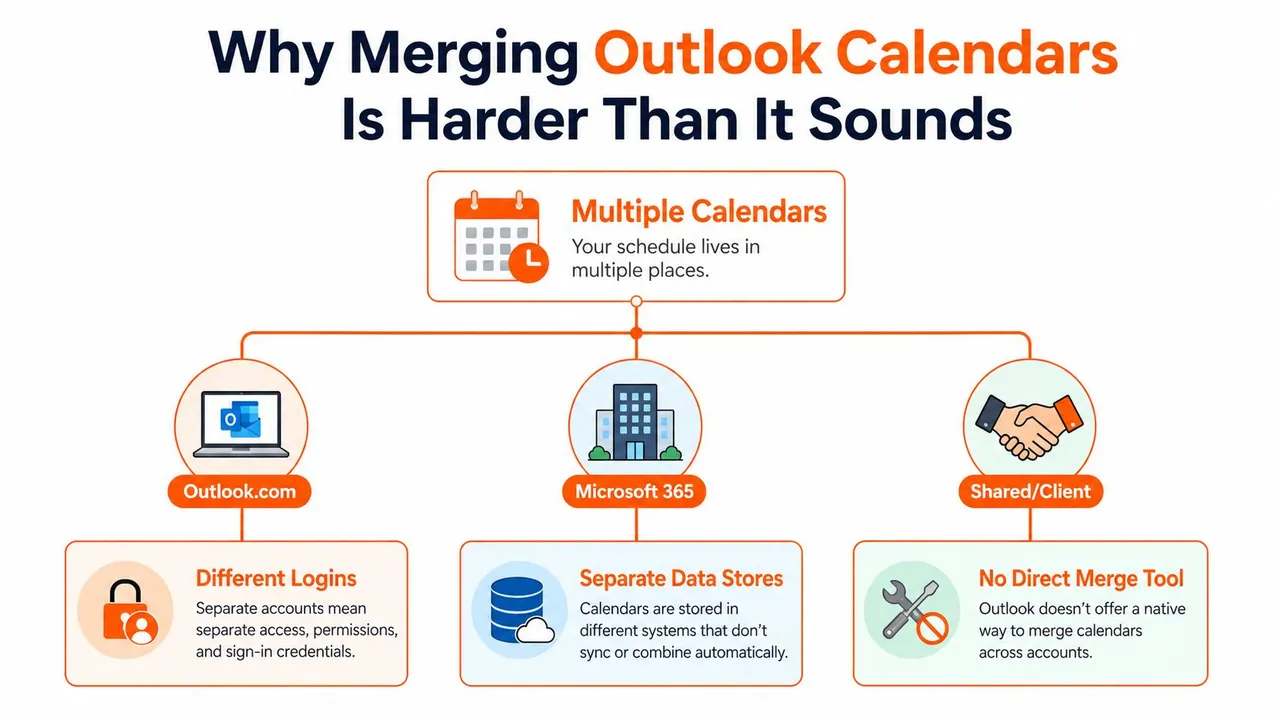
A work calendar, a family calendar, and a client calendar often need to overlap for availability, but they may have different owners, permissions, privacy expectations, and sign-in contexts. Decide whether you need a display, a one-time copy, or an ongoing connection before touching the source data. Every method below maps to one of those outcomes.
See Everything at Once with Overlay View and Calendar Groups
If your only problem is fragmented visibility, don’t start by importing anything. Overlay view is the safest approach because it changes the grid, not the underlying calendars. Your work appointments stay in the work mailbox, personal events stay personal, and a shared client calendar remains governed by its owner’s permissions.
Use overlay mode in Outlook desktop
Open Calendar in classic Outlook, select the View tab, and look in the Layout group for the overlapping-squares control. Select it to enter overlay mode, then check each calendar you want to see. Outlook assigns each calendar a color, allowing you to distinguish the source of an event while viewing the schedules on one grid.
In new Outlook for Windows, open the calendar view and use View, then Overlay. Outlook on the web exposes the same idea from the calendar sidebar, where you can select the calendars you want displayed together. The exact placement can vary by Outlook version, but the function remains display-only.
Organize contexts with Calendar Groups
Calendar groups are useful when you switch between scheduling contexts. In the calendar navigation pane, right-click My Calendars, choose Create New Group, and give the group a practical name such as All Work, Personal, or Client X. Drag the relevant mailbox or shared calendars into that group. You can then turn the entire group on or off instead of selecting calendars individually.
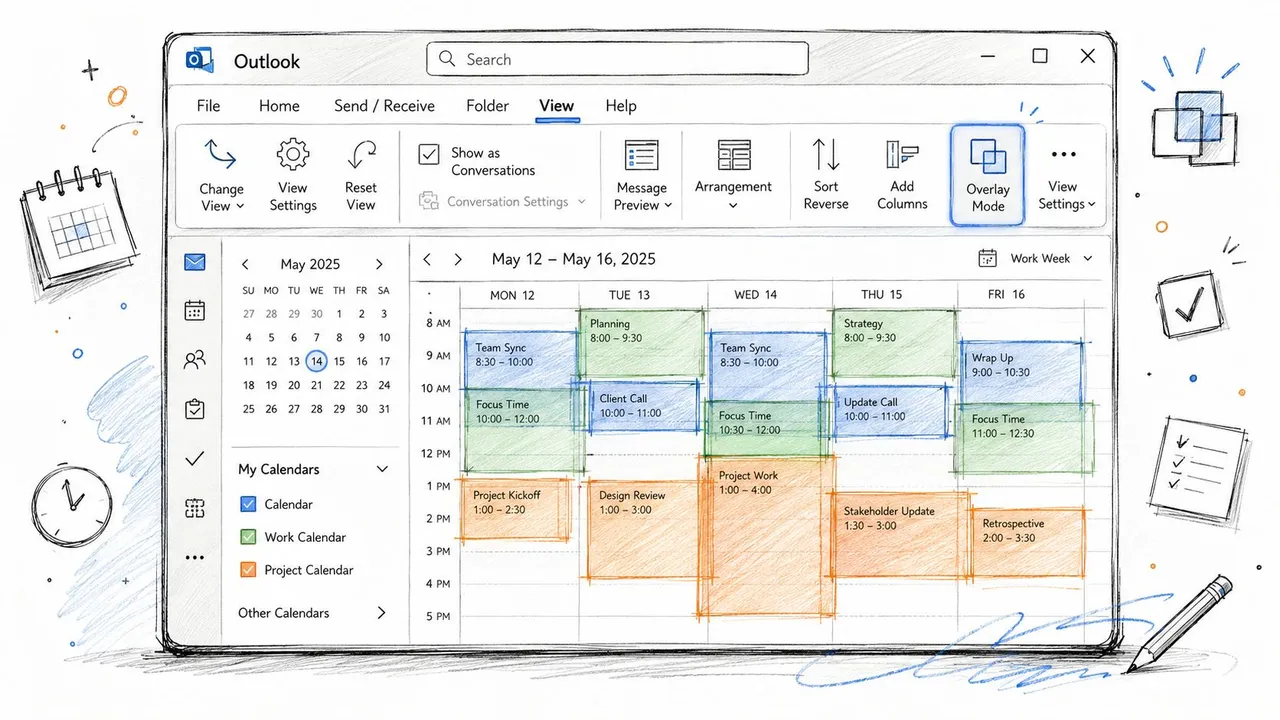
Practical rule: If you only need accurate availability for yourself, overlay and groups usually solve the immediate problem without risking duplicates or recurrence errors.
Nothing is merged in this setup. An edit made to an appointment still affects only its source calendar, and a new meeting created from one account won’t automatically appear as a native event in the others. That makes overlay excellent for planning, but inadequate when colleagues need one authoritative destination or when an old mailbox is being retired.
People who want a broader planning surface can also pair Outlook visibility with an all-in-one calendar for tasks, especially when appointments and task planning need to sit together. For a focused guide to controlling what others can see, use this Outlook calendar visibility guide.
Combine Calendars Permanently with Export and Import
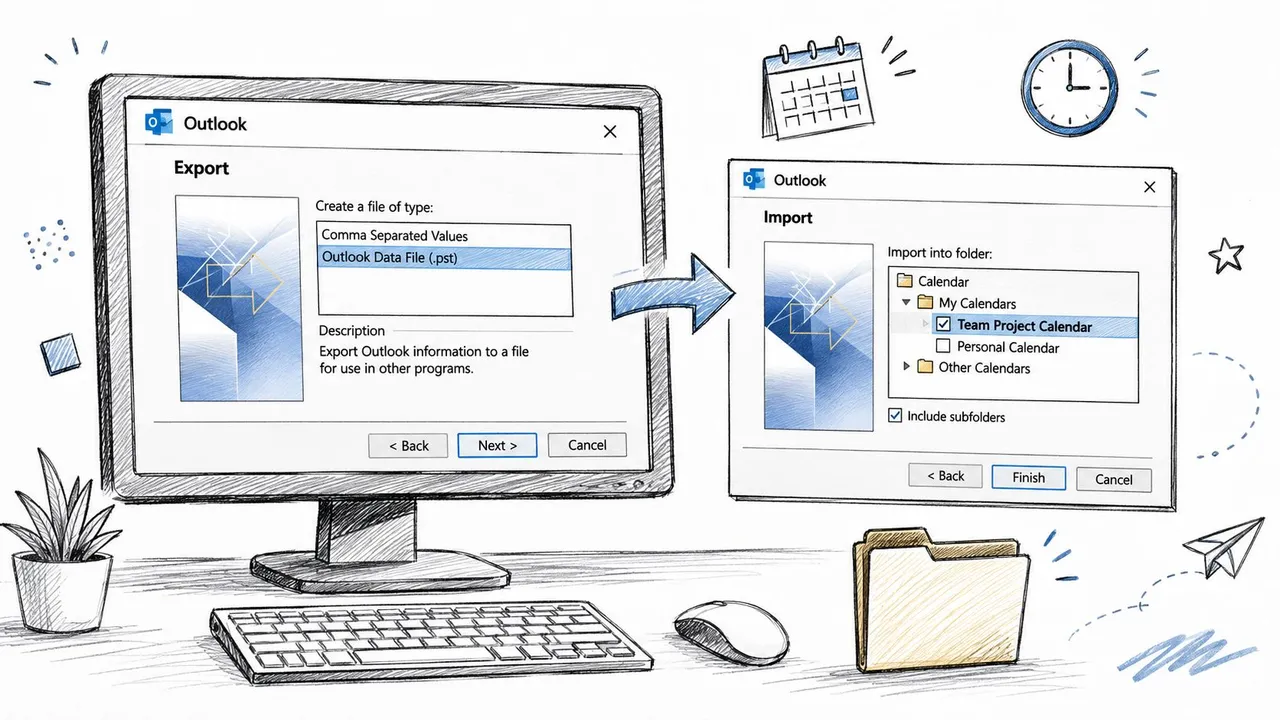
A team retiring an old mailbox, or creating one authoritative calendar, needs a real copy rather than an overlay. Outlook’s export and import workflow writes the source calendar into a PST file, then places those items in a destination mailbox or data file. The destination owns the imported copies, but later edits in the source will not synchronize.
Export only the calendar you need
In classic Outlook desktop:
- Open File, choose Open & Export, then select Import/Export.
- Choose Export to a file, then select Outlook Data File (.pst).
- Select the specific source Calendar folder. Avoid selecting the whole mailbox unless mail, contacts, and other data also belong in the consolidation.
- Set the date range and filters required for the move.
- Save the PST in a controlled location, while keeping the source calendar unchanged.
Microsoft’s step-by-step guide to merging Outlook calendar items via PST export and import covers the workflow. Exporting only the calendar makes the result easier to audit and reduces the chance of moving unrelated mailbox content.
Open Import/Export in the destination Outlook profile. Select Import from another program or file, choose the PST format, and apply the duplicate-handling option that fits the situation. Do not import duplicates is safer when some appointments already exist in the destination. A replacement option suits a deliberate overwrite, but review the imported calendar before removing anything from the source.
New Outlook and Outlook on the web may provide publishing, subscriptions, or CSV export under calendar settings. Those options can carry event data, while classic Outlook’s PST process remains the clearest route for consolidating an Outlook calendar folder. For a portable calendar file, follow this guide to create an ICS file for calendar events.
Recurring series require a manual check. Open an important series in the destination and verify future occurrences, exceptions, attendees, time zones, and the original recurrence pattern. Altered instances can behave differently after transfer.
The destination now has its own calendar copies. Keep the PST backup and source calendar until spot checks pass, because later changes to the original appointment will not update the imported copy.
Keep Calendars in Sync Across Accounts and Platforms
Continuous synchronization is a different project from importing. You’re not trying to retire the source calendar. You’re keeping separate calendars aligned across accounts or platforms, usually through one of three approaches: native Outlook sharing, an ICS subscription, or a dedicated cross-platform service such as SyncThemCalendars.
| Decision area | Native Outlook sharing | ICS subscription | Dedicated sync service |
|---|---|---|---|
| Setup effort | Low when permissions are available | Moderate, requires publishing and subscribing | Moderate, requires account connections and sync rules |
| Sync direction | Shared access, with permissions controlling edits | Usually read-only from the subscriber’s view | One-way, two-way, or multi-way, depending on configuration |
| Recurring events and time zones | Preserves the source view directly | Depends on the published calendar and consumer | Depends on connector handling and selected rules |
| Recurring event handling | Managed in the source calendar | Updates follow the subscription feed | Connector must reconcile changes and exceptions |
| Conflict resolution | Users and mailbox permissions remain responsible | No editing authority in the subscribed copy | Requires configured service behavior and review |
| Typical use case | Trusted colleagues or the same Microsoft 365 environment | Read-only availability broadcast | Separate tenants, mixed platforms, or ongoing account alignment |
| Main limitation | Permissions and organization policy can restrict access | It isn’t a live editable merge | Adds an external dependency and possible subscription cost |
Native sharing works when the people involved belong to the same Microsoft 365 environment or a trusted organization, and the owner can grant the required view or edit permission. It’s often the cleanest choice because users work directly against the source calendar instead of maintaining copied records.
An ICS subscription is enough when the recipient only needs a read-only broadcast. It’s a poor fit for active two-way scheduling, because the subscriber can see the feed but can’t treat it as an independently editable source of truth. It also leaves refresh behavior and event-detail visibility dependent on the publishing and subscribing systems.
A dedicated service becomes easier to justify when calendars span Microsoft 365, Outlook.com, Google Calendar, or Apple Calendar, or when changes must travel in both directions. SyncThemCalendars supports one-way, two-way, and multi-way event synchronization, along with free/busy mirroring and controls for masking or transforming event details. The Microsoft Outlook calendar sync guide is the relevant starting point for that workflow.
Automated synchronization removes repeated manual copying, but it doesn’t remove operational responsibility. You’re trading maintenance of duplicate event batches for dependence on a connector, its permissions, its authentication, and its handling of conflicts and deletions. Document which calendar is authoritative for each event type, then test the connection with noncritical appointments before relying on it for daily scheduling.
Troubleshooting Recurring Events, Duplicates, and Time Zones
A calendar transfer can look successful while future appointments behave incorrectly. For example, today’s meeting may appear in the destination, but its recurrence rule, ownership, or time-zone interpretation may have changed. Review the result as a validation exercise, not a quick visual check.
Recurring events lose their pattern
A recurring event can arrive as separate occurrences after a PST import, especially when the original series contains exceptions. The destination may show the right dates for now, yet editing the schedule later will not update them as one series.
Re-import the original source instead of copying the damaged destination batch. If the recurrence rule does not transfer reliably, recreate the event as a recurring series in the destination. Compare future occurrences and exceptions before removing the source version. The documented merge workflow should be treated as a transfer process, not a promise that every complex series will behave identically afterward.
Duplicate events appear after a second run
Running an import again can create a second appointment batch. If both batches are present, sort or filter the destination using the available creation details, identify the imported group, and remove that batch rather than deleting individual events manually.
Use a clearly named temporary calendar for future imports. A label such as Imported Work Archive makes a failed run easier to remove and protects the primary calendar until the review is finished.
Times shift after transfer
Time-zone drift usually comes from inconsistent settings in the source calendar, destination account, Outlook profile, or Windows system. Check the time zone assigned to each calendar, then confirm the Windows time-zone setting before repeating the import or synchronization.
Review meetings that cross daylight-saving changes, not only appointments scheduled for the current week. A calendar can appear correct in one season and shift later if the source and destination interpret the recurrence differently.
Sharing stops working
If a colleague reports that they can no longer see your shared calendar after a policy update, check authentication consent first. Permission failures can interrupt native sharing and third-party connections even when the calendar itself remains intact.
Confirm that the account can authenticate with Modern Authentication, re-grant consent when the connector requests it, and check whether conditional access rules block sign-in or token refresh. Review the organization’s access policy before changing calendar permissions, because a successful permission setting cannot override a blocked authentication flow.
After any change, verify the source, destination, and connection separately. A successful login does not prove that event updates, deletions, and recurring edits are flowing correctly.
Use this review before retiring a source calendar:
- Key dates: Check important meetings, deadlines, and appointments in both calendars.
- Recurring series: Open a series and inspect future occurrences and exceptions.
- Duplicates: Look for a repeated import batch, especially after retrying the workflow.
- Time zones: Compare a current meeting with one that crosses a daylight-saving transition.
- Permissions: Confirm that the intended people can view or edit the resulting calendar.
- Privacy: Ensure copied or synchronized details reveal no more information than intended.
Choosing the Right Method for Your Situation
A solo user with two Microsoft accounts should start with overlay view and calendar groups for daily planning, then use a one-time PST import only if one account is being consolidated. The trap is deleting the source before checking recurring events and destination ownership.
A freelancer juggling several client-shared calendars should use calendar groups for personal visibility and an ICS subscription when a client only needs to broadcast read-only availability. The trap is treating a subscribed feed as editable, because a display feed doesn’t give you control over the client’s source events.
A small-business owner or executive assistant coordinating a team should use groups for quick context switching and consider a two-way sync service when calendars span tenants or platforms. The trap is assuming that shared access automatically creates a unified calendar, because permissions determine who can view or edit while the events remain in their original stores.
An IT consultant deploying a solution for a client should default to PST export and import when the requirement is a one-time migration into a destination mailbox. Reserve synchronization for accounts that change daily and need ongoing alignment. The trap is using a live connector when the organization needs a controlled archive, or importing a whole mailbox when only the calendar folder belongs in scope.
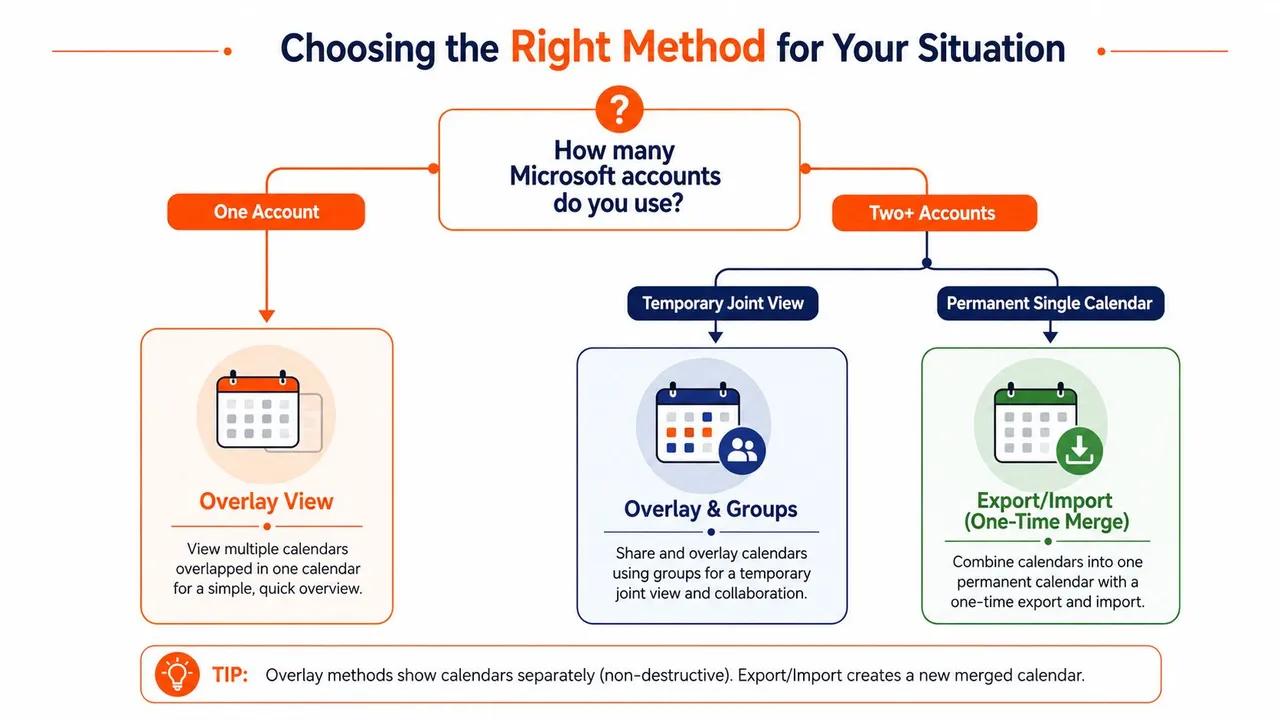
The decision is simpler than the Outlook interface makes it appear. If the requirement is visibility, overlay. If it’s ownership of one permanent collection, export and import. If it’s ongoing alignment between separate systems, use sharing, a subscription, or synchronization based on the account and privacy requirements.
Quick Recap and Next Step
Keep this mental model:
- Overlay and Calendar Groups change what you see. They move no data and preserve the original calendars.
- PST export and import creates one destination calendar containing copied events. It’s suitable for a one-time consolidation, but later edits won’t propagate back to the source.
- Dedicated synchronization services keep separate calendars aligned over time. They can be appropriate when accounts or platforms differ and manual copying would become routine.
Before making a change, confirm who should be able to see event details and who should be able to edit them. Back up the source calendar to a PST, verify time-zone settings, and inspect recurring series after the first transfer. Don’t hide or delete the original calendars until the destination passes those checks.
Open Outlook now and decide which of the three outcomes you need, see everything, copy once, or keep calendars synced. Then choose the matching method from the comparison above before moving any event data.
If you need ongoing alignment rather than a one-time Outlook import, SyncThemCalendars can synchronize selected events between Outlook, Google Calendar, and Apple Calendar with one-way, two-way, or multi-way directions and privacy controls for event details. Visit SyncThemCalendars to review the synchronization option that fits your accounts.
Ready to sync your calendars?
Keep your Google, Outlook and Apple iCloud calendars in sync automatically. 2-minute setup, no credit card required.
Get started freeKeep reading
More in Tutorials

How to Synchronize Outlook Calendar Across Platforms
Learn how to synchronize Outlook calendar events with Google and Apple iCloud. Master two-way sync, privacy controls, and real-time availability mapping.
How to Sync Office 365 Calendar with Apple Calendar
Learn how to sync Office 365 calendar with Apple Calendar. Compare native methods, third-party tools, privacy controls, and troubleshooting tips.
Outlook Not Syncing: Step-by-Step Fixes for Calendars
Fix outlook not syncing across Google, iCloud, and Office 365 with this complete troubleshooting guide. Clear steps, platform-specific tips, and expert