







Microsoft 365 Group Calendar: A Practical Guide for Teams
Learn how a Microsoft 365 group calendar works, how it differs from shared calendars, what permissions apply, and how to sync it with other tools.
Alex has a launch meeting on the calendar, Priya has a customer review at the same time, and Jordan is checking a OneNote list that still says the campaign deadline is next week. Somewhere between three personal Outlook calendars, a manually shared “Q4 Launch” calendar, and a collection of chat messages, the team has lost track of which schedule is current.
A Microsoft 365 group calendar is designed to replace that improvised arrangement with a shared calendar connected to the group itself. Once you understand who owns the calendar, how Outlook displays it, what members can do, and why external synchronization is difficult, the feature becomes much easier to manage.
When a Shared Calendar Becomes a Team Headache
The marketing team meets Monday morning to approve the launch plan. Alex opens the project calendar and sees the kickoff marked for late morning. Priya says she can’t attend because her Outlook calendar contains a customer call. Jordan points to a OneNote deadline that conflicts with both entries. Nobody knows whether the customer call was added after the kickoff, whether the shared event was edited, or whether the OneNote date was ever updated.
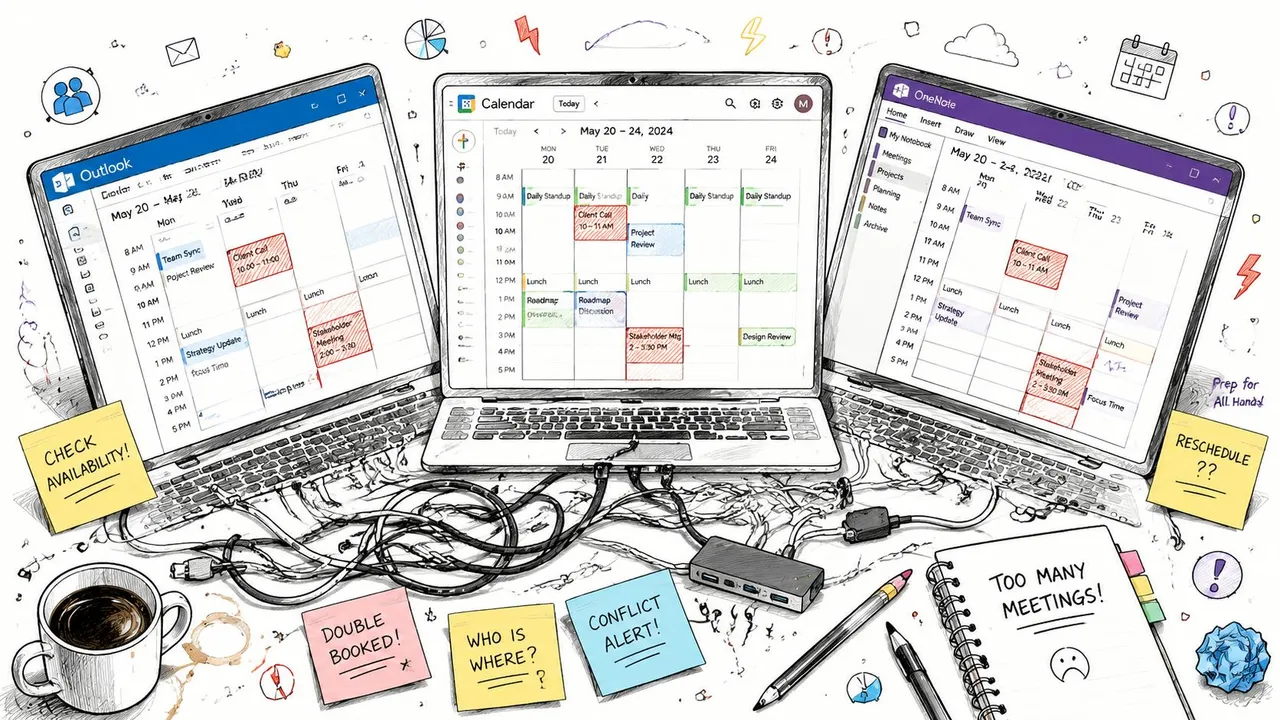
The immediate problem isn’t a lack of calendars. The team has too many places where scheduling information can live:
- Personal calendars: Each person records appointments and meetings in their own mailbox.
- Manually shared calendars: Someone creates a calendar and grants access to selected colleagues.
- Project notes: Deadlines, review dates, and reminders sit in OneNote, email, or chat.
- Meeting invitations: Attendees receive updates, but the wider team may not see the change.
That arrangement creates familiar questions. Who added the event? Who changed the time? Did everyone receive the update? Is the deadline a firm commitment or an informal note? A calendar can show a date, but it can’t by itself explain which entry should be trusted when several systems disagree.
The cost of unclear ownership
Teams often treat a shared calendar as a digital whiteboard. Anyone can write on it, but nobody is clearly responsible for keeping it accurate. Over time, old events remain visible, naming becomes inconsistent, and important changes get buried in conversations.
A group calendar gives the team a more deliberate home for shared commitments. Microsoft Support explains that users can access a group calendar through the Groups area in Outlook, view it alongside other calendars, and schedule or edit events directly from that shared space. Microsoft’s Outlook guidance for using group calendars also describes attendee responses such as Accepted, No response, Tentative, and Declined.
Practical rule: Put team commitments on the group calendar, personal appointments on personal calendars, and explanatory notes in the project workspace. Don’t make one tool carry all three jobs.
The important distinction is that a Microsoft 365 group calendar isn’t merely another shared view. It’s connected to a group-backed mailbox and can retain operational records associated with calendar activity. That structure gives administrators a way to investigate changes when “who added that?” becomes more than a casual question.
What a Microsoft 365 Group Calendar Actually Is
Start with the Microsoft 365 group, not the calendar. A group is a shared identity for a collection of people, and Microsoft documents that the group has a mailbox with a calendar resource associated with it. Outlook presents that calendar through the Groups section, but the underlying object is more substantial than a blank calendar created under one employee’s account.
Think of it as a shared office with a mailbox. The group is the office, its members are the people allowed inside, and the calendar is the shared whiteboard mounted on the wall. The whiteboard doesn’t belong to Alex, even if Alex writes the first event on it. It belongs to the office.
How the pieces fit together
A personal Outlook calendar lives inside one user’s mailbox. A conventional shared calendar typically exposes some of that user’s calendar data to other people. A group calendar sits inside the group’s mailbox-backed environment, so the group provides the ownership and membership context.
That difference affects daily work:
- The group supplies the identity. Membership determines who is associated with the shared workspace.
- The calendar supplies the common schedule. Members can use it for events that matter to the group rather than to one individual.
- The mailbox supplies governance. Calendar activity can be represented in calendar logs and investigated through administrative tools.
- Microsoft Graph supplies programmatic access. Microsoft’s documentation describes a calendar view endpoint that accepts a start and end time and returns occurrences, exceptions, and single event instances within that window. The documented request uses ISO 8601 date-time values, including the example
2019-11-08T20:00:00-08:00, which illustrates that applications query a defined time range rather than retrieve only a static list. See Microsoft’s documentation on group calendar tasks and diagnostics.
This architecture matters for automation, reporting, and synchronization. A tool isn’t just reading a webpage that Outlook happens to display. It must work with a Microsoft 365 group resource, its permissions, and its calendar data.
Why the mailbox connection matters
Microsoft’s troubleshooting guidance describes calendar logs associated with group mailbox entries and recommends the Get-CalendarDiagnosticObjects PowerShell cmdlet for administrators investigating a group calendar. The output identifies users associated with events, which helps establish a traceable history when an entry changes unexpectedly.
If your team is evaluating protection and retention for this kind of shared Microsoft 365 data, it also helps to compare M365 backup options before rollout. Backup planning is separate from calendar permissions, but both depend on understanding that the group calendar is a governed Microsoft 365 resource, not a disposable spreadsheet.
Personal, Shared, and Group Calendars Side by Side
The word “shared” causes much of the confusion. Outlook can display several calendar types together, yet each one has a different owner, permission model, and lifecycle. Start by asking whose schedule the calendar represents and who should remain responsible for it.
| Attribute | Personal Calendar | Shared Calendar | Microsoft 365 Group Calendar |
|---|---|---|---|
| Ownership | One user’s mailbox | One user’s mailbox, shared with selected people | The Microsoft 365 group and its mailbox-backed resources |
| Access scope | Primarily the individual owner, with permissions granted to others | People or groups selected by the owner | Members of the Microsoft 365 group, subject to the organization’s configuration |
| Typical use case | Personal appointments, individual meetings, and private planning | An assistant, project partner, or small set of colleagues helping manage one person’s schedule | Team deadlines, shared meetings, project milestones, and group activity |
| Lifecycle | Follows the user’s account | Follows the owner’s mailbox and sharing settings | Follows the group’s membership and administrative policies |
| Change context | Changes are associated with the user’s calendar | Changes affect the owner’s shared data | Changes occur within a group-owned scheduling space |
A personal calendar answers, “What is this employee doing?” A shared calendar answers, “What has this employee chosen to show or delegate?” A group calendar answers, “What does this team need to coordinate together?”
The view can look similar
In Outlook, these calendars may appear beside one another, so they can seem interchangeable. Their underlying responsibilities differ. If Priya shares her calendar with Alex, Alex receives access granted by Priya. If the team uses a Microsoft 365 group calendar, members work in a schedule tied to the group and its mailbox-backed resources.
A useful way to picture the group is a shared office with a mailbox. The group is the office, its members are the people allowed inside, and the calendar is the whiteboard on the wall. Events belong to that shared workspace, with changes associated with the group rather than one employee’s continued availability. That structure also gives administrators a clearer record of where shared scheduling data lives.
For a practical comparison of team-calendar patterns, review this guide to a shared team calendar. The key decision is whether the schedule should remain dependent on an individual owner or represent an ongoing team activity that may need to connect with Google, iCloud, Outlook, or external synchronization tools.
Use a personal calendar for personal commitments. Use a shared calendar when one person’s schedule needs managed visibility. Use a group calendar when the schedule represents a standing team, project, or shared activity with its own membership.
Permissions, Members, and Delegates Explained
A Microsoft 365 group usually includes Owners, Members, and, if the organization allows them, Guests. These labels describe who belongs to the group and who administers it. They do not represent every permission available on a personal Outlook calendar.
For routine scheduling, members generally need to view and add or update group events. Owners carry a wider responsibility: they maintain the group, manage membership, and adjust group settings. Guests may see less information, depending on the organization’s configuration and the access method they use.
| Role | View Events | Create/Edit Events | Manage Membership | Set Booking Options |
|---|---|---|---|---|
| Owner | Yes, according to group access | Typically available for group collaboration | Yes | Depends on the relevant group and calendar administration settings |
| Member | Yes, according to group access | Typically available for shared scheduling | No, unless separately granted administrative rights | Usually no |
| Guest | Often limited to basic availability or the access granted | May be restricted | No | No |
Use the table as a practical framework rather than assuming identical controls across every tenant. Microsoft explains that group calendar behavior belongs to a wider permissions system, and sharing capabilities can vary between work or school accounts and other account types. The Outlook documentation on shared mailboxes, folders, and calendars helps separate ordinary member participation from delegate access or full administration.
Owners are not just senior members
Owners keep the group usable when the original organizer changes role or leaves the organization. They add new people, remove former members, and keep the calendar connected to the current team.
Members can generally collaborate on events, but membership control remains with owners or people granted separate administrative rights. That boundary prevents every participant from changing who can enter the shared workspace.
Delegates require careful interpretation
A personal Outlook calendar can use delegate permissions so an assistant sends or answers invitations for another person. Because a Microsoft 365 group calendar differs from a personal mailbox, delegate behavior does not map directly onto the group experience.
Do not assign a personal-calendar delegate and assume that person has unrestricted group administration. Separate view or edit participation from group ownership, then test the intended workflow with a noncritical event before automating it. For broader Outlook access patterns, this guide on how to give access to an Outlook calendar explains useful terminology, while the exact group permissions still need verification in your tenant.
This distinction also matters when calendar data leaves Outlook for Google, iCloud, or an external synchronization service. The connected tool may reproduce events, but it does not automatically reproduce the group’s membership, ownership, or audit trail. Check which account owns the source calendar and which permission level the receiving service can use.
Real World Scenarios for Teams and Resource Booking
A group calendar works best when the group represents a real operating unit. The shared schedule should answer a recurring business question, not serve as a dumping ground for every date anyone wants to remember.
Marketing coordination
A campaign team creates a group for the launch program. Alex adds the content review, Priya adds the legal approval meeting, and Jordan records the launch call. Each event uses a consistent naming pattern, such as “Launch, content review” or “Launch, customer email,” so the calendar remains readable when viewed in Outlook.
The team can use the calendar for milestones that everyone needs to recognize. Personal preparation blocks stay on individual calendars, while the group calendar records the shared event and its accountable owner in the event details.
Sales coverage
A sales pod uses its calendar for demonstrations, pipeline reviews, and recurring customer check-ins. The schedule gives the pod a common view of coverage gaps. If two representatives are unavailable during an important customer window, the team can identify that conflict before it becomes a service problem.
The group calendar doesn’t replace each salesperson’s personal calendar. It records the events the pod needs to coordinate, while each person retains private appointments and unrelated meetings in their own mailbox.
Lightweight resource booking
A department might use a group calendar to coordinate a projector, company vehicle, or informal collaboration space. A member creates an event with the resource name, time, and responsible person. This can work when the group accepts a simple booking convention and someone reviews conflicts.
A true room mailbox is a separate Microsoft 365 object with its own booking behavior. Use a room mailbox when the room needs formal processing of meeting requests and resource policies. Use a group calendar for lightweight coordination or shared ownership, where the team is willing to manage the booking discipline itself.
Booking principle: The calendar can expose a conflict, but the team still needs a rule for resolving it.
Define who owns each event, how cancellations are recorded, and which details belong in the title versus the description. Keep sensitive information out of broadly visible fields, and use your organization’s sensitivity controls where available. A consistent naming convention and an active owner will do more for calendar quality than adding more members.
Syncing Group Calendars With Google iCloud and Outlook
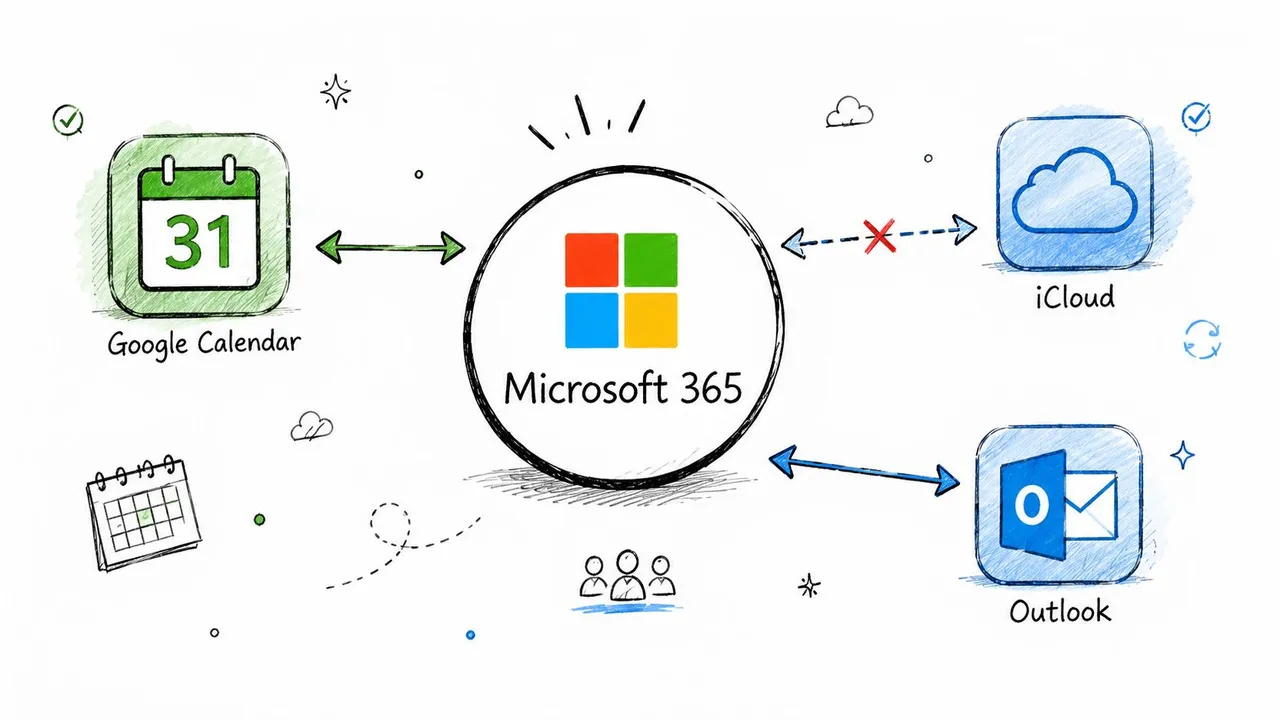
Cross-platform synchronization becomes difficult because a Microsoft 365 group mailbox isn’t a normal user account. Google Calendar, iCloud, and another Outlook account may use different connection methods, permission assumptions, and event fields. A group calendar must be accessed through its Microsoft 365 permissions and supported interfaces, rather than treated like an ordinary personal calendar.
A published calendar link can help with limited visibility, but it isn’t the same as a managed synchronization relationship. Subscription-style feeds may not carry every attendee response, recurrence exception, attachment, permission state, or private detail. They can also create a delay between a change in Microsoft 365 and the copy shown elsewhere.
Where synchronization breaks down
Suppose Alex edits a launch event in Outlook while Priya edits the copied event in Google Calendar. Without a defined source of truth, the systems may create competing changes or overwrite information. The same issue appears when an attendee responds from one platform while another platform holds an older event copy.
Common failure points include:
- Conflicting edits: Two systems change the same meeting before either copy receives the update.
- Incomplete recurrence handling: A single occurrence changes, but the exception doesn’t transfer correctly.
- Privacy leakage: A copied title, description, or location reveals more than the destination audience should see.
- Attachment loss: Files and rich event content may not transfer cleanly across providers.
- Free/busy mismatch: One calendar says a person is available while another still shows an old block.
- Resource ambiguity: A copied event may look like a booking without carrying the original booking rules.
The right approach is controlled synchronization, not just publishing a URL. Before choosing a connector, read this guide on how to sync a Microsoft calendar with Google Calendar and define which calendar is authoritative.
Scope the connection deliberately
An administrator should grant only the permissions the sync process needs, limit the date range or event scope where possible, and maintain logs that show what was copied and when. Decide whether the workflow requires one-way publication, two-way editing, or only free/busy mirroring.
For a group calendar, scope the connection to the group’s shared schedule. Don’t accidentally synchronize the individual mailboxes of every member, because that creates a different privacy and governance problem. External tools can be useful, but they should preserve the distinction between the group calendar and the personal calendars layered beside it.
A Short Checklist Before You Roll One Out
A successful rollout starts with the calendar’s identity. Ask what the schedule represents before creating anything. If it belongs to one employee, a personal or shared calendar may be more appropriate. If it represents a stable team or project, a Microsoft 365 group calendar gives that schedule a group-owned home. If it represents a formal room, vehicle, or other bookable asset, evaluate whether a dedicated resource mailbox fits better.
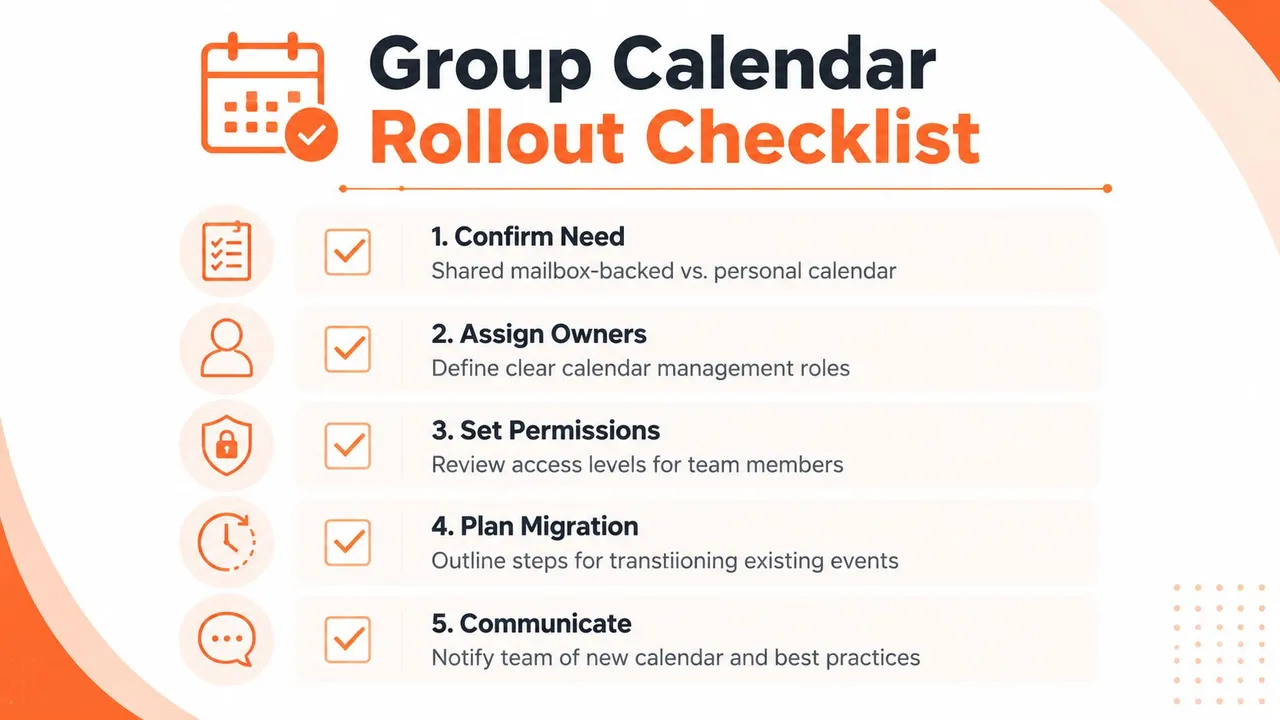
Use this sequence during a planning session:
- Confirm the purpose. Write one sentence describing what belongs on the calendar and what doesn’t.
- Assign accountable owners. Give more than one trusted person responsibility for membership, naming standards, and event cleanup.
- Set access deliberately. Decide what members, guests, and external collaborators should see. Keep sensitive event details out of broadly visible entries.
- Choose the system of record. If Google Calendar, iCloud, or another Microsoft 365 account must participate, decide which side controls edits and whether the sync is one-way or two-way.
- Document operating rules. Tell people how to name events, record cancellations, identify owners, and handle conflicts.
Protect the calendar after launch
Membership changes over time. People join projects, change departments, and leave the organization. Review membership and connected applications regularly so former participants don’t retain access and abandoned synchronization jobs don’t keep copying events.
Also test the ordinary user experience. Have a member create an event, edit it, cancel it, and confirm the expected attendees receive the right status. Have an owner remove a test member and verify that access changes as intended. These simple checks uncover permission assumptions before a critical launch depends on them.
A calendar becomes reliable when the team agrees on what it represents, who maintains it, and which system gets the final say.
The Microsoft 365 group calendar is a practical choice when shared work needs a shared owner. Its mailbox-backed design supports collaboration, administrative diagnostics, and programmatic time-range queries, but those capabilities don’t remove the need for clear governance. Plan the identity, permissions, resource model, and external connections together.
SyncThemCalendars can connect Microsoft 365, Google Calendar, and Apple Calendar workflows with controlled one-way, two-way, or multi-way synchronization. If your group calendar needs to stay aligned with external calendars while preserving field-level privacy and a defined source of truth, visit SyncThemCalendars and review the setup options for your team.
Ready to sync your calendars?
Keep your Google, Outlook and Apple iCloud calendars in sync automatically. 2-minute setup, no credit card required.
Get started freeKeep reading
More in Guides

SyncThemCalendars Quick Setup Walkthrough
Master the SyncThemCalendars quick setup in minutes. Connect Google, Outlook, or iCloud, configure privacy masking, and verify your first sync effortlessly.

Merging Google Calendars: The Complete Guide for 2026
Merging Google Calendars. Learn the best ways to merge Google Calendars. Compare import methods, sync tools, and automation strategies

Master Your Calendar on Outlook with Sync Solutions
Learn how to use calendar on Outlook effectively, sync with Google and iCloud, avoid double-bookings, and connect SyncThemCalendars for seamless scheduling.