






How to Sync Microsoft Calendar with Google Calendar (2026)
Learn how to sync Microsoft Calendar with Google Calendar (2026). Avoid common mistakes, fix sync issues, and get real-time two-way sync easily.
Syncing a Microsoft Outlook calendar with Google Calendar sounds simple, but in reality, it’s one of the most confusing setups for users. Most people expect real-time synchronization, but the built-in options don’t work that way.
Before choosing a method, here’s what you need to understand:
- There is no native two-way sync between Outlook and Google Calendar.
- The standard method (ICS) is read-only and updates slowly.
- Mobile apps can show both calendars, but they don’t sync anything.
- Real-time, two-way sync requires a dedicated tool.
Understanding these differences will help you choose the right approach.
Can You Actually Sync Microsoft (Outlook) Calendar with Google Calendar?
Yes. However, by default, Outlook and Google Calendar do not offer true synchronization. You need a third-party tool.
Simple definition: True synchronization means that both calendars update automatically, in both directions, in real time.
Example:
- You create an event in Outlook ➡️ it appears instantly in Google Calendar.
- You edit that event in Google ➡️ the change is reflected in Outlook.
- You delete an event in Outlook ➡️ it also disappears in Google.
👉 Everything is connected, without any manual action.
💡Tip : If you’re specifically looking to connect both platforms, check out our detailed guide on how to sync Google Calendar with Outlook. Google Calendar VS Outlook Calendar: which one to choose?
How to Sync Outlook Calendar with Google Calendar
Maybe you don’t actually need a true two-way synchronization, that’s why I’ll show you 3 different methods. One of them will definitely match your needs.
- Method 1 (third-party tool): true two-way sync between your Outlook (Microsoft) calendar and your Google Calendar.
- Method 2 (ICS): native method without any tool — read-only view of your Outlook calendar in Google Calendar.
- Method 3 (mobile apps): you can view and edit your Outlook and Google calendars in the same app, but they remain separate and do not sync with each other.
| Method | View Outlook in Google | Edit Outlook Events from Google | Sync Changes Across Calendars | Type of Sync |
|---|---|---|---|---|
| Third-party tool SyncThemCalendars | ✅ | ✅ | ✅ | Two-way (real-time) ⭐ Best option |
| ICS (native) | ✅ | ❌ | ❌ | One-way (read-only via ICS) |
| Mobile apps | ✅ | ❌ | ❌ | No sync (display only) |
💡Tip: If you manage several calendars across different accounts, here’s how to sync multiple calendars efficiently.
Best Method: Two-Way Sync with SyncThemCalendars or Other Third-Party Tool
If you need real synchronization between Outlook and Google Calendar, this is the only method that actually works.
Unlike the ICS method or mobile apps, third-party tools create a true two-way sync. This means:
- no delays,
- no manual updates,
- no duplicate calendars.
Everything stays perfectly in sync.
Step 1: Sign in with Google, Microsoft or Apple.
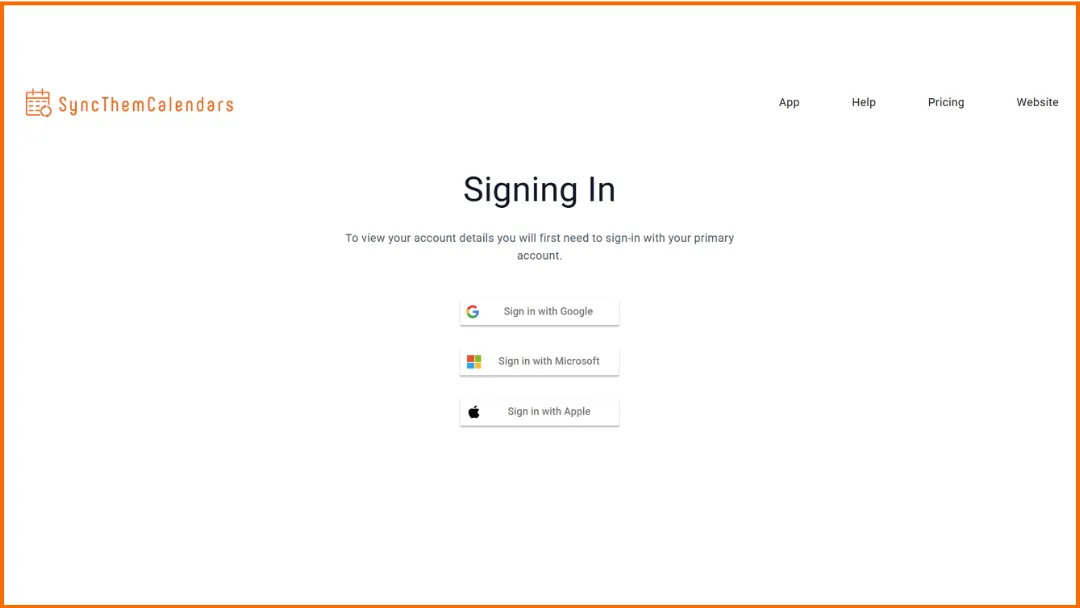
Step 2: Connect your Google Calendar and Microsoft calendar. It only takes 2 seconds.
Step 3: Choose the calendars to sync. Select the source calendar and the target calendar.
Step 4: Choose the sync type.
- One-way sync → copy events from one calendar to another.
- Two-way sync → keep both calendars automatically updated.
Step 5: Customize privacy settings. You can show only free/busy availability and hide event details.
💡 Bonus: SyncThemCalendars works with multiple calendar platforms:
- Microsoft (Outlook) Calendar.
- Google Calendar.
- Apple Calendar.
💡For a broader approach, this guide shows how to manage multiple calendars without losing track of your schedule.
Free Method: Add Outlook Calendar to Google Calendar via ICS
This is the only free native method, but it comes with important limitations. If you need real-time updates or two-way sync, this method won’t be enough and I invite you to refer to the previous method.
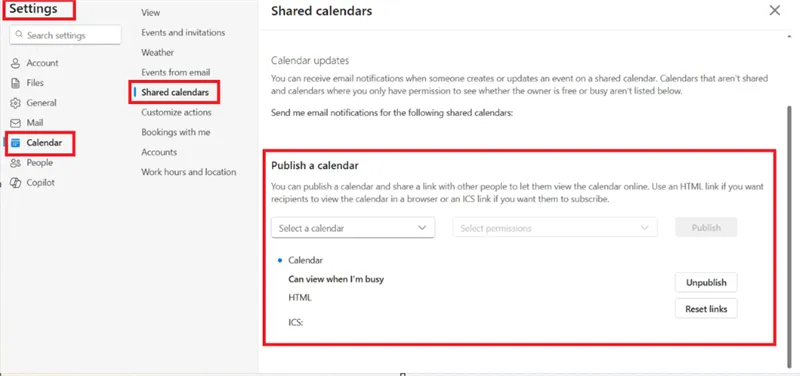
Step 1: Get your Outlook calendar ICS link.
- Open Outlook in your browser (Outlook.com or Office 365).
- Go to Settings → Calendar → Shared calendars.
- Scroll down to Publish a calendar.
- Select the calendar you want to share.
- Choose “Can view all details” (or similar option).
- Click Publish.
- Copy the ICS link.
👉 Tip: If you don’t see the “Publish a calendar” option, it may not be available for your account (especially in some work or school accounts).
Step 2: Open Google Calendar on your computer (desktop only ! Not available on mobile!)
- Go to Google Calendar in your web browser.
- In the left sidebar, next to Other calendars, click the + icon.
- Then select From URL.
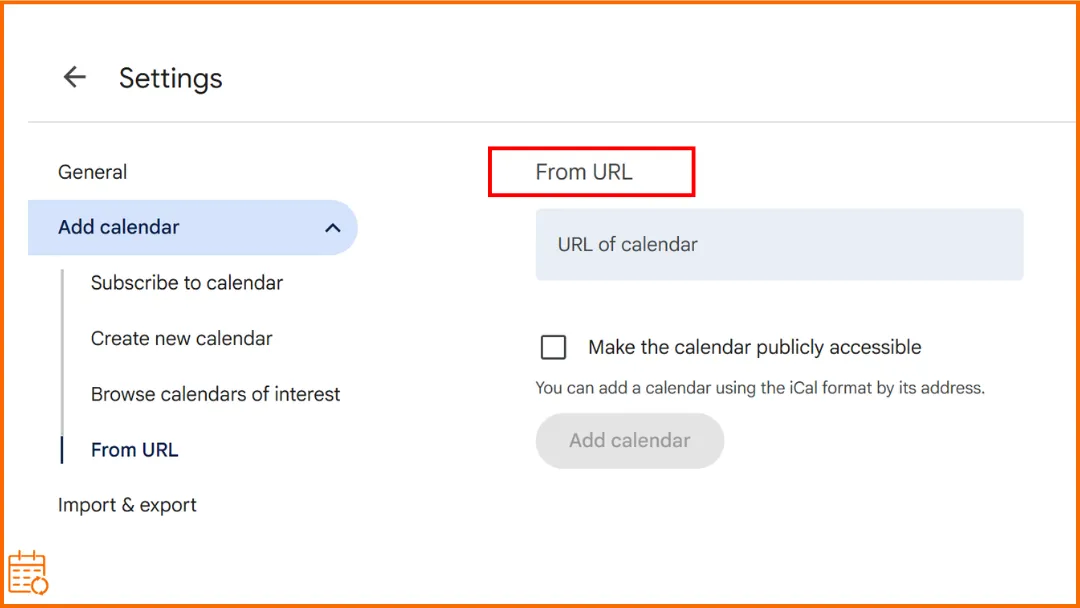
Step 3: Add the Outlook calendar via URL.
- Click From URL.
- Paste your Outlook ICS / iCal link (it should be an .ics address).
- Then click Add calendar.
- Your Outlook calendar should appear under Other calendars.
👉 Tip: If you see a “Could not fetch URL” error, make sure you copied the correct ICS link and that your Outlook calendar is published.
Step 4: Access your Outlook calendar in Google.
Your Outlook calendar will appear under “Other calendars” in the left sidebar.
You should now be able to view your Outlook events inside Google Calendar.
👉 Tip: If your calendar appears but no events show up, it may take some time to update, or your Outlook calendar may not be published with full details.
⚠️ Important limitations: this method is not a true sync.
- Updates can take up to 24 hours (or more).
- You can’t edit Outlook events from Google Calendar.
- Changes made in Google won’t sync back to Outlook.
👉 Want these steps interactive — for this pair or any other combination of Google, Outlook and Apple? Try our free add one calendar to another tool.
Quick but Limited Method: Use Outlook and Google Calendar on Mobile
This isn’t a synchronization method, but a way to view multiple accounts.
Let me explain: on iPhone/Android, the calendar app (Google, Apple, Outlook, etc.) can display multiple calendars at the same time. As a result, users see everything in one place and think, “There you go, it’s synced.”
But each calendar remains independent: no data is copied, and there is no synchronization between the calendars.
This looks like a sync, but it’s not.
Step-by-step instructions
Step 1: Open a calendar app that allows you to add multiple accounts, such as Google Calendar (Android / iPhone), Apple Calendar (iPhone) or Outlook app.
Step 2: Add your Google and Outlook accounts.
- In your calendar app, go to Settings and look for an option like “Add account”.
- Add both your Google account and your Microsoft account.
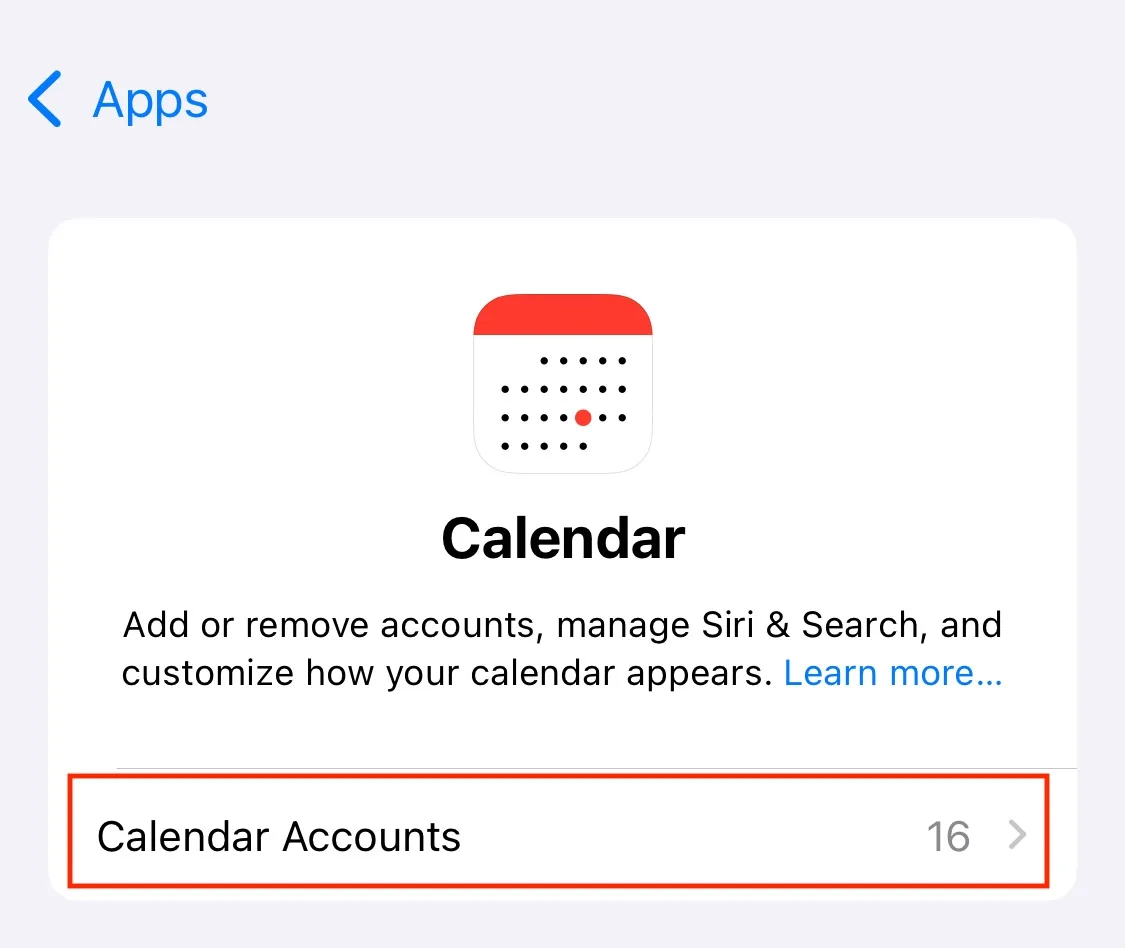
📍Note: If your calendars don’t appear after adding your accounts, you may need to enable calendar sync manually:
- On iPhone: go to Settings → Mail → Accounts → [your account], then turn on Calendars
- On Android: go to Settings → Accounts → [your account] → Account sync, then enable Calendar
- In the Outlook app: go to Settings → your account → Sync calendars.
Step 3: Enable and view both calendars.
- You can usually do this by tapping the menu (☰) or going to Settings → Calendars, then selecting the calendars you want to display.
- Once enabled, your Google and Outlook events will appear together in the same calendar view.
What this allows you to do
- View both calendars in one place.
- Quickly check your availability across accounts.
- Edit events within their original calendar.
What it DOES NOT do (No matter what the app is)
- Events are not synced between calendars.
- Changes are not transferred from one platform to another.
- Each calendar remains completely separate.
Why Your Outlook Calendar Is Not Syncing with Google Calendar and How to Fix It
Events not showing
👉 Your Outlook calendar appears in Google Calendar, but no events are showing up.
Your Outlook calendar is not shared with the correct permissions
Solution:
- In Outlook, go to Settings → Calendar → Shared calendars.
- Select your calendar.
- Choose “Can view all details.”
- Click Publish and copy the new ICS link.
Wrong calendar selected
Solution: Check which calendar you want to display. Make sure you copied the correct ICS link. Re-add it to Google Calendar if needed.
Calendar not updating
👉 Your Outlook calendar appears correctly in Google Calendar, but new events or changes aren’t being updated.
This is a standard limitation of the ICS method: Google does not update events in real time. Updates can take several hours, sometimes up to 24 hours.
Couldn’t fetch URL
👉 This error appears when Google Calendar can’t access your ICS link.
🔒 The link is not accessible.
Solution: Test the link in your browser.
If it doesn’t open → it’s invalid or not publicly accessible.
🔒 The calendar is not published.
Solution: In Outlook, publish your calendar and copy a new ICS link.
One-way vs two-way confusion
You’re using a one-way setup, not a true two-way sync. Changes only go from Outlook to Google, but not back to Outlook.
FAQ: Outlook and Google Calendar Sync
Can you sync Microsoft and Google Calendar?
Not natively. You can only add your Outlook calendar to Google using an ICS link (read-only), or use a third-party tool for real two-way sync.
Can I sync Microsoft Teams calendar with Google Calendar?
Yes, but not with built-in options. You need a dedicated tool like SyncThemCalendars to keep both calendars updated in real time.
Why is my Outlook calendar not syncing with Gmail?
This is usually a setup issue. Check that your calendar is published with “Can view all details” and that you used the correct ICS link. (See Events not showing above.)
Can you export Microsoft calendar to Google Calendar?
Because the ICS method is not real-time. Google refreshes the calendar periodically, which can take several hours. (See Calendar not updating above.)
☄️ Try SyncThemCalendars for free and keep all your calendars synchronized. Google, Apple, Microsoft, it supports them all!
Ready to sync your calendars?
Keep your Google, Outlook and Apple iCloud calendars in sync automatically. 2-minute setup, no credit card required.
Get started freeKeep reading
More in Tutorials
How to Synchronize Outlook Calendar Across Platforms
Learn how to synchronize Outlook calendar events with Google and Apple iCloud. Master two-way sync, privacy controls, and real-time availability mapping.
How to Sync Office 365 Calendar with Apple Calendar
Learn how to sync Office 365 calendar with Apple Calendar. Compare native methods, third-party tools, privacy controls, and troubleshooting tips.
Outlook Not Syncing: Step-by-Step Fixes for Calendars
Fix outlook not syncing across Google, iCloud, and Office 365 with this complete troubleshooting guide. Clear steps, platform-specific tips, and expert