







How to Migrate Outlook Calendar to Google: Stay Synced
Effortlessly migrate outlook calendar to google! Discover manual export, continuous sync, ICS imports, and automated tools for a smooth transfer.
You probably arrived here because your calendar is split across two worlds. Outlook still holds the meetings you can’t miss, while Google Calendar is where you plan your day. That setup works for about a week. Then the edits start. A client moves a call, a coworker cancels a meeting, a personal appointment blocks the same hour, and now you’re checking two calendars before saying yes to anything.
That’s the main challenge when people try to migrate Outlook Calendar to Google. Most guides explain how to copy events. Very few help you decide whether you need a one-time transfer or an ongoing connection that keeps both calendars aligned.
If you choose the wrong method, the migration may look successful on day one and fail unnoticed on day three. The difference between a clean move and a scheduling mess usually comes down to one question: are you archiving old events, or are you trying to stay synced?
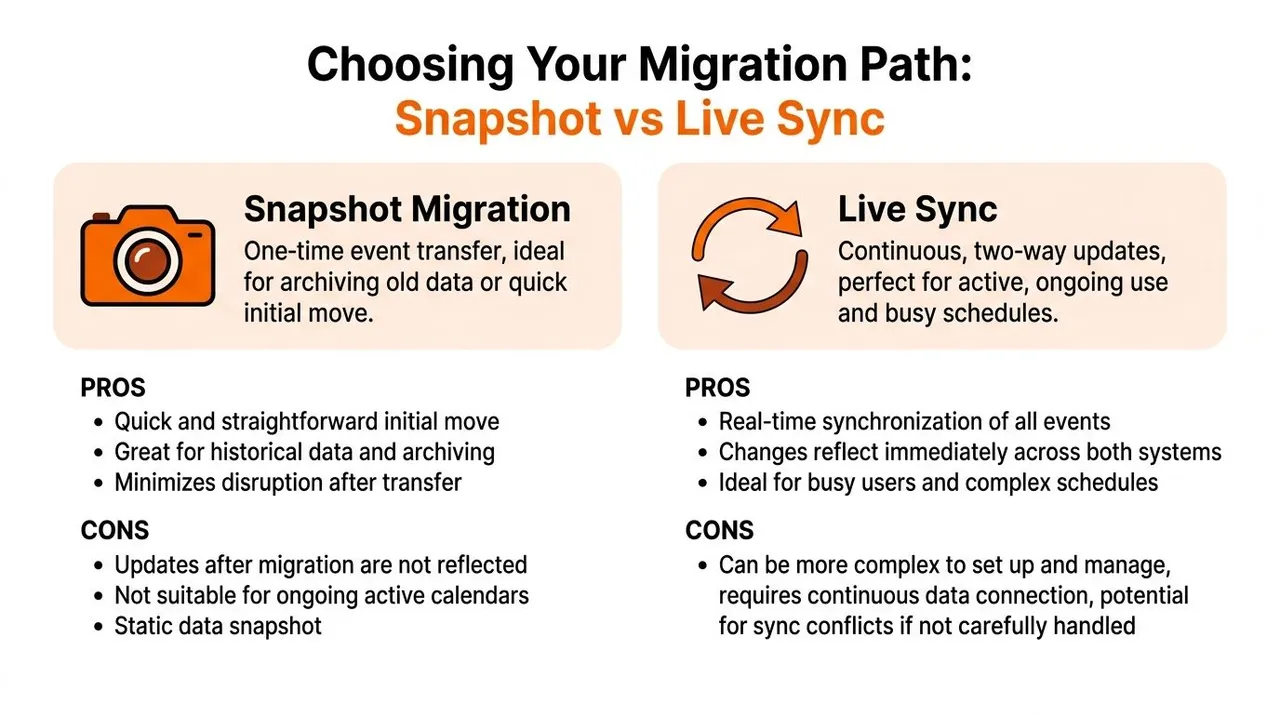
Choosing Your Migration Path Snapshot vs Live Sync
There are three realistic ways to migrate Outlook Calendar to Google. They solve different problems, and that’s where confusion often arises.
The first is the familiar manual route. You export an Outlook calendar file, then import it into Google Calendar. It’s free, quick, and good enough if you only need a static copy.
The second is the admin path inside Google Workspace. That’s built for organizations moving users from Microsoft 365 or Exchange Online into Google Workspace in bulk.
The third is continuous synchronization using a dedicated sync tool. That’s the option for people who still live in both ecosystems and need changes to keep flowing without manual work.
What each path is actually for
| Method | Best fit | What works | What breaks |
|---|---|---|---|
| Manual export and import | Personal one-time move | Simple copy of existing events | Ongoing edits don’t stay aligned |
| Google Admin migration | Company-wide migration | Bulk import for many users | Not designed for personal live syncing |
| Automated sync tool | Active dual-calendar use | Keeps calendars aligned in the background | Usually requires a paid service |
Practical rule: If you still accept meetings in Outlook after the migration, a snapshot isn’t enough.
That distinction matters more than people expect. A migration can be technically successful and still be the wrong solution. If your Outlook calendar remains active, a static import into Google becomes stale the moment someone reschedules an event.
Match the method to the job
Use the manual snapshot if you’re leaving Outlook behind and only want your history or your current schedule copied once.
Use the admin migration if you’re responsible for moving a team, a department, or a full company. Google documents a bulk import path for calendar events from Microsoft Exchange Online through the Admin console, which is a very different process from user-by-user exporting and importing (Google Workspace Admin migration documentation).
Use continuous sync if both calendars will stay active. That’s common for consultants, sales teams, executives, and anyone balancing company, client, and personal schedules.
If you’re still weighing ecosystems more broadly, this comparison of Microsoft 365 vs Google Workspace gives useful context on how the platforms differ beyond calendar migration. For people specifically comparing sync tools, this roundup of the best calendar sync apps is a practical next read.
👉 If a read-only live view is enough, our free add one calendar to another tool gives you the exact subscription steps.
The Manual Method One-Time Calendar Export and Import
The manual method is typically encountered first because it’s built into the platforms. It also creates the most false confidence.
Microsoft officially documents that moving an Outlook calendar to Google Calendar via native features results only in a one-way snapshot rather than continuous synchronization. Any changes made in Outlook after the export won’t automatically appear in Google unless you repeat the process (Microsoft Answers guidance on calendar sync from Outlook to Google).
That doesn’t make the method useless. It just means you should treat it as a copy operation, not a live bridge.
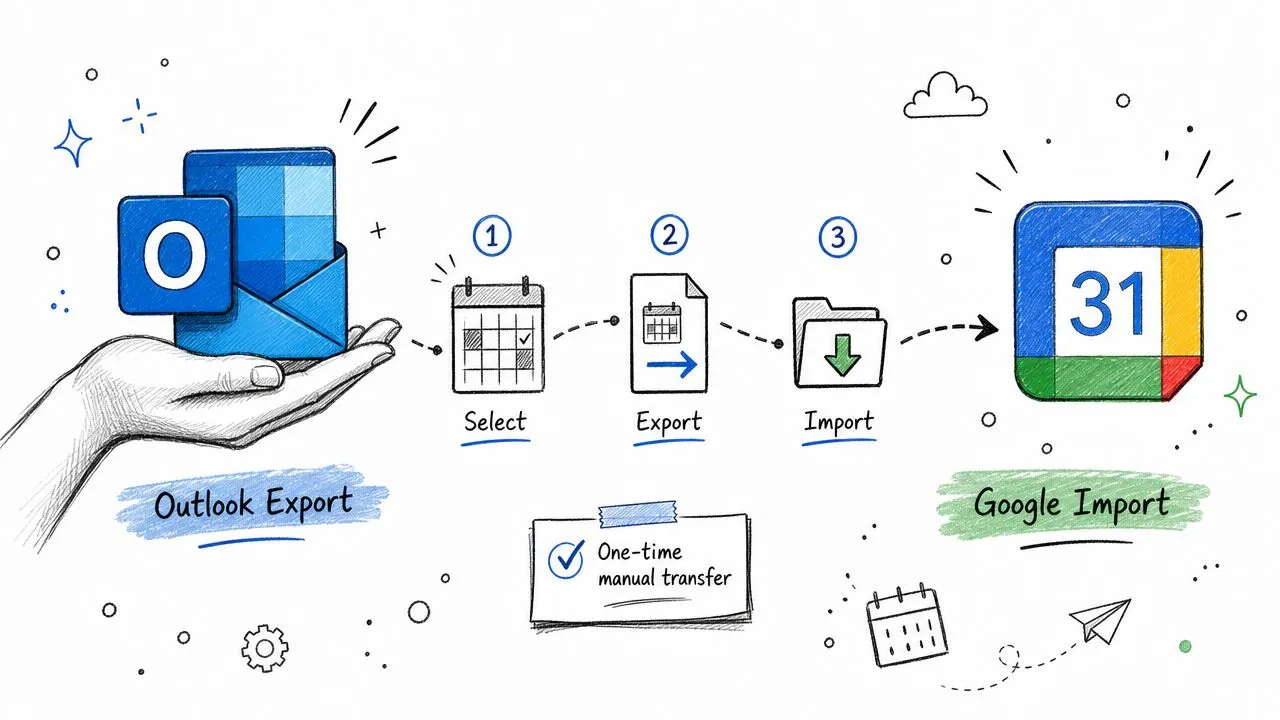
How the manual transfer works
At a high level, the process looks like this:
- Export from Outlook From Outlook.com or Outlook on the web, go into calendar settings and use the publishing or export option to generate an ICS file or link.
💡 Before importing, open the exported file in our free ICS viewer & validator - it flags the format problems (non-standard time zones, missing UIDs) that make migrated events land at the wrong time.
-
Download the file Save the calendar data locally. This file contains the event data as it exists at that moment.
-
Import into Google Calendar In Google Calendar, open Import & Export, choose the file, and import it into the calendar you want.
That’s the basic flow. It’s simple enough for a personal calendar with modest complexity.
When the manual method is a good fit
The manual route works well in a few situations:
- You’re retiring an old calendar: You want your historical meetings in Google, but Outlook won’t stay active.
- You need a clean starting point: You’re doing an initial move and plan to manage everything in Google from now on.
- You only have one calendar to deal with: A single personal or side-project calendar is much easier than several overlapping work calendars.
Where it starts to fall apart
The trouble starts when people expect this method to behave like sync.
A manually imported ICS file doesn’t keep watching Outlook for updates. If someone changes a meeting time in Outlook tomorrow, Google won’t magically know. You have to export again and import again, then clean up the resulting duplicates or stale entries if your process wasn’t careful.
A successful import only proves that events copied once. It doesn’t prove your calendars will stay accurate.
There’s also a practical detail many guides gloss over. Publishing and importing calendar data can expose more event detail than you intended if you don’t pay attention to which calendar, which export option, and which sharing settings you’re using. If your goal is only to block time, a raw copy may reveal titles, notes, or locations that shouldn’t travel.
Best practices if you use this route
If you’re going manual, keep it disciplined:
- Export once with a purpose: Decide whether this is archive data, recent events, or a complete move.
- Import into the right target calendar: Don’t dump everything into your primary calendar unless that’s what you want long term.
- Check a small sample first: Review recent meetings, all-day events, and a recurring series before assuming the whole import is clean.
- Stop using Outlook afterward if possible: The less overlap you maintain, the fewer consistency problems you’ll create.
For a one-time move, this method is fine. For active scheduling across both platforms, it becomes maintenance work disguised as a free solution.
For Admins Migrating an Entire Organization
Monday morning, 120 employees sign into Google Calendar for the first time. If the migration was handled user by user, IT spends the week chasing missing recurring meetings, wrong destination calendars, and executives asking why private appointment details showed up in places they should not.
At organization scale, calendar migration needs central control. Asking employees to export and import their own data creates too many failure points, especially when recurring series, historical clutter, and privacy settings vary from one mailbox to the next.
Google Workspace does offer an admin migration path for companies moving from Exchange Online into Google. Use it when the goal is a managed transfer for many users at once, with IT controlling scope and timing instead of leaving each person to guess through the process.
What the admin workflow looks like
The admin route is built for a platform move, not a sync relationship between two systems. In practice, the workflow usually includes:
- Connecting Microsoft 365 with the right admin permissions: Without proper access, the migration stalls before data mapping even starts.
- Uploading a user mapping CSV: This ties each Exchange mailbox to the correct Google Workspace account.
- Selecting calendar data for migration: Useful if mail and contacts are being handled on a different timeline.
- Filtering by date: This keeps the move focused on relevant events instead of importing years of stale meetings nobody needs.
That date filter matters more than many teams expect. I usually recommend migrating enough history to preserve current context, then leaving old calendar noise behind unless there is a compliance or record-keeping reason to keep it.
Where this method works well
For a full company move, the admin path is the practical choice. It gives IT one process, one audit trail, and a better shot at consistency across departments.
It also reduces the privacy mistakes that show up in manual projects. When employees handle their own exports, they often move the wrong calendar, include personal entries, or import into the wrong target. Centralized migration cuts down those errors.
There is still real cleanup work. Shared calendars, room resources, delegated access, and recurring meetings deserve spot checks after the import. Admin migration is better than a pile of individual ICS files, but it is still a migration project, not magic.
What it does not solve
The admin method copies organizational calendar data into Google. It does not keep Outlook and Google aligned after the move.
That distinction matters. A one-time migration solves the handoff. It does not solve coexistence.
If some teams stay in Outlook, if executives still schedule through Microsoft tools, or if a merger leaves you with both ecosystems in play, the primary problem becomes ongoing calendar accuracy. In those mixed environments, IT usually needs a separate long-term plan, and these Outlook calendar sync options for mixed Google and Microsoft environments are the right place to evaluate that.
The Automated Solution Continuous Two-Way Synchronization
Most professionals don’t need a one-time copy. They need their calendars to stop disagreeing with each other.
That’s why automated synchronization is the only approach that holds up when Outlook and Google both remain active. You’re not trying to preserve a frozen record. You’re trying to make availability accurate every day, without babysitting exports and imports.
A lot of older tutorials still push iCal subscription methods as if they provide reliable ongoing syncing. That advice has aged badly. A 2025 to 2026 trend report notes that Microsoft’s New Outlook for Windows and Outlook on the Web have deprecated direct iCal subscription support for dynamic sync, and 42% of users experienced broken calendar links within weeks after setup (Virtosoftware report on Google Calendar not syncing with Outlook).
That aligns with what people run into in practice. The setup looks fine, then an update stops flowing, a link breaks, or a calendar inadvertently goes stale until someone notices a double-booking.
What a modern sync setup needs to do
A reliable automated solution should give you control over direction and visibility, not just copying.
Look for these capabilities:
- One-way sync: Useful when one calendar should block time on another without allowing edits to flow back.
- Two-way sync: Best when both calendars are active and either side may receive updates.
- Privacy controls: Essential when a personal appointment should block time on a work calendar without exposing the title or notes.
- Background operation: If you have to remember to rerun it, it’s not solving the core problem.
When people say they need to migrate Outlook Calendar to Google, they often mean they need availability to stay consistent across both.
Where automated sync helps most
The biggest wins usually show up in these situations:
| Scenario | What goes wrong without sync | What automated sync fixes |
|---|---|---|
| Freelancer with client Outlook and personal Google Calendar | Client calls land on top of personal commitments | Busy time is mirrored automatically |
| Sales rep with company Outlook and booking calendar in Google | Availability looks open when it isn’t | Open slots stay accurate |
| Executive using assistant-managed Outlook plus personal Google | Manual copying creates missed changes | Updates flow without rework |
| Hybrid privacy use case | Event details reveal too much | Time can be blocked without exposing content |
That privacy angle matters more than people expect. A lot of people don’t want “Doctor Appointment” or a family event title copied into a company calendar. They just need that block to show as unavailable. Good sync tools let you mirror free/busy while masking or transforming details.
Here’s a quick walkthrough that shows what this kind of setup looks like in practice:
Why this is the long-term sane option
Manual migration solves a transfer problem once. Automated sync solves a scheduling problem every day.
If your Outlook calendar still receives invites, or if your Google Calendar is where you manage personal availability, then continuity is the primary requirement. You want the systems to stay aligned without repeated exports, stale snapshots, and privacy trade-offs you didn’t agree to.
That’s the line I’d draw for almost every client. If Outlook is going away, migrate. If Outlook is staying, sync.
Avoiding Common Migration Pitfalls and Errors
Most calendar problems don’t show up during the import. They show up later, when someone notices a recurring meeting shifted, a location disappeared, or a supposedly private event is visible in the wrong place.
The hardest part of migrating Outlook Calendar to Google isn’t starting the process. It’s preserving enough event quality that the calendar remains trustworthy after the move.
A Microsoft Answers thread reports that 68% of users say recurring events and meeting attachments fail to sync correctly after migration, with no clear workaround for preserving dynamic recurrence rules across platforms (Microsoft discussion about issues exporting Outlook Calendar to iCal).
The failure points I’d check first
Some problems are much more common than others.
- Recurring meetings break: Complex recurrence patterns often don’t survive a basic ICS move cleanly.
- Attachments and rich details disappear: Calendar files aren’t always a faithful container for every event property.
- Time zones drift: Events can land at the wrong hour if Outlook and Google aren’t aligned before transfer.
- Privacy leaks can occur: A copied event may expose titles, notes, or locations where only busy status was intended.
- Duplicate events appear: Repeat imports create clutter if the process isn’t controlled.
A smarter validation routine
Before moving a full calendar, test a few deliberately chosen events.
Use a sample set that includes:
- A normal single event
- An all-day event
- A recurring meeting
- An event with attendees
- An event with a location or description you care about
Then compare the result in Google. Don’t just verify that the event exists. Check whether the start time, recurrence behavior, attendee list, and core details still make sense.
Field check: If the event title survived but the recurrence logic didn’t, the migration is only partially successful.
The Make guide on adding Google Calendar to Outlook also points out practical issues like timezone mismatches, authentication mistakes with iCal addresses, and the value of testing with a dedicated sample event before committing a wider sync process (Make guide for adding Google Calendar to Outlook).
How to reduce damage before it happens
A few habits prevent most avoidable mistakes:
- Confirm time zones on both sides: Do this before export, import, or sync setup.
- Audit recurring events separately: Don’t assume a clean single-event import means recurring series are safe.
- Decide what should remain private: If only availability needs to transfer, don’t use a method that copies full event details by default.
- Review a post-migration sample: Open events from different categories and date ranges after the move.
- Treat duplicates as a process issue: If duplicates appear, stop and fix the workflow before importing again.
If you want a broader migration risk lens, not limited to calendars, this guide on cloud migration mistakes to avoid is useful because the same operational habits apply here: test first, validate permissions, and review outcomes before scaling.
For people especially concerned about what others can see after syncing or sharing, this guide to managing Outlook calendar visibility is worth reading before you expose the wrong level of detail.
Your Final Migration Checklist and Next Steps
At this point, the right path is usually obvious once you answer a few practical questions.
If you only want to bring old or current events into Google once, a manual export and import is enough. If you’re moving an entire company from Microsoft 365 or Exchange Online into Google Workspace, use the admin migration route. If Outlook and Google will both stay in use, don’t confuse migration with synchronization.
Use this decision checklist
-
Are you leaving Outlook completely?
Choose a one-time migration. -
Will new Outlook invites keep arriving after the move?
You need continuous sync, not a snapshot. -
Are you migrating for one user or many?
One user can manage a simple export. A business should use an admin-led process. -
Do recurring meetings matter?
If they do, test them early and don’t trust a successful import of simple events. -
Do you need privacy between calendars?
If yes, prioritize a method that can mirror availability without exposing event content. -
Can you tolerate manual maintenance?
If not, rule out any workflow that depends on repeating exports.
The practical recommendation
For a personal archive, use the manual method and be done with it.
For a company transition, use the Google Admin migration workflow and control the move centrally.
For almost everyone else, especially consultants, client-facing professionals, and people juggling work and personal calendars, the durable answer is automated synchronization. That’s the option that keeps availability correct without forcing you to constantly wonder which calendar has the truth.
A simple next-action plan
| Your situation | Best next step |
|---|---|
| You want a one-time copy of old Outlook events | Export from Outlook and import into Google |
| You manage a Google Workspace rollout | Prepare admin access, CSV mapping, and date scoping |
| You live in both Outlook and Google daily | Set up ongoing one-way or two-way sync |
| You only want busy blocks copied | Choose a privacy-preserving sync setup |
For a broader operational checklist mindset, this essential cloud migration guide is a solid companion resource because it reinforces the same discipline that makes calendar migrations go smoothly: define scope, test with a subset, verify outcomes, and only then scale up.
The biggest mistake isn’t picking the wrong button in Outlook or Google. It’s choosing a snapshot when your schedule really needs a live connection.
If you need Outlook and Google to stay aligned after the migration, SyncThemCalendars is built for that exact job. It supports real-time one-way, two-way, or multi-way syncing across Google Calendar, Outlook/Office 365, and Apple Calendar, with privacy controls for masking titles, descriptions, or locations when you only want to mirror availability. Setup is web-based, the service runs in the background, and there’s a 14-day free trial with no credit card required.
Ready to sync your calendars?
Keep your Google, Outlook and Apple iCloud calendars in sync automatically. 2-minute setup, no credit card required.
Get started freeKeep reading
More in Tutorials

How to Add Gmail Calendar to Outlook Without Duplicates
See how to add Gmail Calendar to Outlook by subscribing for a live view or using two-way sync, then avoid privacy leaks and duplicate events.

Export Outlook Calendar to Google: A 2026 Step-by-Step Guide
Learn how to export Outlook calendar to Google with clear steps for ICS and CSV imports, recurring-event checks, and verification tips that work in 2026.

How to Synchronize Outlook Calendar Across Platforms
Learn how to synchronize Outlook calendar events with Google and Apple iCloud. Master two-way sync, privacy controls, and real-time availability mapping.