







How to Synchronize Google Calendar Outlook in 2026
Learn how to synchronize Google Calendar Outlook with step-by-step methods for one-way and two-way sync, privacy controls, and troubleshooting tips.
You’re trying to keep one calendar honest while another one keeps drifting. A client moved a meeting in Outlook, your personal time block still sits in Google Calendar, and by the time you notice, someone has already booked right over it. That’s the reason people search for how to synchronize Google Calendar Outlook. They don’t just want connection, they want the right kind of connection.
The problem is that “sync” gets used for two very different behaviors. One method only shows events in the other app, the other carries edits back and forth. If you pick the wrong one, you don’t get a schedule, you get a false sense of safety.
Why Calendar Sync Fails When You Need It Most
A freelancer I’ve seen a dozen times over has the same setup problem. Their client lives in Outlook, their personal life runs on Google Calendar, and both calendars look connected at first glance. Then a meeting changes, one calendar updates, the other doesn’t, and the gap only shows up after a double-booking or a missed call.
That failure usually isn’t about account setup. It’s about expecting a read-only feed to behave like a live mirror.
The hidden mismatch between visibility and control
The easiest native setup makes people think they’ve solved the problem. They can see events from Google inside Outlook, so the calendar looks current enough to trust. But if that connection is only a subscription, edits made on one side won’t travel back to the other, and that’s where scheduling breaks down.
Practical rule: if you need to change events in either app and expect both calendars to stay aligned, a simple feed is not enough.
Google’s own calendar sync timing shows why this matters at enterprise scale. Google Workspace documentation says calendar data in GWSMO syncs every time Outlook starts, then every 10 minutes, and immediately after a meeting invitation is created or received, while email syncs every minute, contacts every 20 minutes, notes every 60 minutes, and the Global Address List every 24 hours in the same framework (Google Workspace sync timing). That timing tells you calendar sync is treated as a near-real-time workload, not a casual nightly update.
The practical takeaway is simple. If both calendars are active planning tools, you need to decide whether you want visibility only or editable synchronization before touching any settings. Most of the confusion I see comes from skipping that decision and hoping the default behavior will match the workflow.
One-Way Subscriptions Versus Two-Way Synchronization
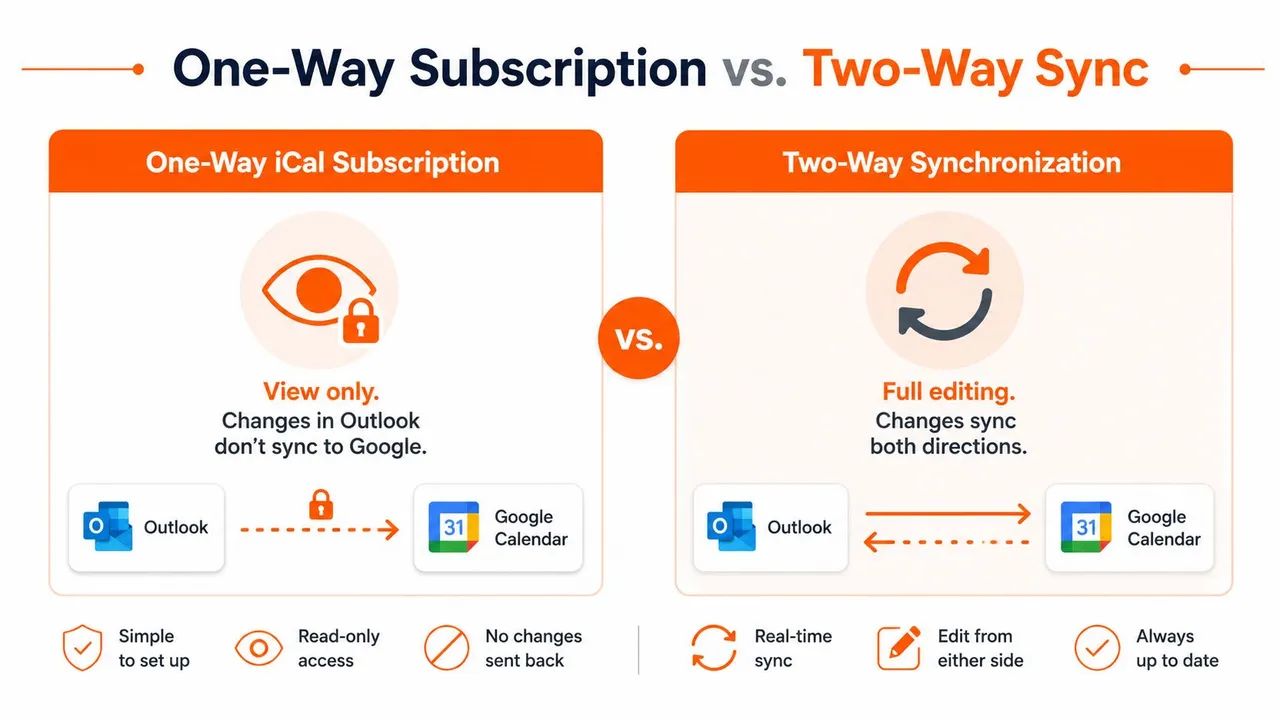
The gap that trips people up is simple. A one-way iCal subscription gives you a read-only view of another calendar. A two-way synchronization sends edits back and forth, so a change in Outlook updates Google Calendar, and a change in Google Calendar updates Outlook.
Google’s help language points to a secret address in iCal format, which is the language of a shared feed rather than an editable mirror (Google Calendar and Outlook sync guidance). Microsoft describes the Outlook side the same way, copy the feed into Add calendar and subscribe from the web or from Internet, depending on which Outlook version you use. That is a subscription workflow, not a live edit bridge (Microsoft support on seeing Google Calendar in Outlook).
What each option does
A subscription works well when the only need is visibility. Your team can see when you are busy, and you can keep planning inside Outlook without opening Google Calendar all day. The trade-off is clear, though. If you move a meeting in Outlook and expect Google to change too, the feed will not do that.
Two-way sync is for calendars that both get real work. It fits when you edit events in either app and expect the other side to stay current. That is why dedicated sync tools exist, native subscriptions stop at display.
The practical difference shows up the moment scheduling gets messy. If a meeting begins in Google Calendar and you reschedule it in Outlook, a one-way subscription leaves Google unchanged. If a client shifts a time in Outlook and you only subscribed to the feed, your personal calendar can keep showing the old slot long after the schedule has moved.
For freelancers, assistants, and small teams that only need a clean availability view, the one-way route is often enough. For anyone managing client work, personal time, and shared scheduling across platforms, it usually falls short.
Setting Up a One-Way Google Calendar Subscription in Outlook
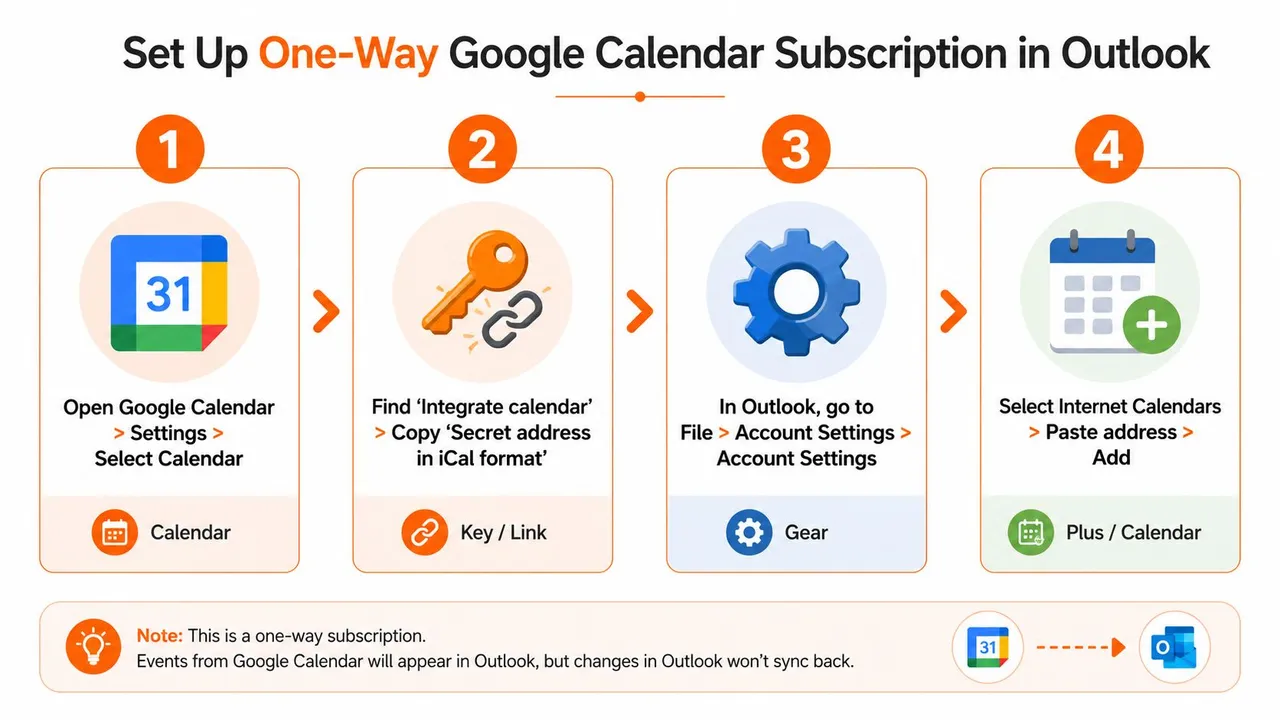
A one-way subscription works when you need Google events to show up in Outlook without making Outlook an editing partner. Start in Google Calendar, open Settings and sharing, choose the calendar you want, and find Integrate calendar. Copy the Secret address in iCal format, because Outlook needs that feed to read the calendar.
Add the feed in Outlook
In the new Outlook, go to Add calendar and choose Subscribe from web. Paste the Google iCal address, give the calendar a clear name, and save it. In classic Outlook, the route is usually From Internet, which does the same job through the older interface.
That setup is read-only by design. It gives you visibility, not a live editing bridge. The value is practical. You can watch busy blocks from Outlook, or let an assistant see your availability without granting access to a second editable calendar.
If the goal is only to mirror availability, this usually does the job. If the goal is to change events from either side, stop here and use a true sync tool such as SyncThemCalendars.
The weak point is refresh timing. Outlook updates subscribed feeds on its own schedule, so changes do not always appear right away. That is fine for passive visibility, but it becomes a problem for active scheduling, especially when meetings move at the last minute.
Use this method when you are protecting your time, not when you are running a shared schedule. A consultant who only needs personal busy blocks visible to an assistant can live with that trade-off. A freelancer or small team that expects edits to flow both directions usually cannot.
Achieving True Two-Way Sync with SyncThemCalendars
Two-way sync starts with a dedicated connector, not the native subscription flow. With SyncThemCalendars, you connect your Google and Outlook accounts, select the source and target calendars, then choose whether the relationship is one-way, two-way, or multi-way. The setup is designed for people who need edits, cancellations, and new events to move across platforms instead of just being displayed.
What the configuration usually looks like
The first choice is the direction. If one calendar is authoritative, keep it as the source and let the other mirror it. If both calendars are active workspaces, set a two-way relationship so either side can update the other. That’s the practical fix for freelancers, small teams, and entrepreneurs who juggle client schedules and personal commitments in different ecosystems.
The second choice is privacy. Sync tools in this category often let you mask titles, descriptions, or locations, which is critical when you want free/busy visibility without broadcasting every detail. That matters more than people expect, because a shared calendar can expose sensitive event names long before anyone notices the leak.
A background sync model also helps when you’re handling more than one calendar. SyncThemCalendars supports Google, Microsoft Outlook, and Apple Calendar, and its workflow is built around continuous background operation with unlimited events per plan, according to the publisher’s own product description at SyncThemCalendars. The service also advertises a 14-day free trial and field-level privacy controls, which makes it a practical test bed for people who want to validate the behavior before committing.
After setup, test it with a single meeting on each side. Move one event in Google, then check Outlook. Change the other one in Outlook, then confirm Google updates. That small test catches mapping mistakes fast, before your whole schedule depends on the connection.
The point of a true sync layer is control. You decide what copies, what stays private, and which calendar wins when conflicts happen. That’s the difference between a shared view and an actual scheduling system.
Native Sync Versus Third-Party Tools Compared
Native tools look simpler because they are simpler. They also stop short of what active schedulers usually need. If you only want to view a Google Calendar in Outlook, a subscription is quick to set up. If you need edits to move both ways, privacy masking, or control over more than one calendar, a third-party sync layer usually becomes the practical choice.
The comparison that matters in practice
| Feature | iCal Subscription | GWSMO | SyncThemCalendars |
|---|---|---|---|
| Editing | Read-only visibility | Full workflow depends on Workspace and Outlook setup | Two-way, one-way, or multi-way options |
| Refresh behavior | Depends on Outlook’s feed polling | Calendar sync every 10 minutes in Google Workspace documentation, plus sync on startup and after meeting invite events (Google Workspace sync timing) | Near-real-time background syncing, according to product positioning |
| Privacy controls | Limited | Depends on Workspace behavior and configuration | Field masking and free/busy mirroring |
| Setup complexity | Low | Moderate | Moderate, with explicit calendar mapping |
| Best fit | Passive availability viewing | Google Workspace users in supported desktop Outlook workflows | Active schedulers who need editable cross-platform sync |
That table makes the trade-offs easier to see. The subscription route works when the goal is to mirror time blocks, not to coordinate a schedule that changes during the day. GWSMO is the stronger native option, but its timing still follows a polling model rather than instant propagation, so it works better as a managed sync framework than as a real-time bridge (Google Workspace sync timing).
Where people usually misread the trade-off
The biggest misconception is assuming that any connection between Google and Outlook means full two-way behavior. Microsoft’s own guidance and community answers keep drawing a line between feed subscriptions and active synchronization, which is why the same setup can feel fine for one person and fail for another (Microsoft Q&A on sync patterns).
A dedicated tool is worth the extra setup when the calendar is operational, not just something you check once in a while. That applies to client-facing consultants, sales teams, and anyone who cannot afford stale availability. It is less useful if the second calendar is only a reference view.
Choose the lightest method that still protects your workflow. Anything lighter than that becomes a false economy the first time a meeting moves.
If you want a broader vendor comparison beyond the native route, the breakdown in this calendar sync app guide helps frame the decision around editing, privacy, and maintenance burden.
Troubleshooting Common Sync Issues and Privacy Tips
The first thing to check when sync feels broken is whether it ever had true write-back in the first place. A one-way feed that looks “stuck” may just be waiting on Outlook’s refresh cycle, while a two-way connector may be misconfigured on calendar mapping or permissions. Those are very different problems, and you fix them differently.
What usually goes wrong
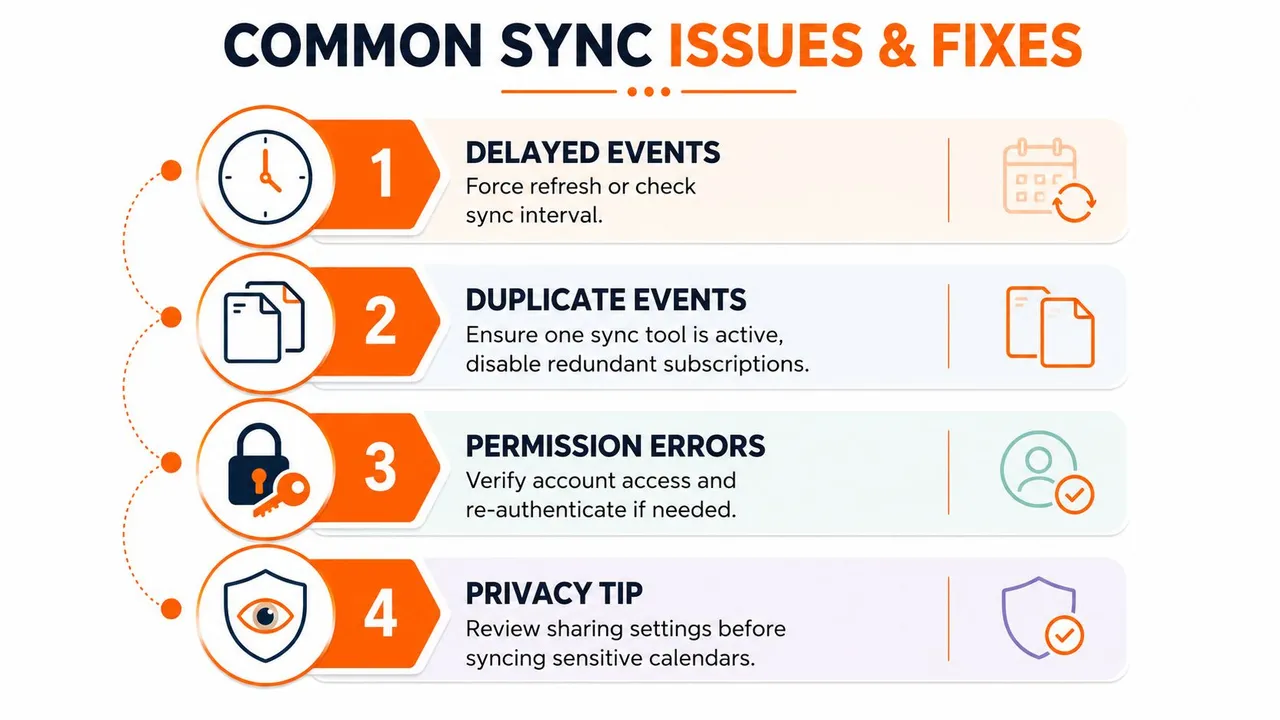
Delayed events are common with subscription-based setups. If Outlook hasn’t refreshed the feed yet, the event hasn’t disappeared, it just hasn’t arrived. Duplicate events usually point to two sync systems trying to do the same job, which is why I always tell clients to keep one active sync path per calendar relationship.
Permission errors are another frequent cause. If the source calendar’s sharing rules change, the feed can stop updating without any obvious warning. When that happens, re-authenticate the account, re-copy the current feed or reconnect the app, and test with a new event before assuming the fix worked.
Privacy deserves its own audit. If a client only needs to see that you’re busy, use free/busy mirroring instead of full event sharing. If you must expose event details, check whether titles, descriptions, or locations need masking first.
- Delayed Events: Force a manual refresh or verify the sync interval.
- Duplicate Events: Keep one sync tool active and disable redundant subscriptions.
- Permission Errors: Recheck access rights and reconnect the account if needed.
- Privacy Exposure: Review sharing settings before syncing sensitive calendars.
The earlier section on one-way subscriptions already covers the visibility versus editing gap, so the fix here is mostly operational discipline. Use one clean calendar path, test with a single event, and don’t mix subscription feeds with full sync tools unless you’re sure they’re not overlapping.
For a deeper look at stuck sync behavior, the troubleshooting notes at this Google Calendar not syncing guide are useful as a checklist. They’re especially handy when a calendar looked fine yesterday and then stopped updating today.
The safest long-term pattern is simple. Keep sensitive details masked, confirm permissions after any account change, and re-test propagation after every configuration change. That keeps your schedule aligned without turning every calendar edit into a guessing game.
If you need a setup that goes beyond a read-only feed and keeps Google Calendar and Outlook aligned, SyncThemCalendars is built for that kind of cross-platform scheduling. It supports one-way, two-way, and multi-way calendar synchronization with privacy controls, so you can match the method to the way you work. Visit SyncThemCalendars and compare the sync options against your own scheduling flow before the next double-booking happens.
Ready to sync your calendars?
Keep your Google, Outlook and Apple iCloud calendars in sync automatically. 2-minute setup, no credit card required.
Get started freeKeep reading
More in Tutorials

How to Synchronize Outlook Calendar Across Platforms
Learn how to synchronize Outlook calendar events with Google and Apple iCloud. Master two-way sync, privacy controls, and real-time availability mapping.
How to Sync Office 365 Calendar with Apple Calendar
Learn how to sync Office 365 calendar with Apple Calendar. Compare native methods, third-party tools, privacy controls, and troubleshooting tips.
Outlook Not Syncing: Step-by-Step Fixes for Calendars
Fix outlook not syncing across Google, iCloud, and Office 365 with this complete troubleshooting guide. Clear steps, platform-specific tips, and expert