







How to Set Up Calendar Sync with Google in 2026
Learn how to set up calendar sync with Google across Outlook, iCloud, and other accounts. Step-by-step guide with privacy tips and troubleshooting.
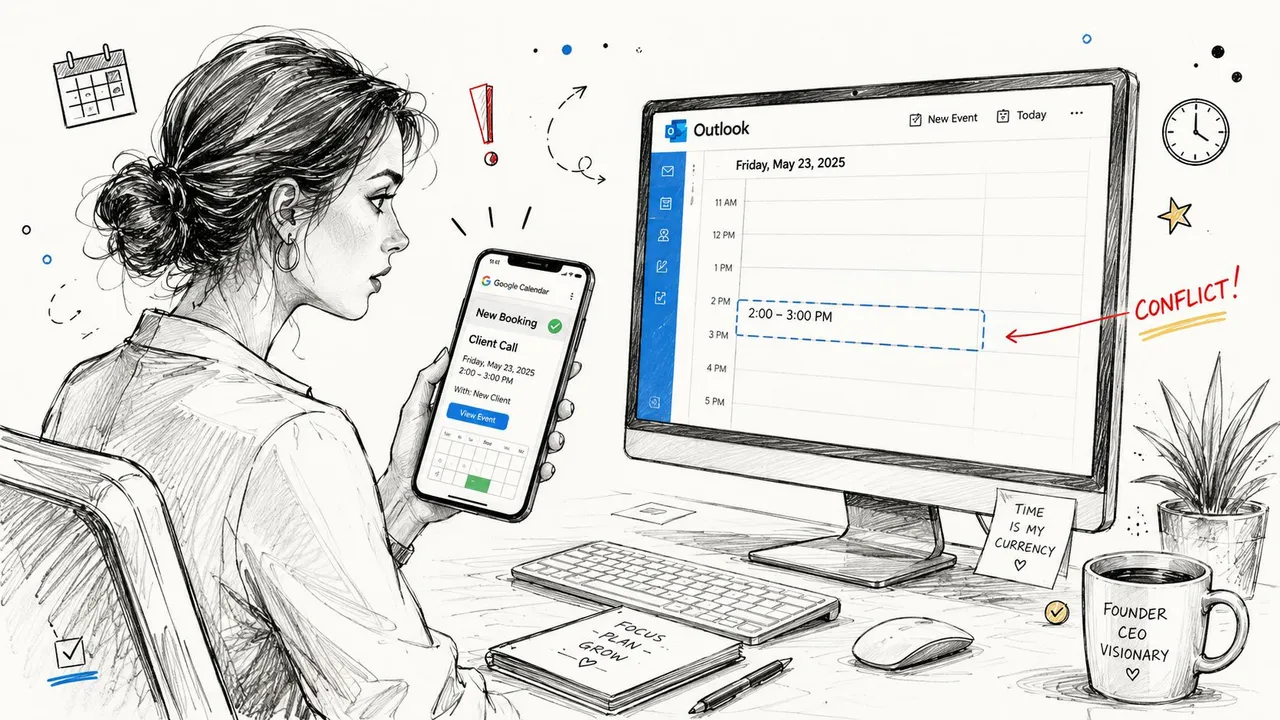
You can feel the problem before you can name it. A founder checks a client booking on her phone, then opens Outlook on her laptop and sees a different status in front of her team. Someone on the calendar can still book the slot, and she’s one reminder away from a double-booked day that starts with a client demo and ends with an apology.
That’s why calendar sync with Google is not just a convenience feature. It’s a control decision about what other people can see, which calendar stays authoritative, and how much of your private life crosses into work systems. Google’s own sync model is built around an initial full sync followed by incremental sync with a stored syncToken, so the client only pulls changes since the last successful sync instead of re-downloading everything each time Google Calendar sync guide.
Why Syncing Google Calendar With Other Accounts Matters
Many people begin by asking the wrong question. They wonder if Google Calendar can “connect” to Outlook or iCloud, when the key issue is whether your calendars function as a single scheduling system or three separate sources of truth. If your work calendar says you’re free, your personal calendar says you’re at the dentist, and your client-facing booking link still shows open availability, the consequences appear at the worst possible time, often right before a call.
The practical payoff is straightforward. Sync prevents double-bookings across tools, keeps free/busy status accurate for anyone booking time with you, and lets you separate work and personal context without losing visibility. That matters for recruiter calls, client demos, last-minute reschedules, and any day where people assume the slot they see on one screen is the slot that exists.
When unsynced calendars create real damage
Unsynced calendars usually don’t fail loudly. They fail in the background, then show up as a tense message from a client who booked over a hold, or a colleague who saw you as available and sent an invite into a conflict. Google positions calendar syncing as a cross-device, cross-app capability, and its help pages say that when you add a Google account to another calendar application, you can add and edit events from either side, while a read-only iCal link is available if full sync isn’t supported Google Calendar help.
That distinction matters because a read-only feed solves visibility, not coordination. If the other side can’t edit, it can’t really participate in your scheduling process, which is fine for some personal views and useless for live work coordination.
Practical rule: if people book time with you, they need an accurate view of availability, not just a copy of your calendar.
The other reason this matters is organizational memory. Calendar sync is often the only thing standing between a clean handoff and a messy week of “I thought that was on the other calendar.” Once you treat it as a business-continuity issue, the setup choices become much easier to make.
Connecting Google to Outlook, Office 365, and iCloud
The connection path changes depending on whether you want a live two-way relationship or just a view. Google’s own guidance says that adding a Google account to another calendar application lets you add and edit events from either side, while a read-only iCal link is available when full sync isn’t supported Google Calendar help. That one sentence is the fork in the road for most setups, because many people pick a feed when they really needed editable sync.
A native connection is the simplest option when the platforms support each other well enough. Outlook and Office 365 users often start by linking a Google account inside the Microsoft calendar apps. Apple users often look for iCloud support in Google or use Apple Calendar as the home base and add Google accounts there. A dedicated sync service sits in the middle when you need continuous background syncing, field masking, or more than two calendars tied together, and an overview of syncing with Google services can help clarify the setup options.
| Connection method | Edit both ways | Auto updates | Best for |
|---|---|---|---|
| Native account linking | Usually yes, when supported | Yes | People who want the simplest live connection |
| iCal feed | No, read-only | Sometimes, but not true editable sync | View-only access and fallback use cases |
| Dedicated sync service | Yes, depending on configuration | Yes | Privacy controls, multi-account setups, and continuous sync |
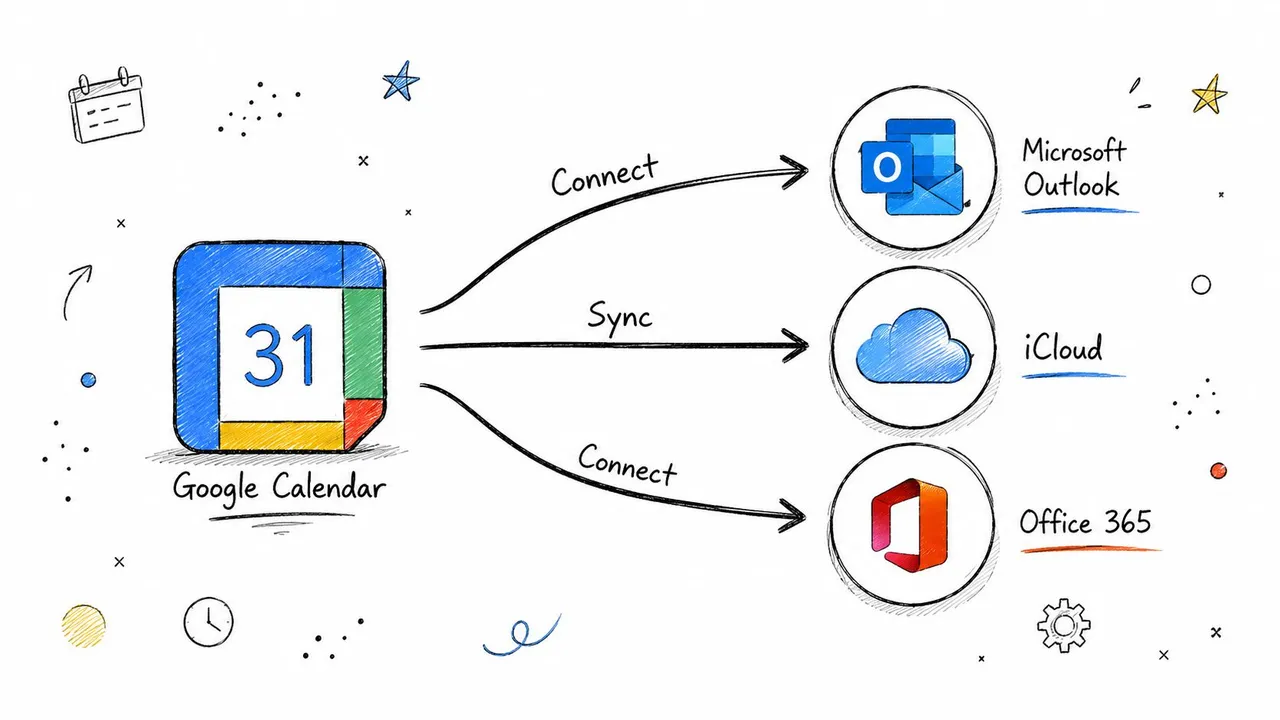
A clean setup still needs a clean path. The practical sequence is usually to authenticate the account, connect the target calendar, and then decide whether you want a live mirrored relationship or a one-way feed. For a Google-to-Outlook link, the main question is whether you’re trying to keep teams aligned or just show availability in a second app. For Google-to-iCloud, the question is usually whether Apple Calendar is the main interface or whether Google remains the system of record.
Google Calendar sync implementations that go beyond native linking typically use OAuth2 for authorization, a Google Cloud project with client credentials, webhook-based change detection, and incremental sync with syncToken and nextSyncToken so only deltas are fetched implementation guide. That’s the backbone behind the “set it and forget it” experience people want when they’re juggling multiple schedules.
The part people miss is that sync quality depends on whether the connection is editable, continuously refreshed, and reliable enough to survive changes in permissions or calendar ownership. If one app only reads while the other edits, you need to know that before you trust it with meetings.
Choosing One-Way, Two-Way, or Multi-Way Sync
Sync direction should be a deliberate choice, not the default. One-way sync copies events from a source calendar into a mirror, which is useful when one calendar is the system of record. Two-way sync lets edits on either side flow back and forth, which is the better fit when both calendars matter operationally. Multi-way sync extends that model across three or more calendars, and that’s where most native tools stop helping.
The simplest way to decide is to ask three questions. Who owns the truth for the event, where are edits made, and what happens if two calendars disagree? If the answer is “one calendar feeds a shared view,” one-way sync is enough. If the answer is “I work out of both calendars every day,” you need two-way. If the answer is “I’m holding together several accounts from different systems,” you’re in multi-way territory.
If a calendar is only a display layer, don’t let it become a place where people edit data you can’t reconcile later.
Matching direction to the job
For founders, one-way sync often makes sense when a personal Google Calendar feeds a shared work view. For freelancers, two-way sync is usually the practical answer because clients and contractors may both need to make changes. For sales teams, multi-way sync becomes useful when several booking identities need to point at the same availability without duplicating every event by hand.
This is also where the limits of basic tooling show up. SyncThemCalendars supports one-way, two-way, and multi-way configurations, which is the kind of flexibility you need once you move past a single personal-to-work link. That doesn’t mean every setup needs that level of complexity. It does mean the direction should match how the calendars are used, not how the app was marketed.
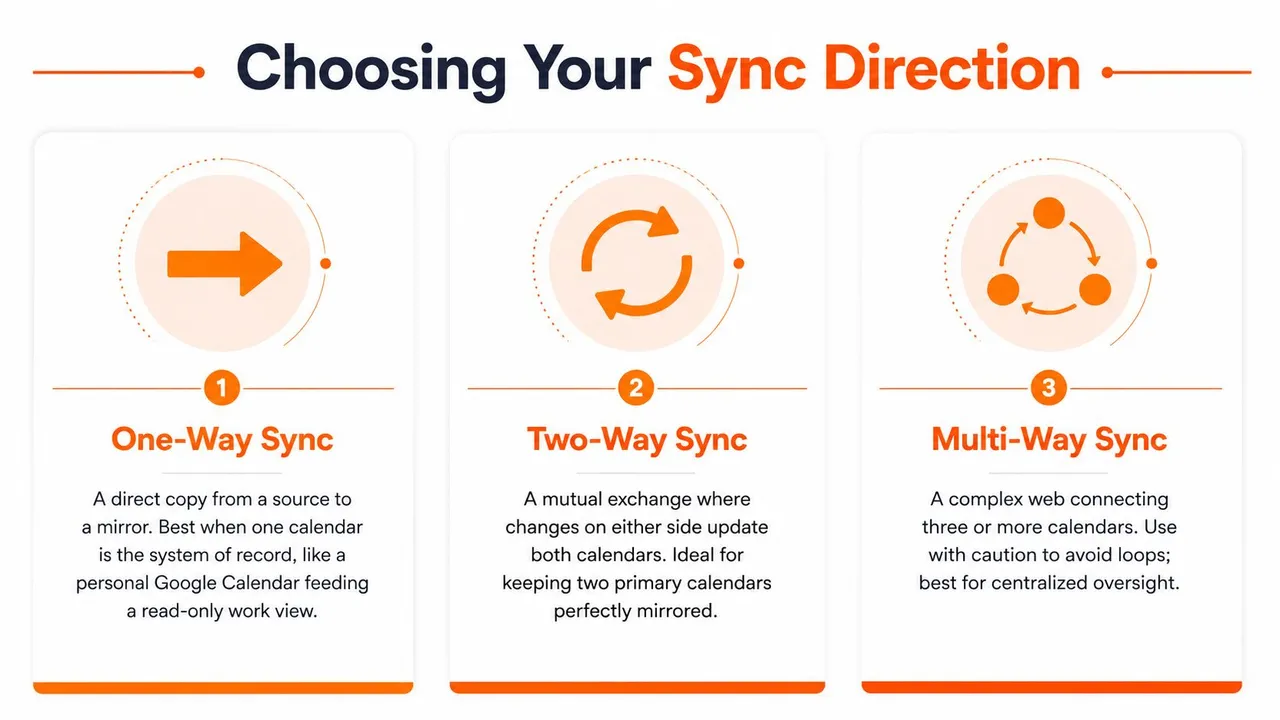
The main trade-off is control versus convenience. The more directions you allow, the more careful you have to be about overlap rules and conflict handling. A clean one-way setup can be safer than a messy two-way setup, but only if it reflects how people work.
Privacy Controls and Free/Busy Mirroring
A client doesn’t need to know you have a dentist appointment. A colleague doesn’t need to see that the blocked hour is a competitor call. That’s why free/busy mirroring is often the right middle ground. It shares availability without copying the event content, so other calendars can avoid double-booking you without exposing the title, description, or location.
Google’s Calendar Interop documentation focuses on sharing availability status across systems, but it does not address detailed field masking, selective copying, or transforming titles, descriptions, and locations, which is the gap dedicated sync tools fill Google Calendar Interop. That gap matters because plenty of teams don’t want full transparency. They want accurate scheduling with selective disclosure.
A useful privacy setup usually starts with a simple rule. If the calendar is shared outside your trust circle, mask the details by default. That can mean renaming every copied event to “Busy,” stripping descriptions, replacing locations with generic text, or transforming attendee details so the mirrored calendar keeps the slot, not the story.
Free-busy calendar privacy basics are most useful when the audience just needs to know whether time is open, not why it’s blocked. That’s a strong fit for founders juggling personal and work calendars, or for employees who need to keep availability visible without revealing private context.
What to mask and what to keep
Not every field deserves the same treatment. Titles are usually the first thing to hide, because they leak the most context. Descriptions and locations often come next, especially if they contain client names, meeting links, or home addresses. Attendee fields can be sensitive too, depending on who can see the mirrored calendar.
That said, free/busy mirroring isn’t perfect for every use case. If a teammate needs to know whether a slot is a focus block or a customer call, you may need a controlled naming convention rather than pure masking. The goal is to give the right people enough signal to schedule intelligently, while keeping private details private.
Common Errors and How to Fix Them
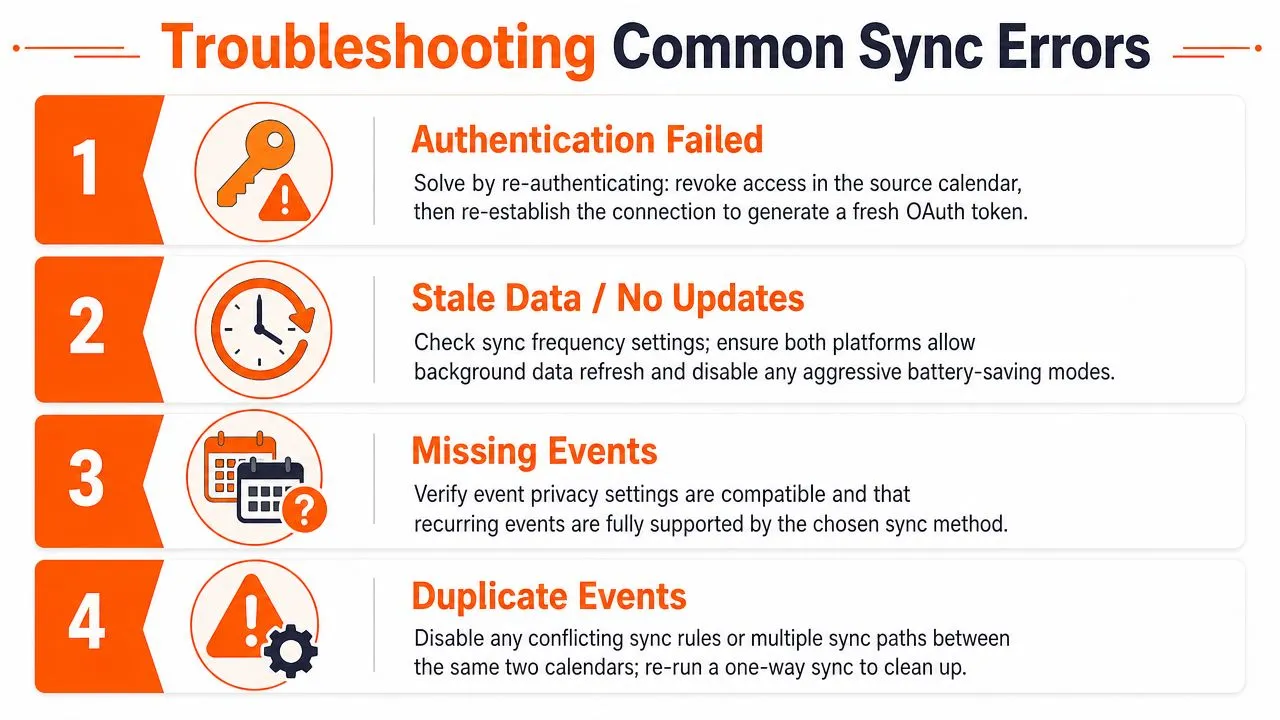
The failures you see in Google Calendar sync usually fall into three buckets, and each one has a predictable first fix. Authentication issues are the most obvious. Recurrence bugs are the most annoying. Sync lag is the most deceptive because the setup looks fine until someone notices an old event didn’t copy or a new one arrived late.
Authentication and permission drift
When sync disappears after a password change, an OAuth revocation, or an admin update, the first diagnostic step is to re-establish the connection from scratch. Google’s guidance also warns that downstream systems may fail if they don’t correctly persist updated fields during list requests, so a connection that looks active may still be carrying stale state Google sync guidance.
The fix that resolves most auth problems is boring but effective. Revoke the existing permission, reconnect the calendars, and confirm the account still has access to the specific calendar you want to sync. If you’re dealing with a managed workspace account, check whether sharing settings changed upstream, because that can remove the access your sync depended on.
Recurrence and historical event edge cases
Recurring meetings are where many syncs start to wobble. All-day events crossing time zones, pattern changes in repeating meetings, and older events can all behave differently depending on how the connection was built. Some implementations also stop syncing events more than 48 hours in the past Google sync guidance, which means a historical import won’t always match the source calendar.
The first check here is whether the event type itself is the problem. Test a single one-off event, a recurring event, and a past event separately. If one of them fails, you’ve found the edge case instead of blaming the whole sync. The usual fix is to widen the sync window, expand recurring events correctly, and verify that deleted events are handled as deletions rather than silent omissions.
Silent lag and missing updates
When events show up minutes or hours late, the issue is often the refresh path, not the data itself. Check whether webhook-based detection is enabled and whether background refresh is being throttled. On mobile devices, aggressive battery-saving settings can delay what looks like a calendar problem but is really a device policy problem.
If you want a fast diagnostic path, start with the newest event and the oldest event. If both are missing, the connection is probably broken. If only the newest one is slow, the sync interval is too long or notifications aren’t firing reliably. Google Calendar not syncing troubleshooting is a useful reference point if you need a broader checklist for these failures.
Real-World Setups for Founders, Freelancers, and Sales Teams
A founder who runs a business from one Google Calendar and a shared team calendar usually needs one-way sync. The personal calendar stays the source of truth, and only the availability gets mirrored into work. The safest setup is to mask client names to something like “External meeting,” then confirm that the team can see blocks without seeing private context.
A freelancer often needs more flexibility. A Google calendar and a client’s Outlook calendar usually work better with two-way sync so changes flow in both directions, while a third personal calendar can stay on free/busy only. That keeps private life invisible during business hours and still lets the business calendars stay current when the client moves a meeting.
Sales teams usually run into the opposite problem, too many booking identities and too much fragmentation. Multi-way sync can consolidate those accounts into one source of truth, with customer-facing events tagged consistently so scheduling stays coherent across systems. The one thing to verify after setup is that no duplicate path exists between the same pair of calendars, because overlapping sync rules are where mirrored calendars become messy fast.
Plan Limits, Free Trials, and What to Do Next
Sync limits usually exist because every active connection consumes API quota and storage. The question isn’t how many calendars you own, it’s how many calendar pairs you need to keep aligned. If you’re just linking a personal and work calendar, your needs are simple. If you’re coordinating several client accounts, your active sync count climbs quickly.
SyncThemCalendars publishes plan tiers for different levels of use, from Basic for a handful of personal-to-work syncs to Premium for freelancers managing multiple client accounts and Professional for power users and small teams. The product also offers a 14-day free trial without credit card, which is the easiest way to validate whether your sync direction, masking rules, and conflict handling work the way you expect. For a wider product comparison, the best calendar sync app guide is a practical place to compare setup styles before you commit.
Pick the sync directions, decide what gets masked, count the active pairs, then start the trial and test the exact events you care about most. If your setup survives a client reschedule, a recurring meeting, and a private appointment without leaking context, you’ve probably configured it right.
If you want a cleaner way to keep Google Calendar aligned with Outlook, Office 365, and iCloud without exposing details you’d rather keep private, visit SyncThemCalendars. It supports one-way, two-way, and multi-way calendar sync with masking and free/busy options, so you can match the setup to the way you work.
Ready to sync your calendars?
Keep your Google, Outlook and Apple iCloud calendars in sync automatically. 2-minute setup, no credit card required.
Get started freeKeep reading
More in Tutorials
How to Sync Google and Apple Calendar: Step-by-Step Setup
Sync Google and Apple Calendar with native accounts or a managed tool. Compare one-way and two-way options, follow the steps, and fix common problems.

How to Add Gmail Calendar to Outlook Without Duplicates
See how to add Gmail Calendar to Outlook by subscribing for a live view or using two-way sync, then avoid privacy leaks and duplicate events.

Export Outlook Calendar to Google: A 2026 Step-by-Step Guide
Learn how to export Outlook calendar to Google with clear steps for ICS and CSV imports, recurring-event checks, and verification tips that work in 2026.