







Fix Outlook and Google Calendar Not Syncing: The Complete
Outlook and Google Calendar not syncing? Follow this step-by-step guide to diagnose and resolve sync failures on any device.
True two-way sync between Outlook and Google Calendar is often impossible natively, and Microsoft’s current Google-account synchronization path has a hard limit of 20 shared calendars. If your setup relies on an ICS subscription, the practical fix is usually to identify that architectural limitation and switch to a dedicated sync tool rather than keep adjusting local settings.
You add a meeting in Google Calendar, expect it to appear in Outlook, and then discover that Outlook still shows an old schedule. Or an Outlook edit never reaches Google, while email continues working normally. That situation is frustrating because the calendars can look connected even when the underlying connection is read-only, delayed, account-limited, or stuck in Microsoft’s cloud service.
The phrase “Outlook and Google Calendar not syncing” covers several different problems. The first task isn’t clearing a cache. It’s identifying whether you have a true two-way connection, a one-way calendar subscription, or a cloud account that has stopped processing updates.
Understanding Why Your Calendars Are Out of Sync
The first distinction is between calendar synchronization and calendar subscription. A traditional email connection may make messages available in Outlook, but IMAP and POP connections don’t carry calendar data. Calendar events need a calendar-capable connection path, not merely a healthy email account.
Many Outlook and Google Calendar setups use an iCal or ICS subscription instead. That arrangement publishes one calendar to another application as a feed. Outlook can read the events, but edits made in Outlook generally don’t travel back to Google Calendar. The same limitation applies in the reverse direction when Google subscribes to an Outlook calendar.
That explains a common support call. A user says, “The calendars were syncing yesterday,” but what happened was that Outlook displayed a refreshed copy of a Google feed. The feed may update after a delay, and it may stop updating if the subscription URL changes or the source calendar’s sharing permissions are altered.
Identify the connection before changing settings
Open the calendar list in Outlook and inspect how the Google calendar was added. Wording such as Subscribe from web, From Internet, or an iCal address points to a subscription model. Treat that calendar as a read-only view unless a separate connector explicitly provides write-back.
On the Google side, look for a calendar added From URL. That also indicates a subscription rather than a native, bidirectional relationship. An imported ICS file is even more limited because it represents a snapshot, not a continuing connection.
The practical lesson is simple: don’t troubleshoot a two-way failure until you’ve proved that two-way synchronization was configured in the first place. A useful explanation of the distinction between copying events and maintaining synchronized calendars appears in this guide to understanding calendar synchronization.
Set realistic expectations
A subscription can be perfectly functional while still failing your business requirement. It may show appointments from Google in Outlook, but it won’t necessarily accept Outlook edits, preserve every event property, or refresh immediately. If your requirement is “create, edit, and delete from either platform,” you need a calendar-aware synchronization service or a supported account integration designed for that workflow.
The Real Reason for Sync Failure
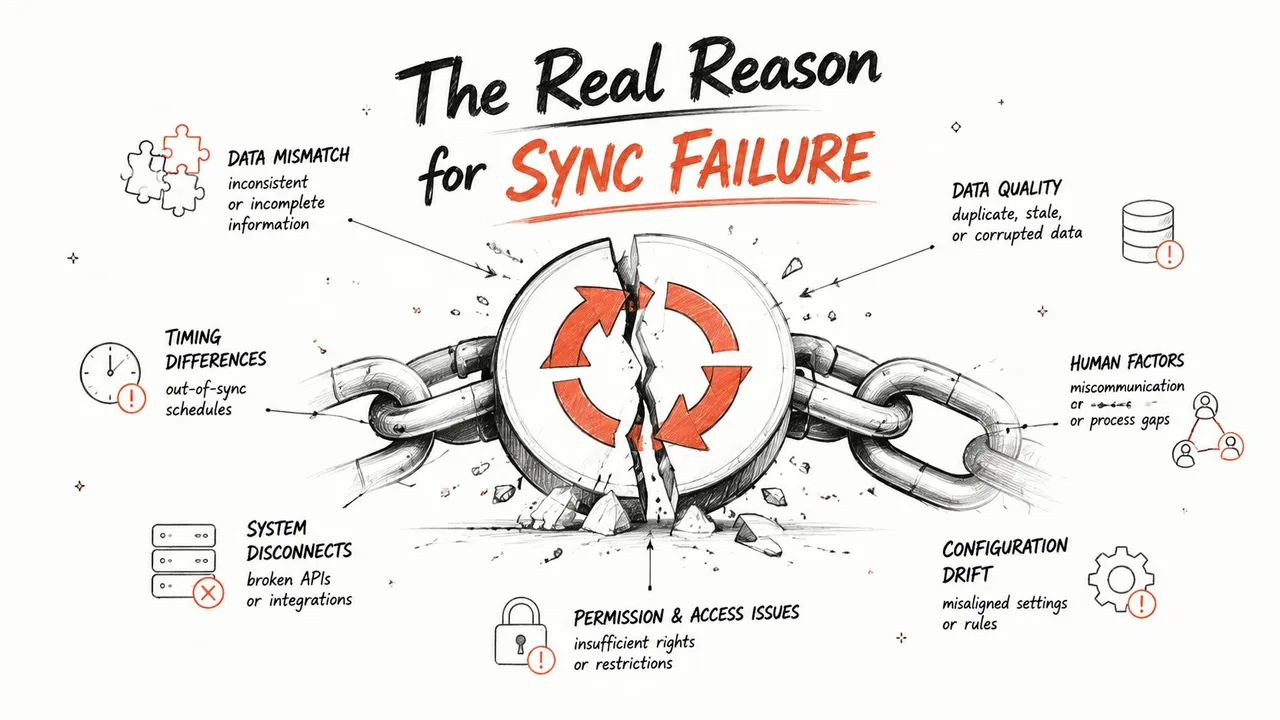
The root problem is usually architectural, not cosmetic. Outlook and Google Calendar are separate platforms with different account models, event-handling rules, sharing controls, and connection methods. A visible calendar in one application doesn’t prove that both services can write changes to each other.
The most common native workaround, ICS, is deliberately one-way and read-only. It can expose event information to the destination application, but it isn’t a live bidirectional event database. Refresh timing can also vary, so a new appointment may be absent even though the subscription itself still exists.
A changed or invalidated secret calendar link creates another failure mode. If the source calendar generates a new private subscription address, the old destination subscription has no reliable path to current events. Re-subscribing with the current URL can force a cache refresh, but it won’t convert the feed into two-way synchronization. If the feed remains broken after that change, malformed recurrence rules or unsupported recurring-event data may be responsible, as described in this Google Calendar troubleshooting discussion.
The shared-calendar ceiling
Microsoft documents a specific limit in its current Google-account synchronization path. More than 20 shared Google calendars can cause synchronization to stall or omit items, and the account may need time to refresh after the shared-calendar total is reduced. The relevant Microsoft known-issues documentation recommends auditing shared calendars, reducing the count to 20 or fewer, confirming Google invitation handling, and allowing the Microsoft Cloud sync layer to reindex before testing again.
This limit matters in organizations where team calendars, meeting-room calendars, delegated calendars, and resource calendars accumulate under one account. A user may see only a few calendars in the daily view while the account carries much broader sharing exposure behind the scenes.
The following video provides a visual overview of common calendar integration failures. Use it as background, not as a substitute for checking the actual connection architecture.
When the account has a stuck backend state, repeated local resets may accomplish nothing. Microsoft community guidance identifies account-specific backend failures and token or synchronization-state problems as reasons to escalate through a Microsoft 365 support ticket, particularly when settings appear correct but the service doesn’t process updates. That perspective is reflected in this Microsoft community discussion about Google and Outlook sync issues.
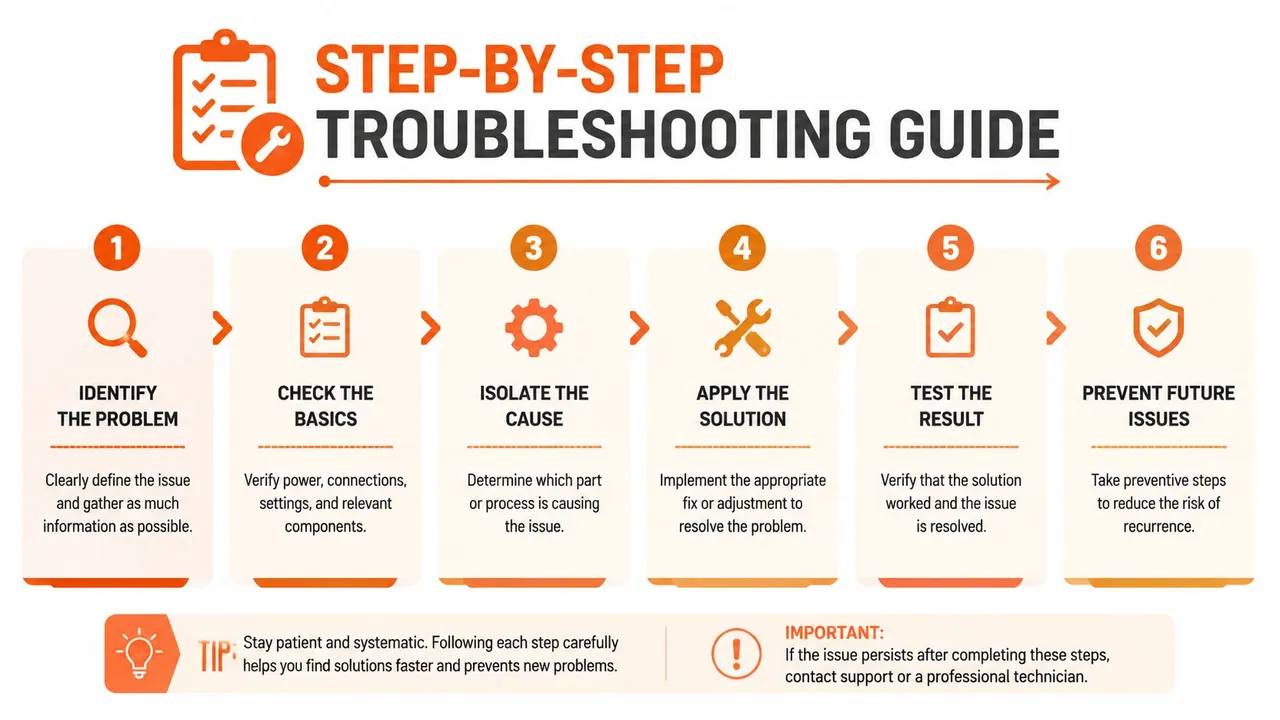
Step-by-Step Troubleshooting Guide
Work from the connection outward. Start with visibility and account identity, then check sharing, the subscription address, local data, and finally the cloud account.
Start with the event and calendar list
-
Check the selected calendars: Confirm the affected Google or Outlook calendar is visible in the application’s calendar list. A hidden calendar can look like a sync failure even when new events are arriving.
-
Check the account identity: Verify that Outlook is connected to the intended Google account and that Google Calendar is using the intended Microsoft account. Personal and work accounts often remain signed in simultaneously, which makes an apparently missing event easy to misdiagnose.
-
Check the event location: Create or locate a test event on the source calendar, then confirm that you’re looking at the subscribed or synchronized destination calendar rather than a similarly named personal calendar.
Validate access and the feed
Google Calendar sharing settings determine what another service can read. Confirm that the destination account still has access to the source calendar and that an administrator hasn’t changed organizational sharing rules. If you’re using an ICS link, copy the current address again and re-subscribe with that changed token. This can refresh a stale subscription, but remember that it remains one-way.
Google invitation handling also matters for invitations that should appear automatically. If invitations aren’t being added, check the account-level invitation preference instead of assuming the feed itself is broken.
Refresh local state carefully
Close Outlook completely, sign out where appropriate, and reopen the application. On the web, sign out and clear browser data for the affected session. On mobile, verify that the operating system allows calendar access to Outlook and that the account’s calendar synchronization toggle is enabled.
Don’t start by deleting data files or reinstalling applications. Those actions can remove useful diagnostic evidence and won’t repair a server-side subscription or an invalid permission. Use them only after the connection, account, and sharing checks pass.
Escalate when the evidence points to the cloud
If multiple devices show the same stale result, the issue probably isn’t limited to one Outlook cache. Audit shared-calendar sprawl, reauthenticate the account, and allow the Microsoft Cloud service time to rebuild its state. If the account remains stuck, open a support ticket rather than repeating the same local reset.
For a setup walkthrough that focuses on the connection path itself, use this guide to synchronize Google Calendar with Outlook.
Reliable Sync Solutions for Long-Term Stability
A free ICS subscription suits simple visibility. It lets you view a Google calendar in Outlook, but the feed is read-only and refreshes may be delayed. That limitation becomes operationally important when staff edit events in both applications or rely on current availability throughout the day.
The architectural distinction matters: an ICS subscription publishes a one-way calendar feed, while a synchronization service maintains a configured relationship between calendars. A connector can support one-way, two-way, or multi-way copying, depending on its configuration. It still requires careful permission and privacy review, but the data path is explicit rather than hidden inside a subscription URL.
Compare the available approaches
| Method | Sync Direction | Reliability | Setup Difficulty |
|---|---|---|---|
| ICS or iCal subscription | One-way, read-only | Suitable for basic visibility, refresh may be delayed | Low |
| Manual ICS import | One-time snapshot | Does not maintain ongoing updates | Low |
| Native account connection | Depends on account and platform support | Can be affected by sharing, token, and cloud-state issues | Moderate |
| Dedicated synchronization service | One-way, two-way, or multi-way, depending on configuration | Designed for ongoing automated updates | Moderate |
SyncThemCalendars provides event synchronization across Google Calendar, Microsoft Outlook or Office 365, and Apple Calendar. Its web application supports configurable one-way, two-way, and multi-way directions, with setup estimated at approximately two minutes, according to its service information. This differs from an ICS feed because the user selects whether changes can travel back to the source calendar.
Choose based on control, not convenience
A suitable tool should let you select the exact source and target calendars, define change direction, and control which event details are copied. Privacy settings matter when a personal calendar should block work availability without exposing titles, notes, or locations. Enterprise users should review requested permissions, authentication behavior, retention practices, and administrative approval requirements before connecting an external service.
A read-only view may be all you need. In that case, automation can add unnecessary access and administrative overhead. If missed updates, repeated manual edits, or scheduling across accounts create recurring problems, a dedicated connector is more appropriate than repeatedly adding the same ICS link. Choose the method according to the workflow, especially whether edits must travel in both directions.
Use this guide to evaluate real-time calendar synchronization when comparing update timing and permitted data flow.
Verifying Your New Synchronization Setup
A calendar that appears once in Outlook isn’t proof that the problem is solved. Verification should test the actual operations your schedule depends on, including creation, editing, recurrence, deletion, privacy, and time-zone interpretation.
Use a controlled test event rather than a critical meeting. Create it in the source calendar with a recognizable title, a location, and a recurrence pattern if recurring events matter to your workflow. Check the destination for the event, then edit one field at a time and confirm whether the configured direction permits that change to travel back.
Test the boundaries deliberately
Check these conditions separately:
- Creation: Does a new event appear in the intended destination calendar?
- Editing: Does changing the time, title, or location behave according to the selected sync direction?
- Recurrence: Does a recurring event remain structurally correct rather than appearing as isolated or incomplete entries?
- Privacy: Does the destination reveal more detail than your sharing policy allows?
- Deletion: Does deleting a test event produce the expected result, or does the destination retain a copied item?
A read-only ICS subscription should fail the edit-back test by design. That isn’t evidence of a broken feed. It proves that the setup doesn’t meet a two-way requirement.
Distinguish delay from failure
Give the system enough time to process a normal update, then compare the source and destination directly. If only one device is stale, investigate local visibility or application state. If every device shows the same stale data, focus on the account, subscription token, permissions, shared-calendar count, or cloud backend.
Microsoft’s support material also makes clear that reducing excessive shared calendars may require time for the Microsoft Cloud layer to reindex. If the setup still fails after the account-level checks, document the accounts involved, the calendars shared, the test event behavior, and the exact point where propagation stops before contacting support. That evidence is more useful than reporting only that “sync doesn’t work.”
Frequently Asked Questions
Can an ICS subscription provide two-way editing?
No. ICS is a one-way, read-only subscription. Use a supported two-way connector when edits must travel between Outlook and Google Calendar.
Will deleting an event in one app delete it in the other?
Only if your synchronization service and configured direction support deletion handling. Test this with a disposable event before relying on the behavior for real meetings.
Is granting a third-party service access safe?
Review its permissions, privacy policy, data handling, authentication, and administrative controls. Grant only the access required for the calendars you intend to synchronize.
Should I migrate old events first?
Clean up duplicates and decide which calendar is authoritative before enabling a new two-way setup. Then test new events and selected historical items separately, so old data doesn’t obscure the first synchronization result.
SyncThemCalendars supports configurable one-way, two-way, and multi-way synchronization between Google Calendar, Microsoft Outlook or Office 365, and Apple Calendar. Visit SyncThemCalendars to review the available setup and use it when an ICS subscription can’t provide the cross-platform behavior your schedule requires.
Ready to sync your calendars?
Keep your Google, Outlook and Apple iCloud calendars in sync automatically. 2-minute setup, no credit card required.
Get started freeKeep reading
More in Guides

SyncThemCalendars Quick Setup Walkthrough
Master the SyncThemCalendars quick setup in minutes. Connect Google, Outlook, or iCloud, configure privacy masking, and verify your first sync effortlessly.

Merging Google Calendars: The Complete Guide for 2026
Merging Google Calendars. Learn the best ways to merge Google Calendars. Compare import methods, sync tools, and automation strategies

Master Your Calendar on Outlook with Sync Solutions
Learn how to use calendar on Outlook effectively, sync with Google and iCloud, avoid double-bookings, and connect SyncThemCalendars for seamless scheduling.