







How to Synchronize Outlook Calendar Across Platforms
Learn how to synchronize Outlook calendar events with Google and Apple iCloud. Master two-way sync, privacy controls, and real-time availability mapping.

You’ve just moved a client meeting in Outlook, but the change hasn’t reached the Google Calendar your booking page uses. Your personal appointment still appears open on the work calendar, and an Apple Calendar subscription is showing yesterday’s schedule. By the time you notice, two people have accepted the same slot.
This is the practical problem behind the search to synchronize Outlook Calendar. Calendar fragmentation is normal, not an edge case. In a Microsoft Research survey of 621 people, respondents used a median of three calendars at least once a week, and 51% used their work digital calendar to record most personal and household events. The Microsoft Research survey doesn’t estimate the global market, but it does show why a single Outlook view rarely represents a person’s complete availability.
“Why Native Calendar Sharing Falls Short”
An ICS subscription looks like synchronization because another calendar displays your Outlook events. Operationally, it’s usually closer to a published feed. Outlook exposes an Internet Calendar Subscription that another service can view or add, but the receiving calendar refreshes that feed periodically rather than receiving an immediate event-by-event instruction.
That distinction matters when a meeting is cancelled, moved, declined, or given a new duration. The original appointment may remain visible on the subscribed calendar until its next refresh. Someone checking that calendar can then book a slot that Outlook already considers occupied.
Microsoft distinguishes external calendar sharing from instant synchronization. For sharing outside a Microsoft 365 tenant, instant synchronization isn’t currently supported, and the refresh behavior depends on the external service and its subscription process. Tenant settings can also restrict external sharing, so a user may not be able to correct a delay from Outlook alone. The underlying Microsoft calendar-sharing guidance is important because it prevents a common setup mistake, treating visibility, sharing permissions, and event replication as the same thing.
Practical rule: If a calendar only gives you an ICS URL, assume it is a one-way, periodically refreshed view until you test edits and deletions.
Visibility isn’t event control
Native sharing can be perfectly adequate for internal colleagues who need to inspect a calendar inside the same Microsoft environment. It becomes less reliable when a freelancer has a Microsoft 365 client calendar, a personal Google Calendar, and an Apple iCloud calendar that other clients use for scheduling.
There are three different workflows:
- One-way publishing: Outlook sends event information outward. Changes made in the destination don’t return to Outlook.
- Permission-based sharing: Another person receives access to a calendar or availability view, subject to permissions and tenant policy.
- Two-way synchronization: A service or integration copies changes in both directions and maintains a mapping between corresponding events.
Only the third model can consistently reflect changes made on either side. Even then, “real time” should be treated as a reliability requirement to validate, not a marketing label to accept. Create a test event, edit its time, cancel it, and check whether the destination responds as expected.
The standards foundation is mature. The IETF standardized iCalendar as RFC 2445 in 1998, revised it as RFC 5545 in 2009, and extended it with RFC 7986 in 2016. Microsoft documents Outlook 2007 and later support for iCalendar, iTIP scheduling, and iMIP email interoperability. Those standards make calendar exchange possible, but they don’t eliminate provider-specific recurrence rules, invitations, privacy settings, or field mappings.
Before choosing a tool, read how calendar-sharing permissions affect what others see. A feed that shows an event title may expose more than a free/busy signal, while a restrictive share may hide the information a scheduling workflow needs.
“Setting Up Real-Time Cross-Platform Sync”
A dependable setup starts with a scheduling decision, not an account connection. Decide which calendar owns the official event and which calendars need a copy, an availability block, or both. If Outlook is where client meetings are accepted, it may remain the source of truth, while Google and iCloud receive mirrored events for booking and personal planning.
A web-based synchronization service can connect Microsoft 365, Google Calendar, and Apple iCloud without requiring a local desktop process to remain open. The setup should be simple, but the configuration still deserves care because a fast connection to the wrong calendars creates conflicts faster.
Choose the direction before you connect
Use this sequence:
- List the calendars that affect availability. Include work, personal, client-mandated, and booking calendars. Don’t include an account merely because it exists.
- Assign ownership. Decide where a new meeting should be created first. Avoid allowing several calendars to act as independent masters unless you have a clear multi-way routing policy.
- Select the copy model. Choose one-way copying when only one system should publish events. Choose two-way mirroring when edits can legitimately originate in either calendar. Use multi-way routing only when you can explain how duplicate events and conflicting edits will be resolved.
- Define the initial merge. Review existing events before enabling broad copying. Determine whether the service should create destination copies, ignore historical items, or use a limited date range.
- Map event fields. Decide whether the destination needs the title, description, location, attendees, reminders, or only a busy block.
- Run controlled tests. Create a new event, move it, edit a field, and delete it. Test from each direction that users will use.
The reason for testing deletions is straightforward. A system that copies creation but mishandles cancellation can leave an apparently occupied slot in one calendar or, worse, release a time that remains booked elsewhere.
Make the background process accountable
Set-and-forget operation is useful only when someone owns exception handling. Keep a short operating record that identifies the source calendar, destination calendar, sync direction, privacy policy, and expected delay. If a meeting disappears, that record tells you whether to inspect permissions, refresh behavior, a failed authorization, or the destination mapping.
A dedicated service can be more appropriate than a manual ICS arrangement when a professional works across Microsoft, Google, and Apple ecosystems. For adjacent workflow needs, teams can also view platform integrations to understand how calendar data connects with other business systems. The integration choice should follow the workflow, not the other way around.
Use a real-time calendar synchronization workflow as a testing standard, not merely a setup promise. Ask whether the system detects edits, cancellations, and recurring-event exceptions, whether it prevents loops, and whether it preserves the privacy level selected for each destination.
Keep the first rollout narrow
Start with one Outlook calendar and one destination. Confirm that a meeting created in Outlook appears correctly, then test a destination-originated event if two-way sync is required. Expand only after you know how private events, recurring meetings, time zones, and deleted items behave.
This approach avoids the most expensive kind of calendar error, a configuration that appears successful because events are visible but fails unnoticed when the schedule changes. Cross-platform coverage is useful, but predictable change handling matters more than the number of connected accounts.
“Protecting Privacy with Free and Busy Mirroring”
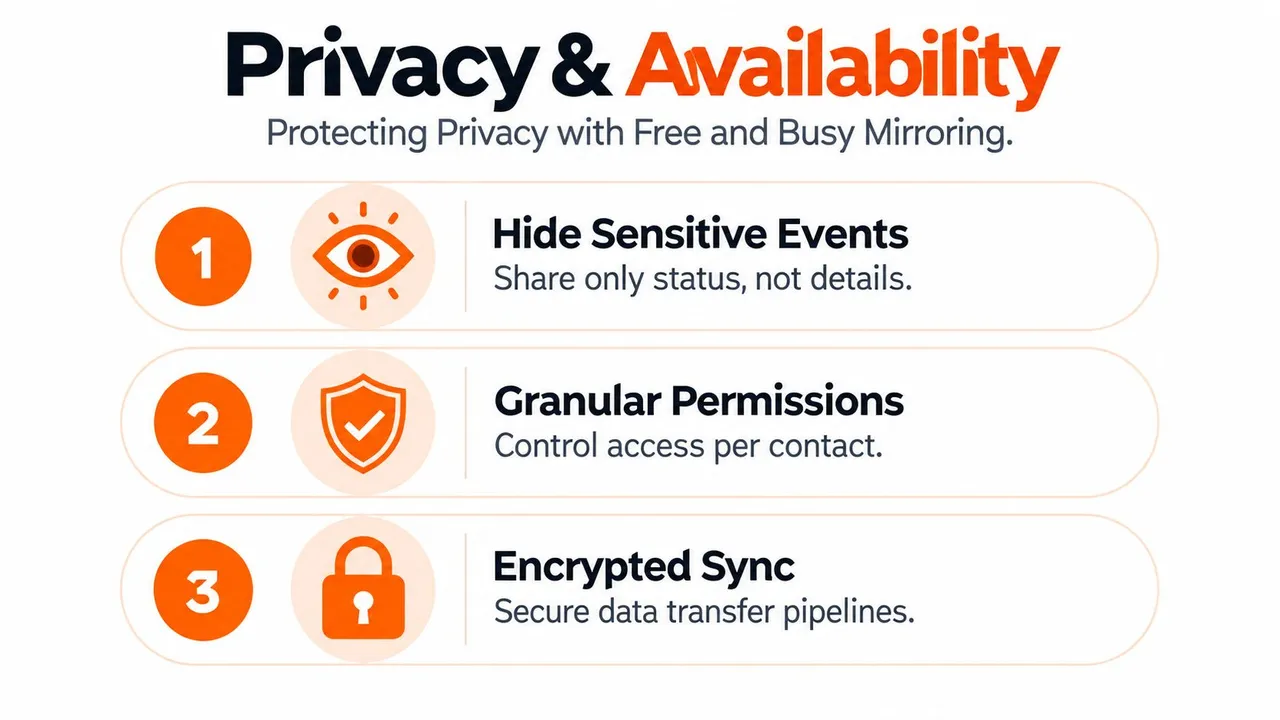
A synchronized calendar can prevent double-bookings while still disclosing far too much. A client name, medical appointment, negotiation title, project code, or private location may be harmless inside one account and inappropriate in another. The correct question isn’t merely whether Outlook can synchronize with another calendar. It’s which minimum data must cross the boundary.
Microsoft 365 administrators can control whether external recipients see free/busy time only, time with a subject and location, or full appointment information. External sharing may also be disabled. Private appointments generally conceal subjects, locations, and other details from recipients, but that protection depends on correct privacy marking and the permissions applied to the share.
Separate availability from description
For many scheduling workflows, the destination only needs to know whether a person is available. A free/busy mirror blocks the occupied interval without copying the event narrative. That can be enough for a booking calendar, a personal calendar, or a client’s scheduling view.
A useful field-level policy looks like this:
| Calendar relationship | Data to copy | Data to hide |
|---|---|---|
| Work to personal | Busy status, start and end time | Client name, notes, attendees, location |
| Personal to work | Busy status and necessary buffer | Appointment title, medical or family details |
| Client to internal | Availability and approved meeting title | Confidential project notes and external locations |
| Internal to external | Free/busy blocks | Descriptions, categories, private terminology |
This isn’t a universal rule. A consultant may need a travel location to protect the transition between meetings, while a sales team may need an approved customer title. The policy should reflect the scheduling decision the recipient must make, not the complete information available in the source event.
Audit the least-secure connection
A multi-calendar setup inherits risk from its weakest connected account. Restrictive Outlook permissions don’t solve a problem if a less-protected destination receives full titles and descriptions. Review each connection as if it were a separate data-sharing agreement.
Use a practical audit:
- Inspect permissions: Confirm which account can read, create, update, and delete events.
- Mask fields by default: Hide titles, descriptions, and locations unless a real scheduling need requires them.
- Protect private events: Mark sensitive appointments as private in the source calendar and verify the destination behavior with a test item.
- Check staff changes: Remove access when a contractor, client, or employee no longer needs calendar visibility.
- Test the output: Ask what an external recipient can see after a normal event, a private event, and a cancellation are synchronized.
A one-way workflow may be safer when only availability needs to leave Outlook. Two-way synchronization increases operational flexibility, but it also increases the number of places where someone can edit or delete the underlying commitment. One-way calendar synchronization can be the better design when the destination should never become an event-authoring system.
Privacy principle: Share the smallest calendar representation that lets the other person make the correct scheduling decision.
Don’t copy descriptions just because the destination supports them. Transforming an event into a neutral “Busy” block often gives a client enough information to avoid a conflict without exposing why the time is unavailable. For regulated work or sensitive personal scheduling, document the chosen fields and review them whenever a new calendar is connected.
“Comparing Native Microsoft Features and Dedicated Tools”
Native Microsoft features aren’t inherently inadequate. They solve a narrower problem well: sharing calendars inside an organization, exposing availability under administrator control, and letting Outlook users work within the Microsoft 365 environment. The trouble starts when the requirement includes independent Google accounts, Apple iCloud, two-way edits, field masking, or routing among several ecosystems.
Use the simplest option that meets the reliability requirement. Internal colleagues may only need permission-based visibility. A freelancer whose clients book through different platforms may need event copies and privacy transformations that native sharing doesn’t provide as one coherent workflow.
Native Sharing vs Dedicated Synchronization
| Feature | Native Microsoft Sharing | Dedicated Sync Service |
|---|---|---|
| Internal Microsoft 365 visibility | Strong fit for tenant-based sharing | Usually unnecessary for simple internal access |
| External calendar visibility | Available when tenant policy permits | Can create controlled copies for connected destinations |
| Google and Apple calendar coverage | Often depends on subscription or separate integration behavior | Designed for cross-platform routing |
| Update behavior | External ICS subscriptions refresh periodically | Can use change-driven synchronization and reconciliation |
| Sync direction | Commonly sharing or one-way visibility | One-way, two-way, or multi-way configurations |
| Field-level transformation | Governed by sharing and privacy permissions | Can mask or transform titles, descriptions, and locations |
| Administrative control | Centralized in Microsoft 365 policies | Split between Microsoft administration and service configuration |
| Operational responsibility | Fewer vendors, but more manual diagnosis across platforms | More configuration, monitoring, and permission review |
| Best use | Internal access and straightforward availability sharing | Fragmented schedules requiring copied events across ecosystems |
The table isn’t a promise that every dedicated service behaves identically. Capabilities vary, and a service that claims two-way synchronization still needs testing for recurrence exceptions, deletions, attendees, and private events.
When native features are enough
Keep native sharing when the people who need access already work in the same Microsoft environment, periodic external visibility is acceptable, and no one expects destination users to edit Outlook events. It also makes sense when your administrator prohibits third-party access or when the privacy policy requires all calendar data to remain within Microsoft-controlled workflows.
Choose a dedicated tool when the practical requirement is not “let someone view my calendar,” but “keep availability aligned across separate systems.” That distinction applies to consultants serving clients with different calendar requirements, founders separating personal and business schedules, and sales professionals working from customer-specific platforms.
Don’t over-engineer a simple internal calendar. Don’t force ICS to perform a two-way synchronization job it wasn’t designed to perform. The decision should turn on update urgency, direction of change, data minimization, platform coverage, and who will troubleshoot failures.
A dedicated service also adds a vendor and another authorization boundary. Before connecting it, review its permissions, retention practices, deletion behavior, privacy controls, and support process. Convenience doesn’t remove the need for governance. It changes where governance happens.
“Navigating Throttling and Time Zone Pitfalls”
Calendar synchronization fails in production for reasons that don’t appear during a quick demo. The worker may request too much data, process the same notification repeatedly, lose its subscription, or interpret a local time differently from Outlook. Reliable synchronization is therefore a controlled reconciliation process, not an unrestricted loop that copies whatever it sees.
Microsoft Graph provides the right pattern for Outlook workloads. Use change notifications as the trigger, then use delta queries to retrieve created, modified, and deleted events since the previous synchronization point. Microsoft recommends combining notifications with change tracking, and its delta-query documentation explains how delta links reduce repeated full-calendar reads.
Treat notifications as prompts
A notification doesn’t necessarily contain the complete event. Store the subscription identifier and its expiry, renew the subscription before it expires, and retain the latest @odata.deltaLink. When a notification arrives, retrieve the changes through that link, apply them locally, and persist the new link only after successful processing.
The worker should also retain an idempotency key based on the Outlook event identifier and change metadata. Duplicate notifications must produce no additional copy. If a worker crashes after writing an event but before recording its checkpoint, the next pass should safely recognize the already-applied change.
A periodic full or bounded-range audit remains necessary after a lost subscription, invalid token, or worker outage. Push delivery is a useful trigger, but it isn’t a completeness guarantee.
Respect Outlook’s service limits
Microsoft documents an Outlook limit of 10,000 API requests per 10-minute period for each app-ID and mailbox combination, with a maximum of four concurrent requests. Exceeding those limits can produce throttling responses. The Microsoft Graph throttling guidance identifies Retry-After as the signal for how long a worker should wait.
A practical worker design includes:
- Per-mailbox queues: Keep no more than four active requests for the affected mailbox.
- Backoff with jitter: When a request receives a 429 response, wait according to
Retry-After, then retry with controlled variation. - Delta-first reads: Reconcile changes instead of repeatedly listing every event.
- Burst coalescing: Combine several notifications into one reconciliation pass where safe.
- Write priority: Process event writes before low-value metadata reads.
- Stable mappings: Store source and destination event IDs so updates target existing copies.
Two-way sync needs origin suppression. If Outlook changes an event, the destination copy updates, and that destination update is then interpreted as a new source change, the systems can loop indefinitely. Record the last applied version or timestamp and suppress writes that originated from the synchronizer itself. Preserve ordering for updates to the same event, even when independent reads can be batched.
Validate time zones before blaming data
Outlook, the operating system, and external devices can hold different time-zone settings. A mismatch can shift an appointment or create an apparent one-hour error around a daylight-saving transition. Check the mailbox, calendar, and device settings before treating the event as corrupted.
Test recurring events with exceptions across daylight-saving boundaries. A series can appear correct while one moved occurrence lands at an unexpected local time. Store time-zone context with the event mapping, display times in the user’s intended zone, and make the zone explicit when diagnosing a conflict.
“Best Practices for Unified Schedule Management”
A consultant may have an employer’s Outlook calendar, a personal Google Calendar, and a client system that controls invitations. A small business owner may separate calendars by venture but still be one person with one finite day. In both cases, the operational answer is to model one real availability, even when several systems display it.
Start by assigning a source of truth for each type of commitment. Outlook may own client invitations, while a personal calendar owns family appointments. Neither calendar needs to contain every private detail, but both need to block time that the other calendar must respect.
Make the schedule operational
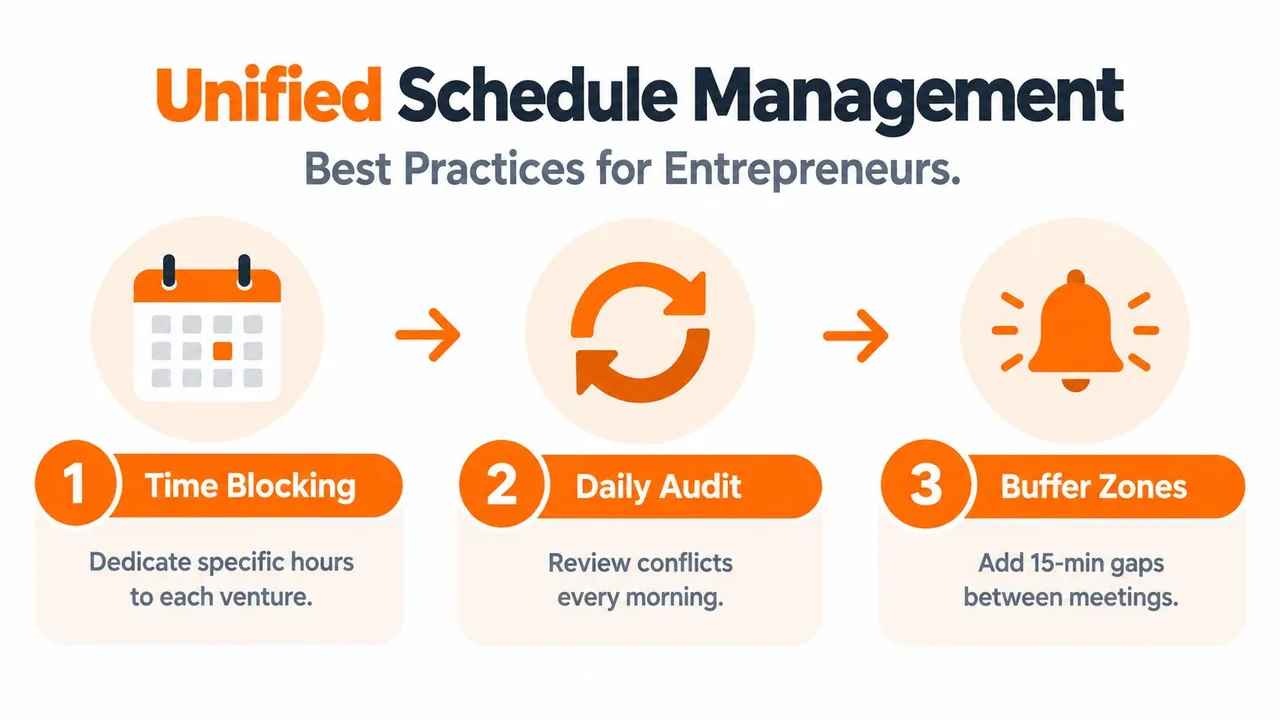
Use a short routine that catches errors before the day fills up:
- Choose ownership: Create an event first in the calendar responsible for the invitation or commitment.
- Mirror availability: Send a privacy-preserving busy block to calendars used for booking.
- Review changes: Check moved, cancelled, and declined meetings rather than only newly created events.
- Protect transitions: Account for travel, preparation, and handover time when a copied event blocks availability.
- Audit recurring series: Inspect exceptions separately from the parent event.
- Reconcile failures: Run a bounded review after authorization problems, outages, or an unexplained gap.
A daily audit doesn’t require opening every event. Compare the day’s occupied intervals across the calendars that accept bookings, then inspect only differences. This catches an orphaned personal appointment that never reached Outlook or a cancelled client call that remains on a stale destination feed.
Operations habit: Decide where an event is edited before you decide how many calendars should display it.
Keep synchronization rules narrow. A personal calendar may need to block work availability but should not expose the appointment title. A client calendar may need a copied meeting with a neutral name, while an internal calendar can retain the full context. When someone changes responsibilities, review permissions and mappings immediately rather than waiting for a scheduling error.
Recurring events deserve deliberate testing because exceptions carry more operational risk than ordinary appointments. Test a moved occurrence, a cancelled occurrence, and a time-zone transition. If the result differs between Outlook and the destination, document the limitation and choose whether to stop copying that event type.
The goal isn’t to make every calendar identical. It’s to make every calendar trustworthy for the decision its user must make. A booking tool needs accurate blocked intervals. A project team may need titles and attendees. A private account may need only a protected availability signal.
SyncThemCalendars connects Google Calendar, Microsoft Outlook or Office 365, and Apple Calendar for one-way, two-way, or multi-way event synchronization, with options for free/busy mirroring and masking event details. Visit SyncThemCalendars to configure cross-platform availability without relying on a stale ICS feed.
Ready to sync your calendars?
Keep your Google, Outlook and Apple iCloud calendars in sync automatically. 2-minute setup, no credit card required.
Get started freeKeep reading
More in Tutorials

How to Add Gmail Calendar to Outlook Without Duplicates
See how to add Gmail Calendar to Outlook by subscribing for a live view or using two-way sync, then avoid privacy leaks and duplicate events.

Export Outlook Calendar to Google: A 2026 Step-by-Step Guide
Learn how to export Outlook calendar to Google with clear steps for ICS and CSV imports, recurring-event checks, and verification tips that work in 2026.
How to Sync Office 365 Calendar with Apple Calendar
Learn how to sync Office 365 calendar with Apple Calendar. Compare native methods, third-party tools, privacy controls, and troubleshooting tips.