







How to Sync Office 365 Calendar with Apple Calendar
Learn how to sync Office 365 calendar with Apple Calendar. Compare native methods, third-party tools, privacy controls, and troubleshooting tips.
You’ve added your Microsoft 365 account to Apple Calendar, the events appear, and everything looks fixed. Then a client books time during a personal appointment, an Outlook edit doesn’t appear on your iPhone, or a shared calendar vanishes from one device while remaining visible on another. The problem usually isn’t the login. It’s the difference between seeing a calendar, subscribing to a feed, and maintaining a genuine two-way synchronization relationship.
To sync Office 365 calendar with Apple Calendar reliably, you need to identify which connection you’re using, what it can write back, and what information it exposes. Native Apple and Microsoft tools cover several useful scenarios, but they don’t remove every protocol boundary. For private schedules, delegated calendars, and frequent changes, that distinction matters.
Exchange and CalDAV Create a Protocol Boundary
A consultant may handle client meetings in Office 365, personal commitments in iCloud, and travel plans in Apple Calendar on an iPhone. The setup can look fine until a busy week exposes the gap: one calendar changes, another retains old availability, and every invitation requires checking several apps.
The underlying issue is architectural. Exchange and Microsoft account integrations expose Office 365 calendars through Microsoft’s ecosystem, while CalDAV supports the calendar workflows associated with iCloud and Apple Calendar. Exchange and Outlook are not native CalDAV servers, so a generic Apple subscription usually cannot create a direct server-to-server relationship. The protocol differences are explained in this comparison of IMAP, Exchange, CalDAV, and CardDAV.
Viewing is not synchronization
Apple Calendar can show events from multiple accounts in one interface. That shared view does not guarantee that every event can be edited from every account, or that an edit in one system will reach another.
Three workflows are commonly confused:
- Account synchronization: Apple Calendar connects to a Microsoft or iCloud account and can generally read and write within that account’s supported calendar scope.
- Subscription: Apple Calendar reads a calendar feed through a web address. This is typically read-only, and updates may arrive late.
- Calendar bridge: A service copies events between separate calendars and can apply rules before delivering them to the destination.
A calendar bridge is the only practical route to dependable two-way synchronization across separate Office 365 and iCloud environments. It can also limit copied details, which matters when native subscriptions expose more event metadata than the recipient calendar needs. Guidance on real-time calendar synchronization should therefore account for both update direction and privacy.
Native account connections remain suitable for a straightforward personal calendar. They become less predictable when iCloud, Outlook on the web, Outlook for Mac, Apple Calendar, shared calendars, and private appointments are combined. Confirm the protocol and write permissions before treating a visible calendar as a synchronized one.
Practical rule: Before troubleshooting a missing event, identify whether the calendar is connected as an account, read through a subscription, or copied by a synchronization service.
Native Methods for Connecting Outlook and iCloud
A consultant working across a MacBook, Windows laptop, and iPhone can see the same appointments in several apps, yet the calendars may still follow different protocols and permissions. Apple and Microsoft support native connections, but the correct method depends on the device, account type, and whether the calendar must be editable from both sides.
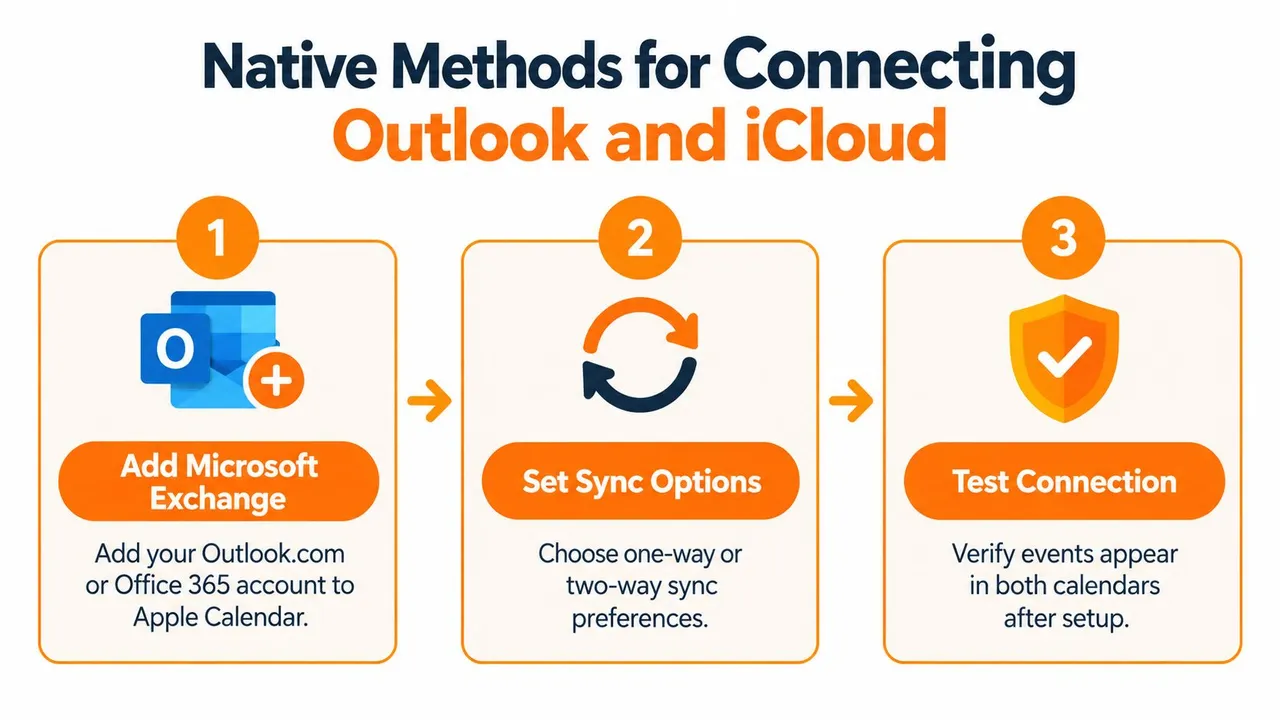
Add a Microsoft account on macOS
Open Calendar, select Calendar > Add Account, choose the relevant Microsoft account type, and sign in. Apple’s Calendar account instructions for macOS explain how to select the calendars displayed after authentication.
This connection lets Apple Calendar work with calendars belonging to the connected Microsoft account. Review the calendar list after sign-in. One account may contain personal, shared, or delegated calendars, and those calendars can behave differently across clients. A calendar that appears in the app may still have limited write permissions.
Windows provides a separate iCloud route. Install iCloud for Windows, sign in with the Apple Account, and enable automatically sync iCloud calendars and contacts with Microsoft Outlook. Microsoft describes this supported workflow in its iCloud for Windows synchronization guidance.
Use a subscription when necessary
If Outlook for Mac does not offer the connection required, a web-based subscription may work for some iCloud scenarios. Share or expose the iCloud calendar through iCloud.com, copy its subscription address, and add the feed in Outlook on the web.
This approach is useful for viewing, but it does not create two-way synchronization. An event edited in Outlook generally will not return to iCloud through the feed. Microsoft notes that subscription feeds can take up to about 15 minutes to propagate, and a manual refresh may be needed.
Microsoft also states that Outlook for Mac does not directly support CalDAV or CardDAV. That limitation can make Outlook on the web necessary instead of a native CalDAV connection. Apple Account sign-in in supported Outlook apps reduces older password-related friction, but it does not remove platform-specific restrictions. See Microsoft’s guidance on connecting native iOS calendars to Outlook mobile for account-access details.
Native methods work when one account remains the source of truth. Separate Office 365 and iCloud calendars need a controlled bridge for dependable two-way copying and for limiting event details shared between systems. Compare the available setup choices in this Outlook calendar synchronization guidance.
Why Native Subscriptions Fail Modern Workflows
A public calendar subscription solves a narrow problem: it lets another calendar application read a published feed. That can be enough for a sports schedule, a public events calendar, or a low-risk availability view. It becomes a poor fit when both calendars need to remain editable and current.
The privacy cost can also be easy to miss. If an iCloud calendar must be made public for an Outlook subscription workflow, the subscription link may reveal more than a simple free/busy signal. Meeting titles, locations, descriptions, and participant context can expose client or personal information to anyone who obtains the link. Microsoft Q&A discussions also highlight that IMAP and POP accounts don’t provide calendar or contact synchronization, so an email account can’t automatically serve as a calendar bridge.
Native subscriptions versus dedicated sync bridges
| Feature | Native Subscription | Dedicated Sync Bridge |
|---|---|---|
| Direction | Usually one-way and read-only | Can support one-way or two-way copying |
| Editing | Changes made in the destination may not return to the source | Source and destination rules can support reciprocal updates |
| Privacy | Public feeds may expose event metadata | Field transformation can mask titles, locations, or descriptions |
| Availability | Useful for passive viewing, with possible refresh delays | Designed to keep selected availability aligned across accounts |
| Permissions | Depends on the published calendar and client support | Controlled through configured sync rules and account access |
| Shared calendars | Can be incomplete or absent in some Apple and Outlook clients | Can copy selected events into a calendar the target client handles reliably |
The central trade-off is availability versus disclosure. A public subscription may make a calendar visible, but visibility isn’t the same as safe availability sharing. Apple’s support troubleshooting also points to account mismatches, iCloud status, operating-system versions, and device settings as common sources of failures, which means a subscription can appear broken even when the feed itself is valid. Apple’s calendar synchronization troubleshooting guidance is useful for separating service and account problems from protocol limitations.
A dedicated bridge is more appropriate when you need to mirror blocked time while replacing sensitive event fields with neutral text. It still introduces a third party and therefore requires a privacy review, but it avoids treating a public link as if it were a secure two-way connection.
Setting Up Two-Way Sync with SyncThemCalendars
For a professional who needs Office 365 and iCloud availability aligned, the setup should begin with the desired behavior, not the application you happen to open first. Decide whether one calendar should control the other, whether both should accept changes, and whether copied events should show full details or only blocked time.
Connect the calendars
- Sign in and connect Office 365. Authorize the Microsoft calendar that contains your work availability. Use the account that owns or can edit the source calendar, not an account that only sees a shared view.
- Connect Apple Calendar through iCloud. Select the iCloud calendar that should receive or provide events. Keep personal and professional calendars separate if they have different visibility requirements.
- Choose the direction. Select one-way synchronization if Office 365 should remain authoritative. Choose two-way synchronization when edits made in either ecosystem need to reach the other. Multi-way arrangements can combine more than two calendars, but they require careful source and destination rules.
- Define the privacy transformation. Configure copied events to preserve availability while masking titles, descriptions, or locations. A destination event might show neutral wording such as a busy block rather than a client name or meeting address.
- Limit the scope. Sync only the calendars and event categories that need cross-platform visibility. Excluding irrelevant calendars reduces duplicate-event risk and makes later troubleshooting easier.
- Create a test event. Add a clearly identifiable appointment in the source calendar, confirm that the destination receives it, then edit and remove it. Test in both directions if the workflow is two-way.
The service is designed as a web application with an estimated two-minute setup, and it supports background synchronization after configuration according to the publisher’s product information. Treat that as an onboarding expectation, not a substitute for validation. Enterprise policies, account permissions, and calendar structure can still affect the result.
The most important configuration choice is the privacy rule. If colleagues only need to know when you’re unavailable, don’t copy the original title, location, or description. If you need full event context on both devices, document who can access each destination calendar before enabling the connection.
Here’s a short product walkthrough that shows the configuration flow:
After the first test, compare the calendars from Apple Calendar, Outlook on the web, and the mobile applications you use. Check recurring events, cancellations, time-zone behavior, and invitations separately. A bridge can copy event data successfully while a particular client still hides a shared or delegated calendar.
Troubleshooting Common Synchronization Failures
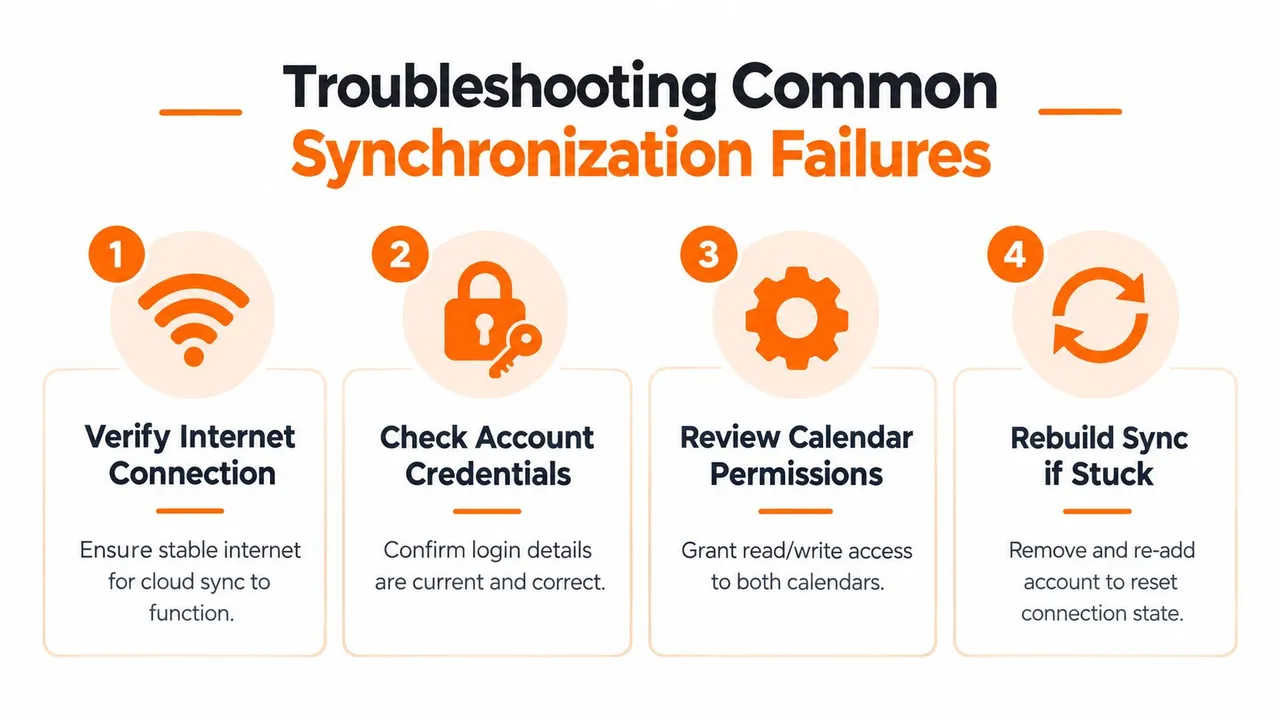
Calendar failures at the Apple and Microsoft boundary usually fall into three categories: the account isn’t connected correctly, the client can’t interpret the calendar relationship, or the feed is valid but hasn’t refreshed. Diagnosing the category first prevents repeated account removal and reauthentication when the actual issue is a read-only subscription or unsupported shared-calendar model.
Check the account before rebuilding it
Start with Apple’s system-status information and confirm that the same Apple Account is active on the relevant devices. Then verify that the calendar switch is enabled for the Microsoft or iCloud account, the device has a reliable internet connection, and the operating system is supported and current.
Date and time settings also deserve attention. An incorrect time zone can make an event look missing when it has moved to another day or hour. If only one device has the problem, compare its account list and calendar visibility settings with a device where the events appear correctly.
Identify the protocol boundary
If Office 365 events appear in Outlook but not Apple Calendar, check whether you added the Microsoft account directly or subscribed to an iCloud feed. If you’re using a subscription, confirm that the feed is still available and allow for its refresh interval. A read-only subscription won’t become editable because you refresh it repeatedly.
If the issue affects a shared or delegated calendar, test the owner’s primary calendar first. A personal calendar may sync normally while a shared calendar remains absent because the client doesn’t support the permission model in the same way. Microsoft also documents that Outlook for Mac doesn’t directly provide CalDAV or CardDAV support, so adding an account through a Mac application won’t necessarily create the generic protocol connection you expected.
Diagnostic shortcut: If the calendar works in Outlook on the web but fails only in Apple Calendar, investigate client capability and permissions before changing the Microsoft account password.
Rebuild only after testing
Remove and re-add an account after checking status, identity, permissions, and calendar type. This can clear a stale local connection, but it also removes the account from the device’s native applications temporarily, so schedule the repair when you can verify mail, contacts, and calendar access afterward.
For a systematic checklist covering common calendar synchronization issues, record the source calendar, destination calendar, direction, last successful update, and whether the missing item was created, edited, cancelled, or shared. That evidence quickly distinguishes a stalled connection from a feature the selected protocol never supported.
Best Practices for Maintaining Calendar Privacy
Reliable synchronization starts with a simple policy: share availability by default, details only when necessary. If a client or colleague only needs to avoid booking you during a personal appointment, a masked busy block is safer than copying the appointment title, location, and notes into a work calendar.
Use one-way synchronization when one calendar is authoritative and the second calendar only needs a view. Choose two-way synchronization when both systems are active workspaces, but define which fields may change and how duplicates should be handled. Keep personal, client, team, and travel calendars distinct where possible, then sync only the minimum required set.
A practical review checklist includes:
- Audit access: Confirm which Microsoft, Apple, and third-party accounts can read or write each calendar.
- Mask sensitive fields: Replace private titles, descriptions, and locations with neutral values when mirroring availability.
- Avoid public links for confidential schedules: Use a private account connection or controlled bridge when event metadata must remain restricted.
- Test invitations: Verify that creating, editing, cancelling, and responding to an event behaves as expected in both ecosystems.
- Review connections regularly: Remove unused subscriptions, old devices, and obsolete synchronization rules.
- Document ownership: Decide which calendar remains the source of truth for each type of appointment.
Privacy principle: A calendar that shows less information can still provide all the availability your colleagues need.
Native account connections are suitable for straightforward access within supported Microsoft or Apple accounts. Subscriptions work for passive, low-risk visibility. If you need two-way updates, field masking, and consistent availability across separate ecosystems, choose a synchronization method built for those requirements rather than treating a public feed as a complete integration.
SyncThemCalendars connects Microsoft Outlook or Office 365 calendars with Apple Calendar through iCloud, with configurable one-way, two-way, or multi-way event copying and controls for masking details. If your schedule spans both ecosystems, visit SyncThemCalendars to review the available synchronization workflow and start a privacy-conscious setup.
Ready to sync your calendars?
Keep your Google, Outlook and Apple iCloud calendars in sync automatically. 2-minute setup, no credit card required.
Get started freeKeep reading
More in Tutorials

How to Synchronize Outlook Calendar Across Platforms
Learn how to synchronize Outlook calendar events with Google and Apple iCloud. Master two-way sync, privacy controls, and real-time availability mapping.
Outlook Not Syncing: Step-by-Step Fixes for Calendars
Fix outlook not syncing across Google, iCloud, and Office 365 with this complete troubleshooting guide. Clear steps, platform-specific tips, and expert
One Way Calendar Sync: How to Share Availability Securely
Learn how one way calendar sync protects your privacy while keeping availability aligned across Google, Outlook, and iCloud for seamless scheduling.