







Outlook Not Syncing: Step-by-Step Fixes for Calendars
Fix outlook not syncing across Google, iCloud, and Office 365 with this complete troubleshooting guide. Clear steps, platform-specific tips, and expert
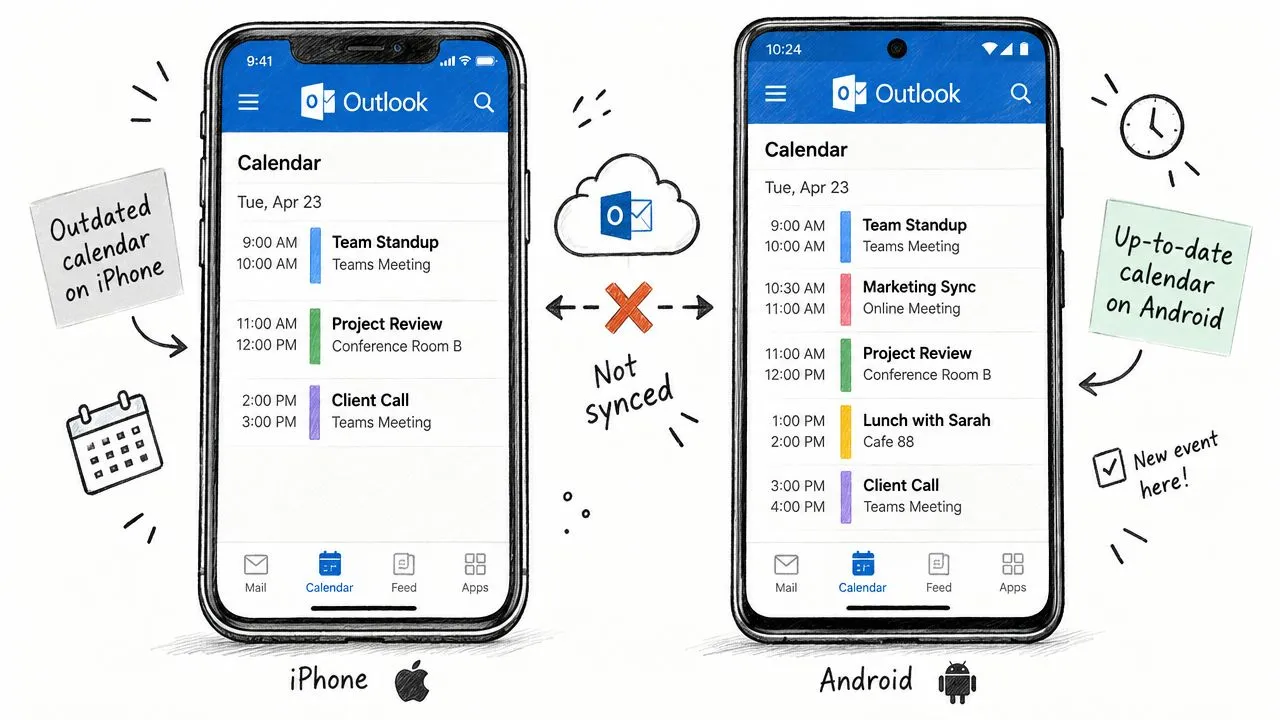
You add a meeting to Outlook on your desktop, trust that it’s saved, and then check your phone later. The appointment is missing. A personal event created in Google Calendar never appears in Outlook. An iCloud calendar shows one version of your availability while Office 365 shows another. When Outlook isn’t syncing, the visible symptom is usually a missing event, but the underlying problem may involve a cached desktop profile, a stale mobile connection, a blocked network path, or several calendar services competing to copy the same change.
The safest approach is to identify where the divergence begins before resetting anything. Check whether Outlook on the web is current, compare the affected device with the server copy, and only then rebuild a local cache or device partnership. If the issue is cross-platform calendar coordination, repairing Outlook alone may not prevent the next conflict.
Why Your Calendar Keeps Falling Out of Sync
The problem often becomes obvious at an inconvenient moment. You create a customer call in Outlook on your work computer, leave for the day, and open your phone before the meeting. The time slot is empty. Later, a colleague books you because your Google Calendar looked available, even though the appointment existed in Outlook all along.
Another common pattern runs in the opposite direction. You add a personal appointment to Google Calendar, expect Outlook to reflect it, and discover that your work calendar still looks free. If iCloud is also involved, the situation becomes harder to diagnose because each app may be showing a valid copy from a different service rather than one shared calendar.
Microsoft treats mail, calendar, and contact synchronization as recurring cross-device problems across desktop Outlook, Android, iPhone, iPad, and Exchange-based accounts. Its troubleshooting guidance includes app restarts, recreated ActiveSync relationships, and folder statistics, which shows why a simple refresh often doesn’t resolve the problem. Microsoft’s cross-device Outlook guidance covers these separate failure patterns.
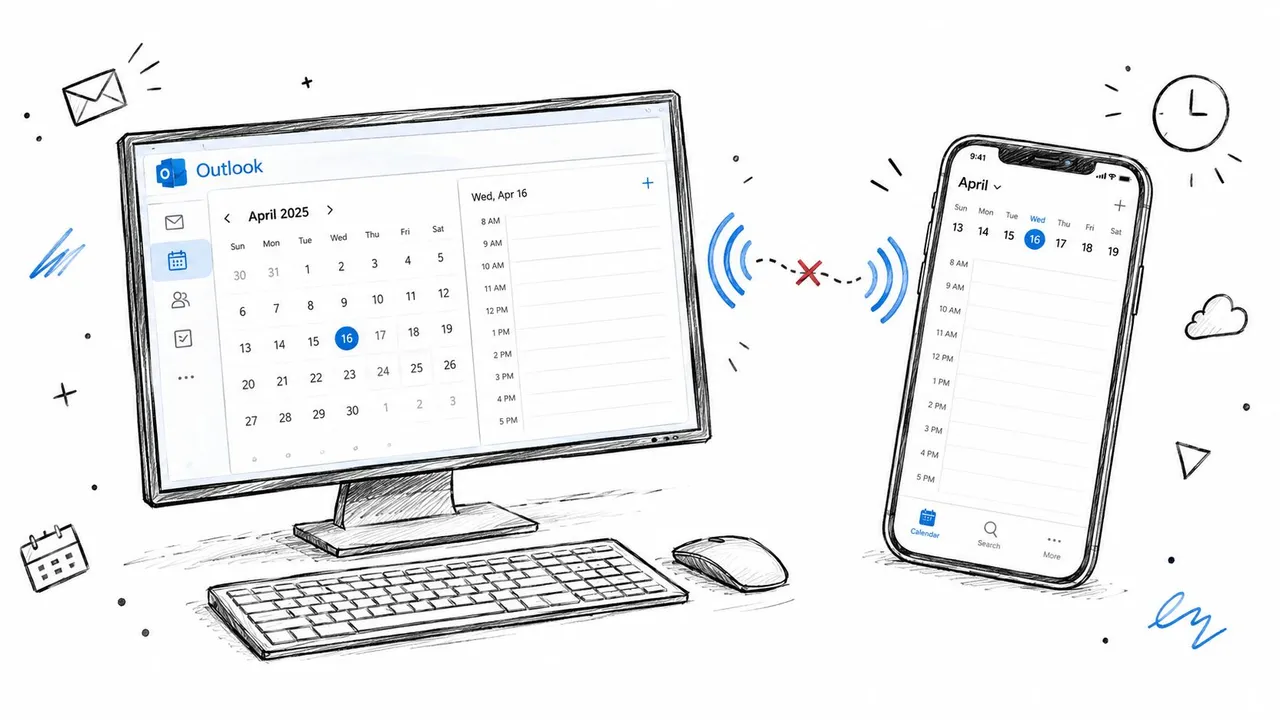
The desktop pattern
On Windows, Outlook relies on a local offline cache, usually an .ost file, while Exchange or Microsoft 365 maintains the server copy. When those copies diverge, Outlook may continue to display older calendar data even though the account itself is healthy. Microsoft specifically identifies a mismatch between the server folder and offline folder as evidence that synchronization isn’t working correctly, and recommends rebuilding the local cache when necessary. Microsoft’s OST synchronization documentation explains why deleting or renaming the cache can force a complete resynchronization.
The mobile pattern
If Outlook on the web and desktop show the right event but the phone doesn’t, the mailbox may not be broken. The mobile device can hold stale account state or a damaged device partnership. In that situation, reinstalling every calendar app is excessive. A connectivity check, manual sync, and device-partnership reset usually targets the affected endpoint more precisely.
The cross-platform pattern
Google Calendar, iCloud, and Outlook don’t automatically become one calendar just because the same person uses all three. Each service has its own account, permissions, event identifiers, update rules, and privacy behavior. Third-party connectors can add another layer, especially when two systems both try to write changes back to the same event.
Practical rule: First determine whether Outlook is failing to sync with its own server, or whether separate calendar ecosystems were never configured to exchange events reliably.
Troubleshooting Outlook Calendar Sync on Desktop
Start with the least destructive checks. A profile rebuild can solve a damaged cache, but it won’t fix a service outage, a blocked VPN route, or a calendar that was never connected to Outlook in the first place.
Establish where the stale copy lives
Open Outlook on the web for the same account and compare the affected appointment with desktop Outlook. If the web version is current while desktop Outlook is behind, the evidence points toward the local profile or cache. If both are missing the event, investigate the originating calendar, account permissions, and service status before deleting anything.
Then verify connectivity. Load ordinary websites, disconnect from an unstable VPN if company policy allows it, and trigger a manual send and receive in Outlook. A manual sync isn’t a repair, but it tells you whether Outlook can reach the account and request fresh data.
Next, inspect the folder statistics:
- Open the affected calendar or folder in Outlook.
- Open its synchronization properties.
- Check Last Synchronized on.
- Compare Server folder contains with Offline folder contains.
- Record whether the counts or timestamps disagree.
Microsoft documents these fields as a way to identify divergence between the server copy and the local .ost cache. If the server has the appointment and the offline folder doesn’t, you’re dealing with a client-side synchronization problem rather than proof that the mailbox lost the event.
Reset the account before rebuilding the cache
For a profile-specific problem, try Outlook’s Reset Account option first. This asks the client to refresh account state without immediately taking the more disruptive step of removing the local cache. Close and reopen Outlook afterward, then check the synchronization statistics again.
The same diagnostic discipline applies to related device problems. If Outlook behaves differently after an update, or the operating system reports broader connectivity trouble, use a focused guide to troubleshoot device issues before assuming the mailbox is corrupt.
If Reset Account doesn’t close the gap, rebuild the .ost file. Microsoft’s documented approach is to export important local data to a PST when needed, close Outlook, delete or rename the .ost, reopen Outlook, and allow the mailbox to download again. If you import the PST afterward, select Do not import duplicates to reduce the risk of creating repeated calendar items. Microsoft’s detailed synchronization repair sequence covers the cache reset path and the safeguards around local data.
Rebuilding the .ost is powerful because it removes the local copy that may be stale or damaged. It won’t repair an account-level outage, and it won’t merge unrelated Google or iCloud calendars by itself.
Avoid deleting the cache impulsively if you haven’t checked the web version or exported data that exists only locally. Cached Exchange data can be downloaded again, but locally created items, unsent changes, or unusual profile data deserve care. For a cross-platform diagnosis, the Outlook calendar not syncing guide provides a useful companion checklist, but the server-versus-offline comparison should remain your primary test.
Fixing Calendar Sync on iPhone, iPad, and Android
Mobile failures require a different sequence. If Outlook on the web and desktop are current but the Outlook app on your phone isn’t, rebuilding a Windows profile won’t touch the stale state on that phone.
Begin with the network, even if other apps appear normal. Switch between Wi-Fi and cellular data, load a website, and temporarily test without a VPN or restrictive network filter where permitted. Microsoft’s mobile troubleshooting flow starts with connectivity because an interrupted connection can look exactly like a calendar defect.
iPhone and iPad
On iOS or iPadOS, open Outlook and pull down to refresh the mailbox and calendar. Check the account’s calendar visibility settings, then close and reopen the app. If the web and desktop copies are healthy but the phone remains behind, remove the account from Outlook and add it again, following your organization’s sign-in and security prompts.
For accounts configured through Apple’s native Calendar app, confirm that the correct Outlook or Exchange calendar is enabled in the app’s calendar list. Don’t assume that an event visible in Apple Calendar belongs to the Outlook account. It may be stored in iCloud, which means Outlook won’t receive it unless a separate synchronization path has been configured.
Android
On Android, confirm that Outlook has permission to access calendars and that battery optimization isn’t preventing background activity. Open the account settings in Outlook, trigger a manual refresh, and check whether the affected calendar is enabled. If the app still shows old data, remove the account, restart the phone, and add the account again.
Microsoft also recommends removing a stale device partnership when a phone or tablet isn’t sending or receiving changes. The reset targets the connection state associated with that endpoint, not the mailbox’s server data. After removing the partnership, power the device off and on, then sign in and allow the account to synchronize again.
The reset can affect several account-connected apps, so users should understand which account they’re removing before confirming. If the problem is limited to one device, this is generally more appropriate than rebuilding every desktop profile.
For an iPhone-specific walkthrough, the iPhone calendar sync with Outlook guide adds useful context around account selection and calendar visibility.
A short visual walkthrough can help when menu names differ between operating-system versions. Use the video after checking the connection and account state, not as a substitute for identifying which calendar owns the missing event.
If Outlook mobile is current but the native calendar remains wrong, compare the account labels and default calendar settings. The most common mistake is treating Outlook, Google Calendar, and iCloud as interchangeable views when they’re separate stores.
When Network or Service Issues Block Outlook Sync
A healthy Outlook profile can still fail when the route to the service is disrupted. If Outlook works on one network but not another, Microsoft community guidance points toward a proxy, firewall, VPN routing, DNS, or TLS inspection interfering with Exchange Online endpoints, even while the user remains signed in. This network-path troubleshooting guide describes that distinction.
The fastest test is comparative. Try the same account on another trusted network, then compare Outlook on the web with desktop Outlook. If the browser and mobile app work on one connection while desktop Outlook fails only on a managed office or VPN network, rebuilding the profile may erase useful local information without addressing the blocked route.
Read the symptom pattern
Use the behavior itself as evidence:
- One device fails: Suspect a local cache, app state, permission, or device partnership.
- One network fails: Investigate VPN routing, firewall policy, proxy behavior, or inspection tools.
- Several users fail together: Check Microsoft 365 service health and known issues before changing profiles.
- Only Google or Yahoo accounts fail in classic Outlook: Check provider authentication and current Microsoft issue notices.
- Outlook on the web is also stale: Treat the problem as account, provider, or service related rather than purely local.
Microsoft’s known-issues documentation records a service-side defect that affected classic Outlook synchronization for Gmail and Yahoo accounts beginning February 26, 2026, with reported errors including 0x800CCC0E, 0x800CCC0F, and 0x80070057. The issue left some accounts unsynchronized until OAuth tokens expired, so a profile rebuild would not have been the right first response. Microsoft’s known-issues entry illustrates why current incident information matters.
Check before making destructive changes
Ask colleagues whether they see the same behavior. Check Microsoft 365 service health if you have administrator access, review Outlook’s known-issues pages, and test Outlook on the web. Keep error codes, timestamps, affected account types, and network conditions together. That information helps administrators distinguish a broken profile from a tenant-wide incident.
Security software can also create misleading symptoms. TLS inspection may permit sign-in while interfering with later synchronization requests. A VPN may route browser traffic differently from desktop Outlook. Those cases require an administrator or network team, not repeated cache deletion.
If the failure follows the network or affects several users, stop rebuilding profiles. Prove the service path first.
Using SyncThemCalendars for Cross-Platform Calendar Sync
Repairing Outlook addresses a local account problem. It does not make Google Calendar, Outlook, and iCloud operate as one scheduling system. If the actual requirement is ongoing availability alignment across separate accounts, a synchronization layer may be more practical than repeatedly rebuilding individual apps.
SyncThemCalendars connects Google Calendar, Microsoft Outlook or Office 365, and Apple Calendar with configurable one-way, two-way, or multi-way synchronization. A one-way connection can publish a work calendar to a personal view without allowing personal edits to write back. Two-way synchronization fits workflows where changes in either system must reach the other.
Match the setup to the scheduling problem
A consultant may need client availability beside a personal calendar. A salesperson may work in Outlook while prospects schedule through Google. A small team may need free and busy visibility without sharing private appointment titles, locations, or descriptions.
Field masking supports those privacy requirements. The connection can preserve availability while hiding sensitive event details. That solves a different problem from repairing an .ost file. Cache repair restores consistency within one Outlook account. A synchronization service controls copying between separate accounts.
The trade-off is control versus complexity. Each additional direction or calendar creates another route for events and updates. Give every connection a clear source, target, and ownership rule. Avoid configuring multiple tools to write the same event in competing directions unless you have defined how duplicates and changes will be handled.
SyncThemCalendars runs in a browser and supports background operation and unlimited events on its plans, according to the publisher’s product information. Its setup is designed to take approximately two minutes, and it offers a free trial without requiring a credit card. Plan limits apply to active syncs rather than event volume, but confirm these details against the current service terms before adopting the service.
For privacy-sensitive workflows, begin with free/busy mirroring or masked fields. For shared operational calendars, choose one authoritative system and configure the sync direction around it. Automation makes sense when manual copying, missed updates, and double-booking create more ongoing work than configuring and monitoring the integration.
To review the available setup, visit SyncThemCalendars.
Choosing the Right Sync Strategy for Your Workflow
Use manual troubleshooting when one device is stale, Outlook on the web is current, and the problem appeared recently. Check connectivity, compare server and offline data, reset the account, or rebuild the affected cache only after protecting local information.
Choose automation when you regularly coordinate Google, Outlook, and iCloud, need background copying, or want free/busy visibility without exposing event details. The relevant decision isn’t whether Outlook is “broken.” It’s whether your workflow needs a repaired mailbox or a controlled connection between separate calendar systems.
For teams considering two-way calendar sync, define the source of truth for each event type before enabling write-back. A single-device issue calls for diagnosis. A recurring cross-platform conflict calls for explicit synchronization rules, privacy settings, and ownership.
SyncThemCalendars connects Google Calendar, Outlook or Office 365, and Apple Calendar with one-way, two-way, or multi-way event syncing and privacy controls for shared availability. If Outlook keeps falling out of step with your other calendars, visit SyncThemCalendars to review the available setup and start evaluating a cross-platform workflow.
Ready to sync your calendars?
Keep your Google, Outlook and Apple iCloud calendars in sync automatically. 2-minute setup, no credit card required.
Get started freeKeep reading
More in Tutorials
How to Sync Google and Apple Calendar: Step-by-Step Setup
Sync Google and Apple Calendar with native accounts or a managed tool. Compare one-way and two-way options, follow the steps, and fix common problems.

How to Add Gmail Calendar to Outlook Without Duplicates
See how to add Gmail Calendar to Outlook by subscribing for a live view or using two-way sync, then avoid privacy leaks and duplicate events.

Export Outlook Calendar to Google: A 2026 Step-by-Step Guide
Learn how to export Outlook calendar to Google with clear steps for ICS and CSV imports, recurring-event checks, and verification tips that work in 2026.