







Sharing Google Calendar: A Complete Step-by-Step Guide
Sharing Google Calendar. Learn how to share Google Calendar in minutes. Step-by-step instructions for web and mobile, permission levels, Outlook and Apple sync
You’re trying to share your schedule with someone who uses a different calendar app, while keeping personal appointments out of view. A partner needs to know when you’re unavailable, a client needs open meeting times, or a colleague needs access to a project calendar, but giving everyone full access to your main calendar creates a privacy problem.
Sharing Google Calendar works well when you decide what the other person needs before sending an invitation. The important choices are the calendar you share, the permission level you assign, and whether the recipient uses Google Calendar, Outlook, Apple Calendar, or a separate scheduling tool. You’ll also need a plan for private events when work, family, and personal calendars overlap.
Why Sharing Google Calendar Matters in Daily Life
A shared calendar turns scheduling from a conversation into a visible system. Your partner can check whether you’re already committed before arranging a pickup, a project team can coordinate deadlines without repeated email threads, and a client can see when you’re available without learning the details of your other meetings.
The same calendar can support very different relationships. A family may need a shared “school and appointments” calendar, while a manager may want direct reports to see only availability. An executive assistant may need permission to change events, but an external recruiter usually needs only open time blocks.
Google Calendar’s sharing model has supported these distinctions from its early design. When Google Calendar launched in beta in April 2006, users could make a calendar public, share it with selected people, or expose only free/busy availability while hiding event details. The launch also described per-user read and write permissions and email invitations for people who didn’t have a Google account, establishing the basic pattern of granular visibility and access outside the platform. Search Engine Watch’s launch coverage documents those original sharing choices.
Common situations where sharing helps
- Household planning: Keep pickups, school events, travel, and medical appointments visible to the people responsible for them.
- Team coordination: Let coworkers avoid conflicts while limiting access to titles, locations, or guest lists.
- Client scheduling: Expose available periods without revealing confidential work or personal commitments.
- Delegated calendar management: Give an assistant the ability to create, edit, or remove events when that responsibility is part of the role.
Calendar sharing also reduces accidental double-booking because everyone works from the same schedule. Academic research describes sharing as a form of “relationship work,” used to coordinate daily life across personal, family, and professional boundaries. In a 2012 study of 30 participants, people shared 88 calendars in total, averaging 2.93 calendars per person. Sharing most often involved a significant other, followed by friends, coworkers, family members, and groups of associates. The University of Washington study provides that research context and its reported figures.
The practical question isn’t whether to share. It’s how much access each person needs, and how to preserve privacy when multiple calendar platforms are involved.
Sharing a Calendar on Web and Mobile
Suppose your household needs one schedule for school pickups, while a client should see only when you are available. Google Calendar handles both cases, but the starting point is different: share a whole calendar for ongoing coordination, or invite someone to one event for a limited exchange.
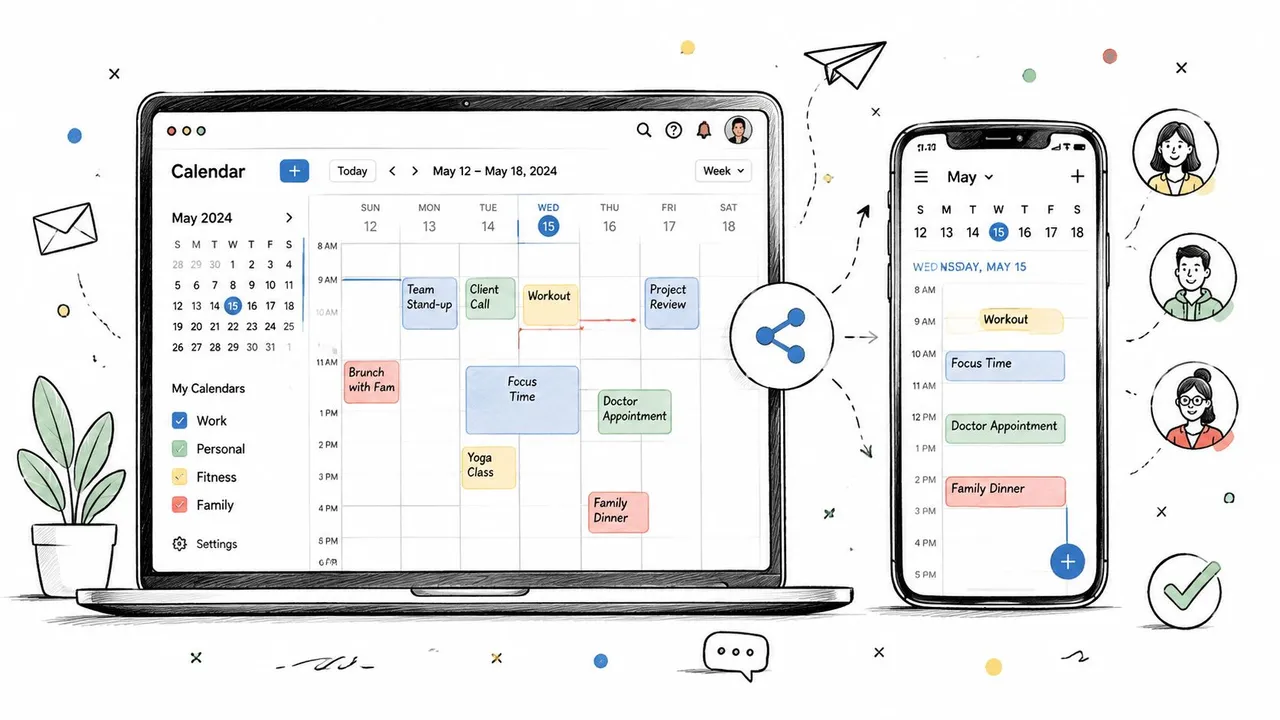
On the Google Calendar website, find the calendar under My calendars or Other calendars in the left sidebar. Hover over its name, open the three-dot menu, and select Settings and sharing. Under Share with specific people or groups, enter a name or email address, choose access, and send the invitation.
The recipient gets an email with a link to accept the calendar. A Google Workspace group can suit a department because membership is maintained through the group instead of repeated individual invitations. Check your organization’s rules first. Administrators may restrict sharing outside the organization, as described in Google’s administrator guidance.
Mobile sharing
In the Google Calendar app, open the side menu or profile area, select the calendar, and open Settings and sharing. Tap Add people, enter the email address, then tap the permission row to choose access. The control looks different from the desktop dropdown, but the same permission choices apply, and the change syncs to the web.
For someone using Outlook or Apple Calendar, the invitation may not create the same editing experience as it does in Google Calendar. If the accounts cannot connect directly, a free/busy view can still mirror availability without exposing event details. Test the result with the recipient before relying on it for scheduling.
If you are sharing only one meeting, open that event and add the person as a guest. Choose whether guests may modify the event, invite others, or see the guest list. This keeps unrelated appointments private. For an Android-focused walkthrough, use this guide to share Google Calendar on Android.
Pause at the permission selector before sending. Choosing access deliberately prevents editing rights from being granted because the default option seems convenient.
Permission Levels and What Each One Reveals
Google Calendar provides four main permission tiers. They apply to the shared calendar, so they’re broader than adding someone to a single event. The safest starting point is the minimum viable privilege, especially freeBusyReader when the recipient only needs to mirror availability. Google’s calendar sharing documentation lists the user-facing permission choices and explains how visibility and access work.
| Permission Level | What Others See | Can They Edit Events | Best For |
|---|---|---|---|
| See only free/busy, hide details | Available and busy blocks, without event information | No | Clients, vendors, recruiters |
| See all event details | Event titles and available details, depending on privacy settings | No | Teammates and household members |
| Make changes to events | Calendar events that they can create, edit, or delete | Yes | Executive assistants and delegated coordinators |
| Make changes and manage sharing | Calendar access plus control over sharing | Yes | Trusted co-organizers and calendar administrators |
Match access to the relationship
An external recruiter arranging an interview usually needs to know when you’re free, not what each busy block represents. See only free/busy protects meeting titles, locations, notes, and guest information while still allowing the recruiter to suggest workable times.
A direct collaborator may need See all event details to understand whether a conflict involves a customer meeting, a project deadline, or a travel commitment. They can plan around your schedule, but they can’t change it.
An executive assistant or operations coordinator may require Make changes to events. That permission supports real delegation, but it also allows the recipient to create, modify, and delete events, so it should be assigned to someone with a clear scheduling responsibility.
The highest tier, Make changes and manage sharing, is closer to co-administration. A co-organizer of a team calendar may need it, but a casual colleague usually doesn’t. Someone with this access can affect who else sees the calendar, so reserve it for a trusted person or a calendar intentionally managed by multiple administrators.
Practical rule: Start with free/busy access, then increase visibility or editing rights only when a specific task requires it.
Private event behavior can make the result less obvious. Google’s API distinguishes freeBusyReader, writerWithoutPrivateAccess, and writer, meaning someone may edit non-private events while private events remain opaque. For a deeper explanation of what calendar visibility means, read this guide to Google Calendar visibility.
Sharing With Outlook and Apple Calendar Users
A Google invitation doesn’t guarantee a consistent experience in another calendar application. A recipient using Outlook or Apple Calendar may be able to accept the invitation in a browser, but the calendar may appear read-only, fail to display in the expected account, or show availability without the detail you assumed you had shared.
For an Apple Calendar user, an iCal subscription is often the cleanest route when the goal is ongoing visibility. In Google Calendar on the web, open the calendar’s settings, locate the private address in iCal format, and share it only with the intended recipient. On a Mac, the recipient can open Apple Calendar, choose File, then New Calendar Subscription, and paste the subscription address. On iPhone or iPad, the recipient can add a subscribed calendar through the calendar account settings and enter the URL.
An iCal subscription is generally a feed for viewing rather than a collaborative editing connection. The Apple user can see updates when the calendar refreshes, but they shouldn’t expect edits made in Apple Calendar to write back to Google Calendar. Treat the subscription address like a private access credential, because anyone who obtains it may be able to view the feed permitted by that URL.
Outlook requires a different decision
Outlook may not handle a Google iCal feed as a fully collaborative calendar, and direct sharing can be limited depending on the Outlook account, desktop application, and organization policy. If an Outlook user only needs a read-only view, an invitation or published feed may be enough to test first. If both people need changes to travel between systems, a dedicated synchronization service is usually more practical than relying on a one-way subscription.
Services such as SyncGene, CalendarBridge, and OneCal can connect calendars across providers, but they differ in setup, supported directions, privacy controls, and pricing. Review whether a service copies event titles, descriptions, locations, and guest data before connecting a personal calendar.
| Method | Outlook Support | Apple Calendar Support | Two-Way Sync | Best For |
|---|---|---|---|---|
| Google invitation | Varies by account and app | Varies by account and app | Usually limited | Testing direct access |
| Google iCal subscription | Read-only or inconsistent | Strong fit for subscriptions | No | Ongoing visibility |
| Sync service | Designed for cross-platform workflows | Designed for cross-platform workflows | Often available | Shared availability and copied events |
Choose the simplest method that meets the requirement. Read-only availability doesn’t justify a complex two-way connection.
If your calendars need ongoing cross-platform copying, compare the workflow described in how to sync Google Calendar. Test with a non-sensitive calendar before connecting a personal or company-wide schedule.
Public Calendars, Embeds, and Booking Pages
A public calendar suits a neighborhood event schedule or company office hours. It does not suit a calendar that mixes appointments, travel, and personal commitments. Anyone who receives the public link may be able to view or subscribe without a named invitation, depending on the access setting. Create a separate calendar for information meant for a wider audience.
On the Google Calendar website, open the calendar’s Settings and sharing, then review the access settings before enabling public access. Check the visibility option carefully. Public access can expose event details, so remove private notes from titles, locations, and descriptions before publishing.
An embed places the calendar on a website or workspace page through an iframe. It works well for displaying a class timetable, community program, or office-hours schedule. Treat the embedded view like a noticeboard, not a private window. Visitors may see any details permitted by the calendar’s sharing settings.
An iCal URL provides a subscription feed for compatible applications. It can keep a published schedule updated, but forwarding the URL may give another person access. Receiving apps also refresh feeds on their own schedules, so a change might not appear immediately.
Booking without exposing your schedule
A booking page shows available appointment times instead of your full event list. Configure the appointment schedule with working hours, meeting duration, buffer preferences, and the calendar used to check conflicts. For example, a client can choose an open consultation time without learning whether blocked periods contain personal appointments or internal meetings.
A service such as Calendly can support the booking workflow, but review which calendars it checks and what information it displays. Keep booking availability, public events, and personal commitments on separate calendars when possible. This separation helps prevent an event from appearing in a public view because calendars overlap in the same account.
Before publishing an embed, public calendar, or booking page, open the settings and inspect a real event. A title that seems harmless may identify a customer, medical provider, travel plan, or confidential project. Use neutral public wording, and keep sensitive context on a private calendar.
Privacy and Free-Busy Strategies for Multiple Calendars
People often combine work, personal, volunteer, and side-project schedules in one Google account. The risk isn’t only that a recipient sees too much. It’s also that you share one calendar and assume the other calendars remain private, even though overlapping calendars can still expose availability patterns or create confusion.
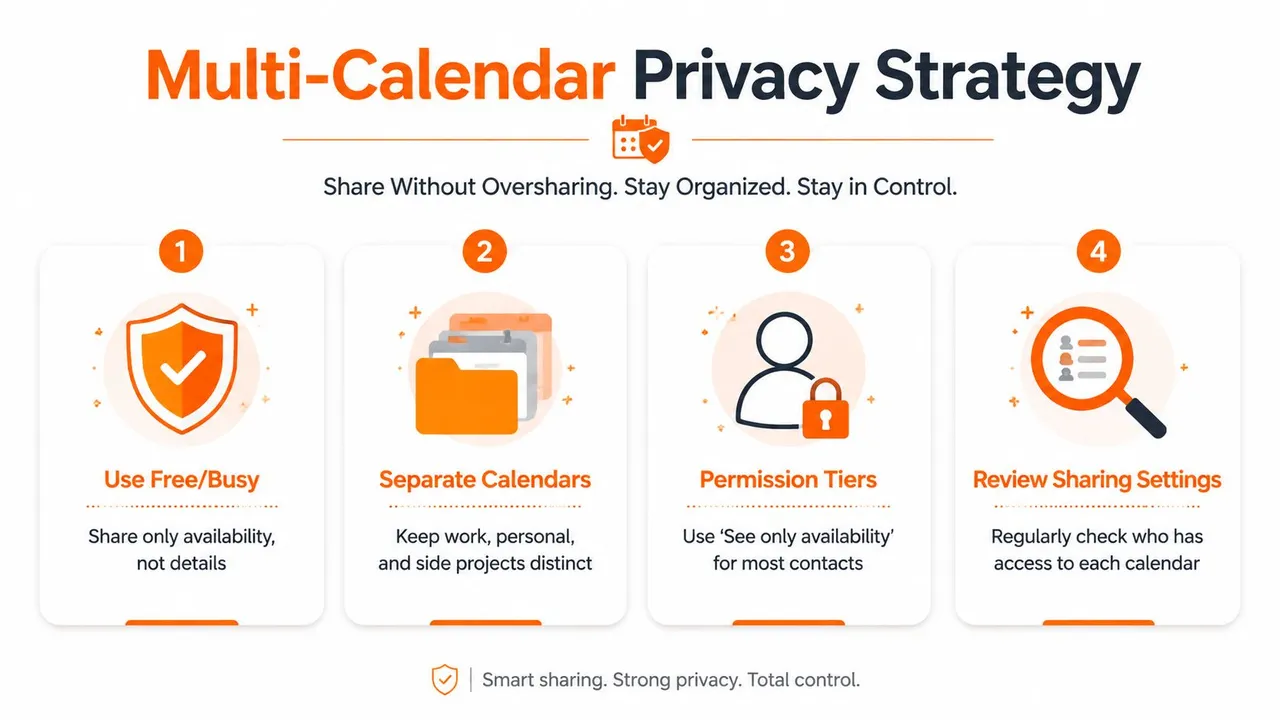
A practical privacy setup starts with separation. Create a calendar intended for shared work or family commitments, and keep personal events on a calendar that has no external shares. When a partner needs to know about a dinner reservation or school event, add that event to the shared calendar rather than opening the calendar that contains everything.
Build the access plan around free and busy
Free/busy sharing is useful when the recipient needs a scheduling signal, not an explanation. A client can see that you’re unavailable without seeing “contract review,” a manager can identify open periods without reading personal titles, and a coach can coordinate a parent’s availability without accessing unrelated commitments.
Google’s documented permission model supports this distinction. The API’s freeBusyReader role is designed for availability access, while writing roles distinguish between ordinary and private events. That means a person may have editing access for non-private events while private events remain hidden, so don’t treat calendar-level editing permission as permission to see every detail. The relevant technical distinctions are described in Google’s calendar sharing and privacy guidance, referenced earlier.
Use event privacy settings deliberately. Mark sensitive events as private, remove confidential information from descriptions, and avoid placing passwords, case details, or personal notes in fields visible to collaborators. A private event can remain a busy block for someone with limited access, depending on the permission and sharing configuration.
Test the view as another person
After changing access, open the calendar in an incognito browser window or use a separate account with the recipient’s permission level. Check titles, locations, descriptions, guest lists, and recurring events. This test catches accidental exposure that the owner’s view won’t reveal.
Consider these practical arrangements:
- Freelancer with two clients: Give each client free/busy access to a separate availability calendar, rather than sharing the full work calendar with both.
- Parent and coach: Share a family or activities calendar with event details, while keeping work and medical calendars separate.
- Manager and direct reports: Provide free/busy visibility for scheduling, and use event guests or a team calendar when people need access to a specific meeting.
Central administration matters in organizations. Google Workspace administrators can restrict external sharing, so teams should review central policies as well as individual calendar permissions. Google’s Workspace administrator controls explain why a user’s local setting may not be the only factor governing external access.
Stopping Sharing, Changing Access, and Troubleshooting
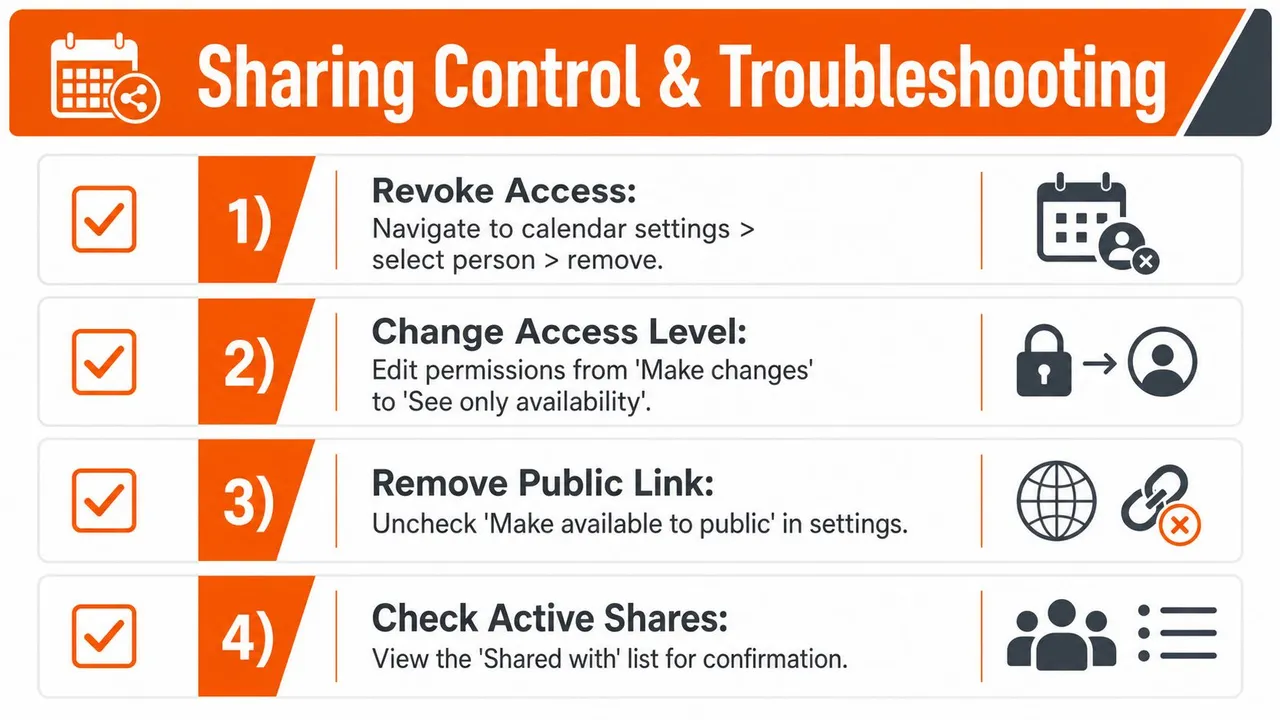
A project ends, an employee changes roles, or a family arrangement shifts. In each case, update access promptly. On the web, open the calendar’s Settings and sharing, scroll to Share with specific people or groups, select the person, then edit the permission or remove access. To give someone less visibility, change Make changes to events to See only free/busy, and save.
To stop public access, return to the calendar’s public access settings and disable the public option. Review any published calendar addresses or subscriptions you previously sent out. Turning off public access cannot erase an event someone already copied or captured in a screenshot, so address sensitive exposure quickly.
Audit before you troubleshoot
Start with four checks:
- Who has access: Review every person, group, and organization listed in the sharing panel.
- What they can do: Check editing and sharing-management permissions before lower-level access.
- Whether the calendar is public: Confirm public access is disabled if nobody needs it.
- Which feeds exist: Revoke or replace subscription links that may have been shared too broadly.
A useful test is to view the calendar as the recipient. After changing permissions, open it in an incognito browser window or use a separate account with that person’s permission level. Check event titles, locations, descriptions, guest lists, and recurring events. The owner’s view can hide exposure that the recipient’s view makes obvious.
Diagnose the symptom
If an invited person cannot see the calendar, confirm that they accepted the invitation with the same account that received it. They might be signed into another Google account, looking under the wrong sidebar category, or affected by an organization’s external-sharing policy.
If the calendar vanished after an account or Workspace migration, verify ownership, group membership, and whether the new account kept its subscription. If a Gmail address was deactivated, the invitation or calendar ownership may need to move through the organization’s account-management process.
An iCal subscription may stop updating because the receiving app paused refreshes, the URL was revoked, or the recipient added an older address. Outlook can show “no information” when the account or organization does not support the expected free/busy exchange. Test the calendar on the web, confirm the recipient’s account, and create a fresh subscription only after checking permissions.
These checks also apply when Google Calendar connects with Outlook or Apple Calendar. If the platforms cannot exchange full details, a free/busy calendar can mirror availability without exposing private event information. Keep private events on a separate calendar and confirm which overlapping calendar is being shared. Sharing the wrong calendar can reveal details even when individual events are marked private.
Organization-level controls can override an individual calendar setting, as noted earlier in this article. Review the Workspace administrator documentation when external access behaves differently from the setting shown in Google Calendar.
Finish by reviewing the active Shared with list, testing the recipient’s view, checking the correct application, and allowing time for subscriptions or cross-product caches to refresh. If the result remains wrong, remove the connection and recreate it with the smallest permission required.
SyncThemCalendars connects Google Calendar with Microsoft Outlook or Office 365 and Apple iCloud, with one-way, two-way, or multi-way event synchronization plus free/busy and privacy controls. Visit SyncThemCalendars to review setup options for keeping availability aligned across platforms.
Ready to sync your calendars?
Keep your Google, Outlook and Apple iCloud calendars in sync automatically. 2-minute setup, no credit card required.
Get started freeKeep reading
More in Tutorials

How to Add Gmail Calendar to Outlook Without Duplicates
See how to add Gmail Calendar to Outlook by subscribing for a live view or using two-way sync, then avoid privacy leaks and duplicate events.

Export Outlook Calendar to Google: A 2026 Step-by-Step Guide
Learn how to export Outlook calendar to Google with clear steps for ICS and CSV imports, recurring-event checks, and verification tips that work in 2026.

How to Synchronize Outlook Calendar Across Platforms
Learn how to synchronize Outlook calendar events with Google and Apple iCloud. Master two-way sync, privacy controls, and real-time availability mapping.