




Sync Google Calendar with Outlook on Android in 2026
Step-by-step guide to sync Google Calendar with Outlook on Android, check which setups truly two-way sync, fix delays and verify your events.
Most guides on how to sync Google Calendar with Outlook on Android give you the same bad advice: open Outlook, flip the “Sync calendars” switch, and assume your work and personal schedules now match. That toggle does not build a bridge between Google’s servers and Microsoft’s servers. On an Android phone, seeing an Outlook meeting inside the Google Calendar app often means you’re looking at a local device export rather than a real cloud copy.
In 2024, 46.7% of digital-calendar users accessed their calendars through a mobile calendar app, according to ECAL survey data summarized by Exploding Topics. With almost half of calendar users running their days from a phone, mistaking a display layer for true synchronization creates missed meetings and double-booked afternoons.
Android runs two separate synchronization layers side by side. According to Microsoft’s Outlook for Android support guide, turning on Settings > Calendar > Sync calendars exports Outlook calendars and events to Android’s default calendar apps, with two-way calendar export available for supported Microsoft 365, Outlook.com, and certain hybrid modern-authentication accounts. Google Calendar separately syncs Android events within Google’s own cloud so they appear on your computer. Seeing both schedules on one screen doesn’t mean Microsoft and Google are trading live updates behind the scenes, which is why you need to check your account protocol first and test what syncs before trusting your phone.
Find the Sync Path Your Accounts Support
Before you touch any phone setting, answer one question: what protocol connects each of your email accounts? Calendar data never travels over email-only connections. If an inbox was added through IMAP or POP, your messages arrive fine while your calendar stays completely invisible, because neither protocol carries calendar entries.
According to Microsoft’s community guidance on Gmail and Outlook sync, syncing calendars and contacts requires a calendar-capable connection such as Microsoft Exchange ActiveSync or a native Google account connection. Two protocol cutoffs also break older Android setups that used to work without complaint. Microsoft retired Exchange ActiveSync support for free consumer Gmail accounts on March 14, 2025, forcing personal Gmail users onto Google’s native sync path. On the Microsoft side, devices running ActiveSync versions below 16.1 stopped connecting to Microsoft services starting March 1, 2026, which mainly hits outdated native phone mail apps rather than the current Outlook mobile app.
The table below sorts out what Android can show, whether edits flow back to the source, and where each setup fits best.
| Account or method | What shows on Android | Edits return to source | Best use |
|---|---|---|---|
| Microsoft 365 work account, Outlook app with Sync calendars on | Outlook events in the Android calendar app | Yes on supported accounts | Work calendar on the phone |
| Outlook.com account, Outlook app with Sync calendars on | Outlook events in the Android calendar app | Yes on supported accounts | Personal Microsoft calendar |
| Consumer Gmail over Exchange ActiveSync | Not supported after March 14, 2025 | No | Switch to Google’s native sync |
| Google account in the Google Calendar app | Google events on Android and in Google Calendar on a computer | Yes, within Google | Google-side events |
| ICS subscription link | Read-only feed in the calendar | No | Viewing a published schedule only |
Notice the gap between local visibility and cloud synchronization. Showing a Microsoft 365 calendar inside the Google Calendar app on your phone puts both schedules in one place, yet it still doesn’t copy those events into your Google Calendar web account for colleagues or booking tools to see. If you need both cloud accounts to stay aligned, look at how two-way calendar sync bridges Microsoft and Google directly rather than relying on your phone’s local calendar provider.
Confirm Your Account Protocol in Outlook
Open the Outlook app on your Android phone, tap your profile icon in the top-left corner, and open Settings. Tap the account you want to connect and scroll through its options to see if Sync calendars appears under that account.
If the toggle is present, your account uses a protocol that supports Android’s calendar export. If the toggle is missing entirely, the account is almost certainly connected via IMAP or POP, or restricted by an organization’s mobile policy. Re-add the mailbox as a Microsoft 365 or Exchange account before trying any setup steps, because toggling app permissions won’t fix an email-only connection.
How to Turn On Calendar Sync on Android
Once you know your Microsoft account supports calendar export, the phone setup takes only a few minutes. The key is configuring Outlook’s export switch and Google Calendar’s visibility checkboxes in the right order so events don’t vanish into a hidden calendar layer.
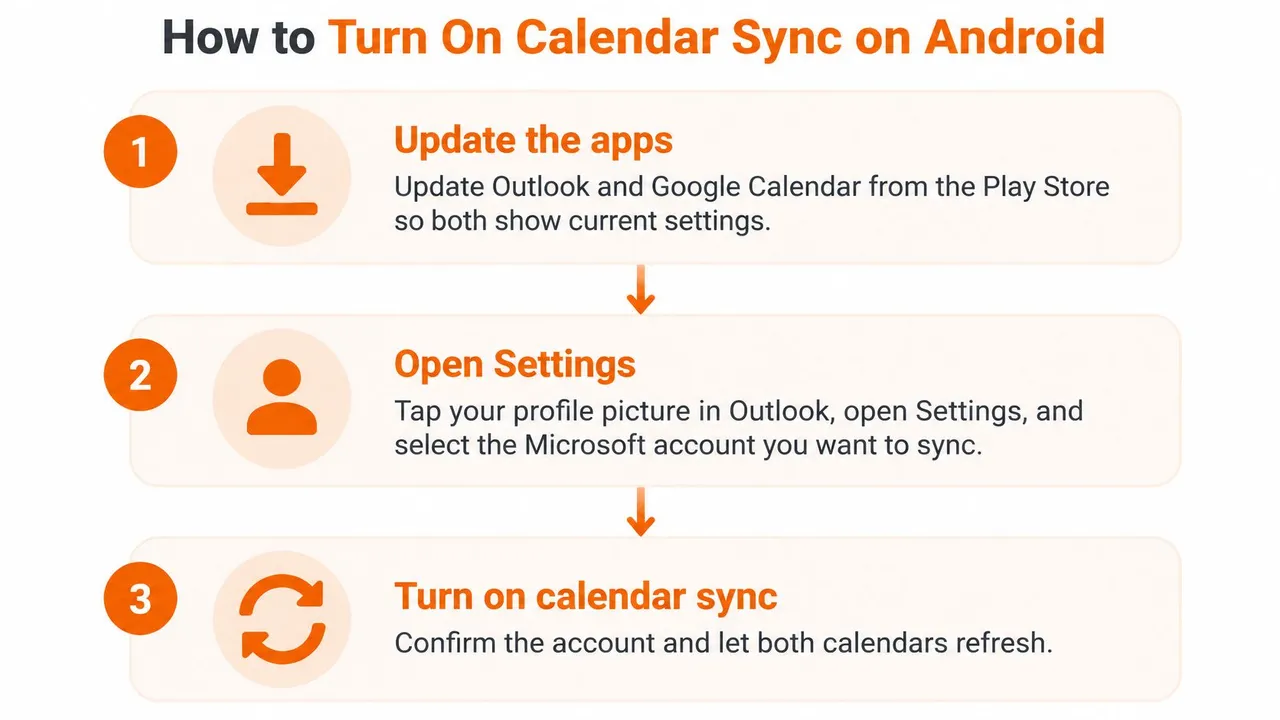
Six Steps to Connect Outlook to Android
- Update both apps from the Google Play Store. Open the Play Store and install any pending updates for Microsoft Outlook and Google Calendar. Menu labels and sync settings shift between releases, and older builds are the quickest way to run into missing toggles or broken calendar permissions.
- Open Outlook Settings and select your Microsoft account. Tap your profile avatar in the top-left corner, tap the gear icon at the bottom, and choose the specific Microsoft 365 or Outlook.com account you want to connect. If you have multiple mailboxes inside Outlook, tapping the wrong profile is a common slip that leaves your main work schedule disconnected.
- Turn on Sync calendars under the Calendar menu. Go to Settings > Calendar > Sync calendars (or toggle Sync calendars directly inside the account screen, depending on your app build) and switch it on. Many users flip an email sync toggle in Android’s system account menu instead, which refreshes messages while doing nothing for calendar entries.
- Enable the Outlook calendar inside Google Calendar. Open the Google Calendar app, tap the three-line menu in the top-left corner, scroll down to your Outlook account name, and tick the checkbox next to each calendar you want visible. Leaving that box unchecked is the single most common reason connected calendars look empty on Android.
- Wait a few minutes and check both your phone and desktop. Give Android roughly five minutes to finish the initial pull, then confirm your Outlook appointments appear in the Google Calendar mobile app and check your Google Calendar in a desktop browser. Checking the desktop browser tells you immediately whether events live only on the phone or reached Google’s cloud.
- Create a quick test event on your phone. Add a dummy appointment inside the linked Outlook calendar from your Android calendar app, save it, and open Outlook on a computer to verify it arrived. Skipping this step leaves you guessing until a real meeting goes missing.
Setup check: Verify the account label at the bottom of the event creation screen before saving. If Android defaults to your personal Gmail calendar instead of the linked Outlook calendar, the appointment will never reach Outlook.
What a Finished Setup Looks Like
A working Android connection is easy to recognize once the initial pull completes. Your Outlook calendars sit checked in Google Calendar’s left-hand sidebar, your test event appears inside Outlook on the web within minutes, and tapping any meeting on your phone displays the correct owning account name.
Keeping that account ownership clean matters even more if your schedule includes repeating client blocks or student sessions. Say you teach private workshops and rely on a calendar that handles recurring lessons alongside your personal Google schedule and an employer’s Outlook account. Knowing exactly which calendar owns each repeating series prevents a casual mobile edit from breaking an entire term of appointments.
Test What Actually Syncs Before You Rely On It
Seeing your work appointments inside Google Calendar on Android feels reassuring, yet visual overlap hides a major technical split. As highlighted in Microsoft’s Q&A guidance on syncing Outlook and Google calendars, Outlook for Android can display its own calendar inside the app without ever writing those events into Google Calendar, and published ICS subscriptions behave like a read-only feed rather than an editing bridge.
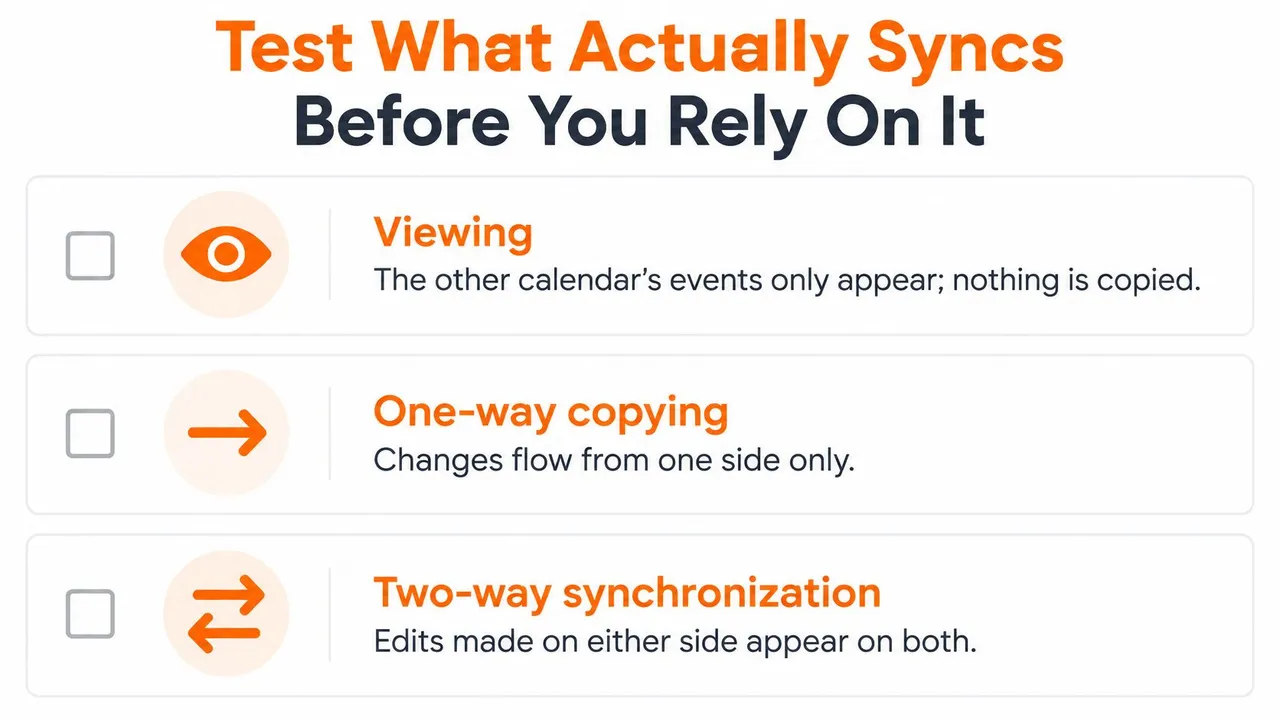
That leaves three very different outcomes when people try to sync Google Calendar with Outlook on Android:
- Viewing: Events from one calendar show up on your screen, while nothing gets written into the other cloud account.
- One-way copying: New events or edits flow from source to destination, whereas changes made on the receiving side never travel back.
- Two-way synchronization: Creating, editing, or deleting an event on either side updates the opposite calendar reliably.
Most guides stop the moment an appointment appears on screen. I wouldn’t trust any calendar setup with real client meetings until it passes a quick field test, because organizer permissions, recurring instances, attachments, and reminders frequently break even when basic event titles show up.
Run the Six-Check Verification Protocol
Set aside ten minutes with your Android phone and a desktop browser open to both Outlook and Google Calendar, then run these six checks in order:
- Create on mobile: Add a new 30-minute test meeting on your phone in the linked calendar, add a short note and a 15-minute reminder, and confirm it reaches Outlook on the web with the reminder intact.
- Move the time in Google Calendar: Shift that same event by one hour inside Google Calendar, then check whether Outlook reflects the new slot and how long the update took.
- Cancel from Outlook: Cancel a test meeting from Outlook on desktop and verify the event disappears from your Android calendar rather than lingering as a ghost block.
- Edit one recurring instance: Create a weekly three-part series, move only the second week to a different day, and check whether both calendars move just that single occurrence instead of shifting or duplicating the whole series.
- Test an RSVP: Send an invitation from another email address, accept or decline it inside Google Calendar on Android, and confirm the response updates in Outlook without stripping organizer status or file attachments.
- Delete cleanly: Delete a standalone event from your phone and confirm it clears out of Outlook on desktop.
Picture a consultant managing a Microsoft 365 client calendar on Android. You tap “Accept” on an invite inside Google Calendar, see the confirmed slot on your phone, and assume everything synced. Two days later, the client’s organizer pushes the meeting back by an hour in Outlook, yet the time change never propagates cleanly to your mobile view because the connection only handled an initial pull. You dial into an empty call while the meeting starts an hour later.
To determine whether a slow test result is normal or indicates a problem, check typical Google Calendar sync intervals so you know when a delay crosses from normal polling into a failed update.
If even one of the six checks fails, stop treating the link as two-way. Use it strictly as a display view and make every edit, cancellation, and RSVP inside the source calendar that owns the meeting.
Fix Delays, Missing Events and Duplicates
A properly configured Android phone can still act broken on a busy Tuesday morning. Calendar sync doesn’t run on a guaranteed instant wire. According to Google’s Calendar API push-notification documentation, push-notification delivery isn’t 100% reliable, and a small percentage of messages can be dropped under normal conditions.
When a notification drops, your phone holds stale calendar data until the next scheduled reconciliation catches up. Add Google’s per-project and per-user API quotas during heavy bursts of edits, Android’s aggressive battery optimization pausing background apps, and varying provider refresh intervals, and an apparent “sync failure” is often just background throttling rather than a broken account login.
Use this troubleshooting table to match what you’re seeing to the fastest fix.
| Symptom | Likely cause | Fix |
|---|---|---|
| Outlook events missing in Google Calendar | Outlook data only shows inside the Android calendar app | Confirm the events appear in the Android calendar app first, then decide whether you need a cloud copy |
| Edits in Google do not reach Outlook | Display-only or one-way link | Edit in the source calendar and test one change with the six-check protocol |
| Changes arrive minutes or hours late | Missed push notifications, battery restrictions or refresh intervals | Exempt both apps from battery optimization, then force a refresh |
| Duplicate events on the phone | Two sync paths copy the same event | Turn off one path and delete the extra copies |
| Sync stopped after an app update | Update-related breakage that a later app version fixed | Update both apps, remove and re-add the account, then retest |
Work Through the Fix Order
Start with the fastest local checks before tearing down your account setup. Working down this sequence avoids wiping caches unnecessarily:
- Confirm the event exists on the web: Open Outlook on the web first. If the meeting is missing there too, the problem is a server permission or missing invite, not your Android phone.
- Check Android Calendar permissions: Go to Android Settings > Apps > Outlook > Permissions and confirm Calendar is allowed. Without that permission, Outlook can’t hand events to Android’s calendar provider.
- Remove battery and background data limits: Open Android Settings > Apps, then set Battery to Unrestricted (or Don’t optimize) for both Outlook and Google Calendar, and verify background data usage is allowed. Phone makers like Samsung and OnePlus aggressively sleep background apps, which stalls calendar updates until you manually open the app.
- Force a refresh and clear stuck paths: In Outlook, tap Settings, choose your account, and tap Reset Account. In Google Calendar, clear the app cache under Storage and pull a manual refresh. If you’re seeing duplicate meetings, check whether you subscribed to an ICS URL while also enabling Outlook’s local export, then disable one of those paths and delete the extra copies.
- Fix consumer Gmail accounts added inside Outlook: If a personal Gmail calendar stopped syncing inside the Outlook app, remove the legacy Exchange configuration and rely on Google’s native account sync inside Android Settings instead.
- Update, remove, and re-add the account: If a recent app update broke sync, install the latest release from the Play Store, remove the affected account from Outlook, sign back in cleanly, and avoid editing the same meeting simultaneously in both apps while it settles.
Permission fixes, battery changes, duplicate removal, and account resets usually restore normal behavior within five to fifteen minutes. Intermittent delays caused by dropped notifications or background throttling take longer to judge, so watch new and edited events across a full workday before assuming the fix held.
Keep Work and Personal Events Private on One Phone
The biggest hesitation people have when combining schedules on a single Android phone isn’t technical. They want to know whether their employer’s IT team can read private doctor appointments, job interviews, or family notes once both calendars appear side by side.
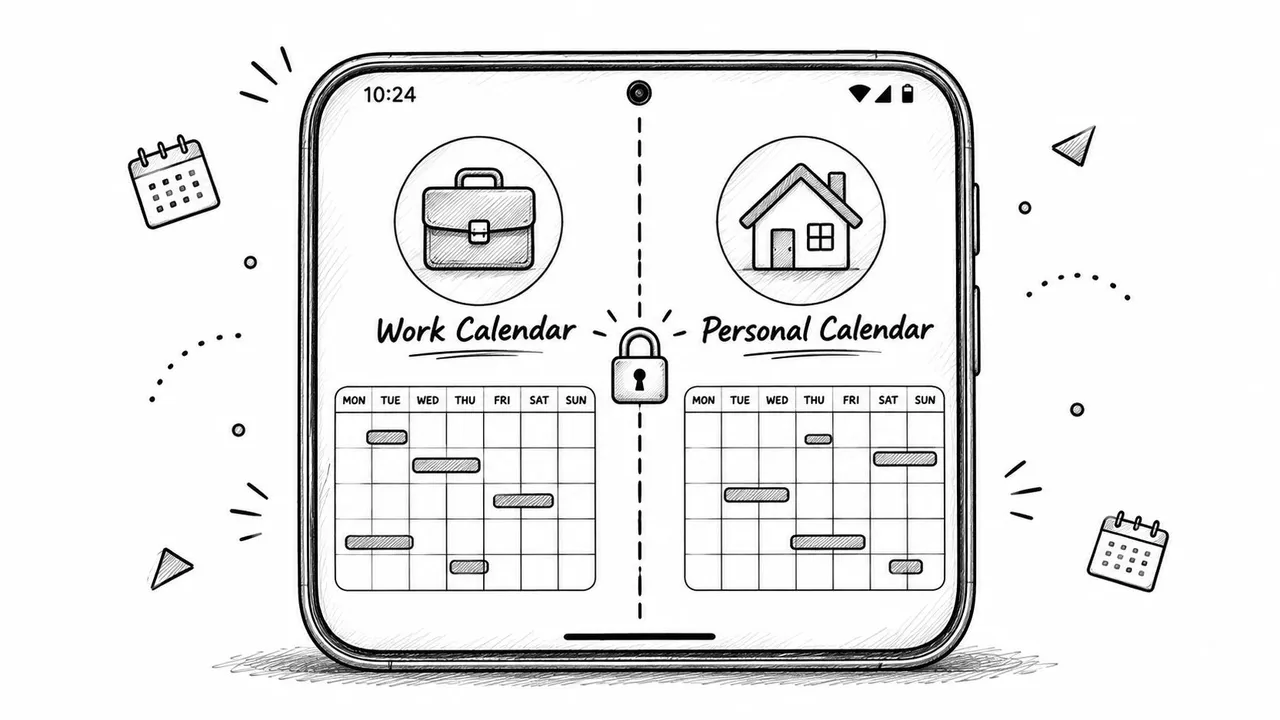
On Android, the answer comes down to how Android Work Profile isolates data. As documented in Google’s Android Work Profile privacy overview, Android deliberately keeps work and personal apps and data separate, and personal and work calendars remain stored separately even when personal calendars are displayed inside the Google Calendar Android interface. Showing two calendars on one screen isn’t the same as copying private event text across a corporate security boundary.
Here are the direct answers to the three privacy questions that trip up most users:
- Can an employer see personal event titles? Because personal and work calendars stay stored separately under Android Work Profile, your employer managing the work profile doesn’t receive titles or descriptions from your personal Google Calendar when you view them together on your phone.
- Will a personal reminder pop up on a managed work screen? Reminders fire from the app and account that own the event, so sensitive appointments stay off your work calendar as long as you never copy full details into your work account or display them on a managed work screen.
- Which calendar receives an RSVP? Responses write back to whichever calendar holds the invitation, so always reply from the account that should own the meeting rather than tapping blindly from a notification banner.
When colleagues need to know you’re unavailable during a personal errand, share free/busy status only or mask sensitive titles instead of copying full appointment details into a Microsoft 365 work calendar. Reviewing your Outlook calendar privacy settings before sharing anything externally keeps private details out of coworker scheduling views.
Run a Three-Part Privacy Check
Mobile behavior isn’t static. A Microsoft Q&A report documented a March 2026 Outlook Android calendar-integration problem that was later fixed in a subsequent app update, which shows why you can’t treat privacy or notification routing as a one-time setup. After every major Outlook or Google Calendar update, run three quick checks:
- Create a private personal event: Confirm it stays on your personal calendar, fires only one reminder from your personal app, and doesn’t leak details into your work profile.
- Create a standard work event: Check that alerts come from one app rather than triggering duplicate chimes from both Outlook and Google Calendar, then silence notifications in the secondary app.
- Send a cross-account invite: Invite your personal Gmail from your work Microsoft account (or the reverse), accept it on your phone, and verify the RSVP lands on the expected calendar.
Privacy habit: Keep sensitive personal appointments exclusively on your personal calendar, mute duplicate reminders in one of your two calendar apps, and re-check notification ownership after every major app update.
Decide Between Native Sync and a Third-Party Tool
You don’t always need extra software to sync Google Calendar with Outlook on Android. The right approach depends on whether you just need to glance at your day on your phone or whether other people book time against your calendars in the cloud.
- Stay with Outlook’s native Sync calendars toggle for phone-only viewing: If you just want to open Google Calendar on your Android phone and see your Microsoft 365 meetings in one view, native export is free and fast. Just keep all edits inside Outlook so nothing gets dropped.
- Use native two-way export cautiously on supported Microsoft accounts: Microsoft 365 and Outlook.com accounts can send mobile edits back to Outlook through Android’s calendar provider, provided you run the six-check test first and accept that those Outlook events still aren’t copied into Google Calendar on the web.
- Switch consumer Gmail off legacy Exchange setups: Personal Gmail accounts need Google’s native Android account sync rather than an Exchange connection inside Outlook.
- Use a third-party cloud sync tool when you need real copies across ecosystems: If coworkers schedule meetings in Microsoft 365 while clients or family book against Google Calendar or Apple iCloud, your phone’s local view can’t prevent double-bookings. You need real events copied directly between cloud servers, ideally with an option to mask private titles as busy blocks.
When a Cloud Bridge Makes Sense
A cloud-to-cloud bridge fixes the architectural gap Android can’t solve on its own. With SyncThemCalendars, setting up a calendar sync takes 2 minutes, and everything runs in the browser with no installs needed. You sign in with Google, Microsoft, or Apple, choose a source calendar and a target calendar, and we copy every upcoming event into the destination calendar so both cloud services stay up to date.
Because connecting a third-party service adds another vendor to your calendar workflow, always read the privacy policy and confirm your exact source and target calendars before granting access. SyncThemCalendars does not store calendar events or Google Drive files; this data stays on Google’s servers, and calendar contents are only accessed to copy events between the calendars you select.
Whichever route you choose, build one steady habit that prevents almost every calendar mishap: run the six-check test right after setup, note any field that fails, make edits in the source calendar whenever a connection proves display-only, and verify your phone calendar again after each app update.
If you want cloud copies between Google Calendar, Outlook, and Apple iCloud without exposing private appointment titles, SyncThemCalendars keeps your calendars aligned automatically in the background from your browser. Connect your accounts in about two minutes, block busy time across work and personal schedules, and stop worrying about whether your Android phone is showing you the right schedule.
Ready to sync your calendars?
Keep your Google, Outlook and Apple iCloud calendars in sync automatically. 2-minute setup, no credit card required.
Get started freeKeep reading
More in Guides
Cross Platform Compatibility for Calendar Sync
See how cross platform compatibility works for Google, Outlook, and Apple calendars, from recurrence and time zones to private busy-time sync.
Why Is My Calendar Not Syncing? Causes and Fixes
Why is my calendar not syncing? Diagnose Google, Outlook and Apple Calendar sync problems by symptom, then apply the fix that matches your cause.
Synchronize Apple Calendar with Outlook: A 2026 Guide
Step-by-step guide: Synchronize Apple Calendar with Outlook on Windows, iPhone and Mac, with two-way options, privacy trade-offs and fixes.