







How to Sync Multiple Calendars Without Double Booking
Learn how to sync multiple calendars across Google, Outlook and Apple. Set up one-way and two-way syncs, protect privacy and stop double bookings.
You probably have this problem right now.
A client sent a meeting invite to your Outlook calendar. Your personal plans live in Google Calendar. Your iPhone shows Apple Calendar by default. You glance at one calendar, say yes to a call, and only later notice you already promised that same hour to someone else.
That’s the point where starting to copy events by hand, subscribing to read-only feeds, or piling on more scheduling apps. It works for a week. Then one event changes, one account stops updating, and the whole setup becomes another thing to maintain. The better goal is simpler: keep your availability accurate across calendars without turning every account into a mirror of your entire life.
Why Syncing Multiple Calendars Actually Matters
The need to sync multiple calendars isn’t new. The plumbing behind modern calendar interoperability goes back to the iCalendar standard, first published in November 1998 as RFC 2445, with companion scheduling protocols published alongside it, then revised by RFC 5545 in 2009 and expanded by RFC 7986 in 2016 to add richer calendar-level properties, as summarized by CalConnect’s history of the iCalendar standards. That long standards history is why Google, Microsoft, and Apple calendars can exchange event data at all.
What changed is scale. A widely cited industry summary says Google Calendar has over 1 billion active users worldwide or about 1.2 billion monthly visits in early 2024, and the same summary says around 70% of adults worldwide use digital calendars regularly, with nearly half of users accessing calendars primarily on smartphones, according to this calendar software statistics roundup. That’s why this stopped being a niche admin problem. People move between phone, laptop, browser, and work accounts all day.
Side by side is not the same as synced
A lot of people think they’ve solved this because they can see several calendars in one app. That helps with visibility, but it doesn’t solve the issue.
If your Google Calendar can display your Outlook calendar next to it, you still have to look at the right view every time before accepting or moving something. The moment you schedule from the wrong app, or from a booking page tied to only one calendar, you’re back in conflict territory. Viewing calendars side by side is a reference setup. Syncing is an availability setup.
Here’s the practical difference:
- Overlaying calendars helps you inspect conflicts manually.
- Syncing calendars copies events or availability so each calendar reflects time that’s already taken.
- Sharing a calendar gives someone access, but it doesn’t necessarily make another account block that time automatically.
Practical rule: If another person, booking tool, or work system relies on one specific calendar to judge your availability, that calendar needs synced blocks, not just shared visibility.
Where syncing earns its keep
Syncing multiple calendars matters most when one person operates in more than one identity.
A freelancer might need client meetings in Microsoft 365, private appointments in Google Calendar, and family logistics in iCloud. A founder might manage one company inbox, one investor-facing calendar, and one personal account. A student might have an institutional Outlook calendar but still plan daily life in Apple Calendar.
Native sharing usually falls short because it was built more for access than for controlled cross-account mirroring. What works better is a deliberate sync design: decide which calendar owns the original event, which calendars only need a block, and which details should never travel.
That’s the mindset to keep through the rest of this. The technical part is usually easy. The hard part is deciding what should sync, in which direction, and with how much detail.
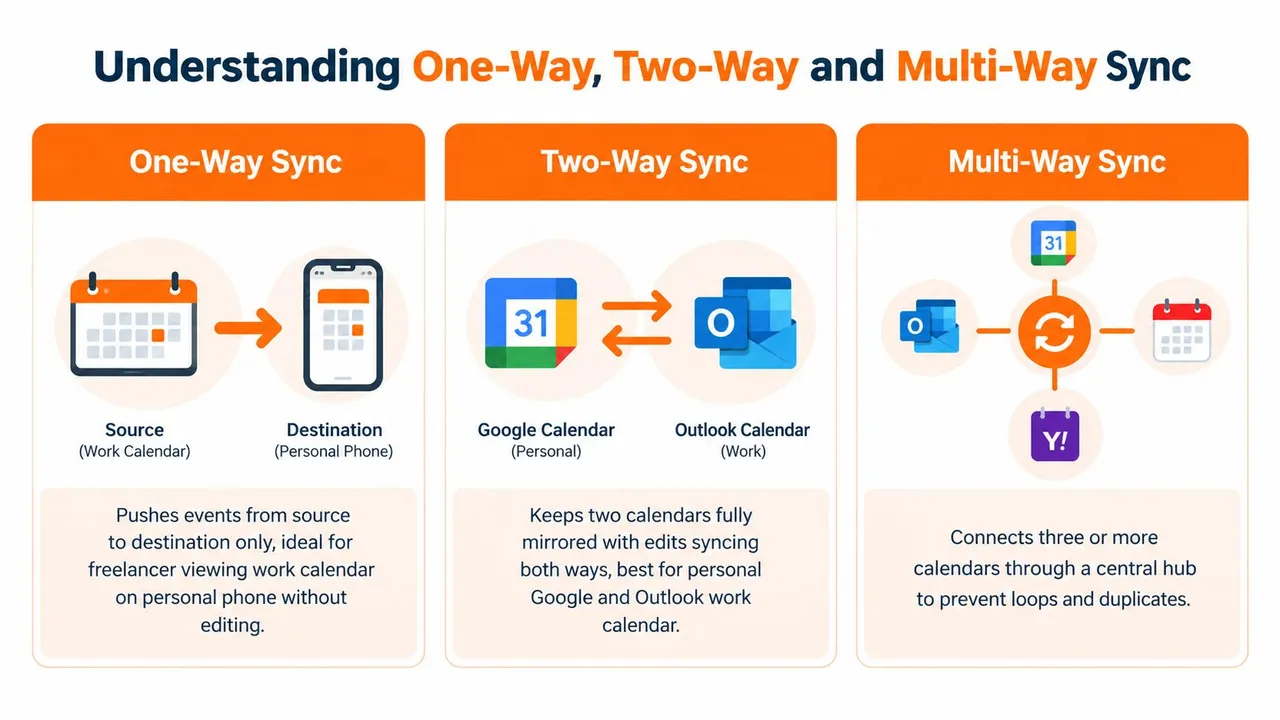
Understanding One Way Two Way and Multi Way Sync
Before you connect anything, choose the traffic pattern. Most broken setups come from getting this wrong at the start, not from the tool itself.
One-way sync
One-way sync copies events from a source calendar into a destination calendar. Changes flow in one direction only.
This is the safest option for many people. If you’re a freelancer with a personal Google Calendar and a client-managed Outlook calendar, one-way sync lets your personal commitments block time on the client side without letting client-side edits rewrite your private calendar. It’s also cleaner when privacy matters, because the destination can receive only a simple busy block.
One-way works well when:
- One calendar owns the truth and the other only needs visibility.
- You want privacy control on the destination side.
- You don’t fully trust edit behavior in both systems.
What it doesn’t do is keep both calendars fully identical. If you move an event on the destination calendar, nothing flows back unless you edit the source.
Two-way sync
Two-way sync keeps two calendars aligned in both directions. Add, move, or remove an event in one, and the other updates too.
This is useful when the same person actively works out of both environments. A common example is someone who plans in Google Calendar on mobile but still receives and manages work invites in Outlook on desktop. In that case, a properly configured two-way calendar sync can remove a lot of manual checking.
The trade-off is risk. Two-way sync is where loops, duplicates, and confusing edit conflicts usually begin. If two different sync tools touch the same pair of calendars, or if you accidentally create overlapping routes, each system can keep cloning or reprocessing the same event.
Two-way sync saves time only when ownership is clear. If both calendars are open to constant editing by different systems, it can create more cleanup than it removes.
Multi-way sync
Multi-way sync connects three or more calendars. Done well, it uses a central logic path rather than a pile of ad hoc pairings.
This suits people managing several roles at once. An entrepreneur might need a work Outlook calendar, a personal Google Calendar, and an Apple Calendar on iCloud to stay aligned. A consultant might juggle multiple client calendars plus one private planning calendar. In those cases, multi-way sync keeps availability consistent without forcing one provider to become your only interface.
A simple comparison helps:
| Sync type | Best for | Main risk |
|---|---|---|
| One-way | Blocking time across separate roles | Missed reverse updates |
| Two-way | Working actively in two calendars | Loops and edit conflicts |
| Multi-way | Managing several accounts at once | Over-complex routing |
The decision most people should make first
Don’t default to syncing everything both ways.
Start by asking one blunt question: Which calendar should be allowed to create truth, and which calendars only need to know you’re unavailable? If you answer that, the right direction usually becomes obvious. In practice, one-way is safer than people think, two-way is useful in a narrower set of cases than people expect, and multi-way only works well when you keep the routing simple.
How to Set Up Calendar Sync Across Google Outlook and Apple
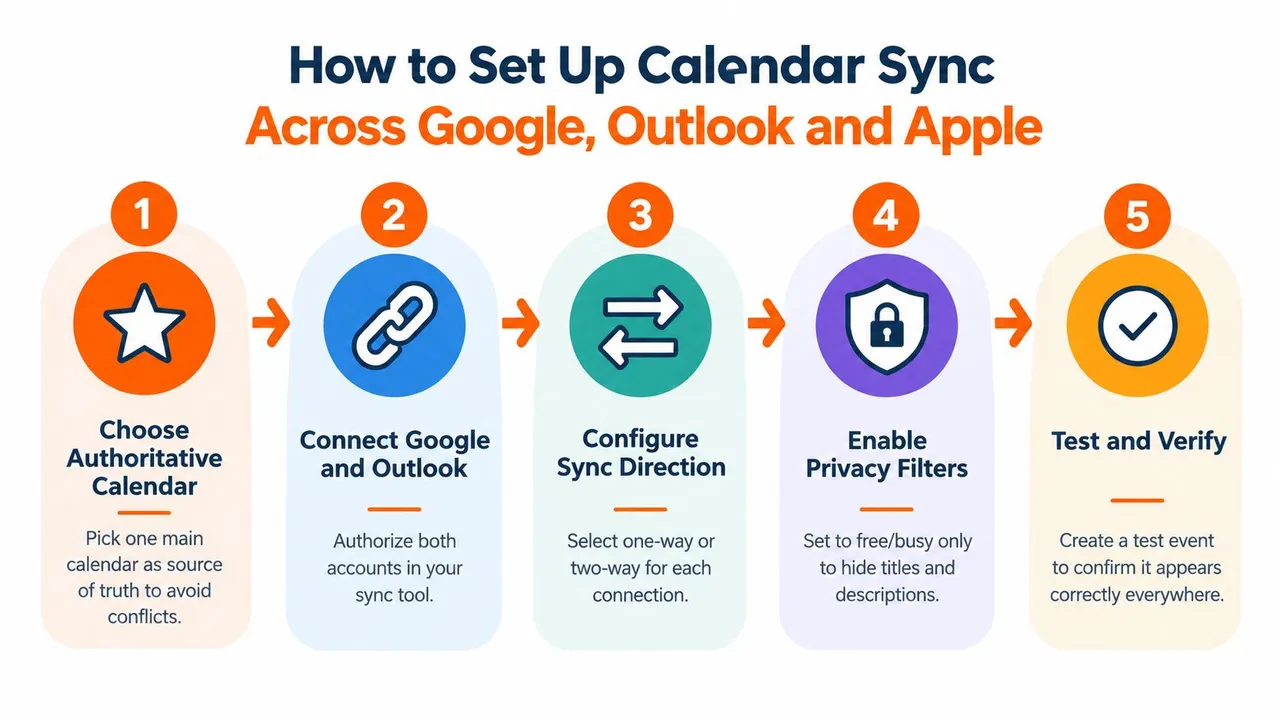
A stable setup starts with one choice: pick your authoritative calendar first. Independent setup guidance recommends choosing one main calendar, connecting secondary calendars as one-way or read-only sources where appropriate, testing with a sample event, checking behavior in both directions, documenting conflict rules, and removing duplicate sync paths because overlapping subscriptions and multiple tools often create loops or repeated copies, as explained in Scheduling Kit’s cross-platform sync workflow.
If you skip that decision, the rest gets messy fast.
Start with ownership, not apps
Start by connecting Google, Outlook, and iCloud immediately. I’d do the opposite.
First decide which calendar owns event creation for each part of your life. Your corporate Outlook calendar may own client meetings because invites land there first. Your personal Google Calendar may own private appointments because that’s where you schedule them. Your Apple Calendar may just be a viewing layer on your phone, not the source of anything.
That distinction matters because syncing copied events is easy. Managing copied events as if they were originals is where setups break.
A clean map looks like this:
- Work account: original location for employer or client meetings
- Personal account: original location for private events and blocks
- Mobile-facing calendar: viewing and lightweight editing, only if needed
- Booking calendar: whichever account your scheduling link checks for availability
Connect each provider carefully
When you connect Google Calendar, Microsoft Outlook or Office 365, and Apple Calendar through iCloud, the right approach is to authenticate each account, then choose the exact calendars involved rather than syncing every calendar under every account.
A web app built for cross-platform copies is useful. For example, SyncThemCalendars supports Google, Outlook/Office 365, and Apple Calendar, lets you choose one-way, two-way, or multi-way behavior, and is designed as a web-based setup that runs in the background after connection. That’s the right model for people who want each platform to keep doing its own job while availability stays aligned.
Keep the first connection small. One source. One destination. One clear purpose.
Choose what gets copied
Practical setups separate from sloppy ones.
A work calendar usually does not need your full personal event title, description, attendees, and location. It often only needs to know you’re busy. A personal calendar may need more detail from work events if you rely on it as your daily planner, but even then you might still want to rename copied events or strip notes.
Use these questions when defining the copy behavior:
- Does the destination need full event details, or only a block?
- Should edits on the destination flow back, or should copied events stay read-only in practice?
- Will attendees, links, and notes create privacy or clutter problems if copied?
If you use email-driven workflows around scheduling notifications, onboarding reminders, or automated confirmations, the operational mindset is similar to Configuring SMTP Relay. The underlying lesson is the same. Keep the route explicit, know which system is authorized to send or pass data, and avoid stacking redundant paths just because each one works on its own.
Test with one event before you expand
Don’t build five sync routes and hope for the best.
Create one test event in Google Calendar and confirm how it appears in Outlook and Apple Calendar. Then move it. Then delete it. If you’re using two-way behavior, repeat from the other side. Check whether the copied event looks like you expected, whether privacy masking is correct, and whether updates arrive cleanly.
Here’s the video version if you prefer seeing the setup flow:
Check this before going live: event title, time zone, all-day behavior, recurrence handling, privacy masking, and whether edits propagate only where intended.
Add calendars gradually
Once one connection behaves correctly, then add the next.
A common rollout for someone using all three ecosystems looks like this:
- Personal Google Calendar blocks work Outlook availability.
- Work Outlook events appear on Apple Calendar for mobile awareness.
- A second personal or family calendar feeds only busy blocks where needed.
Notice what’s missing. There isn’t a fully mirrored copy of every event moving everywhere by default. That’s deliberate. Multi-calendar setups stay healthy when each additional sync has a reason.
What usually works best in real life
For freelancers and solo operators, one-way sync from personal to work and one-way from work to personal often beats symmetrical two-way sync, because each route has a distinct job.
For people who work from both Google and Outlook every day, two-way can make sense if it’s the only active path between those calendars and copied event handling is clearly understood.
For Apple Calendar users, iCloud often works best as part of a controlled network rather than as the place where all scheduling logic originates. Many people use Apple Calendar as the cleanest day-to-day view while Google or Outlook remains the account where invites and integrations live.
That’s the pattern I trust most. Pick a source of truth, connect with intent, test one route at a time, and only expand once the first sync behaves exactly the way you want.
Protecting Privacy With Free Busy and Field Masking
The basic privacy advice many people hear is “share free/busy instead of full details.” That’s useful, but it’s not enough.
Independent privacy guidance on work and personal calendar syncing warns that connected calendars can expose sensitive information such as medical appointments, salary reviews, meeting attendees, locations, and notes, and it recommends choosing OAuth-based tools, checking whether a service stores copies of calendar data or only passes it through, and auditing settings over time as calendars multiply, as described in this privacy guide for syncing work and personal calendars.
Free busy is the starting point
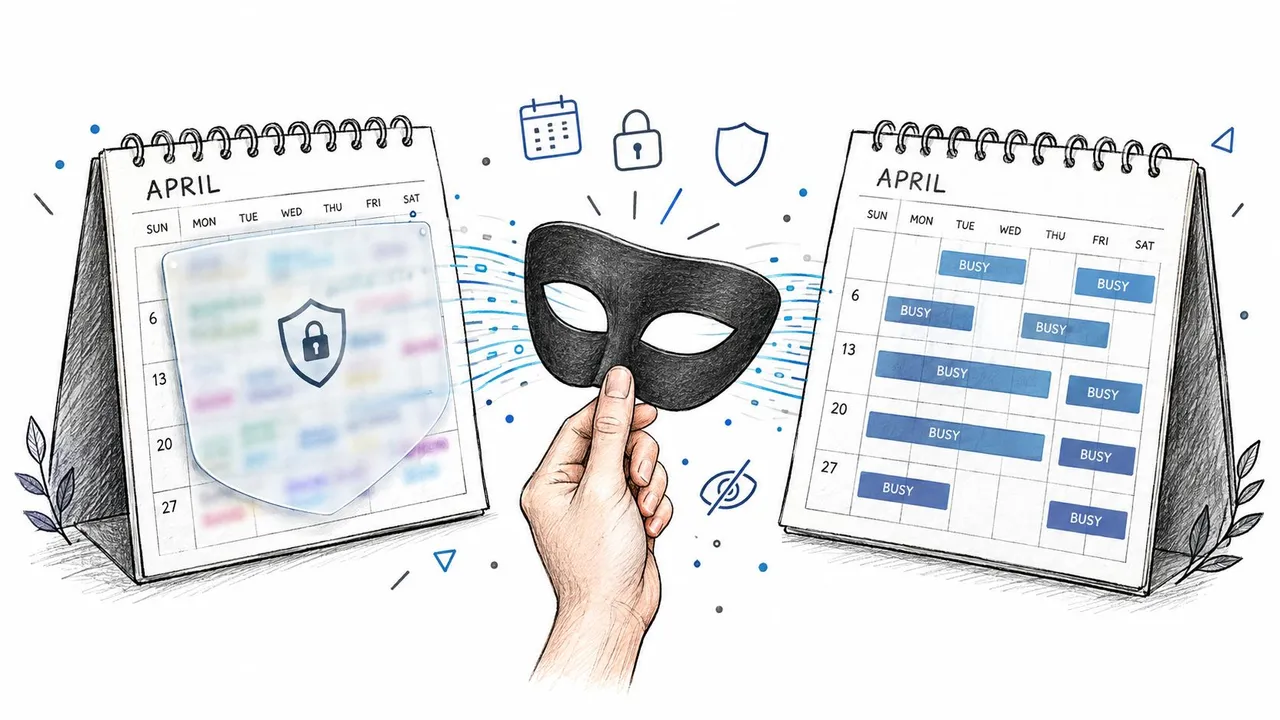
If your work calendar only needs to know you can’t take a meeting at 3 PM, then the copy should often say nothing more than Busy.
That single choice prevents a lot of accidental oversharing. A therapy appointment, school meeting, travel plan, or family obligation can still block time on another calendar without revealing title, notes, attendee names, or location.
This is especially important when one destination calendar is visible to coworkers, assistants, recruiters, or clients.
Field masking is where the real control lives
The better setups don’t just choose between “full details” and “busy.” They decide field by field.
You might want these rules:
- Title masking: turn “Oncologist Follow-up” into “Busy”
- Description stripping: remove notes, links, agendas, and pasted threads
- Location removal: hide addresses and venue names
- Attendee suppression: avoid exposing who else is involved
- Renaming by calendar: convert “Investor Call” into “External Meeting” on a personal view
That’s not paranoia. It’s data minimization. If another calendar doesn’t need the information to serve its purpose, don’t copy it.
A work calendar needs your availability more often than it needs your personal details.
Audit what the sync service can access
When people ask whether a sync setup is private, they’re usually asking the wrong question. The better question is: what can this service read, store, transform, and reveal for each connected calendar?
That means checking:
- Authentication model: OAuth is usually the right baseline because you authorize access explicitly and can revoke it later.
- Stored data behavior: does the service retain event content or process events solely to perform synchronization?
- Per-calendar rules: can one personal calendar be busy-only while another shares more detail?
- Ongoing reviews: after you add a new account or shared calendar, do your old privacy assumptions still hold?
A lot of users also benefit from reviewing calendar sharing permissions before they blame the sync tool. Sometimes the leak isn’t caused by syncing at all. It comes from broad sharing inside Google Workspace, Microsoft 365, or iCloud.
Practical privacy setups that hold up
A few examples tend to work well:
| Situation | What to copy | What to hide |
|---|---|---|
| Consultant with client Outlook calendar | Busy blocks from personal calendar | Title, notes, location |
| Founder with investor and personal calendars | Time blocks both ways | Family names, travel details |
| Student with school and private calendars | Class blocks to personal planner | Administrative notes, attendee details |
The goal isn’t secrecy for its own sake. It’s relevance. The more calendars you connect, the more important it becomes to expose only the minimum needed to protect your time.
Fixing Common Sync Issues and Avoiding Duplicates
Most sync failures look mysterious from the outside, but they usually come from a short list of causes. Duplicate clone events, circular loops, stale permissions, and time-zone mismatches account for a lot of the mess I see.
Coverage of scheduling overload also points to a bigger backdrop. Multiple scheduling tools and constant notifications increase decision fatigue, and one cited 2024 industry study says nearly half of professionals spend more than three hours per week wrangling calendars, according to Future CoWorker’s discussion of calendar overload and consolidation. That’s why cleanup matters. Bad sync design doesn’t just create technical errors. It creates maintenance work.
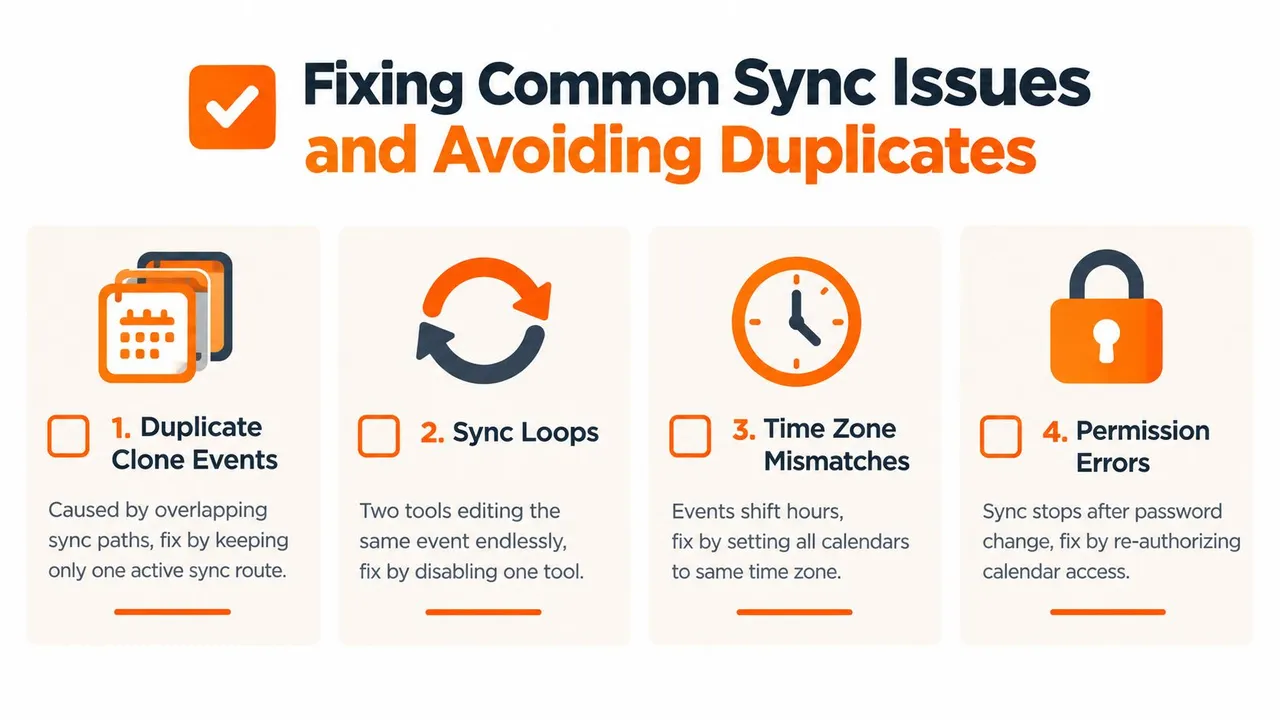
Duplicate events usually come from overlapping routes
If the same source calendar reaches the same destination through more than one path, duplicate events are almost guaranteed sooner or later.
That often happens when someone keeps an old subscription active, adds a new sync tool, and forgets both are touching the same calendars. Product documentation in the privacy-and-operations guidance cited earlier also warns that overlapping sync configurations can create duplicate clone events. The fix is simple but not always obvious: keep one active route per intended copy path.
If you need a reference point on prevention logic, this guide on calendar synchronization to avoid double bookings is useful because it reinforces the same principle. Fewer paths mean fewer surprises.
Loops happen when two systems keep re-copying each other
A sync loop is different from a duplicate burst. In a loop, one tool copies an event, another tool interprets that copy as a fresh original, and the cycle keeps going.
The fastest fix is usually to disable one tool or remove one direction temporarily, then watch a single test event move through the system. If the loop stops, rebuild the route with one clear owner.
Diagnostic shortcut: When you see repeated clones with slightly different metadata, suspect more than one sync process before you suspect the calendar provider itself.
The other failures are usually straightforward
A few problems don’t require a full rebuild.
- Time shifts: Set Google, Outlook, Apple Calendar, and your device to the same time zone. Check all-day events separately because they can behave differently.
- Permission failures: If syncing suddenly stops after a password change or admin policy update, re-authorize the account.
- Apple delays: iCloud propagation can feel slower than Google or Microsoft in some setups. Wait, verify, then troubleshoot. Don’t start deleting routes immediately.
- Recurring event oddities: Edit one instance and one future instance during testing so you can see how exceptions behave.
The prevention habit that saves the most time
Document the setup, even if it’s just a short note in your password manager or ops doc.
Write down which calendars are sources, which are destinations, whether the route is one-way or two-way, and what privacy rules apply. Without that, six months later you’ll see a duplicate event and have no idea whether the culprit is Google, Microsoft, iCloud, a booking tool, or your own old workaround.
Best Practices to Keep Your Calendars Aligned Long Term
Long-term success with synced calendars has less to do with setup screens and more to do with governance. If you don’t define ownership, limit unnecessary mirroring, and review privacy settings occasionally, even a technically correct sync will turn into noise.
Keep the system small enough to trust
More syncs aren’t always better.
The healthier setups usually follow a few rules:
- Assign ownership: every important calendar should have a clear role. Original events live in one place, copied blocks live elsewhere.
- Mirror only what matters: if a calendar never affects availability, it may not need to sync at all.
- Use naming discipline: copied events should be easy to recognize so you don’t edit the wrong version.
- Review privacy rules periodically: new shared calendars, assistants, or clients can change who sees what.
- Control notifications: if every mirrored event pings every device, you’ve solved double-booking by creating interruption fatigue.
Match the plan to routing complexity
When choosing a service, think in terms of active sync count, not event volume. That’s the operational constraint that usually matters more.
SyncThemCalendars publishes three plan tiers with Basic including up to 5 syncs, Premium up to 16, and Professional up to 36, and all three include unlimited events and single-user access, with a 14-day free trial without a credit card according to the publisher information provided for this article.
Here’s the practical comparison:
| Plan | Active Syncs Included | Events and Access |
|---|---|---|
| Basic | Up to 5 syncs | Unlimited events, single-user access |
| Premium | Up to 16 syncs | Unlimited events, single-user access |
| Professional | Up to 36 syncs | Unlimited events, single-user access |
The standard worth aiming for
A good calendar sync setup should lower mental overhead. It shouldn’t create another layer of checking, cleaning, and second-guessing.
If you sync multiple calendars well, you stop asking “where did that event go?” and start trusting that each account reflects the availability it needs. That’s the bar. Accurate enough to prevent conflicts, private enough to protect sensitive details, and simple enough that you won’t be debugging it every Friday.
If you want a cleaner way to keep Google Calendar, Outlook/Office 365, and Apple Calendar aligned, SyncThemCalendars offers one-way, two-way, and multi-way syncing with free/busy and field-masking controls. It’s built for the exact problem this article covered: keeping availability accurate across accounts without leaking more event detail than necessary.
Ready to sync your calendars?
Keep your Google, Outlook and Apple iCloud calendars in sync automatically. 2-minute setup, no credit card required.
Get started freeKeep reading
More in Tutorials

How to Add Gmail Calendar to Outlook Without Duplicates
See how to add Gmail Calendar to Outlook by subscribing for a live view or using two-way sync, then avoid privacy leaks and duplicate events.

Export Outlook Calendar to Google: A 2026 Step-by-Step Guide
Learn how to export Outlook calendar to Google with clear steps for ICS and CSV imports, recurring-event checks, and verification tips that work in 2026.

How to Synchronize Outlook Calendar Across Platforms
Learn how to synchronize Outlook calendar events with Google and Apple iCloud. Master two-way sync, privacy controls, and real-time availability mapping.