







How to Filter Events When Syncing Calendars
Learn how to filter events when syncing calendars, exclude private or busy events, and keep only the right details across your calendars.
Syncing multiple calendars is convenient, but it can quickly become confusing when every detail from every event is copied without distinction. Simply put, not everything needs to be synchronized everywhere.
In this article, we’ll look at the different ways to filter events when syncing calendars, the limitations of native calendar tools, and how to keep your calendars clean, organized, and relevant.
💡 Are you interested in calendar synchronization? I recommend these articles:
- Calendar Synchronization: Complete Guide 2026 to Save Time.
- How to Sync Multiple Calendars: 2026 Guide to Save Time
- How to Keep Your Calendar in Sync When You Work With Multiple Companies ;
Common Reasons to Filter Events when syncing calendars
As I mentioned in the introduction, you might not want 100% of an event’s details to be synced to another calendar. How can you enjoy the benefits of syncing while still maintaining control over what gets synced?
Separate Work and Personal Calendars
Many people synchronize their work and personal calendars to keep their availability up to date across both environments.
However, that doesn’t necessarily mean personal appointments should appear in a professional calendar. Events containing keywords such as “Personal” or “Private” can be excluded from synchronization while all other events continue to sync normally.
Exclude Focus Time and Out-of-Office Events
Focus Time and Out-of-Office (OOO) events are useful for managing availability, but they are not always relevant in every calendar.
For example, you may want colleagues to see that you’re unavailable in your work calendar without cluttering your personal or freelance calendars with the same blocks.
Keep Availability Blocks Private
Many freelancers and consultants create events such as “Busy”, “Blocked”, or “Unavailable” to reserve time for deep work, administration, or personal commitments.
These events serve an internal planning purpose and often don’t need to be synchronized to other calendars. Filtering them keeps your schedule accurate while avoiding unnecessary clutter.
Hide Confidential Appointments
Some events contain sensitive information that should remain visible only in a specific calendar.
By excluding events containing terms such as “Private” or other predefined keywords, you can prevent confidential appointments from being synchronized while still sharing the rest of your schedule across calendars.
How Do Synchronization Filters Work?
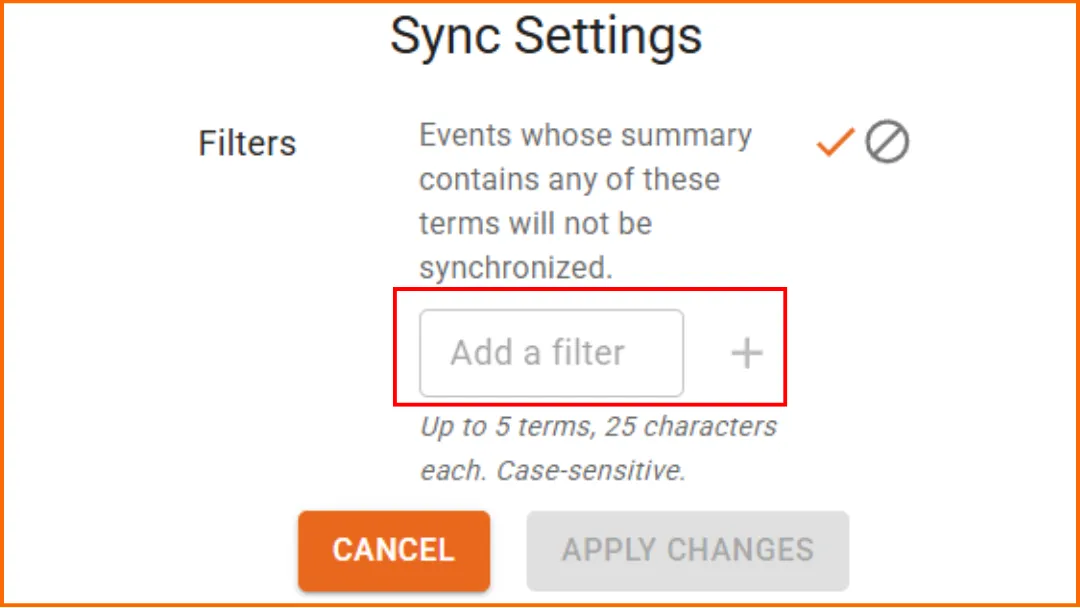
The principle is simple: before syncing an event, SyncThemCalendars checks its summary. If the summary contains certain keywords, the event will not be synchronized.
Example
If you add the following terms to your filters:
- “Personal”
- “Private”
- “Vacation”
- “Busy”.
Then the following events will not be synchronized:
- “Personal appointment”
- “Private meeting with advisor”
- “Summer Vacation”
- “Busy Slot - Friday afternoon”.
All other events will continue to sync normally.
In our case, you can define up to 5 filter terms, with a maximum length of 25 characters each. Filters are also case-sensitive, which means that “Busy” and “busy” are treated as two different terms.
💡This approach is particularly useful for excluding certain types of events without having to create separate calendars.
Examples of Useful Filters
| Method | Two-Way Sync | Automatic Updates | Free | Best For |
|---|---|---|---|---|
| ⭐ SyncThemCalendars | ✔️ | ✔️ | Sometimes | Full synchronization between Google Calendar and Outlook ⭐ Recommended |
| View Google Calendar in Outlook | ❌ | ✔️ | ✔️ | Checking your Google Calendar inside Outlook |
| Import Google Calendar into Outlook | ❌ | ❌ | ✔️ | One-time calendar transfers |
These are probably the most relevant examples because they represent events that are often created to manage availability, not events that users actually want to appear across all of their calendars.
👉This is also a good opportunity to check out our article “Free busy calendar” or “Google Calendar Availability”.
Why Native Calendar Tools Are Limited To Sync Calendars
True two-way synchronization between two independent calendars does not exist natively. Here’s what users most often want:
“When I add an event here, it appears there automatically.”
“When I edit an event on one side, it updates on the other.”
This is what we call two-way synchronization, and it doesn’t exist by default in Google Calendar, Outlook/Microsoft, or Apple Calendar. These tools instead operate on a sharing, subscription, or viewing model.
👉Check out our full article explaining the concept of synchronization.
That’s generally the domain of products like SyncThemCalendars.
👉Check out our comprehensive guide to the best calendar synchronization apps.
☄️ Try SyncThemCalendars for free and keep all your calendars synchronized. Google, Apple, Microsoft, it supports them all!
Ready to sync your calendars?
Keep your Google, Outlook and Apple iCloud calendars in sync automatically. 2-minute setup, no credit card required.
Get started freeKeep reading
More in Tutorials
How to Synchronize Outlook Calendar Across Platforms
Learn how to synchronize Outlook calendar events with Google and Apple iCloud. Master two-way sync, privacy controls, and real-time availability mapping.
How to Sync Office 365 Calendar with Apple Calendar
Learn how to sync Office 365 calendar with Apple Calendar. Compare native methods, third-party tools, privacy controls, and troubleshooting tips.
Outlook Not Syncing: Step-by-Step Fixes for Calendars
Fix outlook not syncing across Google, iCloud, and Office 365 with this complete troubleshooting guide. Clear steps, platform-specific tips, and expert