


Calendar ICS Outlook Import vs Subscribe Guide
Calendar ICS Outlook guide: import a file, subscribe to a feed, export a calendar, and avoid stale copies, duplicates, and privacy leaks.
A colleague sends you a calendar attachment, and you open it in Outlook. The dates appear, so you assume you’re done. Then a meeting moves, your copy stays put, and importing the replacement file leaves you with duplicate appointments.
That’s the confusing part of using an ICS calendar in Outlook: seeing events doesn’t tell you whether Outlook copied them, subscribed to them, or processed a meeting invitation. Choose the right action first, then check what Outlook kept.
Import Versus Subscribe in Outlook
A colleague emails you holiday.ics. A school website offers an online calendar address ending in .ics. Both contain calendar information, but they call for different Outlook actions.
Importing copies events. Subscribing follows a published calendar. Neither action, by itself, establishes a two-way connection between accounts.
Microsoft’s calendar-sharing documentation distinguishes importing an ICS file from subscribing to an online calendar, and explains that the recipient’s calendar service determines when it checks a subscription for updates. That makes a subscription an ongoing relationship, but not a promise of instant delivery.
Outlook ways to use an ICS calendar
| Action | What lands in Outlook | Later updates | Editable | Use it when |
|---|---|---|---|---|
| Import an .ics file | Events copied into a calendar you choose | None unless you import again | Yes, local copies | A one-off file you will own |
| Subscribe to an ICS URL | A separate read-only calendar | When your Outlook checks the link, not instantly | No | Holidays or a published team calendar |
| Open a meeting .ics invite | One appointment you accept or decline | Only if the organizer sends an update | Respond, not rewrite the series | A single meeting, not a whole calendar |
| Add from the web | Imported events from an Apple, Google, or similar .ics source | One-time unless you subscribe instead | Yes if it was an import | A file saved from another calendar app |
Add from the web needs careful reading. The label describes where calendar information comes from, not necessarily how Outlook maintains it. An upload creates a snapshot; a subscription retains the feed address so Outlook can check it again.
Outlook on the web can bring in ICS calendars from other applications, including Apple iCal, Google Calendar, and Mozilla Lightning. Compatibility with the file format doesn’t mean those applications now share the same calendar database.
Choose by who owns future changes
Say your travel organizer sends a final itinerary. You want to add your own notes and adjust reminders, so importing makes sense. You’re taking responsibility for that copy.
A school timetable is different. If the school changes a term date, you want its published version rather than a locally edited copy. Subscribe, provided you can tolerate a delay before changes appear.
A meeting invitation has another purpose: it lets you respond to an organizer’s request. Don’t treat an attachment containing a whole calendar as though accepting it will create an organizer-managed relationship for every event.
Practical rule: Import when you’ll own the dates. Subscribe when you need to view someone else’s published dates.
Neither choice automatically pushes your edits back to the source. Nor should you assume that displaying another calendar will reserve time in a separate account’s booking availability.
How to Import an ICS File into Outlook
Start with a saved .ics file, not an address copied from a subscription page. Save the attachment somewhere recognizable, and confirm which Outlook account should receive it before opening the import controls.
For a substantial calendar, create an empty test calendar first. Keeping the imported events separate makes inspection and cleanup much safer than mixing unfamiliar appointments into your main work calendar.
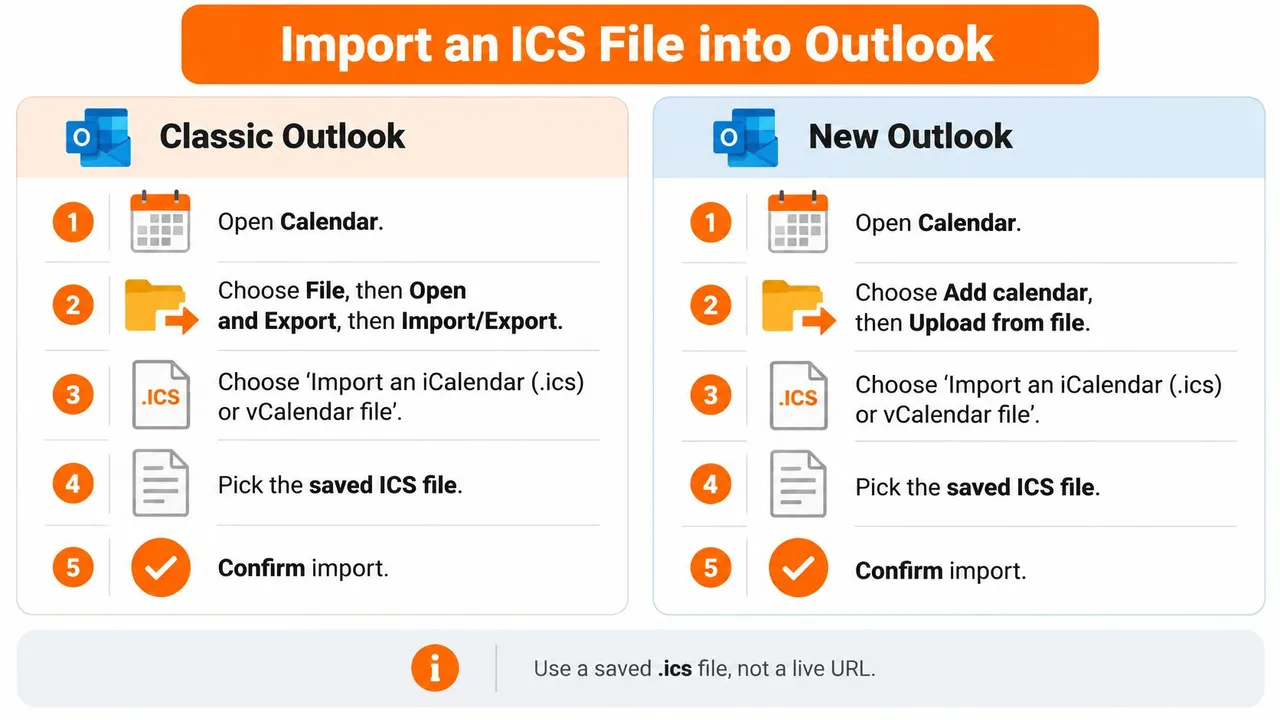
Classic Outlook for Windows
- Open Calendar and select the intended destination calendar.
- Choose File, then Open & Export, then Import/Export.
- Select Import an iCalendar (.ics) or vCalendar file.
- Browse to the saved file and open it.
- Choose Import to copy the events into the selected calendar. Choose Open as New only when you want a separate calendar folder.
- Confirm the result in the calendar you intended to use.
Classic Outlook’s dialog sequence can differ by build. If it doesn’t offer a destination selector, don’t assume it used the calendar currently visible on screen. Check the target account and calendar immediately afterward, especially when your profile includes personal and employer mailboxes.
New Outlook and Outlook on the web
- Open Calendar.
- Select Add calendar, then Upload from file.
- Browse to your saved
.icsfile. - Use the calendar selector to choose the destination.
- Select Import and let the operation finish before trying again.
The destination selector matters more than the filename. A file named personal-calendar.ics can still land in your work calendar if that’s the destination you choose.
Use this visual as a quick reference while locating the controls in your version.
Check the result before importing more
Compare a timed appointment, an all-day event, and a recurring series with their originals. Open the event details rather than relying only on the month view, which can hide differences in time, recurrence, and reminders.
If the file won’t open, investigate the file itself before repeating the import:
- Confirm the extension. Show filename extensions and check that the file really ends in
.ics. - Check its origin. Renaming a ZIP archive or a downloaded webpage doesn’t turn it into calendar data.
- Inspect the contents. A calendar file opened in a text editor should contain calendar components such as
BEGIN:VCALENDAR, not a sign-in page. - Reduce the scope. If the export is difficult to process, ask the sender for a narrower date range or separate calendars.
Don’t use another import as an update button. Reimporting doesn’t reliably reconcile the first copy and can leave you with duplicates.
Once you’ve verified the import, those local appointments are yours to edit. The sender’s later changes won’t automatically follow them.
How to Subscribe to an ICS Calendar URL
A subscription starts with the publisher’s calendar address, usually an HTTPS link. It doesn’t start with a file sitting in Downloads.
Ask for the subscription address specifically. A webpage where you can view a calendar, a sharing invitation, and an ICS feed aren’t necessarily interchangeable.
Add the feed in Outlook
In new Outlook or Outlook on the web:
- Open Calendar and select Add calendar.
- Choose Subscribe from web.
- Paste the complete ICS address.
- Give the calendar a recognizable name.
- Choose a color, then select Import, Subscribe, or the equivalent confirmation control.
In classic Outlook, look for Add Calendar, then From Internet. Paste the feed address and confirm the subscription.
The illustration shows the web-address route, rather than the file-upload route.
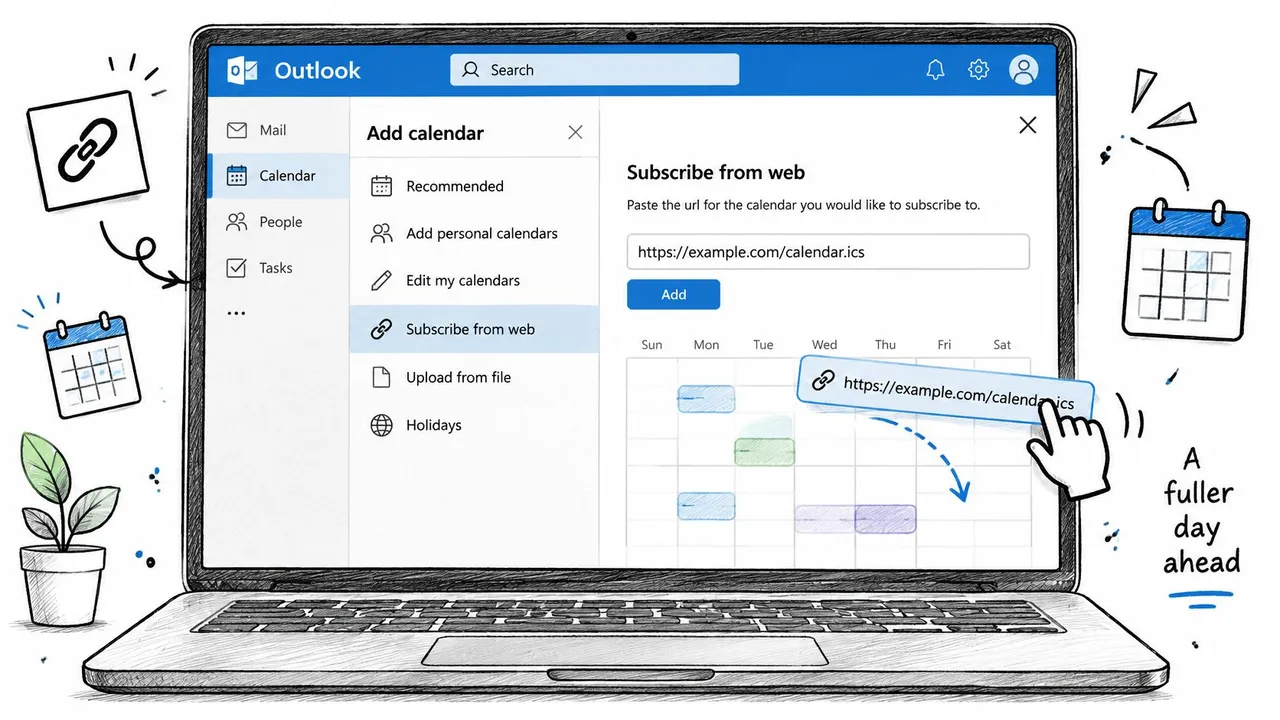
The calendar should appear in the calendar list, commonly under Other calendars. Turn its checkbox on to display it, or off to hide it without removing the subscription.
What to expect after subscribing
You can view published events, but you can’t use the subscribed calendar to rewrite the publisher’s titles, move its meetings, or change its recurring schedule. Contact the publisher when the underlying information is wrong.
A recently added event might not appear at your next glance. Outlook checks the feed on its own schedule, and there isn’t a refresh-now control you can rely on across every Outlook version. Removing and adding the feed again isn’t a dependable way to obtain immediate updates.
A subscription is useful for reference calendars. Don’t make an urgent scheduling decision solely because a newly changed event hasn’t appeared yet.
School terms, holiday calendars, and published on-call rotas are sensible candidates when their update requirements allow it. A confidential client schedule needs a privacy review before anyone distributes its address.
If Outlook rejects the address, check the following:
- Complete address. Copy the entire link, including any query string after the question mark.
- Correct endpoint. Use the publisher’s subscription address rather than a browser’s calendar-view page.
- Active publication. Ask whether the publisher disabled or replaced the feed.
- Access requirements. A page that requires an interactive sign-in might not be a usable public subscription feed.
To stop following the calendar, open its menu in the calendar list and choose the remove or unsubscribe option. This removes your subscribed view, not the publisher’s calendar. Any events you separately imported or copied remain until you remove those copies.
How to Export an Outlook Calendar as ICS
Export a deliberate snapshot, not everything Outlook happens to contain. Choose the calendar, date range, and disclosure level before saving the file.
The IETF’s iCalendar specification defines the vendor-independent format behind ICS, including events, recurrence rules, alarms, time zones, and free/busy information. That’s why an ICS export can carry more than a list of dates, and why its contents deserve inspection before sharing.
Save a file from classic Outlook
- Open Calendar and select the calendar you want to export.
- Choose File, then Save Calendar.
- Confirm iCalendar Format (*.ics) as the file type.
- Open More Options and set the required date range explicitly.
- Choose the available detail level, such as availability only, limited details, or full details.
- Save the file with a name that explains its scope.
Don’t rely on a default date range to include every future appointment. Review the export summary before saving, particularly if the recipient needs a recurring series extending beyond the visible month.
For example, a freelancer handing over an upcoming project schedule could export the project’s date range with limited details. A name such as project-schedule-autumn.ics is more informative than calendar.ics.
Choose a file or published address
Outlook on the web can offer calendar publishing under its calendar-sharing settings, subject to account and organization restrictions. Publishing produces an address for subscribers rather than a file you manually resend.
Use Save Calendar for a handover or archived snapshot. Use a published subscription address when the recipient needs to keep following the schedule.
Before emailing an export, import it into an empty test calendar and inspect the included dates and descriptions. Don’t test it by importing into your original calendar, where you could mix exported copies with the source appointments.
Check confidential notes as well as visible subjects. The appropriate export is the smallest useful calendar, not the largest file Outlook lets you save.
Recurrence Time Zones and Duplicate Events
A finished import can still be wrong. Verify the event fields, not just Outlook’s success message.
The iCalendar standard supports recurrence rules, exception dates, time-zone definitions, and availability information. Those structures need checking in Outlook’s rendered calendar, particularly when a recurring series includes skipped or modified appointments.
ICS import problems and what to verify
| What you see | Usual cause | Check or workaround |
|---|---|---|
| Weekly event shifts by one hour | Time zone or daylight-saving rule dropped | Compare the source zone with the Outlook mailbox zone |
| All-day event on the wrong date | UTC time applied to a date-only event | Check the source date, correct the export, then test in an empty calendar |
| A cancelled occurrence still shows | Exception date not preserved | Compare skipped dates on the source series |
| Two copies of every meeting | The same file imported again | Remove the previous import, then import once into an empty calendar |
| Reminders missing | Alarms not carried across | Set reminders again on the imported events |
| Subscribed calendar looks old | Refresh is up to the receiving Outlook | Allow another feed check; don’t import the file as a refresh workaround |
These are diagnostic starting points, not proof of the cause. Correct the source or export settings before repeating an import that shifted dates.
Use the checklist to compare the imported appointments with the originals.
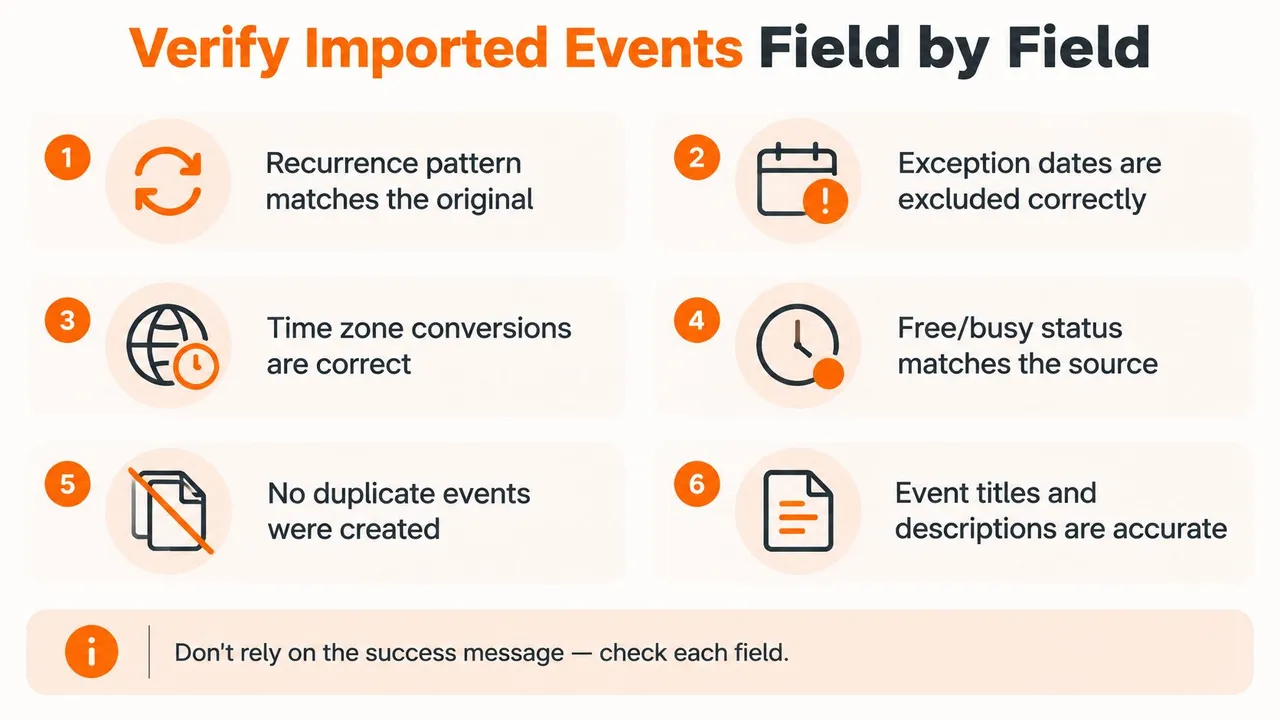
Check start and end times, recurrence end date, skipped and added occurrences, title, description, location, organizer, attendees, reminders, and free/busy status. Organizer and attendee text shouldn’t be treated as proof that the imported event has a working invitation-update relationship.
For recurring meetings, inspect occurrences on both sides of a daylight-saving transition. The guide to scheduling across time zones helps distinguish a legitimate local-time difference from an incorrect conversion.
Cleanup safeguard: Delete an entire calendar only if it contains disposable imported events. Never delete your main calendar to fix duplicates.
For technical diagnosis, RFC recurrence guidance explains how the initial start, recurrence rules, added dates, and exclusions work together. Treat matching dates, correctly excluded occurrences, and no accidental duplicate appointments as acceptance criteria before trusting the calendar.
What a Shared ICS Link Still Shows
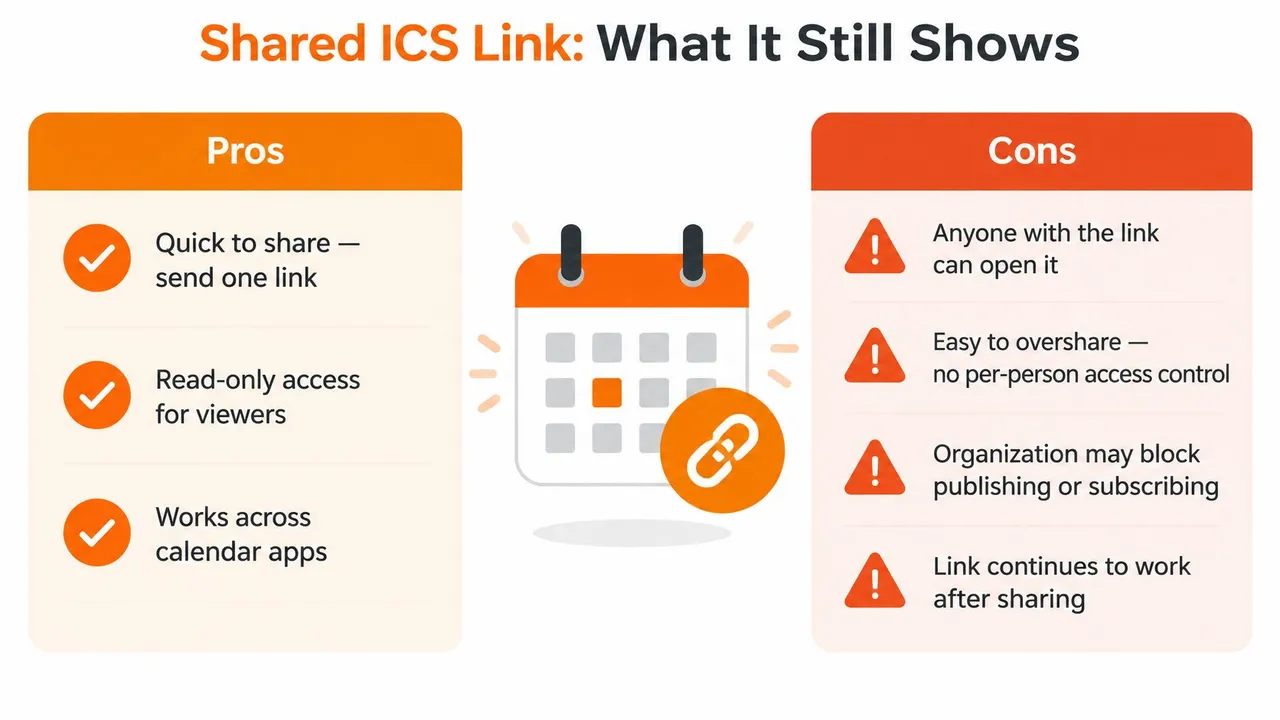
Read-only doesn’t mean private. It stops a recipient from editing the published calendar through that subscription; it doesn’t stop them from reading, forwarding, or retaining the information they receive.
Microsoft’s guidance on published calendars describes read-only ICS access and organization-controlled publishing permissions. Treat the address as a distribution channel, not as a personal invitation whose audience you can always identify.
Choose the least revealing publication
Full event details can expose client names, appointment subjects, meeting locations, and personal commitments. Reducing detail helps, but the remaining information still needs scrutiny.
A recurring block at the same time and location can reveal a pattern even without a descriptive title. Depending on what the feed includes, descriptions, attendee information, and location fields can undermine an otherwise neutral subject.
The sharing trade-offs are summarized below.
For mixed work and personal scheduling, use a restrained setup:
- Separate calendars. Publish only the calendar intended for that audience.
- Minimum detail. Select availability-only sharing when that meets the recipient’s need.
- Recipient-view testing. Subscribe through an authorized test account and inspect what is visible.
- Field review. Check descriptions and locations, not just titles.
A consultant might want colleagues to see an unavailable afternoon without seeing the client’s name or meeting address. Verify that outcome directly rather than assuming a private-event flag or hidden title removes every sensitive field.
For a broader distinction between publishing and account-based access, review calendar-sharing permissions before distributing the address.
Revoke future access deliberately
In Outlook on the web, open calendar settings and locate Shared calendars or the relevant publishing controls. Unpublish the calendar, or replace the published address if your account offers that option.
Ask known subscribers to remove the old calendar. You can review whom you intentionally sent it to, but you can’t reliably identify everyone who received a forwarded address or recover copies they already saved.
If employer policy prohibits external calendar publishing, don’t bypass it by forwarding an exported file through a personal account. Use an approved sharing method, and inspect the recipient’s view before treating the arrangement as safe.
Switch to a Live Copy When ICS Stalls
Choose the method by the scheduling job. Keep a one-time import for a settled itinerary, and keep a subscription for a reference calendar whose occasional delay won’t disrupt your decisions.
Switch when another account must contain your unavailable time. A calendar overlay helps you see a clash, but a booking tool reading only your destination calendar needs events there.
When real destination events matter
- Separate work and personal accounts. Personal commitments need to reserve work availability without exposing their subjects.
- Client-mandated calendars. A client books against an account different from the one you normally manage.
- Repeated manual corrections. You keep copying changes because viewing the source isn’t enough.
At SyncThemCalendars, we offer live event copying between Google Calendar, Outlook, and Apple iCloud, with controls for masking details. Connect your accounts in the browser, choose a source and target, and create real destination events; an iCloud-to-Outlook sync can represent personal commitments as busy time, while Google and Outlook change notifications let their copies update within moments.
If a Google feed seems stuck, first distinguish a delayed subscription from a connection problem using the guide to Google Calendar not updating in Outlook.
Organizations publishing conference schedules have another requirement: getting sessions out of their meeting-management system. Planstone’s integrations for association meeting systems are a useful resource when evaluating that upstream connection.
Ask a practical question: Would stale availability cause a costly double-booking? If yes, evaluate live copies with masked details. If you only need to see public holidays, a plain subscription remains a sensible choice.
SyncThemCalendars creates live calendar copies so your destination account can show busy time instead of merely displaying an ICS overlay. Visit SyncThemCalendars to connect your calendars, choose the copying direction, and control which event details appear in the destination.
Ready to sync your calendars?
Keep your Google, Outlook and Apple iCloud calendars in sync automatically. 2-minute setup, no credit card required.
Get started freeKeep reading
More in Comparisons
10 Google Outlook Sync Software Tools Compared for 2026
Compare 10 Google Outlook sync software options for 2026, with features, pricing, pros, cons and the best use case for each tool.
iCloud Calendar vs Google Calendar: Real-World Comparison
iCloud Calendar vs Google Calendar compared on features, sharing, privacy, sync speed, and ecosystem fit, with a clear guide to bridging the two.
5 Best Microsoft Bookings Alternatives (2026 Comparison Guide)
Looking for a better alternative to Microsoft Bookings? Discover the top tools for 2026, compare features, pricing, and find the perfect fit.