







Calendar Not Syncing Apple Watch: How to Fix It
Calendar Not Syncing Apple Watch. Calendar not syncing on Apple Watch? Learn the quick checks and detailed fixes that actually restore events, including iCloud
You glance at your Apple Watch expecting the next meeting to appear, but the calendar is blank. The event is clearly visible on your iPhone, so you check the watch again, reopen Calendar, and wonder whether the watch has finally failed.
Usually, it hasn’t. The problem is a sync gap between iCloud, the iPhone calendar database, and the watchOS calendar cache. The quickest solution is to find the layer that stopped communicating, then apply the smallest fix that addresses it. The checks below start with fast connection and account tests, move into fault diagnosis, and finish with targeted recovery options.
The Moment Your Apple Watch Stops Showing Events
The failure often appears at the worst possible time. You created or accepted an event on your iPhone, saw it in Calendar, and trusted your wrist to remind you. Later, during a quick glance before leaving, the watch face shows no upcoming appointment. You open the Watch Calendar app and find the same empty result.
That mismatch makes the watch look broken, but the watch may be working normally in every other respect. Apple provides a specific recovery path for calendar sync failures, including Reset Sync Data, and also recommends checking Bluetooth, Wi-Fi, Apple ID status, and restarting both devices when new or changed events don’t appear on the watch. See Apple’s official calendar sync guidance for the supported troubleshooting pattern.
The important distinction is between an event that never reached the iPhone, an event that exists on the iPhone but isn’t being sent to the watch, and an event hidden because its calendar isn’t enabled for display. Those problems look identical from the watch face, but they need different remedies.
Practical rule: Don’t erase or unpair the watch until you’ve established whether the missing event is visible on the iPhone and in iCloud.
Apple Community discussions spanning several watchOS and iOS eras show that this sync complaint has persisted across software generations. That doesn’t prove a hardware defect. It does show why a forced resynchronization is often more useful than repeatedly refreshing the Calendar app. For a broader look at how a watch can become less useful when its essential information disappears, read as seen on WatchClick. This is a known, solvable sync pattern, not a reason to assume your Apple Watch needs repair.
Quick Checks to Run Before Anything Else
Start with the checks that take moments and don’t alter calendar data.
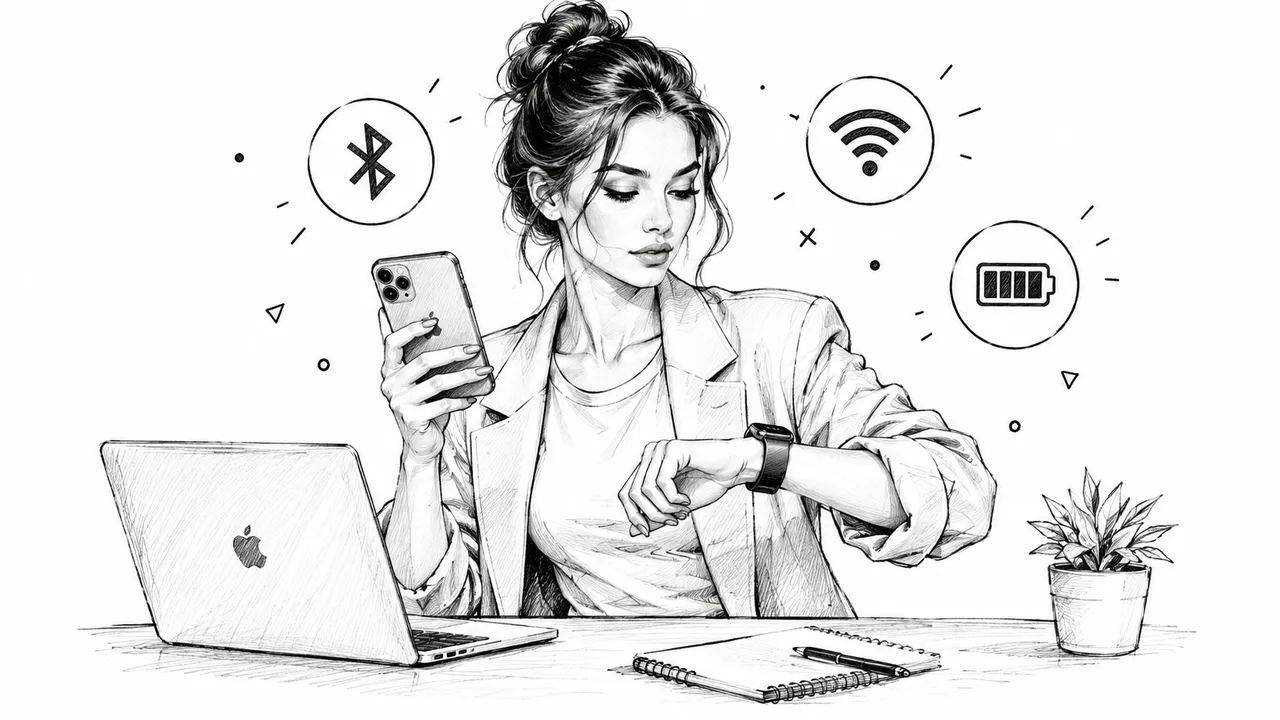
Keep the iPhone close to the watch and confirm Bluetooth is enabled on both devices. If the watch and phone aren’t communicating directly, connect both to the same Wi-Fi network. A cellular Apple Watch also needs a working data connection when an event is created or changed elsewhere, because the watch must still reach the calendar service.
Make sure Airplane Mode is off on both devices. Then look at Focus and Do Not Disturb. These modes generally affect alerts rather than the calendar database itself, but they can make a correctly synced event appear absent when the problem is a suppressed reminder.
Open the Watch app on the iPhone and inspect the Calendar settings. Confirm the Calendar app is available and that the calendar complication on your selected watch face hasn’t been removed or replaced. A missing complication isn’t the same as missing calendar data.
Next, open the iPhone Calendar app, tap Calendars, and check that the relevant account and individual calendars are selected. A work calendar, shared calendar, or subscribed calendar can be switched off while personal iCloud events remain visible. For background on keeping calendars aligned across Apple devices, see this guide to calendar sync with iPhone.
If these checks don’t restore the event, stop repeating them. The next useful move is to identify where the event disappears.
Diagnosing Where the Sync Actually Breaks
Treat the missing event like a tracing problem. Compare the same calendar and event in three places: the source account, the iPhone Calendar app, and the Apple Watch. The location where the event vanishes tells you which recovery path to use.
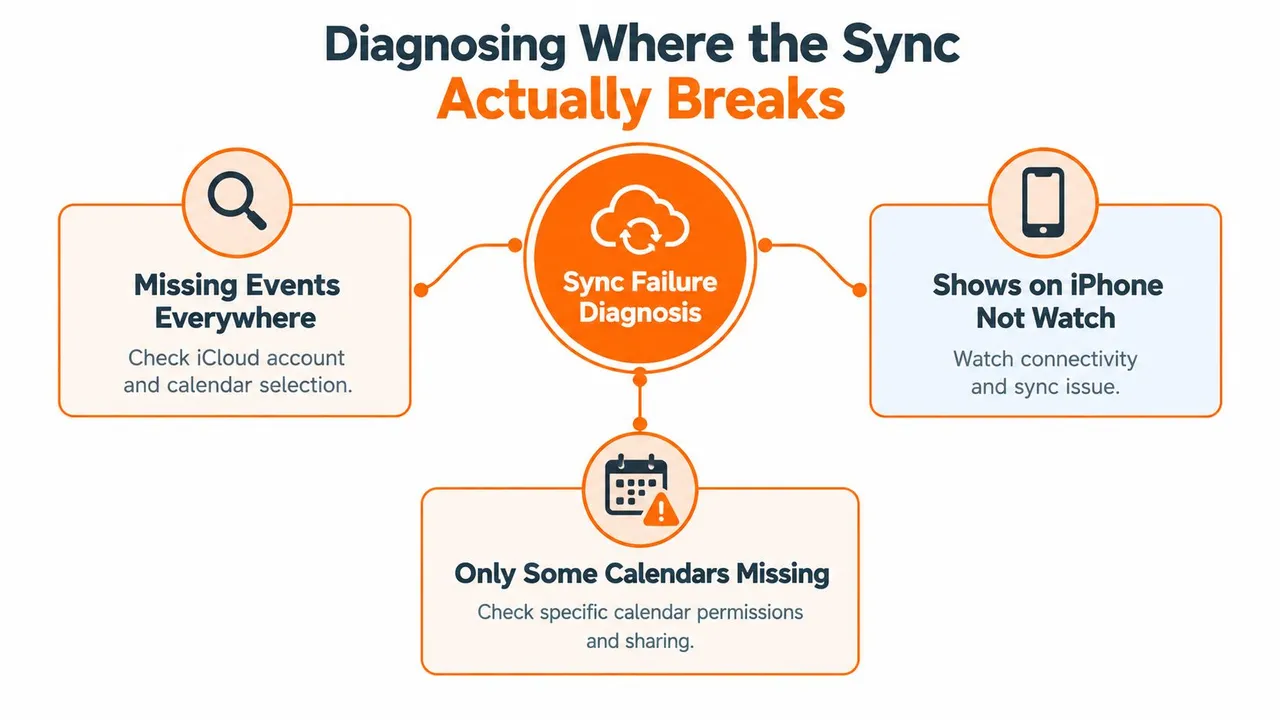
If the event is on the iPhone but not the watch
Open the iPhone Calendar app and confirm the event is present. Then check Settings > Apps > Calendar > Calendar Accounts, or the equivalent Accounts area on your iOS version, to verify that the account is active. If the event is visible on the phone but absent on the watch, the break is between the iPhone calendar data and the watchOS cache.
Use Reset Sync Data in the Watch app, then restart both devices if the watch doesn’t repopulate promptly. This is the watch-side branch, not an iCloud-account failure.
If the event is absent from both Apple Calendar apps
Check iCloud.com or another device signed in to the same Apple account. If the event exists there but not on the iPhone, the iPhone isn’t receiving or reconciling the iCloud calendar correctly. Toggle iCloud Calendars off and on from the iPhone, preserving the local copy when prompted, then allow the phone to reconcile before testing the watch.
If the event exists only in another calendar app
An event visible in Google Calendar, Outlook, or a provider-specific app but missing from iCloud and Apple Calendar points to the account provider or its calendar selection. Check the provider account’s health, permissions, and sharing status. Third-party services add another sync hop, so partial failures are common when one account works and another doesn’t.
The location of the missing event matters more than the symptom. Diagnose first, then reset the layer that failed.
If events are missing everywhere except the original service, check Apple’s System Status and the provider’s account status before changing watch settings. A watch reset can’t repair an event that never entered Apple’s calendar database.
Reset Sync Data and iCloud Calendar Recovery
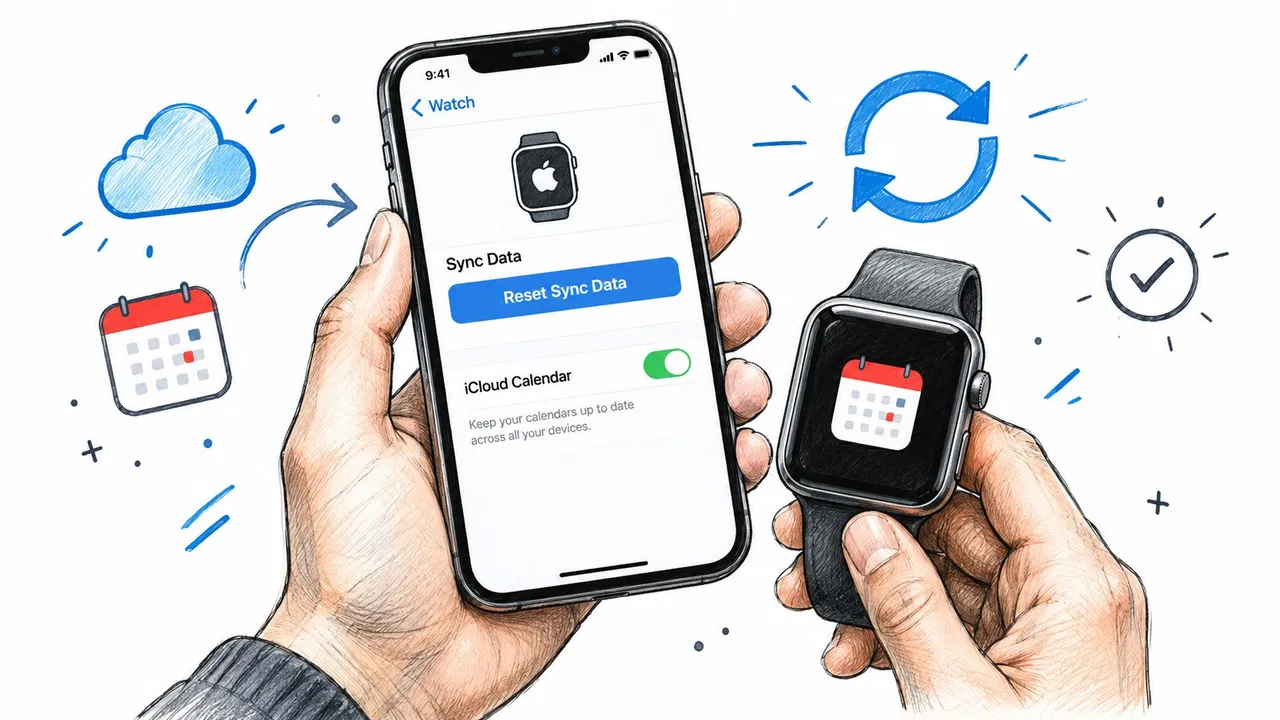
When the event is present on the iPhone but missing on the watch, use Apple’s own forced resynchronization command. Open the Watch app on the iPhone, select My Watch, open General, choose Reset, and tap Reset Sync Data. Confirm the reset, then leave the iPhone and watch near each other while the watch rebuilds its calendar data.
This command doesn’t erase the Apple Watch or remove your personal calendar events. It forces the watch to request a fresh calendar index from the paired iPhone instead of relying on a stale or damaged local cache. Apple documents this route for changed events that aren’t appearing, and the same sequence is repeatedly recommended in Apple Community troubleshooting guidance.
If the event is missing from both the iPhone and watch but remains visible on iCloud.com, repair the iCloud calendar state on the iPhone first. Open Settings, tap your Apple Account, choose iCloud, and open the Calendars setting. Turn Calendars off. When iOS asks what to do with local calendar data, choose Keep on My iPhone.
Wait briefly, then turn Calendars back on. Keep the iPhone connected to Wi-Fi and power, and remain on the iCloud settings screen until the syncing activity settles. Open Calendar and check whether the missing event has returned before running Reset Sync Data in the Watch app.
The order matters
Don’t begin by toggling iCloud if the event is already present on the iPhone. In that situation, iCloud has delivered the event and the watch cache is the likely failure point. Conversely, don’t reset watch sync data while the iPhone itself still lacks the event, because the watch can only rebuild from what the phone has received.
For a related walkthrough of the iCloud-side symptoms, use this guide to iCloud calendars not syncing. If the iCloud toggle doesn’t restore the event, verify the Apple ID before escalating. A mismatched account can make every device appear partly functional while showing different calendar sets.
Deeper Fixes When the Watch Still Will Not Sync
Escalate only after the layer-specific recovery has failed. The heavier procedures can clear account and pairing faults, but they also create more disruption than Reset Sync Data.
Refresh the Apple Account session
On the iPhone, open Settings and tap your Apple Account. Sign out only if you know the account password and have confirmed that important iCloud data is safely available. Restart the iPhone, sign back in, and give iCloud time to restore calendar data before checking the watch.
This refresh can clear an account session that has stopped accepting or delivering calendar changes. It also gives you a clean opportunity to confirm that the iPhone and watch use the same Apple ID, one of Apple’s stated checks for missing calendar updates.
Bring both operating systems current
Install the latest iOS and watchOS versions available for your devices. Calendar syncing depends on several system components, including account authentication and background communication, so an outdated software combination can preserve a bug that a current release has already addressed.
Keep the iPhone near the watch, connected to Wi-Fi, and plugged in during updates. Don’t judge the calendar result while one device is still finishing an update or rebooting.
Rebuild the pairing
If the watch remains empty after the account refresh and software update, unpair it from the iPhone and pair it again. Choose Restore from Backup only when you trust the available backup. If you suspect corrupted watch data, set the watch up as new so the calendar cache is rebuilt without importing the old state.
Unpairing is a major intervention, so record any settings you may need to recreate. For a practical reference before starting, review these Apple Watch unpair steps. During re-pairing, keep both devices close, on Wi-Fi, and connected to power whenever possible. If the event still fails to appear after a clean setup, the source account or Apple service is more likely than the watch hardware.
When Multiple Calendars Cause the Sync Problem
A missing event may belong to the wrong calendar, not indicate a failed Apple Watch connection. The iPhone can combine iCloud, Google, Outlook, subscribed, and shared calendars in one view, while the watch displays only calendars enabled in the Watch app. An iCloud event may appear normally even when a work or school event stays hidden.
Start with the event itself. Open the iPhone Calendar app, tap Calendars, and identify the account and specific calendar that owns it. Then open the Watch app, choose Calendar, and check whether that calendar is enabled under the watch’s display options. Seeing an account on the iPhone does not mean every calendar inside it is selected for the watch.
Check the account boundary before changing sync data. If the missing calendar belongs to Google or Outlook, confirm that account is active on the iPhone and that the event is not stored in a calendar excluded from the watch display. This separates an account or calendar-selection problem from an iCloud-side or watch-side failure.
Native handling compared with a cross-account bridge
Use native Apple Calendar when your schedule is primarily in iCloud and you want fewer components. It requires no separate service, but each account and calendar still needs correct configuration. The watch follows Apple’s supported calendar display behavior and cannot show a calendar that remains disabled.
A cross-account service fits a different setup. If Google, Outlook, and iCloud calendars must stay aligned, SyncThemCalendars can synchronize selected calendars across Google Calendar, Microsoft Outlook or Office 365, and Apple Calendar. It supports one-way, two-way, or multi-way connections, giving the Apple devices one calendar feed instead of requiring the watch to handle every provider separately.
| Capability | Native Apple Calendar | SyncThemCalendars |
|---|---|---|
| iCloud calendar display | Built into iPhone and Apple Watch | Can connect iCloud as a sync source or target |
| Google and Outlook calendars | Account-by-account setup | Designed to synchronize selected calendars across providers |
| Sync direction | Controlled through account and calendar settings | Supports one-way, two-way, or multi-way synchronization |
| Privacy handling | Uses each provider’s native sharing controls | Offers options to mask or transform copied event fields |
| Apple Watch access | Depends on the calendars enabled in Watch settings | The resulting Apple calendar feed can be displayed through the native Watch calendar |
Fix duplicate calendars and confirm event ownership before adding any bridge. A bridge cannot correct a wrong calendar selection. It can reduce recurring conflicts when one schedule spans several providers. For an account-specific troubleshooting example, read this guide on Google Calendar not syncing with Apple Calendar.
Preventing the Next Sync Failure
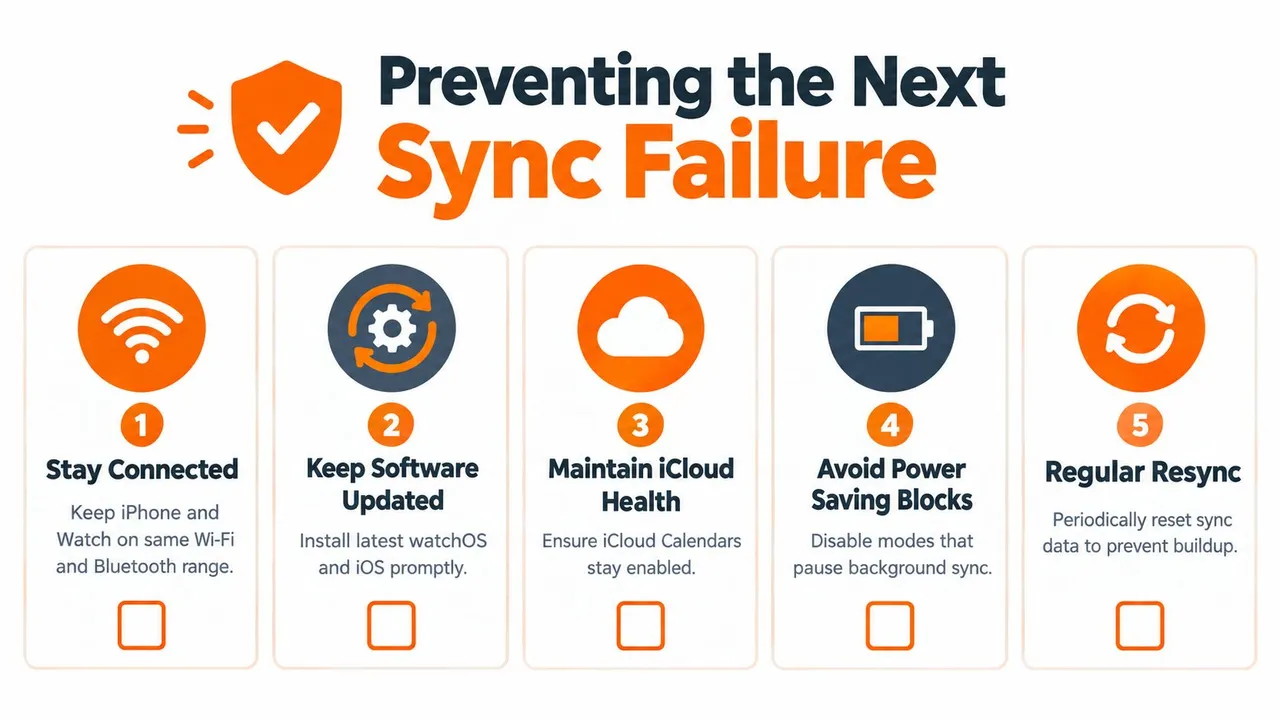
Use this checklist when the calendar is working again. Save it somewhere accessible because prevention is easier than rebuilding a watch pairing during a busy day.
- Keep the connection stable: Keep the iPhone and watch within Bluetooth range or connected to the same Wi-Fi network. Cellular models still need reliable data access for events created on other devices.
- Allow background calendar activity: On the iPhone, check Settings > General > Background App Refresh and make sure Calendar is enabled. If background activity is restricted, new events may not reach the watch promptly.
- Maintain iCloud Calendar access: Keep iCloud Calendars enabled for the account that owns your important events. If the calendar list behaves strangely, toggle the setting off, preserve local data when prompted, and turn it back on.
- Update both devices: Install available iOS and watchOS updates rather than leaving one device on an older release indefinitely. Calendar reliability depends on the software relationship between the paired devices.
- Avoid account confusion: Don’t assign calendar duties to multiple iCloud accounts on one iPhone unless you have a clear reason and know which account owns each event. Partial sync becomes difficult to diagnose when similar calendars appear under different accounts.
- Resync after a persistent glitch: If the watch shows old data while the iPhone is current, use Reset Sync Data before attempting an unpair and re-pair.
Choose the simplest setup that matches your calendar life. If iCloud is your only calendar source, stay with Apple’s native tools and keep the account and calendar toggles clean. If Google, Outlook, or another provider must coexist with iCloud, use a dedicated bridge rather than repeatedly applying watch-side resets to an account-side problem.
SyncThemCalendars connects selected Google Calendar, Microsoft Outlook or Office 365, and Apple Calendar accounts with one-way, two-way, or multi-way synchronization. If your Apple Watch keeps missing events because your calendars live in different services, visit SyncThemCalendars and set up a single calendar flow for the events you need on your wrist.
Ready to sync your calendars?
Keep your Google, Outlook and Apple iCloud calendars in sync automatically. 2-minute setup, no credit card required.
Get started freeKeep reading
More in Tutorials

How to Add Gmail Calendar to Outlook Without Duplicates
See how to add Gmail Calendar to Outlook by subscribing for a live view or using two-way sync, then avoid privacy leaks and duplicate events.

Export Outlook Calendar to Google: A 2026 Step-by-Step Guide
Learn how to export Outlook calendar to Google with clear steps for ICS and CSV imports, recurring-event checks, and verification tips that work in 2026.

How to Synchronize Outlook Calendar Across Platforms
Learn how to synchronize Outlook calendar events with Google and Apple iCloud. Master two-way sync, privacy controls, and real-time availability mapping.