







iCloud Calendars Not Syncing: How to Fix It Fast
iCloud calendars not syncing? Follow these practical troubleshooting steps to diagnose and fix sync issues across iPhone, iPad, Mac, and Windows.
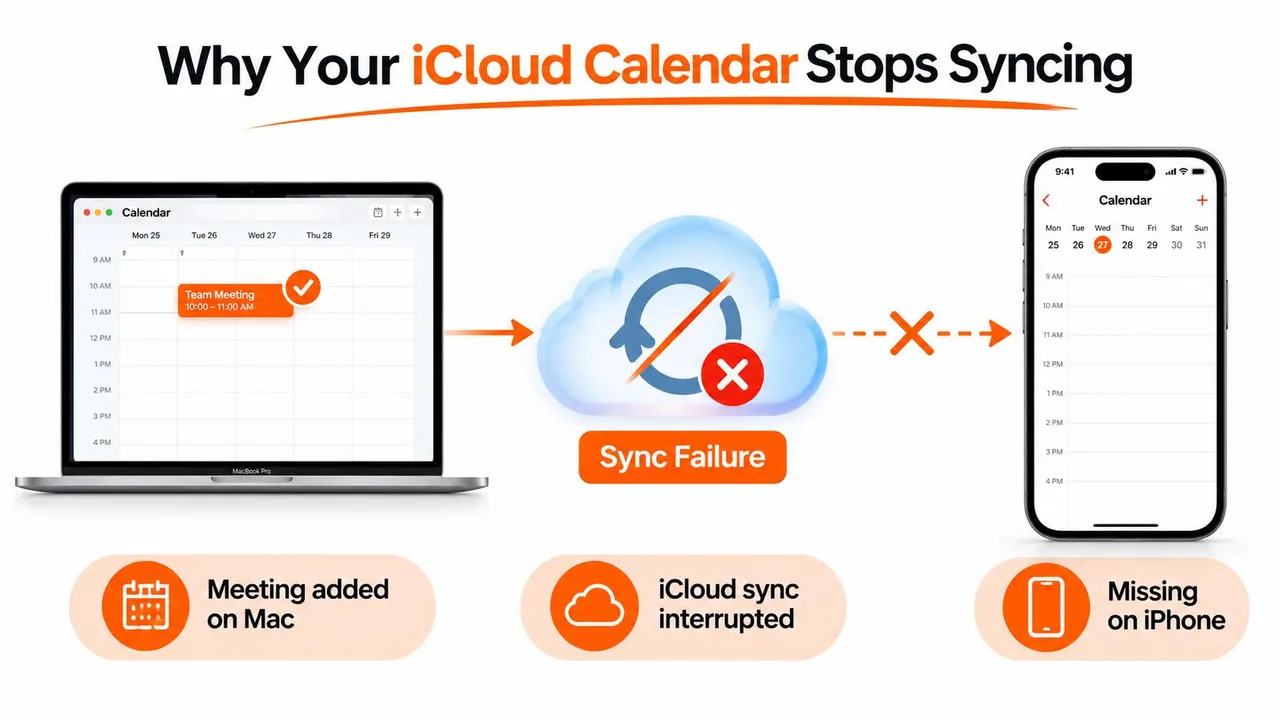
You add a meeting on your Mac before walking into a conference room. Minutes later, you check your iPhone and the event is nowhere to be found. The appointment may still exist, but a broken link in the sync chain can leave one device showing a different schedule from the others.
When iCloud calendars aren’t syncing, random setting changes usually waste time. The reliable approach is to start with the broadest dependency, Apple’s service status, then check account identity, calendar access, date and time, operating-system state, storage, and finally the local calendar configuration. Apple’s official troubleshooting guidance follows this same logic, beginning with service availability and account settings before moving into device-level repairs (Apple’s iCloud Contacts, Calendars, and Reminders support guide).
Why Your iCloud Calendar Stops Syncing
A missing event usually points to a broken connection, not permanent deletion. One device may have stopped communicating with iCloud, the event may have been saved to another account, or Calendar may be showing an outdated local view. Identifying that failure point determines which repair is appropriate.
A calendar change passes through several dependencies. The device creating the event must use the intended Apple Account, have iCloud Calendars enabled, maintain a working connection, and reach Apple’s calendar service. The receiving iPhone, iPad, or Mac must use the same account, permit calendar access, have an accurate date and time, and complete its local sync process before the event appears.
The dependency chain matters
Apple’s troubleshooting guidance starts with service availability, then account identity, iCloud Calendar activation, and device date and time. A service incident can affect many users, while an account mismatch limits the problem to devices using the wrong identity. These checks should come before local repairs because a device cannot complete cloud synchronization when an upstream dependency is unavailable.
The operating system changes which settings are available. On iOS 17 or earlier, Apple says users may need to revisit Calendar sync settings and set the event range to All Events. After changing a setting, wait a few minutes and reopen Calendar. An immediate result is not guaranteed.
Practical rule: Troubleshoot from infrastructure to device. Rebuilding a local calendar database while Apple’s service is impaired treats a symptom instead of the cause.
This sequence also limits unnecessary risk. Signing out of every device, deleting calendars, or reinstalling applications can introduce authentication issues and make calendars appear missing. First identify the failed dependency, then apply the smallest repair that addresses it. That approach separates a service problem from an account, system, storage, or local-configuration problem, which is the difference between a targeted fix and repeated busywork.
Quick Triage Checks Before Device Troubleshooting
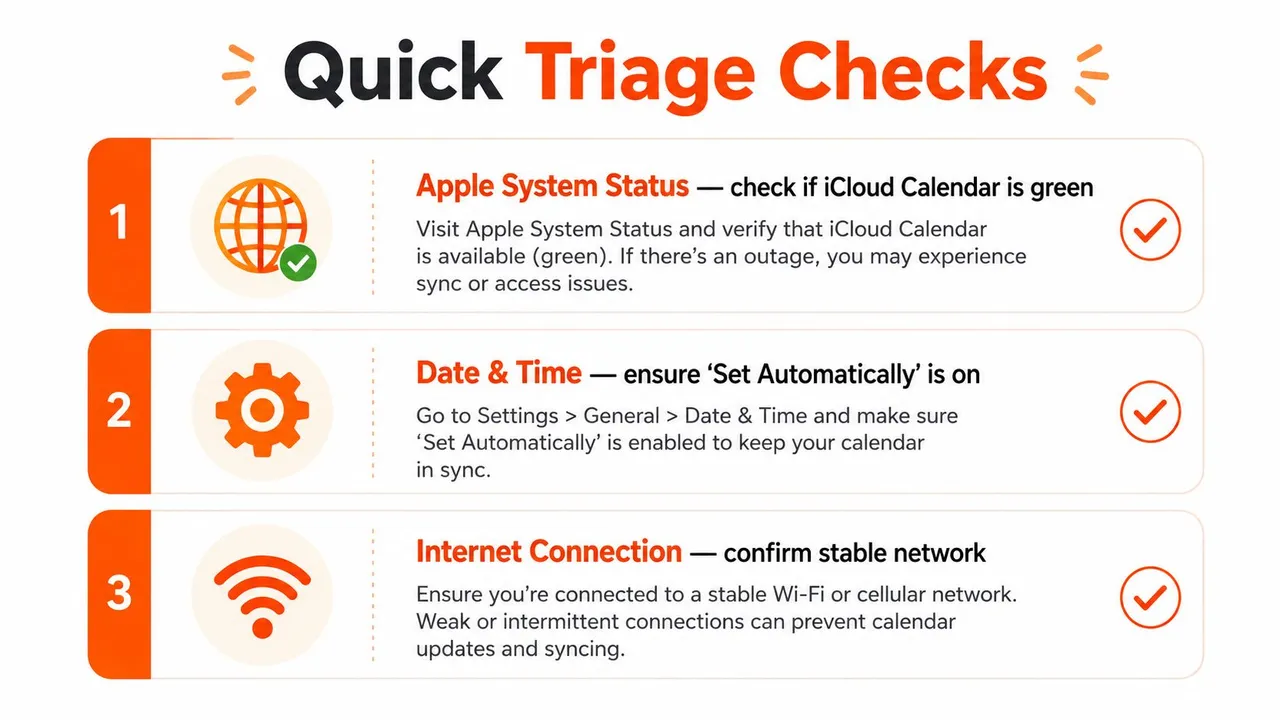
A calendar that suddenly stops updating may be failing somewhere before the device. Check the dependency chain in order: Apple service availability, account identity, iCloud Calendar activation, device clock, operating system, and available storage. This sequence separates an upstream outage from a local configuration problem before you make changes that can create new ones.
Check Apple’s service status
Open the Apple System Status page and look for an incident affecting iCloud or Calendar. If Apple lists a service problem, wait for recovery before signing out, deleting calendars, or reinstalling an app. Those actions cannot repair an unavailable cloud service and may introduce authentication or display issues.
A lack of a listed incident does not prove that your device is at fault. Reports from users on Apple Support Communities can reveal a developing or narrowly scoped problem, but treat them as supporting evidence rather than confirmation. If other users report the same failure, test again after service conditions stabilize.
Confirm the Apple Account
On iPhone or iPad, open Settings, tap your name, and review the Apple Account shown at the top. On Mac, open System Settings and select Apple Account. Compare the identity on the device containing the event with the identity on the device where it is missing.
A shared calendar is different from calendars synchronized through the same account. For example, an iPad still signed in to an older family account can be online and otherwise work normally while showing none of the expected events.
Verify the sync prerequisites
On iPhone or iPad, open Settings > [Your Name] > iCloud > Show All > Calendars and confirm synchronization is enabled. On Mac, check System Settings > Apple Account > iCloud > Calendars. If the setting was off, enable it, reopen Calendar, and allow time for the connection to re-establish.
Check available iCloud storage before assuming the calendar app is broken. A full account can prevent new calendar data from uploading even when existing events remain visible. Also verify Date & Time uses automatic settings. A wrong device clock can interfere with authentication and event timestamps.
Finally, check whether the device runs an older operating system. Settings and sync behavior vary by version, so record the version before following platform-specific instructions. Change one dependency at a time, then test with a new event. This produces a useful diagnostic result instead of a sequence of unrelated toggles.
Device-Specific Fixes for iPhone iPad Mac and Windows
Once service status and account identity have passed the initial checks, troubleshoot the device that is missing events. The repair sequence differs by platform because each one maintains its own local calendar connection.
iPhone and iPad
Open Settings > Calendar > Accounts, select the iCloud account, and turn Calendars off, then back on. Read the confirmation prompt before proceeding. If the events already exist in iCloud, this resets the device’s local connection rather than deleting the cloud calendar.
Open Calendar and swipe down in the Calendars tab to refresh. On iPhone and iPad, this is the standard manual refresh action described in Apple’s calendar synchronization instructions.
Devices using iOS 17 or earlier have another setting that can hide older events. Go to Settings > Calendar > Sync and choose All Events instead of a limited range. Wait briefly, close and reopen Calendar, then create a test event. A practical walkthrough of this mobile process is available in this guide to calendar sync with iPhone.
Mac
In Calendar > Settings > Accounts, select the iCloud account and clear, then reselect, the calendar service. Refresh with Command+Shift+R, or choose Edit > Refresh All Calendars.
Check the sidebar before changing the account again. A calendar may be synchronized but hidden, so select the checkbox beside the relevant iCloud calendar. Create the test event in iCloud, not in a local or account-specific calendar. This distinguishes a display problem from a failed upload.
Windows with iCloud for Windows
Open iCloud for Windows, clear Calendars, apply the change, and enable it again. Restart Outlook, then select Send/Receive > Update Folder.
If the calendar remains absent, remove the iCloud account from Outlook and add it again through the iCloud control panel. Sign out of iCloud for Windows and sign back in if the connection still fails. Update Windows before repeating the Outlook setup, since an outdated component can prevent the calendar integration from loading.
| Platform | Settings Path | Manual Refresh Action | Key Setting to Verify |
|---|---|---|---|
| iPhone or iPad | Settings > Calendar > Accounts | Swipe down in the Calendars tab | iCloud Calendars enabled, Sync set to All Events when applicable |
| Mac | Calendar > Settings > Accounts | Command+Shift+R or Edit > Refresh All Calendars | Account selected and calendar visible in the sidebar |
| Windows with iCloud for Windows | iCloud for Windows, then Outlook | Send/Receive > Update Folder | Calendars enabled in iCloud and the correct Outlook folder visible |
Hidden Causes That Break Calendar Sync Without Warning
A user may create an event on an iPhone, see it locally, and still find every other device showing yesterday’s calendar. That symptom usually points to a dependency failure rather than a missing refresh. Check the chain in order: account capacity, device time, operating-system compatibility, then the affected device’s local calendar data.
Account capacity can stop updates
iCloud storage limits can prevent calendar changes from appearing. Review available space under Settings > [Your Name] > iCloud on iPhone or iPad, or in Apple Account settings on Mac.
Calendar data shares account capacity with other iCloud content, including backups and media. If storage is full, remove unnecessary content or increase available capacity, then return to Calendar and create a controlled test event. This check matters most when several devices display stale data, because a single-device failure points elsewhere.
Time and software create sync failures
A manually set clock or conflicting time-zone override can affect authentication and place events at unexpected times. On iPhone or iPad, open Settings > General > Date & Time and enable Set Automatically. On Mac, use System Settings > General > Date & Time with automatic time and time-zone settings enabled.
Software compatibility belongs in the same check. Install available iOS, iPadOS, or macOS updates before attempting account resets. Updating the operating system carries less risk than deleting calendar data and may restore the synchronization framework without changing the calendar structure.
A Mac may have damaged local calendar data
If iCloud calendars work in a browser and on other devices, but one Mac repeatedly shows incomplete or stale data, investigate that Mac’s local Calendar database. Quit Calendar first, and back up relevant local data before changing anything. Advanced repairs involve the user Library’s Calendar files, and their location can differ by macOS release.
Avoid deleting local calendar files casually. Some data may exist only on the Mac, while other records are stored in iCloud. If you cannot identify the difference, ask Apple Support before rebuilding the database. The clearest sign is isolation: other devices update normally, while the same Mac fails after refreshes, account toggles, and software updates.
For shared-calendar visibility problems, use this guide to share iCloud calendars across users and devices. It addresses permissions and access separately from basic account synchronization.
A Reliable Workaround When iCloud Keeps Failing
If iCloud still fails after service, account, software, storage, and local-configuration checks, the dependency chain has become an operational risk. A cross-platform sync service provides another route to calendar visibility, especially when people work across Apple, Windows, Android, Google, or Outlook.
SyncThemCalendars connects Google Calendar, Microsoft Outlook or Office 365, and Apple Calendar through iCloud. It supports one-way, two-way, and multi-way synchronization, letting you control whether updates flow in one direction or stay aligned across selected calendars. Privacy controls can transform copied event details, including masking information behind a busy block.
Set it up in this order:
- Connect the accounts already in use.
- Choose the sync direction, one-way, two-way, or multi-way.
- Select the calendars to mirror.
- Test a controlled event before relying on the connection for important scheduling.
This approach does not repair Apple’s service or rebuild a damaged device database. It adds redundancy. An event created on an iPhone can appear in Outlook on a Windows PC or Google Calendar on Android, giving you another place to verify availability when iCloud updates are delayed. You can run the service alongside iCloud instead of replacing Apple’s calendar entirely.
| Relying only on iCloud | Adding a sync aggregator |
|---|---|
| One provider carries the full synchronization burden | Multiple calendar providers can hold aligned copies |
| Cross-platform access depends on native integrations | Google, Outlook, and Apple calendars can be connected |
| A service or account issue can hide updates from other devices | A second calendar path provides operational visibility |
| Privacy controls are limited to each provider’s features | Copied fields can be transformed during synchronization |
For an Apple-to-Google setup, follow this guide to sync iCloud with Google Calendar.
Your Complete Sync Recovery Checklist
Use this order when iCloud calendars aren’t syncing. It follows the dependency chain, from Apple’s service and account identity to device settings and local data.
Tier one: confirm the foundation
- Check Apple System Status: Confirm Calendar and related iCloud services have no reported incident.
- Compare Apple Accounts: Verify every affected device uses the intended Apple Account.
- Confirm Calendar access: Ensure iCloud Calendars is enabled on each device.
- Review Date & Time: Use automatic date, time, and time-zone settings.
- Refresh Calendar: Swipe down in the iPhone or iPad Calendars tab, or refresh calendars on Mac.
Tier two: isolate the device
- Inspect visibility: Check that the required calendar is selected in the Mac sidebar or Outlook folder list.
- Check the sync range: On iOS 17 or earlier, select All Events if a limited range hides appointments.
- Toggle the service: Turn iCloud Calendars off and on for the affected device only.
- Update the platform: Install available iOS, iPadOS, macOS, Windows, iCloud for Windows, or Outlook updates.
- Test with a new event: Save a test event to the intended iCloud calendar, then check another device.
Tier three: handle persistent failures
- Audit iCloud storage: Check whether account capacity is blocking updates.
- Re-authenticate carefully: Sign out and back in only after confirming where current calendar data is stored.
- Consider Mac database repair: Follow Apple Support guidance before deleting local Calendar data.
- Record diagnostic details: Note the failing devices, affected calendars, event behavior, and whether iCloud works elsewhere.
- Escalate with evidence: Contact Apple Support if the issue remains account-wide or survives platform repairs.
If failures recur, add a separate sync path rather than repeatedly rebuilding the same device settings.
SyncThemCalendars connects Apple iCloud calendars with Google Calendar and Microsoft Outlook, supporting one-way, two-way, or multi-way synchronization. Visit SyncThemCalendars to connect selected calendars and keep a cross-platform fallback available when iCloud is delayed or unreliable.
Ready to sync your calendars?
Keep your Google, Outlook and Apple iCloud calendars in sync automatically. 2-minute setup, no credit card required.
Get started freeKeep reading
More in Tutorials

How to Add Gmail Calendar to Outlook Without Duplicates
See how to add Gmail Calendar to Outlook by subscribing for a live view or using two-way sync, then avoid privacy leaks and duplicate events.

Export Outlook Calendar to Google: A 2026 Step-by-Step Guide
Learn how to export Outlook calendar to Google with clear steps for ICS and CSV imports, recurring-event checks, and verification tips that work in 2026.

How to Synchronize Outlook Calendar Across Platforms
Learn how to synchronize Outlook calendar events with Google and Apple iCloud. Master two-way sync, privacy controls, and real-time availability mapping.