







Calendar Sharing Icloud
Unlock easy calendar sharing icloud for family & work. Troubleshoot issues, sync seamlessly with Google/Outlook, and manage your schedule effortlessly in 2026.

You’re probably here because calendar sharing looked easy until you tried to do it with actual people. Your partner uses an iPhone. Your coworker lives in Outlook. A client replies from Gmail. You send an iCloud invite, someone never gets it, another person can only view the calendar, and suddenly the “simple” scheduling fix becomes another thing to troubleshoot.
That’s the story with calendar sharing in iCloud. Apple’s built-in tools are good when everyone is inside Apple’s world. They get messy fast when even one person isn’t. Apple has scale behind it. As of 2024, iCloud serves over 2.2 billion active devices globally, and shared calendar updates are pushed instantly to collaborators according to Apple’s iCloud documentation. But scale doesn’t remove the practical friction people hit every day.
The good news is that most iCloud calendar problems come down to a few predictable rules. Once you understand those rules, the setup gets much easier, and you can stop guessing whether you need a private invite, a public link, or a different sync approach entirely.
Why iCloud Calendar Sharing Can Be Tricky
Apple makes calendar sharing feel like it should be universal. Open Calendar, tap a few buttons, invite people. In an Apple-only household or team, that usually works well. Changes show up quickly, everyone sees the same schedule, and you don’t have to keep emailing updated plans around.
The friction starts when your real-world schedule includes more than Apple users. That’s common now. Families mix iPhones and Android phones. Small teams combine Apple Calendar, Google Calendar, and Outlook. Freelancers often have to manage one calendar for themselves and another for a client’s system. iCloud can still be part of that setup, but it stops being the whole answer.
The problem isn’t sharing itself
The problem is that Apple has two different sharing models, and they solve very different jobs.
One model is private collaboration. This option is commonly preferred. You invite specific people, and they can either view or edit. The other model is public distribution. That creates a link that others can subscribe to, but it isn’t the same thing as collaborative scheduling.
Practical rule: If you need someone to actively manage events with you, treat that as collaboration. If you only need people to see dates, treat that as publishing.
Most guides blur those two options together. That’s why people keep trying to invite a Gmail or Outlook user as if Apple’s private sharing works across every platform. It doesn’t. That mismatch is where the confusion starts.
Apple is strong inside its own ecosystem
Apple’s native setup is polished when the requirements line up. Shared calendars update quickly, and the feature works across iPhone, iPad, Mac, and Windows through Apple’s own tooling. For family scheduling, co-parenting, or small Apple-based teams, it’s often enough.
But the hard part isn’t learning where the share button lives. The hard part is choosing the right method before you send anything. That decision saves more time than any click-by-click tutorial.
How to Share Your iCloud Calendar Natively
Native iCloud sharing works best when you’re sharing with another Apple user who has an active iCloud account. Before you try anything else, check one thing first. The calendar has to live in iCloud, not in a local calendar like “On My Mac.”
Apple’s own help pages are clear on this point. Calendars stored locally can’t be shared, and private sharing requires the recipient to have an active iCloud account as explained in Apple’s iCloud Calendar help.
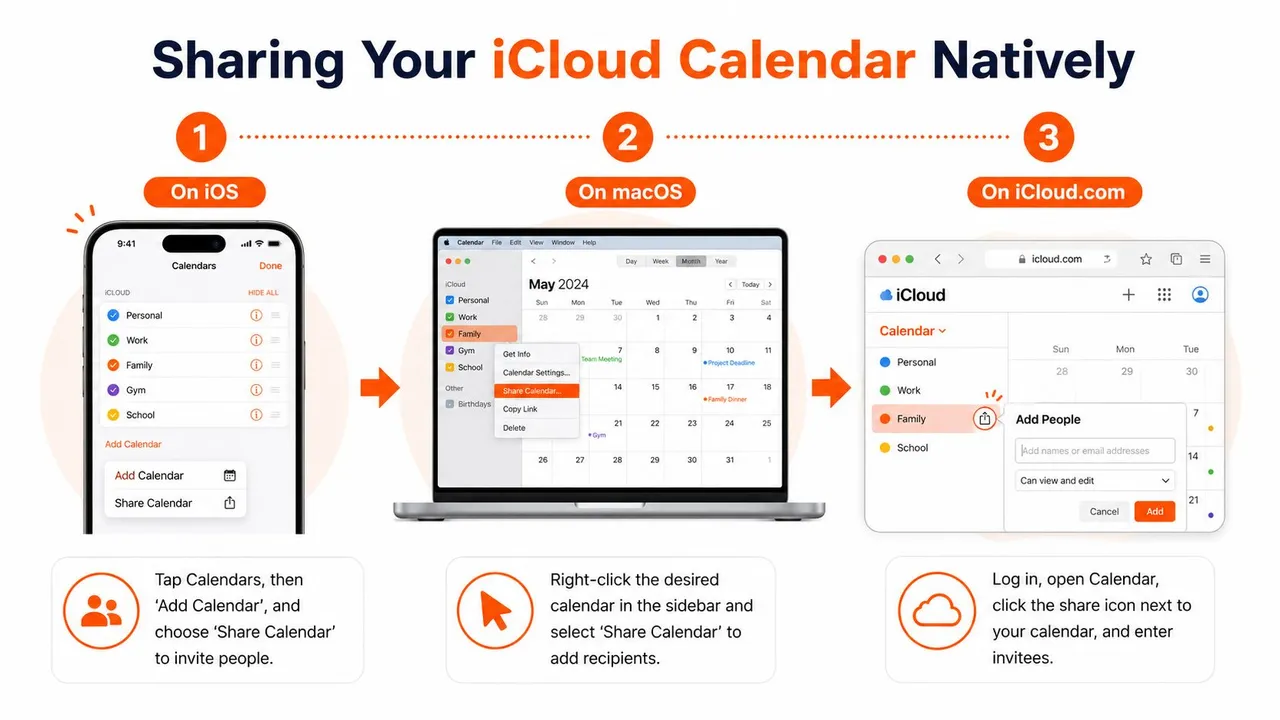
On iPhone and iPad
Open the Calendar app and tap Calendars. Find the calendar you want to share, tap the ⓘ info button, then look for the Shared With area. Tap Add Person, enter the email tied to that person’s Apple ID, and send the invite.
If you’re helping someone who’s never done this before, the easiest way to avoid mistakes is to confirm the exact Apple ID email first. A lot of failed invites happen because people use the address a person emails from, not the one attached to their Apple account.
If you want an extra walkthrough focused on iPhone sharing flows, this guide on sharing a calendar on iPhone is a useful companion.
On Mac and on iCloud.com
On a Mac, open Calendar and find the target calendar in the sidebar. Use the calendar’s sharing control, then add the recipient’s Apple ID email. On iCloud.com, sign in, open Calendar, click the share control next to the calendar name, and enter the invitees there.
The mechanics vary slightly by screen, but the logic stays the same:
- Choose the right calendar: Make sure it’s under your iCloud calendars, not a local or third-party account.
- Invite the right identity: Use the email attached to the recipient’s Apple ID.
- Wait for acceptance: The other person has to accept the share before the calendar appears in their list.
What the recipient sees
Recipients don’t just magically get access. They receive an invitation and need to accept it. Once they do, the shared calendar shows up in their Calendar app and starts syncing with the permissions you assigned.
If the invite never arrives, the first thing to question is the Apple ID email. It’s usually not the app. It’s the identity mismatch.
That’s the native path in its simplest form. It works cleanly when the calendar is stored in iCloud and everyone involved is using Apple’s private sharing system as intended.
Managing Permissions Private vs Public Sharing
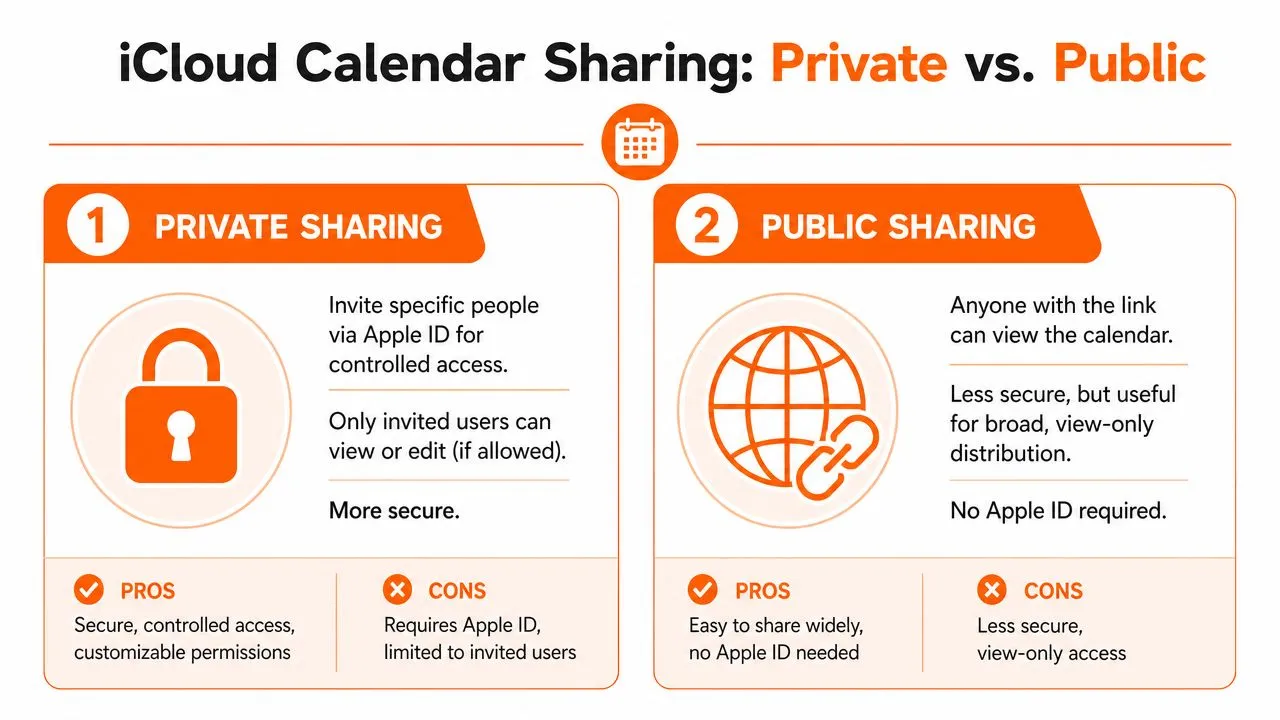
The biggest mistake people make with calendar sharing in iCloud is assuming “shared” means one thing. It doesn’t. Apple gives you Private sharing and Public sharing, and the trade-off is control versus reach.
What private sharing is for
Private sharing is the option to use when you want actual collaboration. Apple lets the calendar owner assign invitees as read-only viewers or editors who can create, modify, and delete events, and private shared calendars are capped at 100 unique subscribers according to Apple’s iCloud Calendar sharing guide.
That model fits situations like:
- Family logistics: Parents edit appointments, kids or relatives get view access.
- Project scheduling: A small team can maintain deadlines in one place.
- Coordinating recurring responsibilities: Households, assistants, or shared admin support often need edit rights.
What public sharing is for
Public sharing creates a link. Anyone with that link can view the calendar. That makes it useful for event schedules, availability overviews, or information you’re comfortable distributing more broadly.
What it does not do is replace private collaboration. Public calendars are view-only. They’re for broadcasting, not co-managing.
A lot of confusion about external sharing comes from this gap. If you’ve also wrestled with who can see what on the Google side, this piece on Google Calendar visibility settings is a good comparison point.
A simple decision table
| Sharing type | Best for | Who can access | Editing | Privacy level |
|---|---|---|---|---|
| Private | Family, assistants, small teams | Only invited people | Owner can allow view-only or editing | Higher |
| Public | Event announcements, broad schedules | Anyone with the link | No editing | Lower |
Best fit: Use private sharing when the people involved need trust, identity, and control. Use public sharing when convenience matters more than restrictions.
If you’re torn between the two, ask one blunt question: Do I want people to change this calendar, or only see it? That answer usually settles it.
Troubleshooting Common iCloud Sharing Problems
Most iCloud sharing failures aren’t random. They usually come from one of a few repeat issues: wrong account, wrong calendar type, wrong permission, or sync settings that aren’t fully enabled on one device.

The invite never arrives
This is the classic one. You send the invitation, and the other person says nothing showed up.
Check these first:
- Apple ID mismatch: The invite has to go to the email associated with the recipient’s iCloud identity for private sharing.
- Wrong audience: If the recipient only uses Gmail or Outlook without iCloud, the private invite won’t work for them.
- Calendar location: If the calendar isn’t stored in iCloud, it won’t behave like a shareable iCloud calendar in the first place.
In practice, the fastest fix is to remove the attempt, confirm the recipient’s Apple ID email, and send it again.
The calendar is read-only when it shouldn’t be
This usually means the owner assigned viewing access instead of editing access, or the recipient joined through a public link instead of a private share.
If someone should be able to add or change events, the owner needs to open the calendar’s sharing settings and adjust that person’s permission. Public links won’t give editing rights, no matter how many times someone reopens them.
Don’t troubleshoot editing on a public calendar. Public calendars are for viewing. If editing is required, switch methods instead of chasing settings that aren’t there.
Changes aren’t appearing everywhere
When updates look delayed or inconsistent, I usually check the basics before anything else.
- Confirm iCloud Calendars is enabled on the devices involved.
- Make sure everyone is looking at the same calendar, not a duplicate with a similar name.
- Close and reopen Calendar if one device looks stale.
- Check whether someone accepted the original invitation from the correct account.
A quick visual walkthrough can help if you’re sorting this out on a phone or helping someone remotely:
Someone needs to be removed or downgraded
This part is one of Apple’s better choices. You don’t need to delete the whole calendar. The owner can revoke access for a specific person or switch them from editing to view-only. That’s useful when a contractor rolls off, a temporary helper no longer needs access, or a family member should stop changing events.
If you remember one troubleshooting principle, make it this one: most iCloud sharing problems are setup problems, not app failures.
The Cross-Platform Challenge Syncing with Google and Outlook
For many people, Apple’s native options are no longer sufficient.
If you send a private iCloud calendar invite to someone who lives entirely in Google Calendar or Microsoft Outlook, the experience usually breaks down fast. Apple’s private method is built around Apple identity. If the other person isn’t participating in that system, the invite doesn’t become a true shared workspace.
That leaves the public calendar option. It’s better than nothing, but only in a narrow sense. A public link is fine when all you need is read-only visibility. It’s a poor substitute for actual collaboration because it doesn’t give outside users a native two-way relationship with your iCloud calendar.
Where the confusion comes from
This gap is bigger than most guides admit. Existing guides often miss the difference between Apple’s private sharing for Apple IDs and public sharing through links, which creates confusion for people trying to work with Google or Outlook users, as discussed in this analysis of iCloud sharing gaps.
The result is familiar. Someone thinks “share calendar” means “let us all work in one schedule together,” but Apple is really offering two narrower choices:
- Private share for Apple users
- Public link for view-only distribution
That’s why mixed-platform teams end up patching together workarounds. If you’re evaluating the broader productivity stack around Google accounts at the same time, this roundup of Google Workspace tools for 2026 gives useful context for how calendar workflows fit into the rest of a modern setup.
When a sync tool becomes necessary
A dedicated sync tool starts making sense when you need any of these:
- Two-way awareness across platforms: iCloud on one side, Google or Outlook on the other.
- Separate calendars with one availability picture: personal Apple Calendar, work Outlook, client Google Calendar.
- Privacy controls: other people need to see availability, not every event detail.
- Less manual upkeep: no one wants to keep recreating events in multiple systems.
This is different from simple sharing. Syncing creates copies or mirrored availability between systems so each person can stay in their own calendar environment. That’s the key distinction. Sharing asks everyone to participate in one calendar. Syncing lets each system keep working while still reflecting the same commitments.
If your workflow is increasingly Google-based, this guide on how to sync Google Calendar helps frame what proper cross-platform syncing should look like.
Apple’s native sharing is solid for Apple-to-Apple coordination. The moment your scheduling has to cross ecosystems, you stop needing a tutorial and start needing infrastructure.
That’s the point where people either keep fighting workarounds or switch to a dedicated sync setup.
Your Next Steps for Seamless Scheduling
If everyone you care about for a given calendar uses Apple, native iCloud sharing is the right first move. Keep the calendar in iCloud, invite people with the email tied to their Apple ID, and use private permissions when you need controlled collaboration.
If the calendar needs to reach Google Calendar or Outlook users, stop expecting Apple’s private sharing to solve it. It won’t. A public link can help with view-only access, but it won’t give you the kind of clean, dependable collaboration users want.
The practical framework is simple:
- Use private iCloud sharing for Apple-only collaboration
- Use public iCloud sharing for broad, view-only access
- Use a dedicated sync solution when schedules have to work across Apple, Google, and Outlook without manual copying
That last category is where most professionals, mixed-device families, consultants, and client-facing teams eventually land. The cost of bad calendar coordination isn’t theoretical. It shows up as missed meetings, duplicate bookings, and constant “did you see my update?” messages.
Clear scheduling usually comes from choosing the right method early, not from getting better at patching broken invites later.
If your scheduling lives across Apple Calendar, Google Calendar, and Outlook, SyncThemCalendars is the clean next step. It syncs calendars in real time, supports one-way or two-way setups, and lets you mirror availability without exposing sensitive event details. If you’re done juggling workarounds, start with the free trial and get your calendars aligned the way they should’ve been from the start.
Ready to sync your calendars?
Keep your Google, Outlook and Apple iCloud calendars in sync automatically. 2-minute setup, no credit card required.
Get started freeKeep reading
More in Guides

Synchronize Apple Calendar with Outlook: A 2026 Guide
Step-by-step guide: Synchronize Apple Calendar with Outlook on Windows, iPhone and Mac, with two-way options, privacy trade-offs and fixes.

SyncThemCalendars Quick Setup Walkthrough
Master the SyncThemCalendars quick setup in minutes. Connect Google, Outlook, or iCloud, configure privacy masking, and verify your first sync effortlessly.

Merging Google Calendars: The Complete Guide for 2026
Merging Google Calendars. Learn the best ways to merge Google Calendars. Compare import methods, sync tools, and automation strategies