







Share a Calendar on iPhone: Easy Setup & Sync
Easily share a calendar on iphone with our 2026 guide. Covers iCloud, Google, & Outlook, plus permissions, troubleshooting, and seamless cross-platform syncing.
You add a dentist appointment on your iPhone, assume your partner will see it, and move on. Later that day, they book something else at the same time because they use Google Calendar on Android and nothing ever showed up. That kind of miss happens constantly, not because people are careless, but because iPhone calendar sharing works smoothly only in a narrow set of situations.
That gap matters because about 70% of adults globally rely on digital calendars, and mobile calendars are the primary tool for 46.7% of them, according to eCal’s digital calendar usage summary. Calendar sharing should feel simple by now. On iPhone, it often isn’t.
When sharing a calendar on iPhone, users typically encounter one of three realities. Apple-to-Apple sharing works well. Public link sharing exists, but it’s limited. Cross-platform sharing with Google Calendar or Outlook gets messy fast. If you’re trying to avoid double bookings across ecosystems, the problem usually isn’t your setup. It’s the method.
A lot of teams and families end up needing actual sync, not just one-time sharing. That distinction is the difference between “they can view this calendar” and “all my availability stays aligned everywhere.” If that’s your real problem, this guide will save you time, and probably a few scheduling arguments. For deeper context on why sync matters more than basic sharing, this breakdown of calendar synchronization to avoid double bookings is worth reading.
Why Sharing Your iPhone Calendar Is So Complicated
The confusion starts with one bad assumption: people think “share” means the same thing everywhere. On iPhone, it doesn’t.
If the other person also uses iCloud, Apple Calendar sharing is fairly clean. You can invite them directly, control whether they can edit, and keep a family or project calendar updated in real time. Apple has supported this model since iOS 5 through iCloud Calendar sharing and participant permissions, as documented in Apple’s iPhone Calendar sharing guide.

The trouble starts when one person uses Apple and the other doesn’t. An iPhone owner sees options like Add Person and Public Calendar and assumes one of them will solve it. Sometimes neither does the job they expect. One is built for iCloud users. The other creates a read-only feed that can be awkward outside Apple’s ecosystem.
What people usually mean by sharing
In practice, “share a calendar on iPhone” usually means one of these:
- Collaborate on one calendar: Two people can both add, change, and delete events.
- Let someone view your schedule: They don’t need editing access.
- Keep separate calendars aligned: Events copied across iCloud, Google, or Outlook so availability stays accurate.
Those are different jobs. Apple’s native tools only handle some of them well.
Sharing is easy when everyone lives in iCloud. Scheduling gets harder the moment one person uses Google, Outlook, or a work-managed Microsoft account.
The hidden split between sharing and syncing
This is the part most guides blur together. A shared calendar is a single calendar multiple people can access. A synced calendar setup keeps separate calendars updated across services.
That matters if you use iPhone for personal life, Outlook for work, and Google Calendar for client bookings. In that setup, basic sharing won’t keep everything aligned. You need the systems talking to each other, not just exposing one calendar to view.
Sharing Natively with Other iCloud Users
A common real-life case is two parents with iPhones trying to manage school pickups, dentist appointments, and weekend plans from one calendar. In that setup, Apple’s native sharing works well because everyone is already inside iCloud.
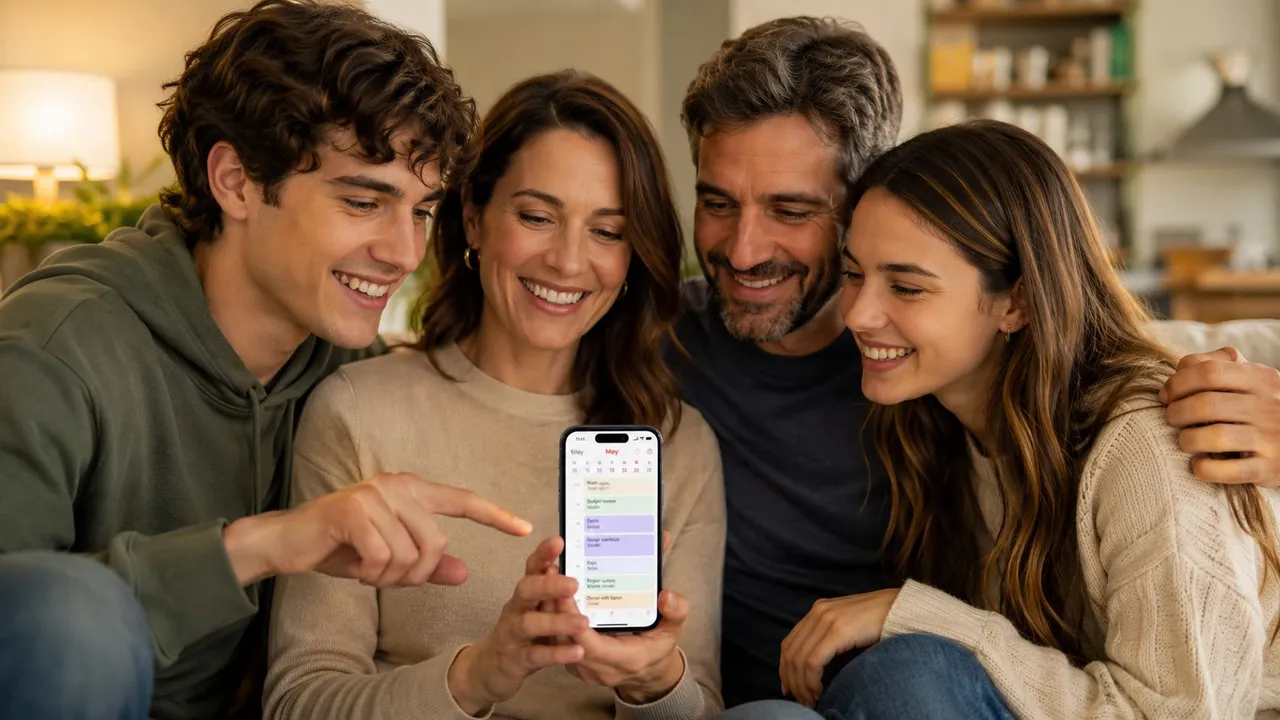
On iPhone, open Calendar, tap Calendars, then tap the i icon next to the iCloud calendar you want to share. Under Shared With, tap Add Person and enter the other person’s Apple Account email. If you need a closer walkthrough on how to invite people to a calendar on iPhone, and they use iCloud Calendar, the invite lands where it should and the calendar shows up across their Apple devices after they accept.
The key limitation is easy to miss. Add Person is an iCloud collaboration feature, not a general cross-platform sharing tool. If the other person lives in Google Calendar or Outlook, this method does not solve the problem you probably care about, which is keeping everyone on the same schedule across different systems. Teams comparing Google Calendar vs Outlook Calendar for shared scheduling usually run into that split fast.
View-only versus Allow Editing
Apple gives you one permission that matters a lot. Allow Editing decides whether the other person can only see events or can also change them.
With editing turned on, they can add events, move times, change locations, and delete entries. That is useful for a family calendar, a co-parenting arrangement, or a small Apple-only team. It also means they can accidentally rewrite your schedule, so this is not something to hand out casually.
With editing turned off, they get visibility without control. That works better for a partner who only needs to know when you are busy, or for a household member who should see plans without changing them.
A practical rule helps:
- Give editing access to people who actively maintain the calendar with you.
- Use view-only access for people who just need to check it.
- Create a separate iCloud calendar for shared plans instead of exposing your main personal calendar.
Practical rule: Do not share your default personal calendar with editing access unless you are fine with someone else changing or deleting events.
Where native iCloud sharing works best
Native Apple sharing is strongest in contained Apple-only setups.
- Family logistics: school events, pickups, sports, doctor visits
- Home planning: travel dates, bills, chores, maintenance visits
- Small internal Apple groups: coverage schedules, office events, simple deadline calendars
It also pairs well with adjacent workflows on the Google side if your team documents outcomes elsewhere, such as these tools to capture meeting notes in Calendar, but the calendar itself still needs everyone on iCloud for direct collaboration to stay easy.
A quick walkthrough helps if you want to see the screens before tapping around:
The real trade-off
If every person involved uses Apple devices and iCloud, this is the least frustrating option on iPhone. It is simple, editable, and built into the Calendar app.
The moment one person uses Google, Outlook, or a work-managed Microsoft account, the native experience stops being a true sharing solution and turns into a compatibility problem. That gap is why so many people try the public link next, then find out it is read-only, inconsistent across platforms, and weaker on privacy than they expected.
Sharing with Google or Outlook Users The Hard Way
This is a common workaround after Add Person fails. You open the calendar settings, enable Public Calendar, and Apple gives you a Webcal link you can send to someone else.
On paper, that sounds cross-platform. In practice, it’s a compromise.
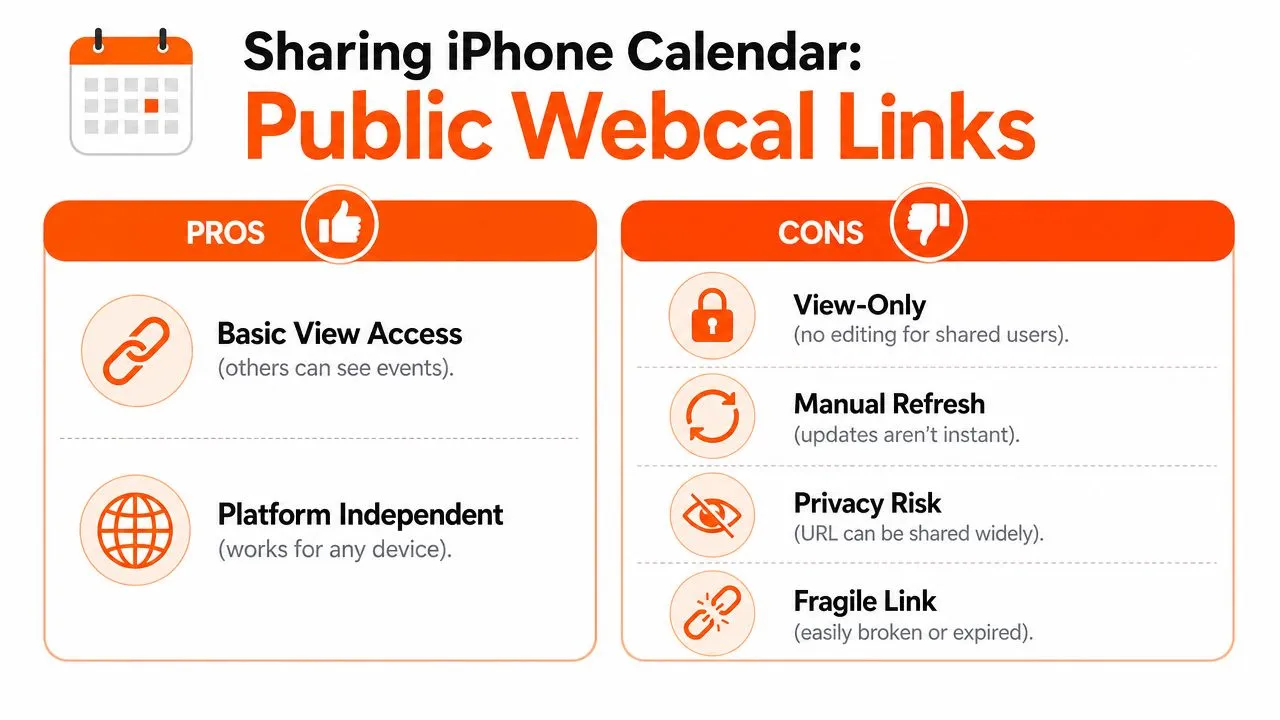
How the public link method works
You open Calendar, tap Calendars, hit the i icon for the calendar, then enable Public Calendar. Apple generates a subscription link that someone else can paste into a compatible calendar app or subscription field.
That link gives read-only access. The other person can view events if their app accepts the feed correctly, but they can’t collaborate inside your iPhone calendar.
A separate guide on iPhone calendar sharing notes that the calendar must be hosted on iCloud for these sharing options to appear, and that the public subscription method can involve 15 to 20 minute sync latency compared with native iCloud invites, as described in CalendarBridge’s walkthrough for sharing an iPhone calendar.
Why this breaks so often
The biggest issue is that people try the wrong method first. They use Add Person with someone on Android or Windows, which tends to fail because that workflow expects iCloud identities. One analysis reports a 65% failure rate when users try to share with non-iCloud Android or Windows users via the Add Person method, pushing them toward the public link instead, according to this review of iPhone calendar sharing limitations.
Even after switching to public links, reliability is uneven. Subscription behavior varies across Google Calendar, Outlook, and different app versions. Some feeds update slowly. Some import but don’t feel live. Some users think the setup failed when it’s really just delayed.
Here’s the practical trade-off:
| Method | What works | What doesn’t |
|---|---|---|
| Add Person | Best for iCloud users with native collaboration | Poor fit for Google and Outlook recipients |
| Public Calendar link | Lets others view a calendar outside Apple | Read-only, less reliable, slower updates |
If your calendar drives meetings, this matters beyond visibility. People often need context after an event is booked too, which is why many teams also use tools to capture meeting notes in Calendar once scheduling moves into Google-based workflows.
For a broader comparison of how the two big non-Apple ecosystems differ, this guide to Google Calendar vs Outlook Calendar helps clarify why cross-platform setups get messy fast.
👉 Our free add one calendar to another tool walks you through this exact iCloud → Google setup interactively, and every other combination of Apple, Google and Outlook calendars.
Viewing External Calendars on Your iPhone
Sometimes you don’t need to share your iPhone calendar out. You just need your iPhone to show calendars that already live somewhere else. This is much more reliable.
If your work uses Microsoft Exchange, Outlook, or Google Workspace, add that account directly to the iPhone instead of trying to re-share it through Apple Calendar. Once connected, the native Calendar app will display those calendars alongside your iCloud ones.
Add Google or Outlook accounts to iPhone
Go to Settings, then Calendar, then Accounts, and tap Add Account. Choose Google, Outlook.com, Exchange, or the provider that matches your account. Sign in, grant calendar access, and save.
After that, open the Calendar app and tap Calendars at the bottom. You’ll see calendars grouped by account, which makes it easy to show or hide specific ones without deleting anything.
Keep the view usable
The native iPhone Calendar app gets cluttered fast if you enable everything.
A cleaner setup usually looks like this:
- Show daily-use calendars: Personal, work, and any household calendar you check.
- Hide low-signal calendars: Old shared subscriptions, holiday calendars, or calendars you only need occasionally.
- Use colors intentionally: Different colors make mixed-account schedules easier to scan at a glance.
If your goal is “see all my schedules in one app,” account integration is better than trying to force sharing features to do that job.
Know the limit
You can view external calendars on iPhone without much trouble. That doesn’t mean you can re-share them however you want from Apple’s side. If a calendar originates in Google or Outlook, Apple’s controls don’t magically turn it into a flexible cross-platform sharing hub. That distinction trips up a lot of people.
Troubleshooting Common iPhone Sharing Problems
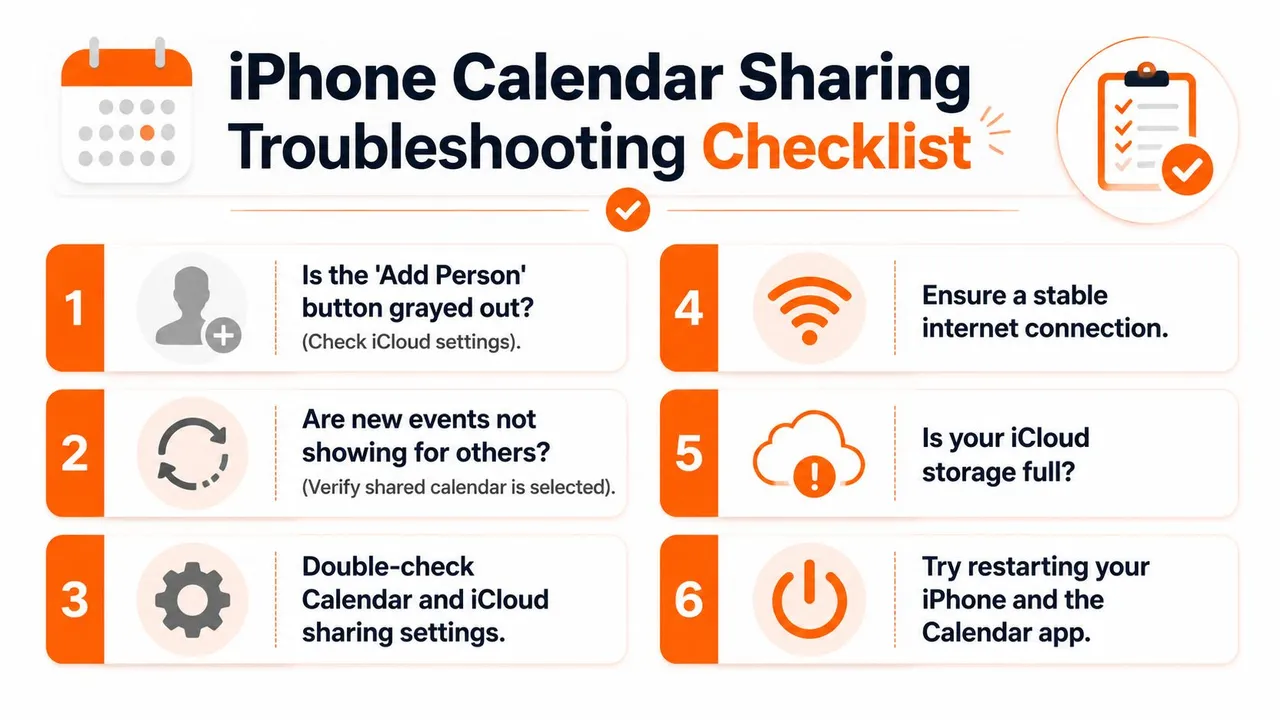
Most iPhone calendar sharing failures come back to the same small set of issues. The symptoms look different, but the root causes are usually predictable.
Add Person is grayed out
This usually means the calendar isn’t an iCloud calendar. Apple’s native sharing controls work only when the target calendar is hosted in iCloud. If the calendar is local on the device, or tied to Gmail or another service, you won’t get the same sharing options.
In practice, that means you may be looking at the right event but the wrong account container. Open Calendars and check which account owns the calendar before troubleshooting anything else.
Events aren’t appearing for the other person
If you’re sharing with another Apple user, confirm they accepted the invitation and that the shared calendar is enabled on their side. People often accept an invite but don’t realize the calendar can still be hidden from view in the Calendar app.
If you’re using a public link, delays and subscription quirks can make it look like syncing is broken when it’s just slow or incomplete. That’s frustrating, but it’s common behavior with this method.
The real cross-platform problem
A lot of failed setups aren’t user mistakes at all. They come from what I think of as the cross-platform invisibility problem. Apple gives you a public calendar link, but Google and Outlook apps don’t always treat that feed like a dependable shared calendar.
That limitation shows up in user behavior too. One survey summary reports that 68% of users fail their first attempt to share an iPhone calendar with a non-Apple device because native Google and Outlook apps cannot reliably subscribe to the Apple Webcal link, according to Kidtime’s discussion of iPhone calendar sharing friction.
Quick checks that solve a lot of issues
Before you retry the whole setup, check these:
- Verify the calendar account: Make sure the calendar lives in iCloud if you want to use Apple sharing controls.
- Confirm recipient type: If the other person doesn’t use iCloud, don’t expect Add Person to act like universal sharing.
- Check visibility settings: A shared calendar can be connected but hidden.
- Restart the basics: Close Calendar, reopen it, and make sure the device is online.
Many “broken” iPhone sharing setups are actually mismatched methods. Apple-to-Apple sharing, public subscriptions, and account syncing are different tools.
A Better Way to Sync Calendars Across All Platforms
Cross-platform calendar sharing usually breaks down at the point where people expect availability to stay consistent everywhere. An iPhone user adds events in iCloud, a client books time through Google Calendar, and a work account lives in Outlook. Native iPhone sharing does not keep those calendars aligned. It only shares access to one calendar, and for non-Apple users, even that often turns into a fragile read-only subscription.
That distinction matters more than Apple’s interface suggests.
A public iCloud calendar link can look like a universal fix, but in practice it is a poor substitute for sync. Google and Outlook may subscribe to it, cache it slowly, or handle updates inconsistently depending on the app and account setup. For families, freelancers, and small teams, that creates the worst kind of calendar problem. Everyone assumes the calendar is shared, but availability still drifts.
Why syncing solves the underlying problem
A sync tool does a different job. It copies events between calendars so each platform reflects the same busy time, instead of asking everyone to look at one Apple-hosted calendar.
That is the better fit when you need calendars to stay separate but availability to stay accurate.
Two common examples:
- Work and personal separation: You can keep a private iCloud calendar for personal appointments while blocking that time on a work Outlook calendar without exposing titles, notes, or locations.
- Client-facing scheduling: A booking that lands in Google Calendar can automatically reserve the same slot in iCloud and Outlook, so you do not get double-booked.
Privacy is where native sharing falls short
Native sharing is often too open or too limited. If you invite someone to a shared iCloud calendar, they may see much more event detail than you intended. If you publish a public calendar, you are distributing a subscription feed, not setting fine-grained privacy rules across platforms.
What many people want is simpler. Show that time is busy. Hide the details.
A dedicated sync service can mirror free/busy status or copy only selected fields, which is much closer to how real schedules work across personal, client, and company calendars. That is a better privacy model than sending full event metadata to everyone who needs to know you are unavailable.
What to look for in a sync tool
If your primary goal is to keep iCloud, Google, and Outlook in agreement, choose a tool based on control, not just connectivity:
- Cross-platform event syncing: It should move events between iCloud, Google Calendar, and Outlook automatically.
- One-way or two-way options: Some setups need a primary calendar. Others need full synchronization in both directions.
- Privacy controls: Free/busy mirroring, title masking, and selective field sync prevent unnecessary oversharing.
- Reliable update behavior: Fast updates matter more than a share link that eventually refreshes.
If you are comparing approaches, this guide on how to sync multiple calendars is the useful next step. For cross-platform scheduling, sync is the first method that matches how people work.
Frequently Asked Questions About iPhone Calendar Sharing
Can I share a calendar on iPhone with someone who uses Android?
Yes, but the native option is usually the public subscription link, not full collaboration. That means they may be able to view your calendar, but not edit it like an iCloud user can.
What’s the difference between sharing and subscribing?
Sharing gives another person access to your calendar, usually with permissions you control. Subscribing means someone adds a feed to view a calendar that lives elsewhere. Subscription is commonly read-only.
How do I stop sharing a calendar?
Open Calendar, tap Calendars, then the i icon next to the shared calendar. Under Shared With, tap the person and remove access, or turn off Public Calendar if you created a public link.
Will shared iCloud calendars show up on my other Apple devices?
Yes. If you’re signed into the same Apple account with Calendar enabled in iCloud, shared calendars generally appear across your iPhone, iPad, Mac, and Apple Watch.
Why can’t I share a calendar I can already see on my iPhone?
Because viewing and owning are different things. If you added a Google or Outlook calendar to your iPhone, Apple Calendar can display it, but Apple’s iCloud-specific sharing controls don’t automatically apply to that external calendar.
If you need more than basic Apple sharing, SyncThemCalendars is built for the actual problem: keeping iCloud, Google Calendar, and Outlook aligned without manual copying, double bookings, or privacy leaks from overshared event details.
Ready to sync your calendars?
Keep your Google, Outlook and Apple iCloud calendars in sync automatically. 2-minute setup, no credit card required.
Get started freeKeep reading
More in Guides
Merging Google Calendars: The Complete Guide for 2026
Merging Google Calendars. Learn the best ways to merge Google Calendars. Compare import methods, sync tools, and automation strategies

Master Your Calendar on Outlook with Sync Solutions
Learn how to use calendar on Outlook effectively, sync with Google and iCloud, avoid double-bookings, and connect SyncThemCalendars for seamless scheduling.
Does Apple Calendar Sync with Google Calendar? Real Answers
Does Apple Calendar sync with Google Calendar? Learn the limits of native integration, common workarounds, privacy risks, and the best setup for your workflow.