







Sharing iCloud Calendars: Private & Public Access
Master sharing iCloud calendars. Our 2026 guide covers private invites, public links, permissions, troubleshooting, & Google/Outlook sync.
You notice the problem when the texts start piling up.
“Can you do Thursday at 3?” “No, I moved that.” “Moved it where?” “It’s on the calendar.” “Which calendar?”
That’s usually the moment people start caring about sharing iCloud calendars. Not because calendar apps are exciting, but because schedule drift is expensive. Families miss pickups. freelancers double-book. Small teams keep one version of the plan in Messages, another in Google Calendar, and a third in someone’s head.
Apple’s Calendar app is good at the basic job. It can handle private collaboration, public publishing, and real-time updates across devices. But it also has a few quiet failure points that make people think sharing is broken when the setup is wrong. Those are the parts worth mastering.
Why Mastering Calendar Sharing Is Worth Your Time
A shared calendar fixes a very specific kind of friction. It cuts out the constant confirmation loop. Instead of asking whether someone is free, whether the school event changed, or whether a meeting got moved, people can check one place and trust what they see.
That matters because digital calendars aren’t a niche habit anymore. As of 2025, 46.7% of survey respondents rely primarily on digital calendars to organize their lives according to LLCBuddy’s calendar statistics roundup. If almost half of people are organizing life through calendars, then sharing is no longer a nice extra. It’s part of basic coordination.
The practical win is less drama around routine scheduling:
- Family logistics: school pickups, dentist appointments, sports practice, travel days
- Client work: holding time across personal and work calendars so you don’t promise the same slot twice
- Education workflows: tutoring sessions, office hours, assignment checkpoints, parent communication
If you run lessons or appointments, a scheduling system matters just as much as the calendar itself. A good example is how to schedule tutoring sessions efficiently, because the booking flow and the shared calendar need to support each other. If one is clear and the other is messy, people still miss things.
Shared calendars don’t remove the need to communicate. They remove the need to repeat the same information over and over.
The good news is that Apple gives you two straightforward sharing modes. The less good news is that many problems show up after the invite is sent, not before. Getting the basics right first saves a lot of chasing later.
Private Calendar Sharing for Close Collaboration
Private sharing is the best fit when specific people need ongoing access. That usually means a partner, co-parent, assistant, or a small internal team. You’re not publishing a schedule to the world. You’re giving chosen people access to one calendar and deciding how much control they get.
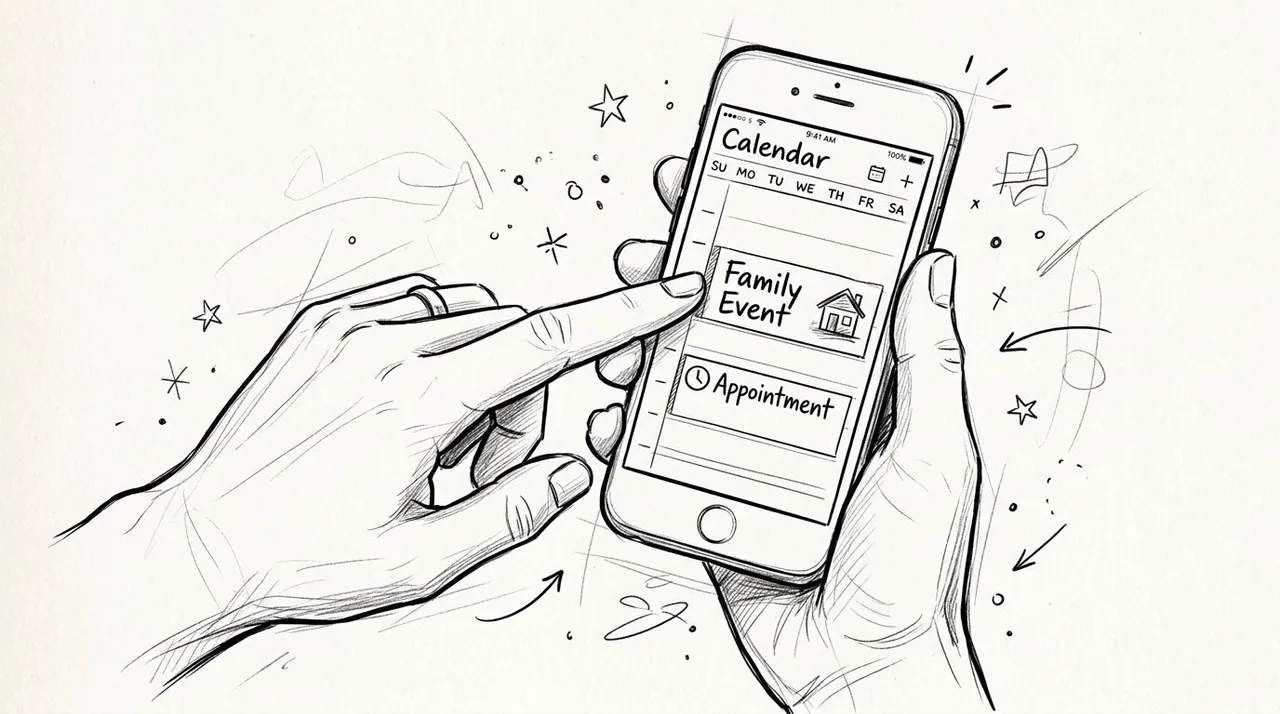
What to do on iPhone and iPad
Open the Calendar app, tap Calendars, then tap the ⓘ icon next to the calendar you want to share. Under Shared With, tap Add Person, enter the recipient, choose their access level, and send the invite.
That sounds simple because it is. The part that trips people up is the address they enter. The recipient’s email must be the exact email tied to their Apple ID, or the invitation won’t work as expected, as noted in Everblog’s walkthrough of iCloud calendar sharing.
What to do on Mac
On a Mac, hover over the calendar name in the sidebar and click the Share Calendar button. Enter the person’s name or Apple ID email, then use the dropdown to decide whether they can edit or only view.
Mac is often easier if you’re setting up multiple calendars at once because the sidebar makes it easier to see what belongs where. It’s also the cleaner place to switch a calendar to public later if you need a link instead of a private invite.
Practical rule: Start with View Only unless the other person actively needs to create, edit, or delete events.
Permissions matter more than one might expect.
View Only is for visibility.
View & Edit is for shared ownership.
If you give edit access too broadly, people can accidentally move or remove events. If you make everyone view-only, the calendar becomes a bottleneck because one person has to maintain everything.
A simple pattern works well:
- Partner or co-parent: usually needs edit access
- Assistant: often needs edit access for operational calendars
- Grandparent or caregiver: often only needs view access
- Small team member: depends on whether they’re updating deadlines or only tracking them
For more Apple-specific setup detail on mobile, this guide on how to share a calendar on iPhone is a useful companion. If you’re designing a broader workflow for a collaborative group, TimeTackle’s guide to perfect team calendars is also worth reading because it focuses on calendar structure, not just the button clicks.
What works and what doesn’t
What works is keeping private calendars purpose-built. A “Family” calendar, a “Client Calls” calendar, and a “School Logistics” calendar are easier to manage than one giant mixed calendar.
What doesn’t work is sharing one overloaded calendar with everyone and hoping permissions alone will keep it organized. That’s how people end up editing the wrong thing or muting a calendar they still need.
Public Calendar Sharing for Broad Audiences
Public sharing solves a different problem. You’re not collaborating with a handful of people. You’re distributing a schedule to a wider audience that only needs to subscribe and view.
This is useful for workshop schedules, community events, office hours, team fixtures, or a school term calendar. In those cases, the calendar acts more like a feed than a workspace.
Apple supports this with public calendars, which generate a unique URL that anyone can subscribe to, including people without iCloud, according to Apple’s iCloud Calendar documentation. That’s the key distinction. Private sharing is Apple ID based. Public sharing is link based.
When public sharing makes sense
Use a public calendar when the audience is broad and editing should stay centralized. A coach can publish practice times. A business can publish webinar dates. A department can publish availability windows.
Don’t use it for anything sensitive. If a link is the access model, assume it can travel further than intended.
⚠️ Remember: a public iCloud link exposes full event details, and iCloud can’t publish a free/busy-only version. For availability-only sharing, see the Apple workarounds in our free free/busy link builder.
Private vs. Public iCloud Calendar Sharing
| Feature | Private Sharing (Invitation) | Public Sharing (Link) |
|---|---|---|
| Best for | Families, partners, assistants, small teams | Schools, clubs, public schedules, one-to-many updates |
| Security level | Higher, because access is limited to invited people | Lower, because anyone with the link can subscribe |
| How to join | Invitation sent to a specific Apple ID-linked email | Subscription through a shareable calendar URL |
| Editing rights | Can be set to view-only or edit access | Read-only for subscribers |
A useful way to think about it is this:
- Private sharing is for coordination, especially when managing calendars that are shared with you in iCloud
- Public sharing is for broadcasting
If your real goal is to help someone understand availability without exposing full event details, a free/busy setup may fit better than a standard shared calendar. This overview of a free busy calendar is useful if you’re trying to show when time is blocked without sharing every appointment title and note.
The trade-off most people miss
Public calendars are convenient because they work across platforms. They’re limited because they remove control over who sees the feed once the link starts circulating.
That doesn’t mean public sharing is risky by default. It means you should create a calendar specifically for public use. Keep details minimal. Treat it like a published schedule, not a private planning space.
Beyond iCloud Syncing Calendars Across Platforms
Apple’s sharing tools work well when everyone lives inside Apple’s ecosystem. The friction starts when real life gets involved.
A freelancer might keep personal appointments in iCloud, client meetings in Google Calendar, and a contract role in Microsoft Outlook. A founder might use Apple devices personally but need to coordinate with a sales team in Microsoft 365. A consultant might need one calendar to block time on another without revealing personal details.
That’s where native iCloud sharing stops being enough. It shares an iCloud calendar well. It does not solve broader cross-platform calendar management on its own.
Where native sharing starts to strain
The issue isn’t that Apple Calendar is bad. It’s that many people don’t have a single-calendar life.
Common examples:
- Work and personal split: your employer uses Outlook, but your home life runs through iCloud
- Client calendar overlap: one client wants Google Calendar visibility, another wants Microsoft availability
- Privacy concerns: you want blocked time to appear elsewhere, but not the event title or notes
- Multiple booking surfaces: one meeting tool checks Google, another checks Outlook, while your real commitments live partly in iCloud
In those setups, manual copying becomes the fallback. That works for a day or two, then fails. People forget to duplicate events. They update one calendar and not the others. The result is the same old double-booking problem, just with better apps.
A dedicated sync layer is the cleaner approach. Instead of “sharing” in the Apple sense, you’re synchronizing calendars across services so availability stays aligned.
👉 For the exact steps to display an iCloud calendar in Google or Outlook (or the reverse), try our free add one calendar to another tool.
What a stronger setup looks like
A powerful cross-platform tool can do more than passively expose a calendar. It can copy events in one direction, both directions, or across several calendars, and keep doing it in the background. That matters if your job depends on separate systems staying consistent.
Useful capabilities in this category include:
- One-way sync: ideal when one calendar should inform another without creating feedback loops
- Two-way sync: useful when changes can originate in either calendar
- Privacy controls: useful when you want to mirror busy time but hide titles, descriptions, or locations
- Free/busy mirroring: useful when someone needs to know you’re unavailable without seeing why
That last point matters more than it gets credit for. Individuals generally don’t want every personal event copied in full detail into a workplace system.
If your immediate need is bridging Apple and Google, this guide on how to sync iCloud Calendar with Google Calendar is a practical starting point.
A quick demo helps make the difference clear:
What works better than manual patching
The strongest setup is usually not one giant shared calendar. It’s a system where each calendar keeps its own role, and sync handles the overlap.
Keep your personal calendar personal. Keep the client or company calendar in its required platform. Then sync the availability or event copy you need between them.
If you’re juggling Apple, Google, and Outlook at the same time, the real goal isn’t universal sharing. It’s consistent availability without extra admin.
That distinction matters. Sharing is about access. Syncing is about alignment.
Troubleshooting Common iCloud Sharing Hiccups
Most iCloud sharing failures look mysterious at first and turn out to be configuration problems. The obvious checks still matter, like whether the recipient accepted the invite or whether iCloud Calendars is enabled, but the high-friction issues are usually less visible.
The invite was sent, but nothing happened
Start with the basics. Confirm the recipient used the right Apple ID-linked email and accepted the invitation. If a device has iCloud Calendars disabled, the shared calendar won’t behave correctly there.
Then check the less obvious stuff:
- Spam and filters: invitation emails can land in junk
- Device settings: the Calendar toggle under iCloud must be on
- Internet access: sync can’t happen reliably on a dead connection
Those are the routine fixes. The more interesting failures come after the share technically succeeds.
The calendar looks empty
A major hidden issue is the Default Calendar setting on the receiving device. A shared iCloud calendar can appear to work, but new events may save to Gmail or Outlook instead if the device’s default calendar points somewhere else. That mismatch makes people think the shared calendar is broken, when the events are landing in the wrong place.
A simple real-world version looks like this: a family member opens Calendar, taps the shared iCloud calendar, then creates a new event quickly from another screen or app. The device saves it to the non-iCloud default calendar. Everyone assumes the shared calendar failed to sync, but it never received the event in the first place.
Check this specifically: the receiving device’s default save destination should match the shared iCloud calendar when that’s where events are supposed to live.
Older events are missing
This one catches a lot of people because it feels random. Apple’s Sync timeframe setting can limit which events appear on the device. If it’s set to something like a recent timeframe instead of full history, older shared events won’t show up.
Apple discussion guidance specifically notes that choosing All Events is required for full visibility, as described in this Apple discussions thread about the sync timeframe setting.
The fix is straightforward:
- Open the relevant Calendar settings on the device.
- Find the sync timeframe option.
- Change it to All Events if you need full shared history.
A short troubleshooting order that saves time
Don’t troubleshoot in random order. Use this sequence:
-
Verify the recipient identity
Make sure the invite went to the Apple ID-linked email. -
Check iCloud Calendar is enabled
If the toggle is off, nothing else matters. -
Confirm the default save destination
Shared events should not be defaulting into Gmail or Outlook by accident. -
Review the sync timeframe
If past events are missing, this is often the cause.
That sequence catches the failures that many basic guides skip.
Best Practices for Managing Multiple Calendars
The cleanest calendar systems use separation on purpose. Don’t throw work calls, family logistics, travel planning, and public events into one calendar and try to fix the mess later with sharing rules.
Create calendars by role. Work, Personal, Family, and Public Schedule is a solid starting structure. That makes permissions easier, keeps views cleaner, and reduces accidental edits in the wrong place.
Set up a system people can read quickly
Color coding helps if you keep it consistent. Use one color for family events, another for client commitments, another for personal time. The win isn’t aesthetic. It’s fast recognition.
A few habits keep the whole setup usable:
- Name calendars clearly: “Family Admin” beats “Calendar 2”
- Share narrowly: only the people who need access should have it
- Review permissions occasionally: remove old collaborators and outdated links
- Document simple rules: decide who adds what, and where recurring events belong
The Default Calendar setting deserves ongoing attention. A shared calendar can still feel unreliable if a device keeps saving new events to a non-iCloud account such as Gmail, which is the mismatch noted in this Apple discussions thread on default calendar behavior. That’s one of the reasons people think sharing iCloud calendars is flaky when the actual issue is calendar destination.
Keep collaboration lightweight
Shared calendars work best when everyone knows the basic etiquette. Don’t rename recurring events casually. Don’t delete events when declining attendance would do. Don’t use a public calendar for private details.
If you treat each calendar like it has a job, Apple’s sharing features hold up well. If you expect one calendar to do every job for every person on every platform, friction shows up fast.
You don’t need a perfect setup. You need a clear one.
If you’re managing availability across Apple Calendar, Google Calendar, and Microsoft Outlook, SyncThemCalendars is worth a look. It’s built for the cases where native sharing stops short, especially when you need ongoing cross-platform sync, privacy controls, or a cleaner way to keep multiple calendars aligned without manual copying.
Ready to sync your calendars?
Keep your Google, Outlook and Apple iCloud calendars in sync automatically. 2-minute setup, no credit card required.
Get started freeKeep reading
More in Guides

SyncThemCalendars Quick Setup Walkthrough
Master the SyncThemCalendars quick setup in minutes. Connect Google, Outlook, or iCloud, configure privacy masking, and verify your first sync effortlessly.

Merging Google Calendars: The Complete Guide for 2026
Merging Google Calendars. Learn the best ways to merge Google Calendars. Compare import methods, sync tools, and automation strategies

Master Your Calendar on Outlook with Sync Solutions
Learn how to use calendar on Outlook effectively, sync with Google and iCloud, avoid double-bookings, and connect SyncThemCalendars for seamless scheduling.