







Master Your Calendar Sync iPhone for Google, Outlook &
Tired of missed appointments? Learn to master calendar sync iphone for Google, Outlook, & iCloud. Fix issues & unify your schedule in 2026.
You accept a meeting on your laptop, glance at your iPhone five minutes later, and nothing’s there. By the time you realize the invite never synced, you’ve got two appointments on top of each other and a room full of people waiting for you. That’s the everyday pain behind calendar sync iPhone issues, and it gets messier once you’re juggling Google for personal life, Outlook for work, and iCloud for the phone itself.
The fix isn’t just flipping a single calendar toggle. Native iPhone sync depends on account-level sync, the right default calendar, and a few system settings that can block refresh behavior, often unnoticed. Apple’s own support flow even includes steps like enabling Calendar in iCloud, changing the Calendar sync range, resetting sync data, and pulling down inside Calendar to refresh when data goes stale (Apple support on iCloud Calendar sync).
Why Your Calendars Are Out of Sync
The failure usually starts small. You confirm a meeting on your Mac, your coworker sees it in Outlook, and your iPhone stays blank until the meeting is already underway. That is the moment people assume the phone is broken, when the problem often comes from a mismatch between where the event was created, which account is set as default, and how that account is allowed to refresh.
Three ecosystems, one phone, and too many assumptions
On iPhone, iCloud behaves differently from Google and Microsoft accounts. Apple’s support flow ties built-in sync to iCloud settings on each device, so the phone is not keeping a separate local calendar copy that later lines itself up on its own. It depends on the account connection and the recovery tools Apple provides when data gets stale (Apple support on iCloud Calendar sync). That works well inside one ecosystem, but it gets brittle when one person moves between several.
The friction shows up in everyday habits. A work meeting lands in Outlook, a family event lands in Google Calendar, and your iPhone may still create new items in iCloud unless you tell it otherwise. When the wrong account is used for event creation, the calendar can look “synced” on one screen and wrong on another. That is why so many sync complaints start as a placement problem, not a sync failure.
Practical rule: if an event appears in the wrong place, check which account created the event before you blame the sync layer.
Refresh timing adds another layer of confusion. iOS can deliver updates through Push when the provider allows it, but it also falls back to Fetch, which means refresh intervals instead of instant delivery. Those trade-offs are part of normal iPhone calendar sync behavior, and they explain why one event appears right away while another lags long enough to cause a scheduling mess.
System modes can make the delay worse. Low Power Mode, weak connectivity, and a calendar app left in the background can all slow the refresh cycle enough to make a healthy account look broken. If the issue comes and goes, those are the first places to check before you start deleting accounts or resetting everything.
Adding Google and Outlook Calendars to Your iPhone
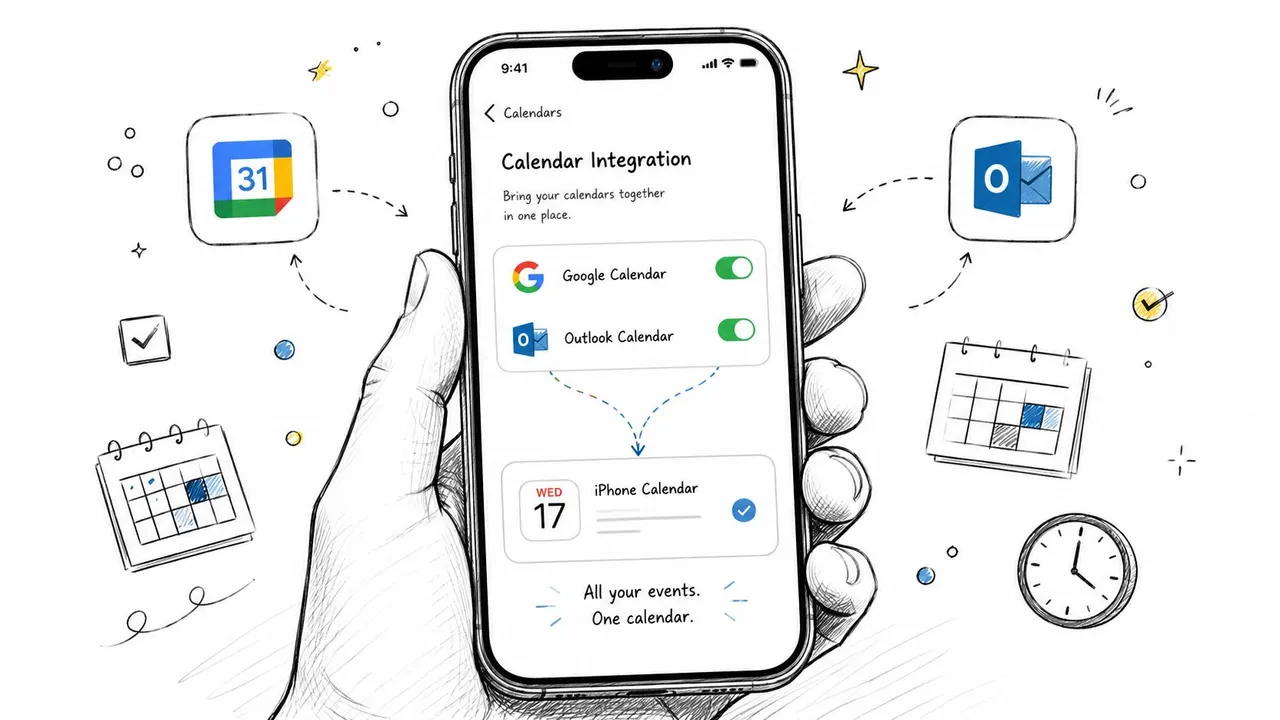
The cleanest setup is direct account integration inside iOS, not a calendar subscription URL or an export-import workaround. When you add Google or Microsoft accounts through the phone’s calendar account settings and keep Calendars enabled, the account stays connected the way iOS expects, and you avoid the brittle behavior that comes from manually copying events around.
Set up the account the right way
Start in Settings, then go to Calendar, then Accounts. Add your Google account or your Microsoft account there, rather than trying to build a workaround in another app. Once the account is signed in, make sure the Calendars toggle is on, because that switch controls whether calendar data is available to the iPhone calendar system.
For work and personal calendars, this is the setup that keeps ownership clear. The same account that holds the event is also the one iPhone uses to sync it, which avoids the cleanup that happens when people export a file, import it elsewhere, and then try to track edits across multiple copies.
This guide to connecting Google Calendar to Apple Calendar is a useful companion if you want a step-by-step walkthrough after the account is in place.
Push and Fetch decide how fast updates arrive
The next thing to understand is how iOS retrieves changes. Some providers allow Push, which is the closest thing to instant sync. Others fall back to Fetch, where the phone checks on a schedule such as every 15 minutes, hourly, or manually. That delay is not always a bug, it is often just the retrieval mode the account is using.
If a calendar seems slow but not broken, the issue may be timing, not connectivity.
This also explains why adding too many accounts can make sync harder to trust. Each additional calendar adds another place where credentials, permissions, or retrieval timing can drift, so keeping the setup simple usually reduces avoidable sync problems.
What not to rely on
Manual export and import workflows look simple until someone edits the event later and the changes never come back. A direct Outlook or Exchange account added on the iPhone stays synced automatically, which is why that path is better for calendars that need to keep changing across devices.
If you are tempted to subscribe to a calendar feed just to get events onto the phone, stop and check whether the provider can be added natively first. The direct account path usually survives edits, cancellations, and cross-device changes without extra effort, while feeds and file imports are better suited to one-time copies.
Fine-Tuning Your Sync Settings
A lot of people get the account added and still end up with messy calendars because the defaults are wrong. The most common issue is that the phone creates new events in the wrong account, which means the event appears where you didn’t expect it and later seems to “disappear” on another device. That’s not a sync failure, it’s a routing problem.
Default Calendar matters more than people think
The Default Calendar tells iPhone where to save new events. If you use Google for personal life and Outlook for work, the wrong default can put a client call into your private calendar or a family appointment into the work account. Content that focuses only on turning calendars on and off often misses this, even though a misconfigured default is a primary cause of events being saved to the wrong provider (default calendar guidance).
Set the default to match the calendar where most new events should land. If your company expects work events to live in Outlook, make Outlook the default. If your family schedule should stay in Google or iCloud, keep that as the fallback for personal items. This one setting prevents a surprising amount of cleanup.
Show only the calendars you actually need
iPhone can show several calendars from the same account, and not all of them need to stay visible all the time. A shared holiday calendar, a team PTO calendar, and a main work calendar can all live under the same account, but that doesn’t mean all three need to clutter the main view. Hiding low-value calendars reduces visual noise and makes important conflicts easier to spot.
The same idea applies to sync depth for past events. If you don’t need years of old entries on the phone, narrowing the calendar history that syncs can keep the calendar app lighter and easier to browse. That matters most for people who use iPhone as a daily control panel, not an archive.
Good setup habit: keep the default calendar aligned with where new events should land, then hide anything that doesn’t affect today’s scheduling.
One account can still carry multiple calendars
A single Google or Microsoft account often contains several calendars, and that’s fine as long as the defaults are intentional. Use the account for the identity, then use individual calendar visibility for day-to-day signal control. That combination gives you a clean phone without forcing you to abandon the accounts your workplace or family already use.
Troubleshooting When Your iPhone Calendar Stops Syncing
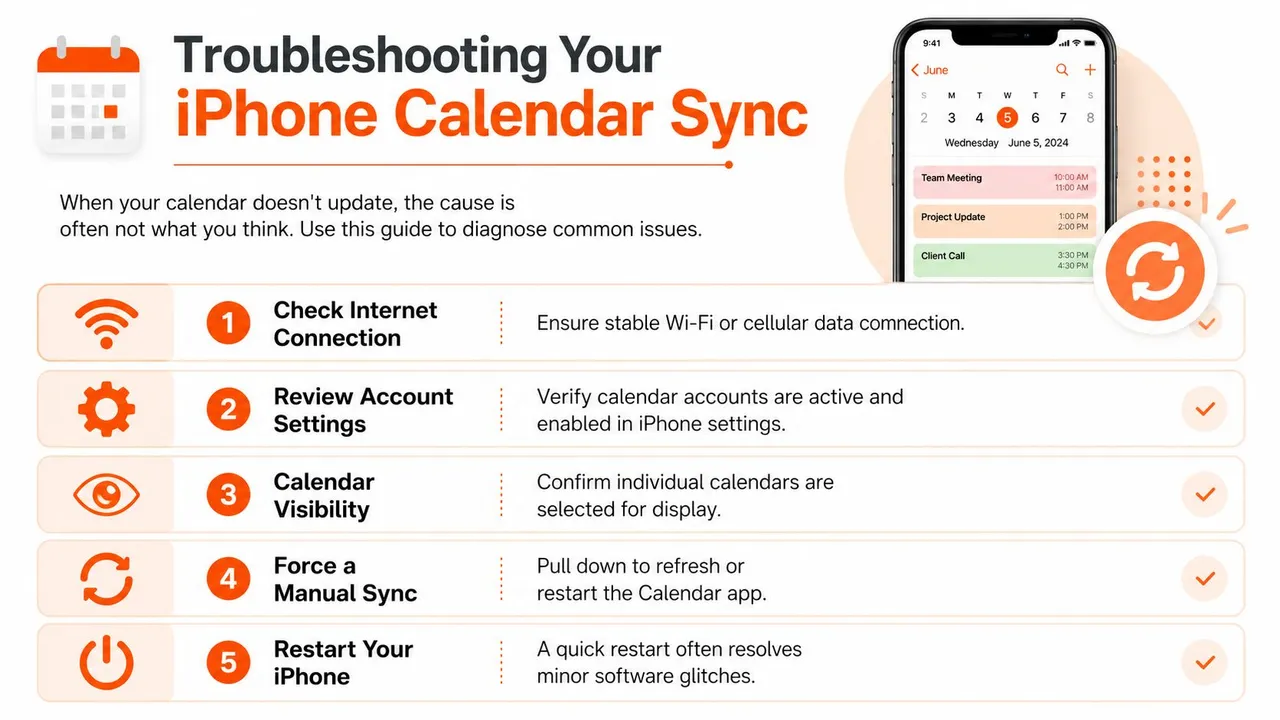
A calendar that stops updating usually tempts people to reinstall apps or re-add accounts right away. That can work, but it often skips the underlying cause. Start with connectivity, refresh behavior, and the device states that block background updates, because those are the problems that get missed most often.
Start with the obvious checks
Confirm the phone is online. A weak or unstable connection can make a healthy calendar look broken because the update never finishes. Then open Calendar and pull down to refresh, which is the quickest way to force the app to ask for new data. If the issue still looks tied to one account, compare what you see on the phone with the account on the web. For Google-specific failures, a focused walkthrough like Google calendars not syncing can help you separate an account problem from a device problem.
If the calendar is still stuck, toggle that calendar off and back on in iPhone settings, then confirm the account is still signed in and active. I’ve seen this solve cases where the phone had the right account listed but the calendar feed itself had gone stale.
Check the settings that quietly block background refresh
Low Power Mode and Low Data Mode do not look like calendar settings, but they can still interfere with refresh behavior. Troubleshooting guidance on device-state blockers in calendar sync calls out both because they can reduce background network activity and make sync appear frozen even when the account is connected. If updates stop showing up unless you refresh manually, check those modes before you rebuild anything.
The same logic applies to connectivity problems that look like sync failures. If the phone can reach some services but not the calendar endpoint, SSL or certificate issues can be the underlying blocker, so it can help to troubleshoot website SSL issues when the problem resembles a failed connection more than a bad setting. That kind of failure often hides behind symptoms that look like a normal calendar delay.
Use this test: if manual refresh works but background updates do not, look at system modes first, then treat the connection itself as the next suspect.
iCloud needs its own recovery path
When the calendar is tied to iCloud, there are recovery steps beyond a simple off-and-on toggle. Apple’s support flow includes changing the Calendar sync range or resetting sync data in iPhone settings, which can help when the local view and the cloud copy drift apart. If you need the official path, refer back to Apple support on iCloud Calendar sync.
The bigger lesson is simple. Sync failures are rarely one thing. They can come from account setup, connectivity, a stale refresh state, or a system mode that suppresses background activity. Treat the problem like a diagnosis, not a ritual.
A separate risk worth watching is subscription hygiene. Security research on calendar subscriptions shows that subscribed calendars can become an attack surface when people follow unfamiliar links or accept shady calendar feeds, so review what is subscribed and treat calendar links like email links, not casual invites (calendar subscription abuse research).
One-Way vs Two-Way Sync and Privacy Masking
Native iPhone sync is fine when you just need visibility in one place. It’s weaker when you need availability mirrored across platforms without exposing personal details, or when one account should block time on another without turning every event into a shared edit. That’s where the difference between one-way sync and two-way sync starts to matter.
What native sync can’t do cleanly
| Feature | Native iPhone Sync | Dedicated Sync Service |
|---|---|---|
| View events on the phone | Yes | Yes |
| Keep separate ecosystems aligned | Partially | Yes |
| Mirror availability without details | Limited | Yes |
| One-way blocking of time | Limited | Yes |
| Two-way editing across accounts | Not reliably | Yes |
| Privacy masking of titles and notes | No | Yes |
Native tools are built for account access, not policy. They show your calendar content on the device, but they don’t give you much control over how event details travel from one ecosystem to another. If you want a doctor visit on your personal calendar to become a simple Busy block on a work calendar, the built-in tools stop short.
Why privacy masking changes the equation
For consultants, freelancers, and anyone with a public-facing schedule, privacy is usually the primary problem, not visibility. You may want coworkers to see that you’re unavailable, but not the event title, notes, or location. That’s a different task from ordinary sync, because the content has to be transformed as it moves.
Native iPhone syncing doesn’t give you much room to reshape the event as it crosses systems. A dedicated sync service can do that kind of field-level handling, which is why the built-in tools feel fine for personal convenience but shaky for professional separation. If your calendars carry client names, internal project codes, or personal appointments you don’t want mirrored verbatim, masking is the feature that closes the gap.
When a Dedicated Sync Service Makes Sense
A dedicated sync service becomes practical when the calendar problem is not “Can I see my events?” but “Can I mirror availability across systems without creating noise or exposing details?” That is a different standard. A freelancer who books client calls in Outlook but works from Google Calendar needs events to land in the right place, and a consultant who keeps a personal iCloud calendar separate from a company Outlook shared calendar may only want Busy time mirrored across both.
The situations that push native sync too far
Cross-platform setups break down when people need more than raw visibility. A meeting scheduled in a client’s Office 365 environment may need to block time on a Google work calendar, while a personal appointment should show as unavailable on a shared Outlook board without revealing the actual title. That kind of selective behavior goes beyond what the iPhone handles on its own.
The main technical limitation is update latency. iOS relies on Push when the provider supports it, and otherwise falls back to Fetch intervals, which can leave a gap before changes show up. For people who need dependable availability across platforms, that delay is the wrong model.
A dedicated service fits better when:
- You use Google, Outlook, and iCloud at the same time, and each one matters for different parts of your day.
- You need one-way or two-way copies, not just a local view on the phone.
- You want privacy masking, so attendees see blocked time without sensitive event details.
- You cannot afford stale availability, especially when meetings are booked from more than one system.
Bottom line: native sync is good for access. Continuous sync is better for coordination.
One option built for this kind of cross-platform coordination is SyncThemCalendars, which keeps events synchronized between Google Calendar, Microsoft Outlook or Office 365, and Apple Calendar, with one-way, two-way, or multi-way copies depending on how much sharing you want. If that sounds like your setup, the next step is to compare the sync direction you need, then map each calendar to a role instead of forcing one phone setting to do everything. If you want a broader comparison first, review this guide to the best calendar sync apps.
If your iPhone calendar still feels brittle after the basic setup, review the default calendar, the device power modes, and the accounts that own your events. If you need cleaner cross-platform blocking, privacy masking, or continuous availability across Google, Outlook, and iCloud, start testing SyncThemCalendars at syncthemcalendars.com and see whether a dedicated sync layer fits the way you work.
Ready to sync your calendars?
Keep your Google, Outlook and Apple iCloud calendars in sync automatically. 2-minute setup, no credit card required.
Get started freeKeep reading
More in Guides

Synchronize Apple Calendar with Outlook: A 2026 Guide
Step-by-step guide: Synchronize Apple Calendar with Outlook on Windows, iPhone and Mac, with two-way options, privacy trade-offs and fixes.

SyncThemCalendars Quick Setup Walkthrough
Master the SyncThemCalendars quick setup in minutes. Connect Google, Outlook, or iCloud, configure privacy masking, and verify your first sync effortlessly.

Merging Google Calendars: The Complete Guide for 2026
Merging Google Calendars. Learn the best ways to merge Google Calendars. Compare import methods, sync tools, and automation strategies