







How to Stop Syncing: Safe Guide for Calendars
Learn how to stop syncing calendars without losing data. Step-by-step guide to pause, disable, or remove syncs in Google, Outlook, and iCloud.
You probably opened the wrong calendar and saw the same meeting copied where it didn’t belong, or you changed one event and watched it spread to places it had no business touching. That’s the point where people search how to stop syncing, but the question is narrower: do you need to pause the flow for a while, disable future copies, or revoke the account connection entirely?
Those are different moves. If you choose wrong, you can keep the copied events you wanted to preserve, or you can accidentally leave a live connection running in the background. In calendar work, that difference matters because a copied event is not the same thing as an active sync relationship.
Why You Might Want to Stop Syncing
A sync usually doesn’t become a problem because the software failed. It becomes a problem because it worked exactly as designed, just in a context you didn’t want. A freelancer may find a client calendar showing up beside personal plans. A founder may see a two-way mirror turn into double-booking. A student may have an institutional calendar crowding a personal one.
That’s why the first decision is not “turn it off or leave it on.” It’s whether you want to keep the copied events, halt future propagation, or sever the account relationship. Those are three distinct outcomes, and they’re the difference between a temporary cleanup and a full teardown.
If your concern is security or data leakage, the shape of the response gets even sharper. A good breach-prevention checklist should separate the app connection from the data already copied into other places, which is why guides like the Nutmeg Technologies data breach playbook are useful context when you’re thinking about access, exposure, and cleanup. The same logic applies to calendar syncs. You need to know what still has permission, what still has data, and what still has a schedule.
Practical rule: If you only want a breathing space, pause. If you want copies to stop but the setup to remain intact, disable. If you want the relationship gone, revoke.
That simple split keeps you from clicking the wrong control at the wrong time.
Pausing, Disabling, or Deleting a Sync in SyncThemCalendars
In SyncThemCalendars, stopping a sync is not one button with one meaning. It’s a set of choices, and each one does something different to the events already mirrored on the target calendar. If you’re mid-migration, in a noisy planning week, or cleaning up a bad source, the difference matters.
Pause when you need the connection to sleep, not disappear
Pausing a sync is the safest move when you expect to come back to it. Background work stops for now, then resumes later without forcing you to rebuild the relationship. That’s useful if you’re editing a batch of events, changing naming rules, or testing whether the source calendar is the problem.
What pause does not do is erase the sync design or remove the copied events already sitting on the target calendar. They stay where they are. That makes pause the right choice when you need to prevent new propagation without disrupting the structure you already have.
Disable when you want to stop future copies
Disabling is more final than pausing. It stops the sync from continuing, but it leaves the link visible in the setup, which can be useful if you may re-enable it later and want to preserve the configuration. In a multi-way setup, that matters because the relationship between calendars can be more complex than a simple source and target.
The key thing to watch is what still exists on the target calendar. Already copied events don’t magically vanish just because the job is disabled. If those copies matter for history or scheduling continuity, leave them in place and clean them up separately.
Delete when the sync should be removed entirely
Deleting the sync removes the link itself. That is the cleanest option when the pairing was wrong, the project ended, or you no longer want any scheduled propagation at all. It’s the closest thing to a hard stop inside the app.
| Action | Effect on future syncs | Effect on copied events | Best for |
|---|---|---|---|
| Pause | Stops temporarily, then resumes later | Stays in place | Short-term interruptions |
| Disable | Stops future copies until re-enabled | Stays in place | Keeping the setup for later reuse |
| Delete | Removes the sync relationship entirely | Stays unless you remove it separately | Permanent teardown or wrong pairing |
If you’re comparing options in the app itself, think in terms of recovery. Pausing is reversible and low-risk. Disabling is a controlled stop. Deleting is the point where you’re saying the relationship itself shouldn’t exist anymore.
Revoking SyncThemCalendars Access in Google, Microsoft, and Apple
Stopping the job inside SyncThemCalendars doesn’t always remove the account-level permission behind it. That’s why a clean teardown usually has two halves, the app-level sync and the provider-level access. If you only remove one, the other can still sit there like an open door.
Google Account permissions
In Google, the place to look is the account security area where third-party access is managed. Remove the calendar app’s access there if you want to revoke the token, not just stop the schedule. That matters because a disabled sync job and an authorized app are not the same thing.
After revocation, the source calendar stays intact. What changes is whether the app can keep reading or writing through that account relationship. If you still see activity later, check whether the sync job was also removed inside the app, because revoking permission alone doesn’t delete the scheduling configuration.
Microsoft account access
Microsoft separates app access in its own account and app management surfaces. Remove the connected app there if the account should no longer be available for syncing. This is the right move when the calendar relationship is tied to a work or personal Microsoft identity and you want a cleaner cutoff.
For a deeper look at Outlook-specific calendar syncing patterns, the internal guide on Outlook calendar sync is worth keeping handy. It helps when the issue is not just stopping one sync, but untangling a broader Outlook setup.
Apple account and app-specific access
Apple requires a little more care because access can be tied to the Apple ID, app-specific passwords, or sign-in history depending on the setup. Remove the relevant access path if you want the calendar app to stop using that identity. Don’t assume the app connection disappeared just because the visible sync stopped.
The practical rule is simple. Delete the sync job in SyncThemCalendars if you want the schedule gone. Revoke access at the provider if you want the account permission gone. Most clean teardowns need both.
Stopping Device-Level Sync Without Touching the Cloud Sync
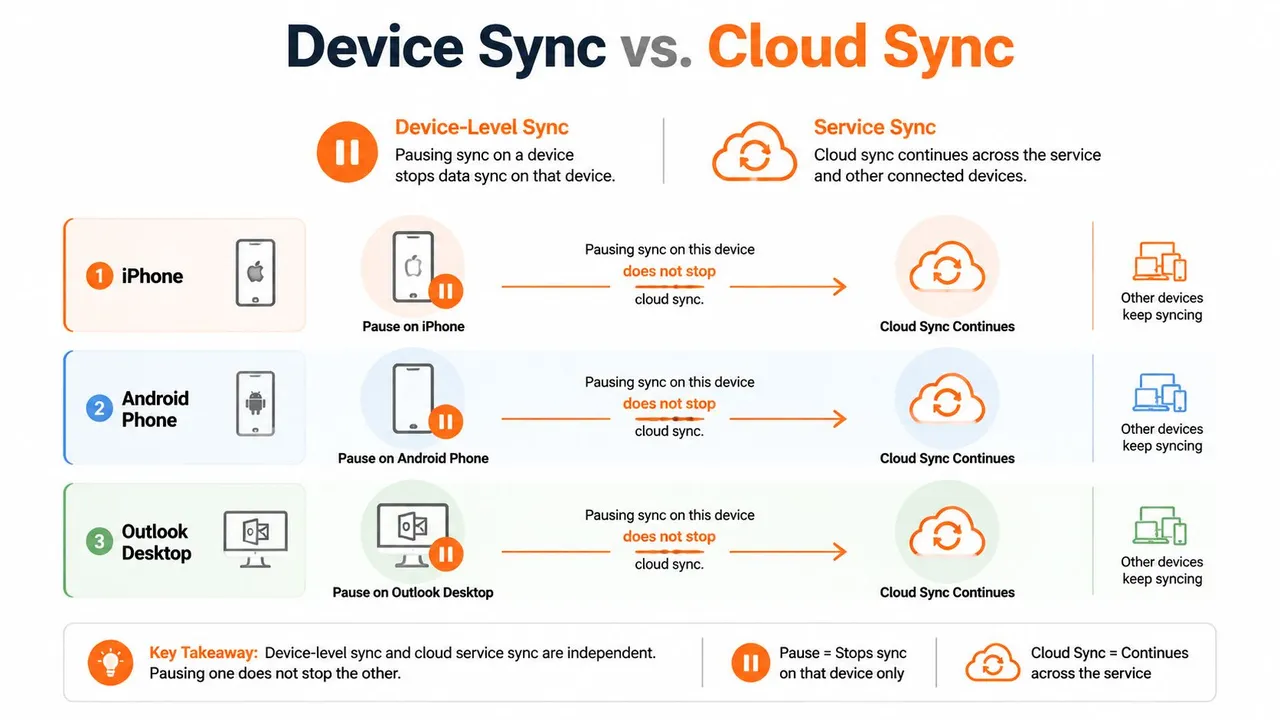
A phone or desktop client can make a sync look finished when only the local app changed. The cloud job may still be active, and that is the part people miss when they assume one toggle controls everything.
iPhone and Android settings
On mobile, calendar accounts are often controlled through the device’s account settings rather than the sync service itself. Turning off sync on the phone can quiet that device without touching the cloud job that still runs elsewhere. It changes the local display and local updates, not the source relationship.
That distinction matters if you are checking whether a failure lives on the device or in the account connection. A new event can still reach the cloud calendar even after the phone stops showing updates. If that happens, the device setting is only part of the setup.
For iPhone-specific guidance, see our guide on calendar sync with iPhone. Android follows the same basic idea, but the exact menus vary by device and account type, so check the account and sync sections before assuming the service itself has been stopped.
Outlook desktop sync settings
Outlook desktop has its own account settings and local caching behavior. If you stop syncing there, you may only be changing what that desktop client uploads or downloads. Another signed-in device, or the cloud service itself, can still keep moving events around.
That is why a device-level change needs a test, not a guess. Make a small source event change and watch where it appears. If it still propagates through the cloud, the desktop setting only changed the local view.
For people who also work with dictated notes and source capture on Mac, a process resource like master voice memos on Mac can help keep the capture side organized while you are untangling calendar layers. Clean inputs make it easier to see which layer is still active.
If the event still spreads after a device toggle, the service layer is still alive.
That is the split to keep in mind. Device sync shows data. Cloud sync moves data. They are related, but they are not the same switch.
Keeping or Removing the Events You Already Copied
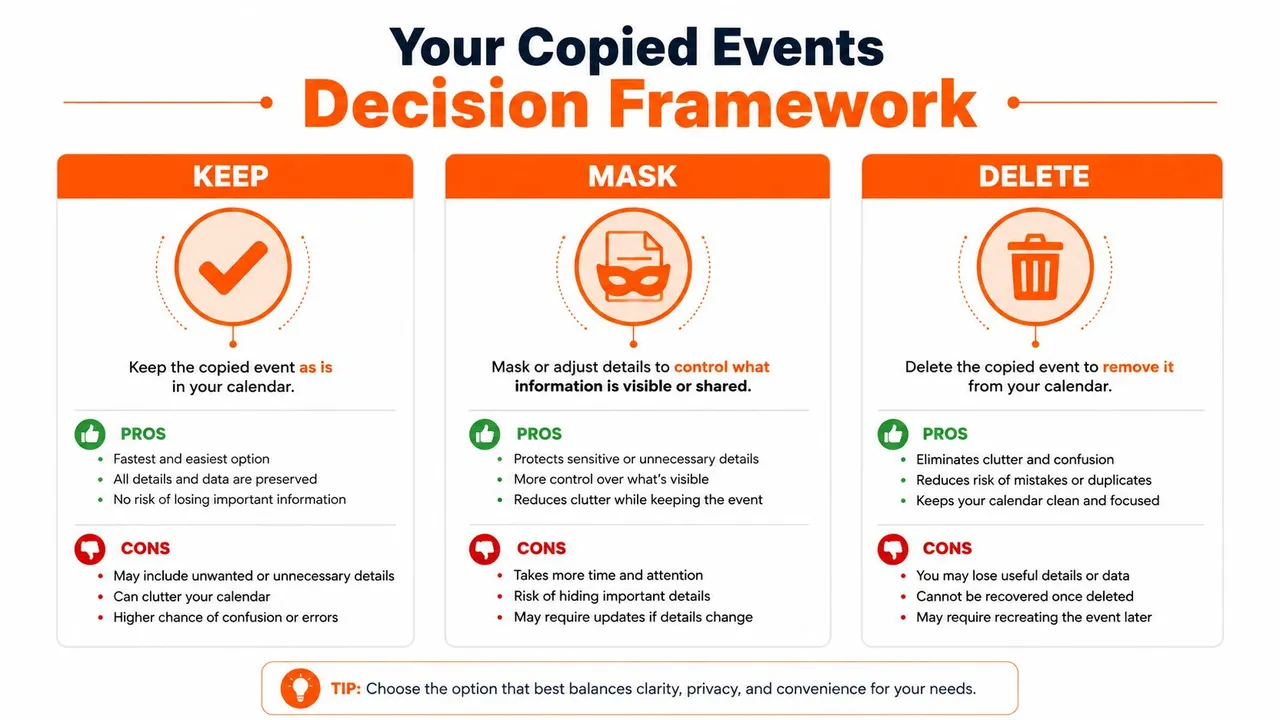
Stopping the sync doesn’t touch the copies that already landed on the target calendar. Those events still exist, and what you do with them should depend on why you’re stopping the sync in the first place. Privacy, history, and downstream automation all point to different cleanup choices.
Keep when history matters
Keeping copied events makes sense when the duplicate record is still useful. That’s common in project handoffs, shared availability tracking, or cases where the target calendar needs a historical trail. If the copied items feed reminders, automation, or team visibility, leaving them alone may be the lowest-risk move.
The catch is privacy. If the source calendar is still shared publicly or broadly, keeping the copy doesn’t solve exposure. It only preserves continuity.
Mask when the event should stay, but details should shrink
Masking is the middle path. Rename the event, strip out sensitive details, or reduce what the copied item reveals so the calendar still works without broadcasting everything. That’s useful when the timing matters more than the title, location, or notes.
This is often the right choice for shared visibility setups. You keep the operational value of the event while limiting what other people can read.
Delete when the copied event no longer belongs there
Delete the copied events if the target calendar should no longer carry them. That works best when the sync was accidental, the relationship ended, or the copies create more confusion than value. In Google and Outlook, bulk deletion is efficient, but it’s also final once confirmed.
The migrate Outlook calendar to Google guide is a useful companion if you’re cleaning up after a cross-platform move, because migration and rollback often touch the same calendars in reverse. If you’re removing old copies, make sure you’re not deleting the only record you still need.
Common Mistakes When Rolling Back a Sync
The same mistakes show up again and again when people try to undo a sync. The first is treating pause like delete. Pause is temporary. Delete removes the job. If events keep flowing later, the sync was probably never removed, it was only suspended.
A second mistake is forgetting the mobile layer. People turn something off on a desktop client, then a phone or tablet wakes up and resumes the old behavior from cached settings. The diagnostic question is simple. Did you stop the service, or only the app on one device?
The third mistake is removing the source calendar while the target copy is still active. That creates a mess because the mirror can keep reacting even after the original is gone, especially if another device still has a live link. If the source is being retired, stop the sync first, then clean up the source relationship second.
The fourth mistake is revoking the wrong account. That happens most often when one person manages several Google or Microsoft identities. If the wrong account was removed, check which identity the sync job uses, then restore or replace the permission on the correct one.
For broader integration hygiene, the best practices for app integration guide is a solid reference when you’re dealing with apps that attach to more than one service. Calendar sync cleanup is really integration cleanup, just with higher stakes because the output lands on everyone’s schedule.
Rollback Checklist and When to Pause Instead of Tearing Down
Start with the service layer, then the account permission, then the device layer. If you want a temporary break, pause. If you want future copies to stop but may come back later, disable. If you want the relationship gone, delete and revoke access at the provider too.
Use pause when the problem is temporary, like a noisy source calendar, a transition week, or a short-term double-booking risk. Use full teardown when the pairing was wrong, the engagement is over, or privacy demands a hard cutoff. Keep the copied events only if they still serve a purpose.
If you ever re-enable syncing later, save the source and target pairings, the account owner, and the reason you stopped it. That makes the next activation cleaner and keeps you from rebuilding the same bad setup twice.
SyncThemCalendars gives you the same control model this guide depends on, real-time calendar sync, one-way or two-way flows, and the ability to stop or adjust a connection without guessing which layer is still active. If you’re sorting out a messy calendar setup or planning a safer rollback, visit SyncThemCalendars and review the options before you make the next change.
Ready to sync your calendars?
Keep your Google, Outlook and Apple iCloud calendars in sync automatically. 2-minute setup, no credit card required.
Get started freeKeep reading
More in Tutorials

How to Add Gmail Calendar to Outlook Without Duplicates
See how to add Gmail Calendar to Outlook by subscribing for a live view or using two-way sync, then avoid privacy leaks and duplicate events.

Export Outlook Calendar to Google: A 2026 Step-by-Step Guide
Learn how to export Outlook calendar to Google with clear steps for ICS and CSV imports, recurring-event checks, and verification tips that work in 2026.

How to Synchronize Outlook Calendar Across Platforms
Learn how to synchronize Outlook calendar events with Google and Apple iCloud. Master two-way sync, privacy controls, and real-time availability mapping.