







How Do You Sync Ical with Google Calendar
How do you sync ical with google calendar. Learn how to sync iCal with Google Calendar using subscriptions, imports, and real-time two-way sync. Step-by-step
The popular advice is to paste an iCloud link into Google Calendar and call the job done. That works only if you accept a one-way mirror, delayed updates, and limited control over event data. If you’re asking, “How do you sync iCal with Google Calendar?” the useful answer depends on what you mean by sync: moving old events, showing availability, or keeping both calendars aligned.
The underlying technology is iCalendar, a service-independent format first published through IETF RFC 2445 and revised as RFC 5545 in September 2009. Google Calendar uses the format for .ics export and import, but shared file standards don’t create a native, two-way Apple-to-Google connection. You still have to choose between a live feed subscription, a one-time file migration, or a third-party synchronization service.
Why Syncing iCal with Google Calendar Is Harder Than It Looks
Apple Calendar and Google Calendar can exchange structured event data, but they don’t behave like two views of one database. They’re separate ecosystems with different account permissions, refresh schedules, attendee handling, and privacy controls. The shared .ics format makes transfer possible, yet it doesn’t guarantee that an edit made in one calendar will return to the other.
That distinction matters because sync has three separate dimensions:
- Latency: How quickly does a new or edited event appear?
- Directionality: Does information travel one way, or can both calendars create and update events?
- Privacy: Who can access titles, locations, descriptions, attendees, and other event fields?
Google’s documentation confirms that exported calendar data can include event start and end times, recurrence information, invitee responses, titles, descriptions, locations, and creation or modification timestamps. Those fields explain why .ics is useful for transfer, but they also show why a calendar feed can reveal more than simple free and busy status.
Practical rule: Choose the sync method based on the consequence of a stale calendar, not on how easy the initial setup looks.
For an archive migration, use .ics export and import. For passive availability mirroring, subscribe to an iCal feed. For client-facing scheduling, shared team work, or booking workflows, use a service designed for two-way synchronization and review how it handles credentials and event retention. Apple and Google don’t provide a native bridge that solves all three problems at once.
Subscribing to an iCal Feed in Google Calendar
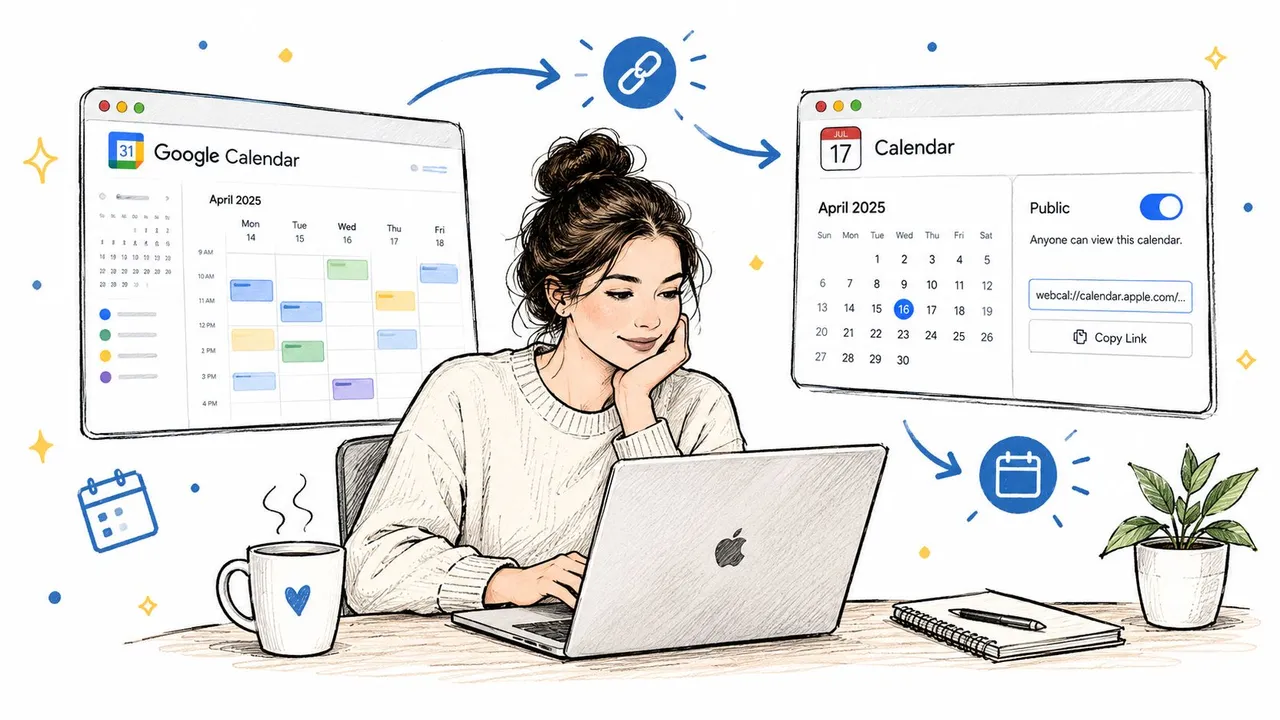
A URL subscription is the closest thing to a native iCal-to-Google connection. Google Calendar subscribes to an online .ics feed and periodically retrieves changes. It’s simple, but it’s one-way: Apple sends a feed to Google, while changes made in Google don’t write back to Apple.
Publish the Apple calendar
On a Mac, open Apple Calendar and locate the calendar you want to share. Depending on the account and macOS version, use the calendar’s sharing or publishing controls, enable Public Calendar, and copy the generated webcal:// address. If Google rejects that address, convert the scheme to an HTTPS URL where appropriate, without changing the rest of the feed address.
A public feed is convenient because Google needs a reachable URL. It also creates the method’s central privacy risk. Anyone who obtains the feed address may be able to retrieve the calendar data exposed through that feed, so don’t publish a calendar containing sensitive titles, private notes, client information, or confidential locations.
Add the feed in Google Calendar
Use Google Calendar in a desktop browser, not the mobile app:
- Open Google Calendar.
- In the left sidebar, find Other calendars.
- Click the plus icon beside it.
- Select From URL.
- Paste the iCal feed address.
- Click Add calendar.
Google’s documented subscription workflow is also summarized in this guide to adding an ICS feed to Google Calendar, but the labels in Google’s interface are the important part. The calendar should appear under Other calendars, where you can rename it, assign a color, and control whether it’s displayed.
Set expectations before relying on it
A subscription isn’t a live connection. Google Calendar updates subscribed iCal calendars on its own schedule, and an independent Google Calendar support discussion about delayed external-calendar updates cites guidance that changes may take up to 12 hours to appear. In practice, you should treat the feed as a delayed mirror rather than a real-time scheduling system.
The method is appropriate when Google users only need to see Apple’s availability or read a relatively stable personal calendar. It isn’t appropriate when a Google-created appointment must immediately block time in Apple Calendar, or when exposing a public feed would violate your privacy requirements.
Importing and Exporting iCal Files
Use .ics import and export when you’re moving calendar history. Don’t use it as a daily synchronization method. An imported file is a snapshot, so later changes in Apple Calendar won’t update the copy in Google Calendar, and Google edits won’t return to Apple.
Export from Apple Calendar
On your Mac, open Apple Calendar and select the calendar you want to move. Choose File, then Export, then Export again, and save the resulting .ics file somewhere you can locate easily. If you need several calendars, export them separately and name each file clearly before uploading.
Before exporting, clean up obsolete calendars and review recurring events. Calendar applications can interpret recurrence rules differently, and an archive may not reproduce every attendee response, attachment, or calendar-specific property exactly as it appeared in Apple Calendar.
Import into Google Calendar
In Google Calendar on the web:
- Open Settings.
- Select Import & export.
- Choose the
.icsfile from your computer. - Select the destination Google calendar.
- Start the import and review the results.
Google says its calendar export uses iCalendar format and that imported files can be .ics or .csv. The format carries structured fields such as event times, recurrence data, titles, descriptions, locations, invitee responses, and timestamps, but importing doesn’t turn the file into a continuing connection.
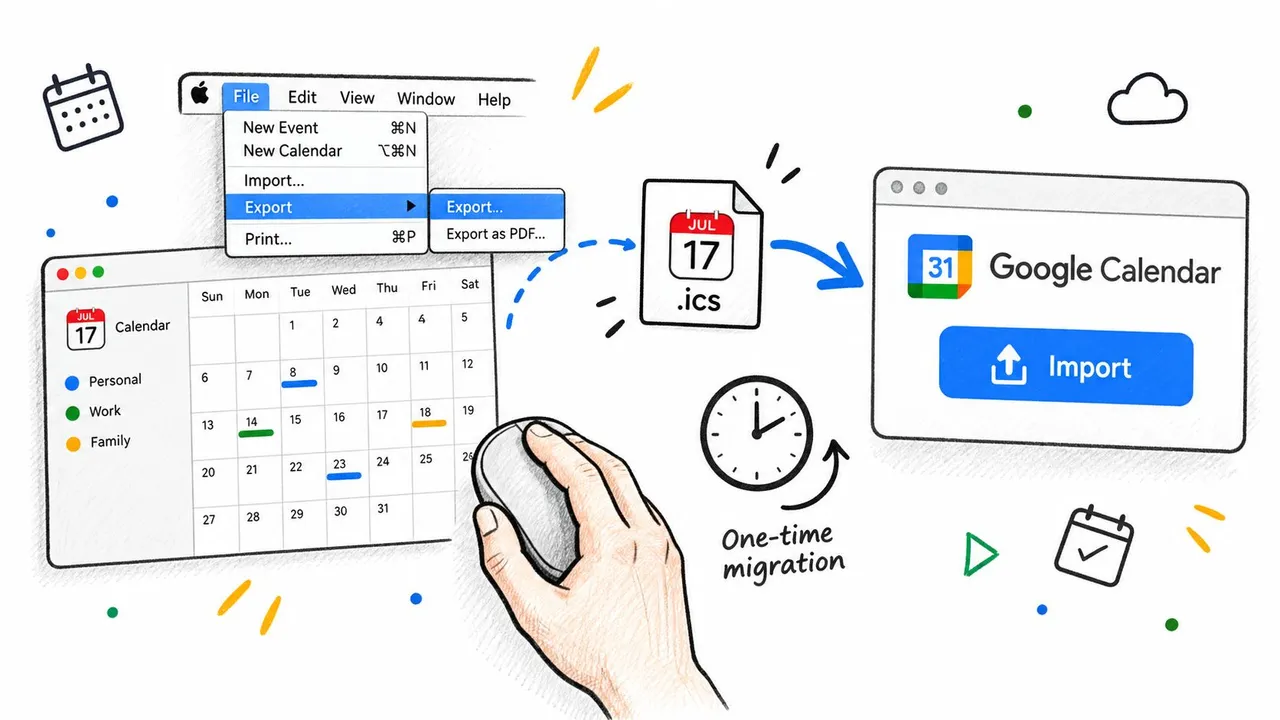
The cleanest migration approach is to import into a new, clearly named Google calendar rather than mixing historical events into your primary calendar immediately. Check recurring meetings, time zones, invitees, and any events that matter operationally. If the result is wrong, remove the imported calendar and repeat the migration instead of trying to untangle individual duplicates across your main schedule.
Comparing Subscription Import and Real-Time Sync
These methods solve different problems. Subscription is a delayed, one-way mirror. Import is a static transfer. A real-time synchronization service is designed to copy changes between accounts and calendars in both directions, but it introduces an external provider that must be evaluated for security and data handling.
| Method | Latency | Direction | Privacy | Best For |
|---|---|---|---|---|
| iCal URL subscription | Delayed refresh, potentially up to 12 hours according to Google Calendar support guidance | One-way, Apple to Google | A feed URL can expose the event data included in the published calendar | Read-only mirroring and basic availability visibility |
.ics import | One-time snapshot | One-way file transfer | Data stays within the accounts and devices used for the export and import | Historical migration and archival transfer |
| Real-time sync service | Near-real-time operation, depending on the provider | Two-way or configurable multi-way copying | Requires careful review of credentials, retention, encryption, and field masking | Live cross-platform scheduling and shared workflows |
The distinction between free/busy mirroring and full event replication is especially important. A feed may be enough when a colleague only needs to avoid booking over an occupied period. It’s a poor fit when they need accurate RSVP status, notes, attachments, or dependable edits across both platforms.
The broader market reflects how common these interoperability needs have become. A 2026 calendar and scheduling software market forecast valued the global market at USD 2.59 billion in 2025, projected USD 2.79 billion in 2026 and USD 4.73 billion by 2032, with a projected 8.94% CAGR. Those figures are a forecast, not proof that any individual sync method will work for your workflow, but they show that calendar coordination has grown beyond a minor app setting.
My recommendation is straightforward:
- Choose subscription for passive, read-only visibility.
- Choose import for a one-time archive move.
- Choose real-time synchronization when a booking or edit must travel between calendars quickly and reliably.
A detailed comparison of real-time calendar synchronization is useful if your decision depends on more than displaying events.
When You Need True Two-Way Sync
Subscription and import fail at the same moment: someone creates or changes an event on the other side.
A consultant may add a client call to Google Calendar, while their iPhone relies on a subscribed iCloud feed. The appointment can remain absent from Apple Calendar until the next refresh. A colleague may create an event on an iPad, while the team relies on a Google Calendar that won’t receive the change through a one-way feed. In both situations, the problem isn’t the initial connection. It’s the missing return path.
The operational test
Ask one question: If an event is created, edited, or deleted in either calendar, must the other calendar reflect it before another person schedules time?
If the answer is yes, a subscription isn’t enough. It may show an event eventually, but delayed availability can still produce a double-booking. A file import is even less suitable because it never checks for later changes.
Two-way sync is justified for:
- Sales and consultation calls, where a booking must block availability across personal and work calendars.
- Booking pages, where the scheduling system needs a current view of more than one calendar.
- Shared team calendars, where Apple and Google users create events in different systems.
- Executive support, where an assistant manages calendars belonging to different accounts or platforms.
What a managed service should handle
A suitable service should let you select the source and target calendars, choose one-way or two-way directionality, and control which event fields are copied. It should also explain how it handles recurring events, attendee responses, authentication, encryption, deletion, and disconnection.
SyncThemCalendars is one option that connects Google Calendar, Microsoft Outlook or Office 365, and Apple Calendar through configurable one-way, two-way, or multi-way event copies. Its published capabilities include free/busy mirroring, field masking, encrypted credential handling, and background synchronization, so it fits workflows that need more control than a public iCal URL.
Scheduling rule: If stale availability can cause a missed meeting, a lost booking, or an operational conflict, don’t label a polling feed “real-time.”
The trade-off is clear. You gain cross-platform updates and configurable copying, but you also place account access with an external provider. Review its privacy policy, retention terms, encryption claims, and cancellation process before connecting calendars that contain confidential information.
Fixing Duplicate Events and Sync Failures
Most broken calendar setups aren’t mysterious. They come from connecting the same source more than once, hiding the destination calendar, using an outdated feed, or expecting a one-way method to carry information it doesn’t support.
Duplicate events after an import
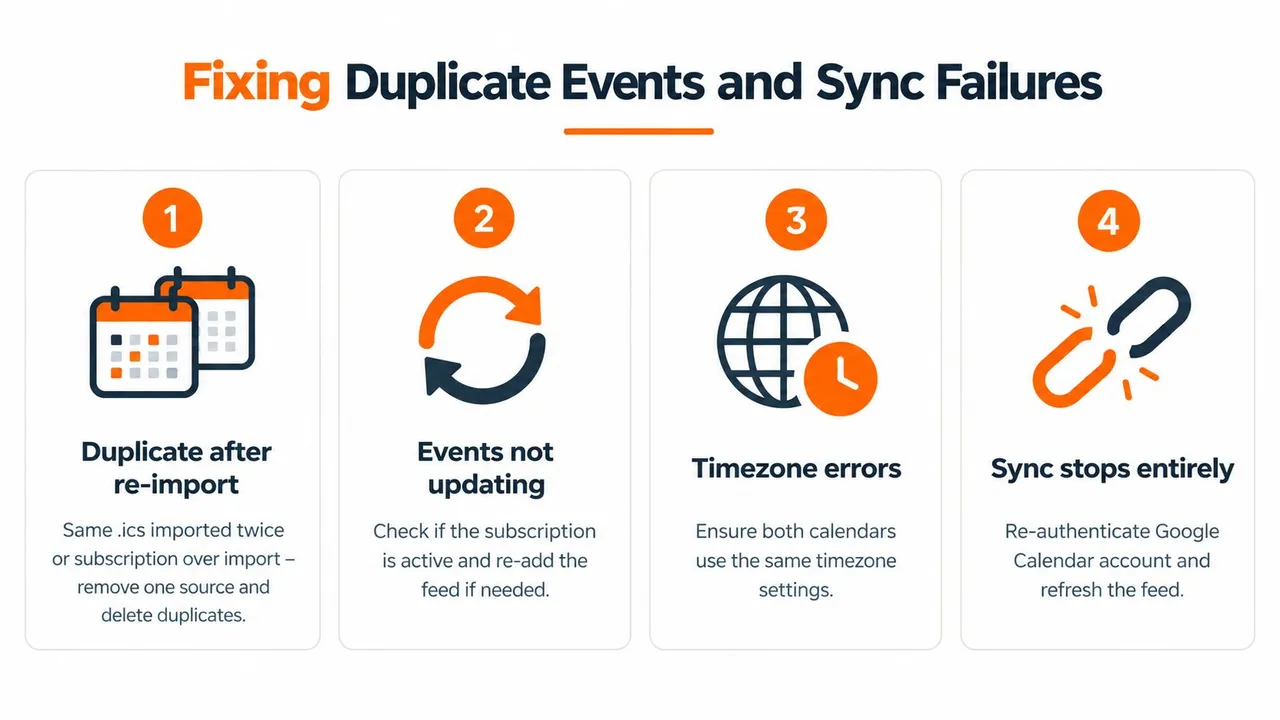
The usual cause is layered data. You imported an .ics file, then subscribed to the same Apple calendar, or imported the same file more than once. Google is displaying multiple copies because you gave it multiple sources, not because the feed needs another refresh.
Open Google Calendar settings and inspect the calendar list. Delete the imported calendar if the subscription is now your chosen source, or remove the subscription if you want a static archive. Don’t keep both active unless you deliberately want two separate representations.
Apple and Google community discussions also describe duplicate events when the same calendar is connected through a Google account and an iCal subscription. The practical fix is to disable one route, as discussed in this calendar sync troubleshooting guide.
Events are missing in one direction
Start with visibility, not advanced settings. Check that the calendar is enabled in Google Calendar’s left sidebar and that the Apple source is still published. If the feed was regenerated, copied incorrectly, or made private, the old URL may no longer provide usable data.
On macOS, return to the calendar’s publishing controls and copy the current feed address again. In Google Calendar, remove the stale subscription and add the current URL. Also review calendar display settings, including whether declined events are hidden.
Some Google-connected calendars require manual enablement in sync settings. If the account was recently reauthenticated, sign in again and confirm that the specific calendar, not just the main account, is selected.
The feed is too slow
A subscription refresh is controlled by Google. You can’t force it to behave like a live event relay, and repeatedly removing and re-adding the same feed won’t create true real-time behavior. If the delay is unacceptable, move to a synchronization service rather than spending time trying to tune a polling interval you don’t control.
Attendees, notes, or attachments disappear
An iCal feed can carry structured event fields, but a subscription isn’t a promise that every platform-specific property will behave identically. Attendee responses, notes, attachments, color categories, and recurring-event edits may not map cleanly between Apple and Google.
For a simple availability mirror, that loss may be acceptable. For client scheduling or collaborative meetings, it isn’t. Use a method that explicitly maps invitees and event fields, then test a newly created event, an edit, a cancellation, and a recurring appointment before relying on it.
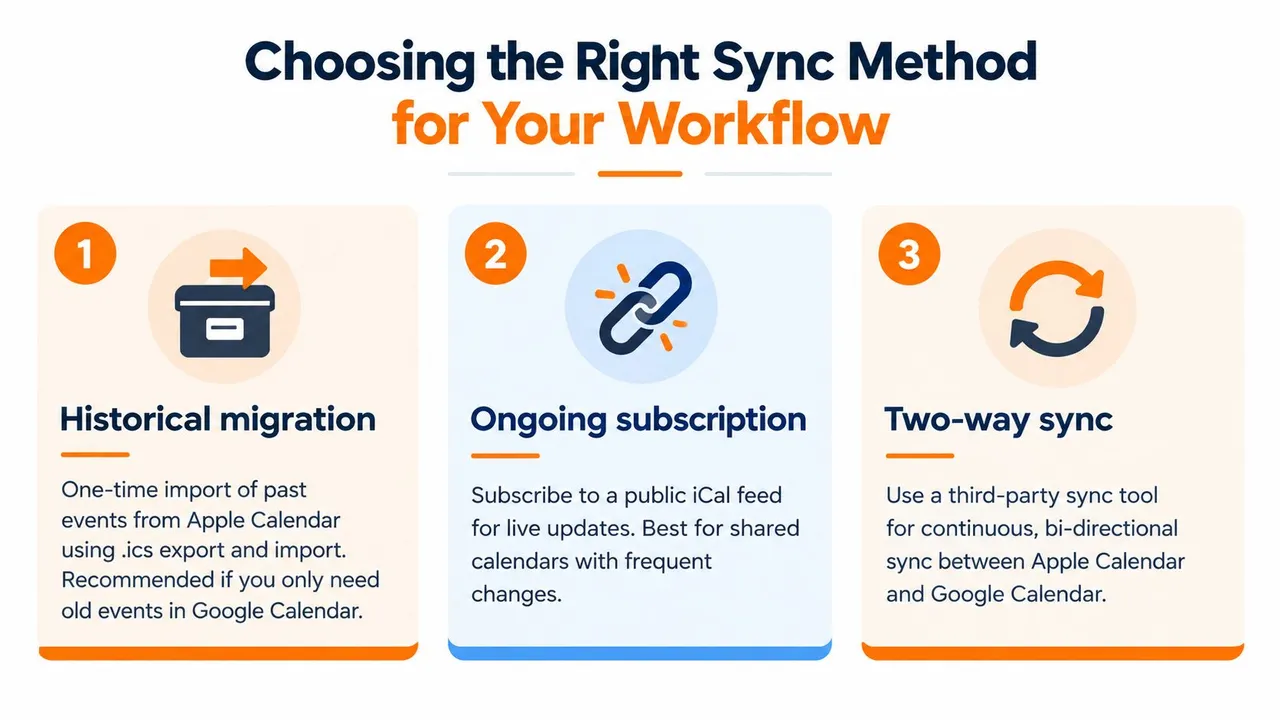
Choosing the Right Sync Method for Your Workflow
The correct answer to “How do you sync iCal with Google Calendar?” starts with the outcome you need, not the app you happen to open first.
Historical migration
If your priority is moving old Apple Calendar events into Google Calendar, export an .ics file and import it into a separate destination calendar. This keeps the migration reversible and makes it easier to inspect recurring events and attendee information before combining anything with your primary schedule.
Don’t expect the imported copy to remain aligned. Future edits won’t propagate, and recurrence or response details may require manual checking.
Availability mirroring
If another person only needs to know when you’re occupied, use a published iCal feed subscription. It requires less infrastructure than a two-way service and can keep the displayed event details limited, especially if you publish a calendar designed for availability rather than one containing private descriptions.
Treat the feed URL as sensitive. A public address can expose the fields included in the published calendar, and Google may not refresh changes quickly enough for booking decisions that require current availability.
Continuous two-way coordination
If events must travel between Apple and Google after creation, editing, and deletion, use a dedicated synchronization service. Look for configurable directionality, free/busy controls, field masking, clear credential handling, and documented behavior for recurring events and attendees.
SyncThemCalendars supports configurable one-way, two-way, and multi-way copies between Apple Calendar, Google Calendar, and Microsoft Outlook or Office 365. It also provides free/busy mirroring and controls for transforming copied fields, which makes it relevant when you need live coordination without exposing every event detail.
Before adopting any third-party service, read its privacy and retention policies. Users handling regulated or highly confidential information should prefer native account connections or read-only mirroring where possible, and should avoid publishing sensitive event details through an open feed.
The market’s continued expansion is consistent with a simple reality: people work across more than one calendar ecosystem. The iCalendar standard makes exchange possible, but your workflow determines whether a static file, delayed subscription, or managed two-way connection is appropriate.
If you need Apple and Google calendars to stay aligned during active scheduling, SyncThemCalendars offers configurable one-way, two-way, and multi-way event synchronization, plus free/busy mirroring and field controls. Review your privacy requirements, choose the calendars that need a live connection, and visit SyncThemCalendars to test whether its workflow fits your setup.
Ready to sync your calendars?
Keep your Google, Outlook and Apple iCloud calendars in sync automatically. 2-minute setup, no credit card required.
Get started freeKeep reading
More in Guides

Synchronize Apple Calendar with Outlook: A 2026 Guide
Step-by-step guide: Synchronize Apple Calendar with Outlook on Windows, iPhone and Mac, with two-way options, privacy trade-offs and fixes.

SyncThemCalendars Quick Setup Walkthrough
Master the SyncThemCalendars quick setup in minutes. Connect Google, Outlook, or iCloud, configure privacy masking, and verify your first sync effortlessly.

Merging Google Calendars: The Complete Guide for 2026
Merging Google Calendars. Learn the best ways to merge Google Calendars. Compare import methods, sync tools, and automation strategies