







How to Merge Calendars Across Google, Outlook, and Apple
Learn how to merge calendars from Google, Outlook, and Apple with native methods and SyncThemCalendars. Step-by-step tutorials, privacy tips, and workflows.
You’ve got three calendars, two meeting links, and one afternoon where a client swears they sent a time change. Your work calendar says one thing, your personal Google Calendar says another, and Outlook has the updated invite sitting in a different place entirely. That’s the moment many individuals start looking up how to merge calendars, and it usually happens after the first double-booking.
The hard part isn’t adding another view. It’s deciding whether you need a one-time transfer, a shared visibility layer, or a true live sync that keeps Google, Outlook, and Apple Calendar aligned without constant cleanup. Once you understand that difference, the rest of the process gets a lot less frustrating.
Why Your Calendars Keep Fighting Each Other
A freelancer misses a discovery call because the client’s Outlook invite never reached the personal Google Calendar they check on their phone. A sales rep blocks a slot for a prospect, then accepts a family event in Apple Calendar, only to discover both meetings now overlap. These aren’t edge cases, they’re what happens when each account holds part of the schedule and nobody has the full picture.
The issue is fragmentation. Google, Microsoft, and Apple all grew up around separate accounts, separate permissions, and separate event stores, so a merged view is usually something you build on top, not something the platform gives you natively. That’s why how to merge calendars is really a scheduling infrastructure problem, not a cosmetic one.
Who feels the pain most
Freelancers usually bounce between client calendars and their own availability. Entrepreneurs do the same across venture, partner, and personal accounts. Students and academics often need a clean view across institutional and private schedules, especially when class times and office hours collide.
Practical rule: if two calendars can accept meetings independently, they can also create conflict independently.
The pain shows up in plain ways. A person sees an open afternoon in one calendar, books something there, and later finds out another account already owns that slot. The goal of merging is to stop that gap between what’s visible and what’s booked.
That’s also why “just share it” isn’t always enough. A shared calendar can help you see more, but it doesn’t always create a single editable schedule across systems. If you need one operational calendar, you need to be deliberate about the method you choose.
Native Merge Methods From the Big Three
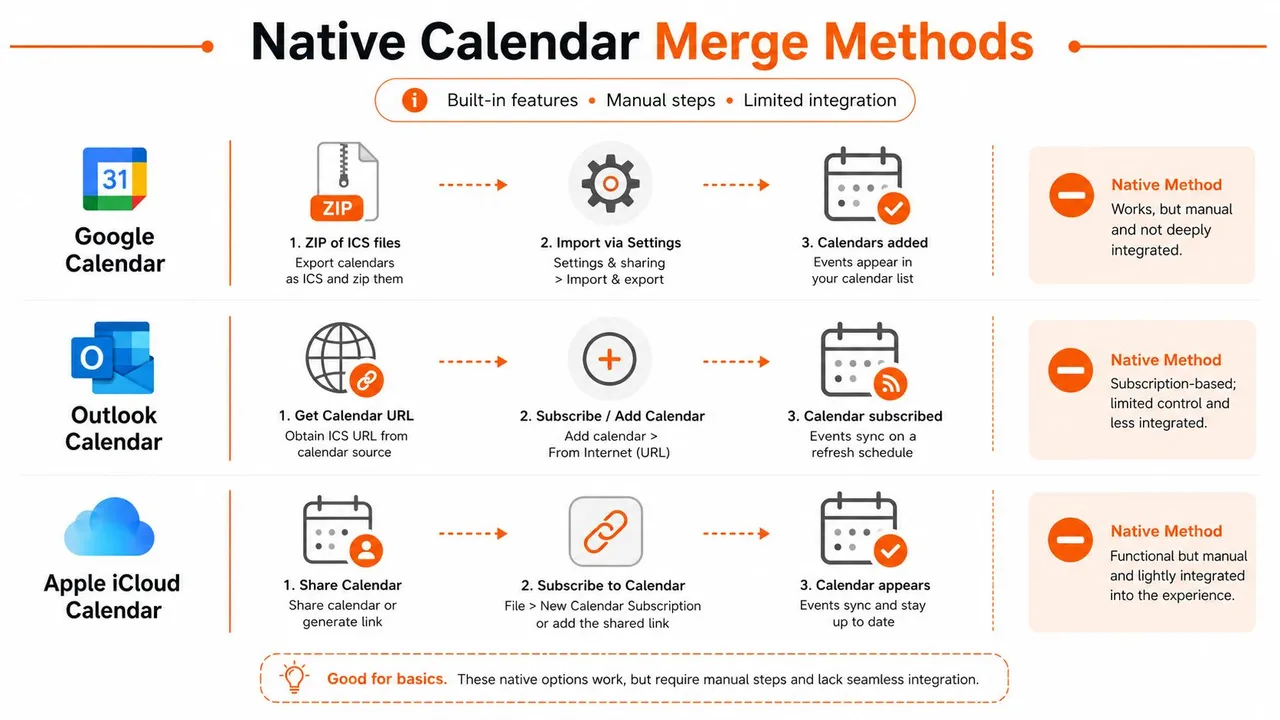
The big platforms have never treated merging as one magical switch. They’ve historically treated it as either file transfer or permission-based sharing, which is why native workflows often feel more like moving data than syncing a living schedule.
Google Calendar and Outlook Calendar
Google’s documented merge path is export then import. The export produces a downloadable ZIP that contains ICS files, and the import happens through Settings → Import & export into the destination calendar. Google’s sharing model also supports see only free/busy and see all event details, which shows that many users don’t really want a copy of everything, they want availability without unnecessary disclosure.
Outlook follows the same overall pattern, but with a PST file instead of ICS. Microsoft’s support instructions direct users to export the calendar folder first, then import that file into the destination account, and choose Do not import duplicates to reduce repeated entries. Microsoft also notes that users may have different Outlook Data Files, which is a reminder that the merge is tied to data ownership and destination choice, not just display.
Apple Calendar and the sharing-first model
Apple’s ecosystem leans more toward sharing and subscription than file-based consolidation. In practice, that means people often combine calendars by sharing or subscribing rather than creating one native merged store. That works well if you want visibility, but it doesn’t behave like a single editable calendar after the fact.
Merging in native tools is usually a snapshot, not a living relationship.
That distinction matters. An import copies event objects into a destination calendar, while sharing only mirrors what you can see. If your goal is one consolidated schedule, import is closer to what you need. If your goal is ongoing alignment across accounts, native sharing alone will leave gaps.
Doing the Merge Yourself Without Extra Tools
The most reliable manual approach starts with a choice often skipped: pick one calendar as the master destination. If you don’t make that decision early, future events end up split across accounts, and you’ll spend more time hunting ownership than using the calendar.
For Google Calendar, use a browser on desktop, not a mobile app. Export the source calendar, unzip the download, then import the relevant .ics file into the destination through the import settings. The workflow is documented as a desktop process, and mobile apps aren’t built for that export/import sequence, so this is one of those tasks that really does belong on a computer. If you want a clean file to begin with, this guide on how to create an ICS file is a useful companion.
Outlook needs duplicate discipline
Outlook’s merge path is just as hands-on. Export the source calendar folder to a PST, then import it into the destination account and use Do not import duplicates. That duplicate-setting matters because repeated imports can quickly clutter the destination with repeated meetings, reminders, and recurring blocks, which is why merging multiple Outlook calendars takes a bit of planning.
After either platform import, do a verification pass. Open a few recurring events, check a couple of invite-heavy meetings, and make sure the times landed where you expected. Manual merging is a batch operation, not live synchronization, so it solves the current snapshot but won’t keep future changes aligned.
One more warning is easy to miss. Sharing a calendar and importing a calendar are not the same thing. Sharing helps other accounts see availability, but it doesn’t keep event copies synchronized after the transfer. If both calendars stay active, you’ll need a different strategy later.
Real Time Sync With SyncThemCalendars
If you’re tired of re-exporting files every time a meeting changes, real-time sync is the cleaner model. SyncThemCalendars connects Google Calendar, Microsoft Outlook, and Apple Calendar, then copies upcoming events in the background so the calendars stay aligned without repeated manual imports.
The setup is straightforward in the browser. Connect the calendars, choose the direction you want, then decide whether each relationship should be one-way, two-way, or multi-way. That direction choice matters because a freelance client calendar, a personal calendar, and a team calendar don’t all need the same rules. The product also offers free/busy mirroring and field controls for copied event details, which is useful when you need alignment without exposing every title or note. Its two-way calendar sync feature is the clearest fit when both calendars stay active.
A nice detail is the setup time. The service is designed as a web app with an estimated two-minute setup, and it offers a 14-day free trial without a credit card. Plan tiers are Basic, Premium, and Professional, with active sync limits of 5, 16, and 36 respectively, while the account can hold unlimited calendars. Those limits apply to active syncs, not to the number of events, which makes the model easier to reason about for people juggling several calendars.
Here’s the part that usually gets overlooked. Real-time sync isn’t just about convenience, it’s about reducing the gap between a booking change and when every other calendar reflects it. That’s the missing piece in most merge tutorials, because batch import can combine calendars, but it can’t keep them aligned after the fact.
Keeping Private Details Out of Merged Views
Individuals often begin with a simple goal: to see everything in one place. Then they realize that “everything” includes client names, doctor appointments, interview notes, or family events they’d rather not expose to coworkers. That’s why privacy masking belongs in any serious conversation about merging calendars.
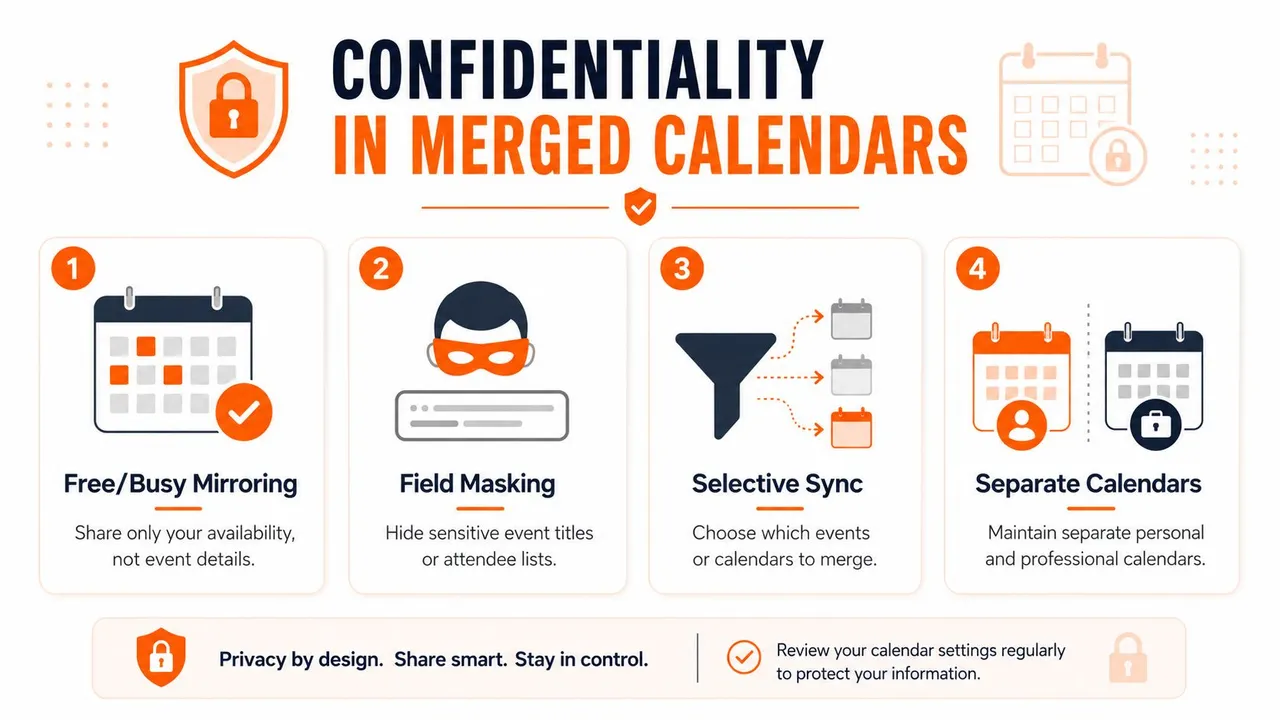
Google’s permission model already points in that direction with free/busy-only sharing alongside full-detail sharing. That’s the clearest sign that calendar merging is often a privacy-and-availability problem, not just a copy problem. If someone only needs to know you’re busy, don’t force your calendar to reveal why.
Choose visibility, not just consolidation
A freelancer can mirror work availability into a personal calendar without exposing the project title. A manager can give a team access to open slots without publishing the details of every one-on-one. The point is not to hide everything, it’s to keep the minimum useful signal visible.
Keep the conflict signal, remove the sensitive context.
That’s where field masking helps. Titles, locations, and descriptions don’t always need to travel with the event. If the only thing another calendar needs is the occupied time block, a blank or generic label is often enough.
The best pattern is usually selective, not absolute. Merge the calendars that need to avoid conflicts, but keep separate sources when privacy is more important than convenience. That gives you a schedule that works in practice without turning every account into a transparent logbook.
Workflows for Your Exact Role
The right calendar setup depends on your job, not just your app. A freelancer, an entrepreneur, a sales professional, and a team lead all have different privacy pressure, different meeting volume, and different tolerance for duplicates. One workflow won’t fit all of them.
Match the method to the job
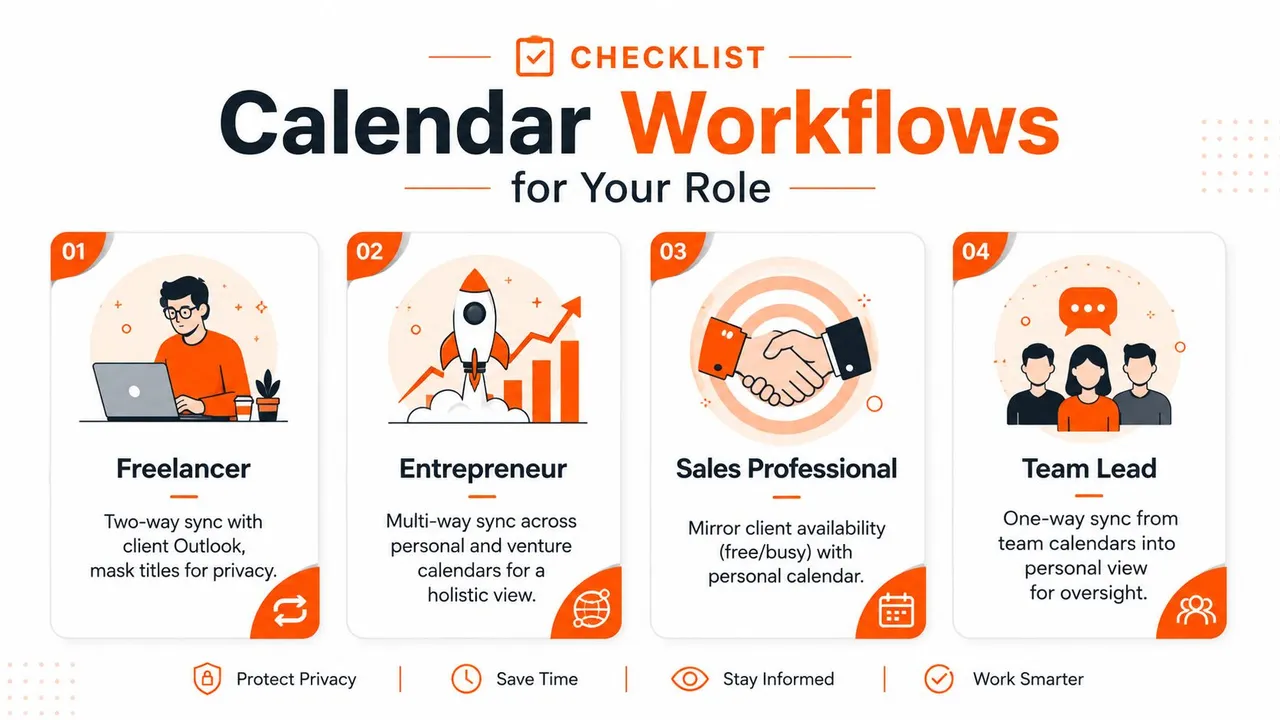
A freelancer working with client Outlook calendars usually needs two-way sync plus title masking, so both sides see the same availability without revealing private labels. An entrepreneur juggling personal and venture calendars often benefits from multi-way sync because complete visibility is the core challenge, not a single calendar pair.
Sales professionals usually need the simplest possible conflict avoidance, which often means mirroring free/busy between client and personal calendars instead of copying every detail. Team leads often want a one-way flow into a personal view so they can stay aware of what’s coming without creating accidental edits in the source schedule.
If you’re managing multiple calendar relationships, think in terms of rules, not just tools.
Integration planning starts to resemble broader workflow design. If you’re mapping calendars alongside email, social, and client systems, the same discipline shows up in resources like integration management for creators, where the core issue is choosing what should stay connected and what should stay separate.
The main decision is simple. Use native sharing or export when you only need a one-time consolidation, and use sync when the calendars remain active. Once you separate those two jobs, the rest becomes a matching exercise between privacy, ownership, and how often the schedule changes.
Fixing Broken Sync and Duplicates
When calendar merging breaks, it usually fails in one of three ways. Events duplicate after repeated imports, some items stay stale in the destination, or no one knows which calendar owns future edits. Those problems aren’t cosmetic, they’re signs that the workflow and the calendar relationship don’t match.
For native imports, start with the duplicate rule. Outlook’s Do not import duplicates setting exists for a reason, and Google imports can still create repeats if the same file gets pulled in more than once. If an import went wrong, it’s often easier to remove the destination calendar and rebuild it than to clean every event by hand.
When sync tools are the better fix
If events keep drifting or stopping, check the connection first, then confirm the calendars are still linked to the intended direction. For ongoing sync setups, it’s also worth checking plan limits, since SyncThemCalendars keeps active syncs capped by plan, Basic 5, Premium 16, and Professional 36. If you’ve outgrown a batch workflow or you’re seeing symptoms like missed updates, the service’s support note on Google calendars not syncing is a useful starting point.
The bigger fix is often conceptual. If both calendars are active, a one-time import will eventually feel broken because it was never designed to stay current. Switch to background sync when the schedule needs to keep moving without repeated file transfers.
If you want one setup that keeps Google, Outlook, and Apple Calendar aligned without constant re-imports, try SyncThemCalendars. It handles real-time calendar sync with one-way, two-way, and multi-way options, plus privacy controls that help you merge availability without exposing every event detail.
Ready to sync your calendars?
Keep your Google, Outlook and Apple iCloud calendars in sync automatically. 2-minute setup, no credit card required.
Get started freeKeep reading
More in Tutorials

How to Add Gmail Calendar to Outlook Without Duplicates
See how to add Gmail Calendar to Outlook by subscribing for a live view or using two-way sync, then avoid privacy leaks and duplicate events.

Export Outlook Calendar to Google: A 2026 Step-by-Step Guide
Learn how to export Outlook calendar to Google with clear steps for ICS and CSV imports, recurring-event checks, and verification tips that work in 2026.

How to Synchronize Outlook Calendar Across Platforms
Learn how to synchronize Outlook calendar events with Google and Apple iCloud. Master two-way sync, privacy controls, and real-time availability mapping.