







How to Sync Google Calendar to iPhone the Easy Way
Learn how to sync Google Calendar to iPhone with simple setup steps, app options, sync direction choices, and fixes for events that won't update.
You accept a meeting on Google Calendar from your laptop, then reach for your iPhone while walking out the door. The meeting isn’t there. A personal appointment is, but the work call has vanished, leaving you to search email, reopen your laptop, and hope you haven’t created a double booking.
The fix is usually straightforward. Google Calendar and Apple Calendar belong to different ecosystems, so your Google events won’t appear on the iPhone until you connect the Google account or use Google’s own iPhone app. This guide covers both official routes, how to confirm the right calendars are visible, what one-way and two-way syncing mean, and what to check when only one calendar stops updating.
Why Your Google Calendar and iPhone Aren’t Talking Yet
Your Google Calendar can be working perfectly on your computer while Apple’s built-in Calendar app shows nothing from it. The two services don’t automatically share account data just because you use them on the same phone. You need to connect the Google account to iPhone settings or sign in through the Google Calendar app.
Google provides both options in its official iPhone Calendar instructions. The first route adds Google at the account level, allowing Google events to appear inside Apple Calendar alongside calendars from other accounts. The second route installs Google Calendar from the App Store and keeps you inside Google’s interface.
The quick decision: Choose Apple Calendar if you want one combined view on your iPhone. Choose the Google Calendar app if you prefer Google’s familiar layout and features.
Consider a typical double-booking. Your client schedules a call on a shared Google calendar, while a dentist appointment remains in iCloud. With the native Apple Calendar route, both calendars can be displayed together, provided you select them in the Calendar app. With the Google app route, the Google event stays in Google’s environment, so you’ll need to open that app when checking your work schedule.
Neither method requires technical knowledge. The native setup is an account connection followed by a visibility check, while the app method is an installation and sign-in. Once your events appear, you can stop there. If they don’t, the later troubleshooting steps focus on partial failures, hidden calendars, and refresh settings rather than asking you to guess.
Connecting Your Google Account Through iPhone Settings
If you want Google events inside Apple Calendar, the account-level path takes only a few taps. It connects Google to iPhone settings, then makes your chosen Google calendars available beside calendars from other accounts.
Follow the account connection path
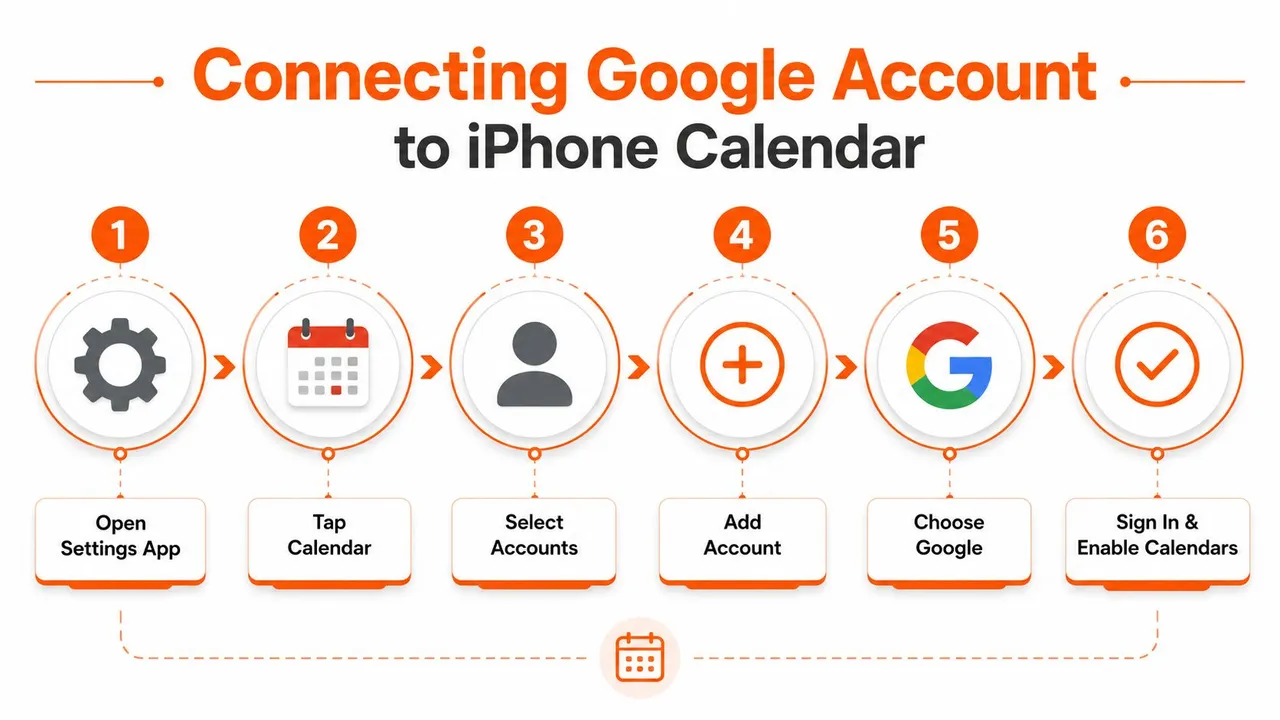
Open your iPhone and follow this route:
- Open Settings: Find and open the iPhone Settings app.
- Tap Calendar: Choose Calendar from the settings list.
- Open Accounts: Tap Accounts to view accounts already connected.
- Choose Add Account: Tap Add Account, then select Google.
- Sign in: Enter your Google account details and complete any verification prompts.
- Enable Calendars: Turn on the Calendars switch, then save the account.
The setting that controls calendar access is Calendars. If it stays off, the Google account can appear in iPhone settings while its events remain absent from Apple Calendar. Google’s iPhone sync guidance describes this account-level route for showing Google events in Apple’s native app.
Keep the connection limited to calendars
Because the account is added to iPhone, you may also see switches for Mail and Contacts. Leave them on if you want Google email and contacts in Apple’s apps. If your goal is scheduling only, turn Mail and Contacts off and keep Calendars on.
This choice keeps the account’s role clear: iPhone uses Google for calendar data, without adding other Google services to the built-in apps. Calendar syncing is also two-way for supported calendars. An event created or edited in Apple Calendar can generally return to Google, while a hidden calendar or disabled account switch can make only part of the data appear.
For another walkthrough of connecting Google Calendar to Apple Calendar, compare its tap sequence with the settings on your iPhone.
Confirm that your calendars are visible
Open Apple Calendar after saving the account. Tap Calendars at the bottom, locate the Google account, and select every calendar you want to see. An account can be connected while an individual calendar remains unchecked, which creates a quiet partial-sync problem: one calendar looks stale even though others continue updating.
Give the first sync a little time, then check the list again. If an event still does not appear, confirm that its calendar is selected rather than assuming the account connection failed. You can also watch this visual walkthrough before repeating the taps:
Using the Google Calendar App Instead of Apple Calendar
You don’t have to connect Google to Apple’s built-in app. Google also offers an official route through the Google Calendar app for iPhone. Install it from the App Store, sign in with the relevant Google account, and your events remain connected to that account across your devices, including your computer, as described in Google’s iPhone app instructions.
This option suits people who already spend most of their scheduling time in Google Calendar. The interface, shared calendars, and Google-specific workflow feel familiar, especially if you move between the web version and your phone throughout the day.
Compare the two approaches
| Feature | Apple Calendar App, account sync | Google Calendar App |
|---|---|---|
| Main experience | Apple’s native calendar interface | Google’s calendar interface |
| Google events | Shown inside Apple Calendar | Shown inside Google Calendar |
| Other iPhone calendars | Can appear alongside Google calendars | Stay outside the Google app unless separately added |
| Mail and Contacts connection | May be offered during account setup, but can be turned off | Uses the Google Calendar app experience |
| Best fit | People who want one combined iPhone calendar view | People who prefer Google’s layout and ecosystem |
The native app is useful when your day includes both Google and iCloud events. You can open one Calendar view and check the selected accounts together. The Google app is cleaner for someone whose schedule is almost entirely in Google and who doesn’t want Apple’s calendar interface involved.
Neither route is universally better. Pick the app you’ll check before accepting an invitation or creating an event. If your team sends Google invitations but your personal life lives in iCloud, Apple Calendar may be the more convenient viewing hub. If your work depends on Google’s calendar environment, the dedicated app may feel more natural.
Choosing Between One-Way and Two-Way Sync
Seeing an event on your iPhone doesn’t tell you how changes will travel. That distinction matters when you edit, create, or copy events between calendars.
When you add a Google account through iPhone settings and enable Calendars, the Google events shown in Apple Calendar are generally part of an account connection that supports changes in both directions. An event created or edited through Apple Calendar can update the Google calendar when you save it to the Google calendar, and a change made in Google Calendar can appear on the iPhone.
That behavior differs from a subscription, shared feed, or dedicated synchronization rule. One-way sync sends information from a source calendar to a destination. The destination can display copied events, but changes made there won’t necessarily travel back to the original.
Match the direction to the situation
A freelancer may receive a client calendar and only need to see busy periods on a personal iPhone. One-way mirroring can be appropriate because the client’s calendar remains the source, while the freelancer’s personal calendar receives availability information.
An entrepreneur may want work commitments visible on a personal calendar without exposing titles, notes, or locations. In that case, a controlled copy with masked fields can show that time is unavailable while keeping private details out of the destination account.
Practical rule: Before editing a synced event, identify the calendar that owns it. If you save a new event to an iCloud or local calendar instead of the connected Google calendar, it won’t become a Google event just because it appears beside Google events.
For people coordinating Google, Outlook, and iCloud accounts, two-way calendar sync guidance can help clarify which calendar should remain authoritative and which should receive copies. SyncThemCalendars is one option that supports one-way, two-way, or multi-way event synchronization across those ecosystems, with controls for mirroring free and busy information and masking fields such as titles, descriptions, or locations.
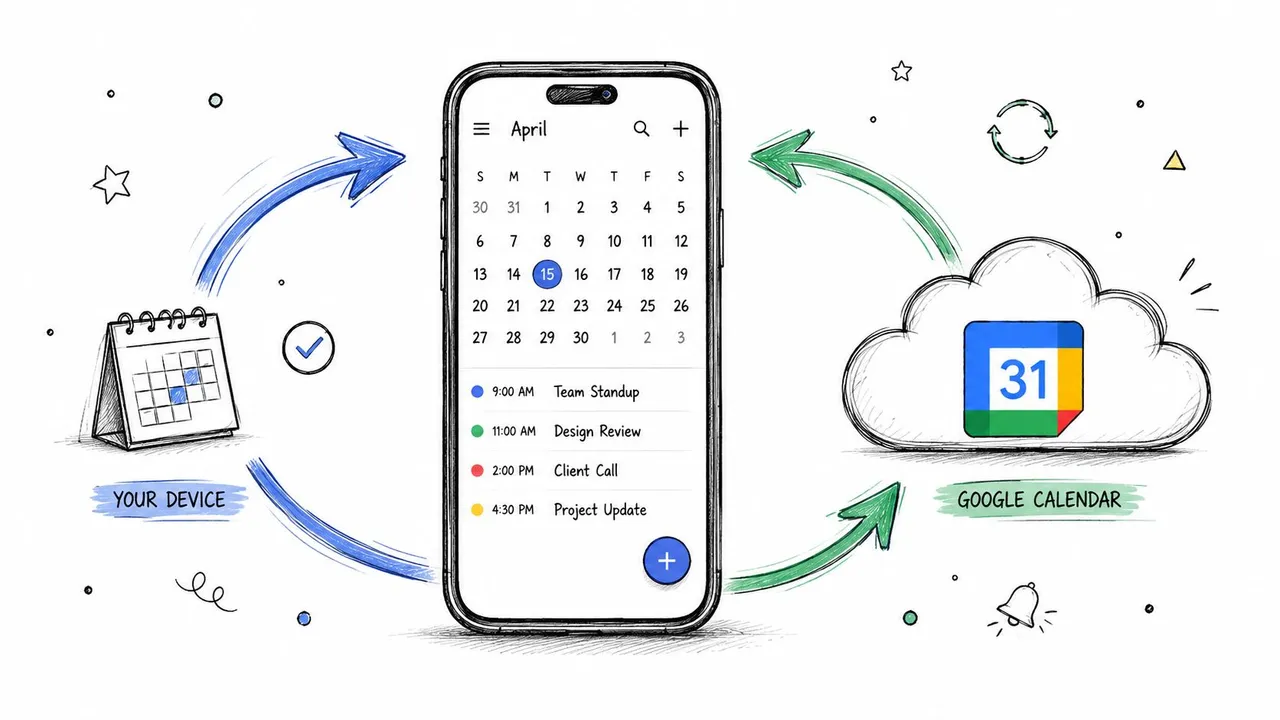
The native iPhone connection is usually enough when you want to work with Google events directly in Apple Calendar. A separate sync service becomes more relevant when you need deliberate routing between several independent accounts, rather than just displaying one account on your phone.
Troubleshooting When Google Calendar Won’t Sync
A failed sync isn’t always obvious. You may see most Google events while one shared calendar stays stale, or the account may look connected even though the Calendar app hides the specific calendar you need. Work through the checks in order, starting with visibility and account switches.
Start with the switches people miss
-
Confirm the Google Calendars switch: Go to Settings, tap Calendar, tap Accounts, select the Google account, and check that Calendars is on. If it’s off, turn it on and return to Apple Calendar.
-
Check individual calendar visibility: Open Calendar, tap Calendars, and inspect the list under the Google account. Every calendar you need should be checked. This is especially important when your personal calendar updates but a shared or secondary calendar doesn’t.
-
Check the account you added: If you use more than one Google account, make sure the events belong to the account connected to iPhone. A successful sign-in to the wrong account can look like a sync failure.
Google’s iPhone troubleshooting guidance emphasizes account toggles, calendar visibility, and app-level recovery. These checks are more useful than immediately deleting the account because they preserve the existing connection while correcting the settings most likely to cause a silent failure.
Inspect refresh behavior
Open Settings, go to Calendar, tap Accounts, and select Fetch New Data. Review how the Google account retrieves updates. If the phone isn’t checking for new data as expected, a recent change may not appear promptly even though the account remains connected.
Then quit and reopen the Calendar app. If you’re using the Google Calendar app as the sync layer, Google recommends quitting and reopening it or reinstalling the app when the app itself is misbehaving. A fresh launch can distinguish a display issue from an account issue.
Partial-sync clue: If several calendars update but one shared calendar doesn’t, start with that calendar’s visibility and account selection. Don’t assume the entire Google connection has failed.
For a separate diagnostic checklist focused on calendar events that don’t update correctly, Coachful’s event sync help offers useful troubleshooting context. You can also review this guide to Google Calendars not syncing when the problem extends beyond the iPhone app.
Remove and re-add the account last
If the toggles, visibility list, and Fetch New Data settings all look correct, remove the Google account from iPhone and add it again using the original Settings path. This rebuilds the account connection instead of repeatedly refreshing a configuration that may have become stuck.
After re-adding it, turn on Calendars, reopen Apple Calendar, tap Calendars, and check the required calendars again. The initial sync can take a couple of minutes, so give the account time to repopulate before deciding the repair didn’t work.
Keeping Your Calendars in Sync for Good
Healthy synchronization has a simple shape. The Google account is added under iPhone’s calendar accounts, the Calendars switch is enabled, the required calendars are checked in Apple Calendar, and new events appear after the account has had time to update.
Use a small self-check after an iOS update, a password change, or any account adjustment. Open Calendar, tap Calendars, confirm the important Google calendars are still selected, and create a harmless test event in the intended Google calendar. Then check the same event from the other device or Google Calendar interface.
A reliable habit: Decide where new events should live before you create them. That single choice prevents many “it appeared on my iPhone but not in Google” misunderstandings.
If you manage Google, Outlook, and iCloud calendars across work and personal accounts, a dedicated synchronization tool can provide more deliberate one-way, two-way, or multi-way routing than a single phone connection. Once the correct account and calendars are selected, routine use should feel quiet and dependable.
SyncThemCalendars can copy and keep events aligned between Google Calendar, Outlook or Office 365, and Apple Calendar, with one-way, two-way, or multi-way directions and privacy controls for copied details. Visit SyncThemCalendars to see whether its cross-calendar setup fits your iPhone workflow.
Ready to sync your calendars?
Keep your Google, Outlook and Apple iCloud calendars in sync automatically. 2-minute setup, no credit card required.
Get started freeKeep reading
More in Tutorials

How to Add Gmail Calendar to Outlook Without Duplicates
See how to add Gmail Calendar to Outlook by subscribing for a live view or using two-way sync, then avoid privacy leaks and duplicate events.

Export Outlook Calendar to Google: A 2026 Step-by-Step Guide
Learn how to export Outlook calendar to Google with clear steps for ICS and CSV imports, recurring-event checks, and verification tips that work in 2026.

How to Synchronize Outlook Calendar Across Platforms
Learn how to synchronize Outlook calendar events with Google and Apple iCloud. Master two-way sync, privacy controls, and real-time availability mapping.