







How to Sync Outlook Calendar with iCloud: 2026 Guide
How to sync outlook calendar with icloud - Sync Outlook calendar with iCloud easily! Our 2026 guide shows how, with methods for Windows & Mac. Covers native
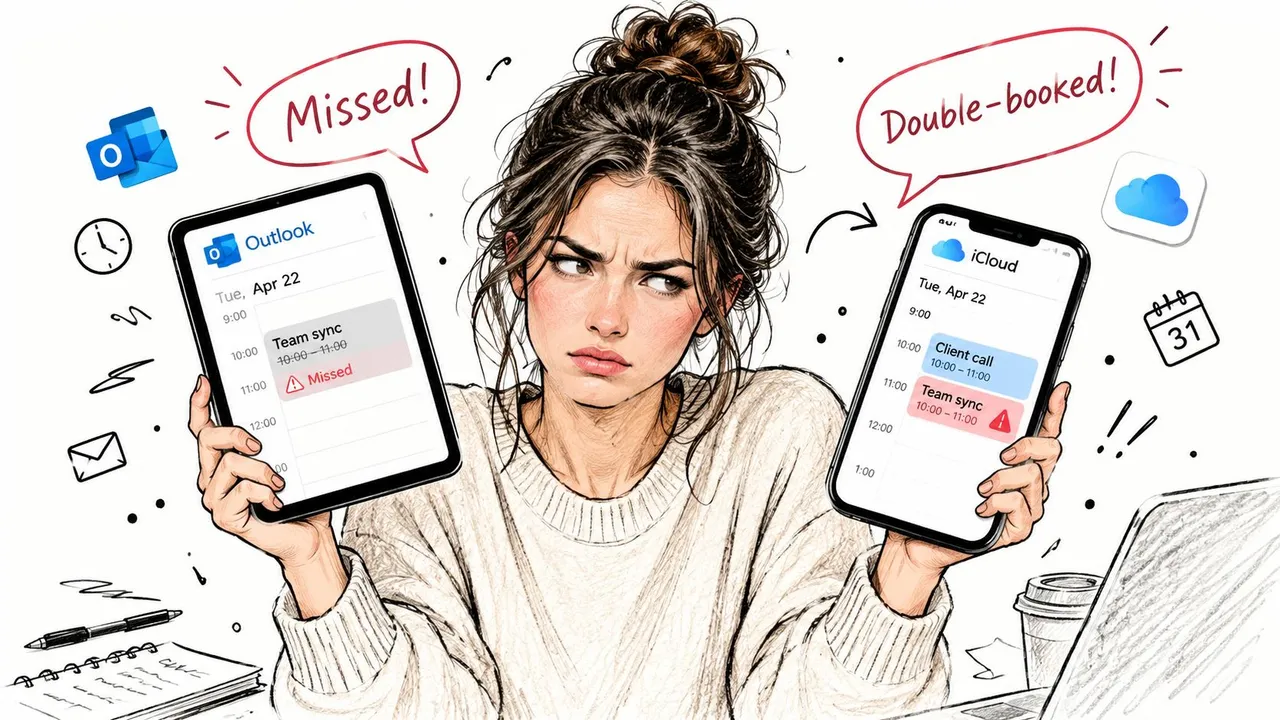
You’ve got a meeting on your iPhone, a client appointment in Outlook, and neither calendar knows about the other. By the time you notice, you’re double-booked, unavailable for a call you should have accepted, or relying on memory to coordinate work and personal commitments.
The difficulty isn’t that either calendar is hard to use. The problem is the fragmented Outlook ecosystem. Classic Outlook, New Outlook, Outlook for Mac, Outlook on the web, Windows, and Apple devices don’t all support the same connection methods. Some paths provide ongoing synchronization, some provide only a read-only view, and others move your calendar once without keeping it current.
This guide separates those options clearly. You’ll see what works through Apple and Microsoft’s supported setup, where the native methods become unreliable, why .ics files aren’t synchronization, and when an automated service is a more dependable choice.
The Challenge of Juggling Two Digital Lives
A typical failure starts innocently. You create a personal appointment in Apple Calendar, then open Outlook to schedule a work call. Outlook shows an empty slot, so you accept the invitation. Later, you discover that the iCloud event was never visible in Outlook. The conflict wasn’t caused by carelessness. The calendars were operating as separate systems.
This affects freelancers, consultants, managers, and anyone whose work account lives in Microsoft’s ecosystem while personal commitments live in iCloud. A calendar that looks complete on one device can still be incomplete elsewhere, especially when the user switches between Outlook desktop, Outlook on the web, an iPhone, and a Mac.
The first decision is whether you need continuous synchronization or a one-time copy. Those are different jobs:
- Native iCloud for Windows sync connects iCloud calendars to classic Outlook through Apple’s Windows component. Apple documents a setting called Automatically sync your iCloud calendars and contacts to Microsoft Outlook, while Microsoft instructs users to select Contacts and Calendars in iCloud and apply the change. See the official Microsoft setup guidance for iCloud and Outlook.
- Manual
.icstransfer creates a calendar copy. It’s useful for migration or archiving, but it won’t keep later edits aligned. - Automated calendar synchronization uses a separate service to coordinate calendars across providers when the native combination doesn’t offer the reliability or platform coverage you need.
Practical rule: Identify your Outlook version before changing settings. “Outlook” isn’t one product anymore, and a method that works in classic Outlook for Windows may not work in New Outlook or Outlook for Mac.
The supported setup has historical importance because Microsoft and Apple now document a direct sync path instead of requiring users to exchange calendar files manually. However, the architecture remains hybrid. iCloud holds the Apple-side calendar data, while Outlook consumes and synchronizes it through the iCloud for Windows layer.
Using iCloud for Windows The Official Method
For a Windows computer running classic Outlook, iCloud for Windows is the first method to try. Apple and Microsoft both document it as the supported route for connecting iCloud calendars and contacts with Outlook. The connection is handled by the iCloud application, not by Outlook alone.
Confirm the Outlook version first
Open Outlook and check whether you’re using classic Outlook or New Outlook. The distinction matters because community reports continue to point users toward classic Outlook when the Apple iCloud add-in or direct integration isn’t available in New Outlook. Microsoft’s current support structure still separates the desktop clients, so don’t assume the blue Outlook icon means every feature is present.
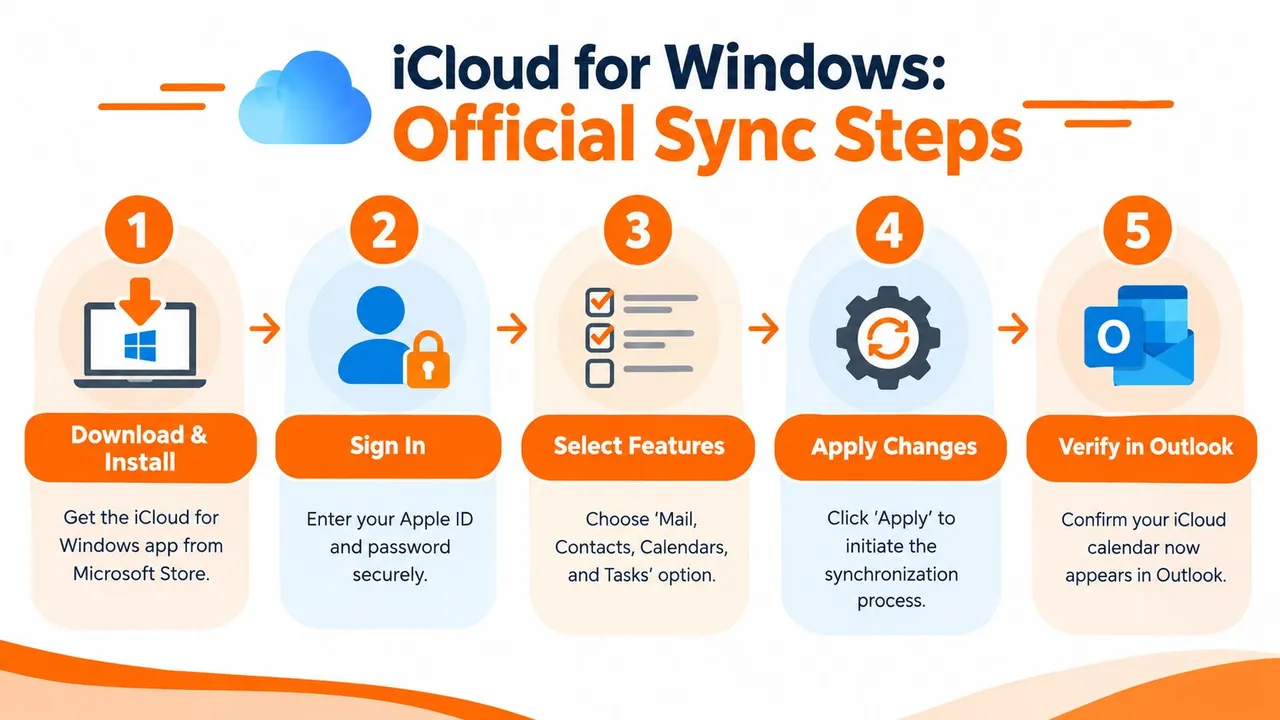
If your installation opens classic Outlook, install iCloud for Windows from the Microsoft Store, then sign in with the Apple Account associated with the calendars you want to use. Use the same Apple Account that holds the calendar on your iPhone or other Apple devices.
Select the calendar connection
After signing in, open iCloud for Windows and select Contacts and Calendars. Apple’s current interface also includes the toggle Automatically sync your iCloud calendars and contacts to Microsoft Outlook. Turn it on, then choose Apply.
Microsoft describes the equivalent workflow as selecting Contacts and Calendars in the iCloud app and clicking Apply. The app then creates the connection between iCloud and the Outlook desktop profile. iCloud remains the source of truth for Apple calendar data, while Outlook displays and participates in the supported synchronization relationship.
The process is summarized in this video walkthrough:
Verify before trusting the connection
Close and reopen Outlook after applying the setting. Look for the iCloud calendar in the calendar navigation area, then test the connection with a non-critical appointment. Add or edit an event in Outlook, and check whether it appears on the Apple side. Make a separate change in iCloud and verify whether Outlook reflects it.
Don’t treat the calendar as synchronized merely because the folder appears. Visibility and synchronization aren’t the same thing. A folder can be present while updates are delayed, blocked, or routed through the wrong profile.
If the calendar doesn’t appear, return to iCloud for Windows and disable the calendar and contact selection. Apply the change, enable it again, apply once more, and relaunch Outlook. This recovery step resets the relationship between the iCloud component and the Outlook profile.
The method is practical, but it has boundaries. It depends on the iCloud for Windows layer, the correct Outlook profile, and compatibility with the Outlook client you’re using. If you switch from classic Outlook to New Outlook, the integration may no longer behave the same way. That’s why version identification belongs at the start of the process, not at the end of troubleshooting.
Workarounds for Mac and Outlook on the Web
A Mac user who manages appointments in both iCloud and Outlook can quickly run into a platform boundary. Outlook for Mac doesn’t support direct iCloud CalDAV synchronization, so adding an iCloud account or viewing its calendar does not create the two-way connection available through iCloud for Windows and classic Outlook. The fragmented Outlook ecosystem makes this harder to diagnose, because Classic Outlook, New Outlook, Windows, and Mac do not share the same integration behavior.
The practical workaround is a public iCloud calendar subscription. In iCloud Calendar, enable Public Calendar for the calendar you want to share, then copy the generated calendar URL. In Outlook on the web, select Add calendar, choose From internet, paste the URL, and save the subscription. This approach follows Microsoft’s guidance on Outlook and iCloud calendar compatibility.
The result is a subscribed view rather than live, two-way synchronization. iCloud events can appear in Outlook, but changes made in Outlook do not write back to iCloud through this subscription. It works for checking availability or displaying a reference calendar. It is a poor fit for anyone who needs to create and edit appointments from both platforms.
Understand the privacy cost
A public calendar link is shareable by design. Anyone who obtains the URL may be able to view the published calendar, depending on its contents and how the link is handled. Avoid this method for sensitive appointments, confidential client information, health-related commitments, or internal business details unless that exposure is acceptable.
Client behavior can vary as well. Outlook on the web is where the subscription is created, and the calendar may then appear in Outlook for Mac when the same Microsoft account is used. If it is missing, confirm that you signed into the intended account and added the calendar through the web interface, not only inside the Mac application.
This method solves a narrow visibility problem. It does not overcome the underlying Outlook and iCloud divide, or the reliability issues that often appear across different Outlook clients. Private, editable, two-way scheduling requires an automated synchronization tool rather than a public subscription.
The Manual Fallback Exporting and Importing Files
An .ics file is a snapshot, not a live connection. Exporting captures the events available at that moment, while importing places a separate copy in another calendar. New appointments, edits, and cancellations will not move between the two automatically.
That distinction matters across the fragmented Outlook ecosystem. Classic Outlook and New Outlook handle calendar features differently, and Windows and Mac follow different integration paths. Native sync can work in a supported setup, then stop after an account change, app update, or client switch. A file transfer avoids that dependency, but it does not create ongoing synchronization.
When an .ics file makes sense
Use this method when leaving one calendar system, preserving historical appointments, or moving a finalized schedule into another account. It also provides a controlled way to test whether your calendar data imports correctly before setting up an automated connection.
The process is simple:
- Export the source calendar from iCloud or Outlook as an
.icsfile. - Save the file locally with a clear name that identifies the calendar and date range.
- Import it into the destination calendar and review the resulting events.
- Keep the original calendar intact until you verify dates, times, recurrence patterns, and important details.
For a focused walkthrough, follow this guide on how to create an ICS file.
The common mistake is calling the result “sync.” Export an Outlook calendar on Monday and import it into iCloud, and an appointment added on Tuesday remains only in Outlook. Repeating the process can also create duplicates, while leaving you responsible for detecting every change and transferring it manually.
Use
.icsfor migration. Use synchronization for a schedule that keeps changing.
A static copy may look complete immediately after import, but it becomes outdated as soon as either calendar changes. For recurring work across Classic or New Outlook, Windows or Mac, manual files are a fallback. Automated tools are the dependable option when the schedule must stay current.
For Seamless Sync A Reliable Automated Solution
Native integration is worth trying when your device and Outlook version match the supported path. It becomes less attractive when your workflow spans Windows and Mac, classic Outlook and New Outlook, Outlook on the web, and Apple devices, or when a previous update has already disrupted the connection.
Recent Microsoft support discussions describe recurring synchronization failures after updates and account changes. Those reports point to a practical requirement that setup guides often overlook: a calendar bridge needs recovery and privacy controls, not just an initial connection. A dependable workflow should continue operating when you change devices, adjust profiles, or move between work and personal accounts.
SyncThemCalendars is a web-based option for synchronizing events between Outlook or Office 365 and Apple Calendar. It supports one-way, two-way, or multi-way copies, so you can choose whether changes should travel in one direction or return to the source calendar. The service also offers free/busy mirroring and controls for masking event titles, descriptions, or locations when you need to share availability without exposing private details.
Why automation changes the operating model
The important difference isn’t merely that another app appears in the workflow. A dedicated synchronization service separates the calendar relationship from one particular Outlook desktop client. That’s useful when classic Outlook works on one Windows computer but New Outlook or Outlook for Mac lacks the same iCloud connection.
The service is designed for browser-based setup and background operation. Its real-time calendar synchronization guide describes the model in practical terms, connecting selected source and target calendars instead of depending on a single local Outlook add-in.
Privacy is equally important. A work calendar may need to block personal events without revealing their names, locations, or notes. Free/busy mirroring can communicate that a time is unavailable while field masking limits the information copied into the other account. That approach reduces the amount of sensitive data shared between ecosystems.
Where a professional tool fits
Choose automation when you need ongoing updates, edits from more than one calendar, or consistent behavior across mixed platforms. It’s also a sensible fit for people who have already experienced native sync breaking after an Outlook update, profile change, or account reconfiguration.
It doesn’t eliminate the need to choose calendars carefully. You still need to identify the correct Apple and Microsoft accounts, decide which direction changes should flow, and avoid creating multiple overlapping sync paths. Once configured correctly, however, the service handles the recurring copying work instead of asking you to repeat exports or repair a desktop connector every time the local environment changes.
Troubleshooting Common Sync Problems
Start with the symptom, not with a random reinstall. Calendar troubleshooting becomes much faster when you determine whether the issue is missing visibility, delayed updates, one-way behavior, duplicate events, or a complete authentication failure.
If the calendar doesn’t appear
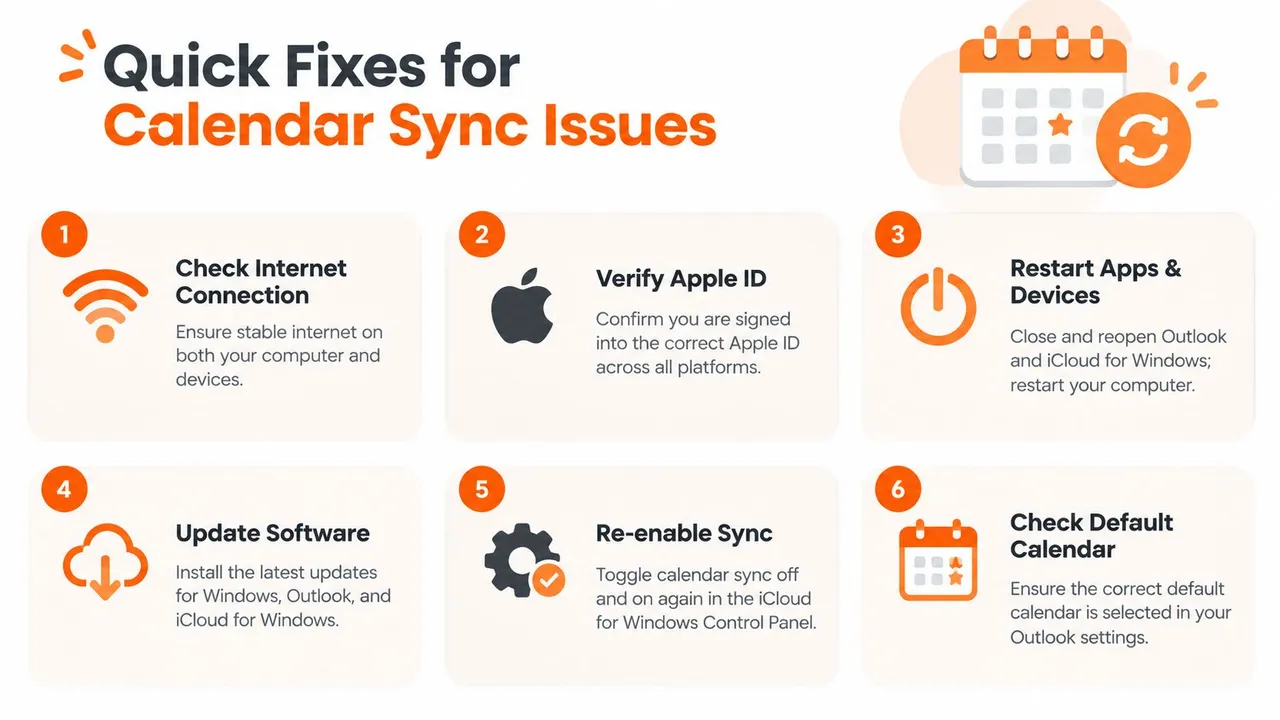
Check that you’re signed into the intended Apple Account, then open iCloud for Windows and confirm that Contacts and Calendars is enabled. Click Apply, close Outlook, and relaunch it. If the folder remains missing, disable the selection, apply the change, enable it again, and apply once more.
On Windows, verify that you’re using classic Outlook before spending time repairing the profile. The Apple connector is associated with the iCloud for Windows workflow, and current community discussions warn that New Outlook may not support the iCloud add-in in the same way. Microsoft’s community discussion about New Outlook and iCloud calendar synchronization reflects that compatibility gap.
If events stop updating
Use this recovery order:
- Check the account: Confirm the same Apple Account is active on the relevant Apple devices and that Calendars is enabled.
- Refresh the connector: Toggle iCloud calendar synchronization off, apply the change, then turn it back on and apply again.
- Restart the environment: Close Outlook and iCloud for Windows, then restart the computer before testing again.
- Review the Outlook mode: If the issue began after switching to New Outlook, return to classic Outlook for the native connector test.
- Repair the installation: If re-enabling the feature doesn’t help, repair Office or reinstall iCloud for Windows after preserving your calendar data.
- Check the sync direction: If Outlook can display iCloud events but Outlook edits never return to iCloud, you may be using a subscription or another one-way method rather than true bidirectional synchronization.
Updates and account changes can disrupt an integration that previously worked. Don’t assume missing events mean data loss. First compare the calendar in iCloud directly with what Outlook displays, then identify where the flow stops.
For a focused recovery checklist, see what to do when iCloud calendars aren’t syncing. If the native connection keeps failing, stop repeating the same repair cycle and use a synchronization method that matches your platform mix and privacy requirements.
SyncThemCalendars connects Outlook and iCloud calendars with configurable one-way, two-way, or multi-way synchronization, while free/busy mirroring and privacy controls help keep sensitive event details private. Visit SyncThemCalendars to review the setup and choose a calendar workflow that doesn’t depend on a fragile Outlook client combination.
Ready to sync your calendars?
Keep your Google, Outlook and Apple iCloud calendars in sync automatically. 2-minute setup, no credit card required.
Get started freeKeep reading
More in Tutorials

How to Synchronize Outlook Calendar Across Platforms
Learn how to synchronize Outlook calendar events with Google and Apple iCloud. Master two-way sync, privacy controls, and real-time availability mapping.
How to Sync Office 365 Calendar with Apple Calendar
Learn how to sync Office 365 calendar with Apple Calendar. Compare native methods, third-party tools, privacy controls, and troubleshooting tips.
Outlook Not Syncing: Step-by-Step Fixes for Calendars
Fix outlook not syncing across Google, iCloud, and Office 365 with this complete troubleshooting guide. Clear steps, platform-specific tips, and expert