







How to Use Invite Calendar iPhone Across All Accounts
Learn how to create, send, and manage invite calendar iphone across iCloud, Google, Outlook. Fix missing invites; keep all calendars synced in 2026.
You open Calendar on your iPhone, create an event, tap around, and expect the invite to go out. Sometimes it does. Sometimes the Invitees field is missing. Sometimes the event looks fine on your end, but nobody receives anything. And if you’re juggling iCloud, Gmail, and Outlook at the same time, the native app can feel far less reliable than Apple’s simple demos suggest.
That frustration is real. The iPhone Calendar app works well inside Apple’s own ecosystem, but professionals usually live across multiple accounts. A client uses Microsoft 365. Your personal life runs in Google Calendar. Your iPhone is signed into iCloud. Then spam invites start appearing from nowhere, and deleting the event doesn’t solve it.
A practical guide to invite calendar iPhone workflows involves more than just sending a clean invite. It requires understanding which account is sending it, what the selected calendar supports, and how to stop junk calendars from polluting your schedule.
The Basics of Sending an iPhone Calendar Invite
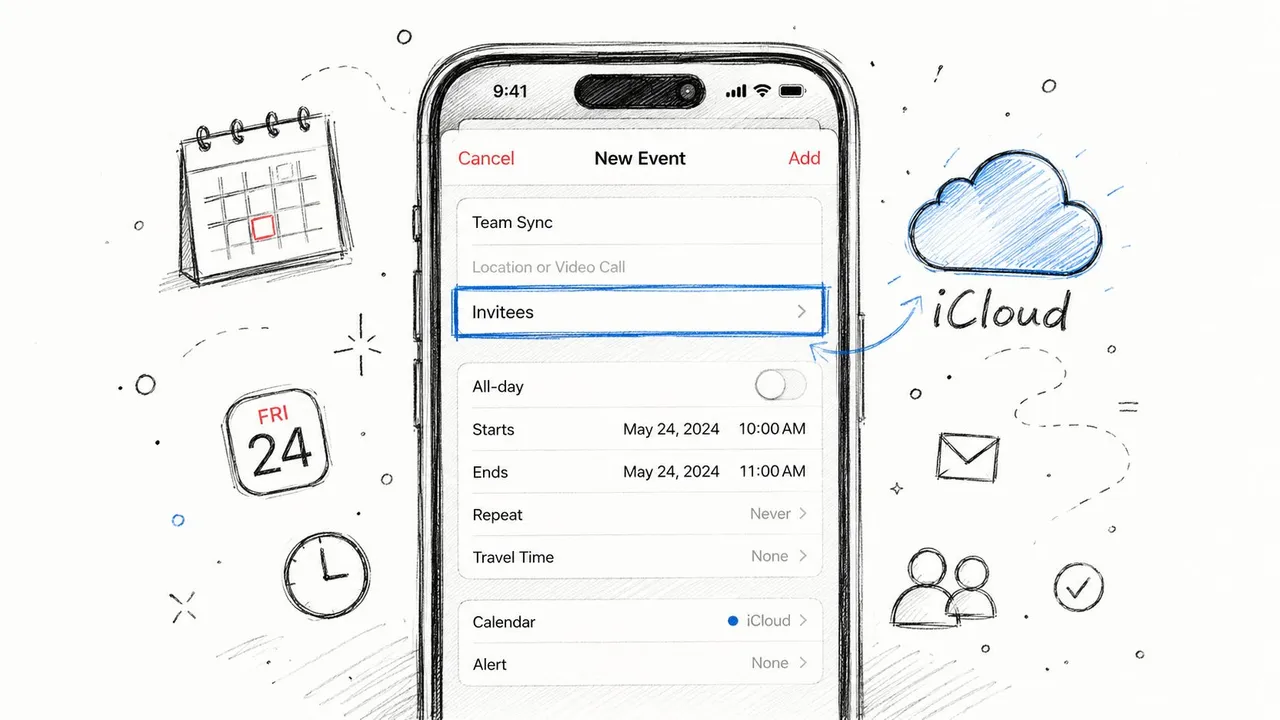
If you’re using iCloud Calendar, sending an invite from iPhone is straightforward. Apple lets you add invitees by contact name, email address, or phone number inside the Calendar app by opening an event, tapping Edit, and using Invitees. Invitation delivery can also be configured through iCloud to arrive as in-app notifications or by email, as shown in Apple’s guide to sending invitations on iPhone.
Create the event in the right place
Start in the Calendar app and create a new event with the title, location, date, and time. Then tap Calendar and make sure the event is being created on your iCloud calendar, not on a work Exchange calendar or a Gmail calendar unless you know that account supports invites from the iPhone app.
That detail matters more than most users realize. The selected calendar determines what options appear next, including whether Invitees shows up at all.
Add invitees and send
Once the event is saved or opened for editing, tap Edit and then Invitees. Add people from contacts, type an email address directly, or enter a phone number if that’s how they’re stored.
A clean workflow looks like this:
- Choose the event calendar first so you’re not building the event on an account that can’t send invites properly.
- Add the meeting details carefully because recipients will see what you enter.
- Tap Invitees and add each person individually.
- Send the update after reviewing time, location, and notes.
Practical rule: If the iPhone Calendar app is behaving exactly as Apple’s documentation describes, you’re usually on the iCloud “happy path.”
After sending, you’ll see attendee responses such as Accepted, Declined, or Maybe inside the event. That’s enough for most personal scheduling and small team coordination.
If you only need the Apple-native workflow, Apple’s setup is fine. If you also need to send or share details more flexibly, this guide on sharing a calendar event on iPhone is a useful companion.
One useful detail people miss
Apple also supports making invitees optional. When editing invitees, you can swipe left on a person and choose Make Optional before sending. That’s useful when you’re inviting stakeholders who should be informed but don’t need to block the meeting.
You can also share an entire calendar with multiple people, or share a single calendar event on iPhone, but that behaves differently from a normal single-event invitation. That’s where many users start to confuse event invites with calendar sharing, and the consequences show up later when people say they “didn’t get the invite” even though they were sent access to a full calendar.
Managing Invites Across Google and Microsoft Calendars
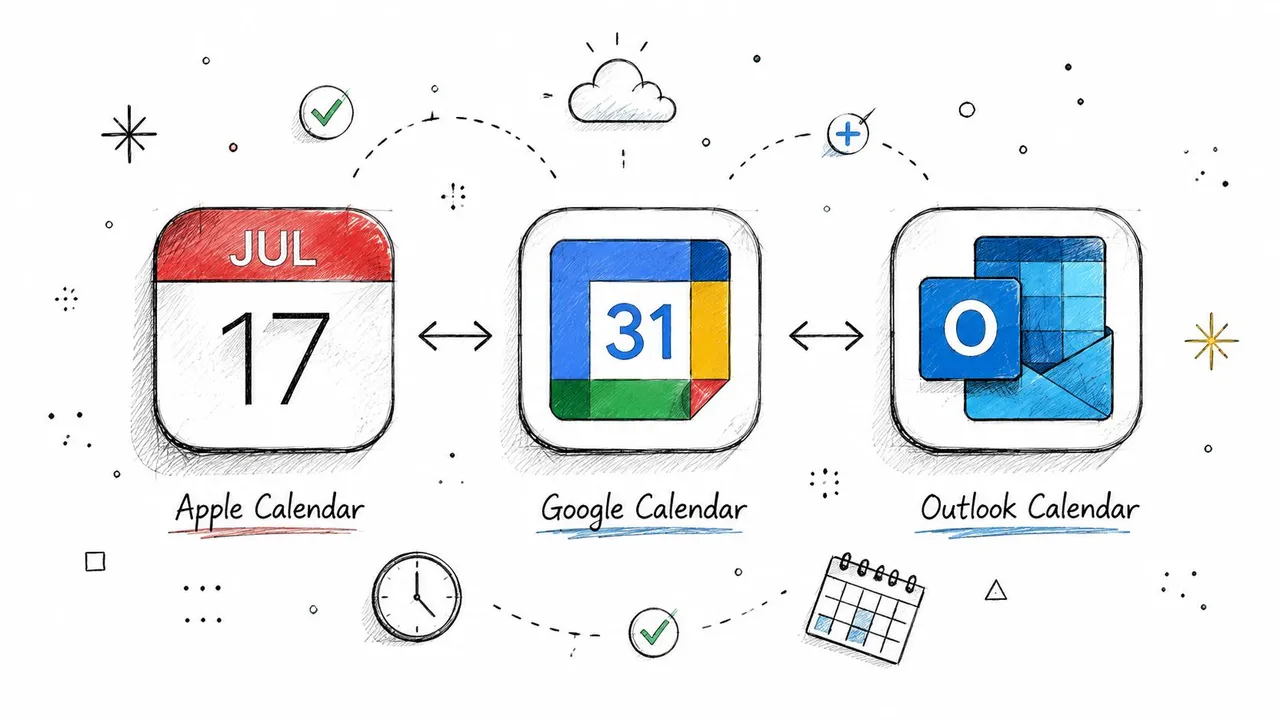
The biggest mistake people make is assuming the iPhone Calendar app treats iCloud, Google, and Microsoft accounts the same way. It doesn’t.
Users regularly run into the error “your response to the invitation cannot be sent” or they find that Invitees doesn’t appear at all when they’re using work or third-party calendars. The reason is simple: the iPhone’s invite function follows the currently selected calendar, and many Exchange or other non-iCloud accounts don’t support sending invite notifications from the iPhone app unless the account is configured for that behavior or iCloud is set as default, as discussed in this Apple Support Community thread about missing invite options and failed responses.
Why the iPhone app fails outside iCloud
On iPhone, the Calendar app is only the front end. Your actual account backend handles delivery. That means Google Calendar, Outlook, Exchange, or another CalDAV service may accept the event itself but not support the same invite behavior through Apple’s app.
This is why two people can use the same iPhone model and get completely different results. One is creating events on iCloud, where Apple controls the full path. The other is creating events on a locked-down corporate Exchange account.
If the event saves but nobody gets notified, the problem usually isn’t the screen you’re tapping. It’s the account behind it.
What works better in practice
If you’re using Google or Microsoft calendars, check these points before you waste time resending the same broken invite:
- Confirm the selected calendar: When creating the event, look at the calendar name. If it’s your work account, test whether that account supports outbound invites from iPhone.
- Use the native provider app when needed: If Outlook or Google Calendar is your real system of record, sending from the Outlook or Google Calendar app is often more reliable than forcing everything through Apple Calendar.
- Match the account to the job: Personal event with family? iCloud is usually smooth. Client meeting managed by Microsoft 365? Outlook is often the safer sender.
- Avoid mixed assumptions: Just because the event appears on your iPhone doesn’t mean the invite mechanism is supported.
For users who live in Google Calendar most of the day, this walkthrough on how to sync Google Calendar helps if your issue is less about one invite and more about keeping accounts aligned.
A quick diagnostic test
Try this comparison:
| Test | What it tells you |
|---|---|
| Create the same event on iCloud | If Invitees appears here, the app itself is fine |
| Create the event on Exchange or Google | If Invitees disappears or fails, the account is the limitation |
| Send from the provider’s native app | If that works, the iPhone Calendar app is the bottleneck |
A short visual explainer can help if you’re troubleshooting account behavior on-device:
The practical takeaway is blunt. Invite calendar iPhone workflows work best when the selected calendar and the sending account are aligned. If they’re not, the iPhone app can look broken when it’s really exposing an account compatibility problem.
Accepting Subscribing and Managing What You Receive
You tap a calendar alert on your iPhone expecting one meeting request, and instead you find a read-only calendar feed, a shared family calendar invite, or junk events you never accepted. That confusion is common because the Calendar app puts very different calendar items in roughly the same place.
The first fix is to sort what arrived before trying to manage it. On iPhone, incoming calendar items usually fall into three buckets: a single event invitation, a shared calendar invitation, or a subscribed calendar. Each behaves differently, especially if your accounts are split across iCloud, Google, and Microsoft.
Event invite versus shared calendar versus subscription
A single event invite is the simplest case. You respond inside the event with Accept, Maybe, or Decline, and your reply goes back through the account that owns that calendar.
A shared calendar is broader. It gives you access to a whole calendar, such as a family schedule or a team calendar. Events often do not appear until you accept the sharing request itself, which is why people assume syncing is broken when the underlying issue is still-pending permission.
A subscribed calendar is different again. It is usually read-only and updates from an external feed, such as holidays, sports fixtures, school dates, or a public company calendar. It can also be the source of persistent spam on iPhone, especially when a sketchy website tricks someone into subscribing to a hidden calendar rather than sending a normal invite.
That last problem gets missed a lot. Deleting one spam event does nothing if the subscribed calendar is still active.
A practical way to handle what shows up
Use this quick triage method when something new appears in Calendar:
- One meeting invite: Open the event and send a response.
- Shared calendar request: Accept the sharing invite first, then check whether the full calendar appears under Calendars.
- Subscribed calendar: Treat it as a feed. Review it under Calendars and remove it if you do not trust the source or no longer need it.
If you share schedules with family members and want the Apple side set up correctly, this guide on how to share an iCloud calendar covers the sharing flow clearly.
What trips people up on Google and Microsoft accounts
Often, the iPhone Calendar app feels inconsistent. An invite may arrive in Apple Calendar, but the response handling or visibility can still depend on Google Calendar or Microsoft 365 behind the scenes. I see this a lot with work accounts. The event is visible on iPhone, but the acceptance status updates faster in Outlook or Google Calendar than in Apple’s app.
If you rely on Google or Microsoft calendars every day, check the event in the provider’s native app when something looks off. That is often the fastest way to tell whether you are dealing with an iPhone display issue, an account sync delay, or a permissions problem on the original calendar.
Keep incoming calendars under control
A few habits prevent clutter and stop the worst surprises:
- Use notifications for time-sensitive invites if you need to respond quickly.
- Use email delivery for invitations if you want a searchable record outside the Calendar app.
- Review your calendar list regularly and remove old subscribed feeds you no longer use.
- Separate work, family, and public calendars so your main view stays usable.
- Check for unknown subscribed calendars if spam events keep returning after deletion.
The hidden subscription check matters more than people expect. If random event spam keeps reappearing on your iPhone, go to Calendar > Calendars and look for any calendar you do not recognize. Remove that subscription first. In practice, that solves far more recurring spam cases than deleting events one by one.
Once you identify whether you received an invite, a shared calendar, or a subscription, the app gets much easier to manage.
Troubleshooting Common iPhone Calendar Invite Problems
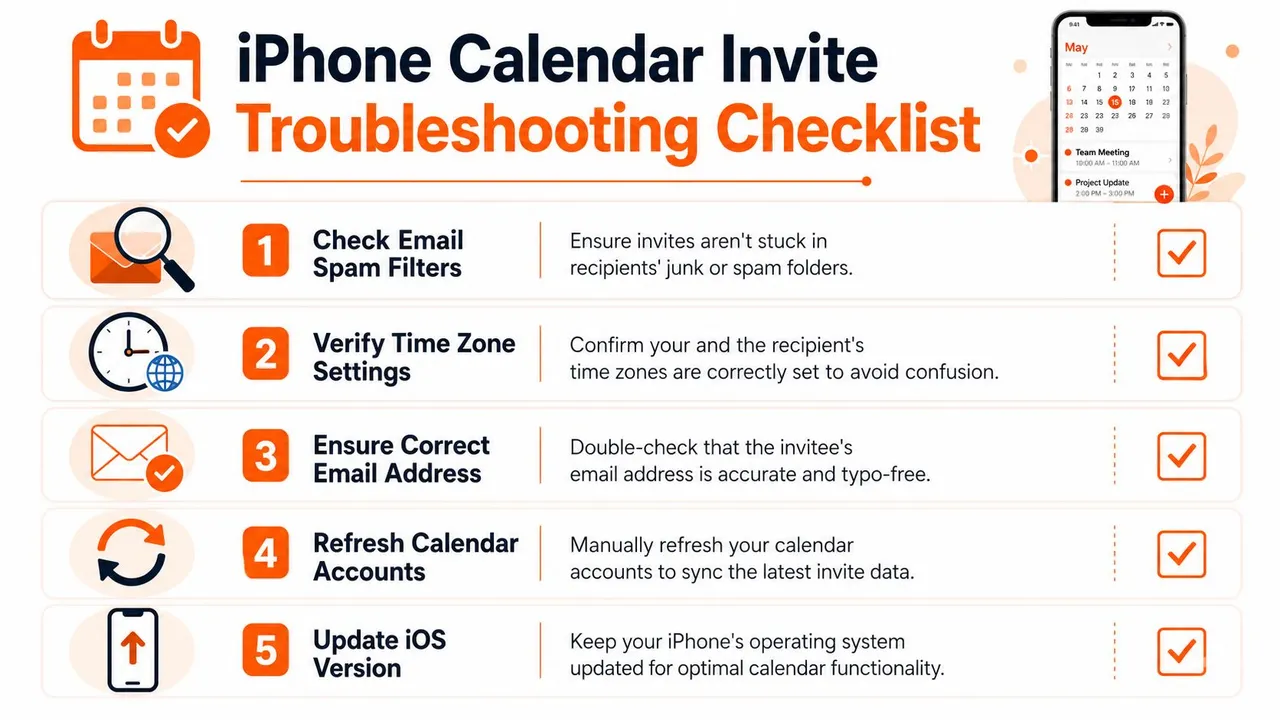
Most iPhone invite issues fall into a few buckets. The wrong account sends the event. The time zone is off. The event exists but doesn’t sync quickly. Or spam is coming from somewhere users aren’t checking.
When invites don’t arrive
Sending from iPhone depends on the configured backend account, not just the app itself. Delivery is handled by iCloud, Google, Exchange, or another connected service, so invite failures often trace back to the external server and its sync settings rather than to iOS alone, as described in this overview of how iPhone calendar invites rely on the backend account and sync configuration.
That changes how you troubleshoot. Restarting the app might help a temporary glitch, but it won’t fix a misbehaving account connection.
Use this short checklist first:
- Check the sending account: Make sure the event was created on the account you intended to use.
- Review sync behavior: If the account supports Push, use it. If it uses Fetch, verify the schedule is active.
- Refresh manually: Open Calendar and pull down in the Today view if events feel stuck.
- Confirm recipient details: A bad address still looks like a sent event on your side.
- Look at time zone settings: Wrong local time creates more confusion than outright failure.
Time and edit problems
Time zone mistakes are one of the most annoying invite failures because they look correct until someone else opens the event in a different region. If you’re scheduling across countries, confirm the event time zone before sending. If you edit a previously sent event, confirm everyone is notified of the change.
Field note: If attendees say “I got it, but the time is wrong,” don’t just resend blindly. Recheck the event’s time zone and whether your edit triggered a notification.
The real fix for calendar spam
Spam calendar events deserve separate treatment because deleting the event often doesn’t solve the cause. Fake events often come from scam emails that add invitations automatically, and one practical fix is to move the spam invites into a newly created spam calendar and then delete that entire calendar instead of responding. For persistent spam, check Settings > Calendar > Accounts for unrecognized subscribed calendars, as explained in this Apple help discussion about stopping calendar spam on iOS.
Here’s the sequence that usually works best:
- Don’t respond to the invite. Responding can confirm the account is active.
- Create a temporary spam calendar if needed, move the junk invites there, then delete that calendar.
- Open Settings and inspect accounts for unfamiliar subscribed calendars.
- Remove suspicious calendar accounts rather than only deleting visible events.
- Adjust invitation handling if your mail setup is auto-adding junk to Calendar.
Most shallow guides stop at “delete the event.” That’s why the problem keeps returning. If the source is a hidden subscribed calendar, only removing the visible event treats the symptom.
Stop Juggling Unify Your Calendars for Flawless Invites
If you manage one calendar, manual cleanup is annoying. If you manage several, manual cleanup becomes a planning risk.
The hard part isn’t creating an event on iPhone. It’s keeping availability consistent across iCloud, Google Calendar, and Outlook so the meeting you accept in one place doesn’t create a conflict somewhere else. That’s especially true when invite delivery depends on each backend account’s own behavior, and those accounts don’t always cooperate inside Apple’s app.
Why manual calendar management breaks down
A freelancer might let clients book through a Microsoft 365 calendar because that’s what the client expects. At the same time, personal appointments sit in Google Calendar, and family logistics live in iCloud. The invite may send correctly from one system, but the others don’t automatically block the time unless you’ve built a process around it.
That creates three problems at once:
- Double-booking risk because one accepted meeting doesn’t always appear where you need it.
- Privacy risk because copying full event details between calendars can expose more than necessary.
- Administrative drag because you spend time reconciling calendars instead of using them.
What a better setup looks like
A stronger setup mirrors availability across accounts in the background while letting each platform keep doing what it’s good at. That means Outlook can remain the client-facing booking calendar, Google can remain your private planning space, and iCloud can stay active on your iPhone without turning every event into a manual copy job.
The most useful version of this setup is free/busy syncing. It blocks time across calendars without exposing private titles, locations, or notes. That’s what professionals usually need, not a giant merged mess of personal and work details.
This broader scheduling problem also connects to billing and operations. If your team is trying to tie appointments to invoicing and dispatch, it helps to review tools that address revenue problems with QuickBooks integration, because calendar friction rarely stays isolated inside the calendar itself.
The professional standard
For multi-account users, the standard isn’t “can I send an invite from iPhone?” It’s “will every relevant calendar reflect that commitment quickly and privately?”
When you judge your setup by that standard, the answer usually isn’t another round of tapping in the Apple Calendar app. It’s building a system where each backend account can do its own job while your overall availability stays accurate.
Advanced Tips for iPhone Calendar Power Users
The iPhone Calendar app works well enough until you run a real-world setup with iCloud, Google, and Microsoft all active on the same phone. Then small settings start deciding whether invites stay clean or turn into a weekly maintenance chore.
Use optional attendees intentionally
Optional attendees are useful, but only when the meeting can still move forward without them. On iPhone, you can swipe left on a person and choose Make Optional before sending.
I use this for status meetings, stakeholder visibility, and people who need context but do not need to block the discussion. It keeps attendance expectations clear and cuts down on the vague “do I need to be there?” replies that clutter everyone’s inbox.
Set the right sending identity
If you send invites from more than one account, check your iCloud Calendar Send From setting before you trust the default. A surprising number of invite problems are really identity problems. The event goes out, but it comes from the wrong address, lands in the wrong thread, or confuses the recipient because your personal Apple ID appears instead of your work email.
That matters even more if your main scheduling happens in Google Calendar or Outlook and you only create or edit the event on iPhone. The Calendar app can make account boundaries feel invisible. Recipients still see them.
Know when to share a calendar instead of an event
For ongoing coordination, shared calendars often work better than a long chain of recurring invites. A family schedule, shift rotation, or team leave calendar is easier to manage as a shared calendar than as dozens of separate event invitations.
iCloud supports sharing with specific people and public sharing by email or link. Use public sharing carefully. It is convenient, but broader than many people intend, and once a calendar is shared too widely, cleaning that up is harder than creating it correctly in the first place.
Reduce sync load when Calendar starts lagging
If Calendar feels slow, delayed, or inconsistent, check the sync range before you assume invites are broken. On iPhone, go to Settings > Calendar > Sync and change All Events to a shorter window such as 3 Months or 6 Months.
This helps most when the app is trying to juggle a large backlog of recurring events across multiple accounts. In practice, shortening the sync window can improve refresh behavior and make invite updates appear faster, especially on older phones or mixed Google and Microsoft setups where sync is already doing more work behind the scenes.
It is a practical trade-off. You get better responsiveness, but older events may not stay visible on the device until you search for them or expand the sync range again.
Audit subscribed calendars if spam keeps coming back
This is the setting many guides skip. If your iPhone Calendar keeps showing fake invitations, suspicious reminders, or random event spam, the problem is often a subscribed calendar you did not mean to keep.
Open the Calendar app, tap Calendars, and look for subscriptions you do not recognize. Then check Settings > Calendar > Accounts for subscribed calendars that may be hidden from the main view. Removing the bad subscription usually stops the spam at the source. Deleting the visible events alone usually does not.
This matters most for iPhone users who added Google or Microsoft accounts years ago and forgot what got imported along the way.
Keep the iPhone Calendar app simple. Use it for quick capture, fast review, and lightweight responses. Let your account setup do the heavy lifting.
That approach works better than forcing Apple Calendar to act like a full calendar control center for three different ecosystems.
If you want your Google, Outlook, and iCloud calendars to stay aligned without constant manual fixes, SyncThemCalendars is built for exactly that. It syncs availability across accounts in the background, supports one-way or two-way setups, and lets you mirror free/busy status without exposing private event details. For anyone managing work and personal calendars on the same iPhone, it’s a cleaner way to prevent conflicts and make invites behave the way they should.
Ready to sync your calendars?
Keep your Google, Outlook and Apple iCloud calendars in sync automatically. 2-minute setup, no credit card required.
Get started freeKeep reading
More in Tutorials

How to Add Gmail Calendar to Outlook Without Duplicates
See how to add Gmail Calendar to Outlook by subscribing for a live view or using two-way sync, then avoid privacy leaks and duplicate events.

Export Outlook Calendar to Google: A 2026 Step-by-Step Guide
Learn how to export Outlook calendar to Google with clear steps for ICS and CSV imports, recurring-event checks, and verification tips that work in 2026.

How to Synchronize Outlook Calendar Across Platforms
Learn how to synchronize Outlook calendar events with Google and Apple iCloud. Master two-way sync, privacy controls, and real-time availability mapping.