







iPad Calendar Not Syncing with iPhone How to Fix It Fast
iPad calendar not syncing with iPhone? Fix it fast with quick checks, iCloud settings, and proven troubleshooting steps that restore sync in minutes.
You add a dentist appointment on your iPhone, see it saved successfully, and assume the shared iPad will show it too. Later, someone checks the iPad and the appointment is missing. That’s frustrating, but it usually isn’t random. The event may belong to Google or Exchange instead of iCloud, the calendar may be hidden, or one device may have stopped receiving updates.
The fastest way to solve an iPad Calendar not syncing with iPhone problem is to identify where the event lives before changing settings. Check the account, compare the devices with iCloud.com, and only then reset the connection. This approach prevents the most common mistake, deleting or re-adding accounts before you know whether the event exists in iCloud at all.
Why Your iPad Calendar Stopped Syncing With Your iPhone
When an event appears on an iPhone but not on an iPad, the failure usually occurs in one of three places.
The account source is the first possibility. Apple Calendar can display iCloud, Google, Microsoft Exchange, Yahoo, subscribed, and local calendars in one interface. If you create an event in Gmail or “On My iPhone,” it won’t automatically appear in an iCloud calendar on another device just because both devices use the Calendar app. Independent troubleshooting guidance highlights this account confusion as a frequent reason events seem to disappear, especially when users assume every visible calendar belongs to iCloud. Read the account and device comparison guidance.
The iCloud transport is the second possibility. Both devices may use the same Apple Account, but Calendar syncing might be disabled on one of them. A service interruption, expired authentication session, or stale connection can also prevent changes from moving between devices.
The device display is the third. The event may already be in the account, but the iPad might hide that calendar, show only a limited sync range, or display a filtered view. In that case, repeatedly toggling iCloud won’t solve the core issue.
Practical rule: Don’t reset anything until you know whether iCloud.com contains the event.
The comparison test makes the diagnosis clearer. If the event appears on iCloud.com but not on the iPad, the account has the event and the iPad has a local display or connection problem. If it appears on the iPhone but not on iCloud.com, it may have been saved to another account or only locally. If it’s absent everywhere except the original device, check the calendar selected when the event was created.
This guide moves from low-risk checks to deeper resets. You’ll verify Apple’s recommended account and service conditions, correct iCloud settings, uncover hidden calendars and sync limits, repair third-party accounts, and decide when a separate sync service makes more sense than repeating the same native troubleshooting.
Quick Checks That Fix Most Sync Issues in Minutes
Start with the checks that prove whether the problem is widespread or limited to one device. Apple’s official troubleshooting guidance begins with iCloud Calendar service status, the Apple Account used on each device, and Calendar enabled in iCloud. Apple’s calendar sync guidance also recommends checking whether the sync range limits the events shown on the device.
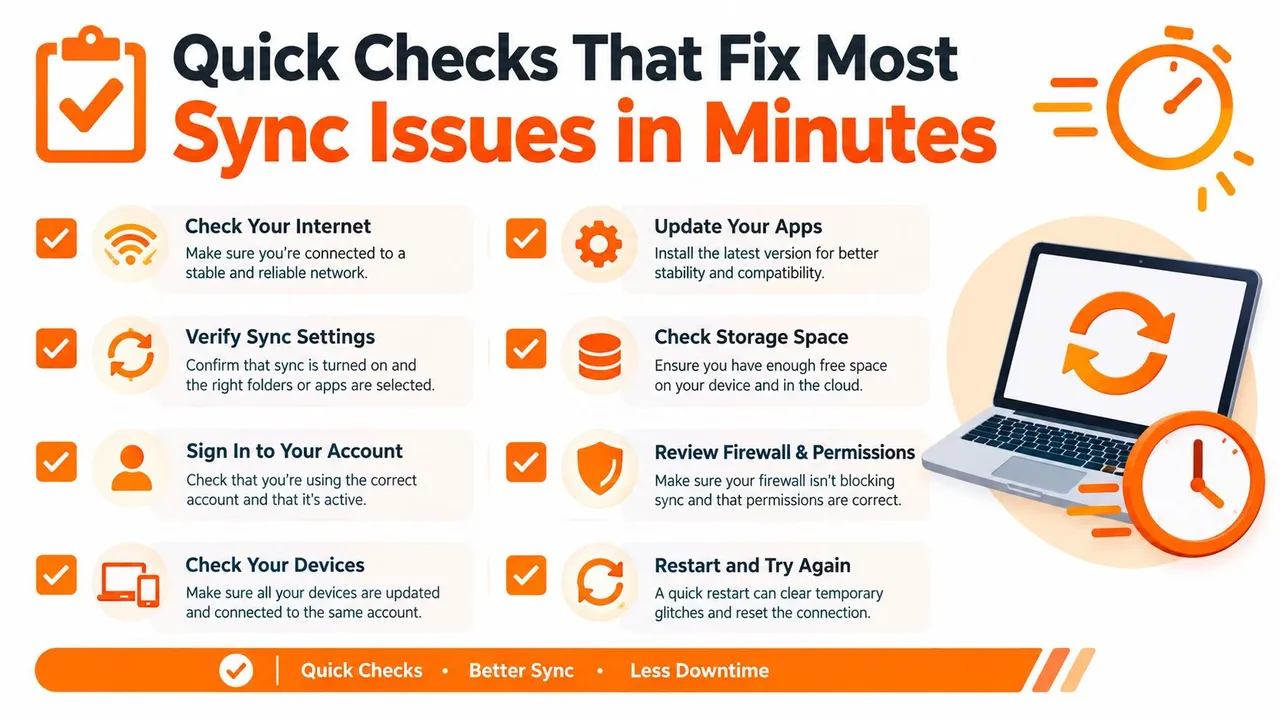
Run the checks in this order
-
Check Apple System Status. Open Apple’s System Status page and look for an iCloud Calendar issue. If Apple reports a service problem, stop changing device settings. A local reset won’t repair an outage.
-
Compare the Apple Account. On both the iPhone and iPad, open Settings and tap the Apple Account banner at the top. Confirm that the same account is signed in on both devices. An old account on a shared iPad can make a perfectly healthy calendar look absent.
-
Confirm iCloud Calendar is enabled. On each device, open Settings, tap your Apple Account, choose iCloud, and check that Calendar is enabled. On some iOS and iPadOS versions, the control may appear under a section showing apps using iCloud.
-
Test the internet connection. Load a webpage or another cloud-based app. Wi-Fi can show as connected while the actual connection is unstable. Fix connectivity before diagnosing Calendar.
-
Check automatic date and time. Go to Settings, General, Date & Time, and enable Set Automatically. A manually incorrect clock or time zone can interfere with account validation and make event times appear wrong.
-
Compare with iCloud.com. Sign in to iCloud.com in a browser and open Calendar. Find the event by title or date. If it’s there, iCloud received it. The missing device needs attention. If it isn’t there, inspect the event’s source calendar on the original device.
-
Refresh Calendar manually. Open the Calendar app, select the Calendars list, and pull down to refresh. Then look for the event again. This is a safe first action because it doesn’t alter account data.
-
Restart both devices. Close the Calendar app, restart the iPhone and iPad, and test again. Restarting is useful after confirming settings, but it’s a poor substitute for checking the account source.
A helpful next reference is this guide to calendar sync with iPhone, particularly if the iPhone is only one part of a broader multi-calendar setup.
Know when the test has answered the question
Create a new test event only after checking the existing one. Select the intended iCloud calendar explicitly, save the event, and compare it with iCloud.com and the other device. If the test event appears online but not on the iPad, don’t recreate the calendar. Focus on the iPad’s account connection or visibility settings.
If the test event never reaches iCloud.com, the event likely went into Google, Exchange, Yahoo, a subscription calendar, or a local calendar. That’s an account-routing problem, not proof that iCloud itself is broken.
Fixing iCloud and Account Settings on iPhone and iPad
Once the quick checks are complete, inspect the settings that control which accounts and calendars the devices use. The goal isn’t to turn every option off and on. It’s to verify that the calendar you care about is both stored in the expected account and enabled on the device that can’t display it.
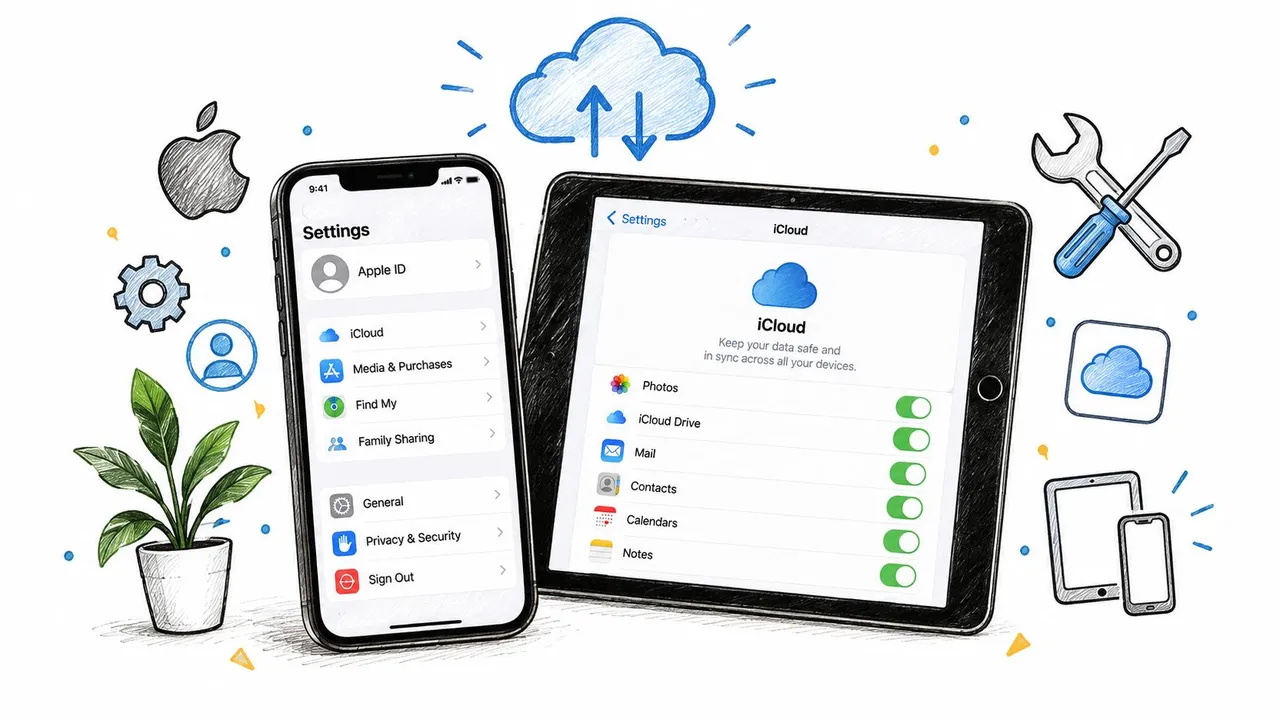
Confirm iCloud Calendar on both devices
On current iOS and iPadOS versions, use this path:
Settings > Apple Account > iCloud > Show All, or See All > Calendar
Make sure Calendar syncing is enabled on the iPhone and iPad. If you’re using an older version, the wording and placement may differ slightly, but the setting remains inside the Apple Account’s iCloud controls.
If Calendar is already enabled, turn it off on the affected device only. Read the prompt carefully before confirming. If the events are visible on iCloud.com or another trusted device, they’re available in the cloud for the device to download again. Turn Calendar back on, wait for the account to reconnect, and refresh the Calendar app.
Don’t disable Calendar on every device at once. That removes your ability to compare a working copy with the device you’re repairing.
Identify the calendar behind the event
Open Calendar and tap Calendars at the bottom. Review the sections for iCloud, Gmail, Exchange, Yahoo, subscribed calendars, and calendars stored locally. A checkmark controls visibility, not ownership. An event can be saved successfully while remaining invisible because its calendar is unchecked.
Open the event on the iPhone and inspect its Calendar field. If it says Gmail, Exchange, or “On My iPhone,” it isn’t an iCloud event. You can move or recreate it in the correct iCloud calendar, but do that only after confirming which calendar your household or workflow uses.
Use iCloud.com as the source-of-truth comparison. An event shown there belongs to iCloud. An event shown only inside the iPhone Calendar app belongs to another account or local storage.
For a focused walkthrough of this account-level issue, see iCloud calendars not syncing.
Treat sign-out as a last resort
Signing out of the Apple Account can clear a damaged authentication state, but it’s more disruptive than toggling Calendar. Before using it, confirm that important contacts, photos, files, and calendars are safely stored in their respective cloud accounts. Sign out only from the affected device, restart it, and sign back in if Apple Support or a careful diagnostic process points there.
You may need a trusted device or phone number to complete sign-in. If verification is the obstacle, a guide explaining how to get Apple verification codes can help you understand the authentication step before you remove the account.
After signing back in, enable iCloud Calendar, allow the device to finish downloading data, and create one clearly named test event. Avoid importing old calendar files or re-adding every account until you know the native iCloud connection works.
Hidden Settings That Block Calendar Sync
Some sync failures aren’t sync failures at all. The event has arrived, but the Calendar app is showing a different account, a restricted date range, or a calendar with its visibility turned off. These cases waste time because the device appears normal while the user is looking at an incomplete view.
Check where new events are saved
Go to Settings > Apps > Calendar > Default Calendar on newer iOS and iPadOS versions. On older releases, open Settings > Calendar > Default Calendar. Select the iCloud calendar that should receive shared events.
This matters most when you use Siri. You say, “Add lunch with Sam,” and Siri saves the event to the default calendar. If that default is Gmail or a local calendar, the appointment can appear on the iPhone while remaining absent from the shared iCloud calendar on the iPad.
For a controlled test, create an event manually, open its Calendar field, choose the intended iCloud calendar, and save it. Don’t rely on the default until the sync path is confirmed.
Review visibility, date range, and time zone
In Calendar, tap Calendars and make sure the relevant calendars are checked. Hidden calendars still exist, which is why turning visibility back on can make a “missing” schedule return immediately.
Next, check the sync range under Settings > Apps > Calendar > Sync, or Settings > Calendar > Sync on older systems. Apple notes that iOS 17 or earlier can use a shorter range instead of All Events, with options such as Events 1 Month Back or Events 3 Months Back available in earlier settings. Apple documents the sync-range behavior here. A limited range affects what appears on the device, especially when you’re looking for older appointments.
Time zones create a different kind of confusion. Go to Settings > Apps > Calendar > Time Zone Override, or the equivalent Calendar setting on older versions. If Time Zone Override is enabled while you travel, an event may display at an unexpected hour. That doesn’t mean it failed to sync. Compare the event’s date, time zone, and location before moving it.
Check background behavior
Low Power Mode can reduce background activity, and Background App Refresh may be disabled for Calendar. These settings can delay updates while the app is closed, although opening Calendar on a stable connection may still trigger a refresh.
Focus modes and notification settings usually hide alerts, not events. If the event exists in the calendar view but you didn’t receive a reminder, inspect Settings > Notifications > Calendar and the active Focus configuration. Don’t treat a missing alert as evidence that the event is missing.
The right question is not “Why didn’t I get notified?” It’s “Does the event exist, and which calendar owns it?”
Advanced Resets and Third Party Calendar Fixes
If the calendar is visible on iCloud.com, the account and server data are probably intact. Focus on the device that fails to display it, and change one variable at a time. Repeatedly removing accounts without recording their settings can create duplicate calendars, remove subscriptions, and make the original fault harder to identify.
Repair the affected device first
Force-close Calendar, reopen it, and refresh the Calendars list. If other apps also struggle to connect, consider Settings > General > Transfer or Reset iPhone > Reset > Reset Network Settings on the iPhone, or the corresponding iPad path. This deletes saved Wi-Fi and network configuration, so use it only when broader connectivity checks point to a network problem.
Install available iOS or iPadOS updates. An update may correct compatibility or authentication faults, but it will not move an event from Google Calendar into iCloud or make a hidden calendar visible.
Create a new test event in the calendar that should own it. Follow the event from iPhone to iCloud.com to iPad. A fresh test is more useful than an old recurring appointment, which may already contain conflicting data or belong to another calendar.
Reconnect Google, Exchange, Yahoo, and subscriptions
For a third-party account, open Settings > Apps > Calendar > Calendar Accounts, or Settings > Calendar > Accounts on older releases. Select the account and confirm that Calendars is enabled. If authentication has expired, remove and add the account again only after checking that its events still exist on the provider’s server.
Apply the same check to Exchange and Yahoo. Open each provider’s web calendar before removing its account from the device. For subscribed calendars, verify the subscription URL and access permissions. Apple Calendar generally treats subscriptions as read-only, so edits made there may not return to the source.
After reconnecting an account, inspect the Calendars list before creating anything. If an old and a new copy appear, identify the authoritative calendar first. Otherwise, a replacement event can create duplicates while the original remains stored elsewhere.
Handle the post-update Google edge case
Independent troubleshooting coverage and recent Apple Community reports describe cases where Google Calendar entries disappeared or stopped appearing after an iOS 18 update. The iCloud switch will not repair a Google account that lost Calendar permission or requires authentication again. This walkthrough of Google Calendar failures after an iOS update provides related troubleshooting context.
Check Google Calendar in a browser before changing Apple settings. If the events exist there but not in Apple Calendar, reconnect the Google account and enable Calendar access. If they appear in Apple Calendar on the iPhone but not on iCloud.com, they likely belong to Google rather than iCloud. Changing iCloud settings will not transfer them.
Native fixes stop being productive when the source calendar is healthy online, permissions are correct, and one provider repeatedly fails alongside another. Choose a single provider, contact Apple Support for an account-level fault, or use a calendar service that copies events between platforms.
When to Use a Dedicated Sync Service for Reliable Calendars
Native iCloud sync is the right choice when your devices use the same Apple Account and your events belong to iCloud. It becomes less convenient when your working life spans Apple Calendar, Google Calendar, and Microsoft Outlook, because each provider manages its own account, permissions, and event ownership.
A dedicated service makes sense when you need one-way, two-way, or multi-way copies instead of manually recreating events. It can also help when colleagues need free/busy visibility but shouldn’t see private titles, descriptions, or locations. That’s a different requirement from repairing a missing iCloud toggle.
Use a simple decision rule
Stay with native Apple sync when:
- One ecosystem is enough: Your events live in iCloud and both devices use the same Apple Account.
- The problem is local: iCloud.com contains the event, but one device doesn’t display it.
- You need Apple-native behavior: You want shared calendars, alerts, and edits managed directly inside Apple’s services.
Consider a managed sync layer when:
- Accounts are mixed: Work uses Outlook or Office 365, while personal events live in Google or iCloud.
- Copies must run continuously: You don’t want to duplicate every appointment by hand.
- Privacy matters: You need availability mirrored without exposing event details.
- Several calendars must stay aligned: A source and target relationship is easier to manage than relying on users to remember where each event belongs.
Real-time calendar sync is especially relevant when the issue isn’t a broken iPad but fragmented calendar ownership across providers.
SyncThemCalendars is one web-based option for synchronizing Google Calendar, Microsoft Outlook or Office 365, and Apple Calendar through configurable one-way, two-way, or multi-way copies. It supports free/busy mirroring and controls for masking fields such as titles, descriptions, and locations. The service is designed to run in the background after setup, with the publisher describing an estimated two-minute setup and unlimited events across its plans.
The important distinction is operational. A native fix restores one device’s connection to an account. A dedicated sync service coordinates calendars that intentionally remain in different accounts. Choose the first when the diagnosis points to iCloud or device settings. Choose the second when your calendars are healthy individually but need a reliable bridge between platforms.
If your iPad and iPhone keep showing different schedules because events live across iCloud, Google, or Outlook, SyncThemCalendars can copy calendars in one or both directions while preserving selected privacy details. Visit SyncThemCalendars to connect the accounts and keep availability aligned without manually recreating every event.
Ready to sync your calendars?
Keep your Google, Outlook and Apple iCloud calendars in sync automatically. 2-minute setup, no credit card required.
Get started freeKeep reading
More in Tutorials

How to Add Gmail Calendar to Outlook Without Duplicates
See how to add Gmail Calendar to Outlook by subscribing for a live view or using two-way sync, then avoid privacy leaks and duplicate events.

Export Outlook Calendar to Google: A 2026 Step-by-Step Guide
Learn how to export Outlook calendar to Google with clear steps for ICS and CSV imports, recurring-event checks, and verification tips that work in 2026.

How to Synchronize Outlook Calendar Across Platforms
Learn how to synchronize Outlook calendar events with Google and Apple iCloud. Master two-way sync, privacy controls, and real-time availability mapping.