







Shared Calendars Icloud: Your Ultimate 2026 Guide
Learn to create & manage shared calendars icloud effectively in 2026. Master permissions, sync with non-Apple users, & troubleshoot issues.
You usually notice the problem when someone misses something important. A parent shows up late for pickup because the dentist appointment never made it into the shared family plan. A teammate books over a client call because their Outlook calendar never reflected your iCloud schedule. Or an Android user gets a link, opens it once, and assumes they can edit it like everyone else.
That’s why people search for shared calendars iCloud in the first place. They want one place where schedules stay aligned without constant texting, screenshots, and “did you see my update?” follow-ups. Apple gives you a solid starting point, especially inside its own ecosystem. But once you involve multiple Apple IDs, mixed permissions, or non-Apple users, the rough edges show up fast.
Why Shared iCloud Calendars Are a Game Changer
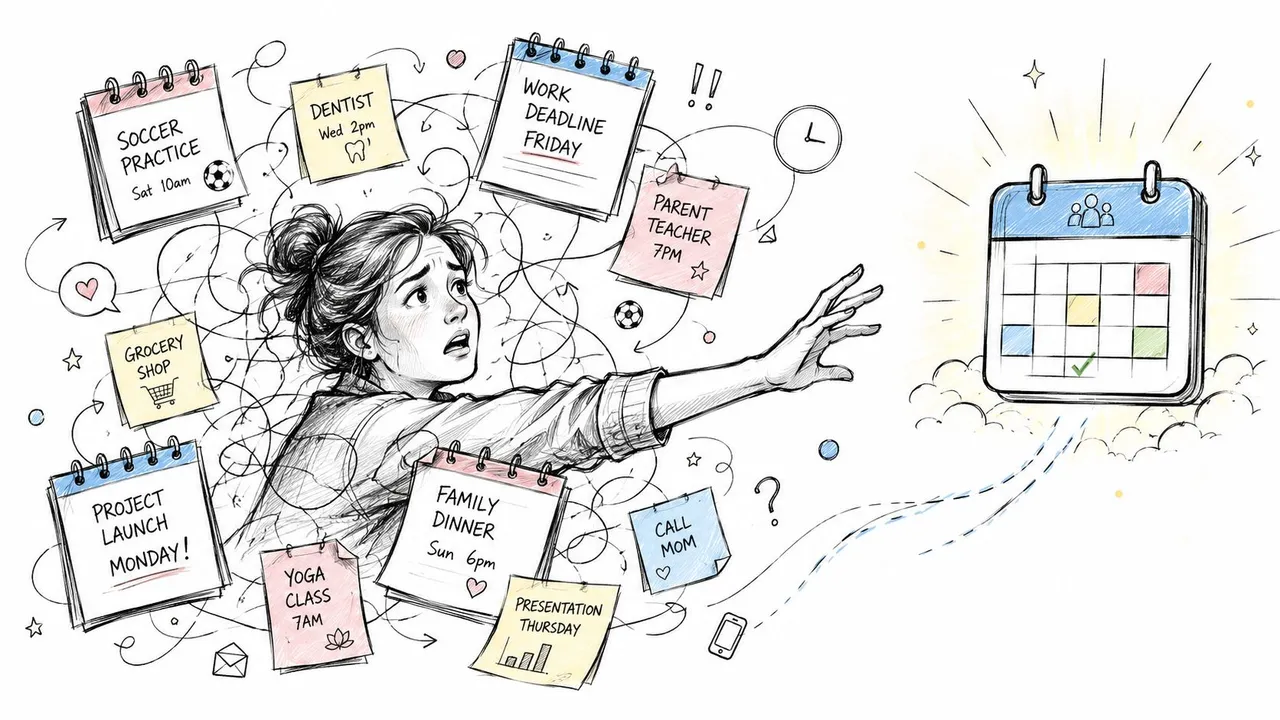
A shared calendar fixes a very specific kind of chaos. Not abstract “productivity.” Actual day-to-day confusion. School events, project milestones, recurring appointments, travel plans, and last-minute changes all land in one place instead of living in separate heads and separate apps.
Apple has had shared iCloud calendar support since 2012, when it introduced the feature as part of the iCloud Calendar overhaul during the launch of iOS 6 and Mac OS X 10.8 Mountain Lion, with support for inviting others into one calendar group and configurable permissions. That background matters because this isn’t a niche add-on. By 2015, Apple reported that iCloud was used by over 675 million active devices globally, and calendar sync was one of the top three most-used iCloud services alongside photos and contacts, as described in this iCloud sharing overview.
What makes it useful is simple. One person adds an event, everyone else sees it on iPhone, iPad, Mac, or iCloud.com after they accept the invitation. That turns a personal calendar into shared infrastructure.
Practical rule: Shared calendars work best when they become the default place for commitments, not a backup after someone already texted the plan.
In real use, shared iCloud calendars shine for families, assistants and executives, small teams, and anyone managing overlapping commitments. They also cut down on one of the most common scheduling mistakes: two people acting on different versions of the same week. If that problem sounds familiar, this guide on calendar synchronization and avoiding double-bookings is worth reading alongside your setup.
Creating Your Shared Calendar Across All Apple Devices
Creating a shared iCloud calendar is straightforward on Apple hardware. The important part is using the right calendar and inviting the right account. Most failures start with the wrong email address, the wrong calendar selected, or confusion between private sharing and public links.
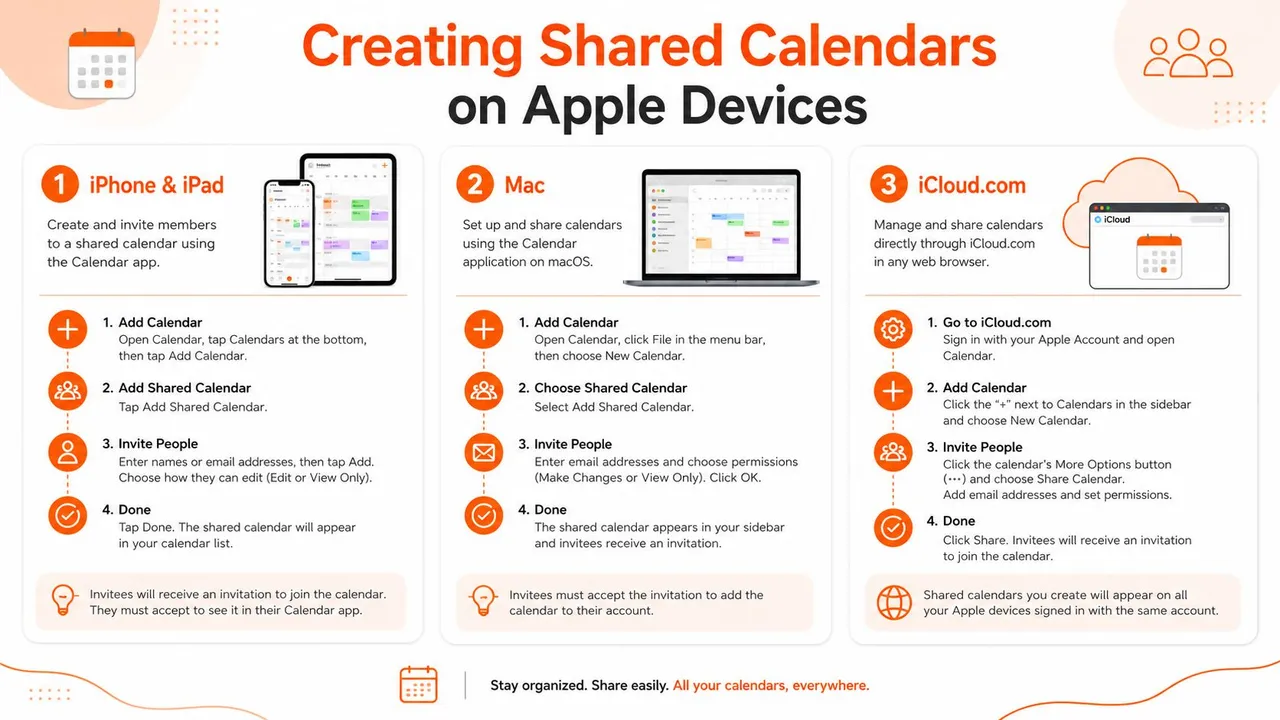
On iPhone and iPad
Open the Calendar app and tap Calendars at the bottom. Find the calendar you want to share, then tap the ⓘ info button next to it.
From there:
- Tap Add Person in the sharing area.
- Enter the Apple Account email for the person you want to invite.
- Send the invitation.
- Adjust permissions after they appear in the shared list.
This route is best when you’re setting things up quickly from your phone. It’s also where many people first realize a limitation: if the invitee doesn’t use an Apple Account, private sharing won’t behave the way they expect.
A quick check before sending helps:
- Use the correct account: Send the invite to the email tied to their Apple Account, not just any email they happen to use.
- Choose the right calendar: Don’t share your default calendar if you only want others to see family logistics or project dates.
- Name it clearly: “Family Logistics” is easier to manage than three calendars all named “Home.”
To see the flow before you click through it yourself, this walkthrough is useful:
On Mac
The Mac version is often easier because you can see more at once. Open the Calendar app and look at the sidebar. Hover over the calendar name you want to share, then click the share icon when it appears.
Type the invitee’s Apple Account email, press return, and confirm. After that, open the sharing settings again if you need to change whether they can edit.
This is the cleanest option when you’re managing several calendars at once, such as:
- A family calendar for household commitments
- A work calendar for internal collaboration
- A read-only calendar for people who only need visibility
On Mac, permission changes are easier to audit because the calendar list and sharing controls sit in front of you at the same time.
On iCloud.com
If you’re away from your own devices or helping someone remotely, iCloud.com gets the job done. Sign in, open Calendar, select the target calendar, and use the sharing controls in the web interface.
The web version is especially handy for account cleanup. If someone no longer needs access, or an invitation is stuck pending, iCloud.com often makes it easier to inspect and reset sharing without bouncing between devices.
A practical habit helps here: create separate calendars by purpose before inviting anyone. That keeps permissions cleaner later. It’s much easier to share one purpose-built calendar than to untangle a mixed personal calendar after the fact.
Configuring Share Settings and Permissions
Permissions decide whether your shared calendar becomes useful or risky. Many users don’t struggle with creating the calendar. They struggle with understanding what kind of sharing they’ve set up.
The first distinction is Private Share versus Public Share. They sound similar. They are not.
Private sharing inside Apple’s ecosystem
Private sharing is often preferred. You invite specific people, they accept, and you can choose whether they only view the calendar or also edit it. This is the setup for spouses, co-parents using Apple devices, executive assistants, or a small internal team.
Apple’s own support guidance explains the line clearly. To share with non-iCloud platforms, you must generate a public Webcal subscription link. Private iCloud sharing is restricted to iCloud users, and while View and Edit works for Apple users, it fails for external non-iCloud accounts, causing a 100% failure rate for cross-platform edit synchronization, as noted in Apple’s iCloud calendar sharing instructions.
That single limitation causes a lot of frustration. People assume “shared” means collaborative everywhere. In iCloud, it doesn’t.
Public sharing for broader access
Public sharing creates a subscription link. That link works across platforms more easily, which makes it useful when someone uses Google Calendar, Outlook on Windows, or an Android calendar app.
The trade-off is severe. It’s read-only.
If you need someone outside Apple’s ecosystem to make changes, native iCloud sharing doesn’t solve that problem. It only gives them a mirror.
| Feature | Private Share (Invite by Email) | Public Share (Share Link) |
|---|---|---|
| Access | Specific invited iCloud users | Anyone with the link |
| Editing | View only or view and edit | Read-only |
| Best fit | Family members, close collaborators, Apple-only groups | Public schedules, external visibility, subscriptions |
| Cross-platform behavior | Poor for non-iCloud collaboration | Better for viewing, not editing |
Decision shortcut: Use private sharing when everyone has an Apple Account and needs active collaboration. Use public sharing only when outside viewers need access and read-only is acceptable.
What works in practice
A few setups are dependable:
- Family planning on Apple devices: Private share with edit rights for the adults, view-only for anyone who just needs visibility.
- Team availability for non-Apple users: Public share, but only for a sanitized calendar.
- Sensitive scheduling: Keep private calendars private. Never rely on a public link for anything personal.
If you need a step-by-step walkthrough of Apple’s sharing options, this guide on how to share an iCloud calendar is a useful companion.
Connecting iCloud with Google Calendar and Outlook
At this stage, the native Apple experience stops being smooth.
Inside Apple’s ecosystem, shared calendars are convenient. The moment your schedule needs to live across iCloud, Google Calendar, and Outlook, native sharing starts to feel narrow. A consultant may manage client meetings in Google Calendar, personal commitments in iCloud, and company obligations in Outlook. A family might be mixed between iPhone and Android. A sales rep might need free/busy alignment across three accounts without exposing private details.
Why the native method falls short
Apple gives you one cross-platform method. Publish a public calendar link. That lets other platforms subscribe.
That works for viewing. It does not work for real collaboration.
A practical example makes the problem obvious. If your personal iCloud calendar blocks out time you’re unavailable, but your clients book through Google Calendar, a read-only subscription doesn’t keep both sides aligned in a way you can trust for active scheduling. It leaves room for stale availability, duplicate holds, and manual cleanup.
What people usually want is this:
- events copied between platforms
- availability reflected where bookings happen
- editing inside each system without losing the bigger picture
- some privacy control over what details get exposed
Native iCloud sharing doesn’t do that.
What actually solves the cross-platform problem
For mixed-calendar setups, the reliable path is a dedicated sync service rather than trying to force private iCloud sharing onto non-Apple workflows. The key improvement is two-way or controlled one-way synchronization between the systems you already use.
That matters in real life because there’s a big difference between “my other calendar can subscribe” and “my calendars stay aligned automatically.”
A solid setup usually needs:
- Two-way sync when both calendars should stay matched
- One-way sync when one calendar should only block availability elsewhere
- Free/busy copying when privacy matters more than detail sharing
- Field controls when event titles or locations shouldn’t be mirrored exactly
If your work depends on accurate availability across Apple, Google, and Microsoft tools, a subscription link is a patch, not a system.
Mixed-platform scheduling without guesswork
Google Calendar and Outlook both work well in their own environments. The trouble starts when iCloud has to participate as an equal editing partner. That’s where native Apple sharing is weakest.
If you’re trying to connect these ecosystems in a practical way, this article on syncing iCloud Calendar with Google Calendar explains the workflow clearly. The same principle applies when Outlook is part of the mix: use synchronization when you need dependable alignment, not just passive subscription.
For shared calendars iCloud users can trust across multiple platforms, the difference is simple. Subscription gives visibility. Sync gives reliability.
Solving Common Shared Calendar Sync Errors
When a shared calendar fails, people usually assume they tapped something wrong. Sometimes they did. Sometimes the issue is iCloud itself struggling to keep distributed devices in sync.
That’s not rare enough to dismiss. Annual iCloud calendar sync issues, including shared calendar problems, affect approximately 8 to 12% of active iCloud users, with most incidents resolving within 24 hours, according to reported iCloud sync issue statistics.
Event added but others can’t see it
This is the complaint I hear most often. Someone creates an event and assumes everyone already has it. Meanwhile, another person opens their calendar and sees nothing.
Start with the basics:
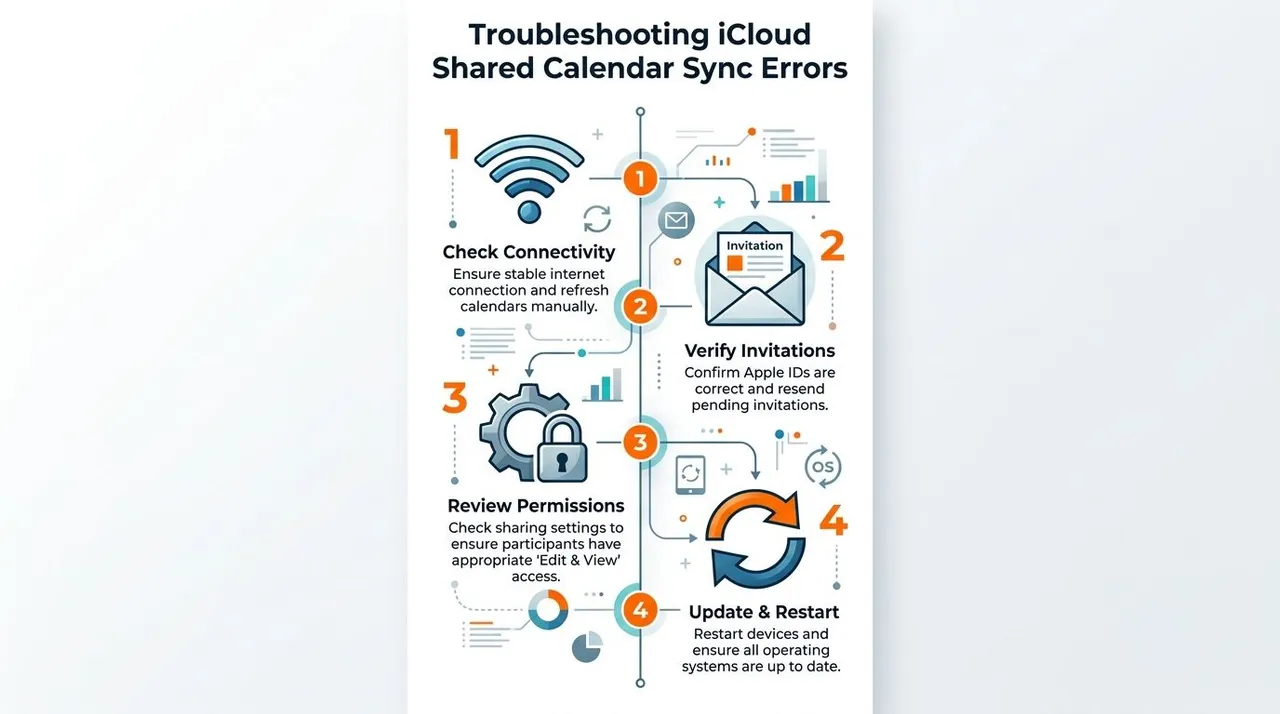
- Confirm the event was added to the shared calendar, not a private local or personal iCloud calendar.
- Check that the recipient accepted the invitation.
- Refresh the Calendar app manually by pulling down in the calendar view. Apple’s support guidance specifically points to this as a way to force an immediate refresh.
If the event still doesn’t appear, look at account mismatches. Many “missing event” problems come from users being signed into the wrong Apple Account on one device.
Collaborator never received the invitation
This usually comes down to identity, not sync.
Check these points:
- Apple Account email: The invitation must go to the email tied to the recipient’s Apple Account.
- Pending status: If the invite remains pending, remove and resend it.
- Wrong sharing type: If the recipient is not an iCloud user, private sharing won’t work for them.
A lot of people lose time troubleshooting a limitation that isn’t fixable in the current setup. If the recipient is on Android or using a non-Apple account without iCloud access, switch your approach rather than resending the same private invite.
Changes take too long to appear
In this scenario, shared calendars feel unreliable even when they eventually update.
Slow sync is often a timing problem, not a permanent failure. But if your schedule affects handoffs, travel, or client meetings, “it should appear soon” isn’t good enough.
Try this sequence:
- Refresh manually: Pull down in the Calendar app.
- Check connectivity: Weak network conditions delay updates.
- Restart the device: This clears stale app state more often than people expect.
- Review calendar toggles: Make sure Calendars remains enabled in iCloud settings on the affected device.
Most transient issues resolve. The problem is that “transient” still causes real-world confusion while it’s happening.
Shared calendar setup looks correct but behavior is inconsistent
This usually points to one of three causes:
| Problem pattern | Likely cause | Best next step |
|---|---|---|
| Works on one device, not another | Device-specific sync lag or settings issue | Refresh, verify iCloud Calendar is enabled, restart |
| Some people can edit, others only view | Permissions mismatch | Recheck sharing settings on the calendar owner’s side |
| Non-Apple user sees calendar but can’t change it | Public link limitation | Use a different cross-platform method |
The key is to separate configuration errors from platform limitations. If the setup itself is wrong, you can fix it. If the limitation is built into native iCloud sharing, you need a different workflow.
Pro Tips for Mastering Your Shared Schedules
Once your calendar is shared and mostly stable, the next step is making it easier to live with. Good shared calendars iCloud setups aren’t just connected. They’re organized enough that people use them correctly.
Build calendars by purpose, not by person
Most messy setups start with one overloaded calendar. Put everything into it and permission management gets clumsy fast.
A cleaner approach looks like this:
- Family logistics: appointments, pickups, school events
- Travel: flights, hotel dates, departures
- Work coordination: deadlines, meetings, launch dates
That structure keeps sharing decisions simpler. It also reduces accidental edits in the wrong context.
Use names and alerts that make sense quickly
When someone glances at a shared calendar, they shouldn’t have to decode it.
Use event names that answer the obvious question first. “Client Call” is weak. “Project Atlas Client Call” is better. “Emma Dentist” is better than “Appointment.” Keep notifications selective so people aren’t training themselves to ignore every alert.
A shared calendar only helps when people trust what they’re seeing at a glance.
Know the all-day event bug
One of the more frustrating quirks in shared iCloud calendars affects all-day events between iOS and macOS. Users have reported cases where an all-day event appears only for the creator and not for collaborators. The documented workaround is to create the event manually as 12:00 a.m. to 11:59 p.m., as discussed in this Apple Support Community thread on shared all-day event sync behavior.
That workaround is awkward, but it’s practical. If a birthday, travel day, holiday, or office closure must be visible to everyone, don’t trust the all-day toggle blindly in a shared calendar. Use explicit start and end times for a full-day block instead.
Shared calendars work best when you treat them like operational tools. Keep them scoped, keep labels clear, and know which native behaviors are dependable versus fragile.
If your schedule has to stay aligned across iCloud, Google Calendar, and Outlook, native sharing usually isn’t enough. SyncThemCalendars gives you real-time calendar synchronization across Apple Calendar, Google Calendar, and Microsoft Outlook or Office 365, with options for one-way, two-way, or multi-way sync, plus privacy controls for what gets copied. If you’re tired of read-only links and cross-platform gaps, it’s a practical upgrade.
Ready to sync your calendars?
Keep your Google, Outlook and Apple iCloud calendars in sync automatically. 2-minute setup, no credit card required.
Get started freeKeep reading
More in Guides

Synchronize Apple Calendar with Outlook: A 2026 Guide
Step-by-step guide: Synchronize Apple Calendar with Outlook on Windows, iPhone and Mac, with two-way options, privacy trade-offs and fixes.

SyncThemCalendars Quick Setup Walkthrough
Master the SyncThemCalendars quick setup in minutes. Connect Google, Outlook, or iCloud, configure privacy masking, and verify your first sync effortlessly.

Merging Google Calendars: The Complete Guide for 2026
Merging Google Calendars. Learn the best ways to merge Google Calendars. Compare import methods, sync tools, and automation strategies